traction control NISSAN VERSA NOTE 2018 Owner´s Manual
[x] Cancel search | Manufacturer: NISSAN, Model Year: 2018, Model line: VERSA NOTE, Model: NISSAN VERSA NOTE 2018Pages: 878, PDF Size: 9.62 MB
Page 420 of 878
Do not tow a trailer with your vehicle.
FLAT TOWING
Towing your vehicle with all four wheels on
the ground is sometimes called flat towing.
This method is sometimes used when
towing a vehicle behind a recreational ve-
hicle, such as a motor home.
CAUTION
∙ Failure to follow these guidelines canresult in severe transmission damage.
∙ Whenever flat towing your vehicle, al- ways tow forward, never backward.
∙ Never tow your front wheel drive ve- hicle with the front tires on the
ground. Doing so may cause serious
and expensive damage to the
powertrain.
∙ DO NOT tow any continuously variable transmission vehicle with all four
wheels on the ground (flat towing).
Doing so WILL DAMAGE internal trans-
mission parts due to lack of transmis-
sion lubrication. ∙ For emergency towing procedures re-
fer to “Towing recommended by
NISSAN” in the “In case of emergency ”
section of this manual.
Manual Transmission (if so
equipped)
∙ Always tow with the manual transmis- sion in N (Neutral).
∙ Af ter towing 500 miles (805 km), start and idle the engine with the transmis-
sion in N (Neutral) for two minutes. Fail-
ure to idle the engine af ter every
500 miles (805 km) of towing may cause
damage to internal transmission parts.
Continuously Variable
Transmission (if so equipped)
To tow a vehicle equipped with a continu-
ously variable transmission, an appropriate
vehicle dolly MUSTbe placed under the
towed vehicle’s drive wheels. Alwaysfollow
the dolly manufacturer’s recommenda-
tions when using their product. DOT (Department of Transportation) Qual-
ity Grades: All passenger car tires must
conform to federal safety requirements in
addition to these grades.
Quality grades can be found where appli-
cable on the tire sidewall between tread
shoulder and maximum section width. For
example:
Treadwear 200 Traction AA Temperature A
Treadwear
The treadwear grade is a comparative rat-
ing based on the wear rate of the tire when
tested under controlled conditions on a
specified government test course. For ex-
ample, a tire graded 150 would wear one
and one-half (1 1/2) times as well on the
government course as a tire graded 100.
The relative performance of tires depends
upon the actual conditions of their use,
however, and may depart significantly from
the norm due to variations in driving habits,
service practices and differences in road
characteristics and climate.
TOWING A TRAILER
UNIFORM TIRE QUALITY GRADING
Technical and consumer information10-17
Page 421 of 878

Traction AA, A, B and C
The traction grades, from highest to low-
est, are AA, A, B, and C. Those grades repre-
sent the tire’s ability to stop on wet pave-
ment as measured under controlled
conditions on specified government test
surfaces of asphalt and concrete. A tire
marked C may have poor traction perfor-
mance.
WARNING
The traction grade assigned to this tire
is based on straight-ahead braking
traction tests, and does not include ac-
celeration, cornering, hydroplaning, or
peak traction characteristics.
Temperature A, B and C
The temperature grades are A (the high-
est), B, and C, representing the tire’s resis-
tance to the generation of heat, and its
ability to dissipate heat when tested under
controlled conditions on a specified indoor
laboratory test wheel. Sustained high tem-
perature can cause the material of the tire
to degenerate and reduce tire life, and ex-
cessive temperature can lead to sudden
tire failure. The grade C corresponds to a
level of performance which all passenger
car tires must meet under the Federal Mo- tor Safety Standard No. 109. Grades B and A
represent higher levels of performance on
the laboratory test wheel than the mini-
mum required by law.
WARNING
The temperature grade for this tire is
established for a tire that is properly in-
flated and not overloaded. Excessive
speed, under-inflation, or excessive
loading, either separately or in combi-
nation, can cause heat build-up and
possible tire failure.
Your NISSAN vehicle is covered by the fol-
lowing emission warranties:
For USA
1. Emission Defects Warranty
2. Emissions Performance WarrantyDetails of this warranty may be found with
other vehicle warranties in your Warranty In-
formation Booklet which comes with your
NISSAN vehicle. If you did not receive a War-
ranty Information Booklet, or it is lost, you
may obtain a replacement by writing to:
∙ Nissan North America, Inc. Consumer Affairs Department
P.O. Box 685003
Franklin, TN 37068-5003
For Canada
Emission Control System Warranty
Details of this warranty may be found with
other vehicle warranties in your Warranty In-
formation Booklet which comes with your
NISSAN vehicle. If you did not receive a War-
ranty Information Booklet, or it is lost, you
may obtain a replacement by writing to:
∙ Nissan Canada Inc. 5290 Orbitor Drive
Mississauga, Ontario, L4W 4Z5
EMISSION CONTROL SYSTEM
WARRANTY
10-18Technical and consumer information
Page 543 of 878
Security indicator light (ifso equipped)
For vehicles without Intelligent Key: This
light blinks whenever the ignition switch is
placed in the LOCK, OFF or ACC position.
For vehicles with Intelligent Key: This light
blinks when the ignition switch is placed in
the LOCK position with the key removed
from the ignition switch.
The blinking security indicator light indi-
cates that the security systems equipped
on the vehicle are operational.
For additional information, refer to “Security
systems” in this section.
Side light and headlightindicator light (green) (if so
equipped)
The side light and headlight indicator light
illuminates when the side light or headlight
position is selected. For additional informa-
tion, refer to “Headlight and turn signal
switch” in this section.
Slip indicator light
This indicator will blink when the Vehicle
Dynamic Control (VDC) system is operat- ing, thus alerting that the vehicle is nearing
its traction limits. The road surface may be
slippery.
Turn signal/hazard
indicator lights
The appropriate light flashes when the turn
signal switch is activated.
NOTE:
In case of a turn signal light bulb mal-
function, the turn signal will flash at a
higher frequency when the turn signal
switch is activated.
Both lights flash when the hazard switch is
turned on.
For additional information, refer to “Lights”
in the “Do-it-yourself ” section of this
manual.
Vehicle Dynamic Control (VDC) OFF indicator light
This indicator light comes on when the
VDC OFF switch is pushed to off. This indi-
cates the VDC system is not operating.
Push the VDC OFF switch again or restart
the engine and the system will operate
normally. For additional information, refer to “Vehicle Dynamic Control (VDC) system”
in the “Starting and driving” section of this
manual.
The VDC light also comes on when you
place the ignition switch in the ON position.
The light will turn off af ter about 2 seconds
if the system is operational. If the light stays
on or comes on along with the
indi-
cator light while you are driving, have the
VDC system checked. It is recommended
that you visit a NISSAN dealer for this ser-
vice.
While the VDC system is operating, you
might feel a slight vibration or hear the sys-
tem working when starting the vehicle or
accelerating, but this is normal.
AUDIBLE REMINDERS
Brake pad wear warning
The disc brake pads have audible wear
warnings. When a disc brake pad requires
replacement, it makes a high pitched
scraping sound when the vehicle is in mo-
tion, whether or not the brake pedal is de-
pressed. Have the brakes checked as soon
as possible if the warning sound is heard.
Instruments and controls2-23
Page 650 of 878
USB (Universal Serial Bus)
connection port
WARNING
Do not connect, disconnect or operate
the USB device while driving. Doing so
can be a distraction. If distracted you
could lose control of your vehicle and
cause an accident or serious injury.
CAUTION
∙ Do not force the USB device into theUSB port. Inserting the USB device
tilted or up-side-down into the port
may damage the port. Make sure that
the USB device is connected correctly
into the USB port.
∙ Do not grab the USB port cover (if so equipped) when pulling the USB de-
vice out of the port. This could dam-
age the port and the cover.
∙ Do not leave the USB cable in a place where it can be pulled unintentionally.
Pulling the cable may damage the
port. The vehicle is not equipped with a USB de-
vice. USB devices should be purchased
separately as necessary.
This system cannot be used to format USB
devices. To format a USB device, use a per-
sonal computer.
In some jurisdictions, the USB device for the
front seats plays only sound without im-
ages for regulatory reasons, even when the
vehicle is parked.
This system supports various USB
memory devices, USB hard drives and
iPod® players. Some USB devices may not
be supported by this system.
∙ Partitioned USB devices may not play correctly.
∙ Some characters used in other lan- guages (Chinese, Japanese, etc.) may
not appear properly in the display. Using
English language characters with a USB
device is recommended.
General notes for USB use: ∙ For additional information, refer to your device manufacturer’s owner informa-
tion regarding the proper use and care
of the device. Notes for iPod® use:
iPod® is a trademark of Apple Inc., regis-
tered in the U.S. and other countries.
∙ Improperly plugging in the iPod® may cause a checkmark to be displayed on
and off (flickering). Always make sure
that the iPod® is connected properly.
∙ An iPod® nano (1st Generation) may re- main in fast forward or rewind mode if it
is connected during a seek operation. In
this case, please manually reset the
iPod®.
∙ An iPod® nano (2nd Generation) will continue to fast-forward or rewind if it is
disconnected during a seek operation.
∙ An incorrect song title may appear when the Play Mode is changed while
using an iPod® nano (2nd Generation).
∙ Audiobooks may not play in the same order as they appear on an iPod®.
∙ Large video files cause slow responses in an iPod®. The vehicle center display
may momentarily black out, but will
soon recover.
4-50Monitor, climate, audio, phone and voice recognition systems
Page 665 of 878
USB (Universal Serial Bus)
CONNECTION PORT (models
without Navigation System) (if so
equipped)
Connecting a device to the USB
connection port
WARNING
Do not connect, disconnect, or operate
the USB device while driving. Doing so
can be a distraction. If distracted you
could lose control of your vehicle and
cause an accident or serious injury.
CAUTION
∙ To avoid damage and loss of functionwhen using a USB device, note the fol-
lowing precautions.
∙ Do not force the USB device into the USB port. Inserting the USB device
tilted or up-side-down into the port
may damage the port. Make sure that
the USB device is connected correctly
into the USB port.
∙ Do not grab the USB port cover (if so equipped) when pulling the USB de-
vice out of the port. This could dam-
age the port and the cover.
∙ Do not leave the USB cable in a place where it can be pulled unintentionally.
Pulling the cable may damage the
port.
For additional information, refer to your de-
vice manufacturer’s owner information re-
garding the proper use and care of the
device.
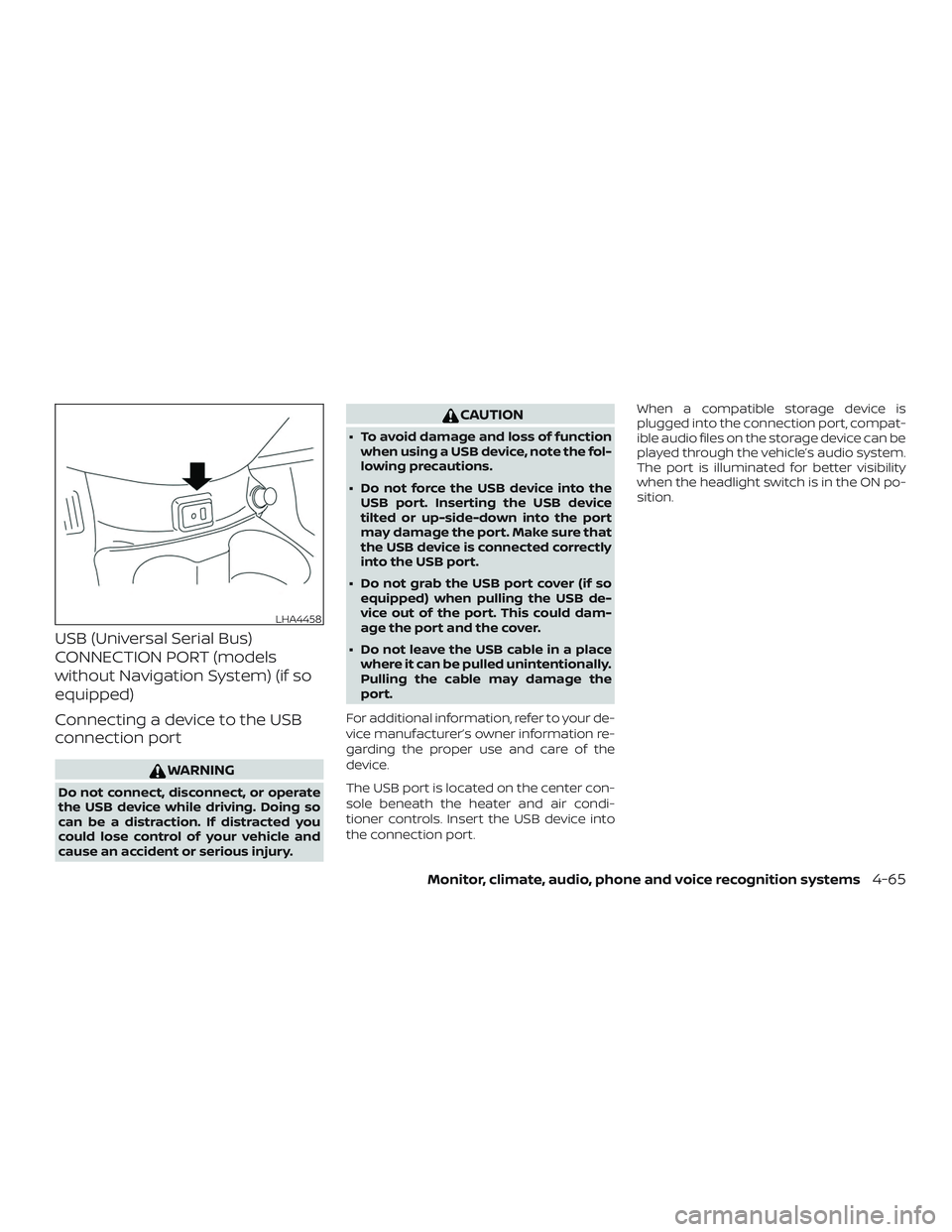
The USB port is located on the center con-
sole beneath the heater and air condi-
tioner controls. Insert the USB device into
the connection port. When a compatible storage device is
plugged into the connection port, compat-
ible audio files on the storage device can be
played through the vehicle’s audio system.
The port is illuminated for better visibility
when the headlight switch is in the ON po-
sition.
LHA4458
Monitor, climate, audio, phone and voice recognition systems4-65
Page 668 of 878
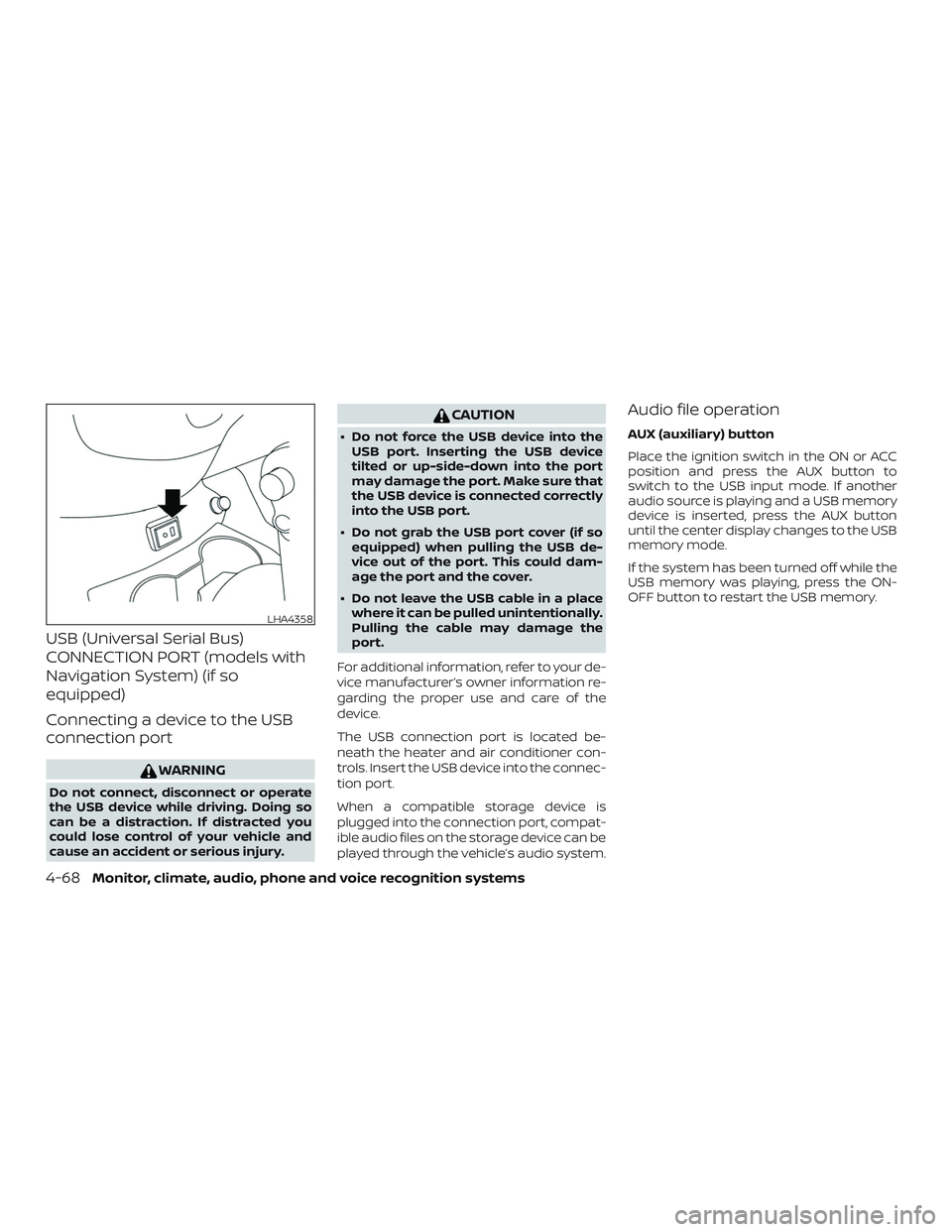
USB (Universal Serial Bus)
CONNECTION PORT (models with
Navigation System) (if so
equipped)
Connecting a device to the USB
connection port
WARNING
Do not connect, disconnect or operate
the USB device while driving. Doing so
can be a distraction. If distracted you
could lose control of your vehicle and
cause an accident or serious injury.
CAUTION
∙ Do not force the USB device into theUSB port. Inserting the USB device
tilted or up-side-down into the port
may damage the port. Make sure that
the USB device is connected correctly
into the USB port.
∙ Do not grab the USB port cover (if so equipped) when pulling the USB de-
vice out of the port. This could dam-
age the port and the cover.
∙ Do not leave the USB cable in a place where it can be pulled unintentionally.
Pulling the cable may damage the
port.
For additional information, refer to your de-
vice manufacturer’s owner information re-
garding the proper use and care of the
device.
The USB connection port is located be-
neath the heater and air conditioner con-
trols. Insert the USB device into the connec-
tion port.
When a compatible storage device is
plugged into the connection port, compat-
ible audio files on the storage device can be
played through the vehicle’s audio system.
Audio file operation
AUX (auxiliary) button
Place the ignition switch in the ON or ACC
position and press the AUX button to
switch to the USB input mode. If another
audio source is playing and a USB memory
device is inserted, press the AUX button
until the center display changes to the USB
memory mode.
If the system has been turned off while the
USB memory was playing, press the ON-
OFF button to restart the USB memory.
LHA4358
4-68Monitor, climate, audio, phone and voice recognition systems
Page 669 of 878
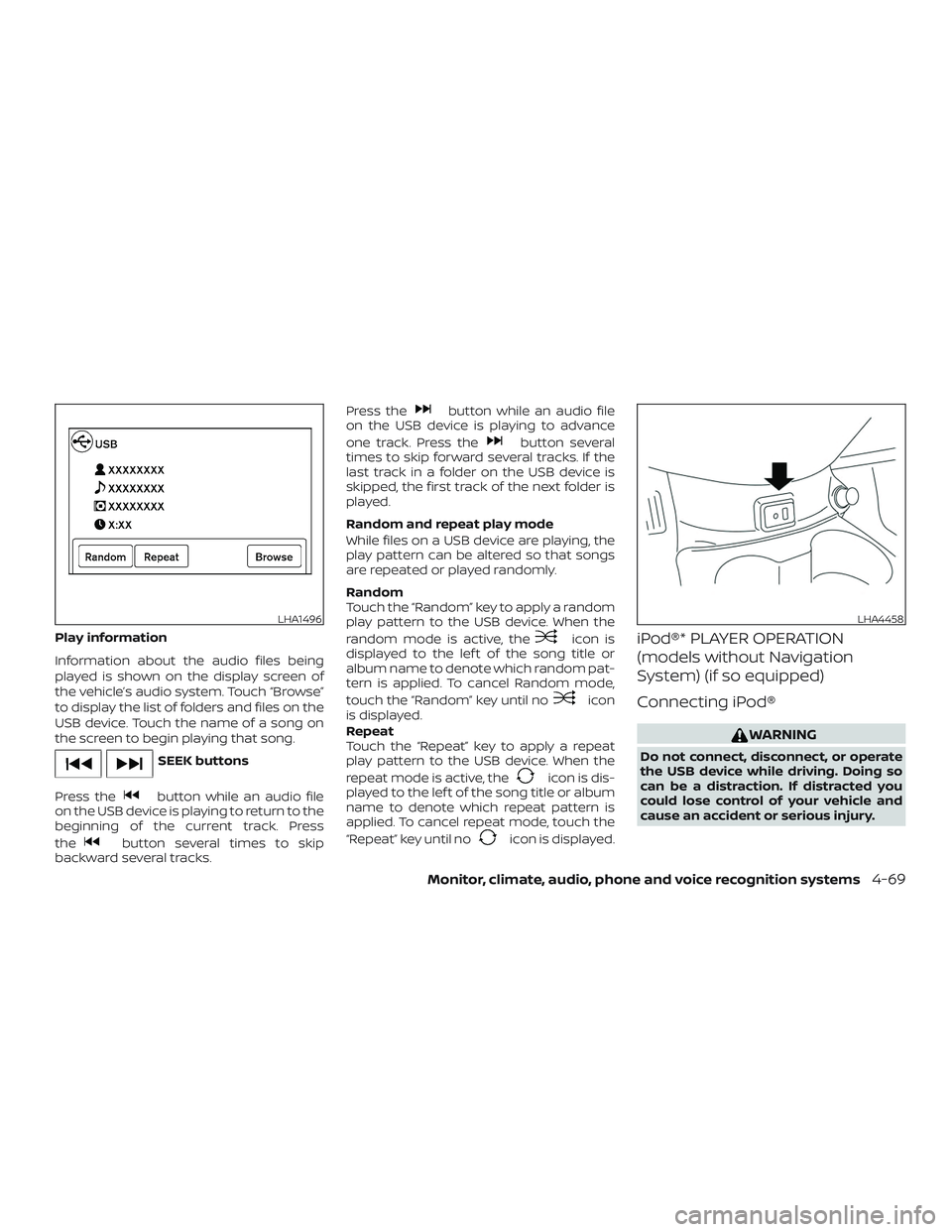
Play information
Information about the audio files being
played is shown on the display screen of
the vehicle’s audio system. Touch “Browse”
to display the list of folders and files on the
USB device. Touch the name of a song on
the screen to begin playing that song.
SEEK buttons
Press the
button while an audio file
on the USB device is playing to return to the
beginning of the current track. Press
the
button several times to skip
backward several tracks. Press the
button while an audio file
on the USB device is playing to advance
one track. Press the
button several
times to skip forward several tracks. If the
last track in a folder on the USB device is
skipped, the first track of the next folder is
played.
Random and repeat play mode
While files on a USB device are playing, the
play pattern can be altered so that songs
are repeated or played randomly.
Random
Touch the “Random” key to apply a random
play pattern to the USB device. When the
random mode is active, the
icon is
displayed to the lef t of the song title or
album name to denote which random pat-
tern is applied. To cancel Random mode,
touch the “Random” key until no
icon
is displayed.
Repeat
Touch the “Repeat” key to apply a repeat
play pattern to the USB device. When the
repeat mode is active, the
icon is dis-
played to the lef t of the song title or album
name to denote which repeat pattern is
applied. To cancel repeat mode, touch the
“Repeat” key until no
icon is displayed.
iPod®* PLAYER OPERATION
(models without Navigation
System) (if so equipped)
Connecting iPod®
WARNING
Do not connect, disconnect, or operate
the USB device while driving. Doing so
can be a distraction. If distracted you
could lose control of your vehicle and
cause an accident or serious injury.
LHA1496LHA4458
Monitor, climate, audio, phone and voice recognition systems4-69
Page 672 of 878
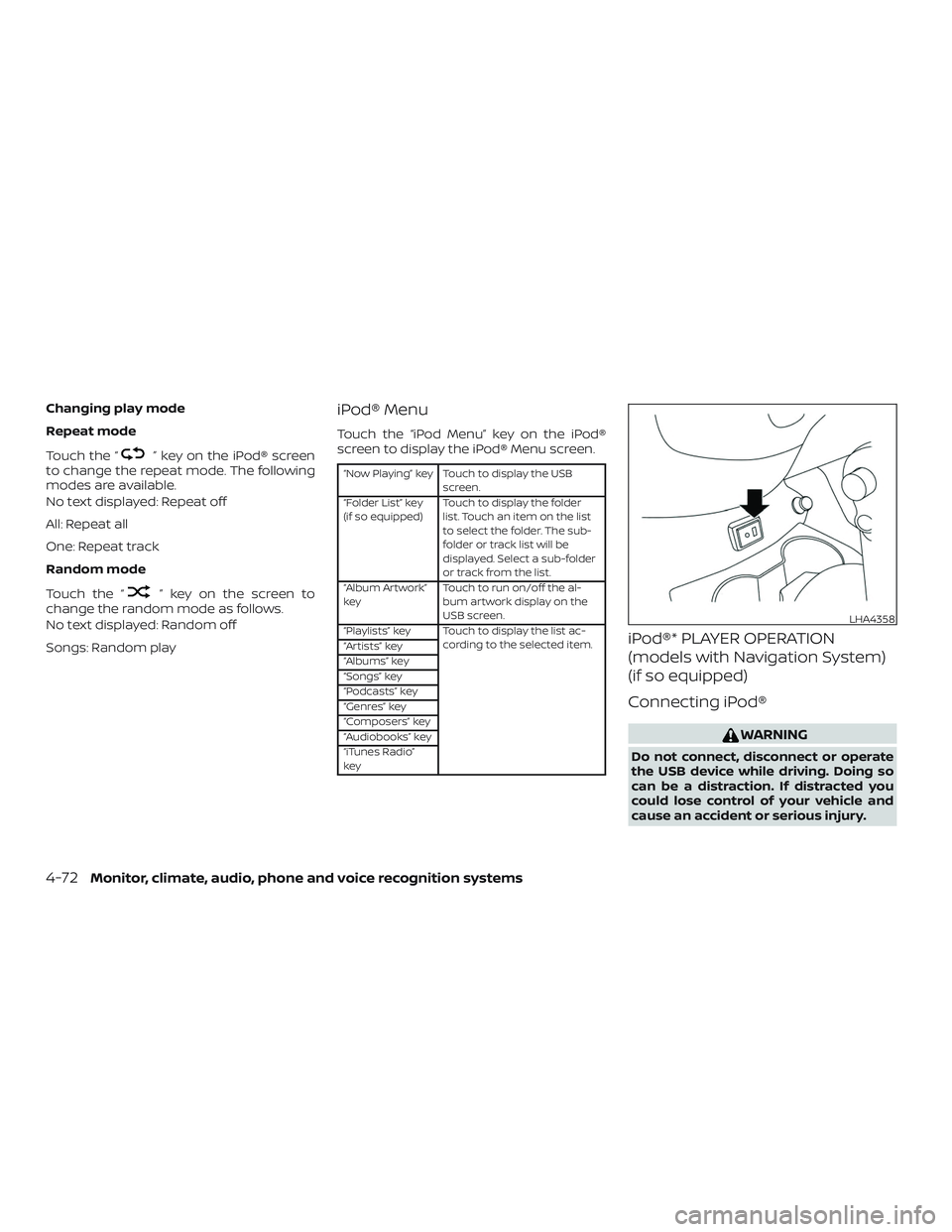
Changing play mode
Repeat mode
Touch the “
” key on the iPod® screen
to change the repeat mode. The following
modes are available.
No text displayed: Repeat off
All: Repeat all
One: Repeat track
Random mode
Touch the “
” key on the screen to
change the random mode as follows.
No text displayed: Random off
Songs: Random play
iPod® Menu
Touch the “iPod Menu” key on the iPod®
screen to display the iPod® Menu screen.
“Now Playing” key Touch to display the USB
screen.
“Folder List” key
(if so equipped) Touch to display the folder
list. Touch an item on the list
to select the folder. The sub-
folder or track list will be
displayed. Select a sub-folder
or track from the list.
“Album Artwork”
key Touch to run on/off the al-
bum artwork display on the
USB screen.
“Playlists” key Touch to display the list ac- cording to the selected item.
“Artists” key
“Albums” key
“Songs” key
“Podcasts” key
“Genres” key
“Composers” key
“Audiobooks” key
“iTunes Radio”
key
iPod®* PLAYER OPERATION
(models with Navigation System)
(if so equipped)
Connecting iPod®
WARNING
Do not connect, disconnect or operate
the USB device while driving. Doing so
can be a distraction. If distracted you
could lose control of your vehicle and
cause an accident or serious injury.
LHA4358
4-72Monitor, climate, audio, phone and voice recognition systems
Page 684 of 878
APPLICATION DOWNLOAD
Once connected, the NissanConnect® App
will search your phone to determine which
compatible applications are currently in-
stalled. The user will then choose which
apps they want to bring into their vehicle
from the list of apps within the “Manage My
Apps” section of the NissanConnect® App
on their smartphone. The vehicle will then
download the in-vehicle interface for each
of these compatible applications. Once
downloaded, the user can access their se-
lected smartphone applications through
the vehicle touch-screen. For additional in-
formation, refer to
www.nissanusa.com/connect or
www.nissan.ca/en/connect or
www.nissan.ca/fr/connect regarding ap-
plication availability.Apple Siri® Eyes Free personal assistant
can be accessed from the vehicle. Siri Eyes
Free can be accessed in Siri Eyes Free
mode to reduce user distraction. In this
mode, Siri Eyes Free is available for interac-
tion by voice control. Af ter connecting a
compatible Apple device by using
Bluetooth®, Siri Eyes Free can be activated
from the
button on the steering
wheel.
Siri® is a trademark of Apple Inc., registered
in the U.S. and other countries.
∙ Some Siri Eyes Free functions, such as displaying pictures or opening apps,
may not be available while driving.
∙ For getting best results, always update your device to the latest sof tware ver-
sion.
∙ Keep the interior of the vehicle as quiet as possible. Close the windows to elimi-
nate the surrounding noises (traffic
noises, vibration sounds, etc.), which
may prevent the system from recogniz-
ing the voice commands correctly.
∙ For functions that can be used in Siri Eyes Free, please refer to the Apple
website.
REQUIREMENTS
Siri® is only available on the iPhone® 4S or
later. Devices released before iPhone® 4S
are not supported by the Siri® Eyes Free
system. Visit www.apple.com/ios/siri for
details about device compatibility.
Siri must be enabled on the phone. Please
check phone settings.
If the device has a lock screen, Siri must be
accessible from the lock screen. Please
check phone settings.
For best results, always update your device
to the latest sof tware version.
SIRI® EYES FREE (models without
Navigation System) (if so equipped)
4-84Monitor, climate, audio, phone and voice recognition systems
Page 687 of 878
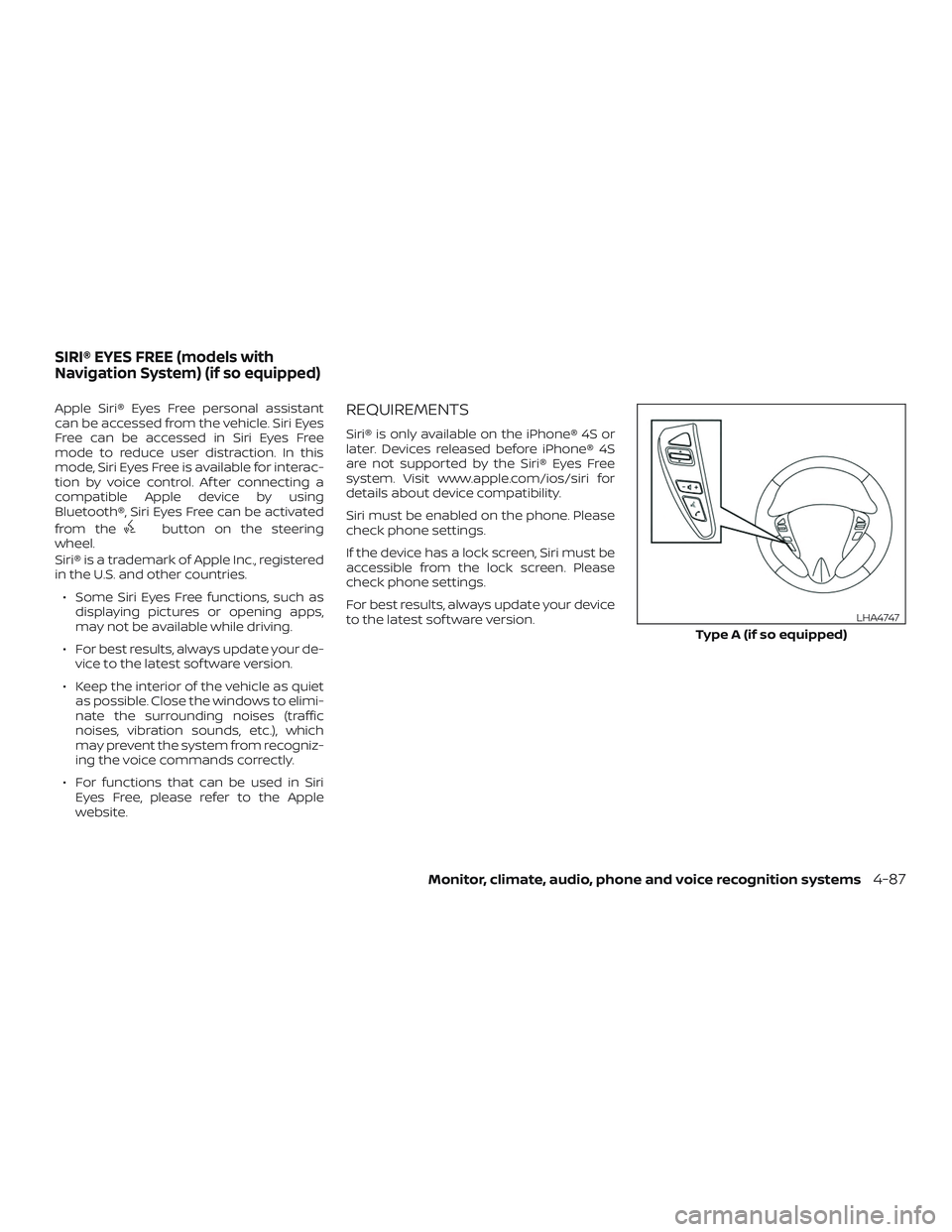
Apple Siri® Eyes Free personal assistant
can be accessed from the vehicle. Siri Eyes
Free can be accessed in Siri Eyes Free
mode to reduce user distraction. In this
mode, Siri Eyes Free is available for interac-
tion by voice control. Af ter connecting a
compatible Apple device by using
Bluetooth®, Siri Eyes Free can be activated
from the
button on the steering
wheel.
Siri® is a trademark of Apple Inc., registered
in the U.S. and other countries.
∙ Some Siri Eyes Free functions, such as displaying pictures or opening apps,
may not be available while driving.
∙ For best results, always update your de- vice to the latest sof tware version.
∙ Keep the interior of the vehicle as quiet as possible. Close the windows to elimi-
nate the surrounding noises (traffic
noises, vibration sounds, etc.), which
may prevent the system from recogniz-
ing the voice commands correctly.
∙ For functions that can be used in Siri Eyes Free, please refer to the Apple
website.
REQUIREMENTS
Siri® is only available on the iPhone® 4S or
later. Devices released before iPhone® 4S
are not supported by the Siri® Eyes Free
system. Visit www.apple.com/ios/siri for
details about device compatibility.
Siri must be enabled on the phone. Please
check phone settings.
If the device has a lock screen, Siri must be
accessible from the lock screen. Please
check phone settings.
For best results, always update your device
to the latest sof tware version.
Type A (if so equipped)
LHA4747
SIRI® EYES FREE (models with
Navigation System) (if so equipped)
Monitor, climate, audio, phone and voice recognition systems4-87