key NISSAN VERSA NOTE 2018 Owner´s Manual
[x] Cancel search | Manufacturer: NISSAN, Model Year: 2018, Model line: VERSA NOTE, Model: NISSAN VERSA NOTE 2018Pages: 878, PDF Size: 9.62 MB
Page 233 of 878
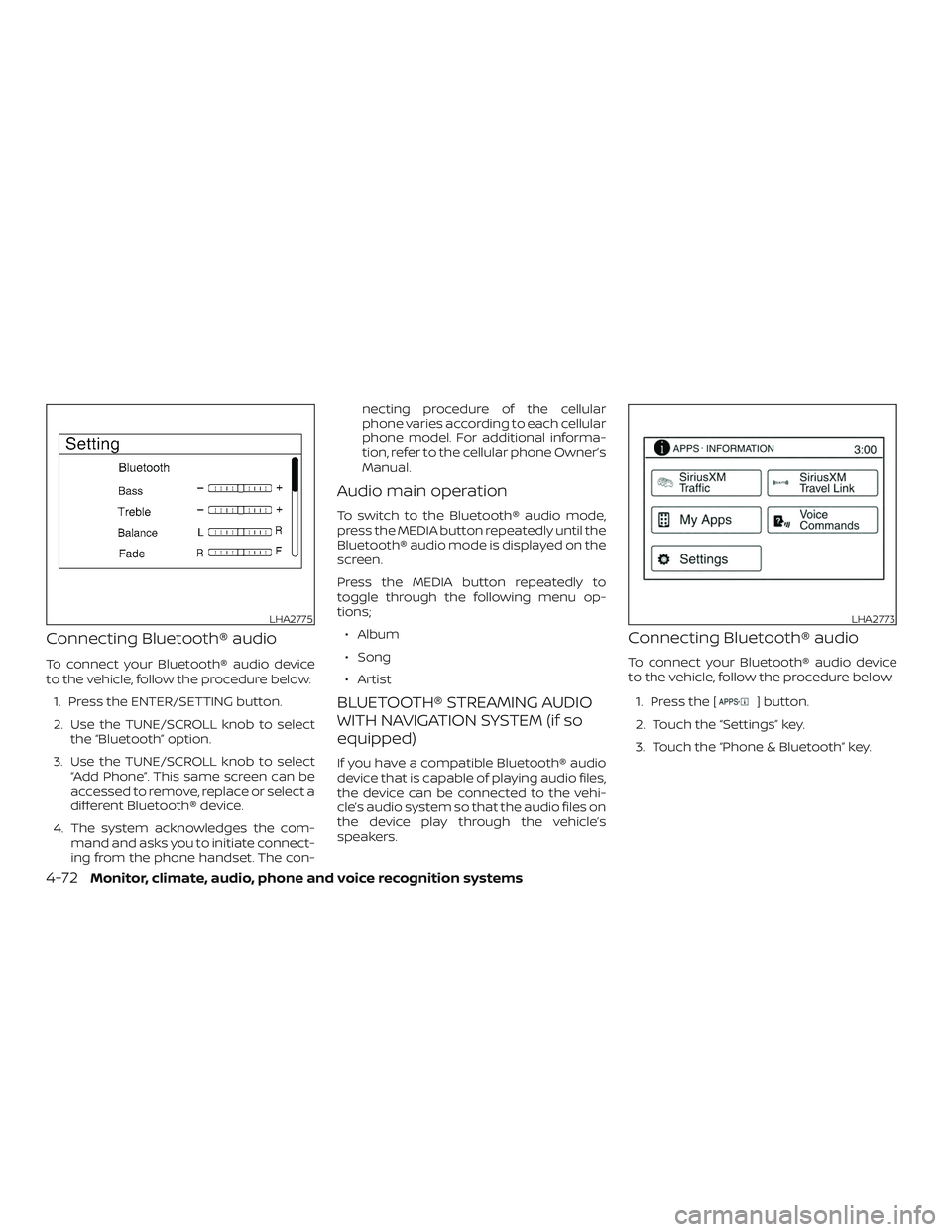
Connecting Bluetooth® audio
To connect your Bluetooth® audio device
to the vehicle, follow the procedure below:1. Press the ENTER/SETTING button.
2. Use the TUNE/SCROLL knob to select the “Bluetooth” option.
3. Use the TUNE/SCROLL knob to select “Add Phone”. This same screen can be
accessed to remove, replace or select a
different Bluetooth® device.
4. The system acknowledges the com- mand and asks you to initiate connect-
ing from the phone handset. The con- necting procedure of the cellular
phone varies according to each cellular
phone model. For additional informa-
tion, refer to the cellular phone Owner’s
Manual.
Audio main operation
To switch to the Bluetooth® audio mode,
press the MEDIA button repeatedly until the
Bluetooth® audio mode is displayed on the
screen.
Press the MEDIA button repeatedly to
toggle through the following menu op-
tions;
∙ Album
∙ Song
∙ Artist
BLUETOOTH® STREAMING AUDIO
WITH NAVIGATION SYSTEM (if so
equipped)
If you have a compatible Bluetooth® audio
device that is capable of playing audio files,
the device can be connected to the vehi-
cle’s audio system so that the audio files on
the device play through the vehicle’s
speakers.
Connecting Bluetooth® audio
To connect your Bluetooth® audio device
to the vehicle, follow the procedure below:
1. Press the [
] button.
2. Touch the “Settings” key.
3. Touch the “Phone & Bluetooth” key.
LHA2775LHA2773
4-72Monitor, climate, audio, phone and voice recognition systems
Page 234 of 878
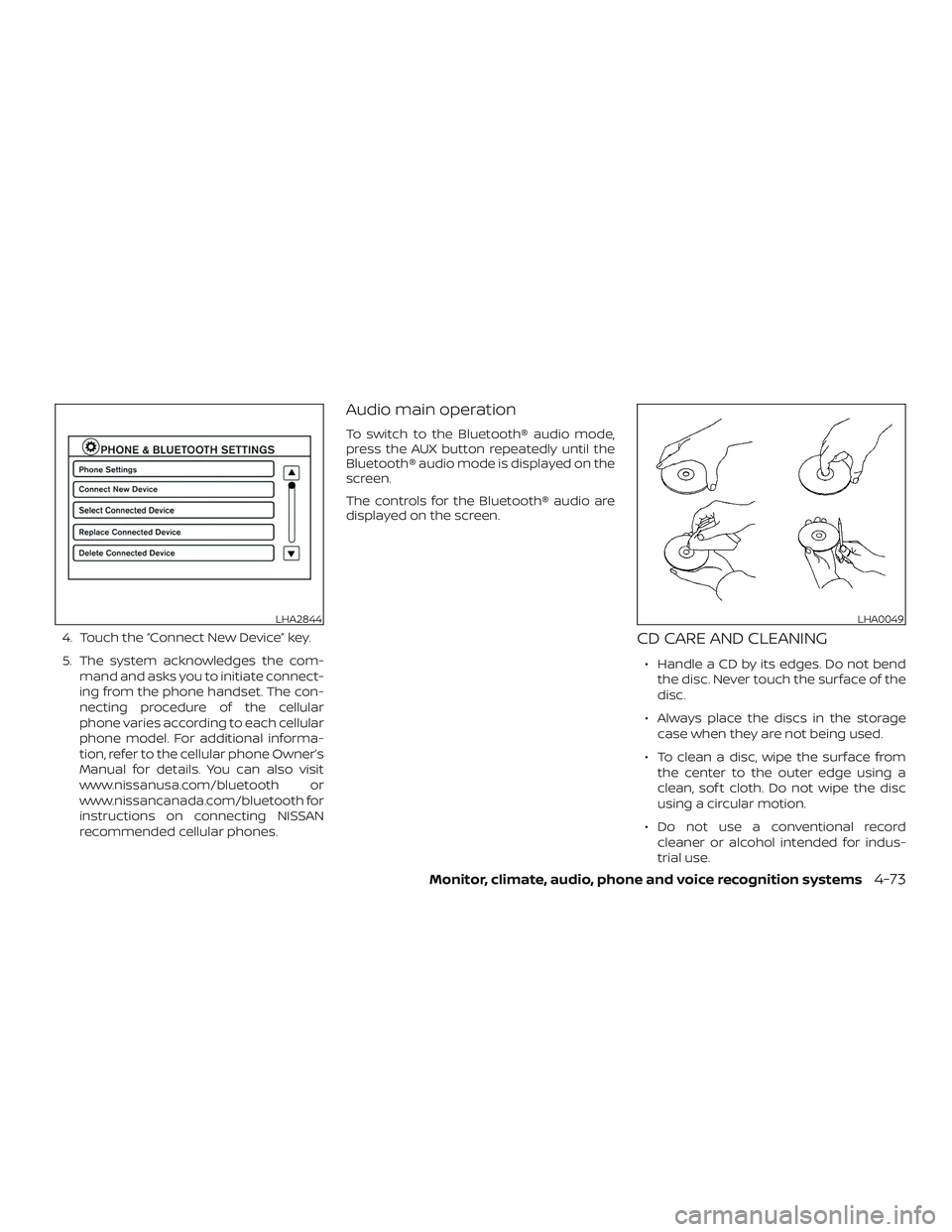
4. Touch the “Connect New Device” key.
5. The system acknowledges the com-mand and asks you to initiate connect-
ing from the phone handset. The con-
necting procedure of the cellular
phone varies according to each cellular
phone model. For additional informa-
tion, refer to the cellular phone Owner’s
Manual for details. You can also visit
www.nissanusa.com/bluetooth or
www.nissancanada.com/bluetooth for
instructions on connecting NISSAN
recommended cellular phones.
Audio main operation
To switch to the Bluetooth® audio mode,
press the AUX button repeatedly until the
Bluetooth® audio mode is displayed on the
screen.
The controls for the Bluetooth® audio are
displayed on the screen.
CD CARE AND CLEANING
∙ Handle a CD by its edges. Do not bendthe disc. Never touch the surface of the
disc.
∙ Always place the discs in the storage case when they are not being used.
∙ To clean a disc, wipe the surface from the center to the outer edge using a
clean, sof t cloth. Do not wipe the disc
using a circular motion.
∙ Do not use a conventional record cleaner or alcohol intended for indus-
trial use.
LHA2844LHA0049
Monitor, climate, audio, phone and voice recognition systems4-73
Page 240 of 878
CHANGING SIRI® EYES FREE
SETTINGS (models without
navigation system)
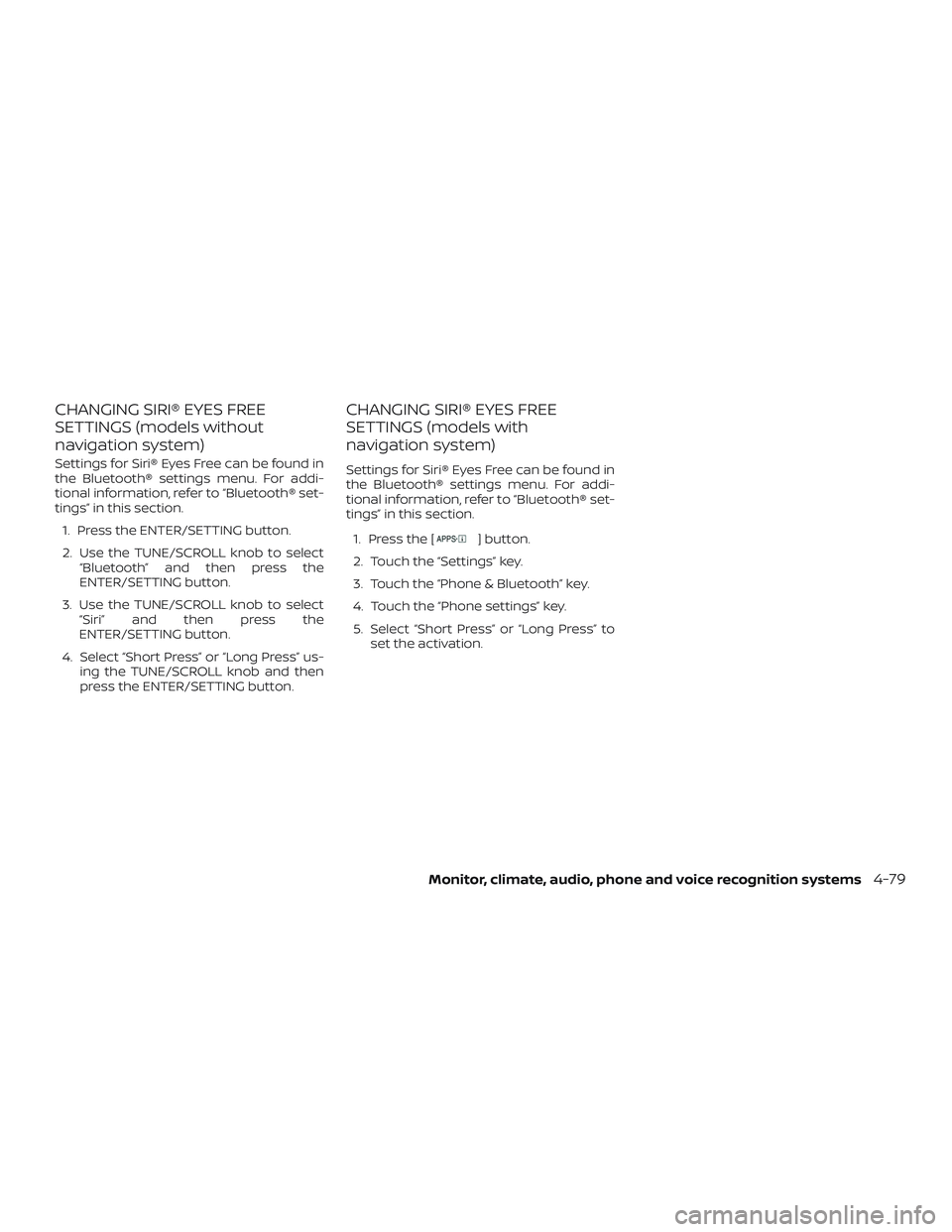
Settings for Siri® Eyes Free can be found in
the Bluetooth® settings menu. For addi-
tional information, refer to “Bluetooth® set-
tings” in this section.1. Press the ENTER/SETTING button.
2. Use the TUNE/SCROLL knob to select “Bluetooth” and then press the
ENTER/SETTING button.
3. Use the TUNE/SCROLL knob to select “Siri” and then press the
ENTER/SETTING button.
4. Select “Short Press” or “Long Press” us- ing the TUNE/SCROLL knob and then
press the ENTER/SETTING button.
CHANGING SIRI® EYES FREE
SETTINGS (models with
navigation system)
Settings for Siri® Eyes Free can be found in
the Bluetooth® settings menu. For addi-
tional information, refer to “Bluetooth® set-
tings” in this section.
1. Press the [
] button.
2. Touch the “Settings” key.
3. Touch the “Phone & Bluetooth” key.
4. Touch the “Phone settings” key.
5. Select “Short Press” or “Long Press” to set the activation.
Monitor, climate, audio, phone and voice recognition systems4-79
Page 272 of 878
BLUETOOTH® is a
trademark owned
by Bluetooth SIG,
Inc. and licensed
to Bosch.
VOICE COMMANDS
You can use voice commands to operate
various Bluetooth® Hands-Free Phone Sys-
tem features using the NISSAN Voice Rec-
ognition system. For additional informa-
tion, refer to “NISSAN Voice Recognition
System” in this section.
Voice Prompt Interrupt
While using the voice recognition system,
the system voice can be interrupted to al-
low the user to speak commands. While
the system is speaking, press
the
/button on the steering
wheel. The system voice will stop and a
tone will be heard. Af ter the tone, speak
desired command (displayed on the
touch-screen).
One Shot Call
To use the system faster, you may speak
the second level commands with the main
menu command on the main menu. For
example, press the
/button and
af ter the tone say, “Call Redial”.
CONNECTING PROCEDURE
NOTE:
The connecting procedure must be per-
formed when the vehicle is stationary. If
the vehicle starts moving during the pro-
cedure, the procedure will be canceled.
1. Press the [
] button on the control
panel.
2. Touch the “Settings” key.
3. Touch the “Phone & Bluetooth” key.
4. Touch the “Connect New Device” key.
LHA3622
Monitor, climate, audio, phone and voice recognition systems4-111
Page 273 of 878
5. Initiate the connecting process fromthe handset. The system will display
the message: “Is PIN XXXXXX displayed
on your Bluetooth device?”. If the PIN is
displayed on your Bluetooth® device,
select “Yes” to complete the pairing
process.
For additional information, refer to the
Bluetooth® device’s Owner’s Manual.
VEHICLE PHONEBOOK
To access the vehicle phonebook:
1. Press the
button on the control
panel.
2. Touch the “Phonebook” key.
3. Choose the desired entry from the dis- played list.
4. The number of the entry will be dis- played on the screen. Touch the num-
ber to initiate dialing. NOTE:
To scroll quickly through the list, touch
the “A-Z” key in the upper right corner of
the screen. Turn the TUNE knob to
choose a letter or number and then
press ENTER. The list will move to the
first entry that begins with that number
or letter.
MAKING A CALL
To make a call, follow the procedure below:
1. Press the
button on the control
panel. The “Phone” screen will appear
on the display.
2. Select one of the following options to make a call:
∙ “Phonebook”: Select the name from an entry stored in the vehicle phonebook.
∙ “Call Lists”: Select the name from the incoming, outgoing or missed.
∙ “Redial”: Dial the last outgoing call from the vehicle.
∙“
”: Input the phone number manu-
ally using a keypad displayed on the
screen. For additional information, refer
to “How to use the touch-screen” in this
section.
RECEIVING A CALL
When a call is placed to the connected phone,
the display will change to phone mode.
To accept the incoming call, either:
∙ Press the
/button on the
steering wheel, or
∙ Touch the phone
icon on the
screen.
To reject the incoming call, either:
∙ Press the
/button on the
steering wheel, or
∙ Touch the phone
icon on the
screen.
DURING A CALL
While a call is active, the following options
are available on the screen:
∙ “Handset” Select this option to switch control of
the phone call over to the handset.
∙ “Mute Mic.” Select this option to mute the micro-
phone. Select again to unmute the mi-
crophone.
∙ Phone
icon
Select to end the phone call.
4-112Monitor, climate, audio, phone and voice recognition systems
Page 276 of 878
![NISSAN VERSA NOTE 2018 Owner´s Manual BLUETOOTH® SETTINGS
To access the phone settings:1. Press the [
] button.
2. Touch the “Settings” key.
3. Touch the “Phone & Bluetooth” key.
Menu Item Result
Phone Settings For additional inf](/img/5/40333/w960_40333-275.png "NISSAN VERSA NOTE 2018 Owner´s Manual BLUETOOTH® SETTINGS
To access the phone settings:1. Press the [
] button.
2. Touch the “Settings” key.
3. Touch the “Phone & Bluetooth” key.
Menu Item Result
Phone Settings For additional inf")
BLUETOOTH® SETTINGS
To access the phone settings:1. Press the [
] button.
2. Touch the “Settings” key.
3. Touch the “Phone & Bluetooth” key.
Menu Item Result
Phone Settings For additional information, refer to “Phone settings” in this section.
Connect New Device Touch to connect a new Bluetooth® device to the Bluetooth® Hands-Free Phone System.
Select Connected Device Touch to choose a Bluetooth® device from a list of those devices connected to the Bluetooth® Hands-Free Phone System.
Replace Connected Device Touch to replace a Bluetooth® device from a list of those devices connected to the Bluetooth® Hands-Free Phone System.
Delete Connected Device Touch to delete a Bluetooth® device from a list of those devices connected to the Bluetooth® Hands-Free Phone System.
Bluetooth Touch to toggle Bluetooth® on and off.
LHA2844
Monitor, climate, audio, phone and voice recognition systems4-115
Page 277 of 878
![NISSAN VERSA NOTE 2018 Owner´s Manual PHONE SETTINGS
To access the phone settings:1. Press the [
] button.
2. Touch the “Settings” key.
3. Touch the “Phone & Bluetooth” key.
4. Touch the “Phone Settings” key and ad- just the f](/img/5/40333/w960_40333-276.png "NISSAN VERSA NOTE 2018 Owner´s Manual PHONE SETTINGS
To access the phone settings:1. Press the [
] button.
2. Touch the “Settings” key.
3. Touch the “Phone & Bluetooth” key.
4. Touch the “Phone Settings” key and ad- just the f")
PHONE SETTINGS
To access the phone settings:1. Press the [
] button.
2. Touch the “Settings” key.
3. Touch the “Phone & Bluetooth” key.
4. Touch the “Phone Settings” key and ad- just the following settings as desired:
∙ Start Siri® by: Touch “Short Press” or “Long Press” to
set how Siri® is operated on the steering
wheel.
∙ Sort Phonebook By: Touch “First Name” or “Last Name” to
choose how phonebook entries are al-
phabetically displayed on the screen.
∙ Use Phonebook From: Touch “Handset” to use the phone’s
phonebook. Select “SIM” to use the
phonebook on the SIM card. Touch
“Both” to use both sources. ∙ Download Phonebook Now:
Touch to download the phonebook to
the vehicle from the chosen source.
∙ Record Name for Phonebook Entry: Touch to record a name for a phone-
book entry for use with the NISSAN
Voice Recognition System.
∙ Phone Notifications for: Notifications may be displayed on the
center display screen.
∙ Text Messaging: Touch to toggle the text message func-
tionality on or off.
∙ Show Incoming Text for: Text notifications may be displayed on
the center display screen. Touch “Off ” to
turn off all text notifications.
∙ Auto Reply: Touch to toggle the auto reply function-
ality on or off. ∙ Auto Reply Message:
Touch to indicate preferred message to
be sent when “Auto Reply” function is
activated.
∙ Use Vehicle’s Signature: Touch to toggle on or off the addition of
the vehicle signature to outgoing mes-
sages.
∙ Custom Text Messages: Touch this option to select a custom
message to edit. There are 4 customer
message slots available.
TROUBLESHOOTING GUIDE
The system should respond correctly to all
voice commands without difficulty. If prob-
lems are encountered, try the following so-
lutions.
Where the solutions are listed by number,
try each solution in turn, starting with num-
ber 1, until the problem is resolved.
4-116Monitor, climate, audio, phone and voice recognition systems
Page 280 of 878
4. Voice and display feedback are pro-vided when the command is accepted.
∙ If the command is not recognized, the system announces: “Command not
recognized”. Repeat the command in a
clear voice.
∙ If you want to cancel the command or go back to the previous menu of com-
mands, press the
/button.
The system will announce: “Canceling
voice recognition” or “Go back” depend-
ing on the current menu level.
∙ Press the BACK button on the control panel to move back through the menus
displayed on the screen.
∙ If you want to adjust the volume of the voice feedback, use the volume control
switches on the steering wheel or the
volume knob on the control panel.
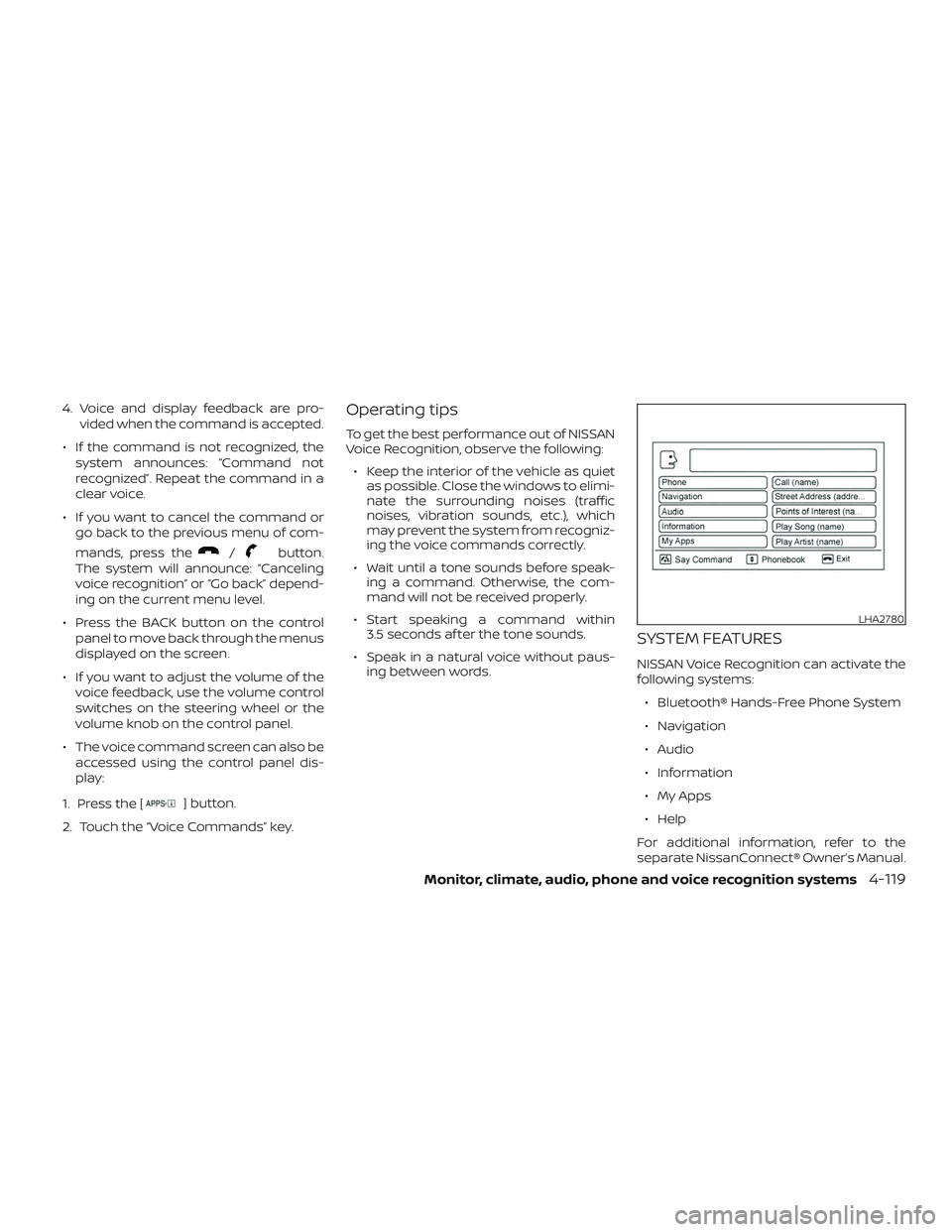
∙ The voice command screen can also be accessed using the control panel dis-
play:
1. Press the [
] button.
2. Touch the “Voice Commands” key.
Operating tips
To get the best performance out of NISSAN
Voice Recognition, observe the following: ∙ Keep the interior of the vehicle as quiet as possible. Close the windows to elimi-
nate the surrounding noises (traffic
noises, vibration sounds, etc.), which
may prevent the system from recogniz-
ing the voice commands correctly.
∙ Wait until a tone sounds before speak- ing a command. Otherwise, the com-
mand will not be received properly.
∙ Start speaking a command within 3.5 seconds af ter the tone sounds.
∙ Speak in a natural voice without paus- ing between words.
SYSTEM FEATURES
NISSAN Voice Recognition can activate the
following systems:
∙ Bluetooth® Hands-Free Phone System
∙ Navigation
∙ Audio
∙ Information
∙ My Apps
∙ Help
For additional information, refer to the
separate NissanConnect® Owner’s Manual.
LHA2780
Monitor, climate, audio, phone and voice recognition systems4-119
Page 285 of 878
5 Starting and driving
Precautions when starting and driving..........5-2
Exhaust gas (carbon monoxide) ..............5-2
Three-way catalyst ...........................5-2
Tire Pressure Monitoring System
(TPMS) (if so equipped) ........................5-3
Avoiding collision and rollover ................5-6
Off-roadrecovery ............................5-7
Rapid air pressure loss .......................5-7
Drinking alcohol/drugs and driving ...........5-8
Ignition switch (if so equipped) ...................5-8
Continuously Variable Transmission
(if so equipped) ...............................5-9
Manual transmission (if so equipped) .........5-9
Ignition switch positions .....................5-10
NISSAN Vehicle Immobilizer System
(if so equipped) .............................. 5-10
Push-button ignition switch (if so equipped) ....5-10
Operating range .............................. 5-11
Push-button ignition switch positions .......5-12
Emergency engine shut off ..................5-13
NISSAN Intelligent Key® battery
discharge ................................... 5-13
NISSAN Vehicle Immobilizer System .........5-14
Before starting the engine ......................5-14Starting the engine
............................. 5-14
Driving the vehicle .............................. 5-15
Continuously Variable Transmission
(CVT) (if so equipped) ........................ 5-15
Manual transmission (if so equipped) ........5-20
Parking brake .................................. 5-21
Cruise control (if so equipped) ..................5-22
Precautions on cruise control ................5-23
Cruise control operations ....................5-23
Break-in schedule .............................. 5-24
Fuel efficient driving tips ........................5-25
Increasing fuel economy .......................5-26
Parking/parking on hills ........................5-27
Power steering ................................. 5-28
Brake system ................................... 5-29
Brake precautions ........................... 5-29
Anti-lock Braking System (ABS) ..............5-29
Brake assist ................................. 5-30
V
ehicle Dynamic Control (VDC) system .........5-31
Brake force distribution ......................5-33
Cold weather driving ........................... 5-34
Freeing a frozen door lock ...................5-34
Antifreeze ................................... 5-34
Page 293 of 878
1. Remain calm and do not overreact.
2. Maintain a firm grip on the steeringwheel with both hands and try to hold a
straight course.
3. When appropriate, slowly release the accelerator pedal to gradually slow the
vehicle.
4. Gradually steer the vehicle to a safe location off the road and away from
traffic if possible.
5. Lightly apply the brake pedal to gradu- ally stop the vehicle.
6. Turn on the hazard warning flashers and contact a roadside emergency
service to change the tire. For addi-
tional information, refer to “Changing a
flat tire” in the “In case of emergency”
section of this manual.DRINKING ALCOHOL/DRUGS AND
DRIVING
WARNING
Never drive under the influence of alco-
hol or drugs. Alcohol in the bloodstream
reduces coordination, delays reaction
time and impairs judgement. Driving
af ter drinking alcohol increases the
likelihood of being involved in an acci-
dent injuring yourself and others. Addi-
tionally, if you are injured in an accident,
alcohol can increase the severity of the
injury.
NISSAN is committed to safe driving. How-
ever, you must choose not to drive under the
influence of alcohol. Every year thousands of
people are injured or killed in alcohol-related
collisions. Although the local laws vary on
what is considered to be legally intoxicated,
the fact is that alcohol affects all people dif-
ferently and most people underestimate the
effects of alcohol.
Remember, drinking and driving don’t mix!
That is true for drugs (over-the-counter,
prescription) and illegal drugs, too. Don’t
drive if your ability to operate your vehicle is
impaired by alcohol, drugs, or some other
physical condition.
WARNING
∙ Never remove the ignition key or placethe ignition switch in the LOCK posi-
tion while driving. The steering wheel
will lock. This may cause the driver to
lose control of the vehicle and could
result in serious vehicle damage or
personal injury.
IGNITION SWITCH (if so equipped)
5-8Starting and driving