lock NISSAN VERSA NOTE 2018 Owner´s Manual
[x] Cancel search | Manufacturer: NISSAN, Model Year: 2018, Model line: VERSA NOTE, Model: NISSAN VERSA NOTE 2018Pages: 878, PDF Size: 9.62 MB
Page 211 of 878
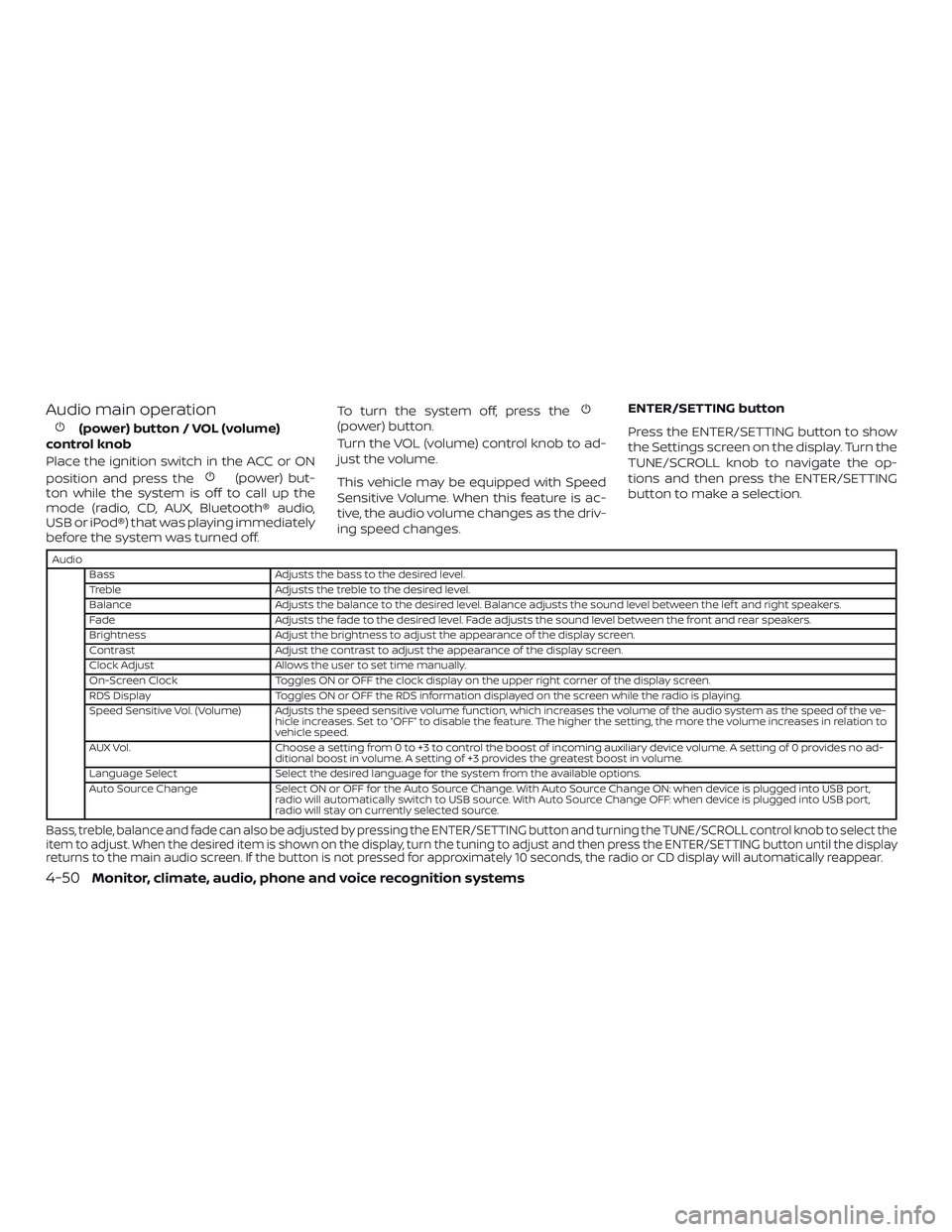
Audio main operation
(power) button / VOL (volume)
control knob
Place the ignition switch in the ACC or ON
position and press the
(power) but-
ton while the system is off to call up the
mode (radio, CD, AUX, Bluetooth® audio,
USB or iPod®) that was playing immediately
before the system was turned off. To turn the system off, press the
(power) button.
Turn the VOL (volume) control knob to ad-
just the volume.
This vehicle may be equipped with Speed
Sensitive Volume. When this feature is ac-
tive, the audio volume changes as the driv-
ing speed changes.
ENTER/SETTING button
Press the ENTER/SETTING button to show
the Settings screen on the display. Turn the
TUNE/SCROLL knob to navigate the op-
tions and then press the ENTER/SETTING
button to make a selection.
Audio
Bass Adjusts the bass to the desired level.
Treble Adjusts the treble to the desired level.
Balance Adjusts the balance to the desired level. Balance adjusts the sound level between the lef t and right speakers.
Fade Adjusts the fade to the desired level. Fade adjusts the sound level between the front and rear speakers.
Brightness Adjust the brightness to adjust the appearance of the display screen.
Contrast Adjust the contrast to adjust the appearance of the display screen.
Clock Adjust Allows the user to set time manually.
On-Screen Clock Toggles ON or OFF the clock display on the upper right corner of the display screen.
RDS Display Toggles ON or OFF the RDS information displayed on the screen while the radio is playing.
Speed Sensitive Vol. (Volume) Adjusts the speed sensitive volume function, which increases the volume of the audio system as the speed of the ve- hicle increases. Set to “OFF” to disable the feature. The higher the setting, the more the volume increases in relation to
vehicle speed.
AUX Vol. Choose a setting from 0 to +3 to control the boost of incoming auxiliary device volume. A setting of 0 provides no ad-
ditional boost in volume. A setting of +3 provides the greatest boost in volume.
Language Select Select the desired language for the system from the available options.
Auto Source Change Select ON or OFF for the Auto Source Change. With Auto Source Change ON: when device is plugged into USB port,
radio will automatically switch to USB source. With Auto Source Change OFF: when device is plugged into USB port,
radio will stay on currently selected source.
Bass, treble, balance and fade can also be adjusted by pressing the ENTER/SETTING button and turning the TUNE/SCROLL control knob to select the
item to adjust. When the desired item is shown on the display, turn the tuning to adjust and then press the ENTER/SETTING button until the display
returns to the main audio screen. If the button is not pressed for approximately 10 seconds, the radio or CD display will automatically reappear.
4-50Monitor, climate, audio, phone and voice recognition systems
Page 212 of 878
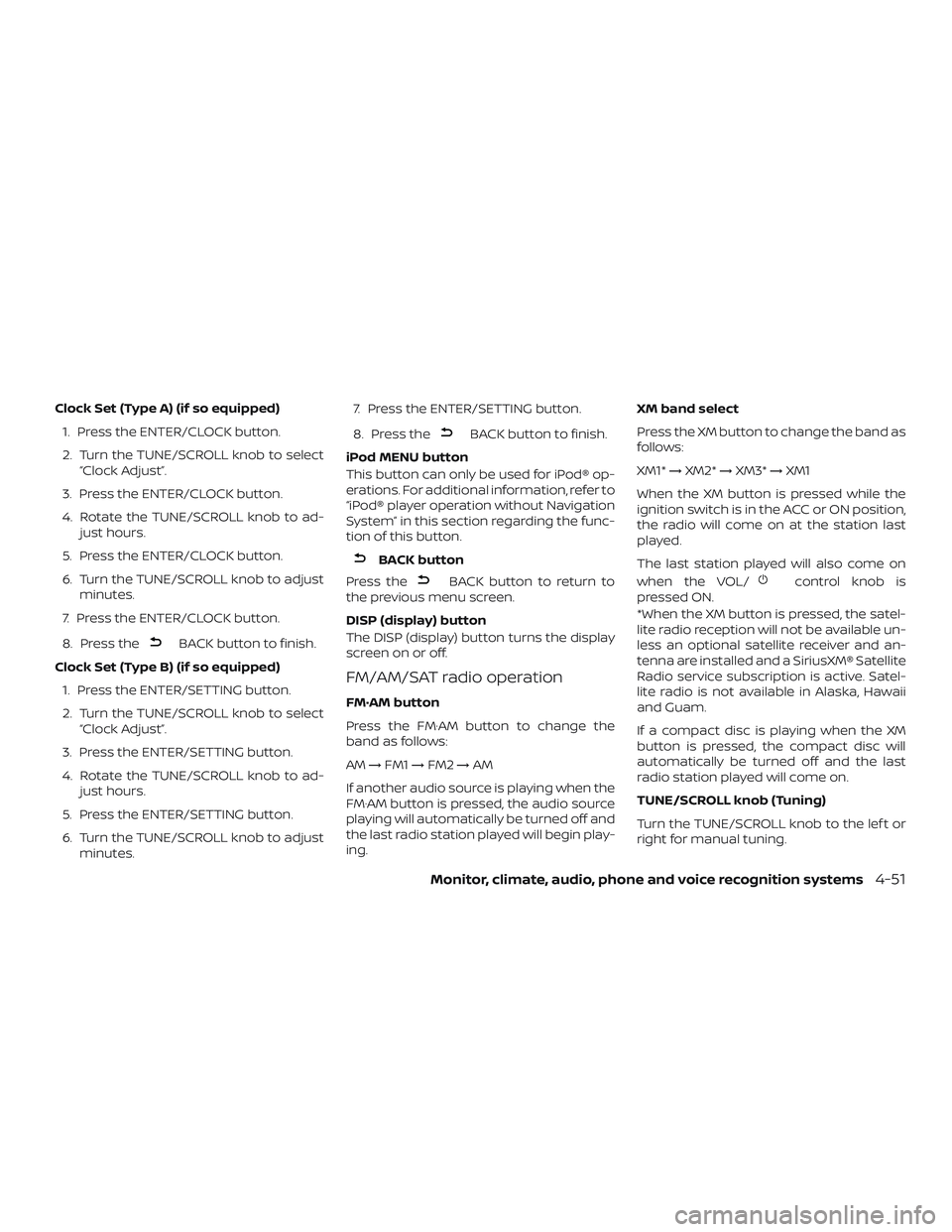
Clock Set (Type A) (if so equipped)1. Press the ENTER/CLOCK button.
2. Turn the TUNE/SCROLL knob to select “Clock Adjust”.
3. Press the ENTER/CLOCK button.
4. Rotate the TUNE/SCROLL knob to ad- just hours.
5. Press the ENTER/CLOCK button.
6. Turn the TUNE/SCROLL knob to adjust minutes.
7. Press the ENTER/CLOCK button.
8. Press the
BACK button to finish.
Clock Set (Type B) (if so equipped) 1. Press the ENTER/SETTING button.
2. Turn the TUNE/SCROLL knob to select “Clock Adjust”.
3. Press the ENTER/SETTING button.
4. Rotate the TUNE/SCROLL knob to ad- just hours.
5. Press the ENTER/SETTING button.
6. Turn the TUNE/SCROLL knob to adjust minutes. 7. Press the ENTER/SETTING button.
8. Press the
BACK button to finish.
iPod MENU button
This button can only be used for iPod® op-
erations. For additional information, refer to
“iPod® player operation without Navigation
System” in this section regarding the func-
tion of this button.
BACK button
Press the
BACK button to return to
the previous menu screen.
DISP (display) button
The DISP (display) button turns the display
screen on or off.
FM/AM/SAT radio operation
FM·AM button
Press the FM·AM button to change the
band as follows:
AM →FM1 →FM2 →AM
If another audio source is playing when the
FM·AM button is pressed, the audio source
playing will automatically be turned off and
the last radio station played will begin play-
ing. XM band select
Press the XM button to change the band as
follows:
XM1*
→XM2* →XM3* →XM1
When the XM button is pressed while the
ignition switch is in the ACC or ON position,
the radio will come on at the station last
played.
The last station played will also come on
when the VOL/
control knob is
pressed ON.
*When the XM button is pressed, the satel-
lite radio reception will not be available un-
less an optional satellite receiver and an-
tenna are installed and a SiriusXM® Satellite
Radio service subscription is active. Satel-
lite radio is not available in Alaska, Hawaii
and Guam.
If a compact disc is playing when the XM
button is pressed, the compact disc will
automatically be turned off and the last
radio station played will come on.
TUNE/SCROLL knob (Tuning)
Turn the TUNE/SCROLL knob to the lef t or
right for manual tuning.
Monitor, climate, audio, phone and voice recognition systems4-51
Page 236 of 878
Volume control switches
Push the volume control switch to increase
or decrease the volume.
Tuning switch
For most audio sources, pressing the
switches for more than 1.5 seconds pro-
vides a different function than pressing for
less than 1.5 seconds.
AM and FM:∙ Push the
switch for less than
1.5 seconds to increase or decrease the
preset station.
∙ Push the
switch for more than
1.5 seconds to seek up or down to the
next station.
XM (if so equipped):
∙ Push the
switch for less than
1.5 seconds to increase or decrease the
preset station.
∙ Push the
switch for more than
1.5 seconds to go to the next or previous
channel. iPod® (if so equipped):
∙ Push the
switch for less than
1.5 seconds to increase or decrease the
track number.
CD:
∙ Push the
switch for less than
1.5 seconds to increase or decrease the
track number.
∙ Push the
switch for more than
1.5 seconds to increase or decrease the
folder number (if playing compressed
audio files).
USB (if so equipped):
∙ Push the
switch for less than
1.5 seconds to increase or decrease the
track number.
∙ Push the
switch for more than
1.5 seconds to increase or decrease the
folder number.
Bluetooth® Audio (if so equipped):
∙ Push the
switch for less than
1.5 seconds to skip ahead or back to the
next song.
ANTENNA
The antenna cannot be shortened, but can
be removed. When you need to remove the
antenna, turn the antenna rod counter-
clockwise.
To install the antenna rod, turn the antenna
rod clockwise and hand tighten.
CAUTION
∙ Always properly tighten the antenna rod during installation or the antenna
rod may break during vehicle
operation.
∙ Be sure that the antenna is removed before the vehicle enters an auto-
matic car wash.
Monitor, climate, audio, phone and voice recognition systems4-75
Page 238 of 878
Apple Siri® Eyes Free personal assistant
can be accessed from the vehicle. Siri Eyes
Free can be accessed in Siri Eyes Free
mode to reduce user distraction. In this
mode, Siri Eyes Free is available for interac-
tion by voice control. Af ter connecting a
compatible Apple device by using
Bluetooth®, Siri Eyes Free can be activated
from the
/TALK switch on the
steering wheel.
Siri® is a trademark of Apple Inc., registered
in the U.S. and other countries.
∙ Some Siri Eyes Free functions, such as displaying pictures or opening apps,
may not be available while driving.
∙ For best results, always update your de- vice to the latest sof tware version.
∙ Keep the interior of the vehicle as quiet as possible. Close the windows to elimi-
nate the surrounding noises (traffic
noises, vibration sounds, etc.), which
may prevent the system from recogniz-
ing the voice commands correctly.
∙ For functions that can be used in Siri Eyes Free, please refer to the Apple
website.
REQUIREMENTS
Siri is only available on the iPhone® 4S or
later. Devices released before iPhone® 4S
are not supported by the Siri Eyes Free sys-
tem. Visit www.apple.com/ios/siri for de-
tails about device compatibility.
Siri must be enabled on the phone. Please
check phone settings.
If the device has a lock screen, Siri must be
accessible from the lock screen. Please
check phone settings.
For best results, always update your device
to the latest sof tware version.
SIRI® ACTIVATION
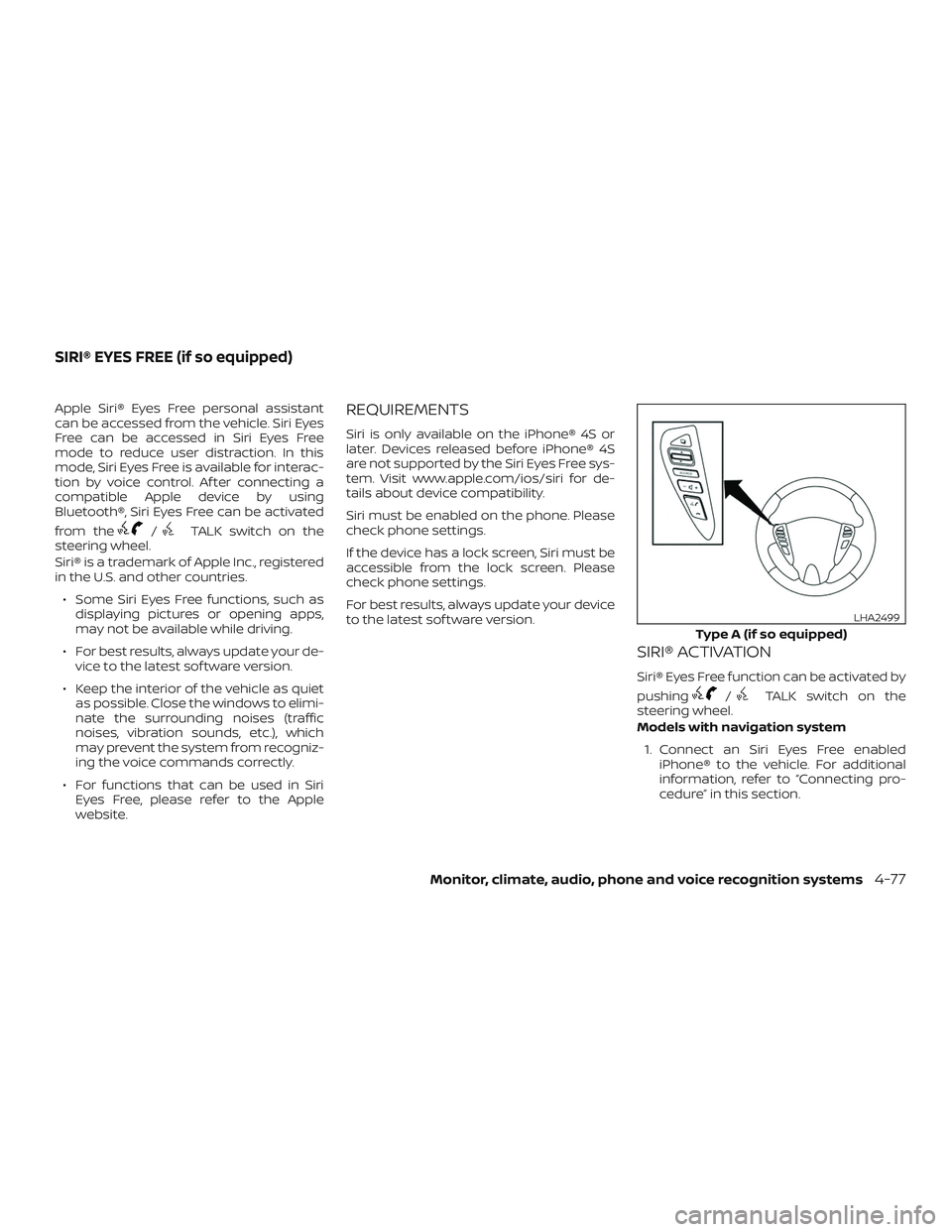
Siri® Eyes Free function can be activated by
pushing
/TALK switch on the
steering wheel.
Models with navigation system
1. Connect an Siri Eyes Free enabled iPhone® to the vehicle. For additional
information, refer to “Connecting pro-
cedure” in this section.
Type A (if so equipped)
LHA2499
SIRI® EYES FREE (if so equipped)
Monitor, climate, audio, phone and voice recognition systems4-77
Page 241 of 878
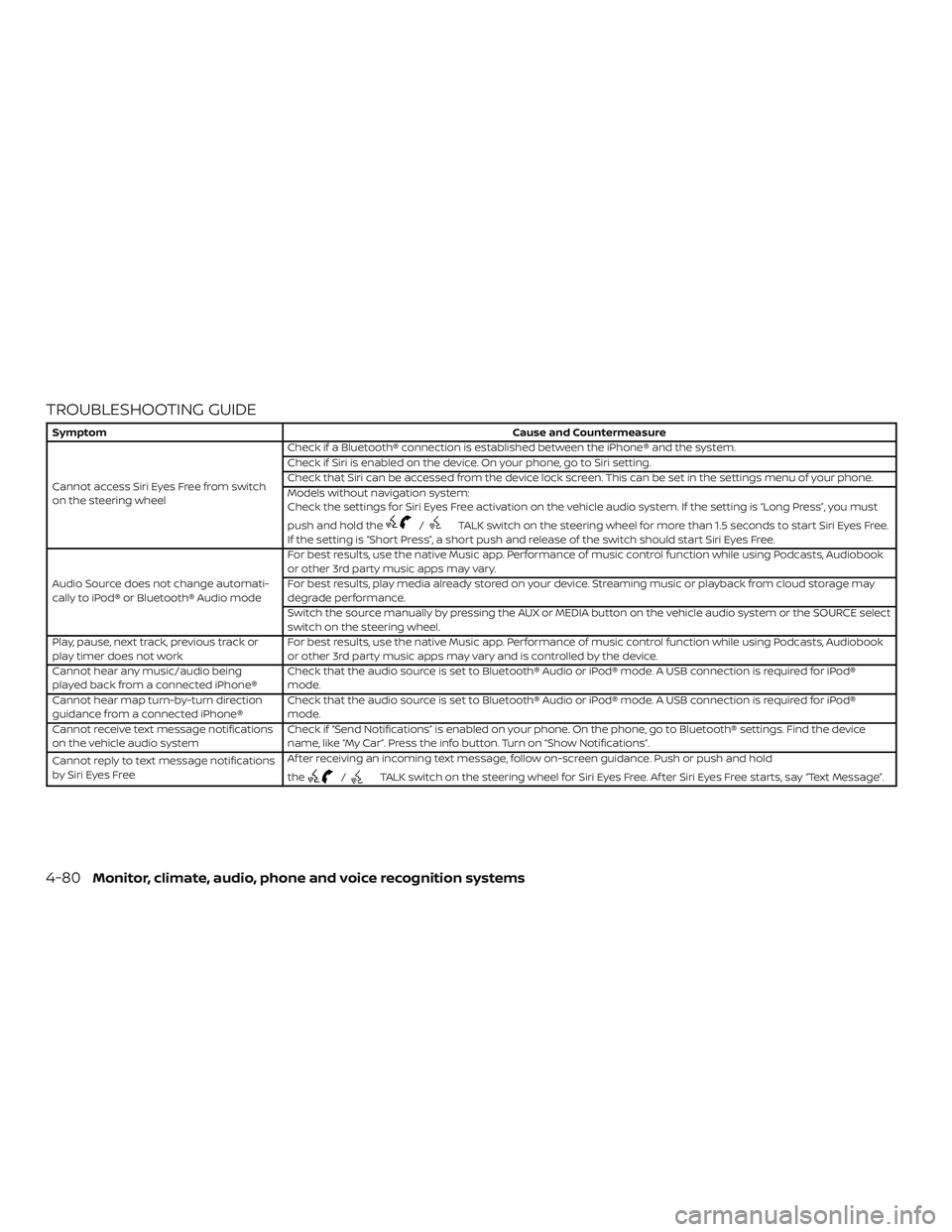
TROUBLESHOOTING GUIDE
SymptomCause and Countermeasure
Cannot access Siri Eyes Free from switch
on the steering wheel Check if a Bluetooth® connection is established between the iPhone® and the system.
Check if Siri is enabled on the device. On your phone, go to Siri setting.
Check that Siri can be accessed from the device lock screen. This can be set in the settings menu of your phone.
Models without navigation system:
Check the settings for Siri Eyes Free activation on the vehicle audio system. If the setting is “Long Press”, you must
push and hold the
/TALK switch on the steering wheel for more than 1.5 seconds to start Siri Eyes Free.
If the setting is “Short Press”, a short push and release of the switch should start Siri Eyes Free.
Audio Source does not change automati-
cally to iPod® or Bluetooth® Audio mode For best results, use the native Music app. Performance of music control function while using Podcasts, Audiobook
or other 3rd party music apps may vary.
For best results, play media already stored on your device. Streaming music or playback from cloud storage may
degrade performance.
Switch the source manually by pressing the AUX or MEDIA button on the vehicle audio system or the SOURCE select
switch on the steering wheel.
Play, pause, next track, previous track or
play timer does not work For best results, use the native Music app. Performance of music control function while using Podcasts, Audiobook
or other 3rd party music apps may vary and is controlled by the device.
Cannot hear any music/audio being
played back from a connected iPhone® Check that the audio source is set to Bluetooth® Audio or iPod® mode. A USB connection is required for iPod®
mode.
Cannot hear map turn-by-turn direction
guidance from a connected iPhone® Check that the audio source is set to Bluetooth® Audio or iPod® mode. A USB connection is required for iPod®
mode.
Cannot receive text message notifications
on the vehicle audio system Check if “Send Notifications” is enabled on your phone. On the phone, go to Bluetooth® settings. Find the device
name, like “My Car”. Press the info button. Turn on “Show Notifications”.
Cannot reply to text message notifications
by Siri Eyes Free Af ter receiving an incoming text message, follow on-screen guidance. Push or push and hold
the
/TALK switch on the steering wheel for Siri Eyes Free. Af ter Siri Eyes Free starts, say “Text Message”.
4-80Monitor, climate, audio, phone and voice recognition systems
Page 244 of 878
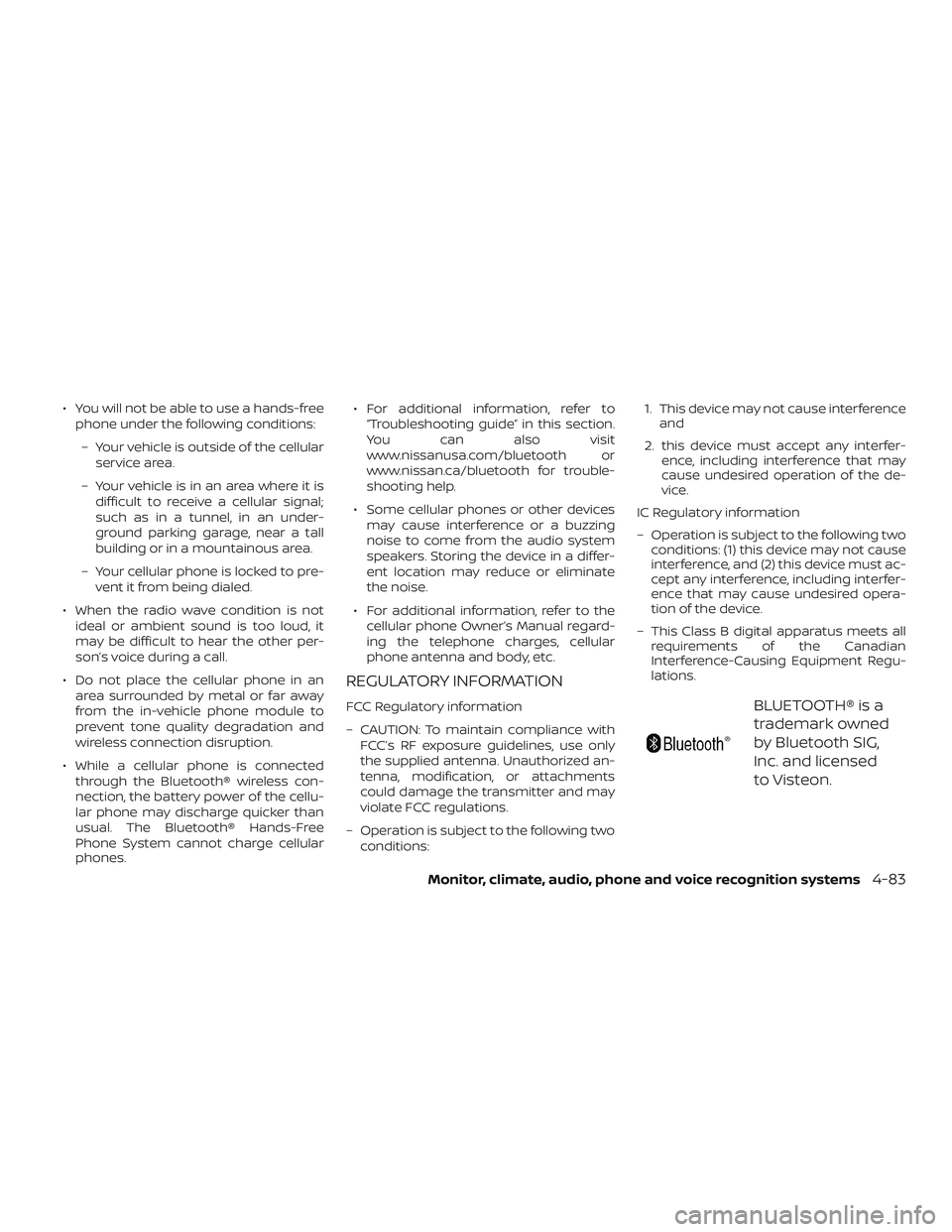
∙ You will not be able to use a hands-freephone under the following conditions:
– Your vehicle is outside of the cellular service area.
– Your vehicle is in an area where it is difficult to receive a cellular signal;
such as in a tunnel, in an under-
ground parking garage, near a tall
building or in a mountainous area.
– Your cellular phone is locked to pre- vent it from being dialed.
∙ When the radio wave condition is not ideal or ambient sound is too loud, it
may be difficult to hear the other per-
son’s voice during a call.
∙ Do not place the cellular phone in an area surrounded by metal or far away
from the in-vehicle phone module to
prevent tone quality degradation and
wireless connection disruption.
∙ While a cellular phone is connected through the Bluetooth® wireless con-
nection, the battery power of the cellu-
lar phone may discharge quicker than
usual. The Bluetooth® Hands-Free
Phone System cannot charge cellular
phones. ∙ For additional information, refer to
“Troubleshooting guide” in this section.
You can also visit
www.nissanusa.com/bluetooth or
www.nissan.ca/bluetooth for trouble-
shooting help.
∙ Some cellular phones or other devices may cause interference or a buzzing
noise to come from the audio system
speakers. Storing the device in a differ-
ent location may reduce or eliminate
the noise.
∙ For additional information, refer to the cellular phone Owner’s Manual regard-
ing the telephone charges, cellular
phone antenna and body, etc.
REGULATORY INFORMATION
FCC Regulatory information
– CAUTION: To maintain compliance with FCC’s RF exposure guidelines, use only
the supplied antenna. Unauthorized an-
tenna, modification, or attachments
could damage the transmitter and may
violate FCC regulations.
– Operation is subject to the following two conditions: 1. This device may not cause interference
and
2. this device must accept any interfer- ence, including interference that may
cause undesired operation of the de-
vice.
IC Regulatory information
– Operation is subject to the following two conditions: (1) this device may not cause
interference, and (2) this device must ac-
cept any interference, including interfer-
ence that may cause undesired opera-
tion of the device.
– This Class B digital apparatus meets all requirements of the Canadian
Interference-Causing Equipment Regu-
lations.BLUETOOTH® is a
trademark owned
by Bluetooth SIG,
Inc. and licensed
to Visteon.
Monitor, climate, audio, phone and voice recognition systems4-83
Page 254 of 878
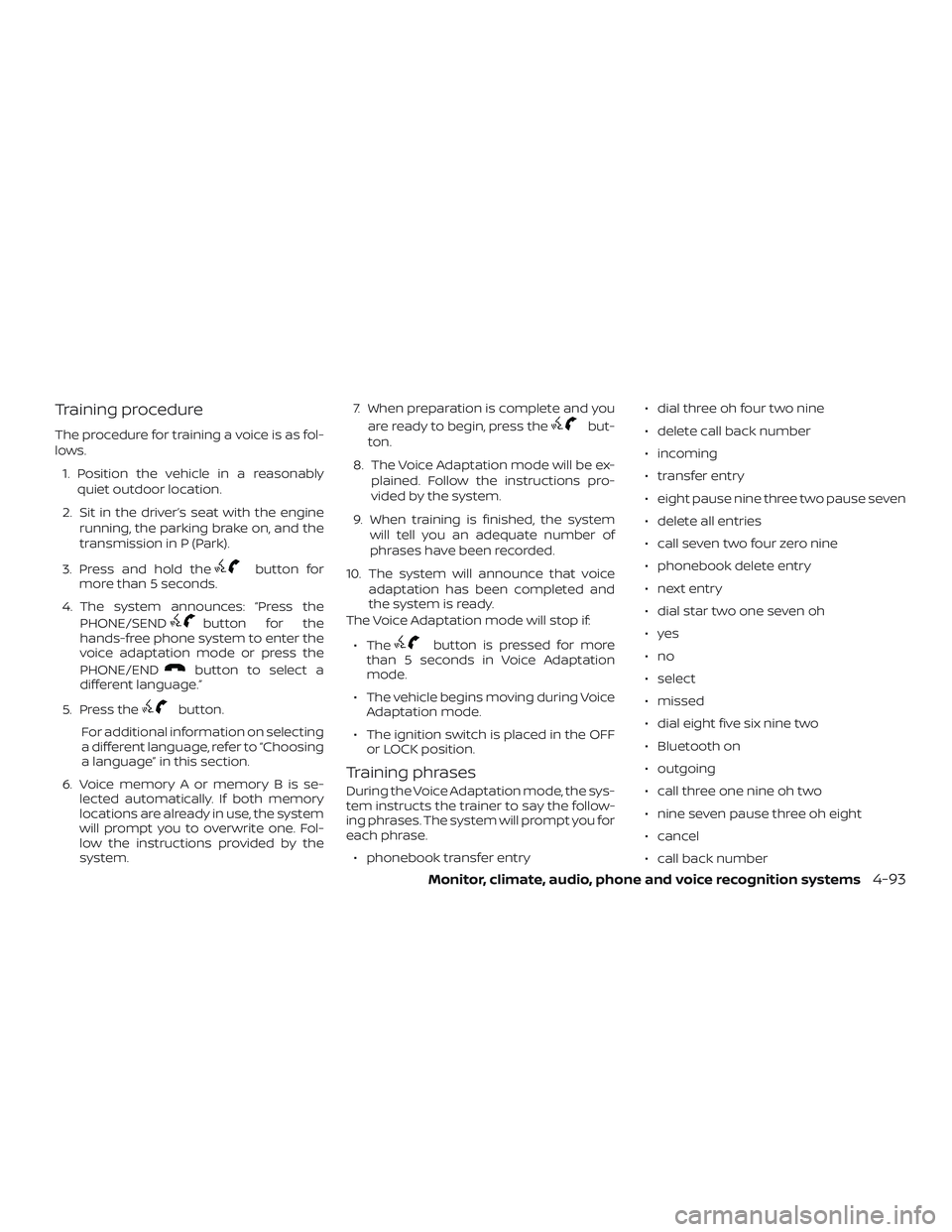
Training procedure
The procedure for training a voice is as fol-
lows.1. Position the vehicle in a reasonably quiet outdoor location.
2. Sit in the driver’s seat with the engine running, the parking brake on, and the
transmission in P (Park).
3. Press and hold the
button for
more than 5 seconds.
4. The system announces: “Press the PHONE/SEND
button for the
hands-free phone system to enter the
voice adaptation mode or press the
PHONE/END
button to select a
different language.”
5. Press the
button.
For additional information on selecting
a different language, refer to “Choosing
a language” in this section.
6. Voice memory A or memory B is se- lected automatically. If both memory
locations are already in use, the system
will prompt you to overwrite one. Fol-
low the instructions provided by the
system. 7. When preparation is complete and you
are ready to begin, press the
but-
ton.
8. The Voice Adaptation mode will be ex- plained. Follow the instructions pro-
vided by the system.
9. When training is finished, the system will tell you an adequate number of
phrases have been recorded.
10. The system will announce that voice adaptation has been completed and
the system is ready.
The Voice Adaptation mode will stop if:
∙ The
button is pressed for more
than 5 seconds in Voice Adaptation
mode.
∙ The vehicle begins moving during Voice Adaptation mode.
∙ The ignition switch is placed in the OFF or LOCK position.
Training phrases
During the Voice Adaptation mode, the sys-
tem instructs the trainer to say the follow-
ing phrases. The system will prompt you for
each phrase.
∙ phonebook transfer entry ∙ dial three oh four two nine
∙ delete call back number
∙ incoming
∙ transfer entry
∙ eight pause nine three two pause seven
∙ delete all entries
∙ call seven two four zero nine
∙ phonebook delete entry
∙ next entry
∙ dial star two one seven oh
∙yes
∙no
∙ select
∙ missed
∙ dial eight five six nine two
∙ Bluetooth on
∙ outgoing
∙ call three one nine oh two
∙ nine seven pause three oh eight
∙ cancel
∙ call back number
Monitor, climate, audio, phone and voice recognition systems4-93
Page 258 of 878
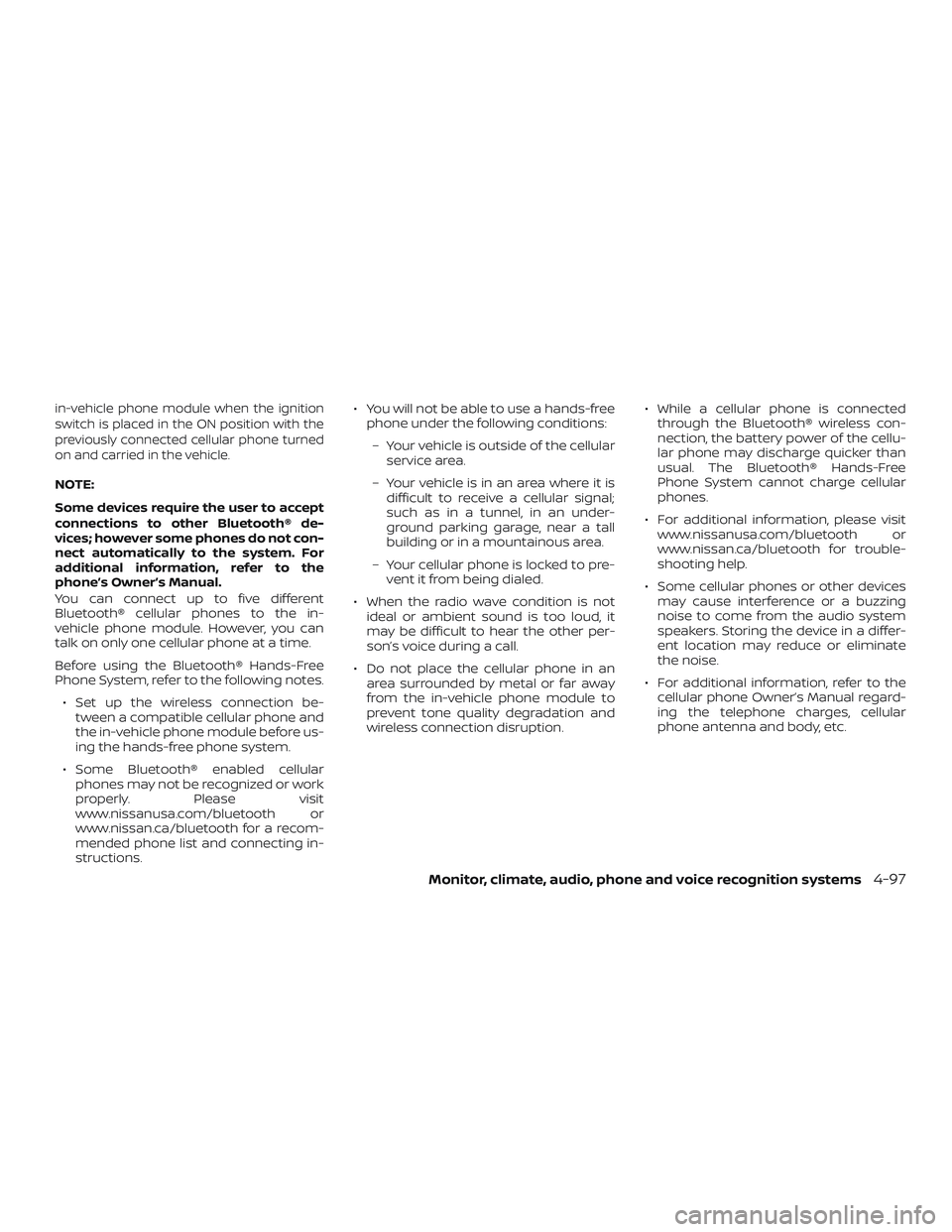
in-vehicle phone module when the ignition
switch is placed in the ON position with the
previously connected cellular phone turned
on and carried in the vehicle.
NOTE:
Some devices require the user to accept
connections to other Bluetooth® de-
vices; however some phones do not con-
nect automatically to the system. For
additional information, refer to the
phone’s Owner’s Manual.
You can connect up to five different
Bluetooth® cellular phones to the in-
vehicle phone module. However, you can
talk on only one cellular phone at a time.
Before using the Bluetooth® Hands-Free
Phone System, refer to the following notes.∙ Set up the wireless connection be- tween a compatible cellular phone and
the in-vehicle phone module before us-
ing the hands-free phone system.
∙ Some Bluetooth® enabled cellular phones may not be recognized or work
properly. Please visit
www.nissanusa.com/bluetooth or
www.nissan.ca/bluetooth for a recom-
mended phone list and connecting in-
structions. ∙ You will not be able to use a hands-free
phone under the following conditions:
– Your vehicle is outside of the cellular service area.
– Your vehicle is in an area where it is difficult to receive a cellular signal;
such as in a tunnel, in an under-
ground parking garage, near a tall
building or in a mountainous area.
– Your cellular phone is locked to pre- vent it from being dialed.
∙ When the radio wave condition is not ideal or ambient sound is too loud, it
may be difficult to hear the other per-
son’s voice during a call.
∙ Do not place the cellular phone in an area surrounded by metal or far away
from the in-vehicle phone module to
prevent tone quality degradation and
wireless connection disruption. ∙ While a cellular phone is connected
through the Bluetooth® wireless con-
nection, the battery power of the cellu-
lar phone may discharge quicker than
usual. The Bluetooth® Hands-Free
Phone System cannot charge cellular
phones.
∙ For additional information, please visit www.nissanusa.com/bluetooth or
www.nissan.ca/bluetooth for trouble-
shooting help.
∙ Some cellular phones or other devices may cause interference or a buzzing
noise to come from the audio system
speakers. Storing the device in a differ-
ent location may reduce or eliminate
the noise.
∙ For additional information, refer to the cellular phone Owner’s Manual regard-
ing the telephone charges, cellular
phone antenna and body, etc.
Monitor, climate, audio, phone and voice recognition systems4-97
Page 271 of 878
– Your vehicle is outside of the cellularservice area.
– Your vehicle is in an area where it is difficult to receive cellular signal;
such as in a tunnel, in an under-
ground parking garage, near a tall
building or in a mountainous area.
– Your cellular phone is locked to pre- vent it from being dialed.
∙ When the radio wave condition is not ideal or ambient sound is too loud, it
may be difficult to hear the other per-
son’s voice during a call.
∙ Immediately af ter the ignition switch is placed in the ON position, it may be im-
possible to receive a call for a short pe-
riod of time.
∙ Do not place the cellular phone in an area surrounded by metal or far away
from the in-vehicle phone module to
prevent tone quality degradation and
wireless connection disruption. ∙ While a cellular phone is connected
through the Bluetooth® wireless con-
nection, the battery power of the cellu-
lar phone may discharge quicker than
usual. The Bluetooth® Hands-Free
Phone System cannot charge cellular
phones.
∙ For additional information, refer to “Troubleshooting guide” in this section.
You can also visit
www.nissanusa.com/bluetooth or
www.nissan.ca/bluetooth for trouble-
shooting help if the hands-free phone
system seems to be malfunctioning.
∙ Some cellular phones or other devices may cause interference or a buzzing
noise to come from the audio system
speakers. Storing the device in a differ-
ent location may reduce or eliminate
the noise.
∙ For additional information, refer to the cellular phone owner’s manual regard-
ing the telephone charges, cellular
phone antenna and body, etc.
∙ The signal strength display on the monitor will not coincide with the signal
strength display of some cellular
phones.REGULATORY INFORMATION
FCC Regulatory information
– CAUTION: To maintain compliance with FCC’s RF exposure guidelines, use only
the supplied antenna. Unauthorized an-
tenna, modification, or attachments
could damage the transmitter and may
violate FCC regulations.
– Operation is subject to the following two conditions:
1. This device may not cause interference and
2. this device must accept any interfer- ence, including interference that may
cause undesired operation of the de-
vice.
IC Regulatory information
– Operation is subject to the following two conditions: (1) this device may not cause
interference, and (2) this device must ac-
cept any interference, including interfer-
ence that may cause undesired opera-
tion of the device.
– This Class B digital apparatus meets all requirements of the Canadian
Interference-Causing Equipment Regu-
lations.
4-110Monitor, climate, audio, phone and voice recognition systems
Page 285 of 878
5 Starting and driving
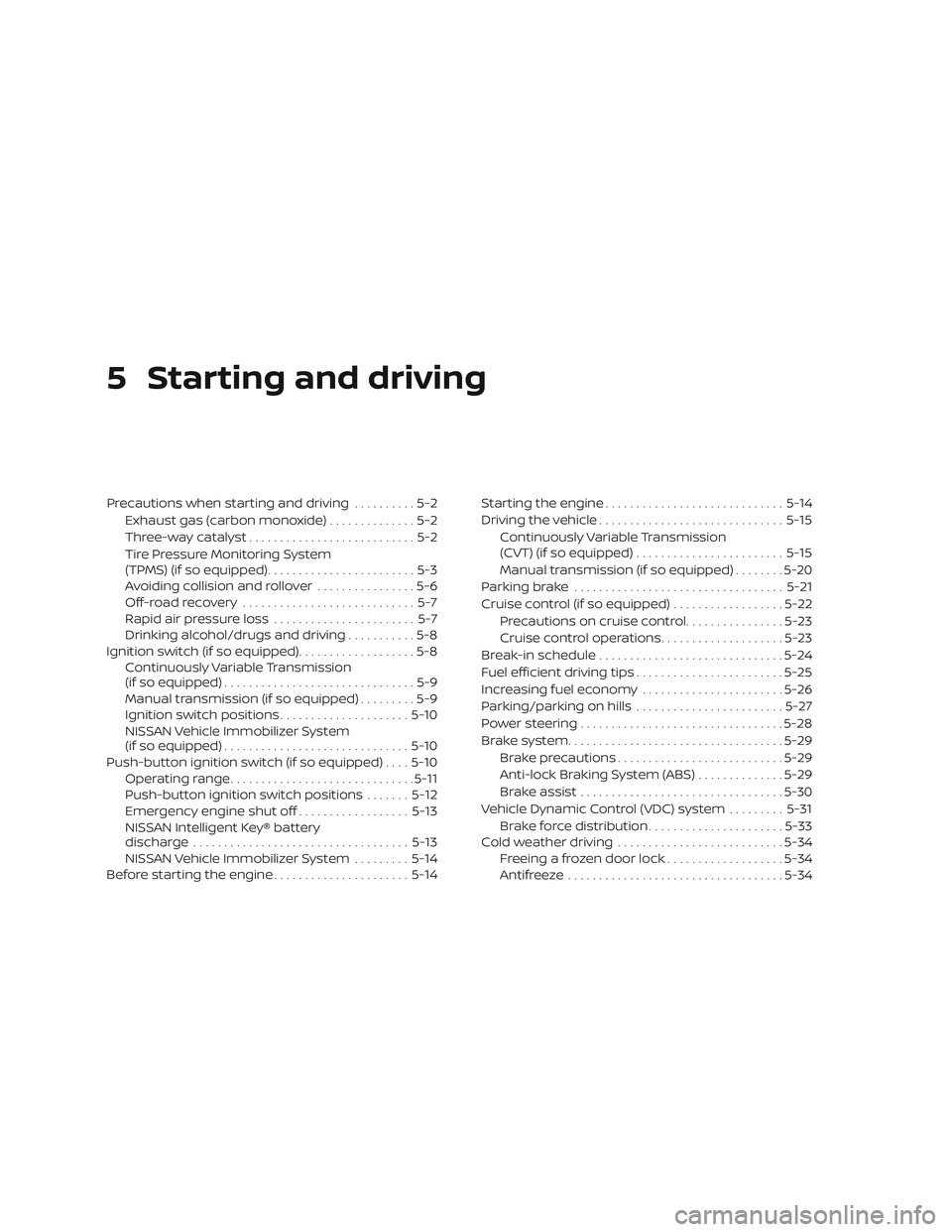
Precautions when starting and driving..........5-2
Exhaust gas (carbon monoxide) ..............5-2
Three-way catalyst ...........................5-2
Tire Pressure Monitoring System
(TPMS) (if so equipped) ........................5-3
Avoiding collision and rollover ................5-6
Off-roadrecovery ............................5-7
Rapid air pressure loss .......................5-7
Drinking alcohol/drugs and driving ...........5-8
Ignition switch (if so equipped) ...................5-8
Continuously Variable Transmission
(if so equipped) ...............................5-9
Manual transmission (if so equipped) .........5-9
Ignition switch positions .....................5-10
NISSAN Vehicle Immobilizer System
(if so equipped) .............................. 5-10
Push-button ignition switch (if so equipped) ....5-10
Operating range .............................. 5-11
Push-button ignition switch positions .......5-12
Emergency engine shut off ..................5-13
NISSAN Intelligent Key® battery
discharge ................................... 5-13
NISSAN Vehicle Immobilizer System .........5-14
Before starting the engine ......................5-14Starting the engine
............................. 5-14
Driving the vehicle .............................. 5-15
Continuously Variable Transmission
(CVT) (if so equipped) ........................ 5-15
Manual transmission (if so equipped) ........5-20
Parking brake .................................. 5-21
Cruise control (if so equipped) ..................5-22
Precautions on cruise control ................5-23
Cruise control operations ....................5-23
Break-in schedule .............................. 5-24
Fuel efficient driving tips ........................5-25
Increasing fuel economy .......................5-26
Parking/parking on hills ........................5-27
Power steering ................................. 5-28
Brake system ................................... 5-29
Brake precautions ........................... 5-29
Anti-lock Braking System (ABS) ..............5-29
Brake assist ................................. 5-30
V
ehicle Dynamic Control (VDC) system .........5-31
Brake force distribution ......................5-33
Cold weather driving ........................... 5-34
Freeing a frozen door lock ...................5-34
Antifreeze ................................... 5-34