phone NISSAN VERSA NOTE 2018 Owner´s Manual
[x] Cancel search | Manufacturer: NISSAN, Model Year: 2018, Model line: VERSA NOTE, Model: NISSAN VERSA NOTE 2018Pages: 878, PDF Size: 9.62 MB
Page 6 of 878
NISSAN CARES . . .
Both NISSAN and your NISSAN dealer are dedicated to serving all your automotive needs. Your satisfaction with your vehicle and your
NISSAN dealer are our primary concerns. YourNISSAN dealer is always available to assist you with all your automobile sales and service
needs.
However, if there is something that your
NISSAN dealer cannot assist you with or
you would like to provide NISSAN directly
with comments or questions, please con-
tact the NISSAN Consumer Affairs Depart-
ment using our toll-free number:
For U.S. customers
1-800-NISSAN-1
(1-800-647-7261)
For Canadian customers 1-800-387-0122 The Consumer Affairs Department will ask
for the following information:
– Your name, address, and telephone
number
– Vehicle identification number (attached to the top of the instrument panel on the
driver’s side)
– Date of purchase
– Current odometer reading
– Your NISSAN dealer’s name
– Your comments or questions
OR You can write to NISSAN with the informa-
tion at:
For U.S. customers
Nissan North America, Inc.
Consumer Affairs Department
P.O. Box 685003
Franklin, TN 37068-5003
or via e-mail at:
[email protected]
For Canadian customers Nissan Canada Inc.
5290 Orbitor Drive
Mississauga, Ontario L4W 4Z5
or via e-mail at:
[email protected]
If you prefer, visit us at:
www.nissanusa.com (for U.S. customers)
or
www.nissan.ca (for Canadian customers)
We appreciate your interest in NISSAN and thank you for buying a quality NISSAN vehicle.
NISSAN CUSTOMER CARE PROGRAM
Page 8 of 878
Table of
ContentsIllustrated table of contents
Safety—Seats, seat belts and supplemental restraint system
Instruments and controls
Pre-driving checks and adjustments
Monitor, climate, audio, phone and voice recognition systems
Starting and driving
In case of emergency
Appearance and care
Do-it-yourself
Maintenance and schedules
Technical and consumer information
Index
0
1
2
3
4
5
6
7
8
9
10
11
Page 16 of 878
17. USB connection port(if so equipped) (P. 4-61)
AUX IN jack (if so equipped) (P. 4-61)
18. Shif t lever (P. 5-15)
19. Cup holders (P. 2-34)
20. Push-button ignition switch
(if so equipped) (P. 5-10)
21. Ignition switch (if so equipped)
(P. 5-8)
22. Cruise control switches
(if so equipped) (P. 5-22)
23. Tilt steering (P. 3-31)
24. Bluetooth® Hands-Free Phone
System (P. 4-81, 4-96, 4-108)
Audio control switches
(if so equipped) (P. 4-36)
Trip computer control switches
(if so equipped) (P. 2-11)
25. Hood release lever (P. 3-26)
26. Fuel-filler door release lever
(P. 3-28)
27. Vehicle Dynamic Control (VDC) OFF
switch (P. 2-33)
28. Outside mirror control switch
(P. 3-33)
Refer to the page number indicated in
parentheses for operating details.
Illustrated table of contents0-7
Page 86 of 878
17. USB connection port(if so equipped) (P. 4-61)
AUX IN jack (if so equipped) (P. 4-61)
18. Shif t lever (P. 5-15)
19. Cup holders (P. 2-34)
20. Push-button ignition switch
(if so equipped) (P. 5-10)
21. Ignition switch (if so equipped)
(P. 5-8)
22. Cruise control switches
(if so equipped) (P. 5-22)
23. Tilt steering (P. 3-31)
24. Bluetooth® Hands-Free Phone
System (P. 4-81, 4-96, 4-108)
Audio control switches
(if so equipped) (P. 4-36)
Trip computer control switches
(if so equipped) (P. 2-11)
25. Hood release lever (P. 3-26)
26. Fuel-filler door release lever
(P. 3-28)
27. Vehicle Dynamic Control (VDC) OFF
switch (P. 2-33)
28. Outside mirror control switch
(P. 3-33)
Refer to the page number indicated in
parentheses for operating details.
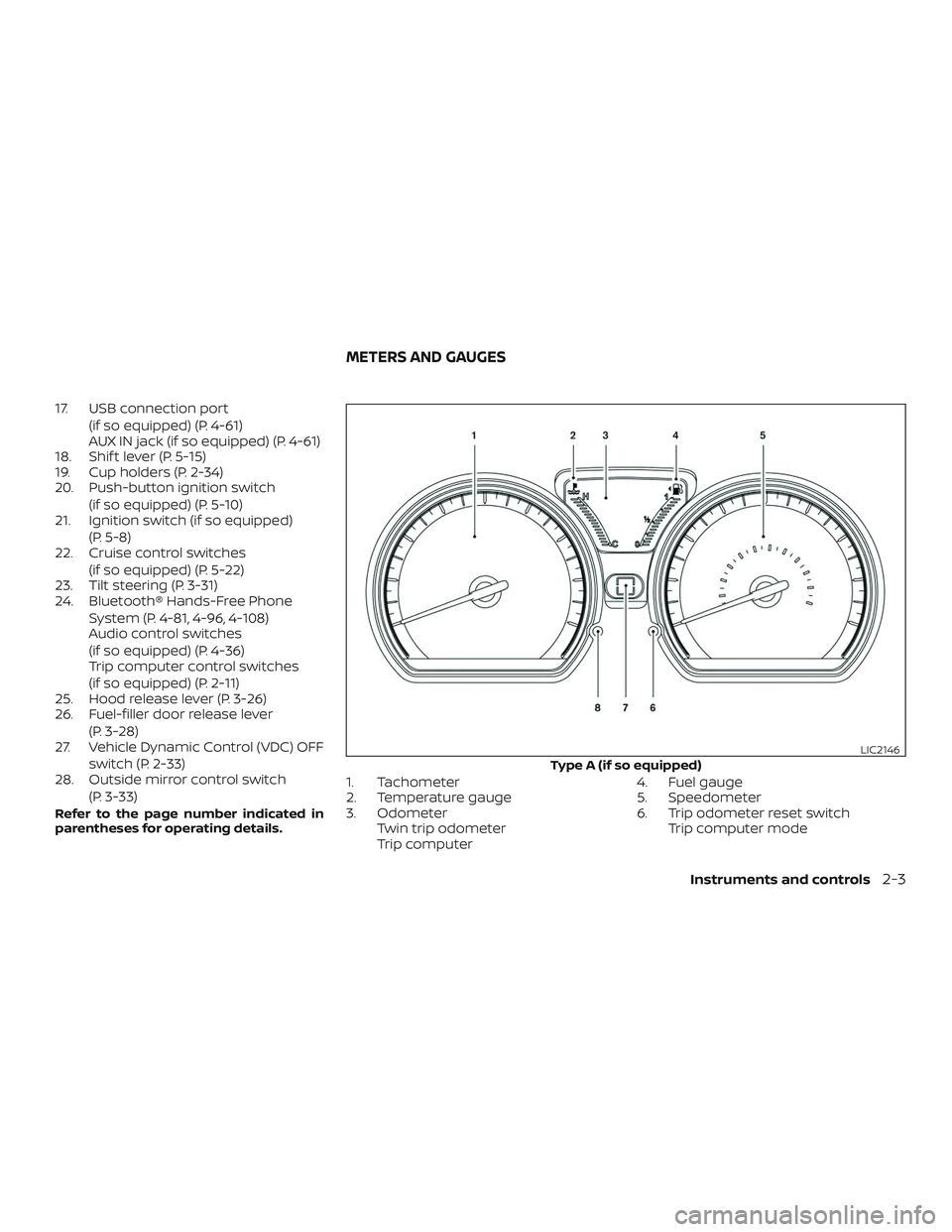
1. Tachometer
2. Temperature gauge
3. OdometerTwin trip odometer
Trip computer 4. Fuel gauge
5. Speedometer
6. Trip odometer reset switch
Trip computer mode
Type A (if so equipped)
LIC2146
METERS AND GAUGES
Instruments and controls2-3
Page 116 of 878
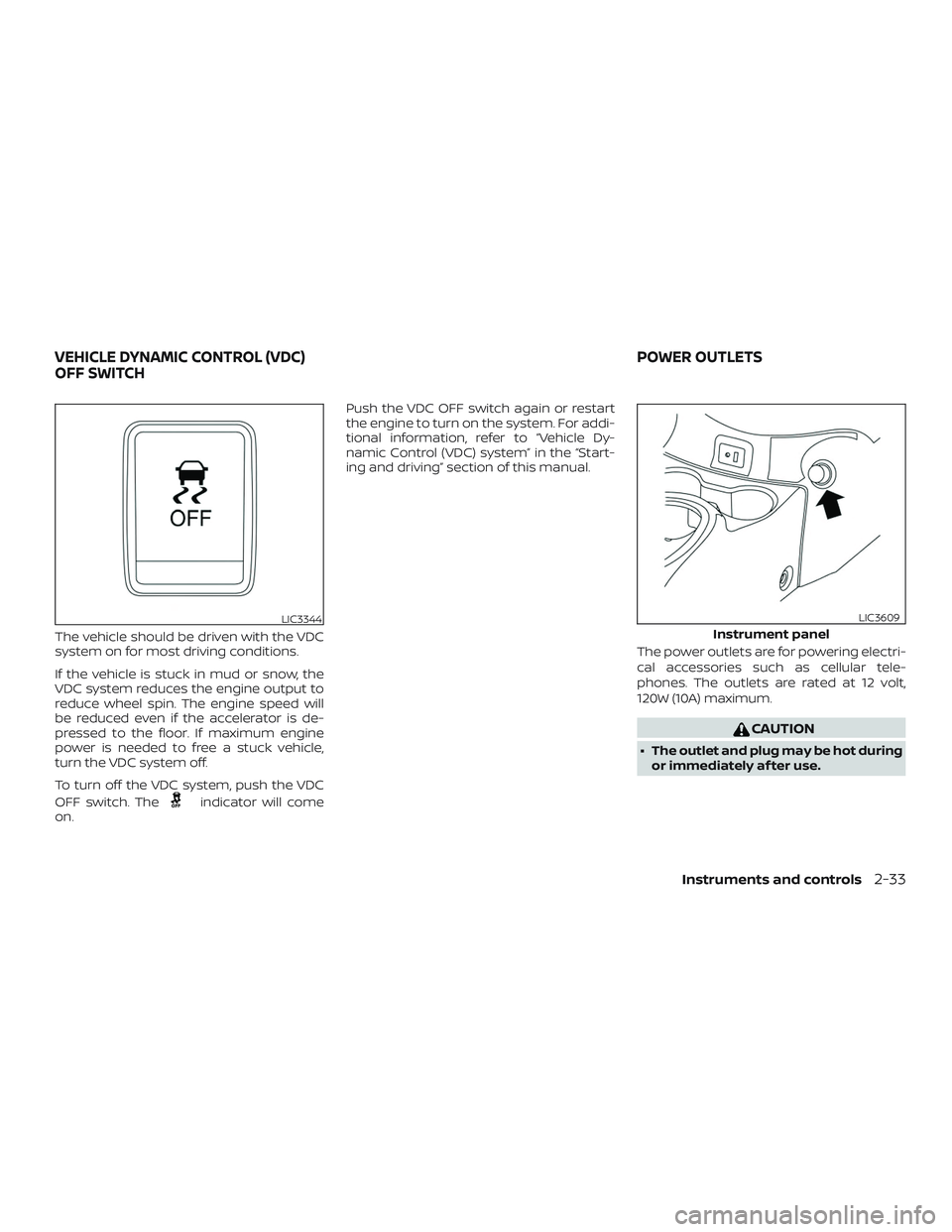
The vehicle should be driven with the VDC
system on for most driving conditions.
If the vehicle is stuck in mud or snow, the
VDC system reduces the engine output to
reduce wheel spin. The engine speed will
be reduced even if the accelerator is de-
pressed to the floor. If maximum engine
power is needed to free a stuck vehicle,
turn the VDC system off.
To turn off the VDC system, push the VDC
OFF switch. The
indicator will come
on. Push the VDC OFF switch again or restart
the engine to turn on the system. For addi-
tional information, refer to “Vehicle Dy-
namic Control (VDC) system” in the “Start-
ing and driving” section of this manual.
The power outlets are for powering electri-
cal accessories such as cellular tele-
phones. The outlets are rated at 12 volt,
120W (10A) maximum.
CAUTION
∙ The outlet and plug may be hot duringor immediately af ter use.
LIC3344
Instrument panel
LIC3609
VEHICLE DYNAMIC CONTROL (VDC)
OFF SWITCH POWER OUTLETS
Instruments and controls2-33
Page 139 of 878
The hazard warning lights will flash once
and the horn will sound once to confirm
that the horn beep feature has been reac-
tivated.
Deactivating the horn beep feature does
not silence the horn if the alarm is trig-
gered.WARNING
∙ Radio waves could adversely affectelectric medical equipment. Those
who use a pacemaker should contact
the electric medical equipment
manufacturer for the possible influ-
ences before use.
∙ The Intelligent Key transmits radio waves when the buttons are pressed.
The FAA advises the radio waves may
affect aircraf t navigation and com-
munication systems. Do not operate
the Intelligent Key while on an air-
plane. Make sure the buttons are not
operated unintentionally when the
unit is stored for a flight.
The Intelligent Key can operate all the door
locks using the remote control function or
pushing the request switch on the vehicle
without taking the key out from a pocket or
purse. The operating environment and/or
conditions may affect the Intelligent Key
operation.
Be sure to read the following before using
the Intelligent Key.
CAUTION
∙ Be sure to carry the Intelligent Key with you when operating the vehicle.
∙ Never leave the Intelligent Key in the vehicle when you leave the vehicle.
The Intelligent Key is always communicat-
ing with the vehicle as it receives radio
waves. The Intelligent Key transmits weak
radio waves. Environmental conditions
may interfere with the operation of the In-
telligent Key under the following operating
conditions: ∙ When operating near a location where strong radio waves are transmitted,
such as a TV tower, power station and
broadcasting station.
∙ When in possession of wireless equip- ment, such as a cellular telephone,
transceiver, or a CB radio.
∙ When the Intelligent Key is in contact with or covered by metallic materials.
∙ When any type of radio wave remote control is used nearby.
∙ When the Intelligent Key is placed near an electric appliance such as a personal
computer.
NISSAN INTELLIGENT KEY® (if so
equipped)
3-12Pre-driving checks and adjustments
Page 162 of 878
4 Monitor, climate, audio, phone and
voice recognition systems
Control panel buttons — color screen with
Navigation System (if so equipped)..............4-4
How to use the touch-screen .................4-5
HowtousetheBACKbutton .................4-7
How to use the [
]button ...............4-7
Clock Set .....................................4-9
button..................................4-9
How to use the ON•OFF button/VOL
(volume) control knob ........................4-9
How to use the CAMERA button ..............4-9
RearView Monitor (if so equipped) ..............4-10
RearView Monitor system operation ..........4-11
How to read the displayed lines ..............4-12
Difference between predicted and
actual distances ............................. 4-12
Adjusting the screen ........................ 4-14
RearView Monitor system limitations ........4-15
System maintenance ........................ 4-16
Around View® Monitor (if so equipped) ..........4-17
Around View® Monitor system
operation .................................... 4-18
Difference between predicted and
actual distances ............................. 4-21How to park with predicted course
lines
......................................... 4-23
How to switch the display ...................4-24
Adjusting the screen ........................ 4-25
Around View® Monitor system
limitations ................................... 4-25
System maintenance ........................ 4-27
Vents ........................................... 4-28
Heater and air conditioner (manual) ............4-28
Controls ..................................... 4-29
Heater operation ............................ 4-30
Air conditioner operation ....................4-31
Air flow charts ............................... 4-32
Servicing air conditioner ........................4-36
Audio system ................................... 4-36
Radio ........................................ 4-36
FM radio reception .......................... 4-36
AM radio reception .......................... 4-37
Satellite radio reception (if so equipped) .....4-37
Audio operation precautions ................4-38
FM/AM radio with compact disc (CD)
player (if so equipped) .......................4-45
FM/AM/SAT radio with compact disc
(CD) player (Type A) (if so equipped) ..........4-49
Page 163 of 878
FM/AM/SAT radio with compact disc
(CD) player (Type B) (if so equipped)..........4-54
USB (Universal Serial Bus) connection
port (models without Navigation
System) (if so equipped) .....................4-61
USB (Universal Serial Bus) connection
port (models with Navigation System)
(if so equipped) .............................. 4-63
iPod®* player operation without
Navigation System (if so equipped) ..........4-65
iPod®* player operation with Navigation
System (if so equipped) ......................4-68
Bluetooth® streaming audio without
Navigation System (if so equipped) ..........4-71
Bluetooth® streaming audio with
Navigation System (if so equipped) ..........4-72
CD care and cleaning ........................ 4-73
Steering Wheel Switch for Audio Control .....4-74
Antenna ..................................... 4-75
NissanConnect® Mobile Apps (if so equipped). . . 4-76 Registering with NissanConnect®
Mobile Apps ................................. 4-76
Connect Phone .............................. 4-76
Application Download .......................4-76Siri® Eyes Free (if so equipped)
..................4-77
Requirements ............................... 4-77
Siri® Activation ............................... 4-77
Operating Siri® Eyes Free ....................4-78
Changing Siri® Eyes Free settings
(models without navigation system) .........4-79
Changing Siri® Eyes Free settings
(models with navigation system) ............4-79
Troubleshooting guide ......................4-80
Car phone or CB radio .......................... 4-81
Bluetooth® Hands-Free Phone System
without Navigation System (Type A)
(if so equipped) ................................. 4-81
Regulatory Information ......................4-83
Using the system ............................ 4-84
Control buttons ............................. 4-86
Getting started .............................. 4-86
List of voice commands .....................4-88
Voice Adaptation (VA) mode .................4-92
Manual control .............................. 4-94
Troubleshooting guide ......................4-94
Bluetooth® Hands-Free Phone System
without
Navigation System (Type B)
(if so equipped) ................................. 4-96
Page 164 of 878
Regulatory information......................4-98
Using the system ............................ 4-98
Control buttons ............................. 4-99
Connecting procedure .....................4-100
Voice commands .......................... 4-102
Making a call ............................... 4-103
Receiving a call ............................. 4-103
During a call ................................ 4-104
Ending a call ................................ 4-104
Text messaging (if so equipped) ............4-104
Bluetooth® settings ........................ 4-106
Manual control ............................. 4-108
Bluetooth® Hands-Free Phone System with
Navigation System (if so equipped) ............4-108
Regulatory information .....................4-110
Voice commands ........................... 4-111
Connecting procedure ......................4-111
Vehicle phonebook ......................... 4-112
Making a call ............................... 4-112Receiving a call
............................. 4-112
During a call ................................ 4-112
Ending a call ................................ 4-113
Text messaging ............................ 4-113
Bluetooth® settings ........................ 4-115
Phone settings ............................. 4-116
Troubleshooting guide .....................4-116
NISSAN Voice Recognition System
(if so equipped) ................................ 4-118
Using the system ........................... 4-118
System features ............................ 4-119
Bluetooth® Hands-Free Phone System
voice commands ........................... 4-120
Navigation System voice commands .......4-121
Audio system voice commands ............4-121
Information voice commands ..............4-122
My Apps voice commands .................4-122
Help
voice commands ...................... 4-122
Troubleshooting guide .....................4-122
Page 165 of 878
WARNING
∙ Positioning of the heating or air con-ditioning controls and display con-
trols should not be done while driving
in order that full attention may be
given to the driving operation.
∙ Do not disassemble or modif y this system. If you do, it may result in acci-
dents, fire, or electrical shock.
∙ Do not use this system if you notice any abnormality, such as a frozen
screen or lack of sound. Continued
use of the system may result in acci-
dent, fire or electric shock.
∙ In case you notice any foreign object in the system hardware, spill liquid on
it, or notice smoke or smell coming
from it, stop using the system imme-
diately. Ignoring such conditions may
lead to accidents, fire or electrical
shock. It is recommended that you
visit a NISSAN dealer for servicing.
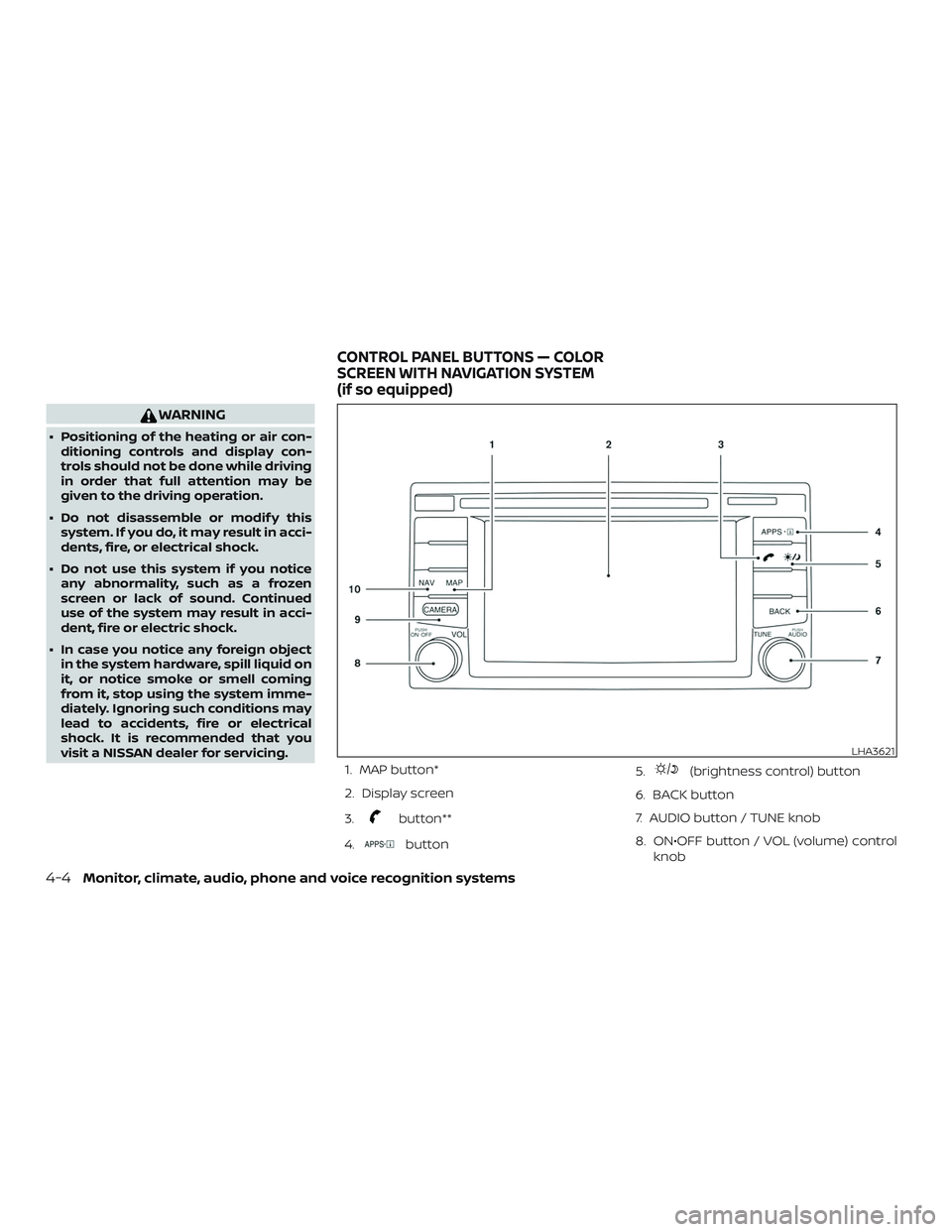
1. MAP button*
2. Display screen
3.
button**
4.
button 5.
(brightness control) button
6. BACK button
7. AUDIO button / TUNE knob
8. ON•OFF button / VOL (volume) control knob
LHA3621
CONTROL PANEL BUTTONS — COLOR
SCREEN WITH NAVIGATION SYSTEM
(if so equipped)
4-4Monitor, climate, audio, phone and voice recognition systems