lock NISSAN XTERRA 2015 N50 / 2.G Repair Manual
[x] Cancel search | Manufacturer: NISSAN, Model Year: 2015, Model line: XTERRA, Model: NISSAN XTERRA 2015 N50 / 2.GPages: 396, PDF Size: 3.51 MB
Page 183 of 396
MENU button (Bass, Treble, Balance,
Fade, Speed Sensitive Volume and Clock)
Press the MENU button to change the mode as
follows:
Bass→Treble →Balance →Fade →Spd. Sen.
Vol. (Speed Sensitive Volume) →AUX IN Volume
→ Clock →Clock Adjust
To adjust the Bass, Treble, Fade and Balance,
press the MENU button until the desired mode
appears in the display. Press the
SEEK or
TRACK
button to adjust the setting to the
desired level (-5 to +5) . Balance adjusts the
sound between the right and left speakers. Fade
adjusts the sound between the front and rear
speakers.
Once you have adjusted the sound quality to the
desired level, press the MENU button repeatedly
until the radio or CD display reappears. Other-
wise, the radio or CD display will automatically
reappear after about 10 seconds.
Speed Sensitive Volume (SSV) adjusts the vol-
ume of the audio system as the vehicle’s driving
speed changes. It can be set as follows:
OFF →LOW →MID →HIGH DISP (display) button
Press the DISP (display) button while a CD is
playing to change the text shown in the audio
display as follows:
For CDs:
Running Time
→Album Title: →Artist Name: →
Song Title
For MP3 CDs:
Running Time →Folder Title: →Album Title: →
Artist Name: →Song Title:
If the text information is too long to fully be dis-
played on the screen; press and hold the DISP
button for longer than 1.5 seconds to scroll
through the rest of the text.
Press the DISP (display) button while the radio is
playing to toggle the audio display between sta-
tion number and RDS.
Clock operation
To turn the clock display on or off, press the
MENU button repeatedly until “Clock” appears
on the display. Turn the TUNE/FOLDER knob to
toggle the setting (ON or OFF) .
Clock set 1. Press the MENU button repeatedly until “Adjust Clock” appears on the display. 2. Press the MENU button.
3. “Change Hour” will appear on the screen.
Turn the TUNE/FOLDER knob to adjust the
hours and then press MENU.
4. “Change Minute” will appear on the screen. Turn the TUNE/FOLDER knob to adjust the
minutes and then press MENU.
The display will return to the regular clock display
after 10 seconds if no further adjustment is per-
formed.FM/AM radio operation
AM and FM buttons
Press the AM button to change the band to AM.
If another audio source is playing when the AM
button is pressed, the audio source playing will
automatically be turned off and the last radio
station played will begin playing.
Press the FM button to change the band as
follows:
FM1 →FM2 →FM1
If another audio source is playing when the FM
button is pressed, the audio source playing will
automatically be turned off and the last radio
station played will begin playing.
4-32Monitor, climate, audio, phone and voice recognition systems
Page 187 of 396
To turn the system off, press the(power)
button.
Turn the VOL (volume) control knob to adjust the
volume.
This vehicle may be equipped with Speed Sen-
sitive Volume. When this feature is active, the
audio volume changes as the driving speed
changes. ENTER/SETTING button
Press the ENTER/SETTING button to show the
Settings screen on the display. Turn the
TUNE/SCROLL knob to navigate the options
and then press the ENTER/SETTING button to
make a selection.
Audio
Bluetooth Connect phone and adjust Bluetooth® settings. For additional information, refer to the “Bluetooth® Hands-
Free Phone System Without Navigation System” in this section.
Bass Adjusts the bass to the desired level.
Treble Adjusts the treble to the desired level.
Balance Adjusts the balance to the desired level. Balance adjusts the sound level between the left and right speakers.
Fade Adjusts the fade to the desired level. Fade adjusts the sound level between the front and rear speakers.
Brightness Adjust the brightness to adjust the appearance of the display screen.
Contrast Adjust the contrast to adjust the appearance of the display screen.
Clock adjust Press the ENTER/SETTING button to highlight the hours or minutes and then use the TUNE/SCROLL knob to
adjust the value. Press the ENTER/SETTING button again to set the value.
On-Screen Clock Toggles ON or OFF the clock display on the upper right corner of the display screen.
RDS Display Toggles ON or OFF the RDS information displayed on the screen while the radio is playing.
Speed Sens Vol. (Speed Sensitive Volume) Adjusts the speed sensitive volume function, which increases the volume of the audio system as the speed of
the vehicle increases. Set to “OFF” to disable the feature. The higher the setting, the more the volume in-
creases in relation to vehicle speed.
AUX Vol. Choose a setting from 0 to +3 to control the boost of incoming auxiliary device volume. A setting of 0 provides
no additional boost in volume. A setting of +3 provides the greatest boost in volume.
Language Select Select the desired language for the system from the available options.
4-36Monitor, climate, audio, phone and voice recognition systems
Page 208 of 396
AM and FM● Tilt up/down for less than 1.5 seconds to
increase or decrease the preset station.
● Tilt up/down for more than 1.5 seconds to
seek up or down to the next station.
iPod® (if so equipped) ● Tilt up/down for less than 1.5 seconds to
increase or decrease the track number.
CD ● Tilt up/down for less than 1.5 seconds to
increase or decrease the track number.
● Tilt up/down for more than 1.5 seconds to
increase or decrease the folder number (if
playing compressed audio files) .
● Tilt up/down for more than 1.5 seconds to
change the playing disc up or down (com-
pact disc changer, if so equipped) .
USB (if so equipped) ● Tilt up/down for less than 1.5 seconds to
increase or decrease the track number.
● Tilt up/down for more than 1.5 seconds to
increase or decrease the folder number. Bluetooth® Audio (if so equipped)
● Tilt up/down for less than 1.5 seconds to
skip ahead or back to the next song.
● Tilt up/down for more than 1.5 seconds to
reverse or fast forward the current song.
ANTENNA
The antenna cannot be shortened, but can be
removed. When you need to remove the antenna,
turn the antenna rod counterclockwise.
To install the antenna rod, turn the antenna clock-
wise. Tighten the antenna rod to specification
using a suitable tool such as an open-end
wrench. The antenna rod tightening specification
is 2.0 – 2.6 N·m (18 – 23 in-lb) . Do not use pliers
to tighten the antenna as they can leave marks on
the antenna surface. The antenna rod cannot be
hand tightened to the proper specification.
CAUTION
Always properly tighten the antenna rod
during installation or the antenna rod may
break during vehicle operation. This vehicle is equipped with Smartphone Inte-
gration technology. This allows many compatible
Smartphone applications to be displayed and
easily controlled through the vehicle’s touch-
screen.
NOTE:
A compatible smartphone and registration
is required to use mobile applications or to
access connected features of certain ve-
hicle applications.
REGISTERING WITH
NISSANCONNECTSMAPP
To use the Smartphone Integration feature, it is
necessary for the user to register. In order to
register, visit the NissanConnect
SMwebsite,
www.nissanusa.com/connect/ and sign up or
create an account through the prompts on the
NissanConnect
SMApp. Once registered, down-
load the NissanConnectSMApp from your com-
patible phone’s application download source and
then log into the application. If you already have
an account created through the App, please log
in.
NISSANCONNECTSMWITH MOBILE
APPS (if so equipped)
Monitor, climate, audio, phone and voice recognition systems4-57
Page 212 of 396
●You will not be able to use a hands-free
phone under the following conditions:
– Your vehicle is outside of the cellular ser- vice area.
– Your vehicle is in an area where it is difficult to receive a cellular signal; such
as in a tunnel, in an underground parking
garage, near a tall building or in a moun-
tainous area.
– Your cellular phone is locked to prevent it from being dialed.
● When the radio wave condition is not ideal
or ambient sound is too loud, it may be
difficult to hear the other person’s voice dur-
ing a call.
● Do not place the cellular phone in an area
surrounded by metal or far away from the
in-vehicle phone module to prevent tone
quality degradation and wireless connection
disruption.
● While a cellular phone is connected through
the Bluetooth® wireless connection, the
battery power of the cellular phone may dis-
charge quicker than usual. The Bluetooth®
Hands-Free Phone System cannot charge
cellular phones. ●
If the hands-free phone system seems to be
malfunctioning, refer to “Troubleshooting
guide” in this section. You can also visit
www.nissanusa.com/bluetooth for trouble-
shooting help.
● Some cellular phones or other devices may
cause interference or a buzzing noise to
come from the audio system speakers. Stor-
ing the device in a different location may
reduce or eliminate the noise.
● Refer to the cellular phone Owner’s Manual
regarding the telephone charges, cellular
phone antenna and body, etc.
REGULATORY INFORMATION
FCC Regulatory information
– CAUTION: To maintain compliance with FCC’s RF exposure guidelines, use only the
supplied antenna. Unauthorized antenna,
modification, or attachments could damage
the transmitter and may violate FCC regula-
tions.
– Operation is subject to the following two con- ditions:
1. This device may not cause interference and
2. this device must accept any interference, including interference that may cause unde-
sired operation of the device. IC Regulatory information
– Operation is subject to the following two con-
ditions: (1) this device may not cause interfer-
ence, and (2) this device must accept any
interference, including interference that may
cause undesired operation of the device.
– This Class B digital apparatus meets all re- quirements of the Canadian Interference-
Causing Equipment Regulations.
BLUETOOTH® is a
trademark owned by
Bluetooth SIG, Inc.
and licensed to
Visteon.
USING THE SYSTEM
The NISSAN Voice Recognition system allows
hands-free operation of the Bluetooth® Hands-
Free Phone System.
If the vehicle is in motion, some commands may
not be available so full attention may be given to
vehicle operation.
Monitor, climate, audio, phone and voice recognition systems4-61
Page 222 of 396
5. Press thebutton.
For additional information on selecting a dif-
ferent language, refer to “Choosing a lan-
guage” in this section.
6. Voice memory A or memory B is selected automatically. If both memory locations are
already in use, the system will prompt you to
overwrite one. Follow the instructions pro-
vided by the system.
7. When preparation is complete and you are ready to begin, press the
button.
8. The VA mode will be explained. Follow the instructions provided by the system.
9. When training is finished, the system will tell you an adequate number of phrases have
been recorded.
10. The system will announce that voice adap- tation has been completed and the system is
ready.
The VA mode will stop if:
● The
button is pressed for more than
5 seconds in VA mode. ●
The vehicle begins moving during VA mode.
● The ignition switch is placed in the OFF or
LOCK position.
Training phrases
During the VA mode, the system instructs the
trainer to say the following phrases. The system
will prompt you for each phrase.
● phonebook transfer entry
● dial three oh four two nine
● delete call back number
● incoming
● transfer entry
● eight pause nine three two pause seven
● delete all entries
● call seven two four zero nine
● phonebook delete entry
● next entry
● dial star two one seven oh
● yes
● no
● select ●
missed
● dial eight five six nine two
● Bluetooth on
● outgoing
● call three one nine oh two
● nine seven pause pause three oh eight
● cancel
● call back number
● call star two zero nine five
● delete phone
● dial eight three zero five one
● record name
● four three pause two nine pause zero
● delete redial number
● phonebook list names
● call eight oh five four one
● correction
● connect phone
● dial seven four oh one eight
● previous entry
Monitor, climate, audio, phone and voice recognition systems4-71
Page 226 of 396
the ignition switch is placed in the ON position with
the previously connected cellular phone turned on
and carried in the vehicle.
You can connect up to five different Bluetooth®
cellular phones to the in-vehicle phone module.
However, you can talk on only one cellular phone
at a time.
Before using the Bluetooth® Hands-Free Phone
System, refer to the following notes.● Set up the wireless connection between a
compatible cellular phone and the in-vehicle
phone module before using the hands-free
phone system.
●
Some Bluetooth® enabled cellular phones may
not be recognized by the in-vehicle phone mod-
ule. Please visit www.nissanusa.com/bluetooth
for recommended phone list and connecting
instructions.
● You will not be able to use a hands-free
phone under the following conditions:
– Your vehicle is outside of the cellular ser- vice area.
– Your vehicle is in an area where it is difficult to receive a cellular signal; such
as in a tunnel, in an underground parking
garage, near a tall building or in a moun-
tainous area. – Your cellular phone is locked to prevent it
from being dialed.
● When the radio wave condition is not ideal
or ambient sound is too loud, it may be
difficult to hear the other person’s voice dur-
ing a call.
● Do not place the cellular phone in an area
surrounded by metal or far away from the
in-vehicle phone module to prevent tone
quality degradation and wireless connection
disruption.
● While a cellular phone is connected through
the Bluetooth® wireless connection, the
battery power of the cellular phone may dis-
charge quicker than usual. The Bluetooth®
Hands-Free Phone System cannot charge
cellular phones.
● If the hands-free phone system seems to be
malfunctioning, refer to “Troubleshooting
guide” in this section. You can also visit
www.nissanusa.com/bluetooth for trouble-
shooting help.
● Some cellular phones or other devices may
cause interference or a buzzing noise to
come from the audio system speakers. Stor-
ing the device in a different location may
reduce or eliminate the noise. ●
Refer to the cellular phone Owner’s Manual
regarding the telephone charges, cellular
phone antenna and body, etc.
REGULATORY INFORMATION
FCC Regulatory information
– CAUTION: To maintain compliance with FCC’s RF exposure guidelines, use only the
supplied antenna. Unauthorized antenna,
modification, or attachments could damage
the transmitter and may violate FCC regula-
tions.
– Operation is subject to the following two con- ditions:
1. This device may not cause interference and
2. this device must accept any interference, including interference that may cause unde-
sired operation of the device.
IC Regulatory information
– Operation is subject to the following two con- ditions: (1) this device may not cause interfer-
ence, and (2) this device must accept any
interference, including interference that may
cause undesired operation of the device.
– This Class B digital apparatus meets all re- quirements of the Canadian Interference-
Causing Equipment Regulations.
Monitor, climate, audio, phone and voice recognition systems4-75
Page 237 of 396
●You will not be able to use a hands-free
phone under the following conditions:
– Your vehicle is outside of the cellular ser- vice area.
– Your vehicle is in an area where it is difficult to receive cellular signal; such as
in a tunnel, in an underground parking
garage, near a tall building or in a moun-
tainous area.
– Your cellular phone is locked to prevent it from being dialed.
● When the radio wave condition is not ideal
or ambient sound is too loud, it may be
difficult to hear the other person’s voice dur-
ing a call.
● Immediately after the ignition switch is
placed in the ON position, it may be impos-
sible to receive a call for a short period of
time.
● Do not place the cellular phone in an area
surrounded by metal or far away from the
in-vehicle phone module to prevent tone
quality degradation and wireless connection
disruption. ●
While a cellular phone is connected through
the Bluetooth® wireless connection, the
battery power of the cellular phone may dis-
charge quicker than usual. The Bluetooth®
Hands-Free Phone System cannot charge
cellular phones.
● If the hands-free phone system seems to be
malfunctioning, refer to “Troubleshooting
guide” in this section. You can also visit
www.nissanusa.com/bluetooth for trouble-
shooting help.
● Some cellular phones or other devices may
cause interference or a buzzing noise to
come from the audio system speakers. Stor-
ing the device in a different location may
reduce or eliminate the noise.
● Refer to the cellular phone owner’s manual
regarding the telephone charges, cellular
phone antenna and body, etc.
● The signal strength display on the monitor
will not coincide with the signal strength
display of some cellular phones.REGULATORY INFORMATION
FCC Regulatory information
– CAUTION: To maintain compliance with
FCC’s RF exposure guidelines, use only the
supplied antenna. Unauthorized antenna,
modification, or attachments could damage
the transmitter and may violate FCC regula-
tions.
– Operation is subject to the following two con- ditions:
1. This device may not cause interference and
2. this device must accept any interference, including interference that may cause unde-
sired operation of the device.
IC Regulatory information
– Operation is subject to the following two con- ditions: (1) this device may not cause interfer-
ence, and (2) this device must accept any
interference, including interference that may
cause undesired operation of the device.
– This Class B digital apparatus meets all re- quirements of the Canadian Interference-
Causing Equipment Regulations.
4-86Monitor, climate, audio, phone and voice recognition systems
Page 249 of 396
5 Starting and driving
Precautions when starting and driving................5-2
Exhaust gas (carbon monoxide) ..................5-2
Three-way catalyst ..............................5-2
Tire Pressure Monitoring System (TPMS) ..........5-3
On-pavement and off-road driving
precautions ....................................5-5
Avoiding collision and rollover . . ..................5-6
Off-road recovery ...............................5-6
Rapid air pressure loss ..........................5-6
Drinking alcohol/drugs and driving ................5-7
Driving safety precautions .......................5-7
Ignition switch .....................................5-9
Automatic transmission (if so equipped) ..........5-10
Manual transmission (if so equipped) ............5-11
Key positions ................................. 5-11
NISSAN vehicle immobilizer system .............5-11
Before starting the engine ......................... 5-12
Starting the engine ............................... 5-12
Driving the vehicle ................................ 5-13
Automatic transmission (if so equipped) ..........5-13
Manual transmission (if so equipped) ............5-17
Parking brake .................................... 5-19
Cruise control .................................... 5-20Precautions on cruise control
...................5-20
Cruise control operations .......................5-20
Break-in schedule ................................ 5-21
Fuel efficient driving tips ........................... 5-22
Increasing fuel economy ........................... 5-23
Using 4–wheel drive (4WD)
(if so equipped) .................................. 5-23
Transfer case shifting procedures . . .............5-24
Electronic locking rear differential (E-Lock) system
(if so equipped) .................................. 5-29
Parking/parking on hills ............................ 5-31
Power steering ................................... 5-32
Brake system .................................... 5-32
Brake precautions ............................. 5-32
Anti-lock Braking System (ABS) .................5-33
Active brake limited slip (ABLS) system .............5-34
Vehicle Dynamic Control (VDC) system .............5-35
Hill descent control system (if so equipped) .........5-36
Hill start assist system (if so equipped) ..............5-37
Cold weather driving .............................. 5-38
Freeing a frozen door lock ......................5-38
Antifreeze ..................................... 5-38
Battery ....................................... 5-38
Page 250 of 396
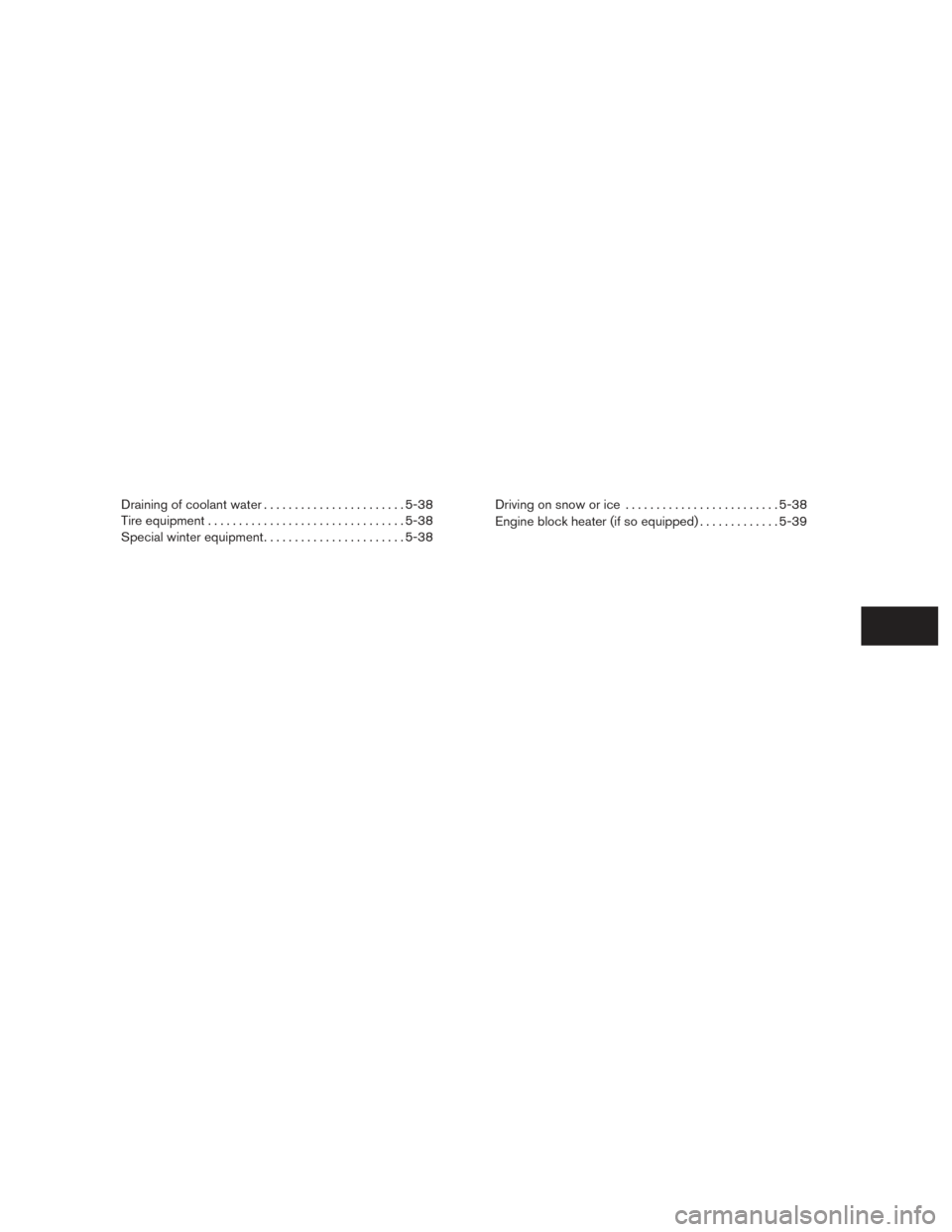
Draining of coolant water.......................5-38
Tire equipment ................................ 5-38
Special winter equipment .......................5-38Driving on snow or ice
......................... 5-38
Engine block heater (if so equipped) .............5-39
Page 258 of 396

●Do not attempt to test a 4WD equipped
vehicle on a 2-wheel dynamometer
(such as the dynamometers used by
some states for emissions testing) , or
similar equipment even if the other two
wheels are raised off the ground. Make
sure you inform test facility personnel
that your vehicle is equipped with 4WD
before it is placed on a dynamometer.
Using the wrong test equipment may
result in drivetrain damage or unex-
pected vehicle movement which could
result in serious vehicle damage or per-
sonal injury.
● Accelerating quickly, sharp steering
maneuvers or sudden braking may
cause loss of control.
● If at all possible, avoid sharp turning
maneuvers, particularly at high speeds.
Your NISSAN 4-wheel drive vehicle has
a higher center of gravity than a passen-
ger car. The vehicle is not designed for
cornering at the same speeds as pas-
senger cars. Failure to operate this ve-
hicle correctly could result in loss of
control and/or a rollover accident. ●
Always use tires of the same type, size,
brand, construction (bias, bias-belted,
or radial) , and tread pattern on all 4
wheels. Install tire chains on the rear
wheels when driving on slippery roads
and drive carefully.
● Be sure to check the brakes immedi-
ately after driving in mud or water. For
additional information, refer to “Brake
system” in this section for “Wet brakes”
● Avoid parking your vehicle on steep
hills. If you get out of the vehicle and it
rolls forward, backward or sideways,
you could be injured.
● Whenever you drive off-road through
sand, mud or water as deep as the
wheel hub, more frequent maintenance
may be required. For additional infor-
mation, refer to “Periodic maintenance”
in the “NISSAN Service and Mainte-
nance Guide”.WARNING
● Never remove the ignition key or place
the ignition switch in the LOCK position
while driving. The steering wheel will
lock (for models with a steering lock
mechanism) . This may cause the driver
to lose control of the vehicle and could
result in serious vehicle damage or per-
sonal injury.
IGNITION SWITCH
Starting and driving5-9