radio Oldsmobile Achieva 1998 Owner's Manuals
[x] Cancel search | Manufacturer: OLDSMOBILE, Model Year: 1998, Model line: Achieva, Model: Oldsmobile Achieva 1998Pages: 356, PDF Size: 18.04 MB
Page 70 of 356
The rear doors of your vehicle cannot be opened from
inside when this feature is in
use. If you want to open a
rear door when the security lock
is on:
1. Unlock the door from the inside.
2. Then open the door from the outside.
If you don’t cancel the security lock feature, adults or
older children who ride in the rear won’t be able to open
the rear door from the inside.
You should let adults and
older children know how these security locks work, and
how to cancel the locks.
Remote Lock Control (If Equipped)
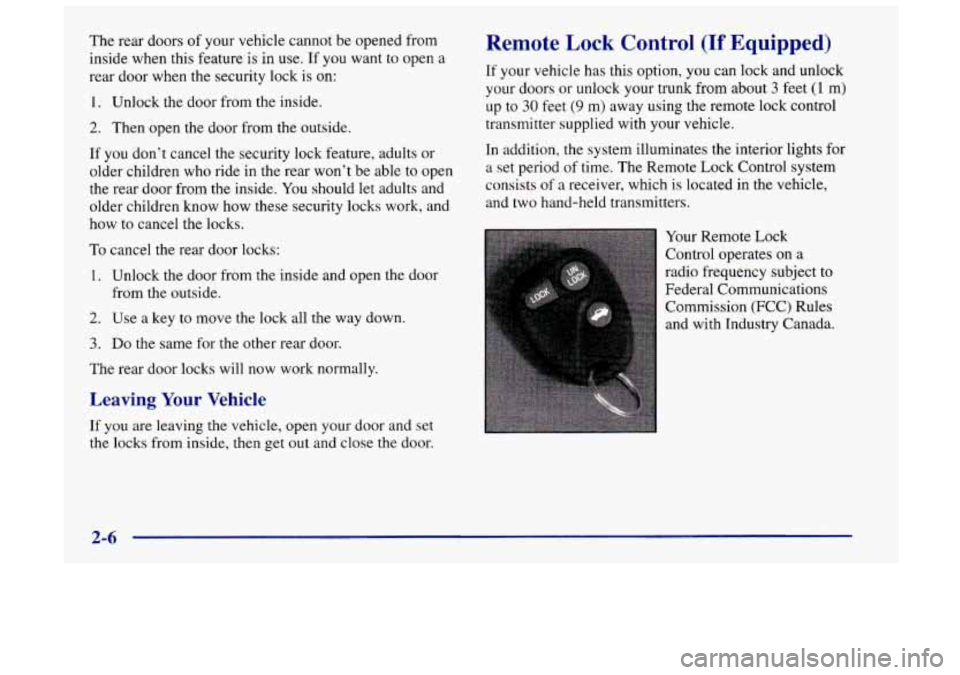
If your vehicle has this option, you can lock and unlock
your doors or unlock your trunk from about
3 feet (1 m)
up to 30 feet (9 m) away using the remote lock control
transmitter supplied with your vehicle.
In addition, the system illuminates the interior lights for
a set period of time. The Remote Lock Control system
consists
of a receiver, which is located in the vehicle,
and two hand-held transmitters.
To cancel the rear door locks:
1. Unlock the door from the inside and open the door
from the outside.
2. Use a key to move the lock all the way down.
3. Do the same for the other rear door.
The rear door locks will now work normally.
Leaving Your Vehicle
If you are leaving the vehicle, open your door and set
the locks from inside, then get out and close the door. Your
Remote Lock
Control operates on a
radio frequency subject to
Federal Communications Commission
(FCC) Rules
and with Industry Canada.
2-6
Page 77 of 356
New Vehicle ‘ ~ -eak-In”
NOTICE:
Your vehicle doesn’t need an elaborate
“break-in.” But it will perform better in the long
run if you follow these guidelines:
a
a
a
Don’t drive at any one speed -- fast or
slow
-- for the first 500 miles (805 km).
Don’t make full-throttle starts.
Avoid making hard stops for the first
200 miles (322 km) or so. During this time
your new brake linings aren’t yet broken
in. Hard stops with new linings can mean
premature wear and earlier replacement.
Follow this breaking-in guideline every
time you get new brake linings.
Don’t tow a trailer during break-in.
See “Towing a Trailer” in the Index for
more information.
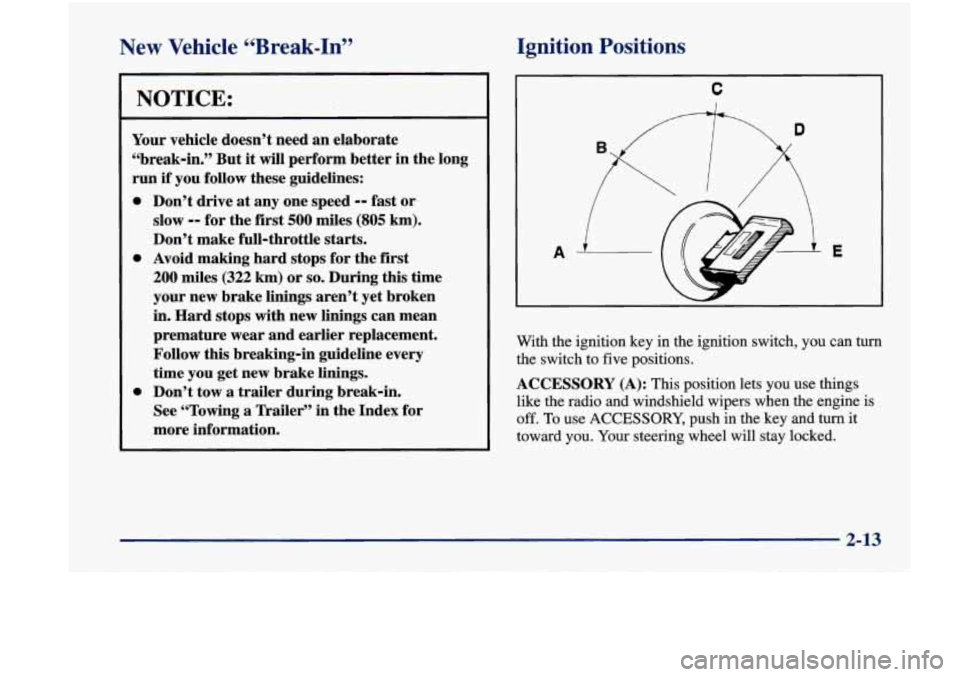
Ignition Positions
I C
D
With the ignition key in the ignition switch, you can turn
the switch to five positions.
ACCESSORY (A): This position lets you use things
like the radio and windshield wipers when the engine is
off. To use ACCESSORY, push in the key and turn it
toward
you. Your steering wheel will stay locked.
2-13
Page 78 of 356
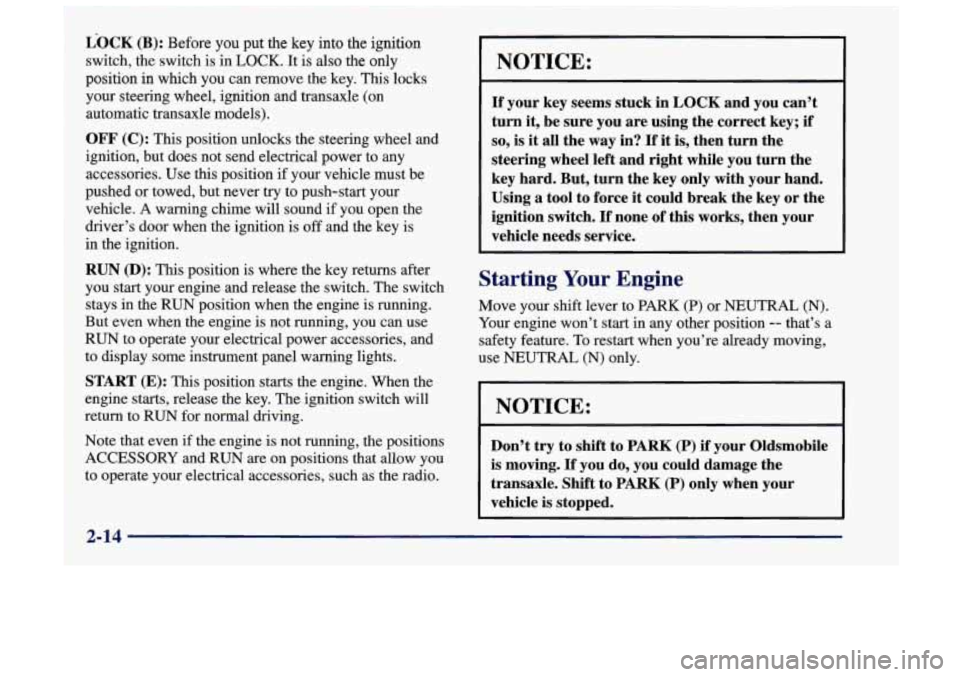
L-OCK (B): Before you put the key into the ignition
switch, the switch
is in LOCK. It is also the only
position in which you can remove the key.
This locks
your steering wheel, ignition and transaxle
(on
automatic transaxle models).
OFF (C): This position unlocks the steering wheel and
ignition, but does not send electrical power to any
accessories. Use this position if your vehicle must be
pushed or towed, but never try to push-start your
vehicle. A warning chime will sound if you open the
driver’s door when the ignition is off and the key is
in the ignition.
RUN (D): This position is where the key returns after
you start your engine and release the switch. The switch
stays in the RUN position when the engine is running.
But even when the engine is not running, you can use
RUN to operate your electrical power accessories, and
to display some instrument panel warning lights.
START (E): This position starts the engine. When the
engine starts, release the key. The ignition switch will
return to
RUN for normal driving.
Note that even
if the engine is not running, the positions
ACCESSORY and RUN are on positions that allow you
to operate your electrical accessories, such as the radio.
NOTICE:
If your key seems stuck in LOCK and you can’t
turn it, be sure you are using the correct key; if
so, is it all the way in? If it is, then turn the
steering wheel left and right while you turn the
key hard. But, turn the key only with your hand.
Using
a tool to force it could break the key or the
ignition switch.
If none of this works, then your
vehicle needs service.
Starting Your Engine
Move your shift lever to PARK (P) or NEUTRAL (N).
Your engine won’t start in any other position
-- that’s a
safety feature.
To restart when you’re already moving,
use NEUTRAL (N) only.
NOTICE:
Don’t try to shift to PARK (P) if your Oldsmobile
is moving. If you do, you could damage the
transaxle. Shift to
PARK (P) only when your
vehicle is stopped.
2-14
Page 103 of 356
Automatic Light Control (ALC)
Your vehicle is equipped with an automatic light sensor
on top
of the instrument panel under the defroster grill,
so be sure it is not covered which will cause the
nighttime lights to be on continuously.
When it
is dark enough outside, your ALC will turn on
your headlamps that you were last using at the normal
brightness along with other lamps such as the taillamps,
sidemarker, park lamps and instrument panel lights.
There is a 20-second delay in the transition between
daytime and nighttime operation
of the DRL and the
ALC systems.
If the light sensor senses a reduction in
lighting that lasts longer than 20 seconds, it will activate
the nighttime lamps. If you are driving through a
parking garage, heavy overcast weather, a tunnel or
fueling your vehicle in a low light area, the ALC will
turn on your low-beam headlamps at a normal
brightness along with
the taillamps, sidemarker, park
lamps and the instrument panel lights. The radio lights
will be dimmer.
As with any vehicle, you should turn on the regular
headlamp system when you need it.
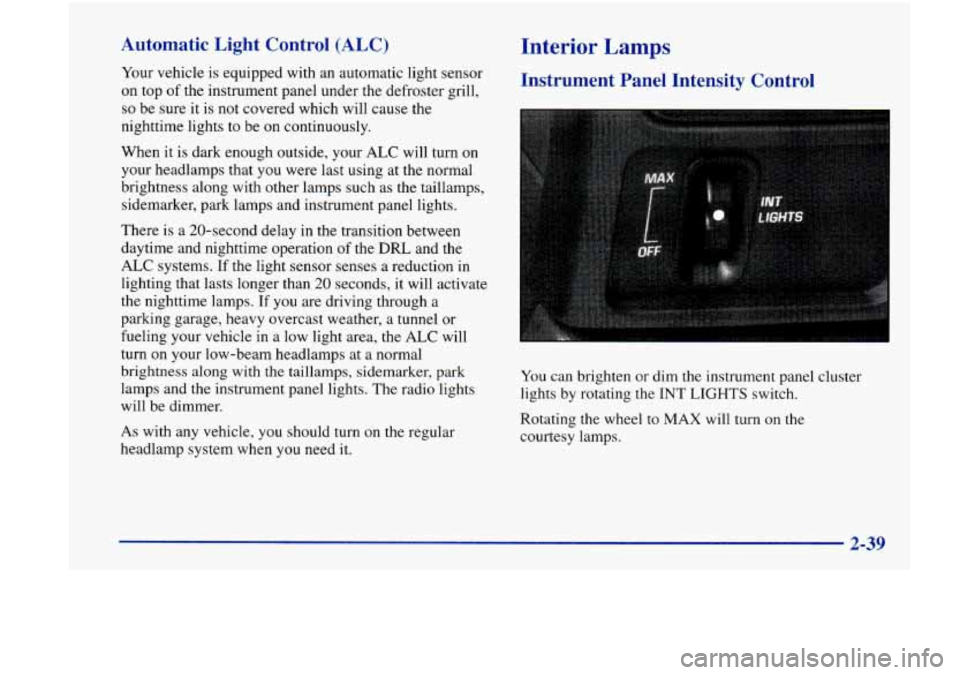
Interior Lamps
Instrument Panel Intensity Control
You can brighten or dim the instrument panel cluster
lights by rotating the INT
LIGHTS switch.
Rotating the wheel to
MAX will turn on the
courtesy lamps.
2-39
Page 116 of 356
If it stays on, or comes on while you are driving, you
may have a problem with the electrical charging system.
It could indicate that you have a loose generator drive
belt or another electrical problem. Have it checked
right away. Driving while this light is on could drain
your battery.
If you must drive a short distance with the light on, be
certain to turn
off all your accessories, such as the radio
and
air conditioner.
This light should come on briefly when you turn the
ignition key to
RUN. If it doesn’t come on then, have it
fixed so it will be ready to warn you if there’s a problem.
If the light comes
on while you are driving, pull off the
road and stop carefully. You may notice that the pedal is
harder to push. Or, the pedal may go closer to the floor.
It may take longer
to stop. If the light is still on, have the
vehicle towed for service. (See “Towing Your Vehicle”
in the Index.)
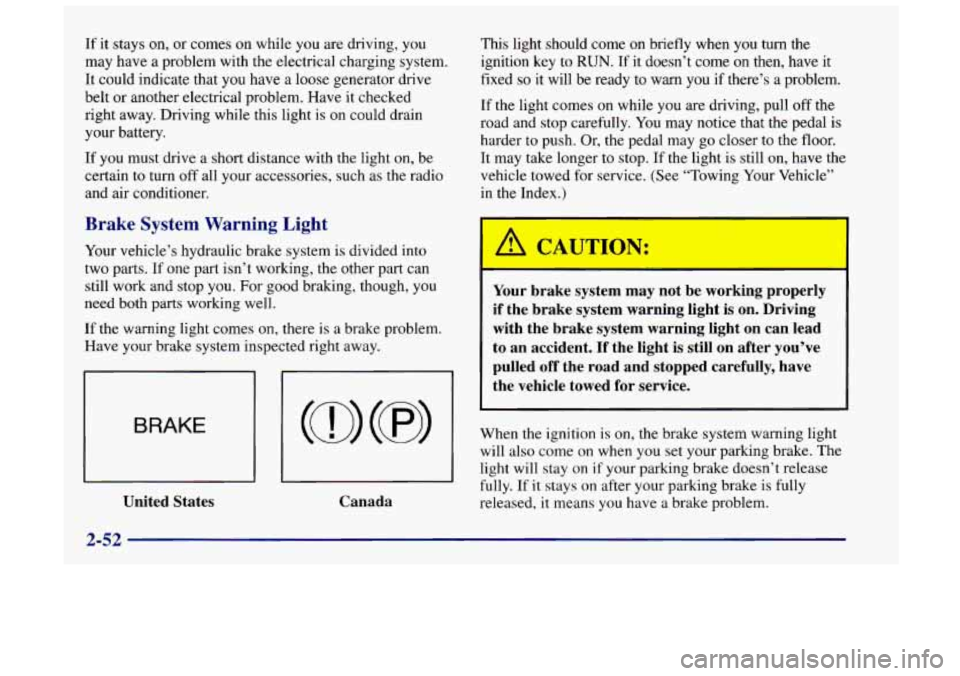
Brake System Warning Light
Your vehicle’s hydraulic brake system is divided into
two parts. If one part isn’t working, the other part can
still
work and stop you. For good braking, though, you
need both parts working well.
If the warning light comes on, there is a brake problem.
Have your brake system inspected right away.
BRAKE
I I I I
United States Canada Your brake system may not be working properly
if the brake system warning light is on. Driving
with the brake system warning light on can lead
to an accident. If the light is still on after you’ve
pulled off the road and stopped carefully, have
the vehicle towed for service.
When the ignition is on, the brake system warning light
will also come on when
you set your parking brake. The
light will stay on
if your parking brake doesn’t release
fully. If it stays on after your parking brake is fully
released,
it means you have a brake problem.
2-52
Page 125 of 356

Section 3 Comfort Controls and Audio Systems
In this section, you’ll find out how to operate the comfort\
control and audio systems offered with your vehicle. Be
sure to read about the particular systems supplied with your vehicle.
3-2
3-2
3-3
3-3
3-4
3-4
3-5
3-6
3-6
3-7 Comfort Controls
Climate Control System
Air Conditioning Heating
Defogging and Defrosting
Rear Window Defogger
Ventilation System
Audio Systems
Setting the Clock
AM-FM Stereo with Cassette Tape Player and
Automatic Tone Control
(If Equipped)
3-16
3-18
3-18
3-19
3
-20
3 -20
3-2
1
3-11 AM-FM Stereo with Cassette Tape and
Compact Disc with Automatic Tone Control
(If Equipped)
Theft-Deterrent Feature
Understanding Radio Reception
Tips About Your Audio System
Care of Your Cassette Tape Player
Care of Your Compact Discs
Care of Your Compact Disc Player
Rear Window Defogger Antenna
(If Equipped)
3-1
Page 131 of 356
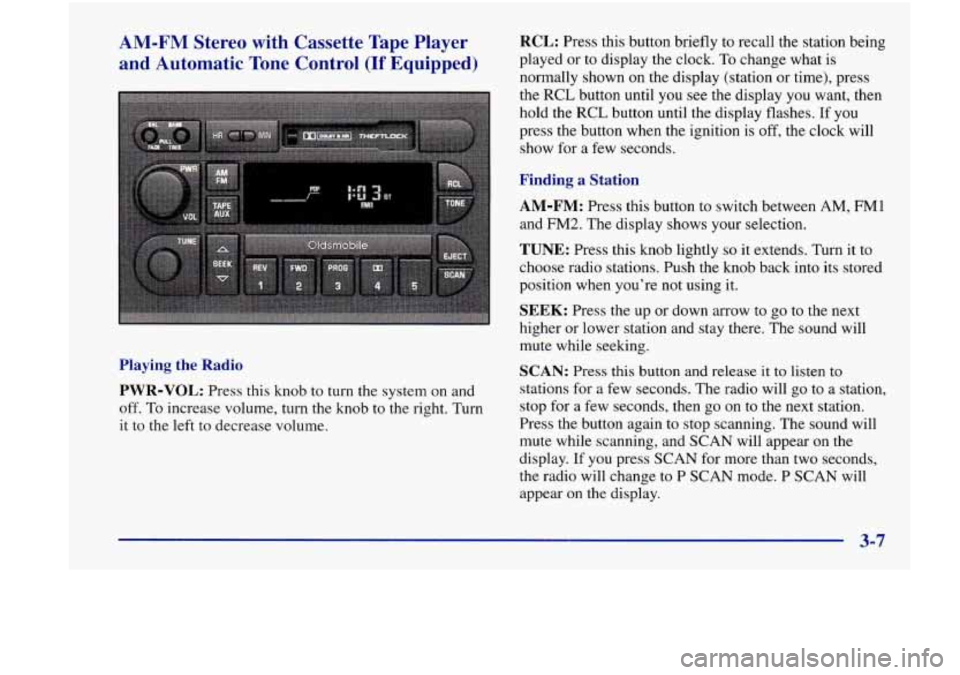
AM-FM Stereo with Cassette Tape Player
and Automatic Tone Control
(If Equipped)
Playing the Radio
PWR-VOL:
Press this knob to turn the system on and
off. To increase volume, turn the knob to the right. Turn
it to the
left to decrease volume.
RCL: Press this button briefly to recall the station being
played or to display the clock. To change what is
normally shown on the display (station or time), press
the RCL button until you
see the display you want, then
hold the RCL button until the display flashes. If you
press the button when the ignition
is off, the clock will
show for a few seconds.
Finding a Station
AM-FM: Press this button to switch between AM, FMl
and FM2. The display shows your selection.
TUNE: Press this knob lightly so it extends. Turn it to
choose radio stations. Push the knob back into its stored
position when you’re not using it.
SEEK: Press the up or down arrow to go to the next
higher or lower station and stay there. The sound will
mute while seeking.
SCAN: Press this button and release it to listen to
stations for a few seconds. The radio will
go to a station,
stop for a few seconds, then go on to the next station.
Press the button again
to stop scanning. The sound will
mute while scanning, and SCAN will appear on the
display. If
you press SCAN for more than two seconds,
the radio will change to P SCAN mode. P SCAN will
appear
on the display.
3-7
Page 132 of 356
PUSHBUTTONS: The five numbered pushbuttons let
you return to your favorite stations. You can set up to
15 stations (five AM, five FM1 and five
FM2). Just:
1. Turn the radio on.
2. Press AM-FM to select the band.
3. Tune in the desired station.
4. Press TONE to select the equalization that best suits
the type of station selected.
5. Press and hold one of the five numbered buttons.
The sound will mute. When it returns, release the
button. Whenever you press that numbered button,
the station
you set will return and the tone that
you selected will also be automatically selected
for that button.
6. Repeat the steps for each pushbutton.
P SCAN: Press SCAN for more than two seconds, and
P SCAN will appear on the display. The radio will go to
the first preset station stored on your pushbuttons, stop
for a few seconds, then
go on to the next preset station.
Press SCAN again to stop scanning.
Setting the Tone
BASS:
Press this knob lightly so it extends. Turn the
knob to increase
or decrease bass. When you use this
control, the radio’s tone setting will switch to manual.
TREB: Press this knob lightly so it extends. Then pull
the knob all the way out. Turn the knob to increase or
decrease treble. When you use this control, the radio’s
tone setting will switch to manual. If a station
is weak
or noisy, you may want to decrease the treble.
Push these knobs back into their stored positions when
you’re not using them.
TONE: This feature allows you to choose preset bass
and treble equalization settings designed for jazz,
vocal, pop, rock and classical stations.
JAZZ will
appear on the display when you first press TONE.
Each time you press it, another setting will appear
on
the display. Press it again after CLASSIC appears and
MANUAL will appear. Manual tone control will return
to the BASS and TREB knobs. Also,
if you use the
BASS and TREB knobs, control will return to them
and MANUAL will appear.
3-8
Page 133 of 356
Adjusting the Speakers
BAL: Press this knob lightly so it extends. Turn the knob
to move the sound to the left or right speakers. The
middle position balances the sound between the speakers.
FADE: Press the knob lightly so it extends. Then pull
the
knob all the way out. Turn it to move the sound to
the front or rear speakers. The middle position balances
the sound between the speakers.
Push these knobs back into their stored positions when
you’re not using them.
Playing a Cassette Tape
Your tape player is built to work best with tapes that are
30 to 45 minutes long on each side. Tapes longer than
that are
so thin they may not work well in this player.
The longer side with the tape visible should face to the
right. If the ignition is on, but the radio is off, the tape
can be inserted and will begin playing.
If you hear
nothing but a garbled sound, the tape may not be in
squarely. Press EJECT
to remove the tape and start over.
While the tape is playing, use the VOL, FADE, BAL,
TREB,
BASS, TONE, SEEK and SCAN controls just as
you do for the radio. The display will show
TP with a
box around it and an arrow to show which side of the
tape is playing. Your
tape bias is set automatically. When a metal or
chrome tape is inserted, HI-BIAS appears on the
display. If you want to insert a tape when the ignition
is
off, first press EJECT or RCL.
If
E and a number appear on the radio display, the tape
won’t play because of an error.
E10: The tape is tight and the player can’t turn the
tape hubs. Remove the tape. Hold the tape with the
open end down and try to turn the right hub to the
left with a pencil. Turn the tape over and repeat.
If the hubs do not turn easily, your tape may be
damaged and should not be used in the player.
Try
a new tape to make sure your player is
working properly.
Ell: The tape is broken. Try a new tape.
If any error occurs repeatedly or if an error can’t be
corrected, please contact your retailer. If your radio
displays an error number, write
it down and provide it
to your retailer when reporting the problem.
REV (1): Press this button to reverse the tape rapidly.
Press it again to return to playing speed. The radio
will play the last-selected station while the tape
reverses. You may select stations during REV operation
by using
TUNE.
3-9
Page 134 of 356

FWD (2): Press this button to advance quickly to
another part of the tape. Press the button again to return
to playing speed. The radio will play the last-selected
station while the tape advances. You may select stations
during
FWD operation by using TUNE.
PROG (3): Press this button to play the other side of
the tape.
00 (4): Press this button to reduce background
noise. Note that the double-D symbol will appear on
the display.
Dolby Noise Reduction is manufactured under a license
from Dolby Laboratories Licensing Corporation. Dolby
and the double-D symbol are trademarks
of Dolby
Laboratories Licensing Corporation.
TONE: Press this button to select a tone while playing a
cassette. The tone will be automatically set whenever
you play a cassette tape.
SEEK: Press the up or down arrow to search for the
next or previous selection on the tape. Your tape must
have at least three seconds
of silence between each
selection for SEEK to work.
SCAN: Press this button to listen to each selection for a
few seconds. The tape will
go to the next selection, stop for a few seconds,
then go
on to the next selection. Press
this button again to stop scanning. The sound will mute,
SCAN will appear on the display and the tape direction
arrow will blink while scanning.
AM-FM: Press this button to play the radio when a
tape is in the player. The tape will stop but remain in
the player.
TAPE AUX: If you have a tape inserted and the radio is
playing, press TAPE
AUX to play your tape. To return
to the radio while a tape is playing, press
AM-FM. The
inactive tape will remain safely inside the radio for
future listening.
E JECR Press this button to remove the tape. The
radio will play. EJECT may be activated with either the
ignition or radio off. Cassettes may be loaded with the
radio and ignition
off if this button is pressed first.
CLN: If this message appears on the display, the
cassette tape player needs to be cleaned. It will still
play tapes, but you should clean it as soon
as possible
to prevent damage to the tapes and player. See “Care
of
Your Cassette Tape Player” in the Index. After you clean
the player, press and hold EJECT for five seconds to
reset the CLN indicator. The radio will display
--- to
show the indicator was reset.
3-10