AUX Oldsmobile Silhouette 2004 Owner's Manuals
[x] Cancel search | Manufacturer: OLDSMOBILE, Model Year: 2004, Model line: Silhouette, Model: Oldsmobile Silhouette 2004Pages: 462, PDF Size: 3.1 MB
Page 237 of 462

The CD will begin to play automatically. As each new
track starts to play, the track number will appear on the
display.
To insert multiple CDs, do the following:
1. Turn the ignition on.
2. Press and hold the LOAD side of the LOAD CD
button for two seconds.
You will hear a beep and the light, located to the
right of the slot, will begin to ¯ash.
3. Once the light stops ¯ashing and turns green, load
a CD. Insert the CD partway into the slot, label side
up. The player will pull the CD in.
4. Once the CD is loaded, the light will begin ¯ashing
again. Press the LOAD side of the LOAD CD button
again. Once the light turns green, load the next
CD. Repeat this procedure for each CD.
The CD player takes up to six CDs. Do not try to
load more than six.
To load more than one CD but less than six, complete
Steps 1 through 3. When you have ®nished loading
CDs, the radio will begin to play the last CD loaded.When a CD is inserted, the CD symbol will be displayed.
If more than one CD has been loaded, a number for
each CD will be displayed. If you select an equalization
setting for your CD, it will be activated each time you
play a CD.
As each new track starts to play, the track number will
appear on the display.
Playing a Speci®c Loaded CD
For every CD loaded, a number will appear on the
display. To play a speci®c CD, ®rst press the CD AUX
button, then press the numbered pushbutton that
corresponds to the CD you want to play. A small bar will
appear under the CD number that is playing, and the
track number will appear.
If an error appears on the display, see ªCD Messagesº
later in this section.
LOAD CD
Z(Eject):Press the CD eject side of this
button to eject a CD. You will hear a beep and the
light will ¯ash to let you know when a CD is being
ejected.
3-81
Page 239 of 462

sSEEKt:Press the left arrow to go to the start of the
current track, if more than ten seconds have passed.
Press the right arrow to go to the next track. If you hold an
arrow or press it more than once, the player will continue
moving backward or forward through the CD.
sSCANt:To scan one CD, press and hold either
SCAN arrow for more than two seconds until SCAN
appears on the display and you hear a beep. Use this
feature to listen to 10 seconds of each track of the
currently selected CD. Press either SCAN arrow again,
to stop scanning.
To scan all loaded CDs, press and hold either SCAN
arrow for more than four seconds until CD SCAN
appears on the display and you hear a beep. Use this
feature to listen to 10 seconds of the ®rst tracks of each
CD loaded. Press either SCAN arrow again, to stop
scanning.
RCL (Recall):Press this knob to see how long the
current track has been playing. To change the default
on the display (track and elapsed time), press the knob
until you see the display you want, then hold the
knob until the display ¯ashes. The selected display will
now be the default.BAND:Press this button to play the radio when a
CD(s) is playing. The inactive CD will remain safely
inside the radio for future listening.
CD AUX (Auxiliary):Press this button to play a CD
when listening to the radio.Using Song List Mode
The six-CD CD changer has a feature called song list.
This feature is capable of saving 20 track selections.
To save tracks into the song list feature, perform
the following steps:
1. Turn the CD player on and load it with at least one
CD. See ªLOAD CDº listed previously in this section
for more information.
2. Check to see that the CD changer is not in song list
mode. S-LIST should not appear in the display. If
S-LIST is present, press the SONG LIST button
to turn it off.
3. Select the desired CD by pressing the numbered
pushbutton and then use the SEEK SCAN right
arrow button to locate the track that you want
to save. The track will begin to play.
3-83
Page 242 of 462

Headphones
The entertainment system
includes dual channel,
wireless headphones.
The headphones have
an ON/OFF switch,
a channel A/B switch
and a volume control.
To use the headphones, turn the switch located on the
left side to ON. An indicator light located on the right
side will illuminate. If the light does not illuminate,
the batteries may need to be replaced. See ªBattery
Replacementº later in this section for more information.
Switch the headphones to OFF when not in use.
If you move too far forward, step out of the vehicle or
break the ªline of sightº between the headphones
and the display above the video screen, the sound in
the headphones will be degraded or will cut out entirely.If the system is shut off, or the headphones are out of
the ªline of sightº for more than three minutes,
the headphones will shut off automatically to preserve
battery life.
If the channel switch, located on the right side, is on A,
the headphones will play the DVD or auxiliary device.
See ªStereo RCA Jacksº later in this section for more
information. If the channel switch is on B, the
headphones will play the rear seat audio system.
See
Rear Seat Audio (RSA) (Without Entertainment
System) on page 3-92orRear Seat Audio (RSA)
(With Entertainment System) on page 3-94for more
information.
To adjust the volume on the headphones, use the
volume control located on the right side.
Notice:Do not store the headphones in heat or
direct sunlight. This could damage the headphones
and repairs would not be covered by your warranty.
Keep the headphones stored in a cool, dry place.
3-86
Page 243 of 462

Battery Replacement
To change the batteries, do the following:
1. Slide open the battery door located on the left side
of the headphones.
2. Replace the two AAA batteries in the compartment.
Make sure that they are installed correctly.
3. Slide the battery door shut.
If the headphones are to be stored for a long period of
time, remove the batteries and keep them in a cool,
dry place.
Stereo RCA Jacks
The RCA jacks are located on the faceplate of the DVD
player. They allow you to hook up an auxiliary device
such as a camcorder or a video game unit. You
may require adapter connectors or cables to connect
your auxiliary device to the RCA jacks. Refer to
the manufacturer's instructions for proper usage.
To use the auxiliary function, connect a camcorder or
a video game unit to the RCA jacks and turn on
the auxiliary device. If you want to view a DVD,
insert the DVD into the DVD player. The system
will automatically switch to DVD and start to play.To switch between the auxiliary device and the DVD,
press the SOURCE button on the DVD player or on the
remote control. See ªDVD Playerº and ªRemote
Controlº later in this section for more information.
Audio Speakers
Only one audio source can be heard through the
speakers at one time.
Audio from the radio, cassette or CD player will be
heard through all speakers when the front audio system
is being used and the rear seat audio system is off.
Sound from the DVD player or an auxiliary device can
be heard through all speakers when the front audio
system and rear seat audio are off and a DVD or
auxiliary device is playing.
To hear the DVD, auxiliary device, or rear seat audio
system while the front audio system is on, you must use
the headphones. While the rear seat audio system is
on, the rear speakers will be muted.
3-87
Page 245 of 462
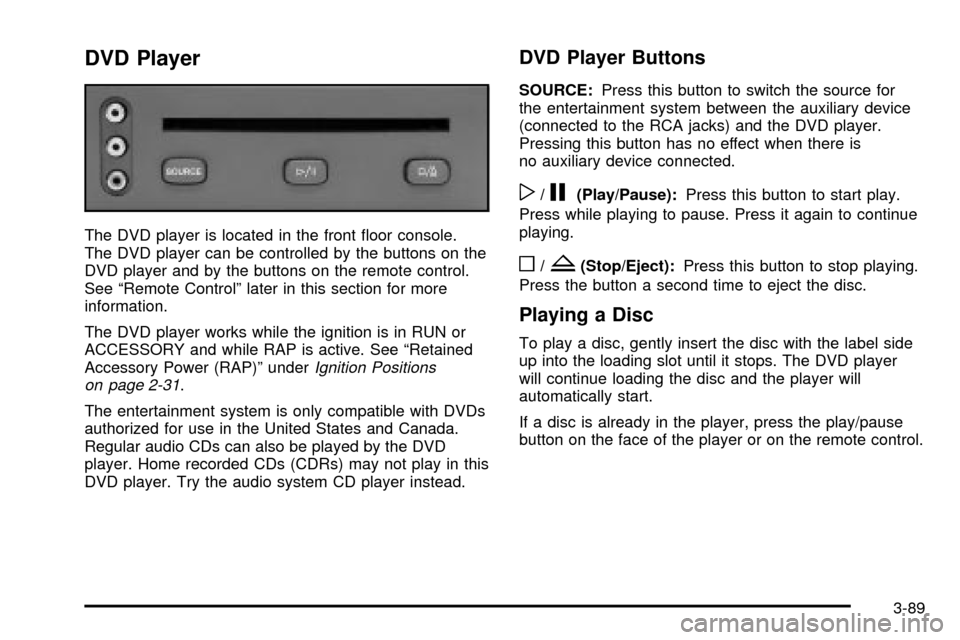
DVD Player
The DVD player is located in the front ¯oor console.
The DVD player can be controlled by the buttons on the
DVD player and by the buttons on the remote control.
See ªRemote Controlº later in this section for more
information.
The DVD player works while the ignition is in RUN or
ACCESSORY and while RAP is active. See ªRetained
Accessory Power (RAP)º under
Ignition Positions
on page 2-31.
The entertainment system is only compatible with DVDs
authorized for use in the United States and Canada.
Regular audio CDs can also be played by the DVD
player. Home recorded CDs (CDRs) may not play in this
DVD player. Try the audio system CD player instead.
DVD Player Buttons
SOURCE:Press this button to switch the source for
the entertainment system between the auxiliary device
(connected to the RCA jacks) and the DVD player.
Pressing this button has no effect when there is
no auxiliary device connected.
w/j(Play/Pause):Press this button to start play.
Press while playing to pause. Press it again to continue
playing.
o/Z(Stop/Eject):Press this button to stop playing.
Press the button a second time to eject the disc.
Playing a Disc
To play a disc, gently insert the disc with the label side
up into the loading slot until it stops. The DVD player
will continue loading the disc and the player will
automatically start.
If a disc is already in the player, press the play/pause
button on the face of the player or on the remote control.
3-89
Page 247 of 462
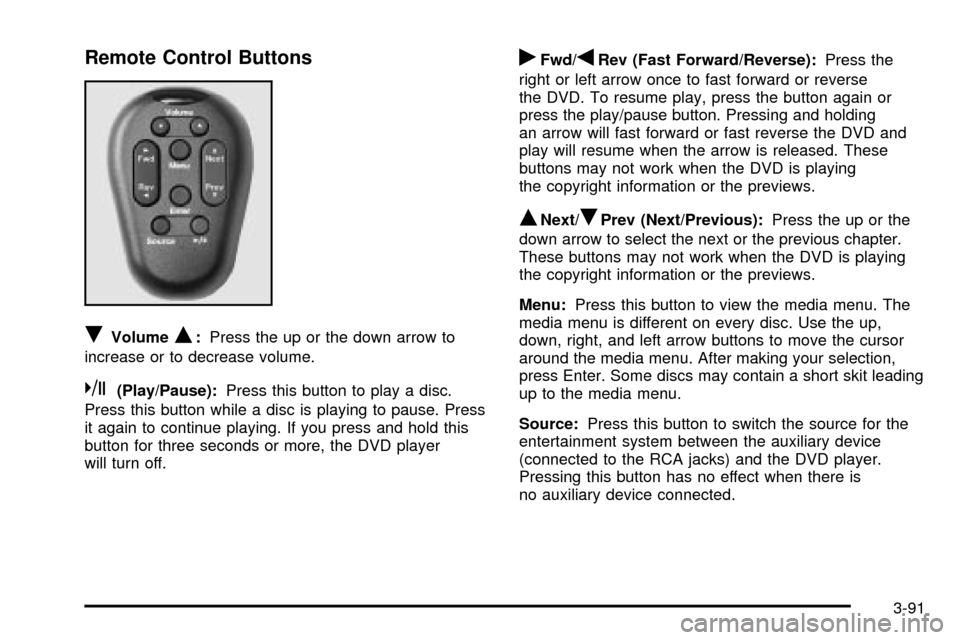
Remote Control Buttons
RVolumeQ:Press the up or the down arrow to
increase or to decrease volume.
k(Play/Pause):Press this button to play a disc.
Press this button while a disc is playing to pause. Press
it again to continue playing. If you press and hold this
button for three seconds or more, the DVD player
will turn off.
rFwd/qRev (Fast Forward/Reverse):Press the
right or left arrow once to fast forward or reverse
the DVD. To resume play, press the button again or
press the play/pause button. Pressing and holding
an arrow will fast forward or fast reverse the DVD and
play will resume when the arrow is released. These
buttons may not work when the DVD is playing
the copyright information or the previews.
QNext/RPrev (Next/Previous):Press the up or the
down arrow to select the next or the previous chapter.
These buttons may not work when the DVD is playing
the copyright information or the previews.
Menu:Press this button to view the media menu. The
media menu is different on every disc. Use the up,
down, right, and left arrow buttons to move the cursor
around the media menu. After making your selection,
press Enter. Some discs may contain a short skit leading
up to the media menu.
Source:Press this button to switch the source for the
entertainment system between the auxiliary device
(connected to the RCA jacks) and the DVD player.
Pressing this button has no effect when there is
no auxiliary device connected.
3-91
Page 250 of 462

P.SET PROG (Preset Program):The front passengers
must be listening to something different for each of
these functions to work:
·Press this button to scan through the preset radio
stations set on the pushbuttons on the main radio.
The radio will go to a preset station stored on
your pushbuttons, play for a few seconds, then go
on to the next preset station. Press this button
again to stop scanning presets.
·If your vehicle has the Radio with Cassette and CD,
when a cassette tape is playing, press this button to
go to the other side of the tape.
·If your vehicle has the Radio with Six-Disc CD,
when a CD is playing, press this button to select the
next CD, if multiple CDs are loaded.
TAPE CD:Press this button to play a cassette tape or
CD when listening to the radio. The inactive tape or
CD will remain safely inside the radio for future listening.
Rear Seat Audio (RSA)
(With Entertainment System)
This feature allows rear seat passengers to listen to and
control any of the entertainment sources: radio,
cassette tapes, CDs, DVD, and auxiliary device.
However, the rear seat passengers can only control the
music sources that the front seat passengers are not
listening to. For example, rear seat passengers
may listen to a cassette tape or CD through headphones
while the driver listens to the radio through the front
speakers. The rear seat passengers have control of the
volume for each set of headphones. Be aware that
the front seat audio controls always have priority over
the RSA controls. The rear speakers will be muted when
the RSA power is turned on. You may operate the
RSA functions even when the main radio is off. The DVD
or auxiliary device will always be available on channel
A of the headphones. All other sources are available on
channel B. You will not be able to listen to XM, on
channel B, if you are listening to a DVD or an auxiliary
device on channel B and vice versa.
3-94
Page 252 of 462

P.SET SCAN (Preset Scan):The front passengers
must be listening to something different for each of these
functions to work:
·Press and hold this button to scan through the
preset radio stations set on the pushbuttons on the
main radio. The radio will go to a preset station
stored on your pushbuttons, play for a few seconds,
then go on to the next preset station. This feature
will only scan the presets that are in the selected
band. The selected radio station will appear on the
display above the video screen. Press this button
again to stop scanning presets.
·If your vehicle had the Radio with Cassette and CD,
when a cassette tape is playing, press this button to
go to the other side of the tape.
·If your vehicle has the Radio with Six-Disc CD,
when a CD is playing, press this button to switch to
playing a different CD when multiple CDs are
loaded.CD TAPE:Press this button to switch between playing
a cassette tape, CD, a DVD, or an auxiliary device
when the headphones are on channel B. If one of the
devices is not loaded, the system will skip over the
device when this button is pressed.
Theft-Deterrent Feature
THEFTLOCKžis designed to discourage theft of your
radio. The feature works automatically by learning
a portion of the Vehicle Identi®cation Number (VIN).
If the radio is moved to a different vehicle, it will
not operate and LOCKED will appear on the display.
When the radio and vehicle are turned off, your
radio may have a blinking red light that indicates that
THEFTLOCK is armed.
With THEFTLOCK activated, your radio will not operate
if stolen.
3-96
Page 405 of 462

Fuse Usage
PASS KEY PASS-Key
žIII System
PWR LOCK Power Door Locks
HTD MIRROR Heated Mirrors
RH T/LP Not Used
RR FOG LP Not Used
CIGAR/DIC/
APO FRTCigarette Lighter, DIC, Front
Auxiliary Power Outlets, Data Link
T/SIG Turn Signal Switch
PWR QTR
VENTInterior Lamp and Multifunction
Switch (Power Vent Switch),
Auto Level
FRT/WPR/
WSHRWindshield Wiper/Washer Motor
and Switch
HAZARD Hazard Switch
RR PWR SCKTRear Electric Accessory Plug
Housing
DRLDaytime Running Lamp Control
Module
LH T/LP Not Used
Fuse Usage
RR DEFOG/
HTD MIRRORRear Window Defogger Relay,
Heated Mirrors
ON STAR OnStar
ž
SIR In¯atable Restraint Control Module
HVAC
BLOWERHeater-A/C Control
MALL
CLUSTERInstrument Cluster, Body Control
Module, Electronic Level Control
(ELC) Sensor and Relay, Theft,
Door Ajar
STOP LAMP Stoplamp Switch
CLUSTER
BATTModule/Electronic Brake Control
Module/Electronic Brake Traction
Control Module (EBCM/EBTCM)
ENHANCED
EVAP/AWDEvaporative Emissions (EVAP)
Canister Vent Solenoid Valve,
All-Wheel Drive (AWD)
Blank Not Used
ELC/TRAILERELC Air Compressor and ELC
Height Sensor, Trailer Harness
CTSY LAMP Courtesy Lamp
5-103