phone OPEL AMPERA E 2017.5 Manual user
[x] Cancel search | Manufacturer: OPEL, Model Year: 2017.5, Model line: AMPERA E, Model: OPEL AMPERA E 2017.5Pages: 265, PDF Size: 6.24 MB
Page 96 of 265

94Instruments and controlsPassive door unlock: Changes
the configuration to unlock only the driver's door or the whole
vehicle whilst unlocking.
Relock remotely unlocked doors :
Activates or deactivates the
passive locking function. This
feature locks the vehicle
automatically after several
seconds if all doors have been
closed and an electronic key has been removed from the vehicle.
Remote start auto heat seats :
Activates or deactivates
automatically the heated seats
when using remote start.
Passive door unlock : Changes
the configuration to unlock only
the driver's door or the whole
vehicle whilst unlocking.
Passive door lock : Activates or
deactivates the passive locking
function. This feature locks the
vehicle automatically after
several seconds if all doors have been closed and an electronic
key has been removed from the
vehicle.Remote left in vehicle alert :
Activates or deactivates the
warning chime when the
electronic key remains in the
vehicle.
Devices
External devices 3 126.
Device remote access
Smartphone remote function 3 26
Apple CarPlay
Using smartphone applications
3 132.
Android Auto
Using smartphone applications
3 132.
KeyPass
Smartphone remote function 3 26
USB Auto Launch
External devices 3 126.
Wi-Fi
System settings 3 117.
Display Settings
System settings 3 117.Rear camera
Symbols : Activates or deactivates the
symbols.
Guidelines : Activates or deactivates
the guiding lines.
Return to factory settings
Reset vehicle settings : Resets all
settings to the default settings.
Clear all private data : Deletes all
private information from the vehicle.
Restore radio settings : Resets all
radio settings to the default settings.
System settings 3 117.
Audible touch feedback
Usage 3 110.
Text scroll
System settings 3 117.
Software information
System settings 3 117.
Page 97 of 265

Instruments and controls95Telematics service
OnStar
OnStar is a personal connectivity and
service assistant with integrated
Wi-Fi hotspot. The OnStar service is
available 24 hours a day, seven days
a week.
Note
OnStar is not available for all
markets. For further information,
contact your workshop.
Note
In order to be available and
operational, OnStar needs a valid
OnStar subscription, functioning
vehicle electrics, mobile service and GPS satellite link.
To activate the OnStar services and
set up an account, press Z and speak
with an advisor.Depending on the equipment of the
vehicle, the following services are available:
● Emergency services and support
in the case of a vehicle
breakdown
● Wi-Fi hotspot
● Smartphone application
● Remote control, e.g. location of the vehicle, activation of horn and
lights, control of central locking
system
● Stolen vehicle assistance
● Vehicle diagnostics
● Destination download
Note
The OnStar module of the vehicle is
deactivated after ten days without
switching on the vehicle. Functions
requiring a data connection will be
available again after switching on
the vehicle.OnStar buttons
Privacy button
Press and hold j until a message is
heard to activate or deactivate the
transmission of the vehicle location.
Press j to answer a call or to end a
call to an advisor.
Press j to access the Wi-Fi settings.
Service button
Press Z to establish a connection to
an advisor.
Page 99 of 265

Instruments and controls97Smartphone app
With the myOpel smartphone app,
some vehicle functions can be
operated remotely.
The following functions are available: ● Lock or unlock vehicle.
● Honk horn or flash lights.
● Operate parking heater.
● Check vehicle battery-related information.
● Check tyre pressure (only with tyre pressure monitoring
system).
● Send navigation destination to the vehicle for use with
navigation application via phone
projection.
● Locate vehicle on a map.
● Manage Wi-Fi settings.
To operate these functions, download the app from App Store ®
or
Google Play™ Store.Remote control
If desired, use any phone to call an
advisor, who can remotely operate
specific vehicle functions. Find the
respective OnStar phone number on
our country-specific website.
The following functions are available: ● Lock or unlock vehicle.
● Provide information on the vehicle location.
● Honk horn or flash lights.
Stolen vehicle assistance
If the vehicle is stolen, report the theft
to the authorities and request OnStar
stolen vehicle assistance. Use any
phone to call an advisor. Find the
respective OnStar phone number on
our country-specific website.
OnStar can provide support in
locating and recovering the vehicle.Theft alert
When the anti-theft alarm system is
triggered, a notification is sent to
OnStar. You are then informed about
this event by text message or email.Restart prevention
By sending remote signals, OnStar
can prevent the vehicle from
restarting once it has been turned off.
On-demand diagnostics
At any time e.g. if the vehicle displays a vehicle message, press Z to
contact an advisor and ask to
complete a real-time diagnostic check
to directly determine the issue.
Depending on the results, the advisor
will provide further support.
Diagnostic report
The vehicle automatically transmits
diagnostic data to OnStar which
sends a monthly email report to you
and your preferred workshop.
Note
The workshop notification function
can be disabled in your account.
The report contains the status of key
operating systems of the vehicle like
propulsion system, airbags, ABS, and
other major systems. It also provides
information on possible maintenance
items and tyre pressure (only with tyre
pressure monitoring system).
Page 108 of 265

106Infotainment systemInfotainment systemIntroduction................................ 106
General information .................106
Theft-deterrent feature ............107
Control elements overview ......108
Usage ...................................... 110
Basic operation .......................... 113
Tone settings ........................... 115
Volume settings .......................116
System settings .......................117
Radio ......................................... 120
Usage ...................................... 120
Station search ......................... 121
Radio data system (RDS) ........123
Digital audio broadcasting .......124
External devices ........................126
General information .................126
Playing audio ........................... 128
Displaying pictures ..................130
Playing movies ........................ 131
Using smartphone applications ............................ 132
Speech recognition ....................133
General information .................133
Usage ...................................... 133Phone........................................ 134
General information .................134
Bluetooth connection ...............134
Emergency call ........................136
Operation ................................. 137
Mobile phones and CB radio equipment ............................... 140Introduction
General information
The Infotainment system provides
you with state-of-the-art in-car
infotainment.
Using radio tuner functions, you can
listen to a great number of different
radio stations.
You can connect external data
storage devices to the Infotainment
system as further audio sources;
either via cable or via Bluetooth.
The Infotainment system is equipped
with a phone portal that allows for
comfortable and safe use of your
mobile phone in the vehicle.
You can also operate specific
smartphone applications via the
Infotainment system.
Optionally, the Infotainment system
can be operated using the touch
screen and buttons on the control
panel, the controls on the steering wheel, or - if provided by your mobile
phone - via speech recognition.
Page 111 of 265

Infotainment system1091Display / touch screen ........113
2 m (knob)
Turn: adjust volume ............110
3 m (button)
Short press: mute system ...110
or deactivate mute
function if mute function is
active ................................... 110
or exit low power mode if
low power mode is active ....110
Long press: turn on low
power mode ........................ 110
4 p
Press: display the
Infotainment home screen ..113
5 t / v
Short press: skip to
previous or next station
when radio active ................121
or skip to previous or next
track when external
devices active .....................128Long press: seek up or
down when radio active ......121
or fast forward or fast
rewind when external
devices active .....................128Steering wheel controls
1n
Press: end/decline call ........137
or deactivate speech
recognition .......................... 133
or activate/deactivate
mute function ...................... 110
2 w
Short press: open OnStar
menu if no phone
connected ........................... 110
or open the phone menu .....137
Page 112 of 265
110Infotainment systemor take phone call if phoneconnected ........................... 137
Long press: activate speech recognition ..............133
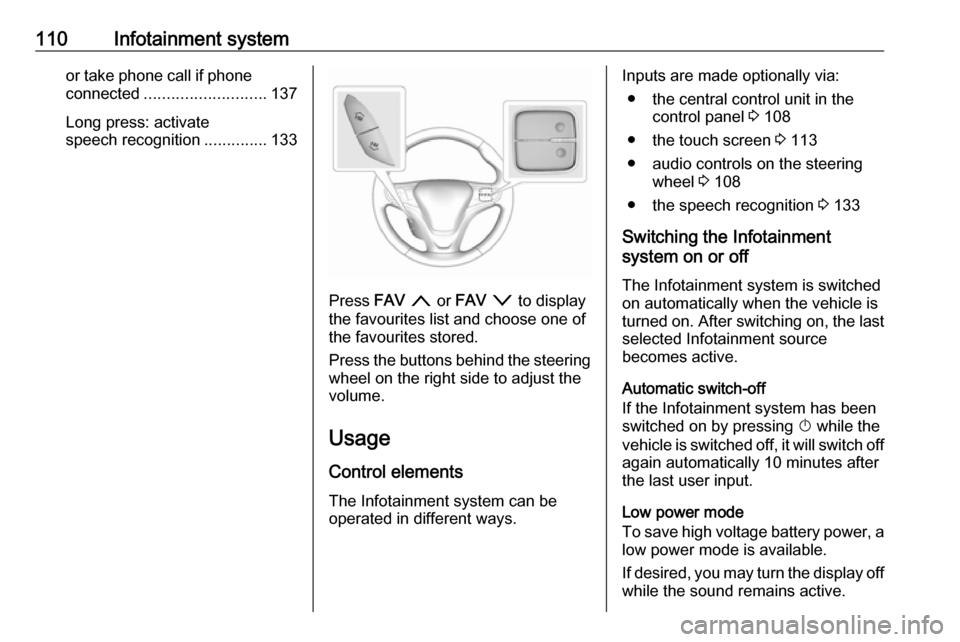
Press FAV n or FAV o to display
the favourites list and choose one of
the favourites stored.
Press the buttons behind the steering
wheel on the right side to adjust the
volume.
Usage
Control elements The Infotainment system can be
operated in different ways.
Inputs are made optionally via:
● the central control unit in the control panel 3 108
● the touch screen 3 113
● audio controls on the steering wheel 3 108
● the speech recognition 3 133
Switching the Infotainment
system on or off
The Infotainment system is switched
on automatically when the vehicle is
turned on. After switching on, the last selected Infotainment source
becomes active.
Automatic switch-off
If the Infotainment system has been switched on by pressing X while the
vehicle is switched off, it will switch off
again automatically 10 minutes after
the last user input.
Low power mode
To save high voltage battery power, a low power mode is available.
If desired, you may turn the display off
while the sound remains active.
Page 114 of 265
112Infotainment system
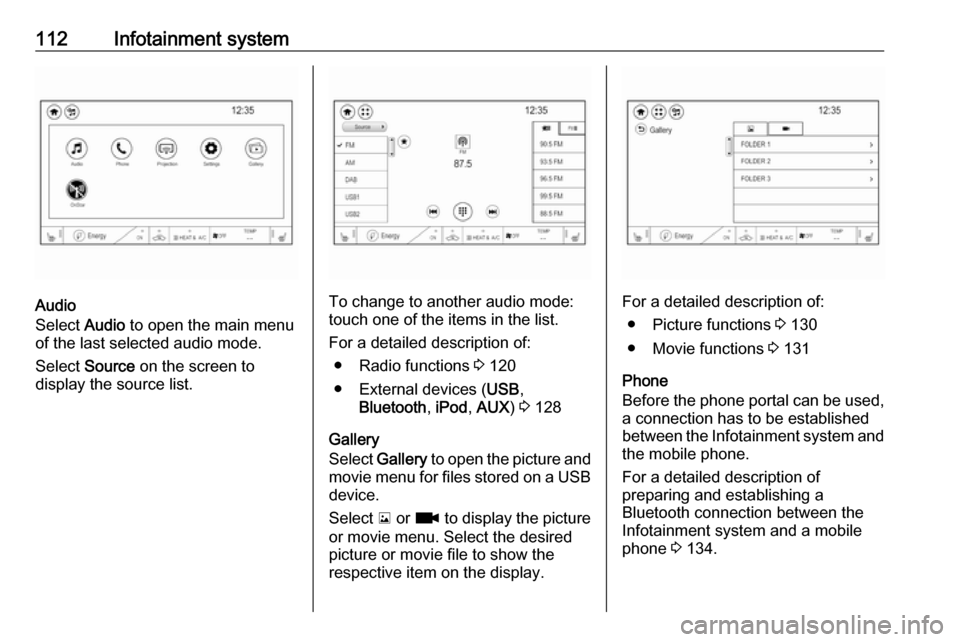
Audio
Select Audio to open the main menu
of the last selected audio mode.
Select Source on the screen to
display the source list.To change to another audio mode:
touch one of the items in the list.
For a detailed description of: ● Radio functions 3 120
● External devices ( USB,
Bluetooth , iPod , AUX ) 3 128
Gallery
Select Gallery to open the picture and
movie menu for files stored on a USB device.
Select y or z to display the picture
or movie menu. Select the desired
picture or movie file to show the
respective item on the display.For a detailed description of:
● Picture functions 3 130
● Movie functions 3 131
Phone
Before the phone portal can be used, a connection has to be established
between the Infotainment system and
the mobile phone.
For a detailed description of
preparing and establishing a
Bluetooth connection between the Infotainment system and a mobile
phone 3 134.
Page 115 of 265
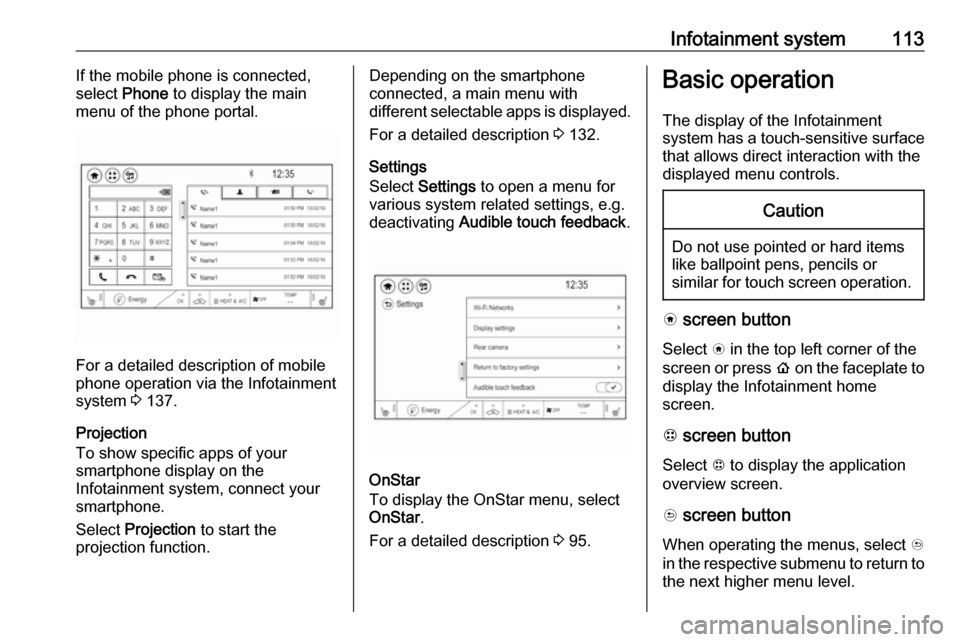
Infotainment system113If the mobile phone is connected,
select Phone to display the main
menu of the phone portal.
For a detailed description of mobile
phone operation via the Infotainment
system 3 137.
Projection
To show specific apps of your
smartphone display on the
Infotainment system, connect your smartphone.
Select Projection to start the
projection function.
Depending on the smartphone
connected, a main menu with
different selectable apps is displayed.
For a detailed description 3 132.
Settings
Select Settings to open a menu for
various system related settings, e.g.
deactivating Audible touch feedback .
OnStar
To display the OnStar menu, select
OnStar .
For a detailed description 3 95.
Basic operation
The display of the Infotainment
system has a touch-sensitive surface
that allows direct interaction with the
displayed menu controls.Caution
Do not use pointed or hard items
like ballpoint pens, pencils or
similar for touch screen operation.
v screen button
Select v in the top left corner of the
screen or press p on the faceplate to
display the Infotainment home
screen.
1 screen button
Select 1 to display the application
overview screen.
u screen button
When operating the menus, select u
in the respective submenu to return to the next higher menu level.
Page 117 of 265
Infotainment system115Note
Constant pressure must be applied
and the finger must be moved at
constant speed.
● Move the slider of the scroll bar on the left side of the list up and
down with your finger.
Note
In subsequent chapters, the
operating steps for scrolling to a list item via the touch screen will be
described as "...scroll to
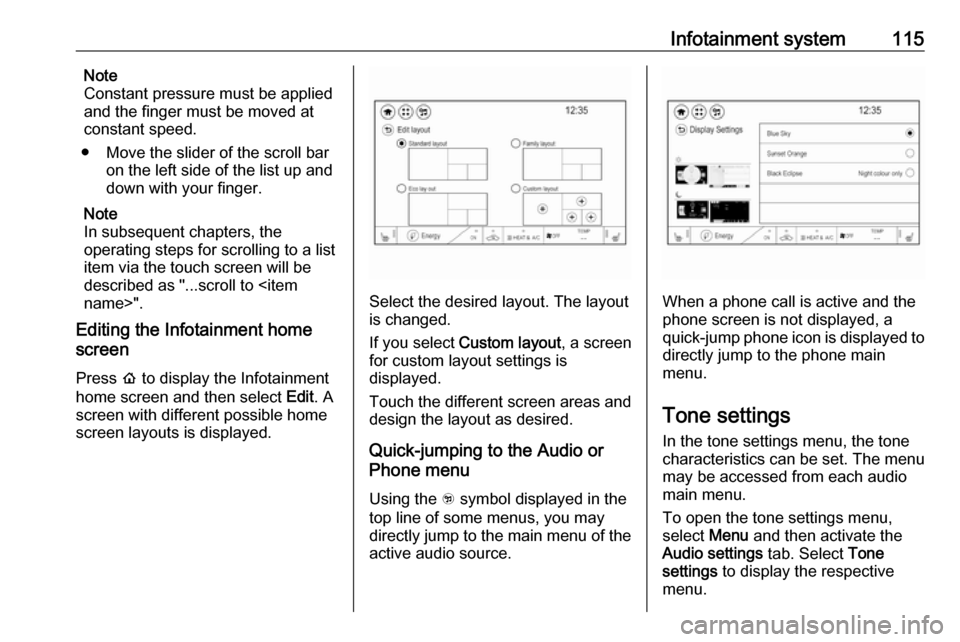
Editing the Infotainment home
screen
Press p to display the Infotainment
home screen and then select Edit. A
screen with different possible home
screen layouts is displayed.
Select the desired layout. The layout
is changed.
If you select Custom layout , a screen
for custom layout settings is
displayed.
Touch the different screen areas and design the layout as desired.
Quick-jumping to the Audio or
Phone menu
Using the w symbol displayed in the
top line of some menus, you may
directly jump to the main menu of the
active audio source.When a phone call is active and the phone screen is not displayed, a
quick-jump phone icon is displayed to directly jump to the phone main
menu.
Tone settings In the tone settings menu, the tone
characteristics can be set. The menu
may be accessed from each audio
main menu.
To open the tone settings menu,
select Menu and then activate the
Audio settings tab. Select Tone
settings to display the respective
menu.
Page 128 of 265

126Infotainment systemSelect Menu to open the
corresponding waveband-specific
submenu and then select the Audio
settings tab.
Activate or deactivate DAB to FM
linking .
L band
With this function, you may define
which DAB wavebands are received
by the Infotainment system.
L band (earth and satellite radio) is an
additional radio band that can be
received.
Select Menu to open the
corresponding waveband-specific
submenu and then select the Audio
settings tab.
Activate or deactivate L band.External devices
General information
An AUX and USB port for the
connection of external devices is located in the centre console.
Note
The port must always be kept clean
and dry.
AUX input
It is possible to connect e.g. an iPod
or another auxiliary device with a
3.5 mm jack plug to the AUX input.
When connected to the AUX input,
the audio signal of the auxiliary device
is transmitted via the speakers of the
Infotainment system.
The volume and the tone settings can be adjusted via the Infotainment
system. All other control functions
must be operated via the auxiliary device.
Connecting a device
Connect the AUX device to the AUX port.Disconnecting a device
Disconnect the AUX device from the
AUX port.
USB port
An MP3 player, USB drive, SD card
(via USB connector/adapter), iPod ®
or smartphone can be connected to
the USB port.
Up to two USB devices can be
connected to the Infotainment system
at a time.
The Infotainment system can play
audio files, show picture files or play
movie files contained in USB storage
devices.
When connected to the USB port,
various functions of the devices can
be operated via the controls and
menus of the Infotainment system.
Note
Not all auxiliary devices are
supported by the Infotainment
system. Check the compatibility list
on our website.