USB port OPEL AMPERA E 2018 Manual user
[x] Cancel search | Manufacturer: OPEL, Model Year: 2018, Model line: AMPERA E, Model: OPEL AMPERA E 2018Pages: 267, PDF Size: 6.45 MB
Page 134 of 267

132Infotainment systemsmartphone on the Infotainment
screen and allow their operation
directly via the Infotainment controls.
Check with the device's manufacturer
if this function is compatible with your
smartphone and if this application is
available in the country you are in.
Preparing the smartphone
Android phone: Download the
Android Auto app to your smartphone from the Google Play™ Store.
iPhone: Make sure Siri ®
is activated
on your smartphone.
Activating phone projection in the
settings menu
Press p and then select 1 in the top
left corner of the screen to display the application overview screen.
Select Settings .
Scroll through the list to
Apple CarPlay or Android Auto .
Make sure the respective application
is activated.Connecting the mobile phone
Connect the smartphone to the USB
port 3 125.
When first connecting a device, a privacy consent message may be
displayed. Confirm the message to
continue the connection procedure.
Starting phone projection Press p and then select 1 in the top
left corner of the screen to display the application overview screen.
To start the phone projection function,
select Projection .
Note
If the application is recognised by the Infotainment system, the
application icon may change to Apple CarPlay or Android Auto .
Alternatively, press and hold p.
The phone projection screen
displayed depends on your
smartphone and software version.
Returning to the Infotainment
screen
Press p.Speech recognition
General information
The voice pass-thru application of the
Infotainment system allows access to the speech recognition commands on your smartphone. See your
smartphone manufacturer's
operating instructions to find out
whether your smartphone supports this feature.
In order to use the voice pass-thru
application, the smartphone must be
connected to the Infotainment system
via USB cable 3 125 or via Bluetooth
3 134.
Usage
Activating speech recognition
Press and hold w on the steering
wheel to start a speech recognition
session. A voice command message
is displayed on the screen.
Page 136 of 267
134Infotainment systeminterference is caused by the
mobile phone or if dangerous
situations can occur.
Bluetooth
The phone portal is certified by the
Bluetooth Special Interest Group
(SIG).
You can find further information about the specification on the internet at
http://www.bluetooth.com
Bluetooth connection Bluetooth is a radio standard for the
wireless connection of e.g. mobile
phones, smartphones or other
devices.
The pairing (PIN code exchange
between Bluetooth device and
Infotainment system) and connecting
of the Bluetooth devices to the
Infotainment system are carried out
via the Devices menu.
Pairing a device
Important information ● Up to ten devices can be paired to the system.
● Only one paired device can be connected to the Infotainment
system at a time.
● Pairing only needs to be carried out once, unless the device is
deleted from the list of paired
devices. If the device has been connected previously, the
Infotainment system establishes
the connection automatically.
● Bluetooth operation considerably
drains the device's battery.
Therefore, connect the device to
the USB port for charging.
Pairing a new device 1. Activate the Bluetooth function of the Bluetooth device. For further
information, see the operating
instructions for the Bluetooth
device.
2. Press p and then select 1 in the
top left corner of the screen todisplay the application overview
screen.
Select Phone on the display of the
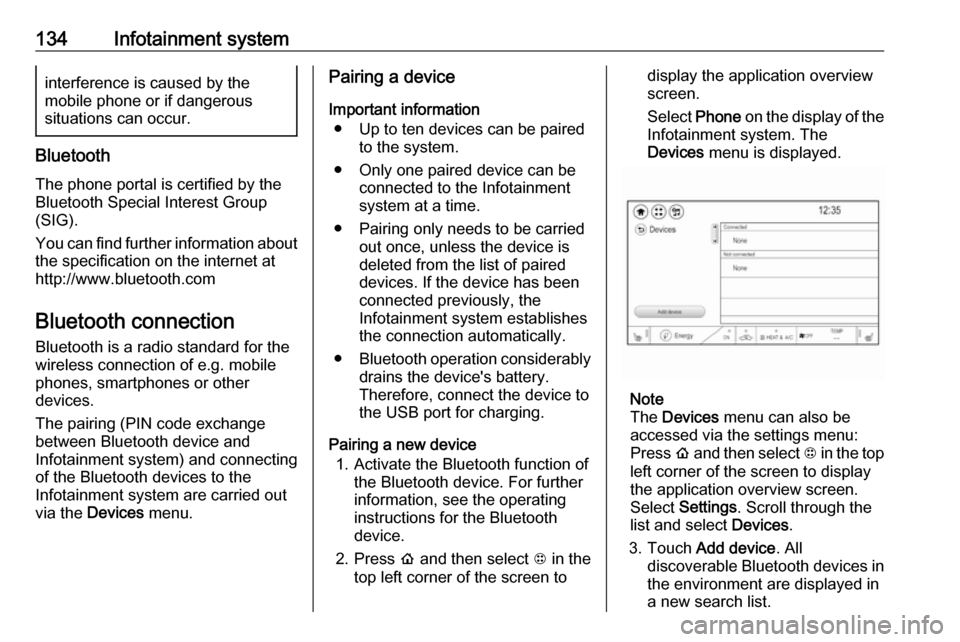
Infotainment system. The
Devices menu is displayed.
Note
The Devices menu can also be
accessed via the settings menu: Press p and then select 1 in the top
left corner of the screen to display
the application overview screen.
Select Settings . Scroll through the
list and select Devices.
3. Touch Add device . All
discoverable Bluetooth devices in
the environment are displayed in
a new search list.