change time OPEL AMPERA E 2018 Manual user
[x] Cancel search | Manufacturer: OPEL, Model Year: 2018, Model line: AMPERA E, Model: OPEL AMPERA E 2018Pages: 267, PDF Size: 6.45 MB
Page 93 of 267
Instruments and controls91Vehicle personalisation
The vehicle's behaviour can be
personalised by changing the settings in the Info display.
Depending on vehicle equipment and
country-specific regulations some of
the functions described below may
not be available.
Some functions are only displayed or
active when the vehicle is on.
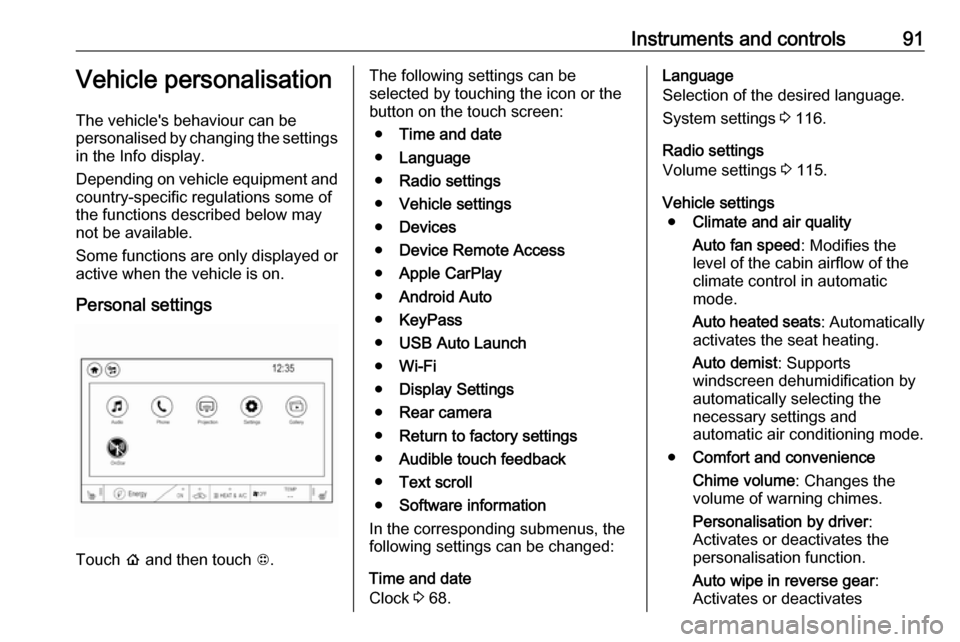
Personal settings
Touch p and then touch 1.
The following settings can be
selected by touching the icon or the
button on the touch screen:
● Time and date
● Language
● Radio settings
● Vehicle settings
● Devices
● Device Remote Access
● Apple CarPlay
● Android Auto
● KeyPass
● USB Auto Launch
● Wi-Fi
● Display Settings
● Rear camera
● Return to factory settings
● Audible touch feedback
● Text scroll
● Software information
In the corresponding submenus, the
following settings can be changed:
Time and date
Clock 3 68.Language
Selection of the desired language.
System settings 3 116.
Radio settings
Volume settings 3 115.
Vehicle settings ● Climate and air quality
Auto fan speed : Modifies the
level of the cabin airflow of the
climate control in automatic
mode.
Auto heated seats : Automatically
activates the seat heating.
Auto demist : Supports
windscreen dehumidification by
automatically selecting the
necessary settings and
automatic air conditioning mode.
● Comfort and convenience
Chime volume : Changes the
volume of warning chimes.
Personalisation by driver :
Activates or deactivates the
personalisation function.
Auto wipe in reverse gear :
Activates or deactivates
Page 97 of 267

Instruments and controls95SOS button
Press [ to establish a priority
emergency connection to a specially
trained emergency advisor.
Status LED
Green: The system is ready with activated transmission of the vehicle
location.
Green flashing: The system is on a
call.
Red: A problem arose.
Off: The system is ready with
deactivated transmission of the
vehicle location or the system is in
standby mode.
Red / green flashing for a short period
of time: The transmission of the
vehicle location has been
deactivated.
OnStar services
General services
If you need any information e.g.
opening hours, points of interest and
destinations or if you need any
support e.g. in the case of a vehiclebreakdown, a flat tyre and low vehicle battery voltage, press Z to establish
a connection to an advisor.
Emergency services
In the case of an emergency situation,
press [ and talk to an advisor. The
advisor then contacts emergency or
assistance service providers and
directs them to your vehicle.
In the case of an accident with
activation of airbags or belt
tensioners, an automatic emergency
call is established. The advisor is
immediately connected to your
vehicle to see whether help is
needed.
Note
Establishing an emergency call may
not be possible in areas without
sufficient network availability or due
to hardware damage during an
accident.
Wi-Fi hotspot
The Wi-Fi hotspot of the vehicle
provides internet connectivity with a
maximum speed of 4G / LTE.Note
The Wi-Fi hotspot functionality is not available for all markets.
Up to seven devices may be
connected.
To connect a mobile device with the
Wi-Fi hotspot:
1. Press j and then select Wi-Fi
settings on the Info display. The
settings displayed include the Wi-
Fi hotspot name (SSID),
password and connection type.
2. Start a Wi-Fi network search on your mobile device.
3. Select your vehicle hotspot (SSID) when listed.
4. When prompted, enter the password on your mobile device.
Note
To change the SSID or password,
press Z and talk to an advisor or log
in to your account.
To switch off the Wi-Fi hotspot
functionality, press Z to call an
advisor.
Page 99 of 267

Instruments and controls97To look at the information in greater
detail, select the link within the email and log in to your account.
Destination download
A desired destination can be directly
downloaded to the navigation system.
Press Z to call an advisor and
describe the destination or point of
interest.
The advisor can look up any address
or point of interest and directly send
the destination to the built-in
navigation system.
OnStar settings
OnStar PIN
To have full access to all OnStar
services, a four-digit PIN is required. The PIN has to be personalised when first talking to an advisor.
To change the PIN, press Z to call an
advisor.Account data
An OnStar subscriber has an account
where all the data is stored. To
request a change of the account
information, press Z and talk to an
advisor or log in to your account.
If the OnStar service is used on
another vehicle, press Z and request
that the account be transferred to the
new vehicle.
Note
In any case, if the vehicle is disposed of, sold or otherwise transferred,
immediately inform OnStar about
the changes and terminate the
OnStar service on this vehicle.
Vehicle location
The vehicle location is transmitted to OnStar when service is requested or
triggered. A message on the Info
display informs about this
transmission.
To activate or deactivate the
transmission of the vehicle location,
press and hold j until an audio
message is heard.The deactivation is indicated by the
status light flashing red and green for
a short period of time and each time
the vehicle is started.
Note
If the transmission of the vehicle
location is deactivated, some
services are no longer available.
Note
The vehicle location always remains accessible to OnStar in the case of
an emergency.
Find the privacy policy in your
account.
Software updates
OnStar may remotely carry out
software updates without further
notice or consent. These updates are
to enhance or maintain safety and
security or the operation of the
vehicle.
These updates may concern privacy
issues. Find the privacy policy in your account.
Page 100 of 267
98LightingLightingExterior lighting............................ 98
Light switch ................................ 98
Automatic light control ...............99
High beam ................................. 99
High beam assist .......................99
Headlight flash ......................... 100
Headlight range adjustment ....100
Daytime running lights .............101
Hazard warning flashers ..........101
Turn and lane-change signals . 101
Rear fog light ........................... 101
Parking lights ........................... 102
Reversing lights .......................102
Misted light covers ...................102
Interior lighting ........................... 102
Instrument panel illumination control ..................................... 102
Interior lights ............................ 103
Reading lights .......................... 103
Sunvisor lights ......................... 103
Lighting features ........................103
Entry lighting ............................ 103
Exit lighting .............................. 103
Battery discharge protection ....104Exterior lighting
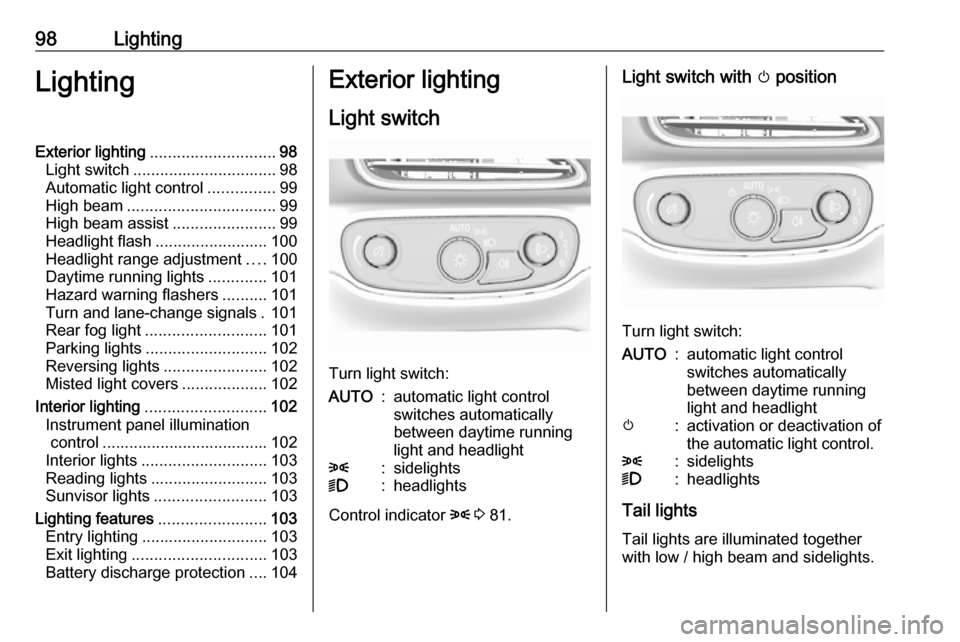
Light switch
Turn light switch:
AUTO:automatic light control
switches automatically
between daytime running
light and headlight8:sidelights9:headlights
Control indicator 8 3 81.
Light switch with m position
Turn light switch:
AUTO:automatic light control
switches automatically
between daytime running
light and headlightm:activation or deactivation of
the automatic light control.8:sidelights9:headlights
Tail lights
Tail lights are illuminated together
with low / high beam and sidelights.
Page 103 of 267
Lighting101Daytime running lightsDaytime running lights increase
visibility of the vehicle during daylight.
While the daytime running light is
active, the tail lights and the sidelights are switched off.
Please remember that the low beam
should be switched on when required.
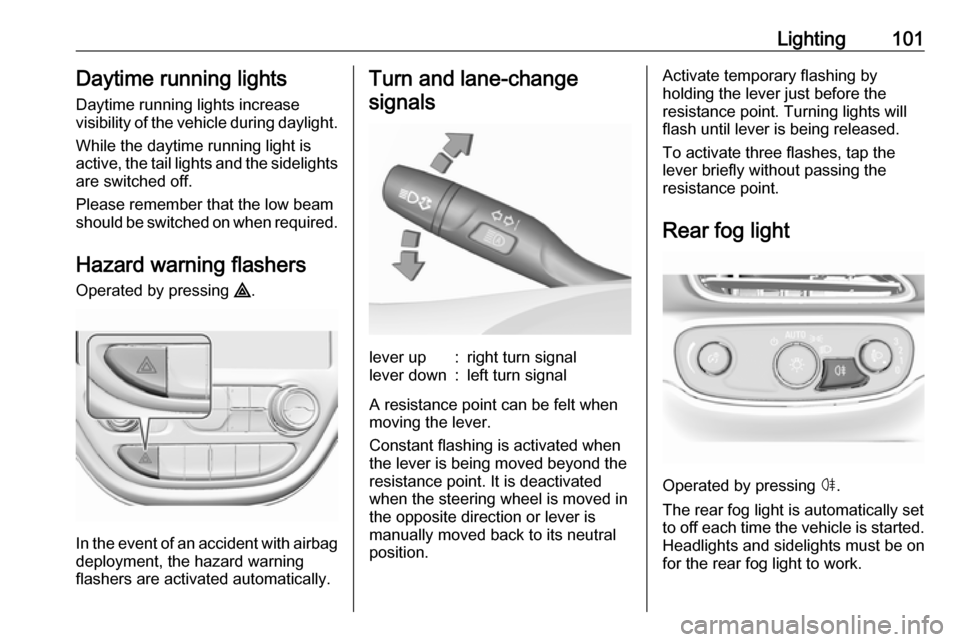
Hazard warning flashers
Operated by pressing ¨.
In the event of an accident with airbag
deployment, the hazard warning
flashers are activated automatically.
Turn and lane-change
signalslever up:right turn signallever down:left turn signal
A resistance point can be felt when
moving the lever.
Constant flashing is activated when
the lever is being moved beyond the
resistance point. It is deactivated
when the steering wheel is moved in
the opposite direction or lever is
manually moved back to its neutral
position.
Activate temporary flashing by
holding the lever just before the
resistance point. Turning lights will
flash until lever is being released.
To activate three flashes, tap the
lever briefly without passing the
resistance point.
Rear fog light
Operated by pressing ø.
The rear fog light is automatically set
to off each time the vehicle is started.
Headlights and sidelights must be on
for the rear fog light to work.
Page 108 of 267

106Infotainment systemThe well-thought-out design of the
control elements, the touch screen
and the clear displays enable you to
control the system easily and
intuitively.
Note
This manual describes all options
and features available for the
various Infotainment systems.
Certain descriptions, including those
for display and menu functions, may
not apply to your vehicle due to
model variant, country
specifications, special equipment or
accessories.
Important information on
operation and traffic safety9 Warning
The Infotainment system must be
used so that the vehicle can be
driven safely at all times. If in
doubt, stop the vehicle and
operate the Infotainment system
while the vehicle is stationary.
Radio reception
Radio reception may be disrupted by
static, noise, distortion or loss of
reception due to:
● changes in distance from the transmitter
● multipath reception due to reflection
● shadowing
Theft-deterrent feature The Infotainment system is equipped
with an electronic security system for the purpose of theft deterrence.
The Infotainment system therefore
functions only in your vehicle and is
worthless to a thief.
Page 133 of 267
Infotainment system131Select z to open the movie main
menu to display a list of items stored on the USB device. Select the desired
movie. If this is stored within a folder,
select the respective folder first.
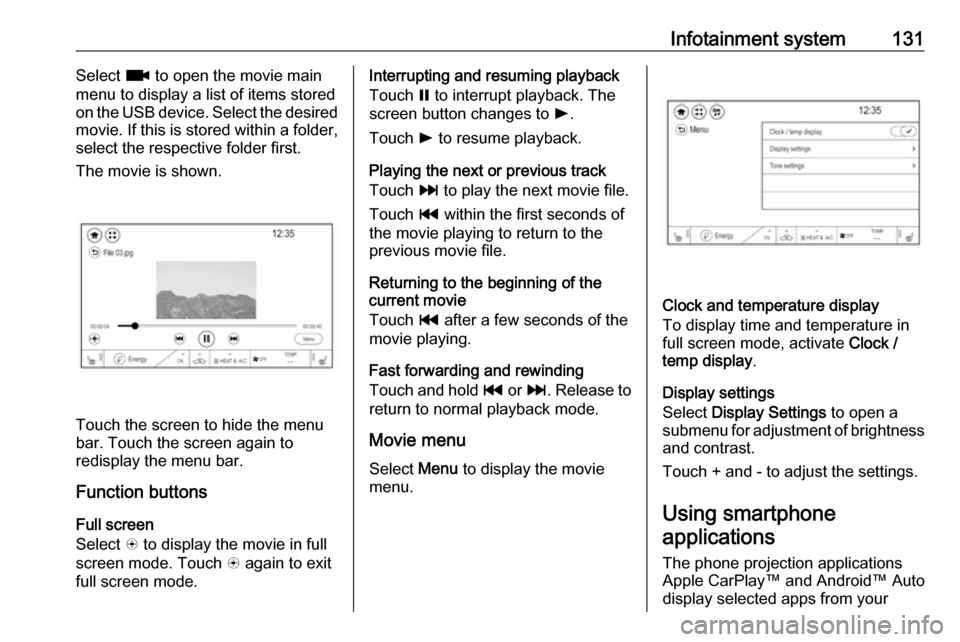
The movie is shown.
Touch the screen to hide the menu
bar. Touch the screen again to
redisplay the menu bar.
Function buttons
Full screen
Select q to display the movie in full
screen mode. Touch q again to exit
full screen mode.
Interrupting and resuming playback
Touch = to interrupt playback. The
screen button changes to l.
Touch l to resume playback.
Playing the next or previous track
Touch v to play the next movie file.
Touch t within the first seconds of
the movie playing to return to the
previous movie file.
Returning to the beginning of the
current movie
Touch t after a few seconds of the
movie playing.
Fast forwarding and rewinding
Touch and hold t or v. Release to
return to normal playback mode.
Movie menu Select Menu to display the movie
menu.
Clock and temperature display
To display time and temperature in
full screen mode, activate Clock /
temp display .
Display settings
Select Display Settings to open a
submenu for adjustment of brightness and contrast.
Touch + and - to adjust the settings.
Using smartphone
applications
The phone projection applications
Apple CarPlay™ and Android™ Auto
display selected apps from your
Page 136 of 267
134Infotainment systeminterference is caused by the
mobile phone or if dangerous
situations can occur.
Bluetooth
The phone portal is certified by the
Bluetooth Special Interest Group
(SIG).
You can find further information about the specification on the internet at
http://www.bluetooth.com
Bluetooth connection Bluetooth is a radio standard for the
wireless connection of e.g. mobile
phones, smartphones or other
devices.
The pairing (PIN code exchange
between Bluetooth device and
Infotainment system) and connecting
of the Bluetooth devices to the
Infotainment system are carried out
via the Devices menu.
Pairing a device
Important information ● Up to ten devices can be paired to the system.
● Only one paired device can be connected to the Infotainment
system at a time.
● Pairing only needs to be carried out once, unless the device is
deleted from the list of paired
devices. If the device has been connected previously, the
Infotainment system establishes
the connection automatically.
● Bluetooth operation considerably
drains the device's battery.
Therefore, connect the device to
the USB port for charging.
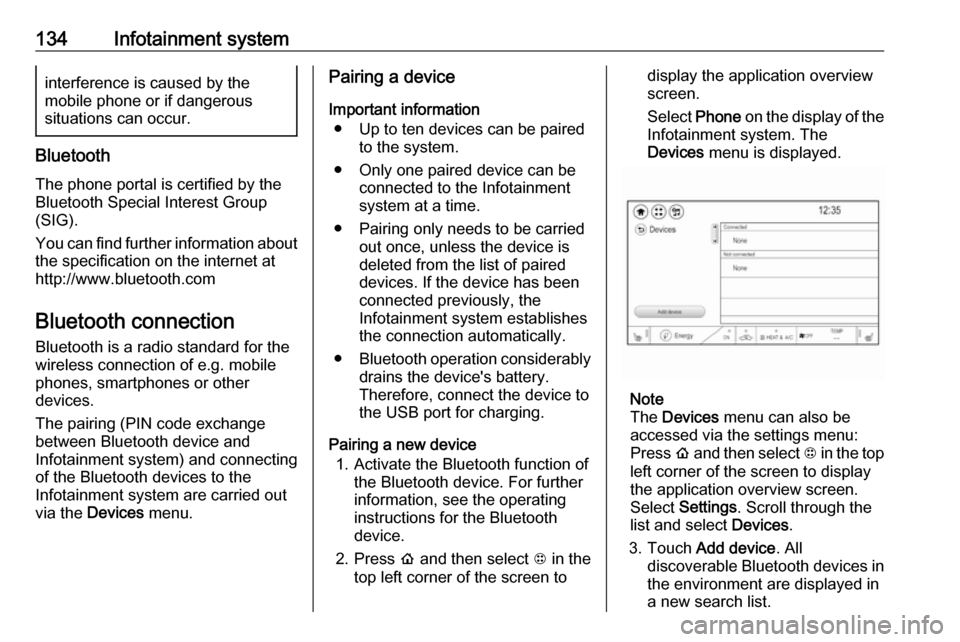
Pairing a new device 1. Activate the Bluetooth function of the Bluetooth device. For further
information, see the operating
instructions for the Bluetooth
device.
2. Press p and then select 1 in the
top left corner of the screen todisplay the application overview
screen.
Select Phone on the display of the
Infotainment system. The
Devices menu is displayed.
Note
The Devices menu can also be
accessed via the settings menu: Press p and then select 1 in the top
left corner of the screen to display
the application overview screen.
Select Settings . Scroll through the
list and select Devices.
3. Touch Add device . All
discoverable Bluetooth devices in
the environment are displayed in
a new search list.
Page 168 of 267
166Driving and operatingResume limit speed
Press RES/+ . The stored speed limit
will be obtained.
Switching off
Press L, the speed limit indication
extinguishes in the Driver Information Centre. The stored speed is deleted.
By pressing m to activate cruise
control or adaptive cruise control,
speed limiter is also deactivated and
the stored speed is deleted.
By switching off the vehicle, speed
limiter is also deactivated, but the
speed limit will be stored for next
speed limiter activation.
Forward collision alert The forward collision alert may help toavoid or reduce the harm caused by
front-end crashes.
The forward collision alert uses the
front camera system in the
windscreen to detect a vehicle
directly ahead, in your path, within a
distance of approx. 60 m.
A vehicle ahead is indicated by the
control indicator A.
If a vehicle directly ahead is
approached too quickly, a warning
chime is sounded.
Additionally, the driver is notified by a
flashing red LED stripe which is
projected on the windscreen in the
driver's field of view.
A precondition is that forward collision alert is not deactivated in the vehicle
personalisation 3 91.
Activation
Forward collision alert operates
automatically above 8 km/h, if it is not deactivated in the vehicle
personalisation menu.
Alerting the driver
The vehicle ahead control indicator
A illuminates green in the instrument
cluster when the system has detected
a vehicle in the driving path.
The control indicator A changes to
yellow when the distance to a
preceding moving vehicle gets too
small or when approaching another
vehicle too rapidly.Caution
The colour lighting of this control
indicator does not correspond to
local traffic laws on following
distance. The driver bears full
responsibility for maintaining safe
following distance according to
applicable traffic rules, weather
and road conditions etc. at all
times.
When the time to a potential collision
with a vehicle in front gets too small
and a collision is imminent, the driver
is notified by a flashing red LED stripe which is projected on the windscreen
in the driver's field of view.
Page 169 of 267
Driving and operating167
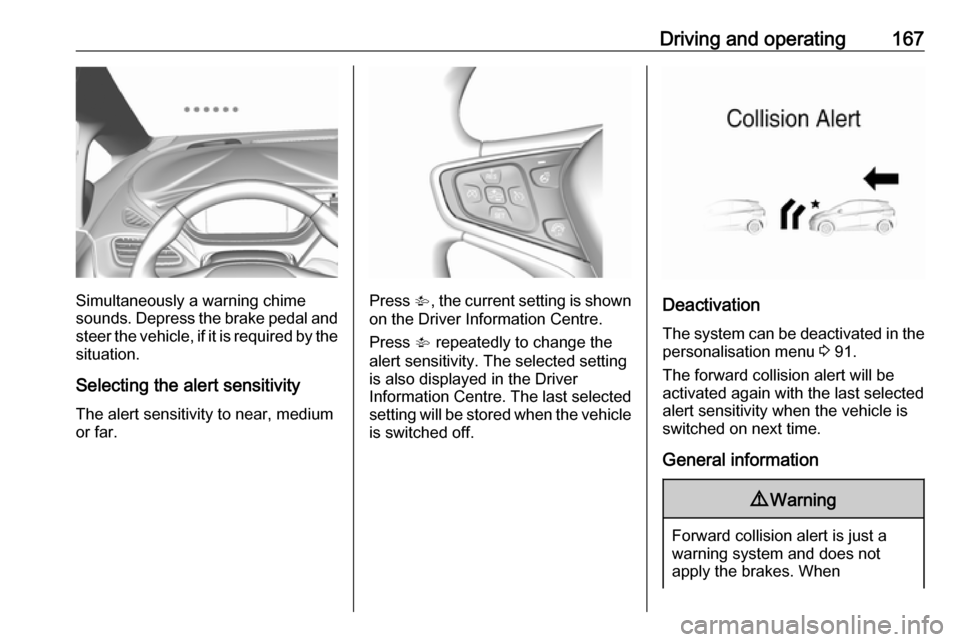
Simultaneously a warning chime
sounds. Depress the brake pedal and
steer the vehicle, if it is required by the
situation.
Selecting the alert sensitivity The alert sensitivity to near, medium
or far.Press V, the current setting is shown
on the Driver Information Centre.
Press V repeatedly to change the
alert sensitivity. The selected setting
is also displayed in the Driver
Information Centre. The last selected
setting will be stored when the vehicle
is switched off.Deactivation
The system can be deactivated in the
personalisation menu 3 91.
The forward collision alert will be
activated again with the last selected
alert sensitivity when the vehicle is
switched on next time.
General information
9 Warning
Forward collision alert is just a
warning system and does not
apply the brakes. When