wheel OPEL AMPERA E 2018 Manual user
[x] Cancel search | Manufacturer: OPEL, Model Year: 2018, Model line: AMPERA E, Model: OPEL AMPERA E 2018Pages: 267, PDF Size: 6.45 MB
Page 102 of 267
100Lighting50 km/h. High beam is switched off ata speed below 35 km/h, but high
beam assist remains active.
The green control indicator f
illuminates continuously when the
high beam assist is activated, the blue
one 7 illuminates when high beam is
on.
Control indicator f 3 81, 7 3 81.
Pushing indicator lever once switches
on manual high beam without high beam assist.
High beam assist switches
automatically to low beam when:
● Driving in urban areas.
● Reverse parking function is active.
● Rear fog light is switched on.
If there are no restrictions detected, the system switches back to high
beam.
Deactivation
If high beam assist is active and high
beam is on, press f once or pull
indicator lever once to deactivate high beam assist.If high beam assist is active and high
beam is off, press f once to
deactivate high beam assist.
Pushing the indicator lever to activate
manual high beam will also
deactivate high beam assist.
Headlight flash in conjunction with high beam assist
Headlight flash by pulling indicator
lever once will not deactivate high beam assist when high beam is off.
Headlight flash by pulling indicator
lever once deactivates high beam
assist when high beam is on.
Fault in headlight system
When the system detects a failure in
the headlight system, it selects a
preset position to avoid dazzling of
oncoming traffic. A warning is
displayed in the Driver Information
Centre.
Headlight flash
To activate the headlight flash, pull
lever.
Pulling lever deactivates high beam.Headlight range adjustment
Manual headlight range
adjustment
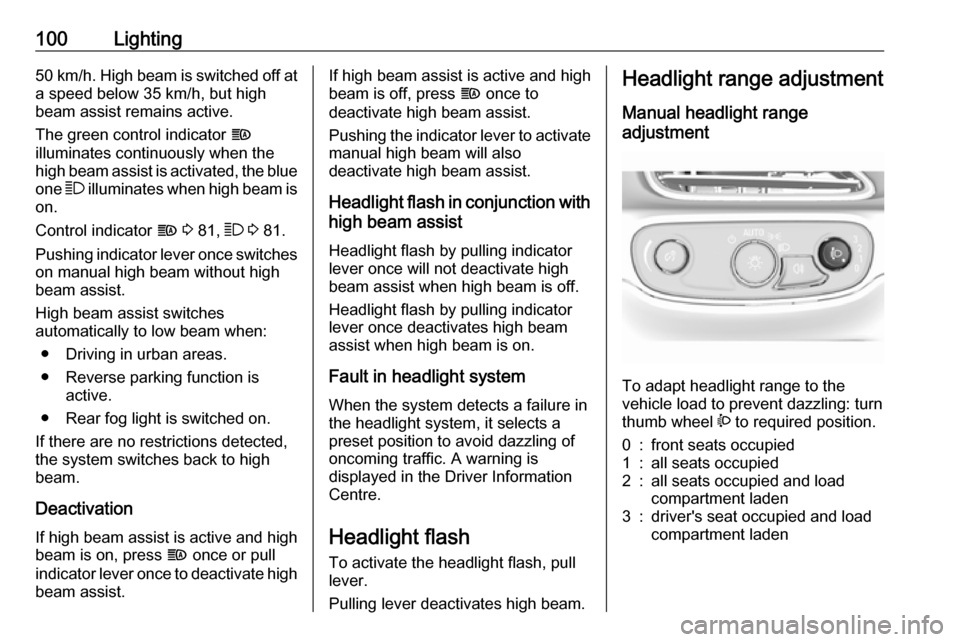
To adapt headlight range to the
vehicle load to prevent dazzling: turn
thumb wheel ? to required position.
0:front seats occupied1:all seats occupied2:all seats occupied and load
compartment laden3:driver's seat occupied and load
compartment laden
Page 103 of 267
Lighting101Daytime running lightsDaytime running lights increase
visibility of the vehicle during daylight.
While the daytime running light is
active, the tail lights and the sidelights are switched off.
Please remember that the low beam
should be switched on when required.
Hazard warning flashers
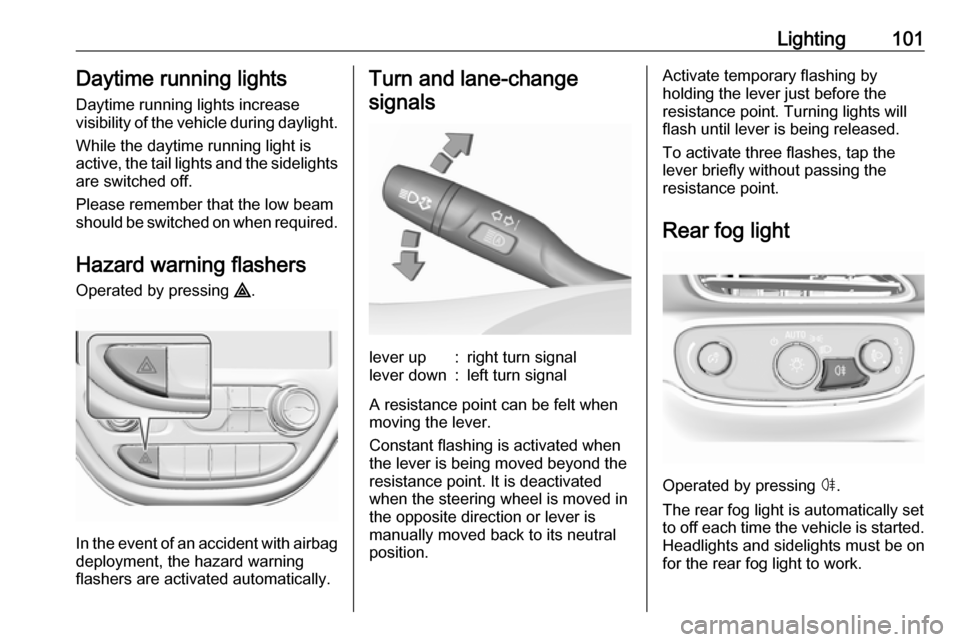
Operated by pressing ¨.
In the event of an accident with airbag
deployment, the hazard warning
flashers are activated automatically.
Turn and lane-change
signalslever up:right turn signallever down:left turn signal
A resistance point can be felt when
moving the lever.
Constant flashing is activated when
the lever is being moved beyond the
resistance point. It is deactivated
when the steering wheel is moved in
the opposite direction or lever is
manually moved back to its neutral
position.
Activate temporary flashing by
holding the lever just before the
resistance point. Turning lights will
flash until lever is being released.
To activate three flashes, tap the
lever briefly without passing the
resistance point.
Rear fog light
Operated by pressing ø.
The rear fog light is automatically set
to off each time the vehicle is started.
Headlights and sidelights must be on
for the rear fog light to work.
Page 104 of 267
102LightingParking lights
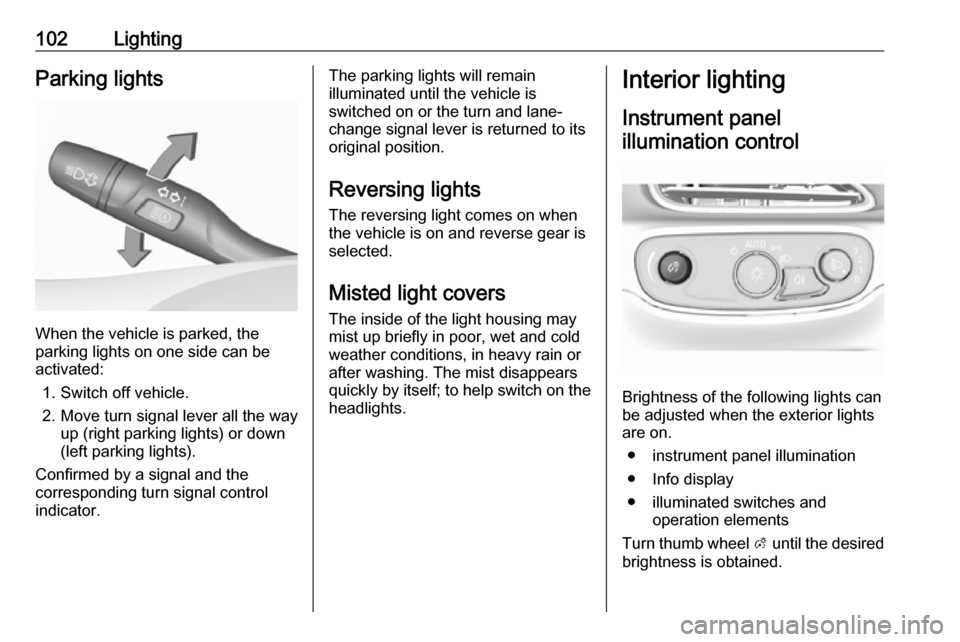
When the vehicle is parked, the
parking lights on one side can be
activated:
1. Switch off vehicle.
2. Move turn signal lever all the way up (right parking lights) or down
(left parking lights).
Confirmed by a signal and the
corresponding turn signal control
indicator.
The parking lights will remain
illuminated until the vehicle is
switched on or the turn and lane-
change signal lever is returned to its
original position.
Reversing lights
The reversing light comes on when
the vehicle is on and reverse gear is selected.
Misted light covers
The inside of the light housing may
mist up briefly in poor, wet and cold weather conditions, in heavy rain or
after washing. The mist disappears
quickly by itself; to help switch on the
headlights.Interior lighting
Instrument panel illumination control
Brightness of the following lights can
be adjusted when the exterior lights
are on.
● instrument panel illumination
● Info display
● illuminated switches and operation elements
Turn thumb wheel A until the desired
brightness is obtained.
Page 107 of 267

Infotainment system105Infotainment systemIntroduction................................ 105
General information .................105
Theft-deterrent feature ............106
Control elements overview ......107
Usage ...................................... 109
Basic operation .......................... 112
Tone settings ........................... 114
Volume settings .......................115
System settings .......................116
Radio ......................................... 119
Usage ...................................... 119
Station search ......................... 120
Radio data system (RDS) ........122
Digital audio broadcasting .......123
External devices ........................125
General information .................125
Playing audio ........................... 127
Displaying pictures ..................129
Playing movies ........................ 130
Using smartphone applications ............................ 131
Speech recognition ....................132
General information .................132
Usage ...................................... 132Phone........................................ 133
General information .................133
Bluetooth connection ...............134
Emergency call ........................136
Operation ................................. 136
Mobile phones and CB radio equipment ............................... 140Introduction
General information
The Infotainment system provides
you with state-of-the-art in-car
infotainment.
Using radio tuner functions, you can
listen to a great number of different
radio stations.
You can connect external data
storage devices to the Infotainment
system as further audio sources;
either via cable or via Bluetooth.
The Infotainment system is equipped
with a phone portal that allows for
comfortable and safe use of your
mobile phone in the vehicle.
You can also operate specific
smartphone applications via the
Infotainment system.
Optionally, the Infotainment system
can be operated using the touch
screen and buttons on the control
panel, the controls on the steering wheel, or - if provided by your mobile
phone - via speech recognition.
Page 110 of 267
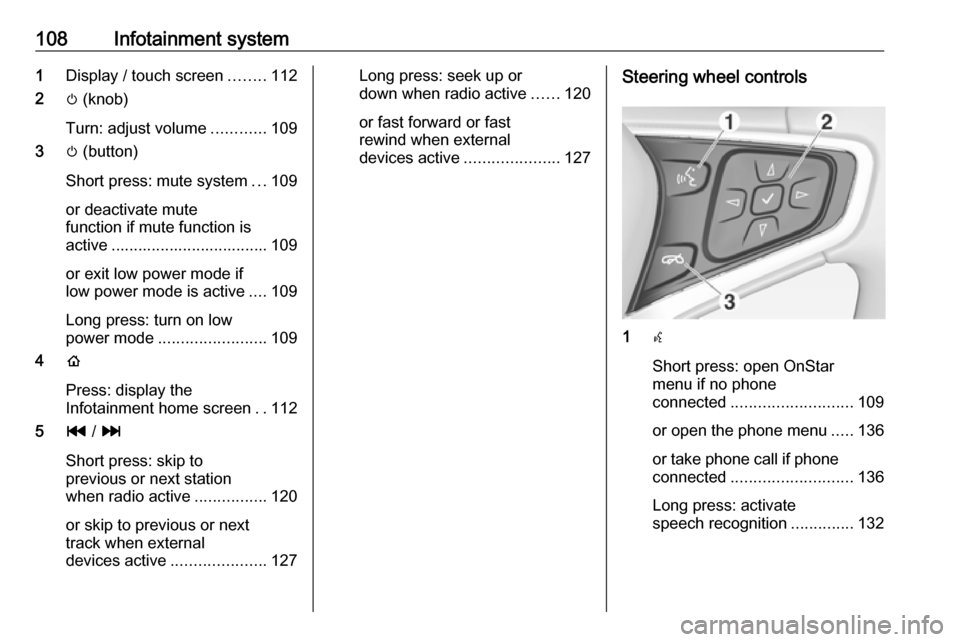
108Infotainment system1Display / touch screen ........112
2 m (knob)
Turn: adjust volume ............109
3 m (button)
Short press: mute system ...109
or deactivate mute
function if mute function is
active ................................... 109
or exit low power mode if
low power mode is active ....109
Long press: turn on low
power mode ........................ 109
4 p
Press: display the
Infotainment home screen ..112
5 t / v
Short press: skip to
previous or next station
when radio active ................120
or skip to previous or next
track when external
devices active .....................127Long press: seek up or
down when radio active ......120
or fast forward or fast
rewind when external
devices active .....................127Steering wheel controls
1w
Short press: open OnStar
menu if no phone
connected ........................... 109
or open the phone menu .....136
or take phone call if phone connected ........................... 136
Long press: activate
speech recognition ..............132
Page 111 of 267
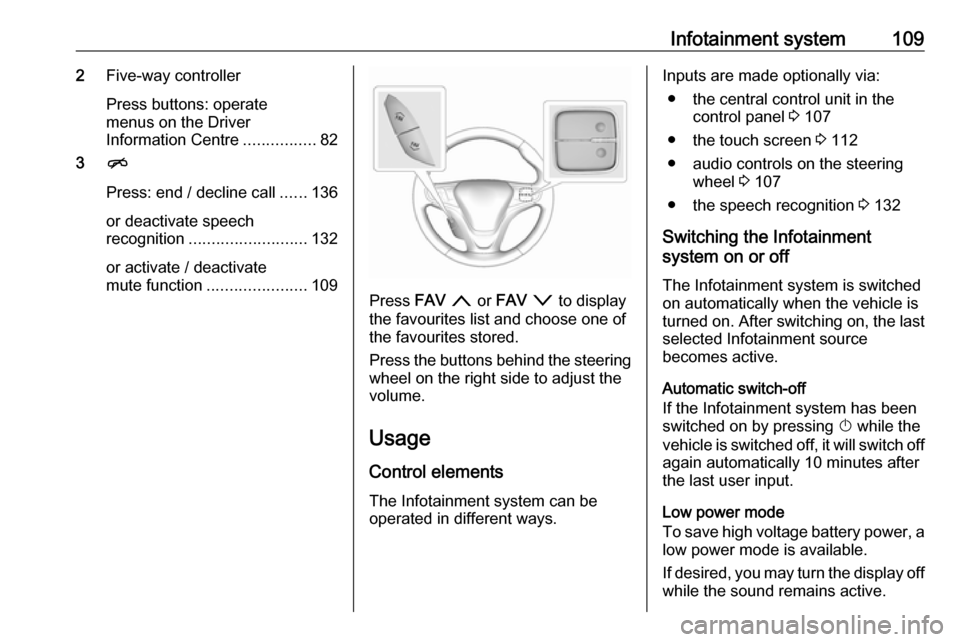
Infotainment system1092Five-way controller
Press buttons: operate
menus on the Driver
Information Centre ................82
3 n
Press: end / decline call ......136
or deactivate speech recognition .......................... 132
or activate / deactivate
mute function ...................... 109
Press FAV n or FAV o to display
the favourites list and choose one of
the favourites stored.
Press the buttons behind the steering wheel on the right side to adjust the
volume.
Usage
Control elements
The Infotainment system can be
operated in different ways.
Inputs are made optionally via:
● the central control unit in the control panel 3 107
● the touch screen 3 112
● audio controls on the steering wheel 3 107
● the speech recognition 3 132
Switching the Infotainment
system on or off
The Infotainment system is switched
on automatically when the vehicle is turned on. After switching on, the last selected Infotainment source
becomes active.
Automatic switch-off
If the Infotainment system has been
switched on by pressing X while the
vehicle is switched off, it will switch off again automatically 10 minutes after
the last user input.
Low power mode
To save high voltage battery power, a
low power mode is available.
If desired, you may turn the display off while the sound remains active.
Page 134 of 267

132Infotainment systemsmartphone on the Infotainment
screen and allow their operation
directly via the Infotainment controls.
Check with the device's manufacturer
if this function is compatible with your
smartphone and if this application is
available in the country you are in.
Preparing the smartphone
Android phone: Download the
Android Auto app to your smartphone from the Google Play™ Store.
iPhone: Make sure Siri ®
is activated
on your smartphone.
Activating phone projection in the
settings menu
Press p and then select 1 in the top
left corner of the screen to display the application overview screen.
Select Settings .
Scroll through the list to
Apple CarPlay or Android Auto .
Make sure the respective application
is activated.Connecting the mobile phone
Connect the smartphone to the USB
port 3 125.
When first connecting a device, a privacy consent message may be
displayed. Confirm the message to
continue the connection procedure.
Starting phone projection Press p and then select 1 in the top
left corner of the screen to display the application overview screen.
To start the phone projection function,
select Projection .
Note
If the application is recognised by the Infotainment system, the
application icon may change to Apple CarPlay or Android Auto .
Alternatively, press and hold p.
The phone projection screen
displayed depends on your
smartphone and software version.
Returning to the Infotainment
screen
Press p.Speech recognition
General information
The voice pass-thru application of the
Infotainment system allows access to the speech recognition commands on your smartphone. See your
smartphone manufacturer's
operating instructions to find out
whether your smartphone supports this feature.
In order to use the voice pass-thru
application, the smartphone must be
connected to the Infotainment system
via USB cable 3 125 or via Bluetooth
3 134.
Usage
Activating speech recognition
Press and hold w on the steering
wheel to start a speech recognition
session. A voice command message
is displayed on the screen.
Page 135 of 267

Infotainment system133As soon as a beep is heard, you can
say a command. For information on the commands supported, see the
operating instructions for your
smartphone.
Adjusting the volume of voice
prompts
Turn m on the control panel or press
the volume buttons behind the
steering wheel to increase or
decrease the volume of voice
prompts.
Deactivating speech recognition
Press n on the steering wheel. The
voice command message disappears
and the speech recognition session is
ended.Phone
General information
The phone portal provides you with
the possibility of having mobile phone
conversations via a vehicle
microphone and the vehicle
loudspeakers as well as operating the most important mobile phone
functions via the Infotainment system
in the vehicle. To be able to use the
phone portal, the mobile phone must
be connected to the Infotainment system via Bluetooth.
Not all phone functions are supported by every mobile phone. The usable
phone functions depend on the
relevant mobile phone and network
provider. You can find further
information on this in the operating
instructions for your mobile phone, or
you can enquire about them with your network provider.Important information for
operation and traffic safety9 Warning
Mobile phones have effects on
your environment. For this reason safety regulations and directions
have been prepared. You should
be familiar with the related
directions before you use the
telephone function.
9 Warning
Use of the hands-free facility while
driving can be dangerous because
your concentration is reduced
when telephoning. Park your
vehicle before you use the hands- free facility. Follow the stipulations
of the country in which you find
yourself at present.
Do not forget to follow the special
regulations that apply in specific
areas and always switch off the
mobile phone if the use of mobile
phones is prohibited, if
Page 141 of 267

Infotainment system139Incoming phone callTaking a call
If an audio mode, e.g. the radio or
USB mode, is active at the moment a call comes in the audio source is
muted and stays muted until the call
ends.
To answer the call, select v in the
message on top of the screen or
press w on the steering wheel.
The Z tab is activated displaying
information on the call.
Rejecting a call
To reject the call, select @ in the
message on top of the screen or press n on the steering wheel.
Privacy settings
When a call comes in, a message is
displayed on the Infotainment display
indicating the name and number of
the person calling (if available). If
Privacy is activated, information on
the caller is only shown in the cluster
display.Press p and then select 1 in the top
left corner of the screen to display the application overview screen.
Select Settings and then Bluetooth
Phone . Activate or deactivate
Privacy .
Functions during a call
During an ongoing phone call the
phone main menu is displayed.
Deactivating the hands-free mode
temporarily
To continue the conversation on the mobile phone, activate m.
To return to the hands-free mode,
deactivate m.
Deactivating the microphone
temporarily
To mute the microphone, activate n.
To reactivate the microphone,
deactivate n.
Setting a call on hold
During an active phone call, the t
screen button changes to Hold.
Select Hold to set the call on hold.Ending a phone call
Select @ to end the call.
Voice mail box
You may operate your voice mail box via the Infotainment system.
Voice mail number
To check the voice mail number of the
phone currently connected, press p
and then select 1 in the top left corner
of the screen.
Select Settings and then Bluetooth
Phone .
If available, the voice mail number is
displayed under My Number.
Calling the voice mail box
Press p and then select 1 in the top
left corner of the screen to display the application overview screen.
Select Phone to display the phone
main screen.
Select t on the keypad to call the
mailbox.
Alternatively, enter the voice mail
number via the phone keypad.
Page 154 of 267
152Driving and operating9Warning
● Always apply parking brake.
Pull switch m for approx. one
second and check if the control
indicator m illuminates.
The electric parking brake is
applied when control indicator
m illuminates 3 79.
● Switch off the vehicle.
● If the vehicle is on a level surface or uphill slope, applythe parking brake and set the
selector lever to P before
switching off the vehicle. On an uphill slope, turn the front
wheels away from the kerb.
If the vehicle is on a downhill
slope, apply the parking brake
and set the selector lever to P
before switching off the vehicle.
Turn the front wheels towards
the kerb.
With the selector lever in P,
press POWER m briefly to
switch off the vehicle. Turn the
steering wheel until the
steering wheel lock engages.
● Close the windows.
● Lock the vehicle.
● Activate the anti-theft alarm system.
● The engine cooling fans may run
after the vehicle has been
switched off 3 211.
It is not recommended to park with the propulsion system running.
If the vehicle is left with the propulsion
system running, follow the proper
steps to be sure the vehicle will not
move.
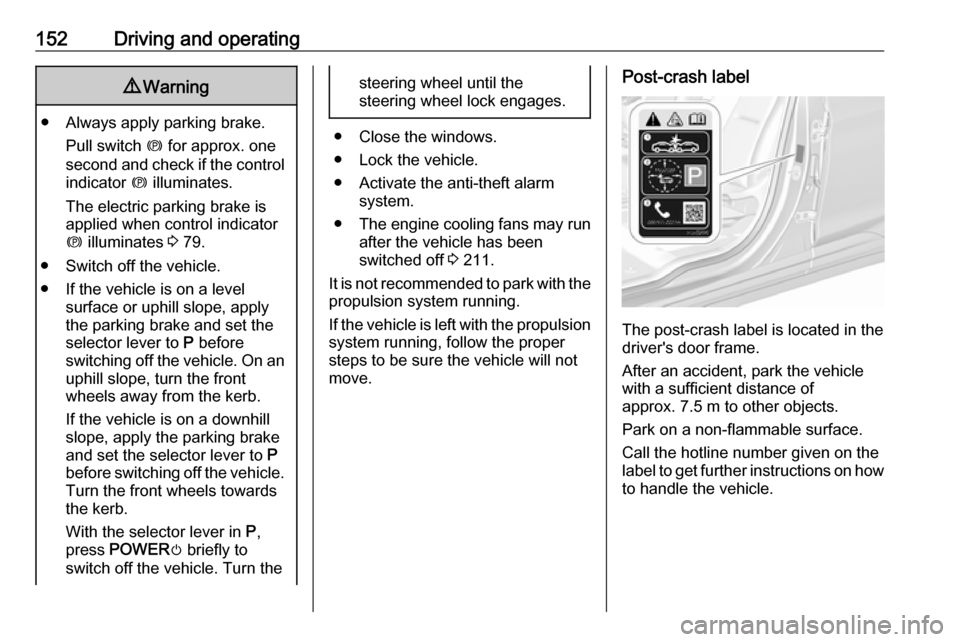
Post-crash label
The post-crash label is located in the
driver's door frame.
After an accident, park the vehicle
with a sufficient distance of
approx. 7.5 m to other objects.
Park on a non-flammable surface.
Call the hotline number given on the
label to get further instructions on how to handle the vehicle.