Page 17 OPEL AMPERA E 2018 Owner's Manual
[x] Cancel search | Manufacturer: OPEL, Model Year: 2018, Model line: AMPERA E, Model: OPEL AMPERA E 2018Pages: 267, PDF Size: 6.45 MB
Page 5 of 267
Introduction3Caution
Text marked Caution provides
information on possible damage to
the vehicle. Disregarding this
information may lead to vehicle
damage.
Symbols
Page references are indicated with 3.
3 means "see page".
Page references and index entries
refer to the indented headings given
in the section table of content.
Chronological order to select menu
entries in the vehicle personalisation
is indicated with I.
We wish you many hours of
pleasurable driving.
Adam Opel GmbH
Page 30 of 267
28Keys, doors and windowsPairing
A smartphone must be paired to the
KeyPass module and then it must be
connected to the vehicle before it can be used.
Setup information ● Up to three smartphones can be set up and connected to the
vehicle.
● Setup is disabled when the vehicle is moving.
● Pairing only needs to be completed once per smartphone,unless the pairing information on
the smartphone changes or the
smartphone is deleted.
Setup process 1. The vehicle must be switched on and the selector lever in P (Park).
2. Enable the KeyPass function through vehicle personalisation.
3. Download the myOpel app to the smartphone from the appropriate
app store.4. Open the app and search for new
vehicles.
5. Choose your vehicle and confirm.
6. Aim the smartphone camera at the QR code on the Info display to
scan the security key. If the
camera is not working, the QR
code can be entered manually.
7. The Infotainment display provides
confirmation that the pairing
process was completed
successfully.
● Select Settings from the Home
page on the Infotainment display.
● Select KeyPass.
● Select Manage KeyPass
devices .
Deleting a paired smartphone 1. Select Settings from the Home
page on the Infotainment display.
2. Select KeyPass.
3. Select Manage KeyPass devices .
4. Touch Delete next to the
smartphone to be deleted, and
follow the prompts.Doors
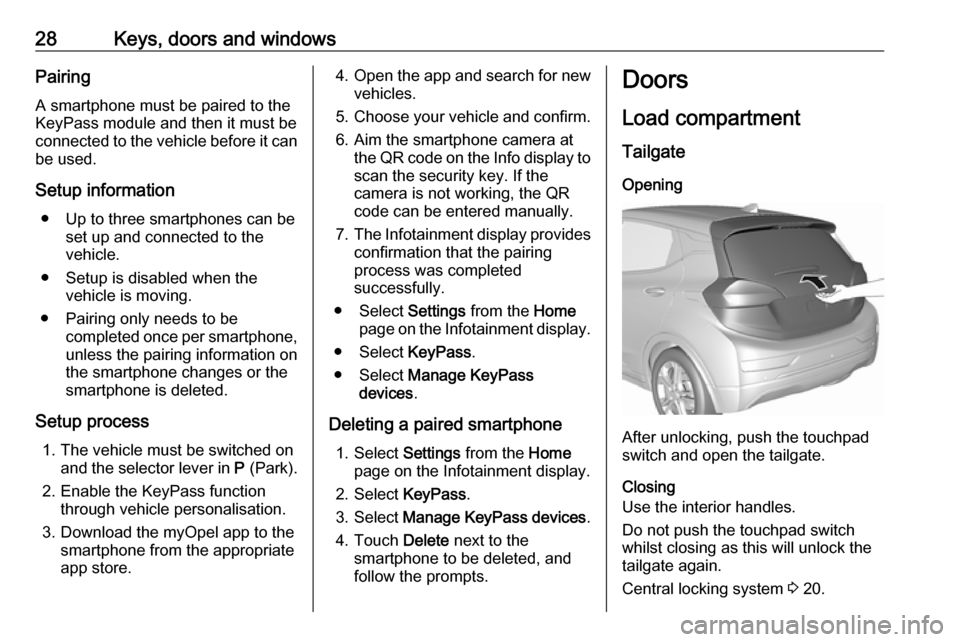
Load compartment TailgateOpening
After unlocking, push the touchpad
switch and open the tailgate.
Closing
Use the interior handles.
Do not push the touchpad switch whilst closing as this will unlock the
tailgate again.
Central locking system 3 20.
Page 63 of 267
Storage61General hint9Warning
For safety reasons, stow all parts
in the load compartment in its
position, always drive with a
closed rear floor cover and, if
possible, with folded up rear
backrests.
Otherwise, vehicle occupants
could be injured by objects being
thrown around in the event of
sharp braking, a sudden change in direction or an accident.
Lashing eyes
The lashing eyes are designed to
secure items against slippage, e.g.
using lashing straps or luggage net.
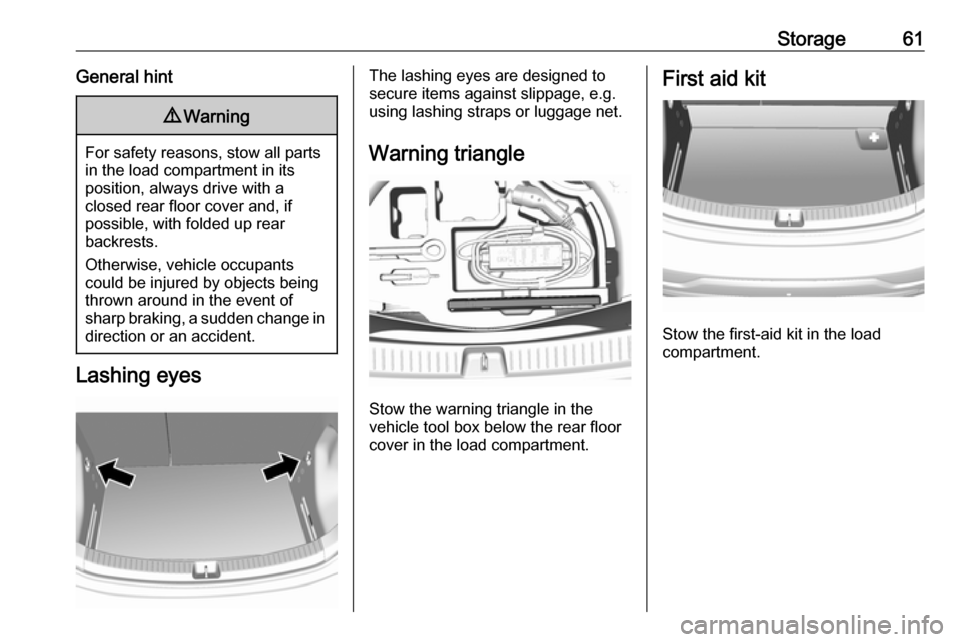
Warning triangle
Stow the warning triangle in the
vehicle tool box below the rear floor
cover in the load compartment.
First aid kit
Stow the first-aid kit in the load
compartment.
Page 84 of 267
82Instruments and controlsDoor open
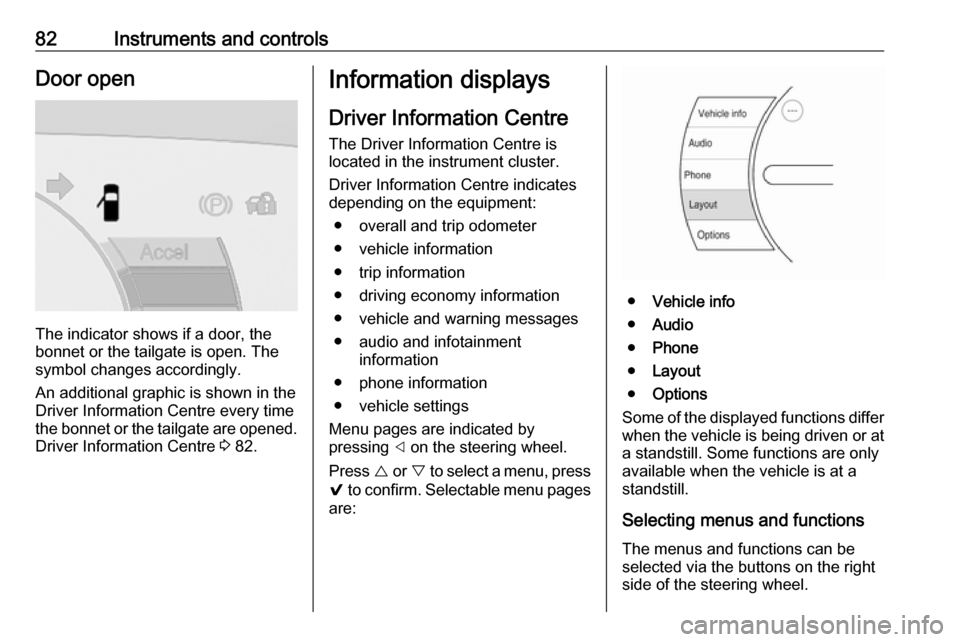
The indicator shows if a door, the
bonnet or the tailgate is open. The
symbol changes accordingly.
An additional graphic is shown in the
Driver Information Centre every time
the bonnet or the tailgate are opened. Driver Information Centre 3 82.
Information displays
Driver Information Centre
The Driver Information Centre is
located in the instrument cluster.
Driver Information Centre indicates
depending on the equipment:
● overall and trip odometer
● vehicle information
● trip information
● driving economy information ● vehicle and warning messages
● audio and infotainment information
● phone information
● vehicle settings
Menu pages are indicated by
pressing ] on the steering wheel.
Press { or } to select a menu, press
9 to confirm. Selectable menu pages
are:
● Vehicle info
● Audio
● Phone
● Layout
● Options
Some of the displayed functions differ
when the vehicle is being driven or at a standstill. Some functions are only
available when the vehicle is at a
standstill.
Selecting menus and functions The menus and functions can be
selected via the buttons on the right
side of the steering wheel.
Page 85 of 267
![OPEL AMPERA E 2018 Owners Manual Instruments and controls83
● Press ] to open main menu
page.
● Select a main menu page with { or }.
● Confirm a main menu page with 9.
Once a main menu page is selected,
press { or } to selec](/img/37/18755/w960_18755-84.png "OPEL AMPERA E 2018 Owners Manual Instruments and controls83
● Press ] to open main menu
page.
● Select a main menu page with { or }.
● Confirm a main menu page with 9.
Once a main menu page is selected,
press { or } to selec")
Instruments and controls83
● Press ] to open main menu
page.
● Select a main menu page with { or }.
● Confirm a main menu page with 9.
Once a main menu page is selected,
press { or } to select subpages.
● Press [ to open the next folder of
the selected subpage.
● Press { or } to select functions
or to set a numeric value, if
required.
● Press 9 to select and confirm a
function.
Vehicle and service messages pop-
up in the Driver Information Centre
when required.
Confirm messages by pressing 9.
Vehicle messages 3 89.
Vehicle info The following list contains all possible
Vehicle info menu pages. Some may
not be available for your particular
vehicle. Depending on the display,
some functions are symbolised.
Press { or } to select a page:
● Trip
● Tyre pressure (kPa)
● Average speed
● Timer
● Traffic sign assistant
● Following distance
● Blank page
Trip
Trip odometer displays the current
distance and the current average
electrical energy economy since a
certain reset.The distance counts up to
99,999.9 km then restarts at 0.
The average electrical energy
economy displays the approximate
average kWh per 100 km (kWh/100
km).
To reset, press and hold 9.
Tyre pressure (kPa)
Checks tyre pressure of all wheels
during driving 3 233.
Average speed
Display of average speed. The
measurement can be reset at any
time.
Timer
To start and stop, press 9. To reset,
press [ and confirm reset.
Traffic sign assistant
Displays the detected traffic signs for
the current route section 3 188.
Following distance
Displays the distance in seconds to a preceding moving vehicle 3 168.
Page 86 of 267

84Instruments and controlsBlank page
Shows a blank page without any
information.
Audio menu
In the main view of the Audio
application, press { or } to scroll
through radio stations or move to the next / previous track of a USB /
Bluetooth ®
device that is connected to
the vehicle.
Press 9 to select the Audio app, then
press [ to enter the Audio menu. In
the Audio menu browse for music,
select from the favourites, or change
the audio source.
Exit the Audio menu by pressing 9
or ].
Phone menu Press 9 to select the Phone
application, then press [ to enter the
Phone menu. In the Phone menu, if
there is no active phone call, view
recent calls, scroll through contacts,
or select from the favourites. If thereis an active call, mute or unmute the
phone or switch to handset or hands
free operation.
Exit the Phone menu by pressing 9
or ].
Layout menu Press 9 while display themes is
displayed. Select Basic, Standard or
Enhanced mode by pressing 9.
Options menu
The following list contains all possible Options menu pages:
● Unit
● Speed warning
● Tyre load
Units
Press [ while units page is displayed.
Select imperial or metric units by
pressing 9.
Speed warning
The speed warning function alerts the
driver when a set speed is exceeded.To set the speed warning, press 9
while the page is displayed. Press
[ and { or } to adjust the value.
Press 9 to set the speed. Once the
speed is set, this feature can be
turned off by pressing 9 while
viewing this page. If the selected
speed limit is exceeded, a pop-up
warning is displayed with a chime.
Tyre load
The tyre pressure category according to the actual tyre inflation pressure
can be selected 3 233.
Press { or } to select a category
Light , Eco or Max .
Press 9 to confirm category.
Help
Provides information about the
gauges which are available in the
different layouts ( Basic, Standard or
Enhanced ).
Open source software
System settings 3 116.
Page 87 of 267
Instruments and controls85Info display
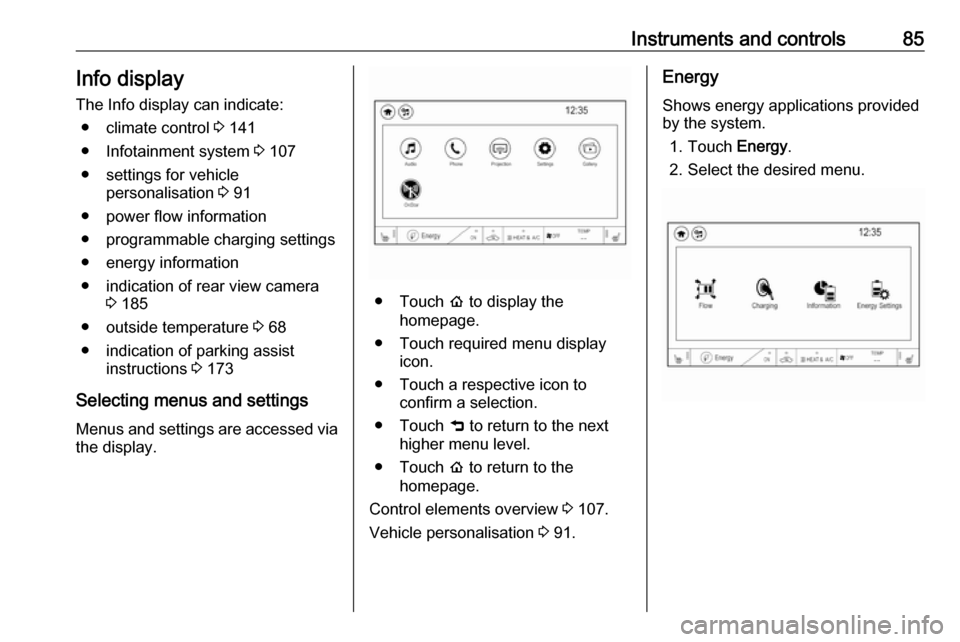
The Info display can indicate: ● climate control 3 141
● Infotainment system 3 107
● settings for vehicle personalisation 3 91
● power flow information
● programmable charging settings
● energy information
● indication of rear view camera 3 185
● outside temperature 3 68
● indication of parking assist instructions 3 173
Selecting menus and settings Menus and settings are accessed via
the display.
● Touch p to display the
homepage.
● Touch required menu display icon.
● Touch a respective icon to confirm a selection.
● Touch 9 to return to the next
higher menu level.
● Touch p to return to the
homepage.
Control elements overview 3 107.
Vehicle personalisation 3 91.
Energy
Shows energy applications provided
by the system.
1. Touch Energy.
2. Select the desired menu.
Page 170 of 267
168Driving and operatingapproaching a vehicle ahead too
rapidly, it may not provide you
enough time to avoid a collision.
The driver accepts full
responsibility for the appropriate
following distance based on traffic, weather and visibility conditions.
The complete attention of the
driver is always required while
driving. The driver must always be
ready to take action and apply the
brakes.
System limitations
Forward collision alert is designed to warn about vehicles only, but may
react also to other objects.
In the following cases, forward
collision alert may not detect a vehicle ahead or sensor performance is
limited:
● on winding roads
● when weather limits visibility, such as fog, rain, or snow
● when the sensor is blocked by snow, ice, slush, mud, dirt,
windscreen damage or affected
by foreign items, e.g. stickers
Following distance
indication
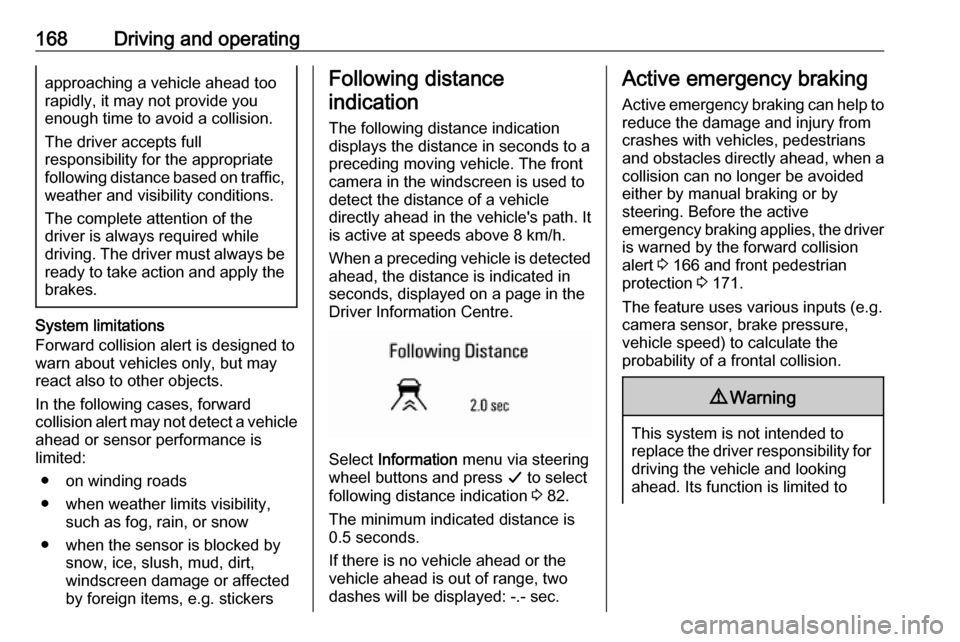
The following distance indication
displays the distance in seconds to a
preceding moving vehicle. The front
camera in the windscreen is used to
detect the distance of a vehicle
directly ahead in the vehicle's path. It
is active at speeds above 8 km/h.
When a preceding vehicle is detected
ahead, the distance is indicated in
seconds, displayed on a page in the
Driver Information Centre.
Select Information menu via steering
wheel buttons and press G to select
following distance indication 3 82.
The minimum indicated distance is
0.5 seconds.
If there is no vehicle ahead or the vehicle ahead is out of range, two
dashes will be displayed: -.- sec.
Active emergency braking
Active emergency braking can help toreduce the damage and injury from
crashes with vehicles, pedestrians and obstacles directly ahead, when a
collision can no longer be avoided
either by manual braking or by
steering. Before the active
emergency braking applies, the driver
is warned by the forward collision
alert 3 166 and front pedestrian
protection 3 171.
The feature uses various inputs (e.g.
camera sensor, brake pressure,
vehicle speed) to calculate the
probability of a frontal collision.9 Warning
This system is not intended to
replace the driver responsibility for driving the vehicle and looking
ahead. Its function is limited to
Page 191 of 267

Driving and operating189
An exclamation mark in a frame
indicates that there is an additional
sign detected which cannot be clearly
identified by the system.
The system performance depends on the lighting conditions.
Display indication Information about the currently valid
traffic signs is available on the
designated traffic sign assistant page
in the Driver Information Centre.
Additionally, the currently valid speed limit is displayed permanently in the
lower line of the Driver Information
Centre. In case a speed limit with add
on sign is available, a + symbol is
displayed in this area.
Choose Vehicle info via right steering
wheel buttons and press { or } to
select traffic sign assistant page
3 82.
When another page on the Driver Information Centre menu was
selected and then traffic sign
assistant page is chosen again, the
last recognised traffic sign will be
displayed.
Alert function
Once activated, speed limit and no
passing signs are displayed as pop-
up alerts in the Driver Information
Centre.
The alert function can be activated or
deactivated by pressing 9 on the
steering wheel.
System reset
The content of the traffic sign display
can be cleared in the settings menu
of the traffic sign assistant page by
selecting Reset and confirm by
pressing 9 on the steering wheel
controls.
Page 192 of 267
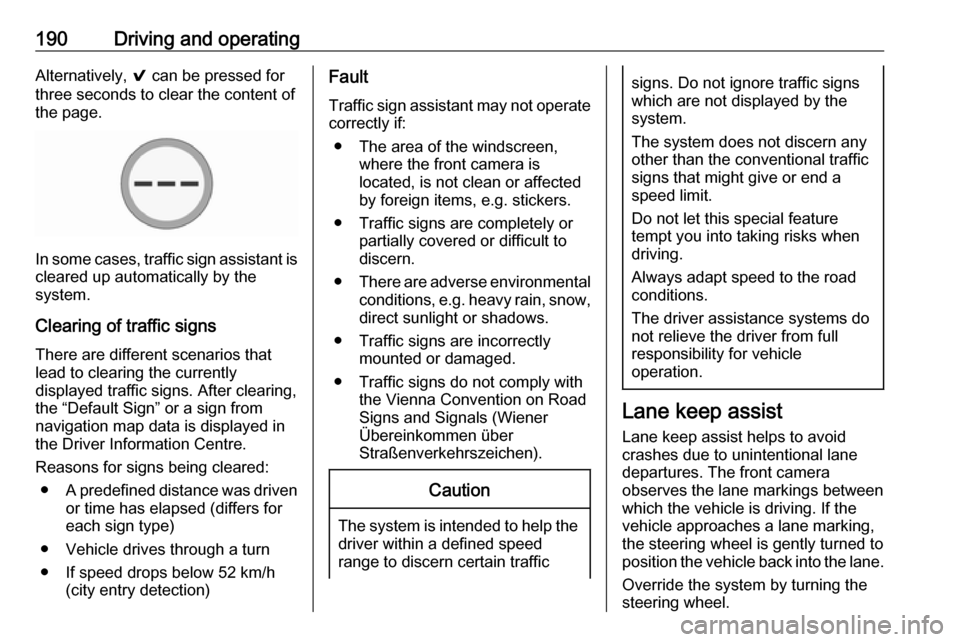
190Driving and operatingAlternatively, 9 can be pressed for
three seconds to clear the content of
the page.
In some cases, traffic sign assistant is
cleared up automatically by the
system.
Clearing of traffic signs
There are different scenarios that
lead to clearing the currently
displayed traffic signs. After clearing,
the “Default Sign” or a sign from
navigation map data is displayed in
the Driver Information Centre.
Reasons for signs being cleared: ● A predefined distance was driven
or time has elapsed (differs for
each sign type)
● Vehicle drives through a turn
● If speed drops below 52 km/h (city entry detection)
Fault
Traffic sign assistant may not operate
correctly if:
● The area of the windscreen, where the front camera is
located, is not clean or affected
by foreign items, e.g. stickers.
● Traffic signs are completely or partially covered or difficult to
discern.
● There are adverse environmental
conditions, e.g. heavy rain, snow,
direct sunlight or shadows.
● Traffic signs are incorrectly mounted or damaged.
● Traffic signs do not comply with the Vienna Convention on Road
Signs and Signals (Wiener
Übereinkommen über
Straßenverkehrszeichen).Caution
The system is intended to help the driver within a defined speed
range to discern certain traffic
signs. Do not ignore traffic signs
which are not displayed by the
system.
The system does not discern any other than the conventional traffic
signs that might give or end a
speed limit.
Do not let this special feature
tempt you into taking risks when
driving.
Always adapt speed to the road
conditions.
The driver assistance systems do not relieve the driver from full
responsibility for vehicle
operation.
Lane keep assist
Lane keep assist helps to avoid
crashes due to unintentional lane
departures. The front camera
observes the lane markings between
which the vehicle is driving. If the
vehicle approaches a lane marking, the steering wheel is gently turned to
position the vehicle back into the lane.
Override the system by turning the
steering wheel.