change time OPEL AMPERA E 2019 Manual user
[x] Cancel search | Manufacturer: OPEL, Model Year: 2019, Model line: AMPERA E, Model: OPEL AMPERA E 2019Pages: 271, PDF Size: 6.7 MB
Page 195 of 271

Driving and operating193Charge times will vary based on high
voltage battery condition and outside
temperature. There are three ways to
programme how the vehicle is
charged.
Programmable charging 3 196.
The charging system may run fans
and pumps resulting in noises coming from the vehicle while it is turned off.
Additional clicking sounds may be
caused by the electrical devices used
while charging.
While the charge cord is plugged into
the vehicle, the vehicle cannot be
driven.
When to charge When the high voltage battery is
getting low, charging messages may
be displayed.
The Charge vehicle soon message
indicates that the driving range is low
and the vehicle needs to be charged
soon. As the charge level drops, the
Propulsion power is reduced
message is displayed and the
accelerator pedal response is
reduced. In addition, the remainingrange value will change to Low
indicating the vehicle should be
charged immediately.
When the energy is fully depleted, the
Out of power. Charge vehicle now
message is displayed and the vehicle slows to a stop. Brake and steering
assist will still operate. Once the
vehicle has stopped, switch off the
vehicle.
AC (alternating current) charging
Start charging
A portable charge cord used to
charge the vehicle high voltage
battery is stored under the rear floor
storage cover in the load
compartment.
1. Shift into P (Park) and switch off
the vehicle.
2. Push the rearward edge of the charge port door in and release toopen the door.
In cold weather conditions, ice
may form around the charge port
door. Remove ice from the area
before attempting to open or close
the charge port door.
Page 199 of 271
Driving and operating197complete by the departure time only if
sufficient time is allowed after the
charge cord is plugged in.
Select the Priority charging to On or
Off (Priority charging will immediately
charge the vehicle to a predefined
level).Departure time entry
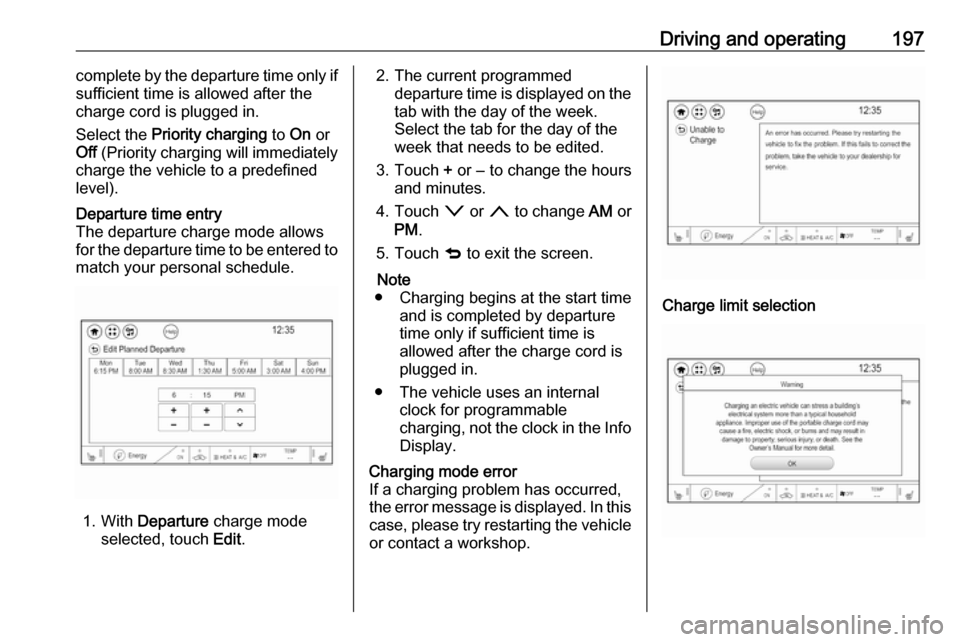
The departure charge mode allows
for the departure time to be entered to match your personal schedule.
1. With Departure charge mode
selected, touch Edit.
2. The current programmed
departure time is displayed on the
tab with the day of the week.
Select the tab for the day of the
week that needs to be edited.
3. Touch + or − to change the hours
and minutes.
4. Touch o or n to change AM or
PM .
5. Touch q to exit the screen.
Note
● Charging begins at the start time and is completed by departure
time only if sufficient time is
allowed after the charge cord is
plugged in.
● The vehicle uses an internal clock for programmable
charging, not the clock in the Info Display.Charging mode error
If a charging problem has occurred,
the error message is displayed. In this
case, please try restarting the vehicle or contact a workshop.
Charge limit selection
Page 201 of 271
Driving and operating199example, if the vehicle is plugged in
for only 1 hour prior to the departure
time, and the high voltage battery is
completely discharged, the vehicle
will not be fully charged by the
departure time regardless of the rate
selection.
Also, if the selected electric rate
settings result in a very long charge
completion time, the vehicle will start
charging immediately upon plug-in.
For example, if the electric rate table
is set up with all peak rates and the
rate preference is to charge during
off-peak rates only, then the vehicle
will start charging immediately upon
plug-in.
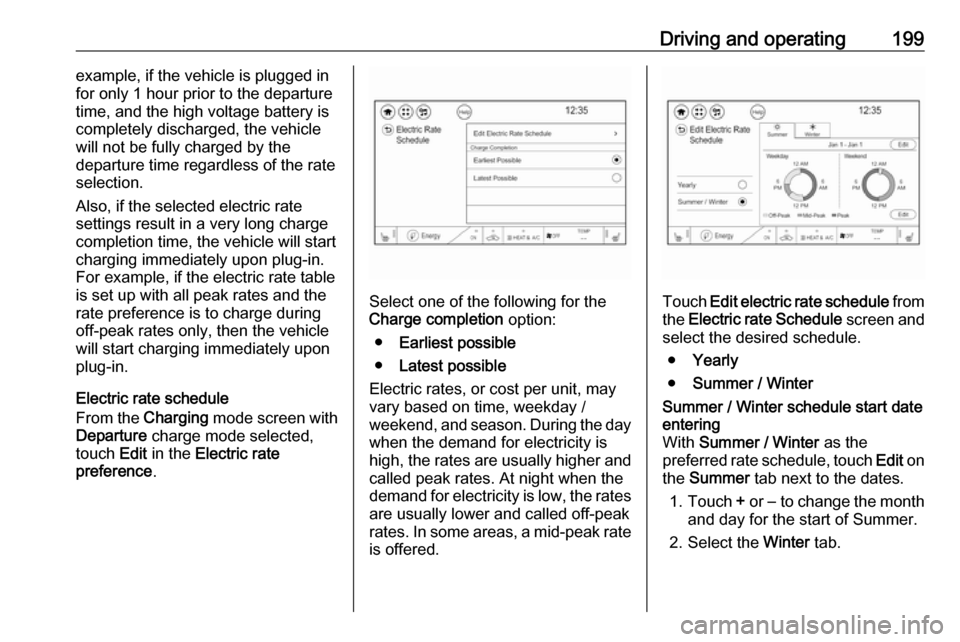
Electric rate schedule
From the Charging mode screen with
Departure charge mode selected,
touch Edit in the Electric rate
preference .
Select one of the following for the
Charge completion option:
● Earliest possible
● Latest possible
Electric rates, or cost per unit, may
vary based on time, weekday /
weekend, and season. During the day
when the demand for electricity is
high, the rates are usually higher and called peak rates. At night when the
demand for electricity is low, the rates
are usually lower and called off-peak
rates. In some areas, a mid-peak rate
is offered.Touch Edit electric rate schedule from
the Electric rate Schedule screen and
select the desired schedule.
● Yearly
● Summer / Winter
Summer / Winter schedule start date
entering
With Summer / Winter as the
preferred rate schedule, touch Edit on
the Summer tab next to the dates.
1. Touch + or − to change the month
and day for the start of Summer.
2. Select the Winter tab.
Page 202 of 271
200Driving and operating3.Touch + or − to change the month
and day for the start of Winter.
4. Touch q to exit the screen.Electric rate schedule editing
Electric rate information from the
utility company for the charging
location is required.
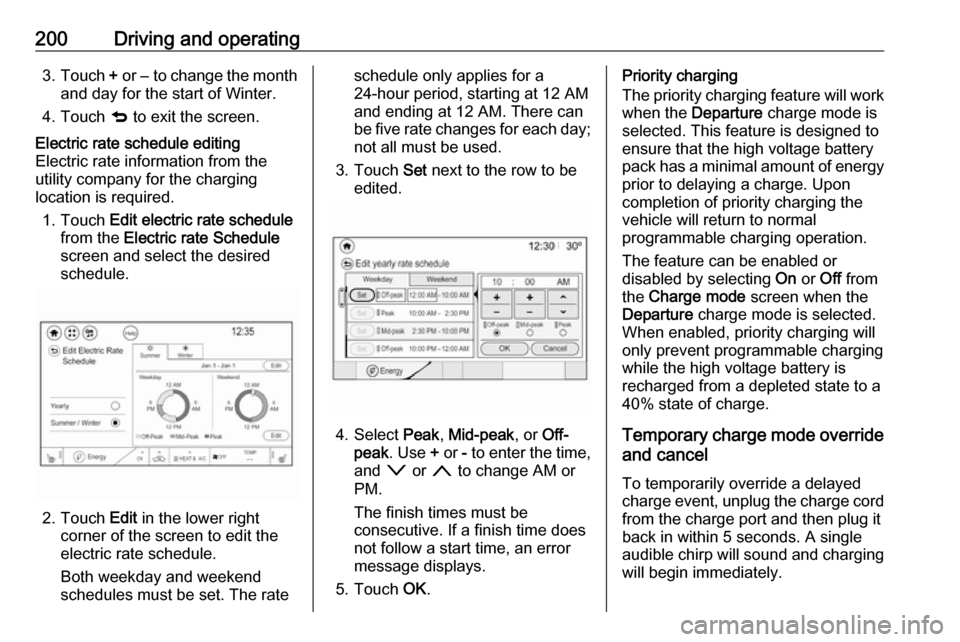
1. Touch Edit electric rate schedule
from the Electric rate Schedule
screen and select the desired
schedule.
2. Touch Edit in the lower right
corner of the screen to edit the
electric rate schedule.
Both weekday and weekend
schedules must be set. The rate
schedule only applies for a
24-hour period, starting at 12 AM
and ending at 12 AM. There can
be five rate changes for each day; not all must be used.
3. Touch Set next to the row to be
edited.
4. Select Peak, Mid-peak , or Off-
peak . Use + or - to enter the time,
and o or n to change AM or
PM.
The finish times must be
consecutive. If a finish time does not follow a start time, an error
message displays.
5. Touch OK.
Priority charging
The priority charging feature will work
when the Departure charge mode is
selected. This feature is designed to ensure that the high voltage battery
pack has a minimal amount of energy prior to delaying a charge. Uponcompletion of priority charging the
vehicle will return to normal
programmable charging operation.
The feature can be enabled or
disabled by selecting On or Off from
the Charge mode screen when the
Departure charge mode is selected.
When enabled, priority charging will
only prevent programmable charging
while the high voltage battery is
recharged from a depleted state to a
40% state of charge.
Temporary charge mode override
and cancel
To temporarily override a delayed charge event, unplug the charge cord from the charge port and then plug it
back in within 5 seconds. A single
audible chirp will sound and charging will begin immediately.
Page 204 of 271
202Driving and operating
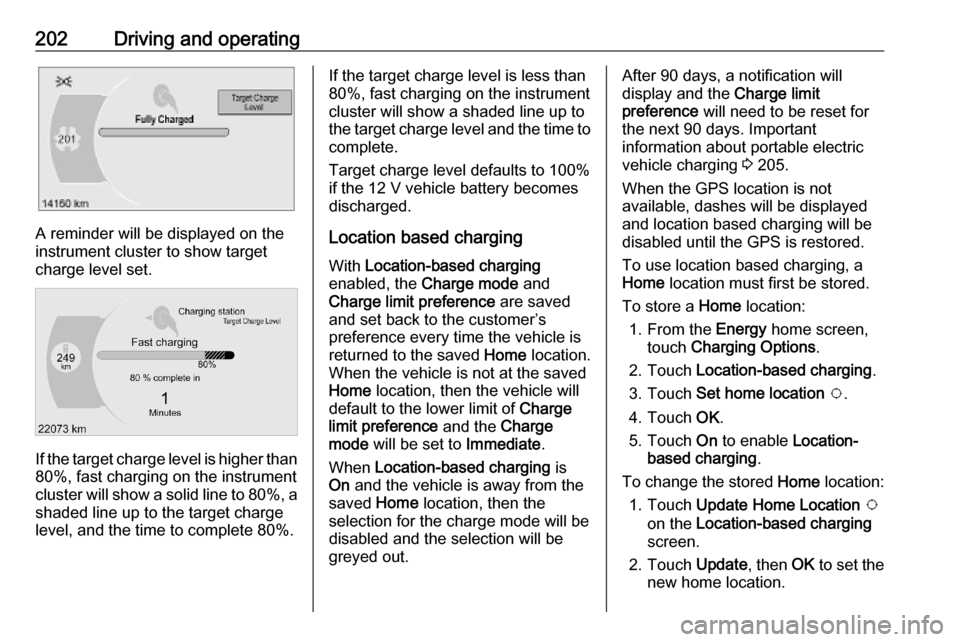
A reminder will be displayed on the
instrument cluster to show target
charge level set.
If the target charge level is higher than
80%, fast charging on the instrument
cluster will show a solid line to 80%, a
shaded line up to the target charge
level, and the time to complete 80%.
If the target charge level is less than
80%, fast charging on the instrument cluster will show a shaded line up tothe target charge level and the time to complete.
Target charge level defaults to 100%
if the 12 V vehicle battery becomes
discharged.
Location based charging
With Location-based charging
enabled, the Charge mode and
Charge limit preference are saved
and set back to the customer’s
preference every time the vehicle is
returned to the saved Home location.
When the vehicle is not at the saved
Home location, then the vehicle will
default to the lower limit of Charge
limit preference and the Charge
mode will be set to Immediate.
When Location-based charging is
On and the vehicle is away from the
saved Home location, then the
selection for the charge mode will be
disabled and the selection will be
greyed out.After 90 days, a notification will
display and the Charge limit
preference will need to be reset for
the next 90 days. Important
information about portable electric
vehicle charging 3 205.
When the GPS location is not
available, dashes will be displayed
and location based charging will be
disabled until the GPS is restored.
To use location based charging, a
Home location must first be stored.
To store a Home location:
1. From the Energy home screen,
touch Charging Options .
2. Touch Location-based charging .
3. Touch Set home location v .
4. Touch OK.
5. Touch On to enable Location-
based charging .
To change the stored Home location:
1. Touch Update Home Location v
on the Location-based charging
screen.
2. Touch Update, then OK to set the
new home location.
Page 205 of 271

Driving and operating203● Touch Cancel to make no
changes.
● Touch Remove to clear the
location and turn location
based charging off.
Charging interrupted or
overridden pop-up
The Charging override / interruption
occurred pop-up will appear if any of
the following conditions occur:
● The charging settings have been
modified via OnStar through the
website or the mobile app. For
example, the departure time
tables, the rate tables, or the
charge mode were updated using
the customer website (available
in select regions).
● There was an unintended loss of AC power during the plug-in
charge event. For example, there was a power outage or the
charge cord was unplugged from the wall.Programmable charging disabled
When the programmable charging
system is disabled, the Unable to
charge screen will be displayed.
Programmed charging override
To temporarily override a delayed charge event, unplug the charge cord from the charge port and then plug it
back in within 5 seconds. A single
horn chirp will sound and charging will begin immediately.
To cancel a temporary override,
unplug the charge cord, wait for
10 seconds, and then plug the charge cord back in. A double horn chirp will
sound and charging will be delayed.
Programmable charging 3 196.
Charging status
The vehicle has a charging status
indicator at the centre of the
instrument panel near the
windscreen. When the vehicle is
plugged in and the vehicle power is
off, the charging status indicator
indicates the following:
Page 221 of 271
Vehicle care219If the vehicle is damaged in a crash,
the headlight aim may be affected. If
adjustment to the low beam is
necessary, seek the assistance of a
workshop.Bulb replacement
Switch off the vehicle and the relevant
light.
Only hold a new bulb at the base. Do
not touch the bulb glass with bare
hands.
Use only the same bulb type for
replacement.
Replace headlight bulbs from within
the engine compartment.
Bulb check After a bulb replacement, switch on
the vehicle, operate and check the
lights.
Halogen bulbs9 Warning
Halogen bulbs have pressurised
gas inside and can burst if you
drop or scratch the bulb. You or others could be injured. Be sure to read and follow the instructions onthe bulb package.
Xenon headlights9 Danger
Xenon headlights work under
extremely high electrical voltage.
Do not touch. Have bulbs replaced by a workshop.
Bulbs for front turn lights and
corner lighting can be changed.
Sidelight / Daytime running lights are
designed as Light Emitting Diodes
(LEDs) and cannot be replaced.
Front turn lights Each turn light is accessible from
behind via the respective wheel
house:
Page 262 of 271

260Customer informationComfort and infotainment
functions
Comfort settings and custom settings
can be stored in the vehicle and
changed or reset at any time.
Depending on the equipment level in
question, these include
● seat and steering wheel position settings
● chassis and air conditioning settings
● custom settings such as interior lighting
You can input your own data in the
infotainment functions for your
vehicle as part of the selected
features.
Depending on the equipment level in
question, these include
● multimedia data such as music, videos or photos for playback in
an integrated multimedia system
● address book data for use with an
integrated hands-free system or an integrated navigation system● input destinations
● data on the use of online services
This data for comfort and
infotainment functions can be stored
locally in the vehicle or be kept on a
device that you have connected to the
vehicle ( e.g. a smartphone, USB stick
or MP3 player). Data that you have
input yourself can be deleted at any
time.
This data can only be transmitted out
of the vehicle at your request,
particularly when using online
services in accordance with the
settings selected by you.
Smartphone integration, e.g.
Android Auto or Apple CarPlay
If your vehicle is equipped
accordingly, you can connect your
smartphone or another mobile device
to the vehicle so that you can control
it via the controls integrated in the
vehicle. The smartphone image and
sound can be output via the
multimedia system in this case. At the same time, specific information is
transmitted to your smartphone.
Depending on the type of integration,this includes data such as position
data, day / night mode and other
general vehicle information. For more
information, please see the operating
instructions for the vehicle /
infotainment system.
Integration allows selected
smartphone apps to be used, such as
navigation or music playback. No
further integration is possible
between smartphone and vehicle, in particular active access to vehicle
data. The nature of further data
processing is determined by the
provider of the app used. Whether
you can define settings, and if so
which ones, is dependent on the app
in question and your smartphone's
operating system.