ad blue OPEL ASTRA J 2017 Infotainment system
[x] Cancel search | Manufacturer: OPEL, Model Year: 2017, Model line: ASTRA J, Model: OPEL ASTRA J 2017Pages: 157, PDF Size: 2.49 MB
Page 152 of 157

152Regionalisation........................... 129
Retrieving stations ......................125
Ring tone Ring tone volume ....................123
Selecting the ring tone ............145
S
Selecting the waveband .............124
Starting CD playback ..................134
Station lists ................................. 126
Station search............................. 124
Steering wheel audio controls ....116
Storing stations ........................... 125
Switching the Infotainment system on ................................ 119
Switching the radio on ................124
System settings Language ................................ 119
Restore factory settings ..........119
Time and date ......................... 119
Vehicle settings .......................119
T
TA volume .................................. 123
Theft-deterrent feature ..............115
Time settings .............................. 119
Tone settings .............................. 122
Traffic announcements ...............129U
Updating station lists ..................126
Usage ................. 119, 124, 134, 136
AUX input ................................ 136
Bluetooth music....................... 140 CD player ................................ 134
Menu ....................................... 120
Phone ...................................... 145
Radio ....................................... 124
USB port.................................. 138
USB menu .................................. 138
USB port Activation................................. 138
Connecting the USB device ....137
General information ................137
Important information ..............137
Operation ................................ 138
Removing the USB device ......138
USB menu ............................... 138
V Volume Auto volume control ................123
Maximum start-up volume .......123
Mute function........................... 119
Ring tone volume ....................123
Setting the volume ..................119
Speed compensated volume ..123TA volume ............................... 123
Volume limitation at high
temperatures ........................... 119
Volume settings .......................... 123
W
Waveband menus....................... 126
Page 155 of 157
FlexDock1551. Remove the cover from the baseplate.
2. Push the cradle in the base plate and fold down.
Connecting the smartphone to the Infotainment system
Universal smartphone
Connect the smartphone to the cradle
by using the connecting cable.
iPhone
The iPhone is connected
automatically when it is inserted into
the cradle.
Depending on the status of the
software and hardware equipment,
the functionality of the iPhone can be restricted.
Operating the smartphone
When the smartphone is connected
via FlexDock, it has the same
functionality as if it is connected via
the USB socket. See the
corresponding instructions in this
manual for detailed information.To use the phone function or the
Bluetooth ®
Music function, a
Bluetooth connection must be
established. See the corresponding
instructions in this manual and the
operating instructions for the
smartphone for detailed information.
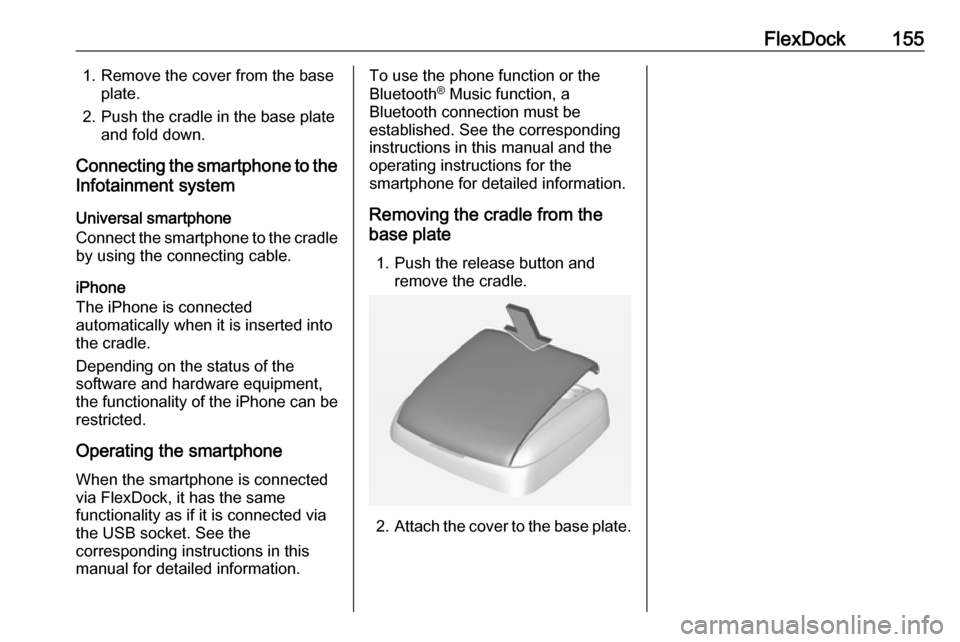
Removing the cradle from the
base plate
1. Push the release button and remove the cradle.
2. Attach the cover to the base plate.