Eco OPEL ASTRA J 2018 Infotainment system
[x] Cancel search | Manufacturer: OPEL, Model Year: 2018, Model line: ASTRA J, Model: OPEL ASTRA J 2018Pages: 155, PDF Size: 2.65 MB
Page 60 of 155
![OPEL ASTRA J 2018 Infotainment system 60Speech recognitionMenuActionSpeech commandsPhone menuPairing device"(Pair | Connect) [Device] "Dialling a
number" Digit Dial "
" (Call | Dial | Ring) … "Redialling the
last number" Redial [Last Nu](/img/37/18772/w960_18772-59.png "OPEL ASTRA J 2018 Infotainment system 60Speech recognitionMenuActionSpeech commandsPhone menuPairing device\"(Pair | Connect) [Device] \"Dialling a
number\" Digit Dial \"
\" (Call | Dial | Ring) … \"Redialling the
last number\" Redial [Last Nu")
60Speech recognitionMenuActionSpeech commandsPhone menuPairing device"(Pair | Connect) [Device] "Dialling a
number" Digit Dial "
" (Call | Dial | Ring) … "Redialling the
last number" Redial [Last Number] "Erasing digits"(Clear | Erase) "
" (Clear | Erase) All "Reading a text
message" [Read] (Messages | Texts | S M S) "
... : dynamic spacer stands for the specific names to be inserted in that position
| : vertical bar separates alternatives
( ) : round brackets embrace alternatives
[ ] : square brackets designate optional parts of a command
, : comma separates necessary steps in a sequence
Page 61 of 155

Phone61PhoneGeneral information.....................61
Bluetooth connection ...................62
Emergency call ............................ 63
Operation ..................................... 64
Text messages ............................ 67
Mobile phones and CB radio equipment .................................... 68General information
The Phone portal provides you with
the possibility of having mobile phone conversations via a vehicle
microphone and the vehicle
loudspeakers as well as operating the
most important mobile phone
functions via the Infotainment system in the vehicle. To be able to use the
Phone portal, the mobile phone must
be connected with it via Bluetooth.
The Phone portal can be operated
optionally via the speech recognition
system.
Not all Phone portal functions are
supported by every mobile phone.
The possible phone functions depend on the relevant mobile phone and
network provider. You will find further
information on this in the operating
instructions for your mobile phone or
you can enquire about them with your network provider.Important information for
operation and traffic safety9 Warning
Mobile phones have effects on
your environment. For this reason safety regulations and directions
have been prepared. You should
be familiar with the related
directions before you use the
telephone function.
9 Warning
Use of the hands-free facility while
driving can be dangerous because
your concentration is reduced
when telephoning. Park your
vehicle before you use the hands- free facility. Follow the stipulations
of the country in which you find
yourself at present.
Do not forget to follow the special
regulations that apply in specific
areas and always switch off the
mobile phone if the use of mobile
phones is prohibited, if
Page 65 of 155

Phone65Phone book
Press PHONE and then select Phone
Book . The Phone Book Search menu
is displayed.
Select the desired first letter range to
display a preselection of the
telephone book entries you wish to be
displayed. The phone book jumps to
the position of the letter range
selected.
Select the desired entry in the
telephone book to display the
numbers saved under this entry.
Select the desired number to start
dialling.
Phone book sorting
The phone book may be sorted by last
name or by first name.
To change the sorting order, select
PHONE and then Phone Settings .
Select Sort Order to display the
respective submenu.
Activate the desired option.Note
The sorting order has to be
considered when using the speech
recognition function, e.g. "Call David
Smith" or "Call Smith, David".
Call lists
Press PHONE and then select Call
Lists . The Call Lists menu is
displayed.
Select the desired call list. Depending
on the list selected, the last incoming, outgoing or missed calls are
displayed.
Select the desired entry in the call list
to start dialling.
Page 66 of 155
66PhoneIncoming calls
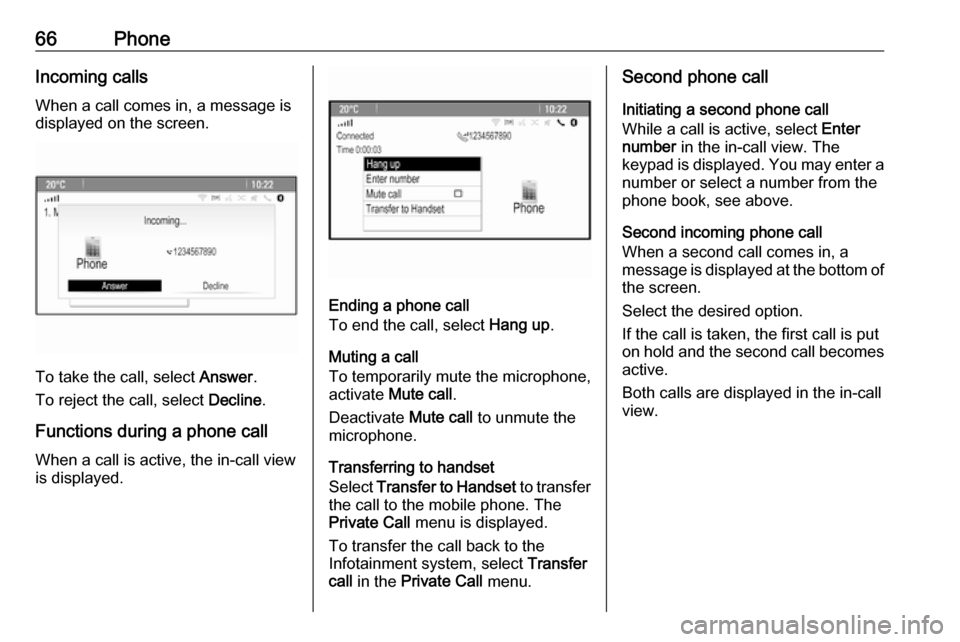
When a call comes in, a message is
displayed on the screen.
To take the call, select Answer.
To reject the call, select Decline.
Functions during a phone call
When a call is active, the in-call view
is displayed.
Ending a phone call
To end the call, select Hang up.
Muting a call
To temporarily mute the microphone,
activate Mute call .
Deactivate Mute call to unmute the
microphone.
Transferring to handset
Select Transfer to Handset to transfer
the call to the mobile phone. The
Private Call menu is displayed.
To transfer the call back to the
Infotainment system, select Transfer
call in the Private Call menu.
Second phone call
Initiating a second phone call
While a call is active, select Enter
number in the in-call view. The
keypad is displayed. You may enter a
number or select a number from the
phone book, see above.
Second incoming phone call
When a second call comes in, a
message is displayed at the bottom of
the screen.
Select the desired option.
If the call is taken, the first call is put
on hold and the second call becomes active.
Both calls are displayed in the in-call
view.
Page 68 of 155
68PhoneDismiss
To dismiss the message, select the
respective screen button.
Reply
To directly answer the message,
select Reply. A list of predefined
messages is displayed.
Select the desired message and
confirm your input.
The message is sent.
Note
New predefined messages may be
created in the settings menu.
Call
To call the sender of the text
message, select Call.
Inbox
Press ; and then select Messages to
display the respective menu.
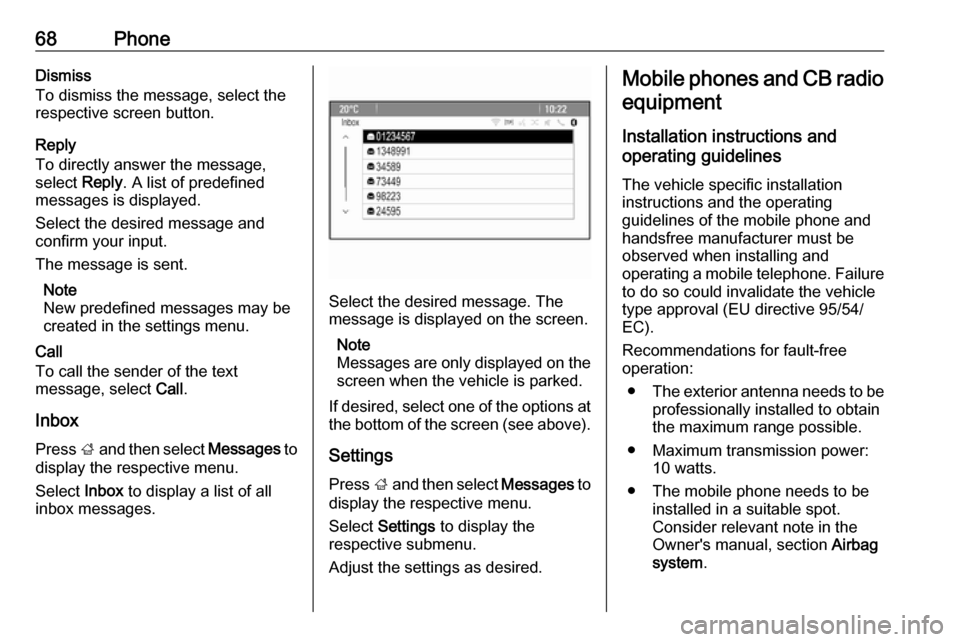
Select Inbox to display a list of all
inbox messages.
Select the desired message. The
message is displayed on the screen.
Note
Messages are only displayed on the
screen when the vehicle is parked.
If desired, select one of the options at the bottom of the screen (see above).
Settings
Press ; and then select Messages to
display the respective menu.
Select Settings to display the
respective submenu.
Adjust the settings as desired.
Mobile phones and CB radio
equipment
Installation instructions and
operating guidelines
The vehicle specific installation
instructions and the operating
guidelines of the mobile phone and
handsfree manufacturer must be
observed when installing and
operating a mobile telephone. Failure to do so could invalidate the vehicletype approval (EU directive 95/54/
EC).
Recommendations for fault-free
operation:
● The exterior antenna needs to be
professionally installed to obtain
the maximum range possible.
● Maximum transmission power: 10 watts.
● The mobile phone needs to be installed in a suitable spot.
Consider relevant note in the
Owner's manual, section Airbag
system .
Page 70 of 155

70Frequently asked questionsFrequently asked
questionsFrequently asked questions .........70Frequently asked
questions
Speech recognition? The speech recognition function
does not work very well. How can
I improve its performance?
! Wait for the beep and then try to
speak the command naturally.
Avoid long pauses, use little
accentuation and speak at a
moderate volume.
Detailed description 3 53.? The voice prompts given out by the
speech recognition system are too long. How can I interrupt them to
directly speak a command?
! To interrupt the voice prompt of the
speech recognition system, press
w on the steering wheel. Wait for
the beep and then speak your
command.
Detailed description 3 53.? I cannot select a phone contact via
speech recognition. What am I
doing wrong?
! The Infotainment system
accesses the phone book entries
as they are stored. If the sorting
order is set to "last name, first
name", the correct command for
calling John Smith is "Smith,
John".
Detailed description 3 52.? I cannot enter an address located
in another country via speech
recognition. What am I doing
wrong?
! Via speech recognition, you can
only enter addresses for
destinations located in the country
whose language is selected as
system language, e.g. if the
system is set to German, you
cannot enter a destination located
in France.
Detailed description 3 52.
Page 71 of 155

Frequently asked questions71Phone?How can I pair my phone with the
Infotainment system?
! In order to pair a phone, press
O , select Phone Settings and
then Bluetooth . Select Pair device
and follow the instruction on the
Infotainment system and your
mobile phone. Make sure
Bluetooth is enabled.
Detailed description 3 62.? How can I access my phone book
or recent calls list via the
Infotainment system?
! Depending on the phone, you must
allow access to the respective data
in the settings of your mobile
phone. In general, the download of the phone book and recent calls list is not supported by all mobile
phones.
Detailed description 3 62.? Although access to my phone book
has been granted, not all contacts
are available in the Infotainment
system. Why is that?
! Depending on the phone, contacts
stored on the SIM card cannot be read by the Infotainment system.
Detailed description 3 62.
Navigation? How can I toggle between total
driving time or remaining driving
time and total distance or partial
distance?
! When the navigation application is
active, press the multifunction
knob to display the Navigation
Menu . Select Switch Route Time/
Destination and adjust the settings
as desired.
Detailed description 3 36.? When pressing DEST/NAV,
different menus are displayed
sometimes. Why is that?
! If route guidance is active, the
destination application is
displayed for you to select a
destination.Detailed description 3 40.
If route guidance is not active, the
Route Menu is displayed.
Detailed description 3 48.
Audio? When playing media files from a
device connected via Bluetooth,
the track title and artist are not
displayed in the Infotainment
system and the media browse
function is not available. Why is
that?
! When connecting a device via
Bluetooth, due to the Bluetooth
protocol supported only restricted
functions are available.
Detailed description 3 32.? The Infotainment system does not
have a tone button on the
faceplate. How can I change the tone settings?
! The tone settings menu is
accessible via the Home Page.
Press ; and then select More to
display the second Home Page. To
access the tone settings menu,
select Tone.
Page 76 of 155

76Pictures......................................... 34
Playing audio ................................ 32
POIs.............................................. 40
R Radio Autostore lists............................ 24
Category list .............................. 23
DAB ........................................... 27
DAB announcements ................27
Digital Audio Broadcasting ........27
Favourite lists ............................ 25
Radio Data System ...................26
RDS........................................... 26
RDS Options menu ...................26
Regional .................................... 26
Retrieving stations ..............24, 25
Station list.................................. 23
Station search ........................... 23
Storing stations ...................24, 25
TP.............................................. 26
Traffic Programme ....................26
Waveband selection ..................23
Radio data system (RDS) ............26
Regionalisation ............................. 26
Route guidance ............................ 48
Route simulation ........................... 36
S Software update ........................... 20
Speech commands overview........ 56Speech recognition .......................52
Station list ..................................... 23
Station search............................... 23
Switching the Infotainment system on .................................. 14
System settings ............................ 20
Display ...................................... 20
Home Page ............................... 20
Language .................................. 20
Software .................................... 20
Time and Date........................... 20
T
TA ................................................. 26
TA volume .................................... 19
Text messages ............................. 67
Theft-deterrent feature ................... 7
Time.............................................. 20
Time format .................................. 20
TMC .............................................. 48
Tone settings ................................ 18
TP ................................................. 26
Traffic incidents ............................ 48
Traffic programme ........................26
Treble ........................................... 18
Turn list ......................................... 48
U
Usage ................... 14, 23, 30, 36, 53
AUX ........................................... 32
Bluetooth music......................... 32CD ............................................. 30
Infotainment system ..................14
Navigation system .....................36
Phone ........................................ 64
USB ..................................... 32, 34
USB .............................................. 31
V Voice recognition ..........................52
Volume Audio Cue volume .....................19
Auto volume .............................. 19
Chime volume ........................... 19
Maximum startup volume ..........19
Mute function............................. 14
Navigation volume..................... 19
Volume of traffic
announcements ........................ 19
Volume settings ............................ 19
W
Waveband selection .....................23
Waypoint trip................................. 40
Page 86 of 155
86IntroductionDetailed description of:● CD player functions 3 102
● AUX input functions 3 105
● USB port functions 3 106
Basic operation
Multifunction knob The multifunction knob is the central
control element for the menus.
Turn the multifunction knob: ● CD 400: to mark a menu option
● CD 300: to display a menu option
● to set a numeric value
Press the multifunction knob: ● CD 400: to select or activate the marked option
● CD 300: to select or activate the option displayed
● to confirm a set value
● to switch a system function on/offBACK button
Press BACK briefly:
● to exit a menu
● to return from a submenu to the next higher menu level
● to delete the last character in a character sequence
Press and hold BACK for a few
seconds to delete the entire entry.
Examples of menu operation
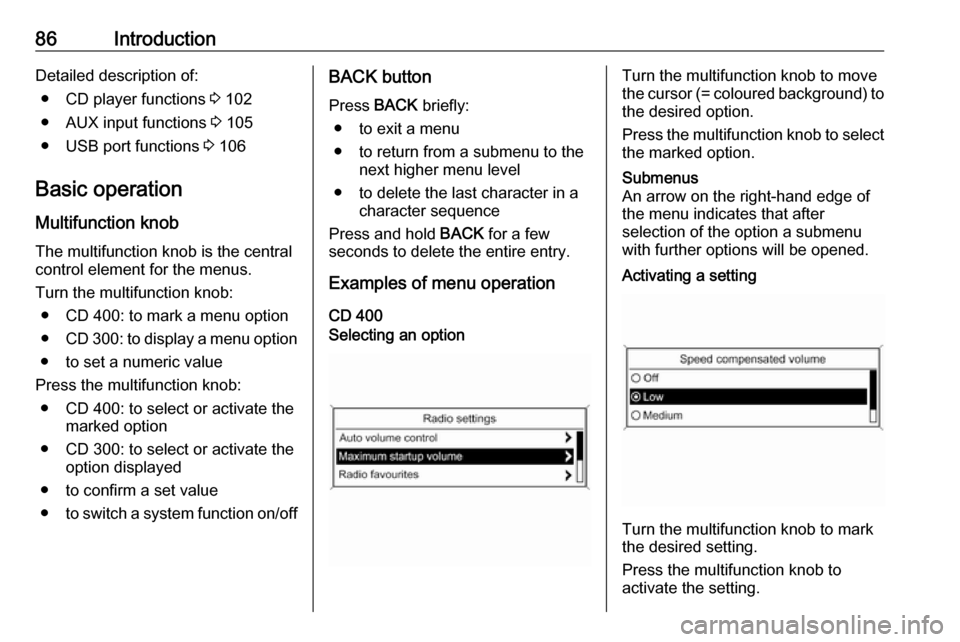
CD 400Selecting an optionTurn the multifunction knob to move
the cursor (= coloured background) to the desired option.
Press the multifunction knob to select
the marked option.Submenus
An arrow on the right-hand edge of
the menu indicates that after
selection of the option a submenu
with further options will be opened.Activating a setting
Turn the multifunction knob to mark
the desired setting.
Press the multifunction knob to
activate the setting.
Page 88 of 155

88IntroductionThe arrow pointing to the right 3
indicates: the first submenu level is active (two arrows = second submenu
level active).
The down arrow 4 indicates: further
options are available in the active
submenu.Activating a setting
Press the multifunction knob to open
the corresponding settings menu.
Turn the multifunction knob to display the desired setting.
Press the multifunction knob to
activate the setting.
Setting a value
Press the multifunction knob to open
the corresponding settings menu.
Turn the multifunction knob to change the current value of the setting.
Press the multifunction knob to
confirm the set value.
Switching a function on or off
Press the multifunction knob to open
the corresponding settings menu.
Turn the multifunction knob to mark the setting On or Off.
Press the multifunction knob to
confirm the marked setting.
Tone settings
In the tone settings menu the tone
characteristics can be set for each
radio waveband and each audio
player source.