Phone OPEL ASTRA K 2017 Infotainment system
[x] Cancel search | Manufacturer: OPEL, Model Year: 2017, Model line: ASTRA K, Model: OPEL ASTRA K 2017Pages: 167, PDF Size: 2.95 MB
Page 22 of 167
22Basic operationExample: Destination
Press HOME to display the Home
screen and then select NAV.
Select DESTINATION , select
RECENT in the interaction selector
bar and then touch the desired
destination from the list 3 53.
To store the address as a favourite,
reveal the favourites list and scroll to the respective favourites page.
Touch and hold the respective
favourite screen button. The selected address is stored as a favourite.
Example: Telephone number
Press HOME to display the Home
screen and then select PHONE.
Select KEYPAD and enter the
number you wish to call 3 73.
To store this number as a favourite, reveal the favourites list and scroll tothe respective favourites page.
Touch and hold the respective
favourite screen button. The number
is stored as a favourite.Retrieving favourites
Display a favourites page (see above)
and scroll to the desired favourites
page (if necessary).
Note
Unavailable favourites are greyed
out.
Select the respective favourite screen
button. Depending on the kind of
favourite selected, a radio station or
track is played, a phone call is
initiated, a route is calculated or an
application is started.
Note
The active favourite is highlighted.
Using the right-hand steering wheel
remote control
Repeatedly press k or l to select
the desired audio favourite.
Alternatively, press i to display the
cluster menu for application selection.
Select Audio and then Favourites .
Select the desired favourite.Editing favourites
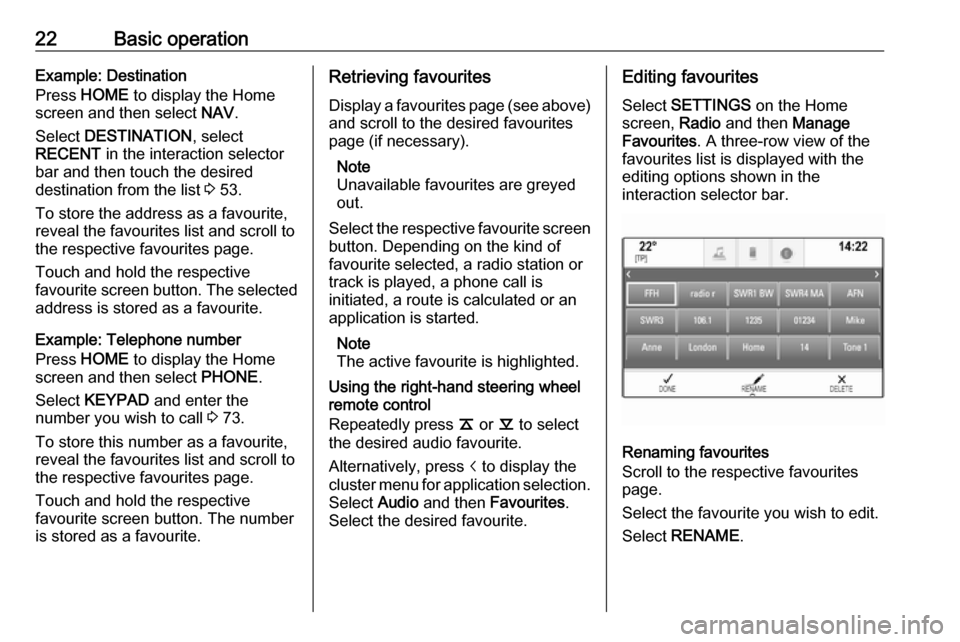
Select SETTINGS on the Home
screen, Radio and then Manage
Favourites . A three-row view of the
favourites list is displayed with the
editing options shown in the
interaction selector bar.
Renaming favourites
Scroll to the respective favourites
page.
Select the favourite you wish to edit. Select RENAME .
Page 24 of 167
24Basic operationThe contacts list displayed upon first
access differs depending on the
application active and the devices
connected.
Changing the source
To display a contacts list, press
HOME , activate the phone or
navigation application and then select CONTACTS in the interaction
selector bar.
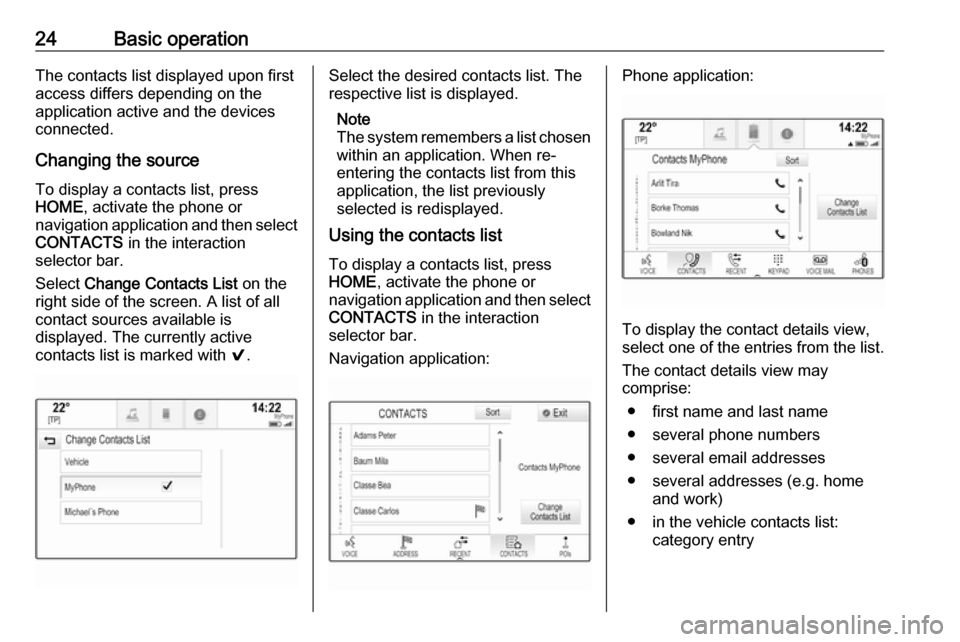
Select Change Contacts List on the
right side of the screen. A list of all
contact sources available is
displayed. The currently active
contacts list is marked with 9.Select the desired contacts list. The
respective list is displayed.
Note
The system remembers a list chosen within an application. When re-
entering the contacts list from this
application, the list previously
selected is redisplayed.
Using the contacts list
To display a contacts list, press
HOME , activate the phone or
navigation application and then select
CONTACTS in the interaction
selector bar.
Navigation application:Phone application:
To display the contact details view,
select one of the entries from the list.
The contact details view may
comprise:
● first name and last name● several phone numbers
● several email addresses
● several addresses (e.g. home and work)
● in the vehicle contacts list: category entry
Page 25 of 167
Basic operation25● in the vehicle contacts list: notesfield
● for POI entries: information on business hours, menu (e.g.
restaurant), prices etc.
Note
The data is ordered depending on
the application active, e.g. in the
phone application, the phone
numbers are displayed first.
Select the desired entry.
Adding new contacts To add information from the
application menus to the vehicle
contacts list, open the respective application.
Navigation application: Select or
enter a destination 3 53. The
destination details view is displayed.
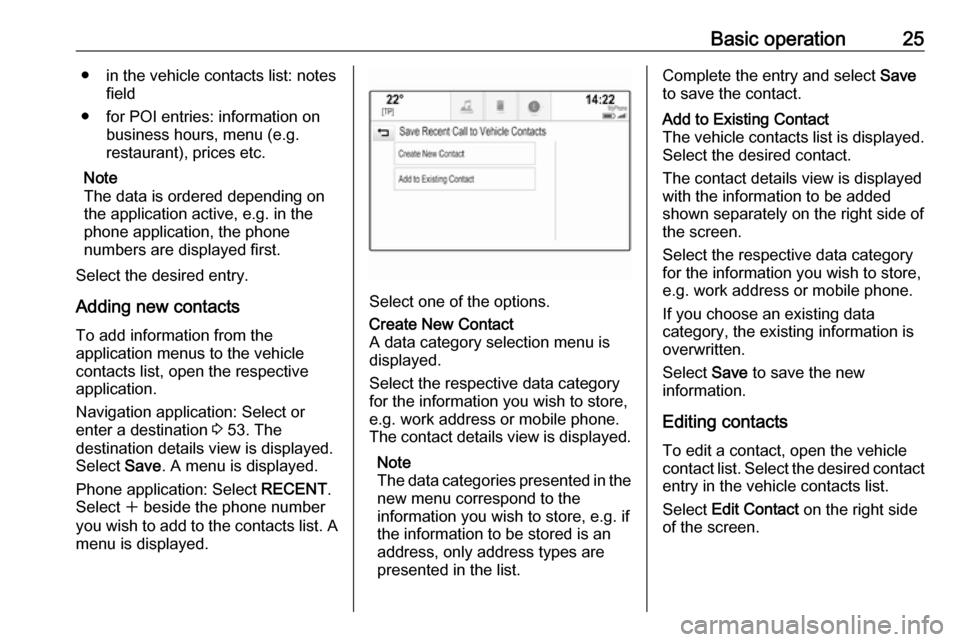
Select Save. A menu is displayed.
Phone application: Select RECENT.
Select w beside the phone number
you wish to add to the contacts list. A
menu is displayed.
Select one of the options.
Create New Contact
A data category selection menu is
displayed.
Select the respective data category
for the information you wish to store,
e.g. work address or mobile phone.
The contact details view is displayed.
Note
The data categories presented in the
new menu correspond to the
information you wish to store, e.g. if
the information to be stored is an
address, only address types are
presented in the list.Complete the entry and select Save
to save the contact.Add to Existing Contact
The vehicle contacts list is displayed. Select the desired contact.
The contact details view is displayed with the information to be added
shown separately on the right side of
the screen.
Select the respective data category
for the information you wish to store,
e.g. work address or mobile phone.
If you choose an existing data
category, the existing information is
overwritten.
Select Save to save the new
information.
Editing contacts
To edit a contact, open the vehicle
contact list. Select the desired contact
entry in the vehicle contacts list.
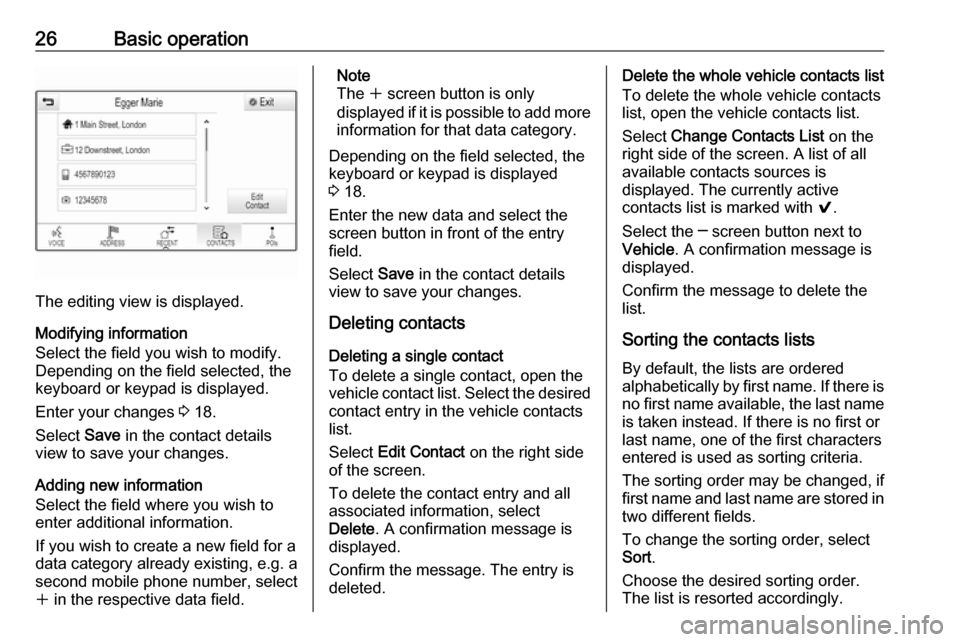
Select Edit Contact on the right side
of the screen.
Page 26 of 167
26Basic operation
The editing view is displayed.
Modifying information
Select the field you wish to modify.
Depending on the field selected, the
keyboard or keypad is displayed.
Enter your changes 3 18.
Select Save in the contact details
view to save your changes.
Adding new information
Select the field where you wish to
enter additional information.
If you wish to create a new field for a
data category already existing, e.g. a
second mobile phone number, select
w in the respective data field.
Note
The w screen button is only
displayed if it is possible to add more information for that data category.
Depending on the field selected, the
keyboard or keypad is displayed
3 18.
Enter the new data and select the
screen button in front of the entry
field.
Select Save in the contact details
view to save your changes.
Deleting contacts
Deleting a single contact
To delete a single contact, open the
vehicle contact list. Select the desired
contact entry in the vehicle contacts
list.
Select Edit Contact on the right side
of the screen.
To delete the contact entry and all
associated information, select
Delete . A confirmation message is
displayed.
Confirm the message. The entry is
deleted.Delete the whole vehicle contacts list
To delete the whole vehicle contacts
list, open the vehicle contacts list.
Select Change Contacts List on the
right side of the screen. A list of all
available contacts sources is
displayed. The currently active
contacts list is marked with 9.
Select the ─ screen button next to
Vehicle . A confirmation message is
displayed.
Confirm the message to delete the
list.
Sorting the contacts lists By default, the lists are ordered
alphabetically by first name. If there is
no first name available, the last name is taken instead. If there is no first or
last name, one of the first characters
entered is used as sorting criteria.
The sorting order may be changed, if
first name and last name are stored in
two different fields.
To change the sorting order, select
Sort .
Choose the desired sorting order.
The list is resorted accordingly.
Page 30 of 167

30Basic operationDisplayPress HOME and then select
SETTINGS .
Scroll through the list and select
Display .
Mode
Select Mode to enter the respective
submenu.
Depending on the external lighting
conditions, select Day or Night .
If you select Auto, the system
automatically adjusts the display.
Calibrate Touchscreen
Select Calibrate Touchscreen to
enter the respective submenu.
Follow the instructions on the screen,
touching the respective points
indicated. The touch screen is
calibrated.
Turn Display Off
Select Turn Display Off to turn off the
display.
To turn the display back on, touch the touch screen or press a button on the
control panel.
Return to Factory Settings
Press HOME and then select
SETTINGS .
Scroll through the list and select
Return to Factory Settings .
Restore Vehicle Settings
Select Restore Vehicle Settings to
restore all vehicle personalisation
settings. A warning message is
displayed.
Select Restore . The settings are
reset.
Clear All Private Data
Select Clear All Private Data to delete
the following data:
● paired Bluetooth devices
● stored phone books
● vehicle contacts list
● destination lists
● favourites
A warning message is displayed.
Select Delete. The data is deleted.
Page 40 of 167

40External devicesExternal devicesGeneral information.....................40
Playing audio ............................... 41
Playing movies ............................. 42
Using smartphone applications ...43
Using apps ................................... 43General information
A USB socket for the connection of external devices is located in thecentre console behind the parking
brake or underneath the armrest.
Two USB ports for charging devices
only are located at the rear of the
centre console.
Note
The sockets must always be kept
clean and dry.
USB port
An MP3 player, USB device or
smartphone can be connected to the
USB port.
The Infotainment system can play
music files and movies contained in
these devices.
When connected to the USB port, the devices mentioned above can be
operated via the controls and menus
of the Infotainment system.
Note
Not all auxiliary devices are
supported by the Infotainment
system. Check the compatibility list
on our website.Connecting/disconnecting a device
Connect the USB device to the USB port.
Note
If a non-readable USB device is
connected, a corresponding error
message appears and the
Infotainment system automatically
switches to the previous function.
To disconnect the USB device, select
another function and then remove the USB storage device.Caution
Avoid disconnecting the device
during playback. This may
damage the device or the
Infotainment system.
Bluetooth
Devices which support the Bluetooth
music profiles A2DP and AVRCP can be connected wirelessly to the
Infotainment system. The
Infotainment system can play music
files contained in these devices.
Page 43 of 167

External devices43Alternatively, turn MENU to skip to
previous or next movie files.
Fast forwarding or rewinding
Touch and hold t or v to rewind or
fast forward.
Alternatively, move the slider on the
time bar.
Video menu
To display the video menu, select
MENU in the interaction selector bar.
Using smartphone applications
The phone projection applications
Apple CarPlay™ and Android™ Auto display selected apps from your
smartphone on the Infotainment
screen and allow their operation
directly via the Infotainment controls.
Check with the device's manufacturer if this function is compatible with your
smartphone and if this application is
available in the country you are in.Preparing the smartphone
Android phone: Download the
Android Auto app to your smartphone from the Google Play™ Store.
iPhone ®
: Make sure Siri ®
is activated
on your smartphone.
Activating phone projection in the
settings menu
Press ; to display the Home screen
and then select SETTINGS.
Scroll through the list and select
Apple CarPlay or Android Auto to
display a submenu.
Make sure the respective application is activated.
To display a list of all devices
registered for this function, select
Manage Devices .
Connecting the mobile phone Connect the smartphone to the USB
port 3 40.Starting phone projection
To start the phone projection function,
press ; and then select
PROJECTION .
Note
If the application is recognised by
the Infotainment system, the
application icon may change to Apple CarPlay or Android Auto .
To start the function, you can
alternatively press and hold ; for a
few seconds.
The phone projection screen
displayed depends on your
smartphone and software version.
Returning to the Infotainment
screen
Press ;.
Using apps
Via the SHOP application, external
apps can be downloaded to the
Infotainment system.
Page 44 of 167
44External devicesUser registration
When first starting the SHOP, a user
registration is required.
Press HOME and then select SHOP.
Follow the instructions on the screen: 1. Start the registration process.
2. Enter your first and last name.
3. Choose your country.
4. Accept the terms of use and privacy notice.
Note
To read the terms of use and/or the
privacy notice, display the text on the
screen or send it to your email
account.
When the registration process is
completed, the app shop main page
is displayed.
Note
The apps in the app shop can only
be downloaded, if the Infotainment
system is connected to the internet.Internet connection
An internet connection is required
either via the in-vehicle OnStar Wi-Fi
hotspot or an external device e.g. smartphone.
Press HOME and then select
SETTINGS . Select Wi-Fi to display
the Wi-Fi menu.
Make sure that Wi-Fi is activated and
then select Manage Wi-Fi Networks .
Select Add Other Network to
establish a new connection. Follow the instructions on the screen.
Downloading an app
Before the external apps can be used
on the Infotainment system, they
have to be downloaded.
Press HOME and then select SHOP.
Choose the browse tab to gain access to all apps available for
download. Select the desired app to
display its main page and then start
the download process.Note
Apps which have been downloaded
to the Infotainment system are also
accessible via the home screen.
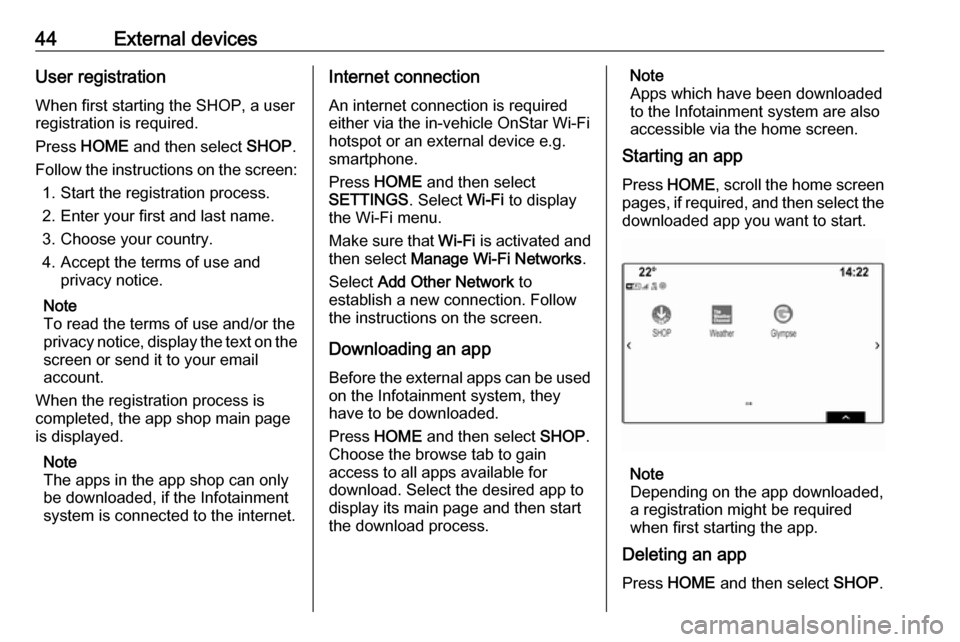
Starting an app
Press HOME , scroll the home screen
pages, if required, and then select the
downloaded app you want to start.
Note
Depending on the app downloaded,
a registration might be required
when first starting the app.
Deleting an app
Press HOME and then select SHOP.
Page 52 of 167
52Navigationuser defined POIs can be
downloaded to the Infotainment
system.
For each POI, you need to define the GPS coordinates (longitude and
latitude values) of the respective
location and a descriptive name.
After downloading the POI data to the Infotainment system, you will find the
respective POIs as selectable
destinations in the My POIs menu,
see "Selecting a point of interest" in chapter "Destination input" 3 53.
Creating a text file with POI data
Create a text file (e.g. by using a
simple text editor software) with an
arbitrary name and the file
extension .poi, e.g. "TomsPOIs.poi".
Note
Character encoding UTF-8
(Unicode) needs to be selected
when storing the text file. Otherwise
the POI data may not be imported
correctly to the system.
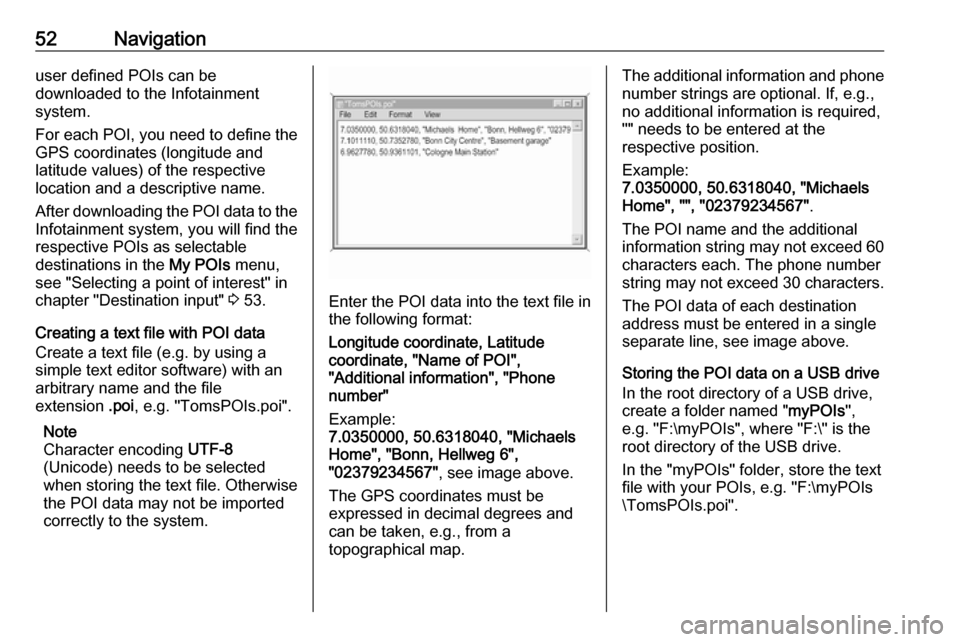
Enter the POI data into the text file in
the following format:
Longitude coordinate, Latitude
coordinate, "Name of POI",
"Additional information", "Phone
number"
Example:
7.0350000, 50.6318040, "Michaels
Home", "Bonn, Hellweg 6",
"02379234567" , see image above.
The GPS coordinates must be
expressed in decimal degrees and
can be taken, e.g., from a
topographical map.
The additional information and phone
number strings are optional. If, e.g., no additional information is required,
"" needs to be entered at the
respective position.
Example:
7.0350000, 50.6318040, "Michaels
Home", "", "02379234567" .
The POI name and the additional
information string may not exceed 60 characters each. The phone number
string may not exceed 30 characters.
The POI data of each destination
address must be entered in a single
separate line, see image above.
Storing the POI data on a USB drive
In the root directory of a USB drive,
create a folder named " myPOIs",
e.g. "F:\myPOIs", where "F:\" is the
root directory of the USB drive.
In the "myPOIs" folder, store the text
file with your POIs, e.g. "F:\myPOIs
\TomsPOIs.poi".
Page 59 of 167
Navigation59New destinationTo set a new destination, you may
cancel route guidance to the current
destination and then enter a new
destination. Or you may directly enter
a new destination.
While under active route guidance,
select DESTINATION in the
interaction selector bar of the map
view.
Alternatively, touch the arrow symbol
indicating your next turning
manoeuvre on the right side of the
screen to display the route guidance
menu. Select DESTINATION in the
interaction selector bar of the route
guidance menu.
Enter or select a new address.
Select Go. You are prompted with a
message.
Select Set New Destination . The
route is recalculated and the new
destination is set.
Calling a destination
After entering a destination and
before starting route guidance, the
destination details view is displayed.To initiate a phone call to the selected location, select Call.
Note
The Call screen button is only
available if a phone number is stored
for the respective location.
Storing destinations
Contacts entry
After entering a destination and
before starting route guidance, the
destination details view is displayed.
To save the respective destination in
the contacts list, select Save. For a
detailed description on how to save
an address in the contacts list 3 23.
Note
The Save screen button is only
available if the address has not yet been stored in the system.
Favourite
Favourites may be stored from almost
all screen views.
For a detailed description on how to store destination favourites 3 19.Guidance
Route guidance is provided by the
navigation system through visual
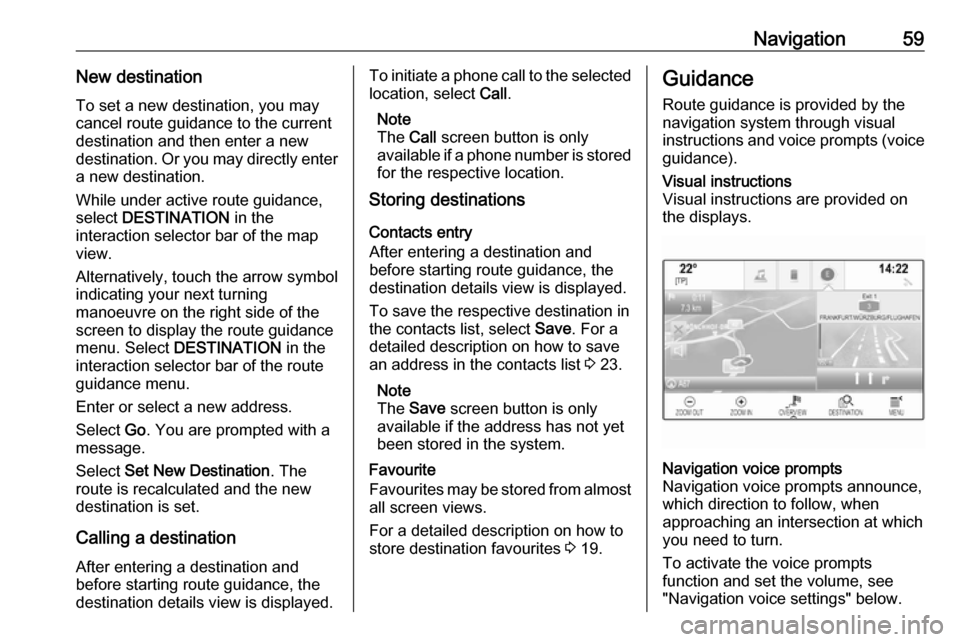
instructions and voice prompts (voice guidance).Visual instructions
Visual instructions are provided on
the displays.Navigation voice prompts
Navigation voice prompts announce,
which direction to follow, when
approaching an intersection at which
you need to turn.
To activate the voice prompts
function and set the volume, see
"Navigation voice settings" below.