USB OPEL CROSSLAND X 2018.5 Infotainment system
[x] Cancel search | Manufacturer: OPEL, Model Year: 2018.5, Model line: CROSSLAND X, Model: OPEL CROSSLAND X 2018.5Pages: 127, PDF Size: 2.69 MB
Page 83 of 127
Speech recognition83Speech recognitionGeneral information.....................83
Usage .......................................... 83General information
The voice pass-thru application of the Infotainment system allows access tothe speech recognition commands on
your smartphone. See your
smartphone manufacturer's
operating instructions to find out
whether your smartphone supports this feature.
In order to use the voice pass-thru
application, the smartphone must be
connected to the Infotainment system
via USB cable 3 76 or via Bluetooth
3 85.
Usage
Activating speech recognition Press and hold g on the control panel
or w on the steering wheel to start a
speech recognition session. A voice
command message is displayed on
the screen.
As soon as a beep is heard, you can
say a command. For information on
the commands supported, see the
operating instructions of your
smartphone.Adjusting the volume of voice
prompts
Turn m on the control panel or press
+ / - on the right side of the steering
wheel to increase or decrease the
volume of voice prompts.
Deactivating speech recognition
Press g on the steering wheel. The
voice command message disappears
and the speech recognition session is ended.
Page 85 of 127
Phone85interference is caused by the
mobile phone or if dangerous
situations can occur.
Bluetooth
The phone function is certified by theBluetooth Special Interest Group
(SIG).
You can find further information about the specification on the internet at
http://www.bluetooth.com
Bluetooth connection Bluetooth is a radio standard for the
wireless connection of e.g. mobile
phones, smartphones or other
devices.
The pairing and connecting of the
Bluetooth devices to the Infotainment
system are carried out via the
Bluetooth menu. Pairing is the PIN
code exchange between the
Bluetooth device and the
Infotainment system.
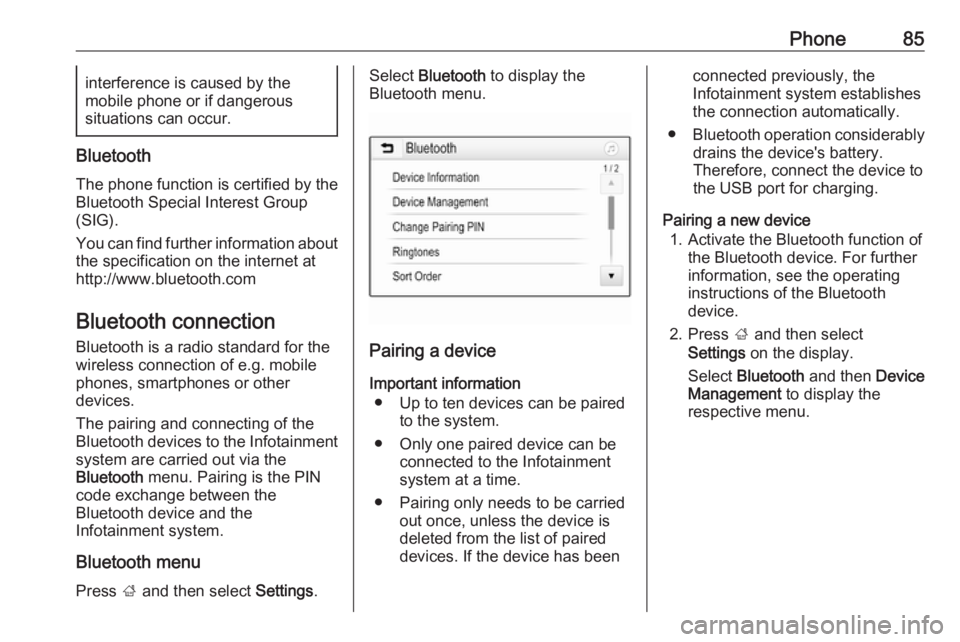
Bluetooth menu Press ; and then select Settings.
Select Bluetooth to display the
Bluetooth menu.
Pairing a device
Important information ● Up to ten devices can be paired to the system.
● Only one paired device can be connected to the Infotainment
system at a time.
● Pairing only needs to be carried out once, unless the device is
deleted from the list of paired
devices. If the device has been
connected previously, the
Infotainment system establishes
the connection automatically.
● Bluetooth operation considerably
drains the device's battery.
Therefore, connect the device to
the USB port for charging.
Pairing a new device 1. Activate the Bluetooth function of the Bluetooth device. For further
information, see the operating
instructions of the Bluetooth
device.
2. Press ; and then select
Settings on the display.
Select Bluetooth and then Device
Management to display the
respective menu.
Page 90 of 127
90PhoneContacts settings
The contacts list can be sorted by last name or first name.
Press ; and then select Settings to
display the respective menu.
Select Bluetooth and then Sort
Order . Activate the desired option.
Using the call history
All incoming, outgoing, or missed calls are registered.
Press ; and then select Phone.
Select Call History in the phone main
menu.
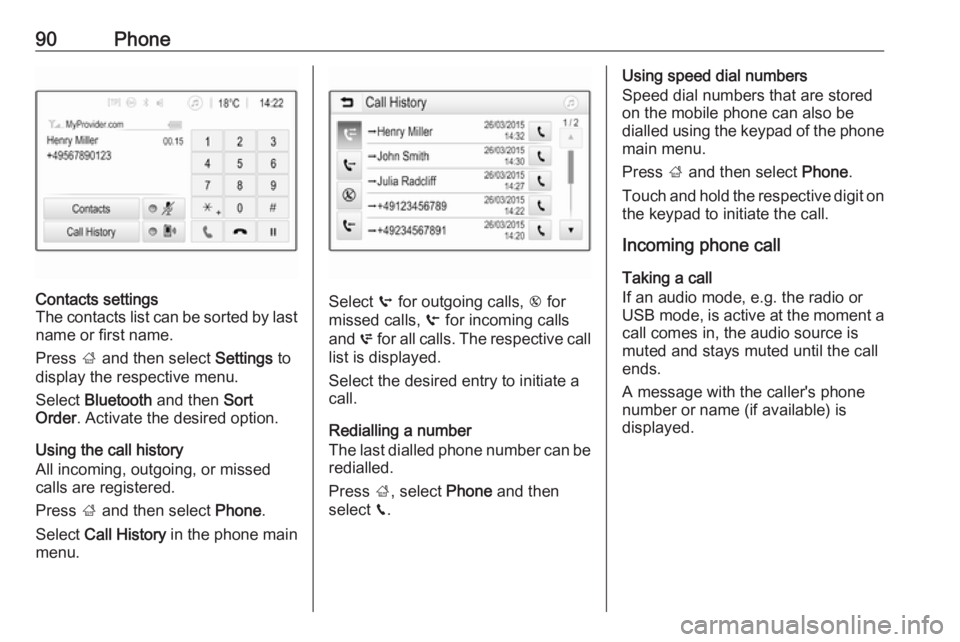
Select q for outgoing calls, r for
missed calls, s for incoming calls
and p for all calls. The respective call
list is displayed.
Select the desired entry to initiate a
call.
Redialling a number
The last dialled phone number can be
redialled.
Press ;, select Phone and then
select v.
Using speed dial numbers
Speed dial numbers that are stored
on the mobile phone can also be
dialled using the keypad of the phone
main menu.
Press ; and then select Phone.
Touch and hold the respective digit on the keypad to initiate the call.
Incoming phone call
Taking a call
If an audio mode, e.g. the radio or
USB mode, is active at the moment a
call comes in, the audio source is
muted and stays muted until the call
ends.
A message with the caller's phone
number or name (if available) is
displayed.
Page 94 of 127

94IndexAActivating Bluetooth music ...........78
Activating phone ........................... 88
Activating radio ............................. 70
Activating USB audio ....................78
Activating USB movie ...................80
Activating USB picture ..................79
Audio files ..................................... 76
Auto volume.................................. 67
B Basic operation ............................. 64
Bluetooth Bluetooth connection ................85
Bluetooth music menu ..............78
Connecting device ....................76
General information................... 76
Pairing ....................................... 85
Phone ........................................ 88
Bluetooth connection ....................85
C Call Functions during a call ..............88
Incoming call ............................. 88
Initiating a phone call ................88
Ring tone ................................... 88
Call history .................................... 88Control elements
Infotainment system ..................58
Steering wheel .......................... 58
Control elements overview ...........58
D
DAB .............................................. 74
Digital audio broadcasting ............74
Displaying pictures .......................79
Display settings ......................79, 80
E Emergency call ............................. 87
F Favourite lists ............................... 72
Retrieving stations..................... 72
Storing stations ......................... 72
File formats Audio files.................................. 76
Movie files ................................. 76
Picture files................................ 76
G
General information ..........76, 83, 84
Bluetooth ................................... 76
DAB ........................................... 74
Infotainment system ..................56
Phone ........................................ 84
Smartphone applications ..........76
USB ........................................... 76
Page 96 of 127

96UUsage ............................... 61, 70, 83
Bluetooth ................................... 76
Menu ......................................... 64
Phone ........................................ 88
Radio ......................................... 70
USB ........................................... 76
USB Connecting device ....................76
General information................... 76
USB audio menu .......................78
USB movie menu ......................80
USB picture menu .....................79
Using smartphone applications ....81
V Voice recognition ..........................83
Volume Auto volume .............................. 67
Maximum startup volume ..........67
Mute function............................. 61
Ring tone volume ......................67
Setting the volume ....................61
Speed compensated volume ....67
Touch beep volume ..................67
TP volume ................................. 67
Volume limitation at high
temperatures ............................. 61
Volume settings ............................ 67W
Waveband selection .....................70
Page 97 of 127

Introduction.................................. 98
Basic operation .......................... 105
Radio ......................................... 109
USB port .................................... 113
Bluetooth music ......................... 115
Speech recognition ....................117
Phone ........................................ 118
Index .......................................... 124R 4.0
Page 104 of 127
104IntroductionModes of operationRadio
Repeatedly press BAND to toggle
between the different wavebands and select the desired waveband.
For a detailed description of the radio
functions 3 109.
USB port
Repeatedly press SRCq to toggle
between the different audio sources
and select USB mode.
For a detailed description on
connecting and operating external
devices 3 113.
Bluetooth music
Repeatedly press SRCq to toggle
between the different audio sources
and select Bluetooth music mode.
For a detailed description on
connecting and operating external
devices 3 115.Phone
Before the phone function can be
used, a connection to a Bluetooth
device has to be established. For a detailed description 3 119.
Press MENU to display the home
page. Select Telephone by pressing
N and O and then press OK to confirm.
The phone menu is displayed.
For a detailed description of mobile
phone operation via the Infotainment
system 3 121.
Page 113 of 127
USB port113USB portGeneral information...................113
Playing saved audio files ...........113General information
In the centre console, there is a USB socket for the connection of external
audio data sources.
Note
The socket must always be kept
clean and dry.
Connecting a USB device
An MP3 player, USB device or SD
card (via USB connector / adapter)
can be connected to the USB port. A
USB hub is not supported. If required,
use the appropriate connection cable.
Note
Not all auxiliary devices are
supported by the Infotainment
system. Check the compatibility list
on our website.
When connected to the USB port,
various functions of the above
devices can be operated via the
controls and menus of the
Infotainment system.
The Infotainment system
automatically creates playlists upon
connection.Disconnecting a USB device
Press SRCq to select a different
audio source and then remove the
USB storage device.Caution
Avoid disconnecting the device
during playback. This may
damage the device or the
Infotainment system.
File formats
The audio equipment supports
different audio file formats.
Playing saved audio files
Activating the USB music function If the device is not yet connected to
the Infotainment system, connect the
device 3 113.
The Infotainment system
automatically switches to USB music
mode.
Page 114 of 127
114USB portIf the device is already connected,
repeatedly press SRCq to change to
USB music mode.
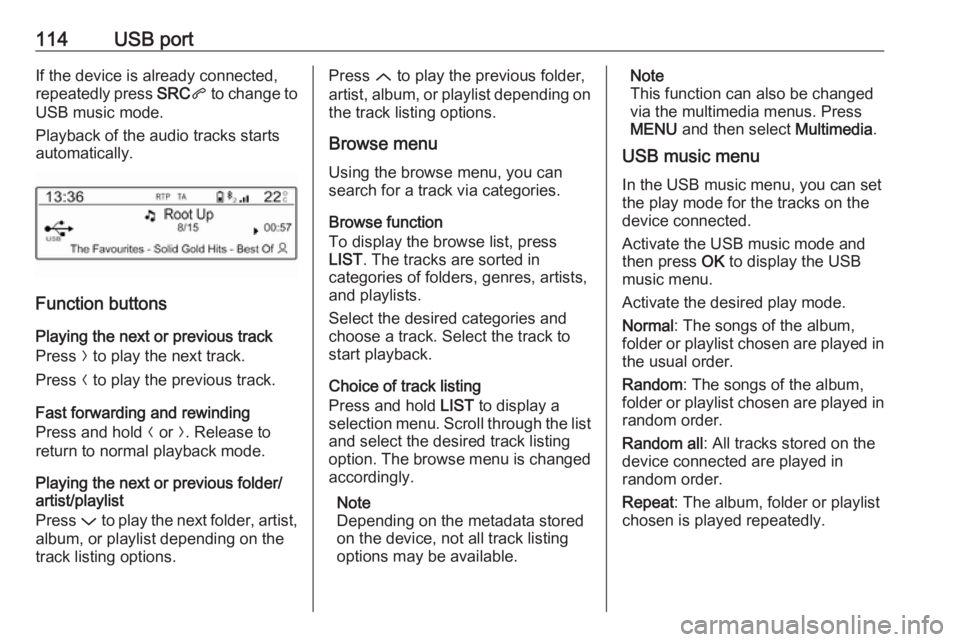
Playback of the audio tracks starts
automatically.
Function buttons
Playing the next or previous track
Press O to play the next track.
Press N to play the previous track.
Fast forwarding and rewinding
Press and hold N or O. Release to
return to normal playback mode.
Playing the next or previous folder/
artist/playlist
Press P to play the next folder, artist,
album, or playlist depending on the
track listing options.
Press Q to play the previous folder,
artist, album, or playlist depending on
the track listing options.
Browse menu Using the browse menu, you can
search for a track via categories.
Browse function
To display the browse list, press
LIST . The tracks are sorted in
categories of folders, genres, artists,
and playlists.
Select the desired categories and
choose a track. Select the track to
start playback.
Choice of track listing
Press and hold LIST to display a
selection menu. Scroll through the list
and select the desired track listing
option. The browse menu is changed
accordingly.
Note
Depending on the metadata stored
on the device, not all track listing
options may be available.Note
This function can also be changed
via the multimedia menus. Press
MENU and then select Multimedia.
USB music menu
In the USB music menu, you can set
the play mode for the tracks on the
device connected.
Activate the USB music mode and then press OK to display the USB
music menu.
Activate the desired play mode.
Normal : The songs of the album,
folder or playlist chosen are played in
the usual order.
Random : The songs of the album,
folder or playlist chosen are played in
random order.
Random all : All tracks stored on the
device connected are played in
random order.
Repeat : The album, folder or playlist
chosen is played repeatedly.
Page 115 of 127
Bluetooth music115Bluetooth musicGeneral information...................115
Operation ................................... 115General information
Connecting a Bluetooth device
Bluetooth enabled audio sources
(e.g. music mobile phones, MP3
players featuring Bluetooth, etc.) can
be connected wirelessly to the
Infotainment system.
The external Bluetooth device must
be paired to the Infotainment system
3 119.
If the device is paired but not
connected to the Infotainment
system, establish the connection via
the Connections management menu:
Press MENU and then select
Connections . Select Connections
management and then choose the
desired Bluetooth device to enter a
submenu.
To serve as audio source, the device
must be connected as media player.
Select Connect media player or
Connect telephone + media player as
desired. The device is connected.Disconnecting a Bluetooth device
Press MENU and then select
Connections . Select Connections
management and then choose the
desired Bluetooth device to enter a
submenu.
Select Disconnect media player to
disconnect the device only as
Bluetooth audio source. In this case,
the connection for the telephone
function remains active.
To completely disconnect the device, select Disconnect telephone + media
player .
Select Yes in the message and press
OK .
Operation
Activating the USB music function
If the device is not yet connected to
the Infotainment system, connect the
device 3 119.
The Infotainment system
automatically switches to Bluetooth
music mode.