radio OPEL CROSSLAND X 2018.5 Infotainment system
[x] Cancel search | Manufacturer: OPEL, Model Year: 2018.5, Model line: CROSSLAND X, Model: OPEL CROSSLAND X 2018.5Pages: 127, PDF Size: 2.69 MB
Page 55 of 127

Introduction.................................. 56
Basic operation ............................ 64
Radio ........................................... 70
External devices .......................... 76
Speech recognition ......................83
Phone .......................................... 84
Index ............................................ 94R 4.0 IntelliLink
Page 56 of 127
56IntroductionIntroductionGeneral information.....................56
Theft-deterrent feature .................57
Control elements overview ..........58
Usage .......................................... 61General information
The Infotainment system provides
you with state-of-the-art in-car
infotainment.
Using radio tuner functions, you may
register up to 25 stations on five
favourite lists.
You can connect external data
storage devices to the Infotainment
system as further audio sources,
either via cable or via Bluetooth ®
.
In addition, the Infotainment system
allows comfortable and safe use of
your mobile phone in the vehicle.
You can also operate specific
smartphone applications via the
Infotainment system.
Optionally, the Infotainment system
can be operated using the touch
screen and buttons on the control
panel, the controls on the steering
wheel, or - if provided by your mobile
phone - via speech recognition.
The well-thought-out design of the
control elements, the touch screen
and the clear display enable you to
control the system easily and
intuitively.Note
This manual describes all options
and features available for the
various Infotainment systems.
Certain descriptions, including those
for display and menu functions, may not apply to your vehicle due to
model variant, country
specifications, special equipment or
accessories.
Important information on
operation and traffic safety9 Warning
The Infotainment system must be
used so that the vehicle can be
driven safely at all times. If in
doubt, stop the vehicle and
operate the Infotainment system
while the vehicle is stationary.
Page 57 of 127

Introduction57Radio receptionRadio reception may be disrupted bystatic, noise, distortion or loss of
reception due to:
● changes in distance from the transmitter
● multipath reception due to reflection
● shadowing
Theft-deterrent feature
The Infotainment system is equipped
with an electronic security system for
the purpose of theft deterrence.
The Infotainment system therefore functions only in your vehicle and isworthless to a thief.
Page 59 of 127

Introduction591Info Display / touch screen ...64
2 Home menu .......................... 64
Screen buttons for access to:
Audio : audio functions
Gallery : picture and movie
functions
Phone : mobile phone functions
Projection : phone projection
Settings : system settings
3 Time, date and
temperature indicators ..........67
4 g
Short press: open phone
menu ..................................... 88
or open phone projection
function (if activated) .............81
Long press: activate
speech recognition ................83
5 v
Short press: skip to next
station when radio active ......70or skip to next track when
external devices active .........78
Long press: seek up when radio active ............................ 70
or fast forward when
external devices active .........78
6 m
Short press: switch on
Infotainment system if
turned off ............................... 61
or mute system if turned on . 61
Long press: switch off
Infotainment system ..............61
Turn: adjust volume ..............61
7 t
Short press: skip to
previous station when
radio active ............................ 70
or skip to previous track
when external devices
active ..................................... 78Long press: seek down
when radio active ..................70
or fast rewind when
external devices active .........78
8 ;
Short press: open home
menu ..................................... 61
Long press: open phone
projection function (if
activated) .............................. 81
Page 60 of 127
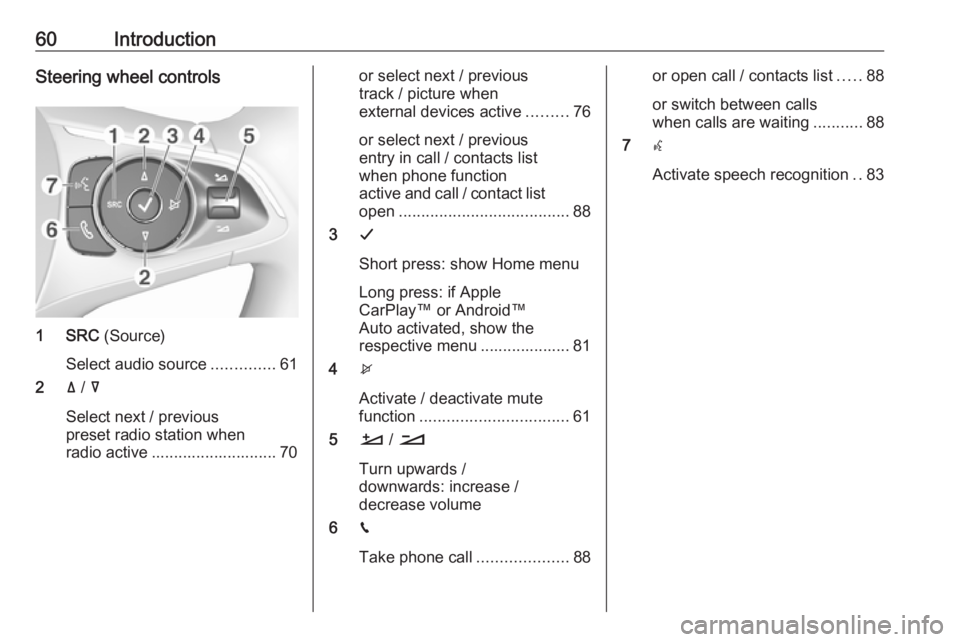
60IntroductionSteering wheel controls
1 SRC (Source)
Select audio source ..............61
2 ä / å
Select next / previous
preset radio station when
radio active ............................ 70
or select next / previous
track / picture when
external devices active .........76
or select next / previous
entry in call / contacts list
when phone function
active and call / contact list
open ...................................... 88
3 G
Short press: show Home menu
Long press: if Apple
CarPlay™ or Android™
Auto activated, show the
respective menu .................... 81
4 x
Activate / deactivate mute
function ................................. 61
5 À / Á
Turn upwards /
downwards: increase /
decrease volume
6 v
Take phone call ....................88or open call / contacts list .....88
or switch between calls
when calls are waiting ...........88
7 w
Activate speech recognition ..83
Page 62 of 127
62IntroductionTo change to another audio mode,
touch one of the items in the
interaction selector bar.
For a detailed description of: ● Radio functions 3 70
● External devices 3 78
Gallery
Select Gallery to open the picture and
movie menu for files stored on an
external device, e.g. USB device or
smartphone.
Select l or m to display the picture or
movie menu. Select the desired
picture or movie file to show the
respective item on the display.For a detailed description of:
● Picture functions 3 79
● Movie functions 3 80
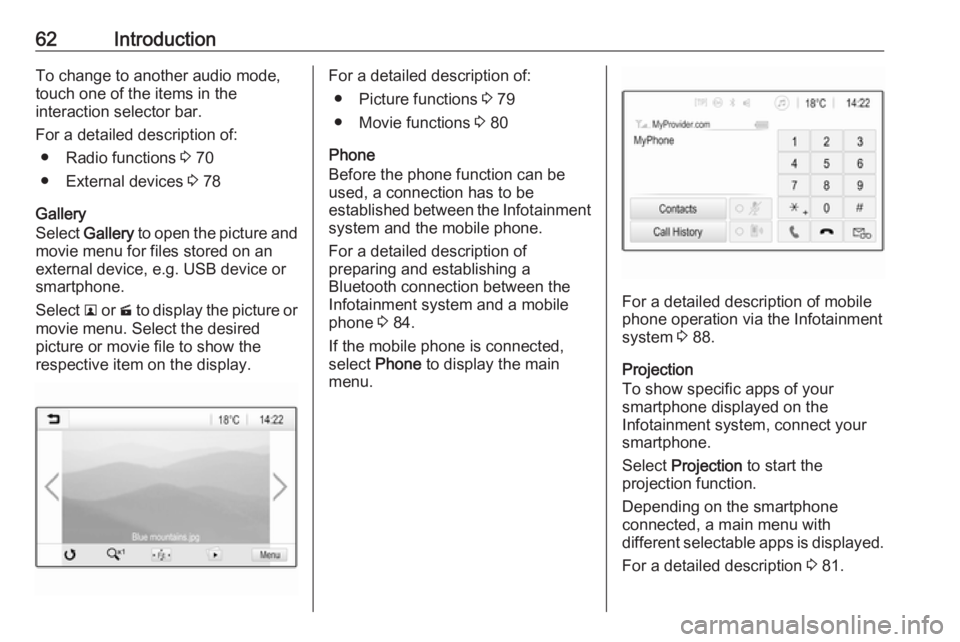
Phone
Before the phone function can be
used, a connection has to be
established between the Infotainment system and the mobile phone.
For a detailed description of
preparing and establishing a
Bluetooth connection between the Infotainment system and a mobilephone 3 84.
If the mobile phone is connected,
select Phone to display the main
menu.
For a detailed description of mobile
phone operation via the Infotainment
system 3 88.
Projection
To show specific apps of your
smartphone displayed on the
Infotainment system, connect your
smartphone.
Select Projection to start the
projection function.
Depending on the smartphone
connected, a main menu with
different selectable apps is displayed.
For a detailed description 3 81.
Page 67 of 127
Basic operation67Volume settings
Adjusting the maximum startup
volume
Press ; and then select Settings.
Select Radio, scroll through the list
and then select Max Startup Volume .
Touch + or - to adjust the setting.
Adjusting the speed
compensated volume
Press ; and then select Settings.
Select Radio, scroll through the list
and then select Auto Volume.
To adjust the degree of volume
adaptation, select one of the options
in the list.
Off : no enhancement of volume with
increasing vehicle speed.
High : maximum enhancement of
volume with increasing vehicle
speed.Activating or deactivating the
audible touch feedback function
If the audible touch feedback function is activated, each touch of a screen
button or menu item is indicated by a
beeping sound.
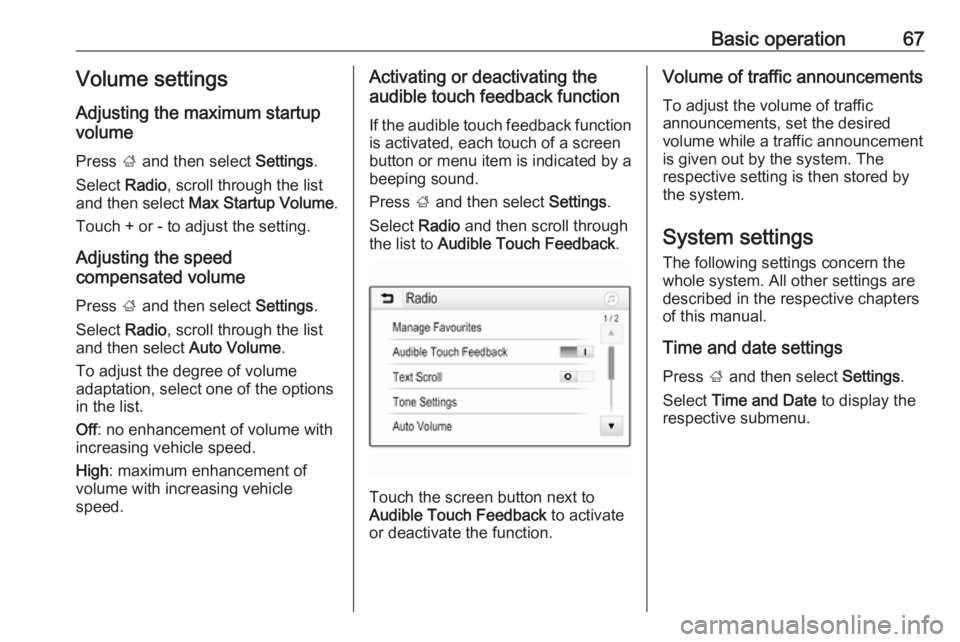
Press ; and then select Settings.
Select Radio and then scroll through
the list to Audible Touch Feedback .
Touch the screen button next to
Audible Touch Feedback to activate
or deactivate the function.
Volume of traffic announcements
To adjust the volume of traffic
announcements, set the desired volume while a traffic announcement
is given out by the system. The
respective setting is then stored by
the system.
System settings The following settings concern the
whole system. All other settings are
described in the respective chapters of this manual.
Time and date settings
Press ; and then select Settings.
Select Time and Date to display the
respective submenu.
Page 68 of 127
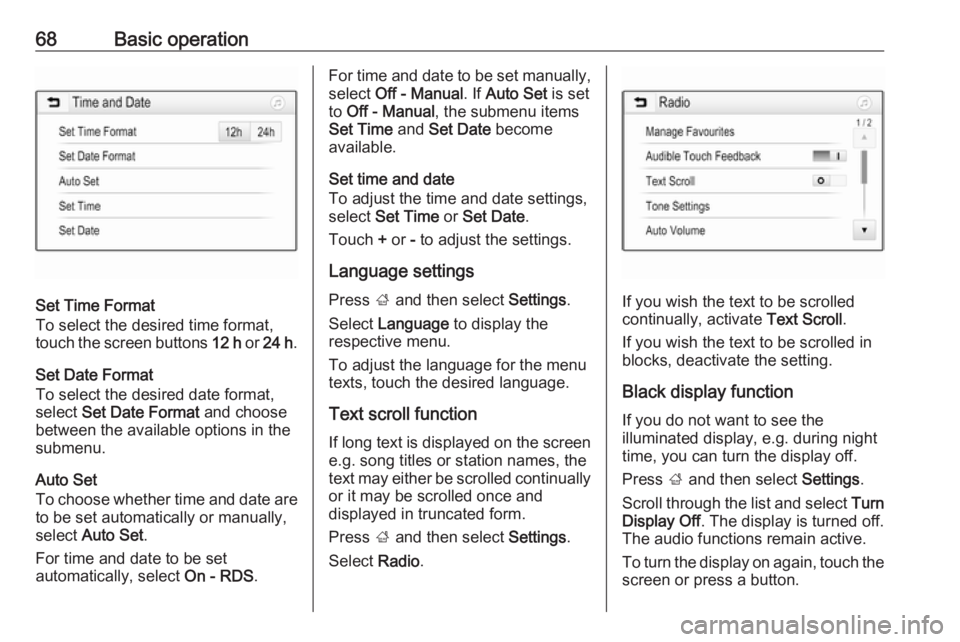
68Basic operation
Set Time Format
To select the desired time format,
touch the screen buttons 12 h or 24 h .
Set Date Format
To select the desired date format,
select Set Date Format and choose
between the available options in the
submenu.
Auto Set
To choose whether time and date are
to be set automatically or manually,
select Auto Set .
For time and date to be set
automatically, select On - RDS.
For time and date to be set manually,
select Off - Manual . If Auto Set is set
to Off - Manual , the submenu items
Set Time and Set Date become
available.
Set time and date
To adjust the time and date settings, select Set Time or Set Date .
Touch + or - to adjust the settings.
Language settings
Press ; and then select Settings.
Select Language to display the
respective menu.
To adjust the language for the menu
texts, touch the desired language.
Text scroll function If long text is displayed on the screen
e.g. song titles or station names, the
text may either be scrolled continually or it may be scrolled once and
displayed in truncated form.
Press ; and then select Settings.
Select Radio.
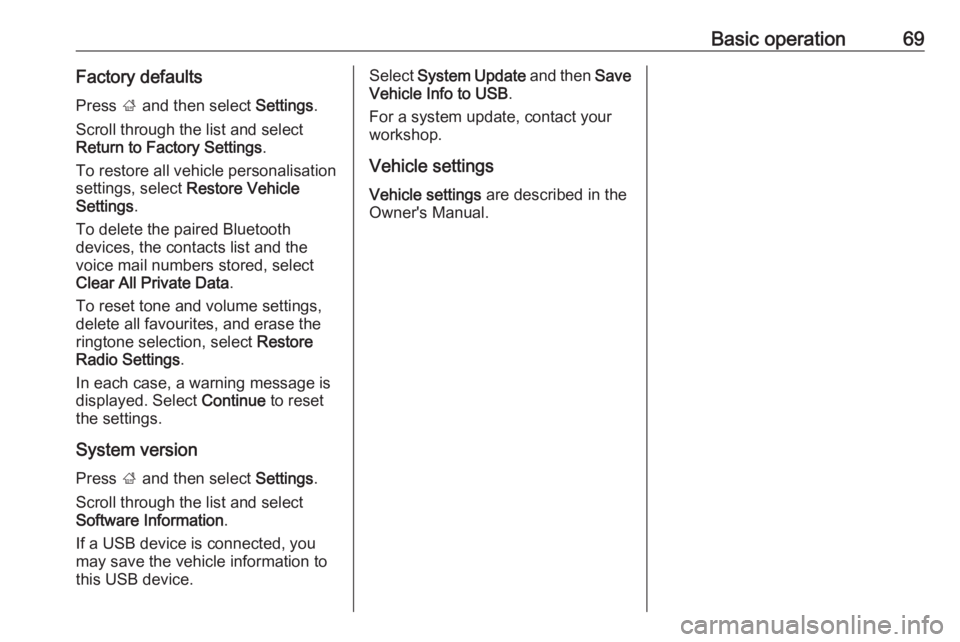
If you wish the text to be scrolled
continually, activate Text Scroll.
If you wish the text to be scrolled in
blocks, deactivate the setting.
Black display function If you do not want to see the
illuminated display, e.g. during night
time, you can turn the display off.
Press ; and then select Settings.
Scroll through the list and select Turn
Display Off . The display is turned off.
The audio functions remain active.
To turn the display on again, touch the
screen or press a button.
Page 69 of 127
Basic operation69Factory defaultsPress ; and then select Settings.
Scroll through the list and select
Return to Factory Settings .
To restore all vehicle personalisation settings, select Restore Vehicle
Settings .
To delete the paired Bluetooth
devices, the contacts list and the
voice mail numbers stored, select Clear All Private Data .
To reset tone and volume settings,
delete all favourites, and erase the
ringtone selection, select Restore
Radio Settings .
In each case, a warning message is
displayed. Select Continue to reset
the settings.
System version Press ; and then select Settings.
Scroll through the list and select
Software Information .
If a USB device is connected, you
may save the vehicle information to this USB device.Select System Update and then Save
Vehicle Info to USB .
For a system update, contact your
workshop.
Vehicle settings
Vehicle settings are described in the
Owner's Manual.
Page 70 of 127

70RadioRadioUsage.......................................... 70
Station search .............................. 70
Favourite lists ............................... 72
Radio data system .......................72
Digital audio broadcasting ...........74Usage
Activating radio
Press ; and then select Audio. The
audio main menu last selected is
displayed.
Select Source in the radio main menu
to open the interaction selector bar.
Select the desired waveband.
The station last played in the selected waveband will be received.
Station search
Automatic station search
Briefly press or touch t or v on the
control panel or on the screen to play the previous or next station in the
station memory.
Manual station search
Press and hold t or v on the
control panel. Release when the
required frequency has almost been
reached.
A search is made for the next station that can be received and it is played
automatically.