radio OPEL INSIGNIA 2017 Infotainment system
[x] Cancel search | Manufacturer: OPEL, Model Year: 2017, Model line: INSIGNIA, Model: OPEL INSIGNIA 2017Pages: 123, PDF Size: 2.23 MB
Page 27 of 123
Basic operation27Scroll through the list and select
Radio and then Maximum Start-Up
Volume .
Touch ─ or w to set the desired
volume.
Automatic volume adjustment
Press ; and then select SETTINGS.
Scroll through the list and select Radio and then Auto Volume .
To adjust the degree of volume
adaptation, set Auto Volume to one of
the available options.
Off : no enhancement of volume with
increasing vehicle speed.
High : maximum enhancement of
volume with increasing vehicle
speed.
Volume of traffic announcements
To adjust the volume of traffic
announcements, set the desired
volume while a traffic announcement
is given out by the system. The
respective setting is then stored by
the system.System settings
Various settings and adaptions for theInfotainment system can be made via
the SETTINGS application.
Time and Date
Press ; and then select SETTINGS.
Select Time and Date .
Set time
Select Set Time to enter the
respective submenu.
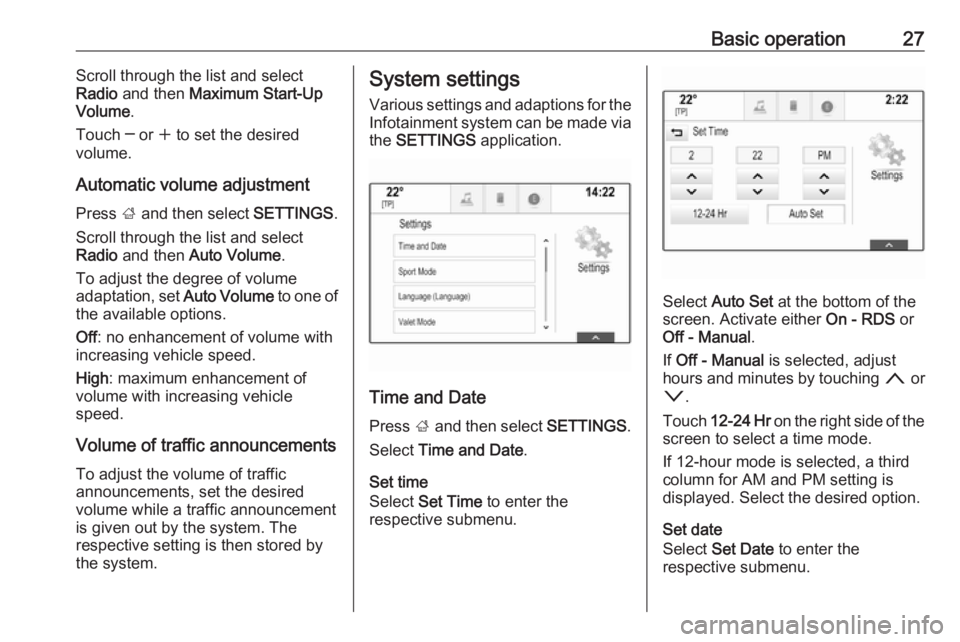
Select Auto Set at the bottom of the
screen. Activate either On - RDS or
Off - Manual .
If Off - Manual is selected, adjust
hours and minutes by touching n or
o .
Touch 12-24 Hr on the right side of the
screen to select a time mode.
If 12-hour mode is selected, a third
column for AM and PM setting is
displayed. Select the desired option.
Set date
Select Set Date to enter the
respective submenu.
Page 29 of 123
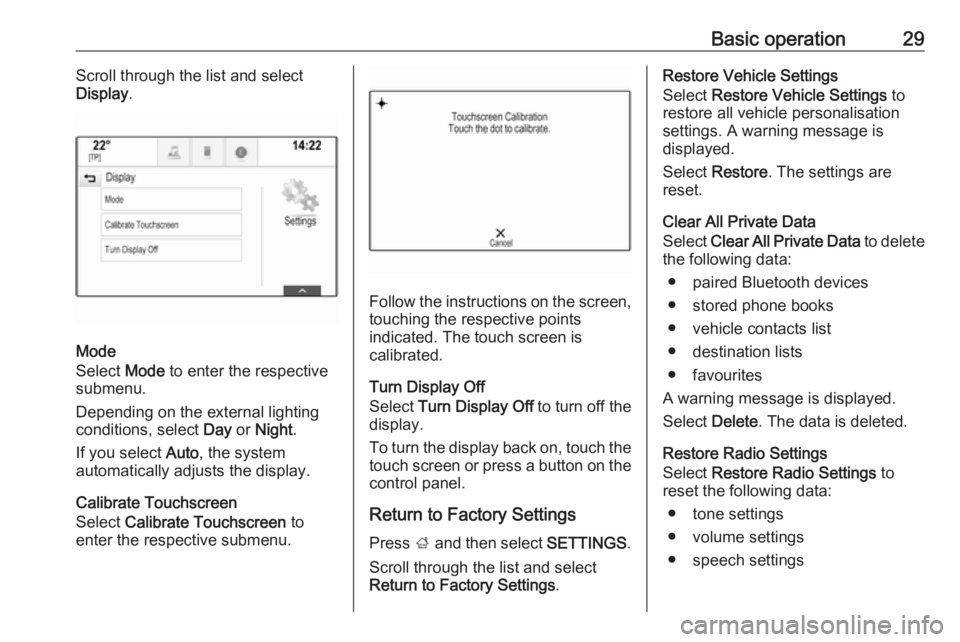
Basic operation29Scroll through the list and select
Display .
Mode
Select Mode to enter the respective
submenu.
Depending on the external lighting
conditions, select Day or Night .
If you select Auto, the system
automatically adjusts the display.
Calibrate Touchscreen
Select Calibrate Touchscreen to
enter the respective submenu.
Follow the instructions on the screen,
touching the respective points
indicated. The touch screen is
calibrated.
Turn Display Off
Select Turn Display Off to turn off the
display.
To turn the display back on, touch the
touch screen or press a button on the
control panel.
Return to Factory Settings
Press ; and then select SETTINGS.
Scroll through the list and select
Return to Factory Settings .
Restore Vehicle Settings
Select Restore Vehicle Settings to
restore all vehicle personalisation
settings. A warning message is
displayed.
Select Restore . The settings are
reset.
Clear All Private Data
Select Clear All Private Data to delete
the following data:
● paired Bluetooth devices
● stored phone books
● vehicle contacts list
● destination lists
● favourites
A warning message is displayed.
Select Delete. The data is deleted.
Restore Radio Settings
Select Restore Radio Settings to
reset the following data:
● tone settings
● volume settings
● speech settings
Page 31 of 123
Radio31RadioUsage.......................................... 31
Station search .............................. 31
Radio data system (RDS) ............32
Digital audio broadcasting ...........34Usage
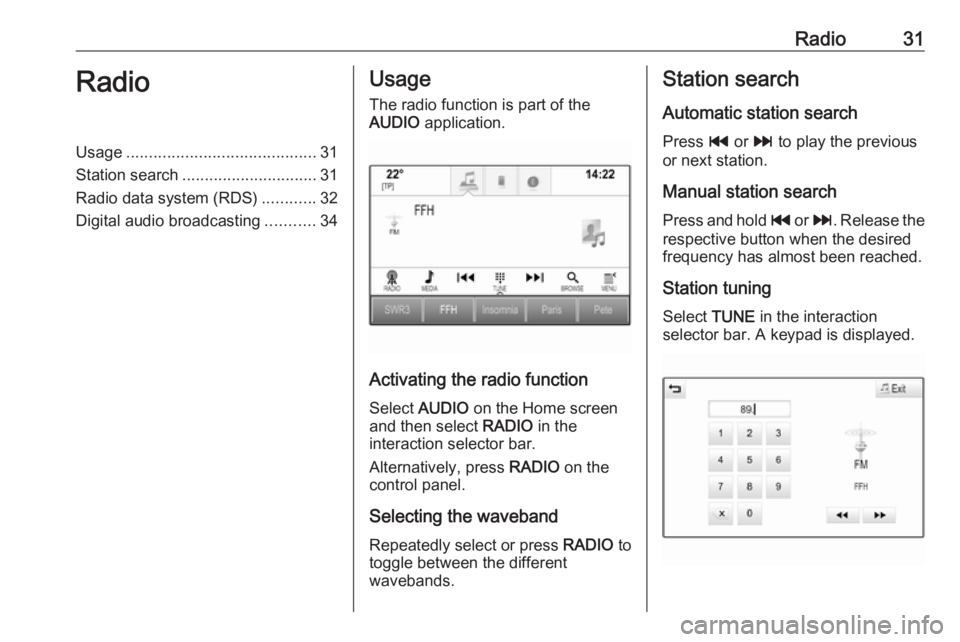
The radio function is part of the
AUDIO application.
Activating the radio function
Select AUDIO on the Home screen
and then select RADIO in the
interaction selector bar.
Alternatively, press RADIO on the
control panel.
Selecting the waveband Repeatedly select or press RADIO to
toggle between the different
wavebands.
Station search
Automatic station search Press t or v to play the previous
or next station.
Manual station search
Press and hold t or v . Release the
respective button when the desired
frequency has almost been reached.
Station tuning Select TUNE in the interaction
selector bar. A keypad is displayed.
Page 32 of 123
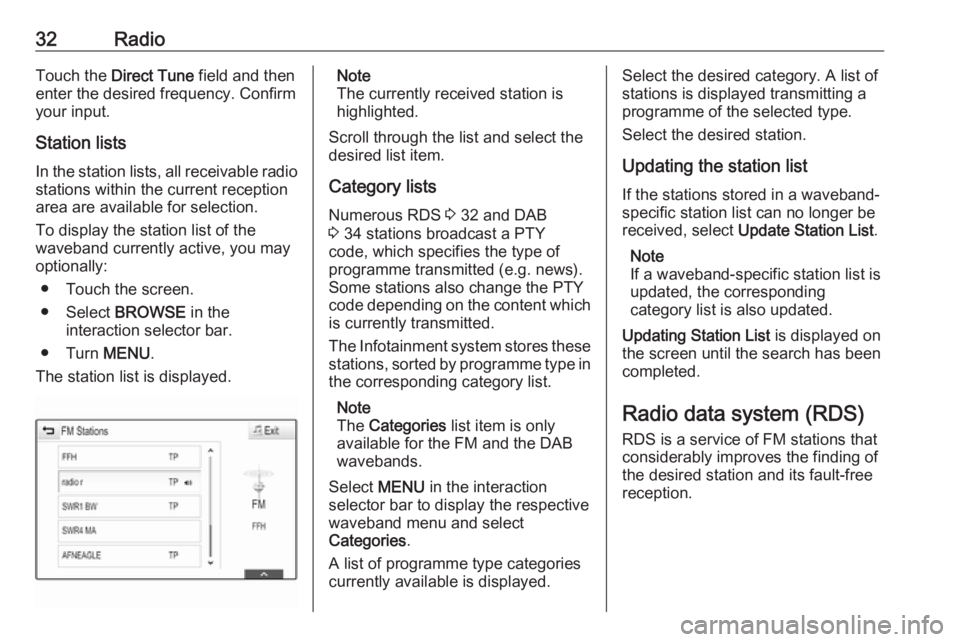
32RadioTouch the Direct Tune field and then
enter the desired frequency. Confirm your input.
Station lists In the station lists, all receivable radio stations within the current reception
area are available for selection.
To display the station list of the
waveband currently active, you may
optionally:
● Touch the screen.
● Select BROWSE in the
interaction selector bar.
● Turn MENU.
The station list is displayed.Note
The currently received station is
highlighted.
Scroll through the list and select the
desired list item.
Category lists
Numerous RDS 3 32 and DAB
3 34 stations broadcast a PTY
code, which specifies the type of
programme transmitted (e.g. news).
Some stations also change the PTY
code depending on the content which is currently transmitted.
The Infotainment system stores these
stations, sorted by programme type in
the corresponding category list.
Note
The Categories list item is only
available for the FM and the DAB wavebands.
Select MENU in the interaction
selector bar to display the respective waveband menu and select
Categories .
A list of programme type categories
currently available is displayed.Select the desired category. A list of
stations is displayed transmitting a
programme of the selected type.
Select the desired station.
Updating the station list
If the stations stored in a waveband-
specific station list can no longer be
received, select Update Station List .
Note
If a waveband-specific station list is
updated, the corresponding
category list is also updated.
Updating Station List is displayed on
the screen until the search has been
completed.
Radio data system (RDS)
RDS is a service of FM stations that considerably improves the finding of
the desired station and its fault-free
reception.
Page 33 of 123
Radio33Advantages of RDS● On the display, the programme name of the station appears
instead of its frequency.
● During a station search, the Infotainment system tunes in to
RDS stations only.
● The Infotainment system always tunes into the best receivable
broadcasting frequency of the set station by means of AF
(alternative frequency).
● Depending on the station received, the Infotainment
system displays radio text that
can contain e.g. information on the current programme.
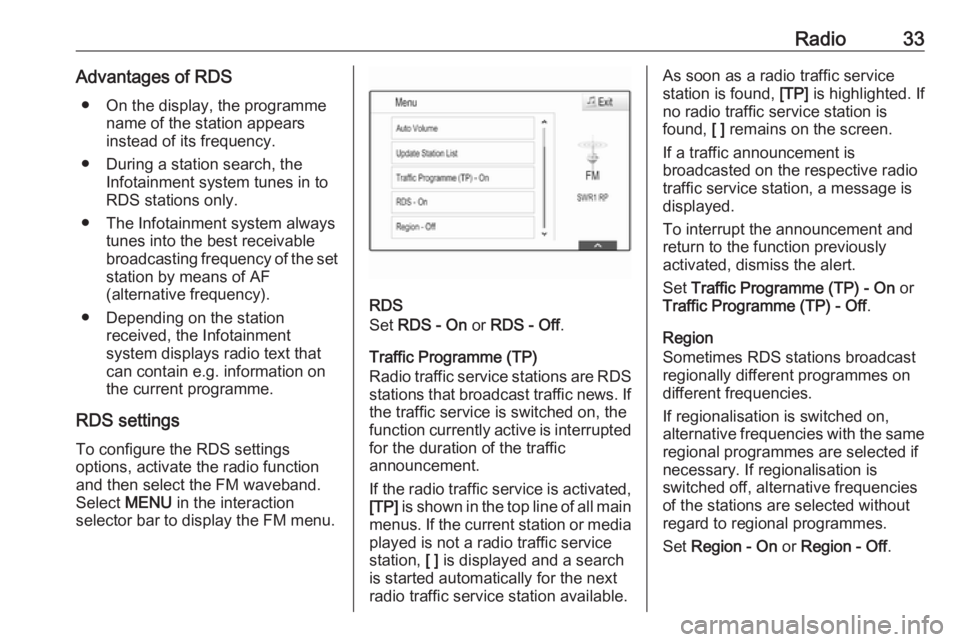
RDS settings To configure the RDS settings
options, activate the radio function
and then select the FM waveband.
Select MENU in the interaction
selector bar to display the FM menu.
RDS
Set RDS - On or RDS - Off .
Traffic Programme (TP)
Radio traffic service stations are RDS
stations that broadcast traffic news. If the traffic service is switched on, the
function currently active is interrupted for the duration of the traffic
announcement.
If the radio traffic service is activated,
[TP] is shown in the top line of all main
menus. If the current station or media played is not a radio traffic service
station, [ ] is displayed and a search
is started automatically for the next
radio traffic service station available.
As soon as a radio traffic service
station is found, [TP] is highlighted. If
no radio traffic service station is
found, [ ] remains on the screen.
If a traffic announcement is
broadcasted on the respective radio
traffic service station, a message is
displayed.
To interrupt the announcement and
return to the function previously
activated, dismiss the alert.
Set Traffic Programme (TP) - On or
Traffic Programme (TP) - Off .
Region
Sometimes RDS stations broadcast
regionally different programmes on
different frequencies.
If regionalisation is switched on,
alternative frequencies with the same
regional programmes are selected if
necessary. If regionalisation is
switched off, alternative frequencies
of the stations are selected without
regard to regional programmes.
Set Region - On or Region - Off .
Page 34 of 123
34RadioDigital audio broadcasting
DAB broadcasts radio stations
digitally.
Advantages of DAB ● DAB stations are indicated by the
programme name instead of the
broadcasting frequency.
● With DAB, several radio programmes (services) can bebroadcasted on a single
ensemble.
● Besides high-quality digital audio
services, DAB is also able to
transmit programme-associated
data and a multitude of other data services including travel and
traffic information.
● As long as a given DAB receiver can pick up the signal sent out bya broadcasting station (even if
the signal is very weak), sound
reproduction is ensured.
● In the event of poor reception, the
volume is reduced automatically
to avoid the output of
disagreeable noises.If the DAB signal is too weak to
be picked up by the receiver,
reception is interrupted
completely. This can be avoided
by activating DAB to DAB
Linking and/or DAB to FM
Linking in the DAB menu (see
below).
● Interference caused by stations that are on nearby frequencies (a
phenomenon that is typical of AM and FM reception) does not
occur with DAB.
● If the DAB signal is reflected by natural obstacles or buildings,
the reception quality of DAB is
improved, whereas AM or FM
reception is considerably
impaired in such cases.
● When DAB reception is enabled, the FM tuner of the Infotainmentsystem remains active in the
background and continually
searches for the best receivable
FM stations. If TP 3 32 is
activated, traffic announcements
of the FM station with the best
reception are issued. DeactivateTP if you do not wish DAB
reception to be interrupted by FM traffic announcements.
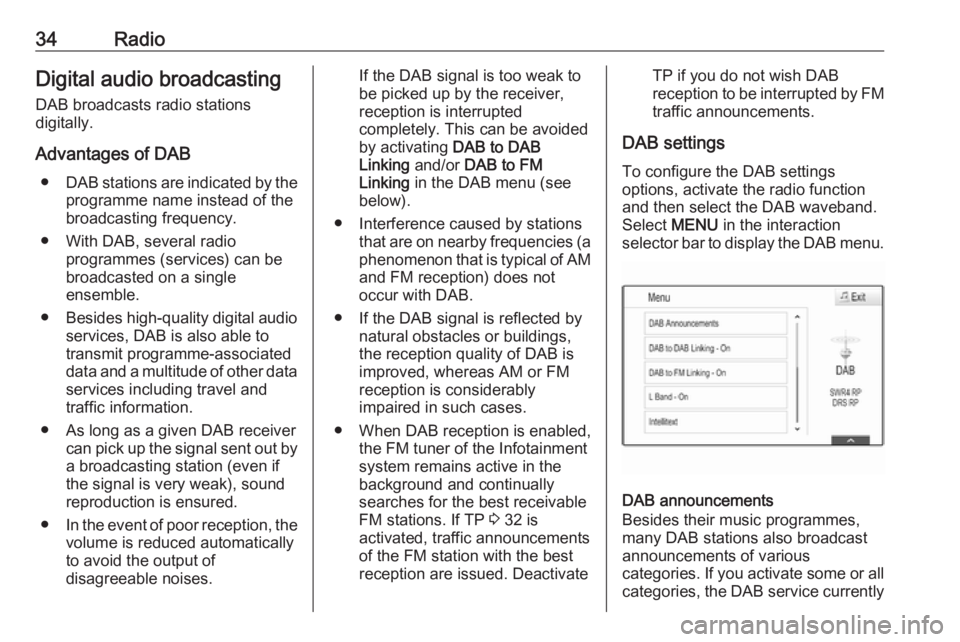
DAB settings To configure the DAB settings
options, activate the radio function
and then select the DAB waveband.
Select MENU in the interaction
selector bar to display the DAB menu.
DAB announcements
Besides their music programmes,
many DAB stations also broadcast
announcements of various
categories. If you activate some or all categories, the DAB service currently
Page 35 of 123
Radio35received is interrupted when an
announcement of these categories is made.
Select DAB Announcements to
display the DAB categories list.
Select the desired categories. The
categories selected are marked with
9 .
Note
DAB announcements can only be
received if the DAB waveband is
activated.
DAB to DAB Linking
If this function is activated, the device
switches over to the same service
(programme) on another DAB
ensemble (if available) when the DAB
signal is too weak to be picked up by
the receiver.
Set DAB to DAB Linking - On or DAB
to DAB Linking - Off .
DAB to FM Linking
If this function is activated, the device switches over to a corresponding FM
station of the active DAB service (if
available) when the DAB signal is too
weak to be picked up by the receiver.Set DAB to FM Linking - On or DAB
to FM Linking - Off .
L Band
If L Band is activated, the
Infotainment system receives an additional frequency range. The
frequencies for L-band comprise
earth and satellite radio (1452 - 1492
MHz).
Set L Band - On or L Band - Off .
Intellitext
The Intellitext function allows for the
reception of additional information
such as announcements, financial
information, sports, news etc.
Select one of the categories and
choose a specific item to display
detailed information.
Page 45 of 123

Navigation45Important informationTMC traffic information system and
dynamic route guidance
The TMC traffic information system
receives all current traffic information from TMC radio stations. This
information is included in the
calculation of the overall route. During
this process, the route is planned so that traffic problems related to pre-
selected criteria are avoided.
If there is a traffic problem during
active route guidance, depending on
the pre-settings, a message appears
as to whether the route should be
changed.
TMC traffic information is displayed in
the map display as symbols or as
detailed text on the TMC messages
menu.
To be able to use TMC traffic
information, the system must receive
TMC stations in the relevant region.
The TMC traffic stations can be
selected in the navigation menu
3 45.Map data
All required map data is stored within
the Infotainment system. To update
your map software via the USB port,
contact your workshop.
Usage
To display the navigation map,
press ; and then select the NAV
icon.Route guidance not active
The current location is indicated by a
circle with an arrow pointing into the
direction of travel.
After a timeout of approx.
15 seconds, the application tray and
the interaction selector bar disappear
to show a full screen view of the map.
To redisplay the application tray and
the interaction selector bar, touch the
screen.
Page 60 of 123
60NavigationIf you wish slow traffic to be generally
avoided, set Avoid Slow Traffic to On .
Select Automatically Avoid Traffic or
Ask Me before Avoiding .
Types of traffic incidents
Select Traffic Types to display the
respective submenu.
Select the types of traffic incidents to be avoided.
TMC stations
The TMC radio stations supply
information on the current traffic
situation considered in the calculation
of the route.
Note
Depending on the country you are in, the TMC service is enhanced by a
PayTMC functionality integrated in
the Infotainment system.
Select TMC Station to display the
respective submenu.
The default setting is Auto consulting
different TMC stations.
If you wish a specific TMC station to
be observed, select the respective
station from the list.If this station is no longer received,
the system switches back to the
Auto function.
Route settings Select MENU in the interaction
selector bar and then select Routing
Preferences to display the respective
submenu.
Route style
To define by what criteria a route may
be calculated, select Route Style.
Select Fast, Eco Friendly or Short
from the list.
If Eco Friendly has been selected, the
eco-friendly route style may be
adapted to the load of the vehicle.
Select Edit Eco Profile to display the
respective submenu.
Repeatedly select Roof Load and
Trailer to toggle between the
available load options. Set the
options as needed.
Road selection
Select from the list which road types
may be included in the calculation of
the route.Route modification
To modify the route during active
route guidance, touch the arrow
symbol indicating your next turning
manoeuvre on the right side of the
screen.
The route guidance menu is
displayed.
Note
The route guidance menu may only
be displayed if route guidance is
active.
The route guidance menu provides
additional options to change route
settings during active route guidance.
Displaying the turn list
The turn list displays all streets on the
calculated route, starting from the
current location.
Select TURN LIST in the interaction
selector bar of the route guidance
menu. The turn list is displayed and
the next manoeuvre is read out by the
system.
Page 65 of 123
Speech recognition65Prompt Length
The length and the level of detail of the questions and statements the
speech recognition gives out can be
adjusted in the corresponding
submenu.Audio Feedback Speed
The speed with which the speech
recognition asks questions or makes statements can be adjusted in the
corresponding submenu.
If Medium is selected, the system's
speech rate corresponds to natural
speech.
Note
When starting to use the speech
recognition, it may be advantageous
to use the Long setting. As you get
more experienced, it may be
advantageous to use the Short
setting.
Voice pass-thru application
The voice pass-thru application of the Infotainment system allows access tothe speech recognition commands on
your smartphone.
The availability of this function
depends on your smartphone. For
more information on compatibility,
see our website.
Usage
Embedded speech recognition
Activating speech recognition Note
Speech recognition is not available
during an active phone call.Activation via the w button on the
steering wheel
Press w on the steering wheel.
The audio system mutes, a voice
output message prompts you to say a command, and help menus with the
most important commands currently
available are shown on the Info-
Display and in the Driver Information
Centre.
As soon as the speech recognition is
ready for voice input, a beep is heard. The speech recognition symbol in the
upper left corner of the help menu
changes from white to red.You can now say a voice command to
initiate a system function (e.g. playing a preset radio station).Activation via the VOICE screen
button on the centre display
Select VOICE in the interaction
selector bar of a centre display main
menu.
The audio system mutes, a voice
output message prompts you to say a command, and a help menu with the
most important commands currently
available is shown on the centre
display.
As soon as the speech recognition is
ready for voice input, a beep is heard.
The speech recognition symbol on
the right side of the help menu
changes from black to red.
You can now say a voice command, see description above.
Adjusting the volume of voice
prompts
Press ! or # on the steering wheel
upwards (increase volume) or
downwards (decrease volume).