steering OPEL MOVANO_B 2020 Manual user
[x] Cancel search | Manufacturer: OPEL, Model Year: 2020, Model line: MOVANO_B, Model: OPEL MOVANO_B 2020Pages: 353, PDF Size: 9.4 MB
Page 131 of 353

Infotainment system129Note
If equipped, the voice recognition
button 5 may be located on the
steering column controls.
Usage
Infotainment controls The Infotainment system is operated
via buttons, rotary knobs and/or
display menus.
Inputs are made via:
● the central control unit in the instrument panel 3 122, or
● the controls on the steering column 3 122
● the voice recognition system (if available) 3 191
● the touchscreen (NAVI 50 IntelliLink,
NAVI 80 IntelliLink) 3 136
Note
Only the most direct ways for menu
operation are described in the
subsequent chapters. In some
cases, there may be other options.Switching the Infotainment
system on or off
Press X to switch the Infotainment
system on.
The previously used audio source is
active.
Press X (or, depending on
Infotainment system, press and hold)
to switch the Infotainment system off.
Note
The clock and/or outside
temperature may be displayed when
the Infotainment system is switched
off (depending on version).NAVI 50 IntelliLink:
The Infotainment system
automatically switches on/off when
the ignition is switched on/off. Press
X instead, if required.
Press and hold X for 5 seconds to
restart the system.NAVI 80 IntelliLink:
The Infotainment system switches on automatically when the ignition is
switched on (depending on version).
Press X instead, if required.The following options may be
displayed (depending on version):
● Change settings (to authorise or
reject data sharing)
The system displays a screen to
confirm the authorisation of data
sharing after touching Change
settings .
Note
When data sharing is switched off,
certain features may not operate
correctly.
● Language (to change the system
language)
● Done (to continue to the Home
page)
● Help (to see more detailed
information)
The Infotainment system
automatically switches off when the
ignition is switched off and the driver's door is opened. Press X instead, if
required.
Automatic switch-off
With the ignition off, if the
Infotainment system is switched on
with X, it will switch-off automatically
Page 132 of 353

130Infotainment systema short period after the last user input.
Depending on Infotainment system,
automatic switch-off occurs after approx. 5 to 20 minutes.
Pressing X again will allow the
Infotainment system to remain on for
a further 5 to 20 minutes, depending
on Infotainment system.
Setting the volumeTurn X / volume rotary knob.
Alternatively (with the steering
column controls), press ! or #.NAVI 50 IntelliLink:
Depending on version, it is possible to
set various volume levels individually
(including audio players, traffic
announcements, navigation
instructions, phone calls and
ringtone).
From the Home page, touch
ÿ Settings then Audio followed by
Sound .
Refer to (NAVI 50 IntelliLink) "Volume
settings" 3 138.NAVI 80 IntelliLink:
To set various volume levels
individually (e.g. navigation
instructions, traffic announcements, phone calls) from the Home page,
touch MENU then System followed by
Sound .
Refer to (NAVI 80 IntelliLink) "System settings" 3 139.
Stored volume
When the Infotainment system is
switched off, the current volume is
stored.
Speed dependent volume
When speed dependent volume
( 3 139) is activated, the volume is
adapted automatically to compensate
for road and wind noise.
Mute
To mute the current audio source
(depending on Infotainment system),
press X briefly or turn knob fully
anticlockwise.
Alternatively (with the steering
column controls), press @ or 8 or
press ! and # simultaneously.Unmute
To unmute (depending on
Infotainment system), briefly press
X again or turn clockwise.
Alternatively (with the steering
column controls): Press @ again or
press ! and # simultaneously again.
Note
When a traffic announcement is
broadcast, the system is
automatically unmuted.
For further information, refer to
"Radio data system" 3 148.
Display screen operation
Radio 15 USB ● To move up/down in the display: Turn OK.
● To confirm actions: Press OK.
● To cancel actions (and return to previous menu): Press /.
Page 165 of 353

Infotainment system163Using smartphone
applications
The phone projection applications
Apple CarPlay™ and Android™ Auto
display selected apps from your
smartphone on the display screen
and allow their operation directly via
the Infotainment controls.
Check with the device's manufacturer
if this function is compatible with your smartphone and if this application is
available in the country you are in.
Android Auto is available for
NAVI 50 IntelliLink and
NAVI 80 IntelliLink. Apple CarPlay is available for NAVI 50 IntelliLink.
Note
While using navigation and music
applications via phone projection,
similar applications integrated in the
Infotainment system will be
replaced.
NAVI 50 IntelliLink
Preparing the smartphone
Android phone: Download the
Android Auto app to the smartphone from the Google Play™ Store.iPhone: Make sure Siri ®
is activated
on the smartphone.
Connecting the mobile phone
Connect the smartphone to the USB
port 3 153.
Starting phone projection
Android phone: Touch the Android
Auto button on the main screen of the Infotainment system and accept the
requests on the smartphone in order
to use the Android Auto app.
iPhone: Touch the CarPlay button on the main screen of the Infotainment
system.
The phone projection screen
displayed depends on the
smartphone and software version.
To access a tutorial on smartphone
connectivity, go to the Settings menu,
select Connectivity and scroll through
the list.
Returning to the home screen
Touch the home button.NAVI 80 IntelliLink
Preparing the smartphone
Download the Android Auto app to the smartphone from the Google Play™Store.
Activating phone projection 1. Connect the smartphone to the USB port 3 153.
2. Accept the request on the display screen.
3. Touch û on the display screen
and accept the confidentiality
clauses. As a first time user look
out for system requests on the
mobile device to continue.
4. Touch û again.
Phone projection can now be used.
Using phone projection ● Touch û on the display screen to
access the Android Auto menu of
the connected smartphone.
● Press and hold 5 on the steering
column to access voice controls.
Returning to the display screen
Press ;.
Page 193 of 353

Infotainment system191Voice recognition
General information
The voice recognition function allows
to operate certain functions via voice
input.
To ensure that conversations held
inside the vehicle do not start
unintentional calls to a saved contact, the voice recognition function must
first be activated via 5 on the column
controls.
Control elements overview 3 122.
NAVI 50 IntelliLink Available depending on version, the
voice recognition function of the
handsfree phone system allows you
to operate certain functions of a
compatible smartphone via voice
input.
Refer to "Phone control" in this
section 3 193.
To confirm that a paired and
connected smartphone is compatible
with the voice recognition function,
touch 7 followed by ÿSetting(s) .Then select Connectivity followed by
View Bluetooth device list . The list
shows the paired devices and 5
appears alongside the name of the
smartphone to indicate compatibility.
Note
If supported, the language set on the
smartphone will automatically be
used by the Infotainment system for
voice recognition.
The navigation system can also be
operated using voice controls. Refer
to "Navigation control" in this section
3 192.
Prerequisites
The following prerequisites must be
met:
● The Bluetooth function of the Infotainment system must be
activated.
Refer to "Bluetooth connection"
in the "Phone" section 3 197.
● The Bluetooth function of the Bluetooth-enabled smartphone
must be activated and the
smartphone must have a 3G, 4Gor wi-fi connection (see
smartphone operating
instructions).
● Dependent upon the smartphone, it may be required
to set the device to "visible" (see
smartphone operating
instructions).
● The smartphone must be paired and connected to the
Infotainment system.
Help
For information and help with
activating and operating voice
controls, touch 7 followed by
ÿ Setting(s) then Connectivity .
Select Smartphone from the list (use
S /R to search list), then select l to
access help.
A series of screens are displayed,
explaining how to use the voice
recognition function and information
on the following:
● switching on/off with steering wheel/column controls
● compatible phones
● operation methods
Page 196 of 353

194Infotainment systemImportant information for
operation and traffic safety9 Warning
Use of the handsfree phone
system while driving can be
dangerous as your concentration
is reduced when telephoning. Park the vehicle before using the
handsfree phone system.
Follow the regulations of the
country in which you are driving.
Also follow the special regulations
that apply in specific areas and
always switch off the mobile
phone if the use of mobile phones is prohibited, if interference is
caused by the mobile phone or if
dangerous situations can occur.
9 Warning
Mobile phones have effects on
your environment. For this reason,
safety regulations have been
prepared which you should make
yourself familiar with before you use the telephone.
Bluetooth
The Phone portal is certified by the
Bluetooth Special Interest Group
(SIG).
Further information about the
specification will be found on the
Internet at http://www.bluetooth.com
Phone controls Controls on Infotainment system or
steering column:
● 6TEL
- or -
● TEL
- or -
● yPHONE on the 7 Home page
screen (NAVI 50 IntelliLink)
- or -
g PHONE in the Main menu
screen (NAVI 80 IntelliLink)
Select Phone to open the menu.
Controls on steering column:
● 7, 8 : Take call, end/reject call.
- or -
● MODE/OK : Take call, end/reject
call, confirm an action.
● 5: Activate/deactivate voice
recognition.
Depending on Infotainment system,
some features of the handsfree
phone system can also be operated via voice recognition 3 193.
Display screen operation
Radio 15 USB ● To move up/down in the display: Turn OK.
● To confirm actions: Press OK.
● To cancel actions (and return to previous menu): Press /.
NAVI 50 IntelliLink
To access the Phone menu screen,
select 7 followed by yPhone .
Page 203 of 353

Infotainment system201OperationIntroduction
When a Bluetooth connection has
been set up between a mobile phone and the hands-free phone system,
certain functions of the mobile phone
can be operated via the Infotainment
system controls or display.
It is then possible, e.g., to import the
contacts and telephone numbers stored on the mobile phone into the
handsfree phone system.
Note
The Infotainment system memory is
restricted and some the contacts may not be downloaded from the
mobile phone.
The contacts saved on the SIM card
in the mobile phone are not visible.
Only contacts saved on the phone
are visible.
After connection, the mobile phone
data is transmitted to the handsfree
phone system. This can take some
time, depending on phone model.
During this period, operation of themobile phone is possible via the
Infotainment system only to a limited
extent.
Note
Not every mobile phone supports
the functions of the handsfree phone
system. Therefore, deviations from
the range of functions described are possible.
Phone menu
To display the Phone menu:
● press 6TEL
- or -
● press TEL
- or -
● touch 7 followed by yPhone
(NAVI 50 IntelliLink)
from the Home page, touch
MENU followed by gPhone
(NAVI 80 IntelliLink)
Volume control
Radio 15 USB
During a call, turn m or press ! or #
(on the steering column controls) to change the call volume.NAVI 50 IntelliLink
During a call, press ! or # with the
steering column controls to change the call volume.
NAVI 80 IntelliLink
During a call, turn X on the
Infotainment unit to change the call
volume.
Alternatively (with the steering
column controls), press ! or #.
Dialling a telephone number Several options are available for
dialling telephone numbers, including
calling a contact from the phonebook
or from a call log. Numbers can also
be dialled manually.
Entering a number manually
Radio 15 USB
With the Phone menu displayed,
select Dial from the list.
Enter the desired number using the
numerical keyboard ( 3 193) and
select 7 to start dialling.
To redial the last number, press and
hold TEL.
Page 206 of 353

204Infotainment systemNote
Data sharing must be authorised on
the phone. Refer to the operating
instructions for the mobile phone or
consult the network provider.
The feature "Automatically
download phone data" must also be
switched on in the Infotainment
phone settings menu. Refer to
(NAVI 80 IntelliLink) "Phone
settings" below.
From the Home page, touch MENU
then gPhone followed by Call logs.
To dial a number from the call history
lists, select from the following options
on the display:
● All: Displays list of all calls in the
below lists.
● ù: Received calls.
● þ: Missed calls.
● ú: Dialled numbers.
The most recent calls are displayed at the top. Alternatively, touch ↑ or ↓ to
move up/down in the display.
Select the desired contact from the
chosen call list to start the dialling
process.Note
If necessary, touch < (to open a
pop-up menu) and select Update
telephone data to update the call
lists.
Voicemail box
Radio 15 USB
To listen to mobile phone voicemail
messages via the Infotainment
system while the phone is connected, select the Voicemail box menu.
NAVI 80 IntelliLink
To listen to mobile phone voicemail
messages via the Infotainment
system while the phone is connected,
from the Home page, select MENU
then gPhone followed by Voice mail.
The system will call the configured
voicemail box.
The configuration screen will be
displayed if the voicemail box is not configured. Enter number on the
numerical keyboard and confirm.Receiving calls
Radio 15 USB
To accept the call, depending on
vehicle configuration:
● Briefly press 7 (on the steering
column controls).
● Select the 7 icon in the display
(by turning and pressing OK).
To reject the call, depending on
vehicle configuration:
● Press and hold 8 (on the steering
column controls).
● Select the } icon in the display
(by turning and pressing OK).
When receiving a call, the caller
number may be shown on the
Infotainment system display screen. If the number is stored in the system
memory, the name is displayed
instead. If the number cannot be
displayed, the message Private
number is shown.
Page 207 of 353

Infotainment system205NAVI 50 IntelliLink
To accept the call:
● Touch Accept/Agree .
● Briefly press 7 (on the steering
column controls).
To reject the call: ● Touch Refuse/Reject .
● Press and hold 8 (on the steering
column controls).
When receiving a call, the caller
number may be shown on the
Infotainment system display screen. If
the number is stored in the system
memory, the name is displayed
instead. If the number cannot be
displayed, the message Unknown/
Unknown number is shown.
NAVI 80 IntelliLink
To accept the call:
● Touch Pick up.
● Briefly press 7 (on the steering
column controls).
To reject the call: ● Touch Reject.
● Press and hold 8 (on the steering
column controls).When receiving a call, the caller
number may be shown on the
Infotainment system display screen. If the number is stored in the system
memory, the name is displayed
instead. If the number cannot be
displayed, the message No Caller ID
is shown.
Functions during a telephone call
Radio 15 USB
In addition to volume control, various
functions are available during a call,
including:
● Switch the call to the mobile phone.
● Access the keyboard.
● End call.
Turn and press OK to select and
confirm.
Switch the call from the handsfree
phone system to the mobile phone by selecting the mobile phone display
item. Some mobile phones may
become disconnected from the
handsfree phone system during the
switch to this mode.A number can also be entered on the
numerical keyboard ( 3 193) e.g. to
control a voice server such as the
voicemail box. Select the #123
display item to access the numerical keyboard. Refer to " Voicemail box"
for further information.
To end the call, depending on vehicle configuration:
● Briefly press 8.
● Press TEL.
● Select the } icon in the display.
NAVI 50 IntelliLink
In addition to volume control, various functions are available during a call,
including:
● }: End call.
● n: Switch vehicle microphone off.
● é: Switch vehicle microphone on.
● m/m 3 : Transfer conversation to
mobile phone.
● J3: Transfer conversation to
vehicle's microphone and
loudspeakers.
● 7: Return to previous screen
(e.g. navigation or Home page).
Page 226 of 353

224Driving and operatingDriving and
operatingDriving hints ............................... 225
Driving economically ...............225
Control of the vehicle ...............225
Steering ................................... 225
Starting and operating ...............226
New vehicle running-in ............226
Ignition switch positions ...........226
Starting the engine ..................227
Idle speed control ....................228
Overrun cut-off ........................ 228
Stop-start system ....................228
Parking .................................... 231
Air suspension ......................... 231
Engine exhaust .......................... 233
Diesel particle filter ..................233
Catalytic converter ...................234
AdBlue ..................................... 234
Manual transmission ..................241
Manual transmission automa‐ ted .............................................. 241
Transmission display ...............241
Starting the engine ..................242
Selector lever .......................... 242Manual mode........................... 243
Electronic driving programmes 243
Fault ........................................ 244
Interruption of power supply ....244
Brakes ........................................ 244
Antilock brake system .............244
Parking brake .......................... 245
Brake assist ............................. 246
Hill start assist ......................... 246
Ride control systems .................247
Traction Control system ..........247
Electronic Stability Control ......248
Limited-slip rear axle ...............249
Driver assistance systems .........249
Cruise control .......................... 249
Speed limiter ........................... 251
Active emergency braking .......253
Parking assist .......................... 255
Side blind spot alert .................257
Rear view camera ...................259
Lane departure warning ..........261
Fuel ............................................ 262
Fuel for diesel engines ............262
Refuelling ................................ 263
Trailer hitch ................................ 265
General information .................265
Driving characteristics and towing tips .............................. 265
Trailer towing ........................... 265Towing equipment ...................266
Trailer stability assist ...............266
Auxiliary features .......................266
Power take-off ......................... 266
Page 227 of 353
Driving and operating225Driving hints
Driving economically
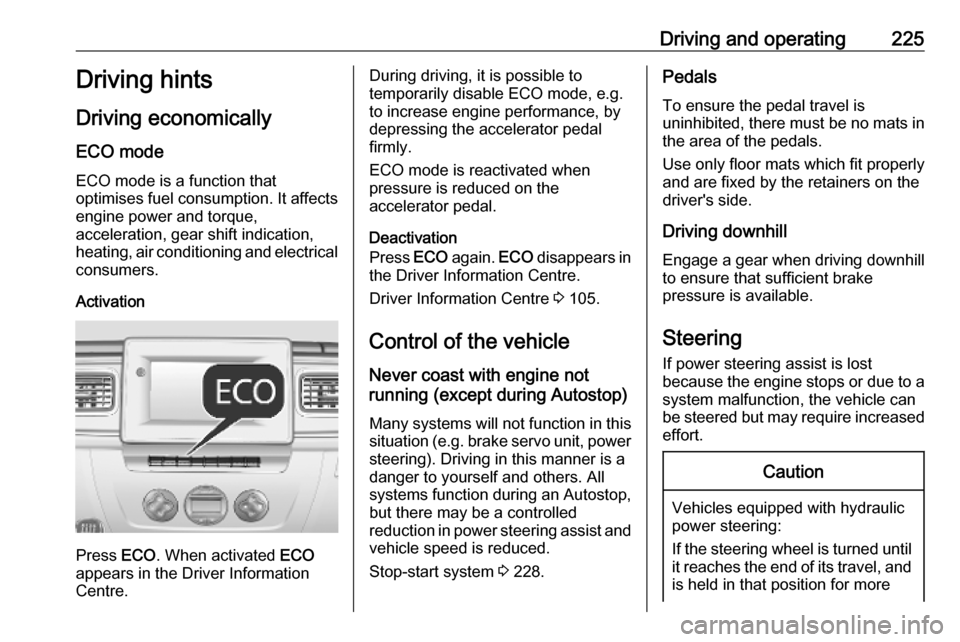
ECO mode ECO mode is a function that
optimises fuel consumption. It affects
engine power and torque,
acceleration, gear shift indication,
heating, air conditioning and electrical consumers.
Activation
Press ECO. When activated ECO
appears in the Driver Information
Centre.
During driving, it is possible to
temporarily disable ECO mode, e.g. to increase engine performance, by
depressing the accelerator pedal
firmly.
ECO mode is reactivated when
pressure is reduced on the
accelerator pedal.
Deactivation
Press ECO again. ECO disappears in
the Driver Information Centre.
Driver Information Centre 3 105.
Control of the vehicle
Never coast with engine not
running (except during Autostop)
Many systems will not function in this
situation (e.g. brake servo unit, power steering). Driving in this manner is a
danger to yourself and others. All
systems function during an Autostop,
but there may be a controlled
reduction in power steering assist and
vehicle speed is reduced.
Stop-start system 3 228.Pedals
To ensure the pedal travel is
uninhibited, there must be no mats in the area of the pedals.
Use only floor mats which fit properly
and are fixed by the retainers on the
driver's side.
Driving downhill
Engage a gear when driving downhill
to ensure that sufficient brake
pressure is available.
Steering If power steering assist is lost
because the engine stops or due to a
system malfunction, the vehicle can
be steered but may require increased
effort.Caution
Vehicles equipped with hydraulic
power steering:
If the steering wheel is turned until it reaches the end of its travel, and
is held in that position for more