AUX OPEL VIVARO B 2017 Infotainment system
[x] Cancel search | Manufacturer: OPEL, Model Year: 2017, Model line: VIVARO B, Model: OPEL VIVARO B 2017Pages: 129, PDF Size: 1.96 MB
Page 33 of 129
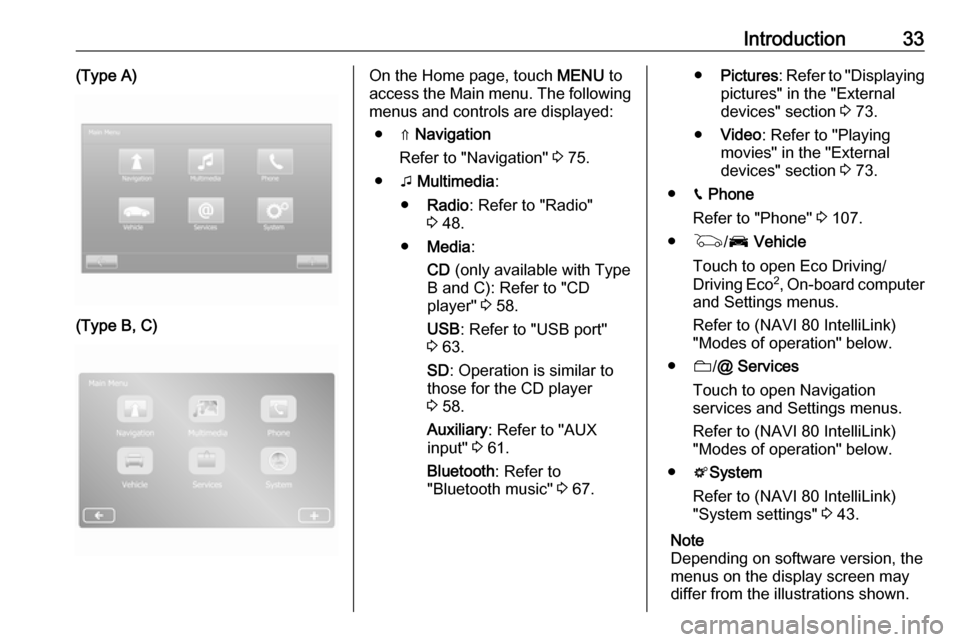
Introduction33(Type A)(Type B, C)On the Home page, touch MENU to
access the Main menu. The following menus and controls are displayed:
● ⇑ Navigation
Refer to "Navigation" 3 75.
● t Multimedia :
● Radio : Refer to "Radio"
3 48.
● Media :
CD (only available with Type
B and C): Refer to "CD player" 3 58.
USB : Refer to "USB port"
3 63.
SD : Operation is similar to
those for the CD player
3 58.
Auxiliary : Refer to "AUX
input" 3 61.
Bluetooth : Refer to
"Bluetooth music" 3 67.● Pictures : Refer to "Displaying
pictures" in the "External
devices" section 3 73.
● Video : Refer to "Playing
movies" in the "External
devices" section 3 73.
● g Phone
Refer to "Phone" 3 107.
● G /J Vehicle
Touch to open Eco Driving/ Driving Eco 2
, On-board computer
and Settings menus.
Refer to (NAVI 80 IntelliLink)
"Modes of operation" below.
● N/@ Services
Touch to open Navigation
services and Settings menus.
Refer to (NAVI 80 IntelliLink)
"Modes of operation" below.
● tSystem
Refer to (NAVI 80 IntelliLink)
"System settings" 3 43.
Note
Depending on software version, the
menus on the display screen may
differ from the illustrations shown.
Page 34 of 129

34Introduction●i/←: Move to previous page
● j/→: Move to next page
● ↑: Display lists; Scroll up
● ↓: Display lists; Scroll down
● <: Open pop-up menu
● r: Return to previous menu
The display screen can also be
operated using the controls on the
Infotainment system fascia.
Note
Depending on version, some
controls available on the
Infotainment system fascia do not
operate the features on the display
screen.
Note
Depending on vehicle, operation of
the touchscreen may be restricted
during driving.
Modes of operation
Radio
To change the audio source to radio:
Depending on Infotainment system, press RADIO , RADIO/CD or
AUDIO/SOURCE .NAVI 50 IntelliLink
To access the radio menu at any time,
touch 7 followed by è/ñ Radio .NAVI 80 IntelliLink
To access the radio menu from theHome page, touch MENU then
Multimedia followed by Radio.
Detailed description of the radio
functions 3 48.
Audio players
To change the audio source to CD,
USB , AUX , Bluetooth or iPod (where
applicable): Depending on
Infotainment system, touch MEDIA,
RADIO/CD or AUDIO/SOURCE .
NAVI 50 IntelliLink : To access the
menu for connected auxiliary devices ( USB , iPod , BT (Bluetooth) or AUX) at
any time, touch 7 followed by t/
ü Media . Touch S in top left corner
and select auxiliary source.
For Aha Ⓡ application (available
depending on version), refer to
"Additional features
(NAVI 50 IntelliLink)" below.
NAVI 80 IntelliLink : To access the
menu for auxiliary devices (e.g. Audio CD, USB, SD card, AUX input,
Bluetooth) from the Home page,
touch MENU then Multimedia
followed by Media. Select auxiliary
source from the display list.R15 BT USB, R16 BT USB
Detailed descriptions of:
● AUX input functions 3 61
● USB port functions 3 63
● Bluetooth music operation 3 67CD16 BT USB, CD18 BT USB
Detailed descriptions of:
● CD player functions 3 58
● AUX input functions 3 61
● USB port functions 3 63
● Bluetooth music operation 3 67
Page 35 of 129

Introduction35NAVI 50 IntelliLink
Detailed descriptions of:
● AUX input functions 3 61
● USB port (including iPod) functions 3 63
● Bluetooth music operation 3 67NAVI 80 IntelliLink
Detailed descriptions of:
● CD functions (Type B and C only)
3 58
● AUX input functions 3 61
● USB port functions 3 63
● Bluetooth music operation 3 67
Navigation, Map (NAVI 50 IntelliLink,
NAVI 80 IntelliLink)
Detailed description of the Navigation system 3 75, Browse map 3 96.
Phone
Use the display options in the
following menus to connect mobile
phones, make telephone calls, create
contacts lists and adjust various
settings.
Detailed description of the handsfree
phone system functions 3 107.R15 BT USB, R16 BT USB,
CD16 BT USB, CD18 BT USB -
Phone
To access the Phone menu: Press
6 or TEL .
To access the phone settings menu: Press TEL and select Phone settings .NAVI 50 IntelliLink - Phone
To access the Phone menu at any
time: Touch 7 followed by yPhone .NAVI 80 IntelliLink - Phone
To access the Phone menu from the
Home page, touch MENU followed by
Phone .
Vehicle information
(NAVI 80 IntelliLink)
To access the Vehicle menu from the Home page, touch MENU followed by
Vehicle .
Depending on vehicle, the following
menus are displayed:
● Eco Driving /Driving Eco 2
● On-board computer
● Settings
Eco Driving/Driving Eco 2
The following features are available: ● Trip report
Displays the following data from the last journey:
Average fuel consumption,
average speed, total fuel
consumption, total distance.
Within the trip report, Eco
scoring provides an overall score
out of 100 for driving economy.
Higher figures indicate better
driving economy. Ratings are
also given for average
environmental driving
performance (Acceleration), gearchanging efficiency
(Gearbox) and brake control
(Anticipation).
To save journey data: Touch
'Save' then select the journey
type from the following list:
Home/work, holiday/vacation,
weekend, trip/tour, personal.
To reset journey data: Touch
'Reset'. Confirm or cancel with
'Yes' or 'No'.
Page 37 of 129

Introduction37Touch Done to save
changes. For further
information, refer to "Rear view camera" in the Owner's
Manual.
● < (pop-up menu):
Touch < in the Park Assist
menu or submenus followed
by Reset to the default
values to restore default
factory settings for all or
current Park Assist options.
● Image settings (available
depending on version)
To adjust e.g., brightness,
saturation and contrast.
● The following options (depending
on vehicle) can also be adjusted:
● Automatically fold in the exterior mirrors to the parking
position upon locking the
vehicle (switch on/off).
● Lock/unlock doors while driving.
● Activate rear window wiper when selecting reverse gear
(switch on/off).● Daytime running lights (switch on/off).
● Unlock the driver's door only when opening the door
(switch on/off).
● Easy access (switch on/off).
● Driving style indicator (fuel economy gauge) (switch on/
off).
● Eco score (switch on/off).
● Show report after trip (switch on/off).
After the settings are changed, touch
Done to confirm.
Services (NAVI 80 IntelliLink)
To access the Services menu from
the Home page, touch MENU
followed by Services.
The following menus are displayed: ● Navigation services
● SettingsNavigation services
In addition to the free navigation
services (e.g. traffic information, fixed speed cameras), extra features can
be added by subscribing to paid LIVE services.
Refer to (NAVI 80 IntelliLink) "LIVE
services" in the "Navigation" section
3 78.Settings
The following menus are displayed:
● Connectivity manager
Select to manage Bluetooth
auxiliary devices.
● Navigation services
Select to access navigation
related features, e.g. traffic,
speed cameras, local search,
My TomTom LIVE, weather.
Refer to (NAVI 80 IntelliLink)
"LIVE services" in the
"Navigation" section 3 78.
Note
A compatible SD card must be
inserted to access LIVE services.
Page 39 of 129
![OPEL VIVARO B 2017 Infotainment system Introduction39● BrightnessTouch ]/< to adjust level.
● Contrast
Touch ]/< to adjust level.
For further information, refer to "Rear
view camera" section in the vehicle
Owners Manual.Aha Ⓡ ap](/img/37/18903/w960_18903-38.png "OPEL VIVARO B 2017 Infotainment system Introduction39● BrightnessTouch ]/< to adjust level.
● Contrast
Touch ]/< to adjust level.
For further information, refer to \"Rear
view camera\" section in the vehicle
Owners Manual.Aha Ⓡ ap")
Introduction39● BrightnessTouch ]/< to adjust level.
● Contrast
Touch ]/< to adjust level.
For further information, refer to "Rear
view camera" section in the vehicle
Owner's Manual.Aha Ⓡ application
The AhaⓇ app enables you to
organise favourite smartphone
internet content (e.g. podcasts, audio
books, internet radio, social network
sites etc.) and access favourites
instantly. AhaⓇ can also be used
during navigation, to suggest e.g.
hotels and restaurants in the vicinity,
and provide weather information and current GPS position.
AhaⓇ must first be downloaded onto
your smartphone. Launch the app on
your smartphone and create a user
account to enable use via the
Infotainment system.
To connect to AhaⓇ via the
Infotainment system, a bluetooth
connection must be set up between
the smartphone and the Infotainment
system, i.e. the device must be pairedto the vehicle before using it. Refer to
"Bluetooth connection" in the "Phone" section 3 111 for further information.
Note
Data sharing and location services
must be enabled on the smartphone to use the AhaⓇ app. During use,
data transfer may incur additional
costs not included in the contract
with your network provider.
When a bluetooth connection is
active, AhaⓇ can be accessed via
the Infotainment system. From the Home page, touch üMedia . Touch
S in top left corner to display the list
of auxiliary sources, then select aha.
The following menus are displayed: ● Player
● List
● Presets
● Nearby
To access your AhaⓇ favourites,
select Presets .
While using the navigation system
3 75, to find a nearby point of
interest (POI) with AhaⓇ touch
Nearby and select a group (e.g. hotel,restaurant). A range of POIs in the
vicinity are displayed; select the
required POI. The POI can be set as
either a destination or a waypoint by
touching y.
Depending on POI type, contact
details and further information may be displayed. When phone numbers are
provided for POIs, they can also be
dialled using the handsfree phone
system by touching y.
For further information, refer to
"Operation" in the "Phone" section
3 115.
Touch operation overview The Infotainment system display
(NAVI 50, NAVI 80 IntelliLink) has a
touch-sensitive surface that allows
direct interaction with the displayed
menu controls.Caution
Do not use pointed or hard items
like ballpoint pens, pencils or
similar for touchscreen operation.
Page 54 of 129

54Radio●News (On/Off)
See below.
● AM (On/Off)
Switch off if not required.
● Update list (Start)
Refer to (NAVI 50 IntelliLink)
"Autostore lists" 3 52.TA (Traffic announcements)
If TA is switched on:
● Traffic announcements from certain FM radio stations (and
DAB stations, if available) are
broadcast automatically.
● Radio and auxiliary audio source
playback is interrupted for the
duration of the traffic
announcement.
Note
Automatic broadcasting of traffic
announcements is deactivated if
waveband is set to AM.Region/AF
If the RDS function is activated and
Region /AF is switched on:The frequency of certain FM radio
stations may change depending on
the geographical area.
Poor reception can sometimes cause erratic and unwelcome changes in
frequency. Switch off Region/AF if
necessary.News
If News is switched on:
● News announcements from certain FM radio stations (and
DAB stations, if available) are
broadcast automatically.
● Radio and auxiliary audio source
playback is interrupted for the
duration of the traffic
announcement.
Text information (Radio text)
Certain FM radio stations (and DAB
stations, if available) issue text
information relating to the broadcast
program (e.g. song name).
NAVI 80 IntelliLink - RDS
functions
Configuring RDS
To access the Radio settings menu
from the Home page, select MENU
then Multimedia , followed by
Settings then Radio .
Depending on version, touch < to
open a pop-up menu, and access the 'Radio settings' option.
The following radio settings can be
updated:
● switch searching for Alternative Frequencies (AF) on/off
● switch i-traffic (Traffic program information) on/off
● switch programme type (PtY) on/
off
● switch Simulcast on/off
● display i-announcement information (e.g. Area weather
information, Event information)
● update list of saved radio stations
Page 61 of 129
AUX input61AUX inputGeneral information.....................61
Usage .......................................... 61General information
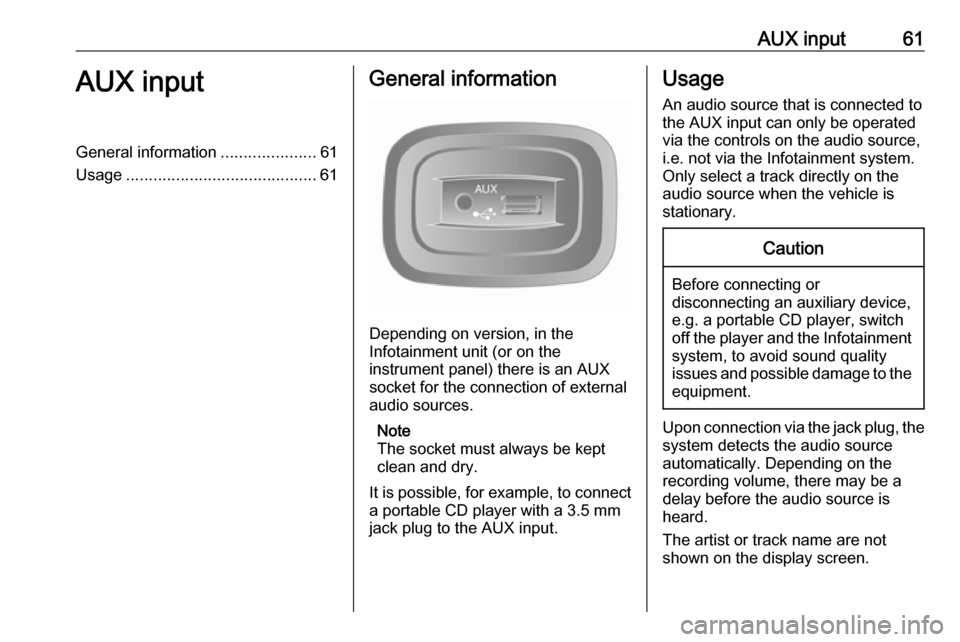
Depending on version, in the
Infotainment unit (or on the
instrument panel) there is an AUX
socket for the connection of external audio sources.
Note
The socket must always be kept
clean and dry.
It is possible, for example, to connect a portable CD player with a 3.5 mm
jack plug to the AUX input.
Usage
An audio source that is connected to
the AUX input can only be operated
via the controls on the audio source, i.e. not via the Infotainment system.
Only select a track directly on the
audio source when the vehicle is
stationary.Caution
Before connecting or
disconnecting an auxiliary device,
e.g. a portable CD player, switch off the player and the Infotainment system, to avoid sound quality
issues and possible damage to the equipment.
Upon connection via the jack plug, thesystem detects the audio source
automatically. Depending on the
recording volume, there may be a
delay before the audio source is
heard.
The artist or track name are not
shown on the display screen.
Page 62 of 129

62AUX inputNote
Ensure the auxiliary device is
securely stowed during driving.
Vehicle occupants could be injured
by objects being thrown around in
the event of hard braking, a sudden
change in direction or an accident.
R15 BT USB, R16 BT USB,
CD16 BT USB, CD18 BT USB-
AUX input usage
Press MEDIA or AUDIO/SOURCE to
change the audio source to AUX
mode, then switch on the auxiliary
device. AUX appears on the display
screen.
AUX settings
Press SETUP to access the settings
menu.
Select AUX IN and turn OK until the
desired setting is selected from:
● HI (300 mV)
● MID (600 mV)
● LO (1200 mV)NAVI 50 IntelliLink - AUX input
usage
To access the media menu at any
time, touch 7 followed by t/
ü MEDIA .
To switch between auxiliary sources,
touch S in top left corner. The
following options are available:
● USB : Refer to
(NAVI 50 IntelliLink) "USB port"
3 63.
● iPod : Refer to
(NAVI 50 IntelliLink) "USB port"
3 63.
● BT: Refer to
(NAVI 50 IntelliLink) "Bluetooth music" 3 67.
● Aha : AhaⓇ application for
smartphones (available
depending on version).
Refer to "Usage", Additional
features (NAVI 50 IntelliLink) in
the "Introduction" section 3 30.
● AUX : Select to change the audio
source to AUX mode, then switch
on the auxiliary device.NAVI 80 IntelliLink - AUX input
usage
Change the audio source to AUX
mode to playback content from a
connected auxiliary device.
To access the media menu from the
Home page, touch MENU then
Multimedia , followed by Media.
Touch < to open a pop-up menu
(depending on version). The following options are available:
● Auxiliary socket : Change the
audio source to AUX mode, then
switch on the auxiliary device.
● USB : Refer to
(NAVI 80 IntelliLink) "USB port"
3 63.
● Bluetooth connection : Refer to
(NAVI 80 IntelliLink) "Bluetooth
music" 3 67
● CD player : Refer to
(NAVI 80 IntelliLink) "CD player
usage" 3 58.
● SD card : Operation is similar to
those for the CD player 3 58.
Page 65 of 129

USB port65Refer to "Usage", Additional
features (NAVI 50 IntelliLink) in
the "Introduction" section 3 30.
● AUX : Refer to
(NAVI 50 IntelliLink) "Aux input
usage" 3 61.Main/Player
Select to display the current track. In
this display screen, the following
options are available:
● l (skip to previous track, press
and hold to fast rewind)
● =/l (pause/play)
● m (skip to next track, press and
hold to fast forward)List
Displays a list of the tracks in the
current album/folder. Select a
particular track to play it directly.
Note
By default, albums are listed in
alphabetical order.
If a USB drive is connected, all the
folders will be at the same level on
the tree structure.
To return to the previous level on the
folder tree structure, touch ò.Options
Select to display the following
options:
● Repeat (Off/Track/Folder/All)
● Shuffle (On/Off)
NAVI 80 IntelliLink - Playing
music via USB socket
MP3 player / USB drives
Change the audio source to USB
mode to playback files from a
connected USB device.
To access the media menu from the
Home page, select MENU then
Multimedia , followed by Media.
Touch < to open a pop-up menu
(depending on version). The following options are available:
● USB : Change the audio source to
USB mode.
● Auxiliary socket : Refer to
(NAVI 80 IntelliLink) "AUX input"
3 61.
● Bluetooth connection : Refer to
(NAVI 80 IntelliLink) "Playing music via Bluetooth" 3 67.● SD card
● CD player : Refer to
(NAVI 80 IntelliLink) "CD player
usage" 3 58.
When USB mode is selected, the display includes the following options:
● t or v: Move to previous/next
track.
● =: Pause track.
● Scroll bar for time elapsed: Scroll
through tracks.
● New selection : Choose another
track from the connected audio
source.
● Current playlist : Access the
current playback list.
● r: Return to previous screen.
● <: Open pop-up menu; To
change the audio source or
access the track settings (e.g.
switch on/off shuffle or repeat,
show current track details, and
access sound settings).
Page 67 of 129

Bluetooth music67Bluetooth musicGeneral information.....................67
Operation ..................................... 67General information
Bluetooth-enabled auxiliary audio
sources (e.g. music mobile phones,
MP3 players etc.), which support
Bluetooth music protocol A2DP, can
be connected wirelessly to the
Infotainment system.
Important information ● The Infotainment system only connects to Bluetooth devices
that support A2DP (Advanced Audio Distribution Profile).
Connection issues may arise with
early versions.
● The Bluetooth device must support AVRCP (Audio VideoRemote Control Profile)
version 1.0 or higher. If the
device does not support AVRCP, only the volume can be controlled via the Infotainment system.
● Before connecting the Bluetooth device to the Infotainment
system, become acquainted with
its operating instructions for
Bluetooth functions.Operation
Prerequisites The following prerequisites must be
met, in order to control a Bluetooth-
enabled audio device via the
Infotainment system:
● The Bluetooth function of the Infotainment system must be
activated.
Refer to "Bluetooth connection"
in the "Phone" section 3 111.
● The Bluetooth function of the Bluetooth-enabled auxiliary
audio source must be activated
(see audio device operating
instructions).
● Dependent upon the audio source, it may be required to set
that device to "visible" (see audio
device operating instructions).
● The audio source must be paired
and connected to the
Infotainment system.