change time OPEL ZAFIRA C 2018 Manual user
[x] Cancel search | Manufacturer: OPEL, Model Year: 2018, Model line: ZAFIRA C, Model: OPEL ZAFIRA C 2018Pages: 341, PDF Size: 9.99 MB
Page 137 of 341
Lighting135Fault in LED headlight system
When the system detects a failure in
the LED headlight system, f
illuminates and a warning is displayed in the Driver Information Centre.
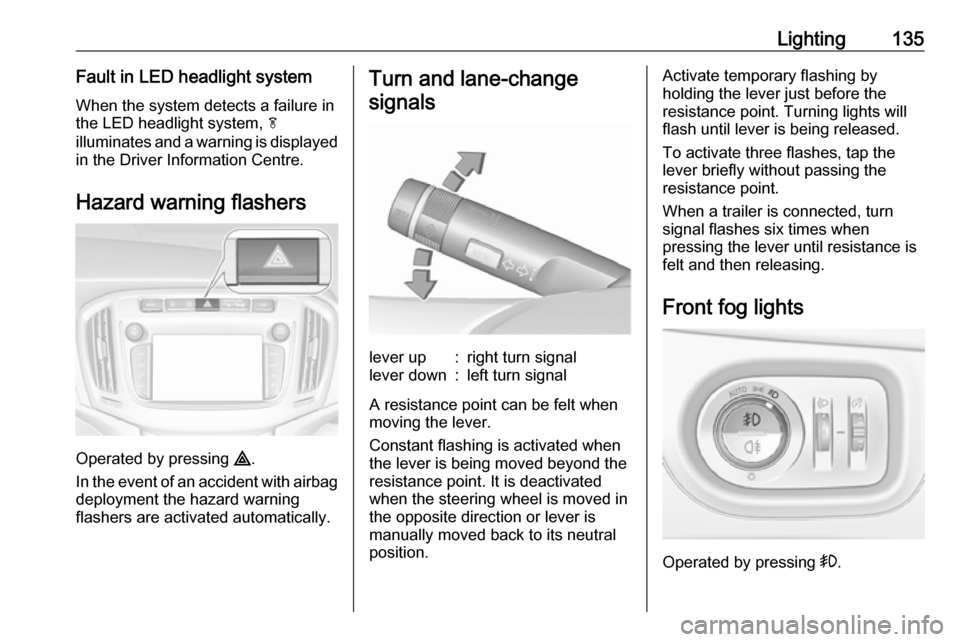
Hazard warning flashers
Operated by pressing ¨.
In the event of an accident with airbag
deployment the hazard warning
flashers are activated automatically.
Turn and lane-change
signalslever up:right turn signallever down:left turn signal
A resistance point can be felt when
moving the lever.
Constant flashing is activated when
the lever is being moved beyond the
resistance point. It is deactivated
when the steering wheel is moved in
the opposite direction or lever is
manually moved back to its neutral
position.
Activate temporary flashing by
holding the lever just before the
resistance point. Turning lights will
flash until lever is being released.
To activate three flashes, tap the
lever briefly without passing the
resistance point.
When a trailer is connected, turn
signal flashes six times when
pressing the lever until resistance is
felt and then releasing.
Front fog lights
Operated by pressing >.
Page 140 of 341
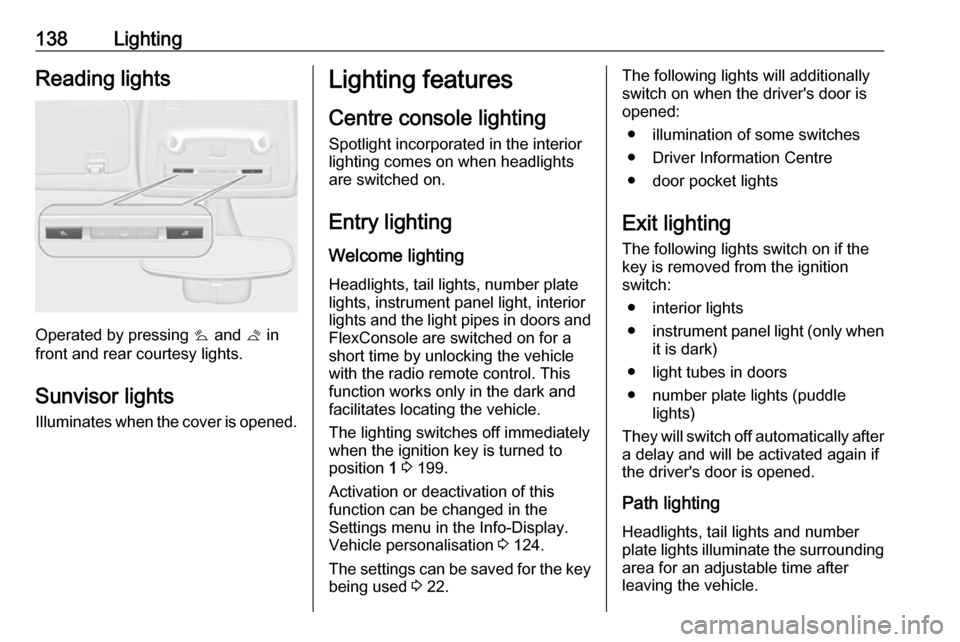
138LightingReading lights
Operated by pressing s and t in
front and rear courtesy lights.
Sunvisor lights Illuminates when the cover is opened.
Lighting features
Centre console lighting Spotlight incorporated in the interior
lighting comes on when headlights
are switched on.
Entry lighting
Welcome lighting Headlights, tail lights, number plate
lights, instrument panel light, interior
lights and the light pipes in doors and
FlexConsole are switched on for a
short time by unlocking the vehicle
with the radio remote control. This
function works only in the dark and
facilitates locating the vehicle.
The lighting switches off immediately
when the ignition key is turned to
position 1 3 199.
Activation or deactivation of this
function can be changed in the
Settings menu in the Info-Display.
Vehicle personalisation 3 124.
The settings can be saved for the key being used 3 22.The following lights will additionally
switch on when the driver's door is
opened:
● illumination of some switches
● Driver Information Centre
● door pocket lights
Exit lighting The following lights switch on if the
key is removed from the ignition
switch:
● interior lights
● instrument panel light (only when
it is dark)
● light tubes in doors
● number plate lights (puddle lights)
They will switch off automatically after
a delay and will be activated again if
the driver's door is opened.
Path lighting Headlights, tail lights and number
plate lights illuminate the surrounding
area for an adjustable time after
leaving the vehicle.
Page 141 of 341
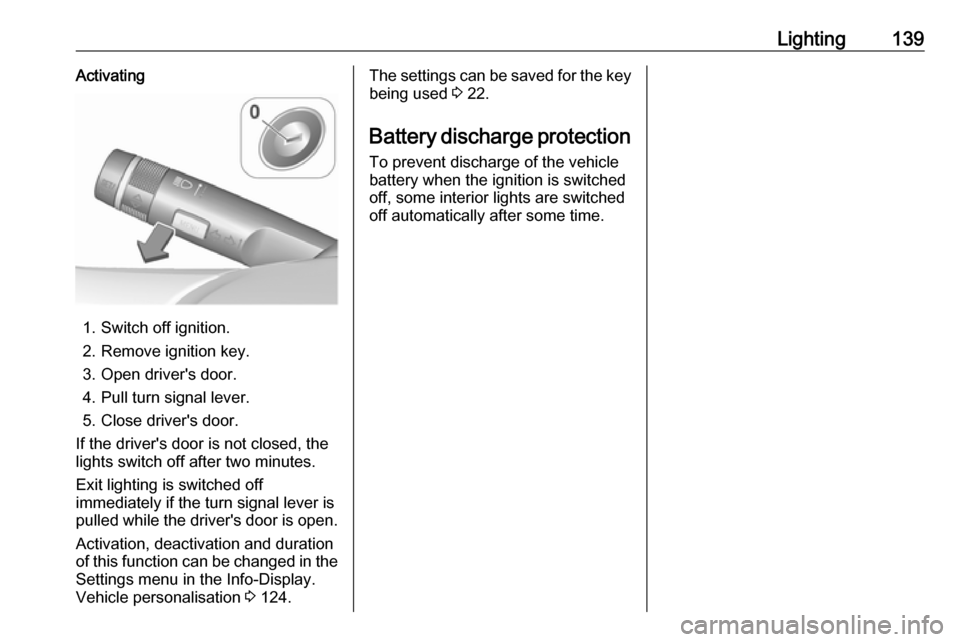
Lighting139Activating
1. Switch off ignition.
2. Remove ignition key.
3. Open driver's door.
4. Pull turn signal lever.
5. Close driver's door.
If the driver's door is not closed, the
lights switch off after two minutes.
Exit lighting is switched off
immediately if the turn signal lever is pulled while the driver's door is open.
Activation, deactivation and duration
of this function can be changed in the Settings menu in the Info-Display.
Vehicle personalisation 3 124.
The settings can be saved for the key
being used 3 22.
Battery discharge protection
To prevent discharge of the vehicle
battery when the ignition is switched
off, some interior lights are switched
off automatically after some time.
Page 143 of 341
Infotainment system141Optionally, the Infotainment system
can be operated using the touch
screen and buttons on the control
panel, the controls on the steering wheel, or - if provided by your mobile
phone - via speech recognition.
The well-thought-out design of the
control elements, the touch screen
and the clear displays enable you to
control the system easily and
intuitively.
Note
This manual describes all options
and features available for the
various Infotainment systems.
Certain descriptions, including those
for display and menu functions, may
not apply to your vehicle due to
model variant, country
specifications, special equipment or
accessories.Important information on
operation and traffic safety9 Warning
The Infotainment system must be
used so that the vehicle can be
driven safely at all times. If in
doubt, stop the vehicle and
operate the Infotainment system
while the vehicle is stationary.
9 Warning
In some areas one-way streets
and other roads and entrances
(e.g. pedestrian zones) that you
are not allowed to turn into are not marked on the map. In such areas
the Infotainment system may
issue a warning that must be
accepted. Here you must pay
particular attention to one-way
streets, roads and entrances that
you are not allowed to drive into.
Radio reception
Radio reception may be disrupted by
static, noise, distortion or loss of
reception due to:
● changes in distance from the transmitter
● multipath reception due to reflection
● shadowing
Theft-deterrent feature
The Infotainment system is equipped
with an electronic security system for
the purpose of theft deterrence.
The Infotainment system therefore
functions only in your vehicle and is
worthless to a thief.
Page 166 of 341
164Infotainment system
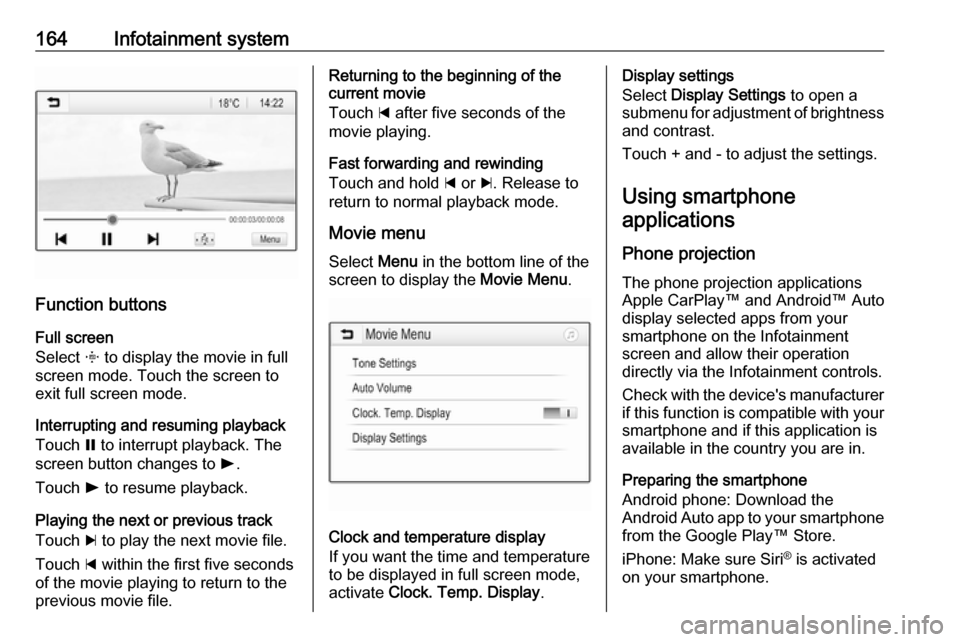
Function buttonsFull screen
Select x to display the movie in full
screen mode. Touch the screen to
exit full screen mode.
Interrupting and resuming playback
Touch = to interrupt playback. The
screen button changes to l.
Touch l to resume playback.
Playing the next or previous track
Touch c to play the next movie file.
Touch d within the first five seconds
of the movie playing to return to the
previous movie file.
Returning to the beginning of the
current movie
Touch d after five seconds of the
movie playing.
Fast forwarding and rewinding
Touch and hold d or c. Release to
return to normal playback mode.
Movie menu Select Menu in the bottom line of the
screen to display the Movie Menu.
Clock and temperature display
If you want the time and temperature
to be displayed in full screen mode,
activate Clock. Temp. Display .
Display settings
Select Display Settings to open a
submenu for adjustment of brightness and contrast.
Touch + and - to adjust the settings.
Using smartphone
applications
Phone projection
The phone projection applications
Apple CarPlay™ and Android™ Auto display selected apps from your
smartphone on the Infotainment
screen and allow their operation
directly via the Infotainment controls.
Check with the device's manufacturer if this function is compatible with your
smartphone and if this application is
available in the country you are in.
Preparing the smartphone
Android phone: Download the
Android Auto app to your smartphone
from the Google Play™ Store.
iPhone: Make sure Siri ®
is activated
on your smartphone.
Page 172 of 341

170Infotainment systemThe default setting is Auto. When
Auto is activated, the screen adjusts
automatically.
Alternatively, activate Day (light) or
Night (dark) for an only light or only
dark screen.
Autozoom function
If the autozoom function is activated
(default setting), the zoom level
changes automatically when
approaching a turning manoeuvre
during active route guidance. This
way, you always get a good overview
of the respective manoeuvre.
If the autozoom function is
deactivated, the selected zoom level
remains the same during the whole
route guidance process.
To deactivate the function, select L
on the map to display the Options
menu. Select Navigation Settings and
then touch the slider bar next to Auto
Zoom .
Touch the screen button again to reactivate the function.POI (Points of Interest) icons on the
map
POIs are points of general interest,
e.g. gas stations or restaurants.
The display of POI categories shown
on the map may be personally
adapted.
Select L on the map to display the
Options menu. Select Navigation
Settings and then Show on map .
Activate the desired POI categories.
Traffic events on the map
Traffic events may be directly
indicated on the map.
To activate the function, select L on
the map to display the Options menu.
Select Traffic on Map . The screen
button changes to activation mode.
To deactivate the function, select
Traffic on Map again.
Time indication
The time indication during active
route guidance may be displayed in
two different modes: the remaining
time (until the destination will be
reached) or the arrival time (when the destination will be reached).Select L on the map to display the
Options menu. Select Navigation
Settings and then Time to Destination
Format .
Activate the desired option in the submenu.
Note
During active route guidance, the
time indication can be changed by
simply tapping on the time indication field on the screen.
Alert preferences
If desired, you may receive an additional notification in specific traffic
zones.
Select L on the map to display the
Options menu. Select Navigation
Settings and then Alert Preferences .
If Safety camera is activated, you are
warned when approaching a
stationary speed camera.
Note
This function is only available if such an alert system corresponds to the
legal provisions applicable in the
country you are in.
Activate the desired option.
Page 178 of 341
176Infotainment system
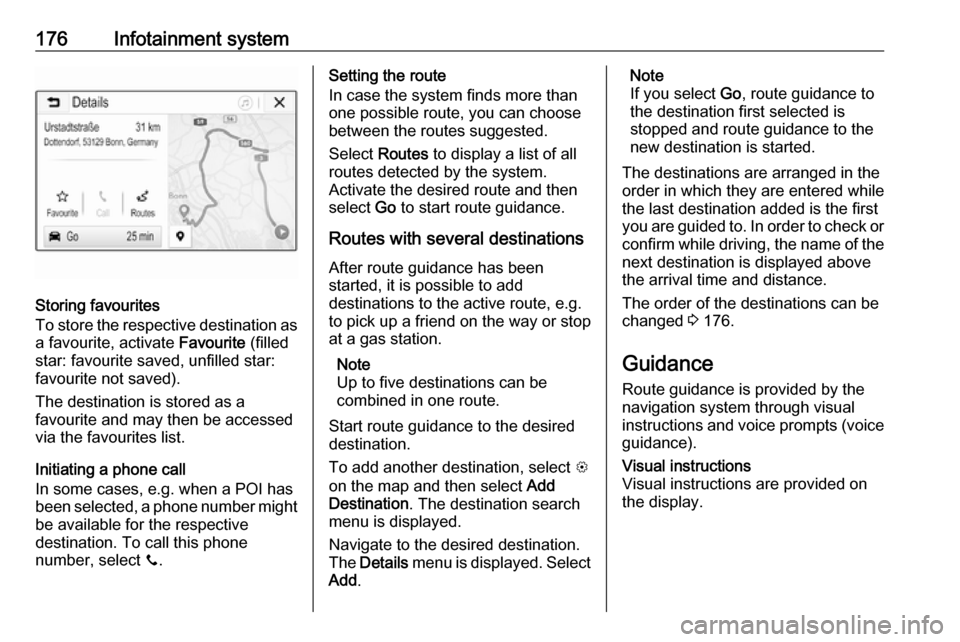
Storing favourites
To store the respective destination as
a favourite, activate Favourite (filled
star: favourite saved, unfilled star:
favourite not saved).
The destination is stored as a
favourite and may then be accessed
via the favourites list.
Initiating a phone call
In some cases, e.g. when a POI has
been selected, a phone number might
be available for the respective
destination. To call this phone
number, select y.
Setting the route
In case the system finds more than
one possible route, you can choose
between the routes suggested.
Select Routes to display a list of all
routes detected by the system.
Activate the desired route and then
select Go to start route guidance.
Routes with several destinations After route guidance has been
started, it is possible to add
destinations to the active route, e.g.
to pick up a friend on the way or stop
at a gas station.
Note
Up to five destinations can be
combined in one route.
Start route guidance to the desired destination.
To add another destination, select L
on the map and then select Add
Destination . The destination search
menu is displayed.
Navigate to the desired destination.
The Details menu is displayed. Select
Add .Note
If you select Go, route guidance to
the destination first selected is stopped and route guidance to the
new destination is started.
The destinations are arranged in the
order in which they are entered while
the last destination added is the first
you are guided to. In order to check or
confirm while driving, the name of the next destination is displayed abovethe arrival time and distance.
The order of the destinations can be
changed 3 176.
Guidance
Route guidance is provided by the
navigation system through visual
instructions and voice prompts (voice guidance).Visual instructions
Visual instructions are provided on
the display.
Page 179 of 341
Infotainment system177
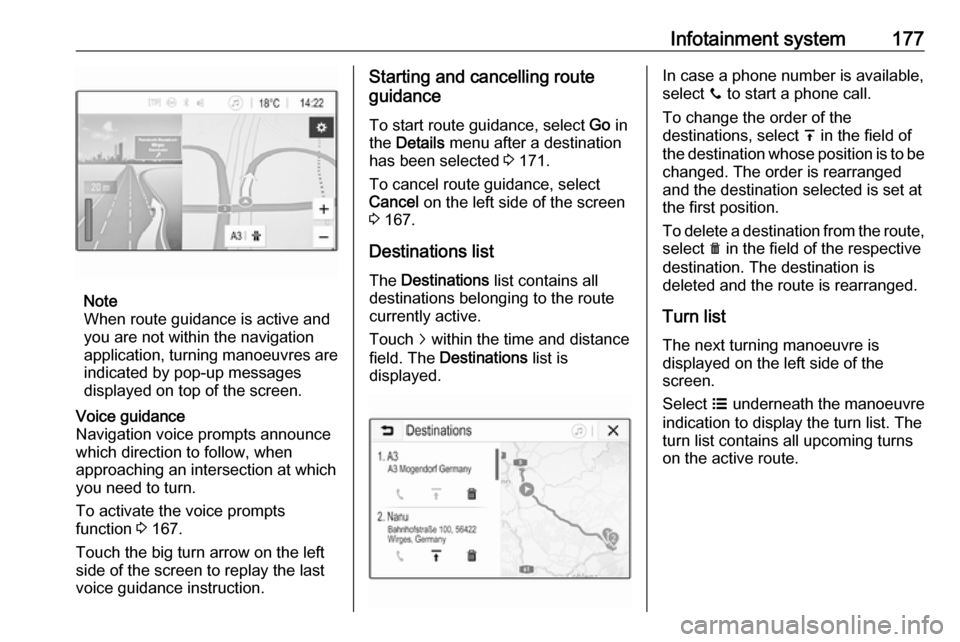
Note
When route guidance is active and
you are not within the navigation
application, turning manoeuvres are indicated by pop-up messages
displayed on top of the screen.
Voice guidance
Navigation voice prompts announce
which direction to follow, when
approaching an intersection at which
you need to turn.
To activate the voice prompts
function 3 167.
Touch the big turn arrow on the left side of the screen to replay the last voice guidance instruction.Starting and cancelling route
guidance
To start route guidance, select Go in
the Details menu after a destination
has been selected 3 171.
To cancel route guidance, select
Cancel on the left side of the screen
3 167.
Destinations list
The Destinations list contains all
destinations belonging to the route
currently active.
Touch j within the time and distance
field. The Destinations list is
displayed.In case a phone number is available,
select y to start a phone call.
To change the order of the
destinations, select h in the field of
the destination whose position is to be changed. The order is rearranged
and the destination selected is set at
the first position.
To delete a destination from the route,
select e in the field of the respective
destination. The destination is
deleted and the route is rearranged.
Turn listThe next turning manoeuvre is
displayed on the left side of the
screen.
Select a underneath the manoeuvre
indication to display the turn list. The
turn list contains all upcoming turns
on the active route.
Page 183 of 341
Infotainment system181Important information for
operation and traffic safety9 Warning
Mobile phones have effects on
your environment. For this reason safety regulations and directions
have been prepared. You should
be familiar with the related
directions before you use the
telephone function.
9 Warning
Use of the hands-free facility while
driving can be dangerous because
your concentration is reduced
when telephoning. Park your
vehicle before you use the hands- free facility. Follow the stipulations
of the country in which you find
yourself at present.
Do not forget to follow the special
regulations that apply in specific
areas and always switch off the
mobile phone if the use of mobile
phones is prohibited, if
interference is caused by the
mobile phone or if dangerous
situations can occur.
Bluetooth
The Phone portal is certified by the
Bluetooth Special Interest Group
(SIG).
You can find further information about the specification on the internet at
http://www.bluetooth.com.
Bluetooth connection
Bluetooth is a radio standard for the
wireless connection of e.g. mobile
phones, smartphones or other
devices.
Via the Bluetooth menu, pairing (PIN
code exchange between Bluetooth
device and Infotainment system) and
connecting of the Bluetooth devices
to the Infotainment system are carried out.
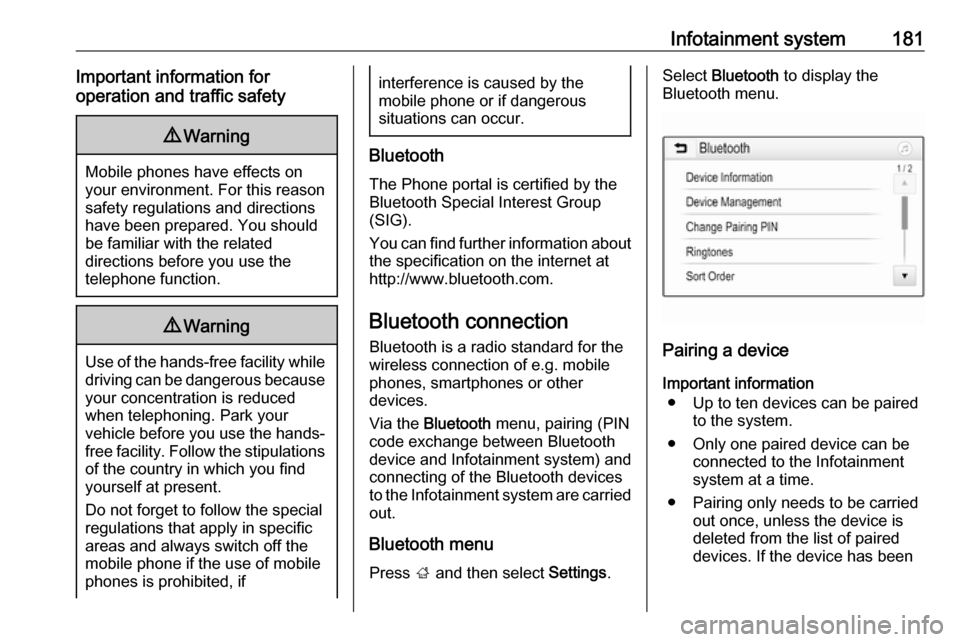
Bluetooth menu Press ; and then select Settings.
Select Bluetooth to display the
Bluetooth menu.
Pairing a device
Important information ● Up to ten devices can be paired to the system.
● Only one paired device can be connected to the Infotainment
system at a time.
● Pairing only needs to be carried out once, unless the device is
deleted from the list of paired
devices. If the device has been
Page 229 of 341
Driving and operating227DeactivationAdaptive cruise control is deactivatedby the driver when:
● y is pressed.
● Brake pedal is applied.
● Clutch pedal is depressed for more than four seconds.
● Selector lever of automatic transmission is moved to N.
The system is also automatically
deactivated when:
● Vehicle speed accelerates above
190 km/h or slows down below
45 km/h.
● The Traction Control system is operating.
● Electronic Stability Control is operating.
● There is no traffic and nothing detected on the road sides for
several minutes. In this case
there are no radar echoes and
the sensor may report that it is
blocked.
● The active emergency braking system is applying the brakes.● Driving on steep inclines.
● Radar sensor is blocked by an ice
or water film.
● A fault is detected in the radar, engine or brake system.
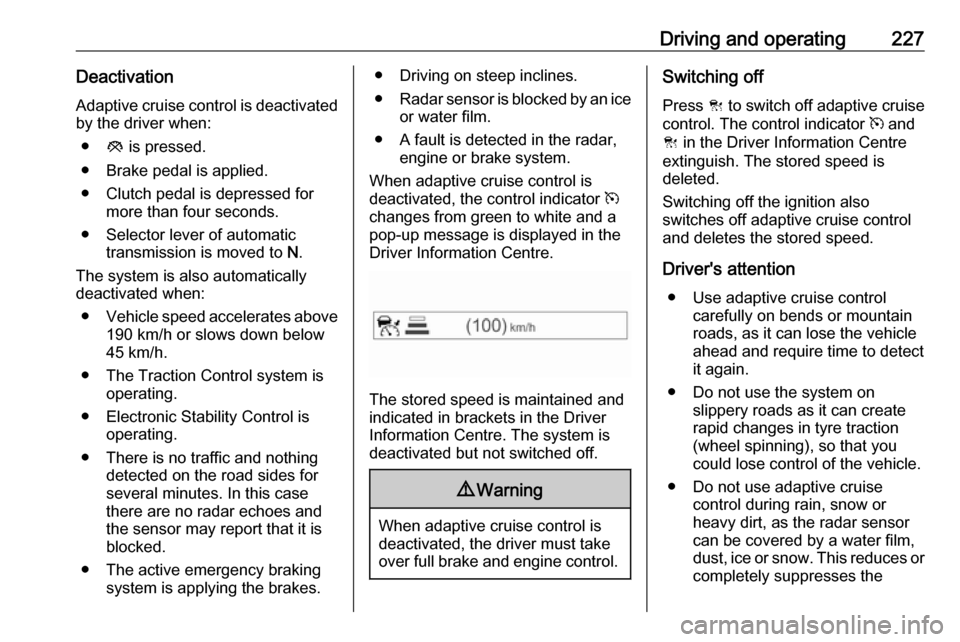
When adaptive cruise control is
deactivated, the control indicator m
changes from green to white and a
pop-up message is displayed in the
Driver Information Centre.
The stored speed is maintained and
indicated in brackets in the Driver
Information Centre. The system is
deactivated but not switched off.
9 Warning
When adaptive cruise control is
deactivated, the driver must take
over full brake and engine control.
Switching off
Press C to switch off adaptive cruise
control. The control indicator m and
C in the Driver Information Centre
extinguish. The stored speed is
deleted.
Switching off the ignition also
switches off adaptive cruise control
and deletes the stored speed.
Driver's attention ● Use adaptive cruise control carefully on bends or mountain
roads, as it can lose the vehicle
ahead and require time to detect
it again.
● Do not use the system on slippery roads as it can create
rapid changes in tyre traction
(wheel spinning), so that you
could lose control of the vehicle.
● Do not use adaptive cruise control during rain, snow or
heavy dirt, as the radar sensor
can be covered by a water film,
dust, ice or snow. This reduces or completely suppresses the