infotainment OPEL ZAFIRA C 2018 Manual user
[x] Cancel search | Manufacturer: OPEL, Model Year: 2018, Model line: ZAFIRA C, Model: OPEL ZAFIRA C 2018Pages: 341, PDF Size: 9.99 MB
Page 148 of 341
146Infotainment system
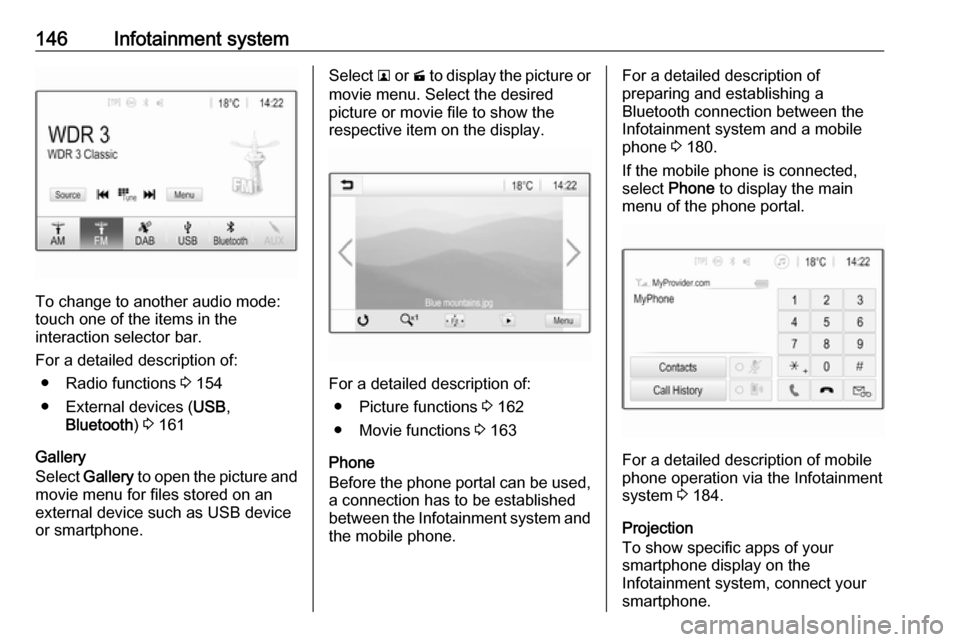
To change to another audio mode:
touch one of the items in the
interaction selector bar.
For a detailed description of: ● Radio functions 3 154
● External devices ( USB,
Bluetooth ) 3 161
Gallery
Select Gallery to open the picture and
movie menu for files stored on an
external device such as USB device
or smartphone.
Select l or m to display the picture or
movie menu. Select the desired
picture or movie file to show the
respective item on the display.
For a detailed description of:
● Picture functions 3 162
● Movie functions 3 163
Phone
Before the phone portal can be used, a connection has to be established
between the Infotainment system and
the mobile phone.
For a detailed description of
preparing and establishing a
Bluetooth connection between the Infotainment system and a mobile
phone 3 180.
If the mobile phone is connected,
select Phone to display the main
menu of the phone portal.
For a detailed description of mobile
phone operation via the Infotainment
system 3 184.
Projection
To show specific apps of your
smartphone display on the
Infotainment system, connect your smartphone.
Page 149 of 341
Infotainment system147Select Projection to start the
projection function.
Depending on the smartphone
connected, a main menu with
different selectable apps is displayed.
For a detailed description 3 164.
Nav
(R 4.0 IntelliLink, if Projection not
available)
To start the BringGo navigation
application, select Nav.
For a detailed description 3 164.
Navigation
(Navi 4.0 IntelliLink)
Press ; to display the home screen.
Select Navigation to display the
navigation map showing the area
around the current location.
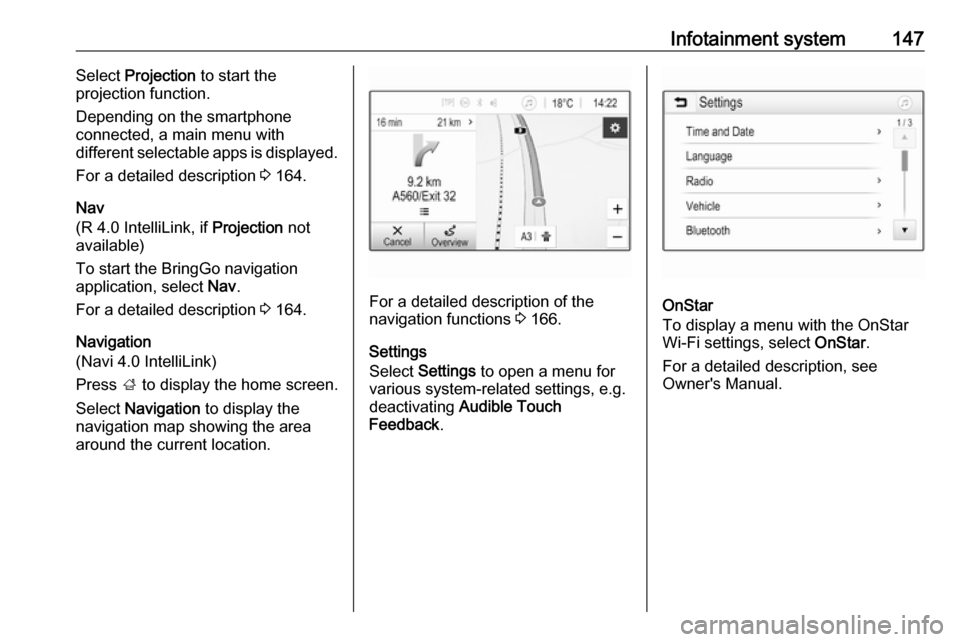
For a detailed description of the
navigation functions 3 166.
Settings
Select Settings to open a menu for
various system-related settings, e.g.
deactivating Audible Touch
Feedback .OnStar
To display a menu with the OnStar
Wi-Fi settings, select OnStar.
For a detailed description, see
Owner's Manual.
Page 150 of 341
148Infotainment systemBasic operationThe Infotainment system display has
a touch-sensitive surface that allows
direct interaction with the displayed
menu controls.Caution
Do not use pointed or hard items
like ballpoint pens, pencils or
similar for touch screen operation.
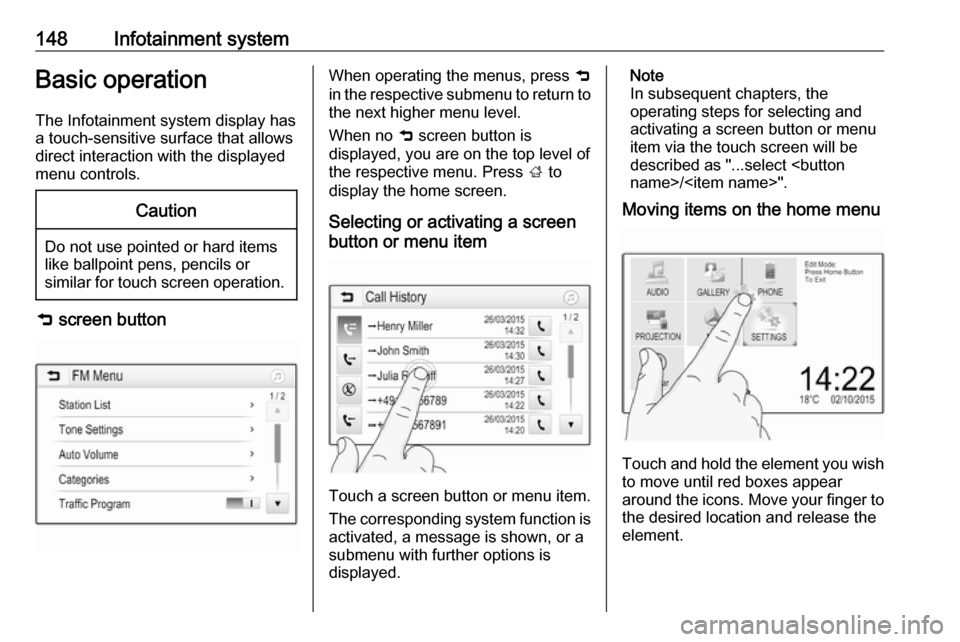
9 screen button
When operating the menus, press 9
in the respective submenu to return to
the next higher menu level.
When no 9 screen button is
displayed, you are on the top level of
the respective menu. Press ; to
display the home screen.
Selecting or activating a screen
button or menu item
Touch a screen button or menu item.
The corresponding system function is activated, a message is shown, or a
submenu with further options is
displayed.
Note
In subsequent chapters, the
operating steps for selecting and
activating a screen button or menu
item via the touch screen will be
described as "...select
Moving items on the home menu
Touch and hold the element you wish
to move until red boxes appear
around the icons. Move your finger to
the desired location and release the
element.
Page 151 of 341
Infotainment system149Note
Constant pressure must be applied
and the finger must be moved at a
constant speed.
All other items are rearranged.
Press one of the buttons on the
control panel to exit edit mode.
Note
Edit mode exits automatically after
30 seconds of inactivity.
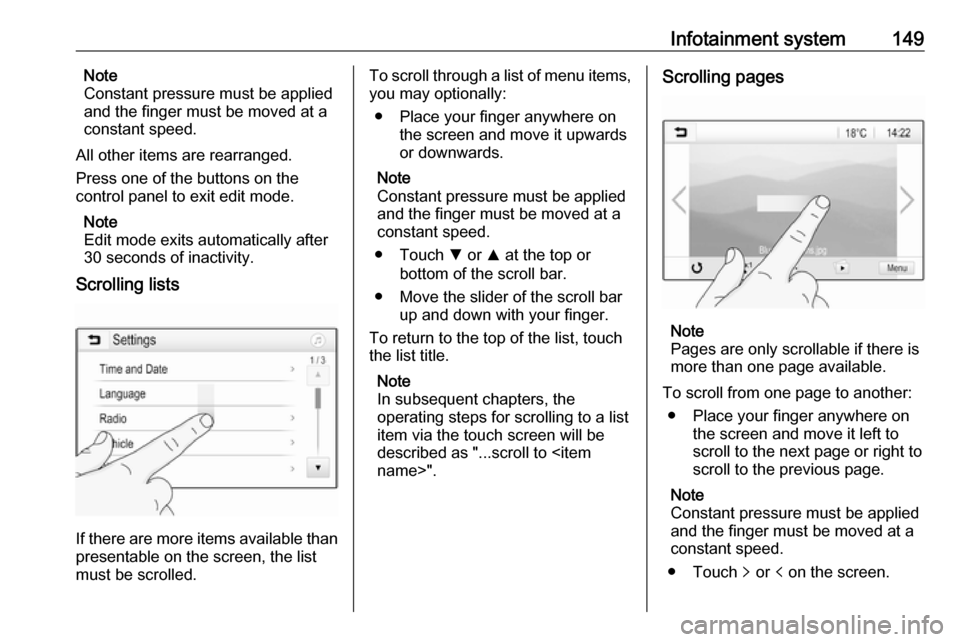
Scrolling lists
If there are more items available than
presentable on the screen, the list
must be scrolled.
To scroll through a list of menu items, you may optionally:
● Place your finger anywhere on the screen and move it upwards
or downwards.
Note
Constant pressure must be applied and the finger must be moved at a
constant speed.
● Touch S or R at the top or
bottom of the scroll bar.
● Move the slider of the scroll bar up and down with your finger.
To return to the top of the list, touch
the list title.
Note
In subsequent chapters, the
operating steps for scrolling to a list item via the touch screen will be
described as "...scroll to
Note
Pages are only scrollable if there is
more than one page available.
To scroll from one page to another: ● Place your finger anywhere on the screen and move it left to
scroll to the next page or right to
scroll to the previous page.
Note
Constant pressure must be applied
and the finger must be moved at a
constant speed.
● Touch q or p on the screen.
Page 152 of 341
150Infotainment systemNote
In subsequent chapters, the
operating steps for scrolling pages via the touch screen will be
described as "...scroll to...page...".
Quick-jumping to the Audio and
Navigation application
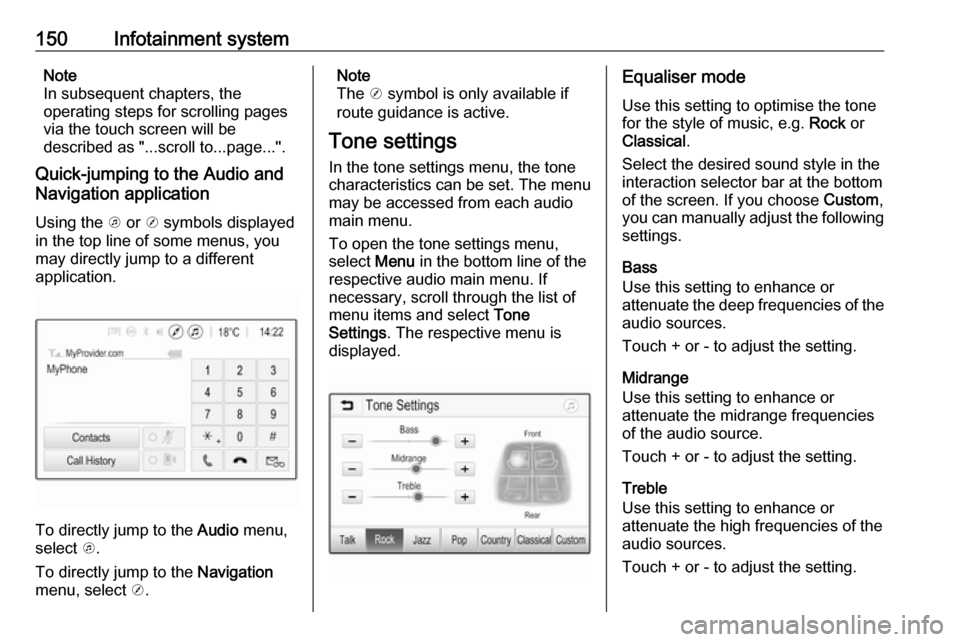
Using the k or j symbols displayed
in the top line of some menus, you may directly jump to a different
application.
To directly jump to the Audio menu,
select k.
To directly jump to the Navigation
menu, select j.
Note
The j symbol is only available if
route guidance is active.
Tone settings
In the tone settings menu, the tone characteristics can be set. The menu
may be accessed from each audio
main menu.
To open the tone settings menu,
select Menu in the bottom line of the
respective audio main menu. If
necessary, scroll through the list of
menu items and select Tone
Settings . The respective menu is
displayed.Equaliser mode
Use this setting to optimise the tone for the style of music, e.g. Rock or
Classical .
Select the desired sound style in the
interaction selector bar at the bottom of the screen. If you choose Custom,
you can manually adjust the following settings.
Bass
Use this setting to enhance or
attenuate the deep frequencies of the
audio sources.
Touch + or - to adjust the setting.
Midrange
Use this setting to enhance or
attenuate the midrange frequencies
of the audio source.
Touch + or - to adjust the setting.
Treble
Use this setting to enhance or
attenuate the high frequencies of the
audio sources.
Touch + or - to adjust the setting.
Page 153 of 341

Infotainment system151Setting balance and fader
Use the illustration at the right side of
the menu to adjust balance and fader.
To define the point in the passenger
compartment where the sound is at its
highest level, touch the
corresponding point in the illustration.
Note
The balance and fader settings are
valid for all audio sources. They
cannot be adjusted individually for
each audio source.
Volume settings
Adjusting the maximum startup
volume
Press ; and then select Settings.
Select Radio, scroll through the list
and then select Max Startup Volume .
For reasons of security and
convenience, the volume range is
limited.
Touch + or - to adjust the setting or
move the slider on the volume bar.Adjusting the speed
compensated volume
Press ; and then select Settings.
Select Radio, scroll through the list
and then select Auto Volume.
To adjust the degree of volume
adaptation, select one of the options
in the list.
Off : no enhancement of volume with
increasing vehicle speed.
High : maximum enhancement of
volume with increasing vehicle
speed.
Activating or deactivating the
audible touch feedback function
If the audible touch feedback function is activated, each touch of a screen
button or menu item is indicated by a
beeping sound.
Press ; and then select Settings.
Select Radio and then scroll through
the list to Audible Touch Feedback .
Touch the screen button next to
Audible Touch Feedback to activate
or deactivate the function.
Volume of traffic announcements To adjust the volume of traffic
announcements, set the desired volume while a traffic announcement
is given out by the system. The
respective setting is then stored by
the system.
Page 154 of 341
152Infotainment systemSystem settings
The following settings concern the
whole system. All other settings are
described by theme in the respective
chapters of this manual.
Time and date settings Press ; and then select Settings.
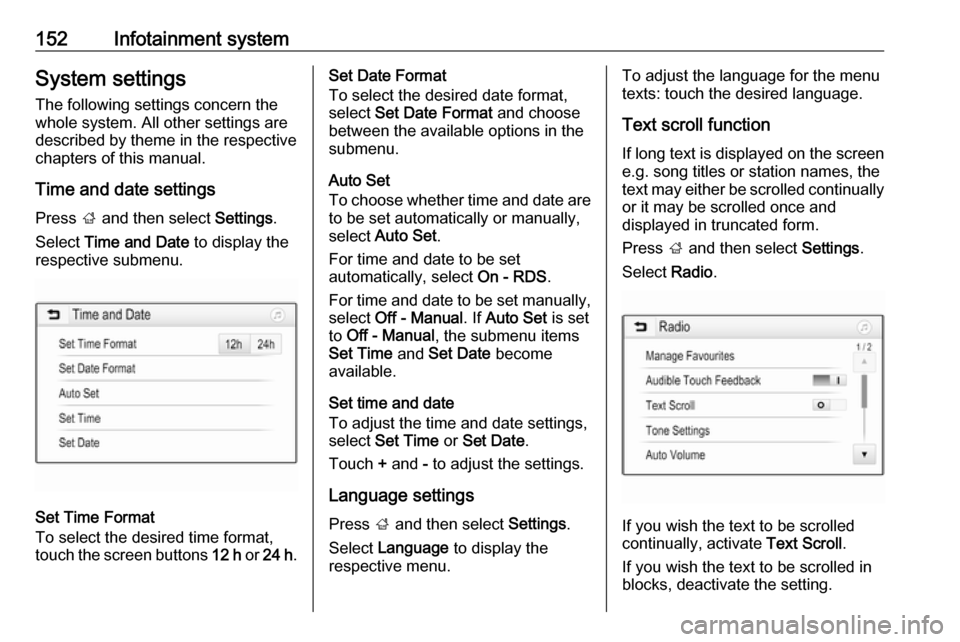
Select Time and Date to display the
respective submenu.
Set Time Format
To select the desired time format,
touch the screen buttons 12 h or 24 h .
Set Date Format
To select the desired date format,
select Set Date Format and choose
between the available options in the
submenu.
Auto Set
To choose whether time and date are
to be set automatically or manually,
select Auto Set .
For time and date to be set
automatically, select On - RDS.
For time and date to be set manually, select Off - Manual . If Auto Set is set
to Off - Manual , the submenu items
Set Time and Set Date become
available.
Set time and date
To adjust the time and date settings, select Set Time or Set Date .
Touch + and - to adjust the settings.
Language settings
Press ; and then select Settings.
Select Language to display the
respective menu.To adjust the language for the menu
texts: touch the desired language.
Text scroll function
If long text is displayed on the screen e.g. song titles or station names, the
text may either be scrolled continually
or it may be scrolled once and
displayed in truncated form.
Press ; and then select Settings.
Select Radio.
If you wish the text to be scrolled
continually, activate Text Scroll.
If you wish the text to be scrolled in
blocks, deactivate the setting.
Page 155 of 341

Infotainment system153Black display functionIf you do not want to see the
illuminated display, e.g. during night
time, you can turn the display off.
Press ; and then select Settings.
Scroll through the list and select Turn
Display Off . The display is turned off;
the audio functions remain active.
To turn the display on again, touch the screen or press a button.
Factory defaults
(R 4.0 IntelliLink)
Press ; and then select Settings.
Scroll through the list and select
Return to Factory Settings .
To restore all vehicle personalisation
settings, select Restore Vehicle
Settings .
To delete the paired Bluetooth
devices, the contacts list and the
voice mail numbers stored, select Clear All Private Data .
To reset tone and volume settings,
delete all favourites, and erase the
ringtone selection, select Restore
Radio Settings .In each case, a warning message is
displayed. Select Continue to reset
the settings.
Factory defaults
(Navi 4.0 IntelliLink)
Press ; and then select Settings.
Scroll through the list and select Restore Factory Settings .
Vehicle settings
To restore all vehicle personalisation settings, select Reset Vehicle
Settings .
A pop-up is displayed. Confirm the
pop-up message.
Phone information
To delete the paired Bluetooth
devices, the contacts list and the
voice mail numbers stored, select Clear all phone information .
A pop-up is displayed. Confirm the
pop-up message.
Radio settings
To reset tone and volume settings
and delete all favourites, select
Restore Radio Settings .A pop-up is displayed. Confirm the
pop-up message.
Navigation settings
To reset all navigation parameters
and navigation system settings,
select Restore Navigation Settings . A
submenu is displayed.
Depending on which set of
parameters you want to reset, select
Clear navigation history (recent
destinations), Clear navigation
favourites (favourites) or Reset
navigation options and settings (e.g.
settings concerning map display,
voice output or route options).
A pop-up is displayed. Confirm the
pop-up message.
System versionPress ; and then select Settings.
Scroll through the list and select
Software Information .
If a USB device is connected, you
may save the vehicle information to
this USB device.
Select System Update and then Save
Vehicle Info to USB .
Page 156 of 341

154Infotainment systemFor a system update, contact your
workshop.
Vehicle settings Vehicle settings are described in the
Owner's Manual.Radio
Usage
Activating radio Press ; and then select Audio. The
audio main menu last selected is
displayed.
Select Source in the radio main menu
to open the interaction selector bar.
Select the desired waveband.
The station last played in the selected waveband will be received.
Station search
Automatic station search
Briefly press or touch t or v on the
control panel or on the screen to play the previous or next station in the
station memory.
Manual station search
Press and hold t or v on the
control panel. Release when the
required frequency has almost been
reached.
A search is made for the next station that can be received and it is played
automatically.
Page 157 of 341

Infotainment system155Note
FM waveband: when the RDS
function is activated, only RDS
stations 3 157 are searched for, and
when the radio traffic service (TP) is activated, only traffic service
stations 3 157 are searched for.
Station tuning
Touch B on the screen. The Direct
tune display is shown.
Enter the desired frequency. Use r
to delete digits entered. If necessary, touch d or c to subsequently adjust
the input.
Confirm the input to play the station.
Station lists
Select Menu in the radio main menu
to open the corresponding
waveband-specific submenu.
Select the waveband-specific Station
List . All receivable stations of the
relevant waveband and in the current
reception area are displayed.
Select the desired station.
Note
The currently received radio station
is indicated by the l symbol next to
the station name.
Category lists
Numerous radio stations broadcast a
PTY code, which specifies the type of programme transmitted (e.g. news).
Some stations also change the PTY
code depending on the content which is currently transmitted.
The Infotainment system stores these
stations, sorted by programme type in
the corresponding category list.
Note
The Categories list item is only
available for the FM and the DAB wavebands.
To search for a programme type
determined by the stations, select
Categories .
A list of programme types currently
available is displayed.
Select the desired programme type. A
list of stations is displayed
transmitting a programme of the
selected type.
Select the desired station.