phone OPEL ZAFIRA C 2018 Manual user
[x] Cancel search | Manufacturer: OPEL, Model Year: 2018, Model line: ZAFIRA C, Model: OPEL ZAFIRA C 2018Pages: 341, PDF Size: 9.99 MB
Page 178 of 341
176Infotainment system
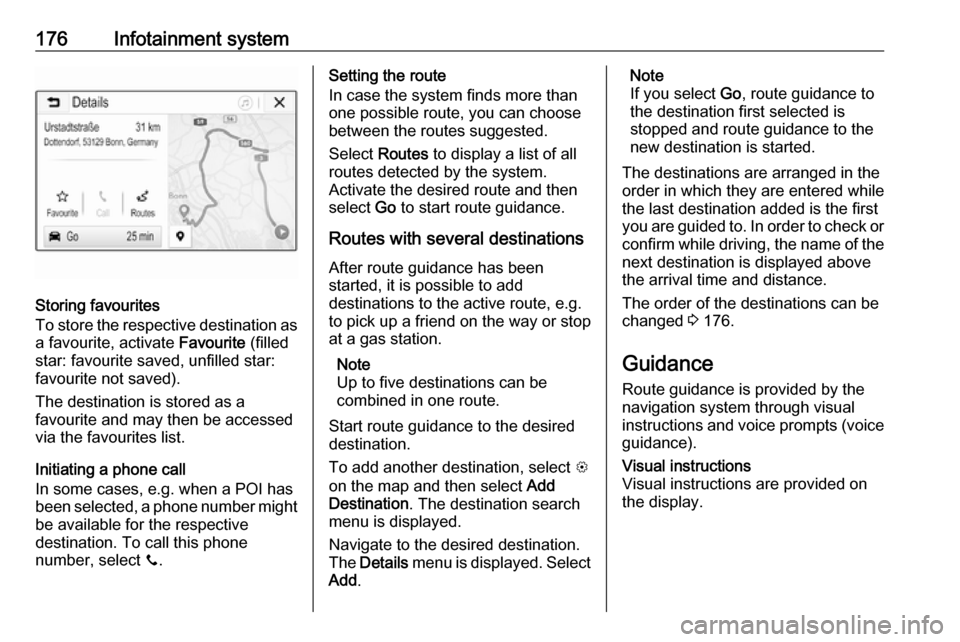
Storing favourites
To store the respective destination as
a favourite, activate Favourite (filled
star: favourite saved, unfilled star:
favourite not saved).
The destination is stored as a
favourite and may then be accessed
via the favourites list.
Initiating a phone call
In some cases, e.g. when a POI has
been selected, a phone number might
be available for the respective
destination. To call this phone
number, select y.
Setting the route
In case the system finds more than
one possible route, you can choose
between the routes suggested.
Select Routes to display a list of all
routes detected by the system.
Activate the desired route and then
select Go to start route guidance.
Routes with several destinations After route guidance has been
started, it is possible to add
destinations to the active route, e.g.
to pick up a friend on the way or stop
at a gas station.
Note
Up to five destinations can be
combined in one route.
Start route guidance to the desired destination.
To add another destination, select L
on the map and then select Add
Destination . The destination search
menu is displayed.
Navigate to the desired destination.
The Details menu is displayed. Select
Add .Note
If you select Go, route guidance to
the destination first selected is stopped and route guidance to the
new destination is started.
The destinations are arranged in the
order in which they are entered while
the last destination added is the first
you are guided to. In order to check or
confirm while driving, the name of the next destination is displayed abovethe arrival time and distance.
The order of the destinations can be
changed 3 176.
Guidance
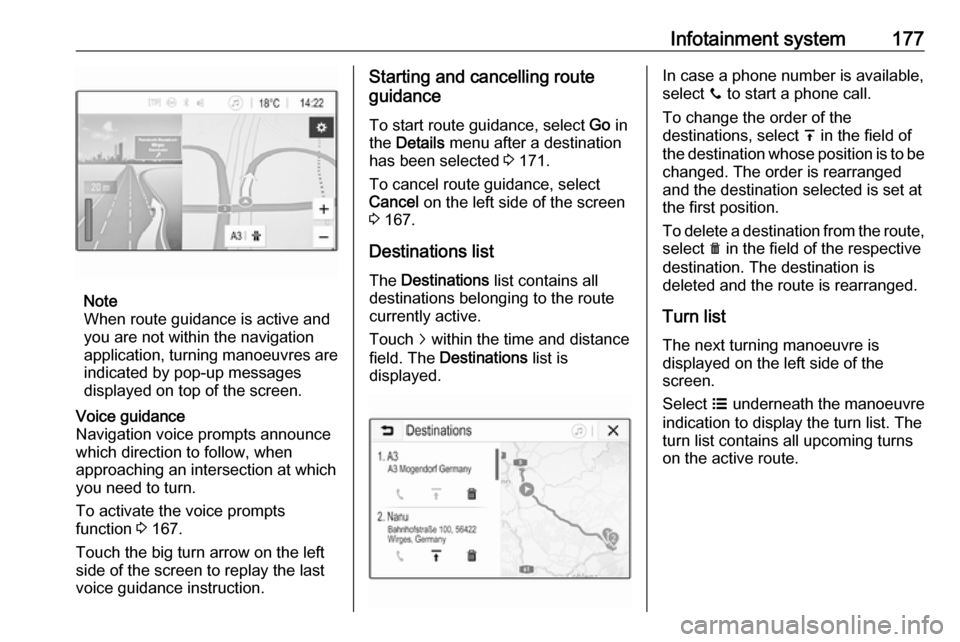
Route guidance is provided by the
navigation system through visual
instructions and voice prompts (voice guidance).Visual instructions
Visual instructions are provided on
the display.
Page 179 of 341
Infotainment system177
Note
When route guidance is active and
you are not within the navigation
application, turning manoeuvres are indicated by pop-up messages
displayed on top of the screen.
Voice guidance
Navigation voice prompts announce
which direction to follow, when
approaching an intersection at which
you need to turn.
To activate the voice prompts
function 3 167.
Touch the big turn arrow on the left side of the screen to replay the last voice guidance instruction.Starting and cancelling route
guidance
To start route guidance, select Go in
the Details menu after a destination
has been selected 3 171.
To cancel route guidance, select
Cancel on the left side of the screen
3 167.
Destinations list
The Destinations list contains all
destinations belonging to the route
currently active.
Touch j within the time and distance
field. The Destinations list is
displayed.In case a phone number is available,
select y to start a phone call.
To change the order of the
destinations, select h in the field of
the destination whose position is to be changed. The order is rearranged
and the destination selected is set at
the first position.
To delete a destination from the route,
select e in the field of the respective
destination. The destination is
deleted and the route is rearranged.
Turn listThe next turning manoeuvre is
displayed on the left side of the
screen.
Select a underneath the manoeuvre
indication to display the turn list. The
turn list contains all upcoming turns
on the active route.
Page 182 of 341

180Infotainment systemSpeech recognitionGeneral information
The voice pass-thru application of the
Infotainment system allows access to the speech recognition commands on your smartphone. See your
smartphone manufacturer's
operating instructions to find out
whether your smartphone supports this feature.
In order to use the voice pass-thru
application, the smartphone must be
connected to the Infotainment system
via USB cable 3 159 or via Bluetooth
3 181.
Usage
Activating speech recognition
Press and hold g on the control panel
or 7w on the steering wheel to start a
speech recognition session. A voice
command message is displayed on
the screen.As soon as a beep is heard, you can
say a command. For information on
the commands supported, see the
operating instructions for your
smartphone.
Adjusting the volume of voice
prompts
Turn m on the control panel or press
+ / - on the right side of the steering
wheel to increase or decrease the
volume of voice prompts.
Deactivating speech recognition
Press xn on the steering wheel.
The voice command message
disappears and the speech
recognition session is ended.Phone
General information
The Phone portal provides you with
the possibility of having mobile phone
conversations via a vehicle
microphone and the vehicle
loudspeakers as well as operating the most important mobile phone
functions via the Infotainment system
in the vehicle. To be able to use the
Phone portal, the mobile phone must
be connected to the Infotainment
system via Bluetooth.
Not all Phone functions are supported by every mobile phone. The usable
phone functions depend on the
relevant mobile phone and network
provider. You can find further
information on this in the operating
instructions for your mobile phone, or you can enquire about them with yournetwork provider.
Page 183 of 341
Infotainment system181Important information for
operation and traffic safety9 Warning
Mobile phones have effects on
your environment. For this reason safety regulations and directions
have been prepared. You should
be familiar with the related
directions before you use the
telephone function.
9 Warning
Use of the hands-free facility while
driving can be dangerous because
your concentration is reduced
when telephoning. Park your
vehicle before you use the hands- free facility. Follow the stipulations
of the country in which you find
yourself at present.
Do not forget to follow the special
regulations that apply in specific
areas and always switch off the
mobile phone if the use of mobile
phones is prohibited, if
interference is caused by the
mobile phone or if dangerous
situations can occur.
Bluetooth
The Phone portal is certified by the
Bluetooth Special Interest Group
(SIG).
You can find further information about the specification on the internet at
http://www.bluetooth.com.
Bluetooth connection
Bluetooth is a radio standard for the
wireless connection of e.g. mobile
phones, smartphones or other
devices.
Via the Bluetooth menu, pairing (PIN
code exchange between Bluetooth
device and Infotainment system) and
connecting of the Bluetooth devices
to the Infotainment system are carried out.
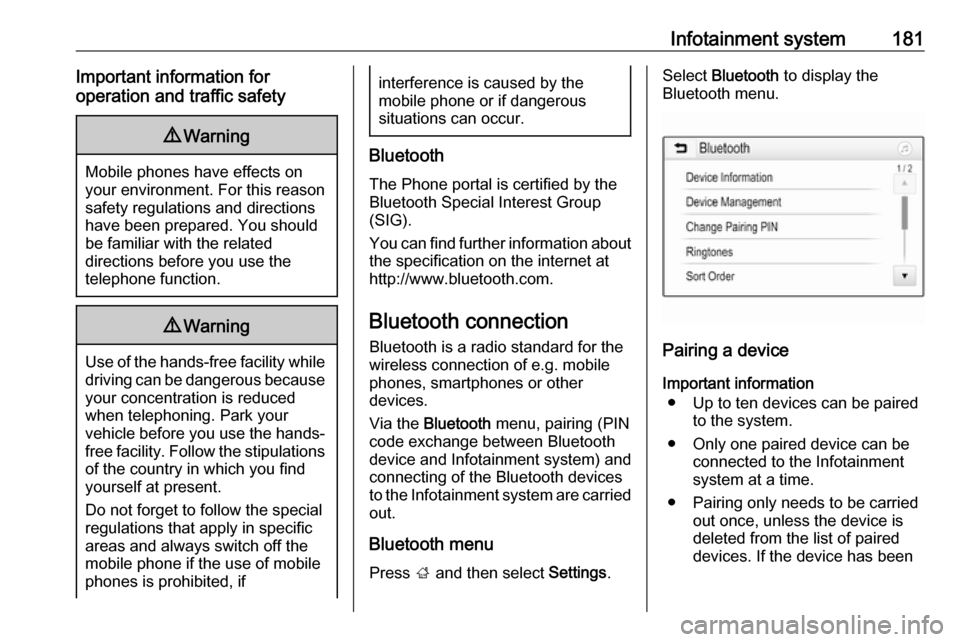
Bluetooth menu Press ; and then select Settings.
Select Bluetooth to display the
Bluetooth menu.
Pairing a device
Important information ● Up to ten devices can be paired to the system.
● Only one paired device can be connected to the Infotainment
system at a time.
● Pairing only needs to be carried out once, unless the device is
deleted from the list of paired
devices. If the device has been
Page 184 of 341
182Infotainment systemconnected previously, the
Infotainment system establishes
the connection automatically.
● Bluetooth operation considerably
drains the device's battery.
Therefore, connect the device to
the USB port for charging.
Pairing a new device 1. Activate the Bluetooth function of the Bluetooth device. For further
information, see the operating
instructions for the Bluetooth
device.
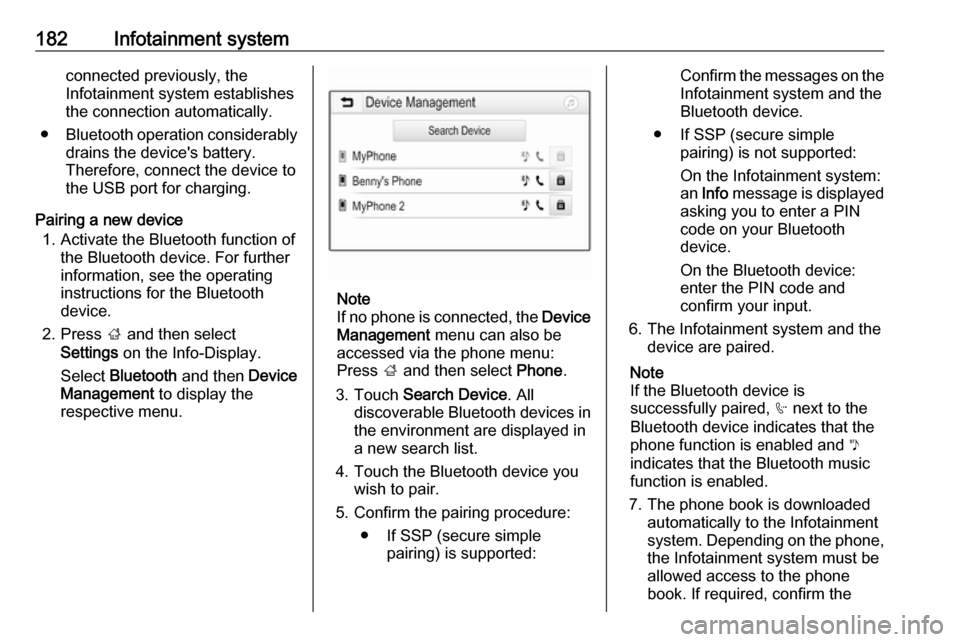
2. Press ; and then select
Settings on the Info-Display.
Select Bluetooth and then Device
Management to display the
respective menu.
Note
If no phone is connected, the Device
Management menu can also be
accessed via the phone menu: Press ; and then select Phone.
3. Touch Search Device . All
discoverable Bluetooth devices in
the environment are displayed in
a new search list.
4. Touch the Bluetooth device you wish to pair.
5. Confirm the pairing procedure: ● If SSP (secure simple pairing) is supported:
Confirm the messages on theInfotainment system and theBluetooth device.
● If SSP (secure simple pairing) is not supported:
On the Infotainment system: an Info message is displayed
asking you to enter a PIN
code on your Bluetooth
device.
On the Bluetooth device:
enter the PIN code and
confirm your input.
6. The Infotainment system and the device are paired.
Note
If the Bluetooth device is
successfully paired, h next to the
Bluetooth device indicates that the
phone function is enabled and y
indicates that the Bluetooth music
function is enabled.
7. The phone book is downloaded automatically to the Infotainment
system. Depending on the phone,
the Infotainment system must be allowed access to the phone
book. If required, confirm the
Page 185 of 341

Infotainment system183messages displayed on the
Bluetooth device.
If this function is not supported by the Bluetooth device, a
corresponding message is
displayed.
Changing the Bluetooth PIN code
Press ; and then select Settings.
Select Bluetooth and then Change
Pairing PIN to display the respective
submenu. A keypad is displayed.
Enter the desired four-digit PIN code.
To delete an entered number, select
⇦.
Confirm your input by selecting Enter.
Connecting a paired device
Press ; and then select Settings.
Select Bluetooth and then Device
Management to display the
respective menu.
Select the Bluetooth device you wish
to connect. The device is connected.
Note
The connected device and the
available options are highlighted.Disconnecting a device
Press ; and then select Settings.
Select Bluetooth and then Device
Management to display the
respective menu.
Select the Bluetooth device currently connected. You are prompted with a
message.
Select Yes to disconnect the device.
Deleting a device Press ; and then select Settings.
Select Bluetooth and then Device
Management to display the
respective menu.
Select e next to the Bluetooth device.
You are prompted with a message.
Select Yes to delete the device.
Device info
Press ; and then select Settings.
Select Bluetooth and then Device
Information to display the respective
menu.The information displayed includes
Device Name , Address , and PIN
Code .
Emergency call9 Warning
Connection setup cannot be
guaranteed in all situations. For
this reason you should not rely
exclusively on a mobile phone
when a vitally important
communication (e.g. a medical
emergency) is concerned.
In some networks it may be
necessary for a valid SIM card to
be properly inserted in the mobile
phone.
9 Warning
Bear in mind that you can make
and receive calls with the mobile
phone if it is in a service area with
a sufficiently strong signal. Under
certain circumstances,
emergency calls cannot be made
Page 186 of 341
184Infotainment systemon all mobile phone networks; it ispossible that they cannot be made
when certain network services
and/or telephone functions are
active. You can enquire about this
with the local network operators.
The emergency call number can
differ depending on the region and country. Please enquire
beforehand about the correct
emergency call number for the
relevant region.
Making an emergency call
Dial the emergency call number (e.g.
112 ).
The telephone connection to the
emergency call centre is set up.
Answer when the service personnel
questions you about the emergency.
9 Warning
Do not end the call until you are
requested to do so by the
emergency call centre.
Operation
As soon as a connection via
Bluetooth has been set up between
your mobile phone and the
Infotainment system, you can operate many functions of your mobile phone
via the Infotainment system.
Note
In the hands-free mode, mobile
phone operation is still possible, e.g.
taking a call or adjusting the volume.
After setup of a connection between
the mobile phone and the
Infotainment system, mobile phone data is transmitted to the Infotainment
system. This can take some time
depending on the mobile phone and
the amount of data to be transferred.
During this period, operation of the
mobile phone via the Infotainment
system is possible only to a limited extent.
Note
Not every mobile phone supports all functions of the phone portal.
Therefore, deviations from the range
of functions described below are
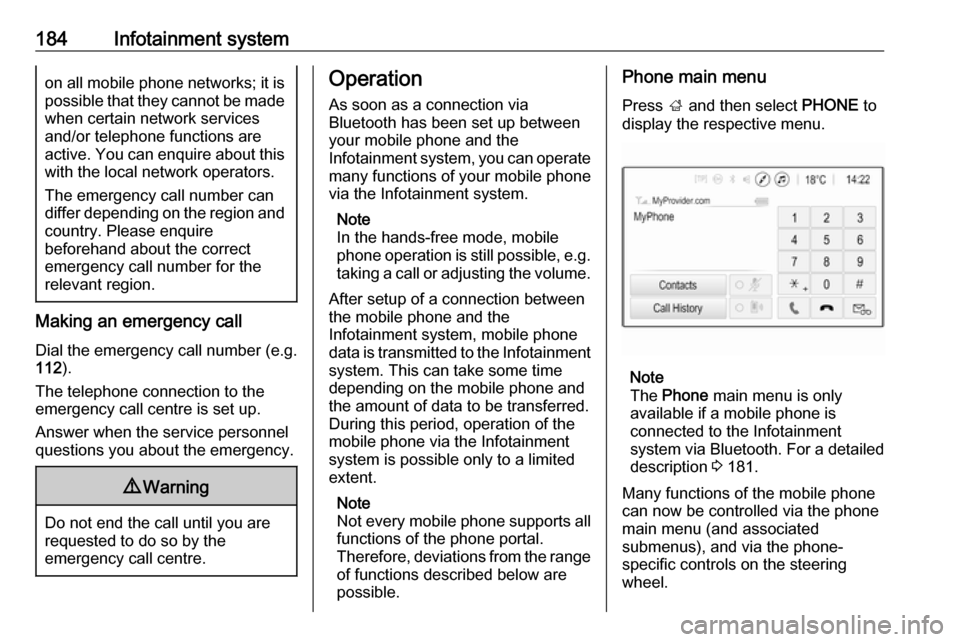
possible.Phone main menu
Press ; and then select PHONE to
display the respective menu.
Note
The Phone main menu is only
available if a mobile phone is connected to the Infotainment
system via Bluetooth. For a detailed
description 3 181.
Many functions of the mobile phone can now be controlled via the phone
main menu (and associated
submenus), and via the phone-
specific controls on the steering
wheel.
Page 187 of 341
Infotainment system185Initiating a phone callEntering a phone number
Press ; and then select Phone.
Enter a telephone number using the
keypad in the phone main menu.
To delete one or more entered
characters, touch or touch and hold
⇦.
Touch v on the screen or press qw
on the steering wheel to start dialling.
Using the phone book Note
When pairing a mobile phone with
the Infotainment system via
Bluetooth, the phone book of the
mobile phone is downloaded
automatically 3 181.
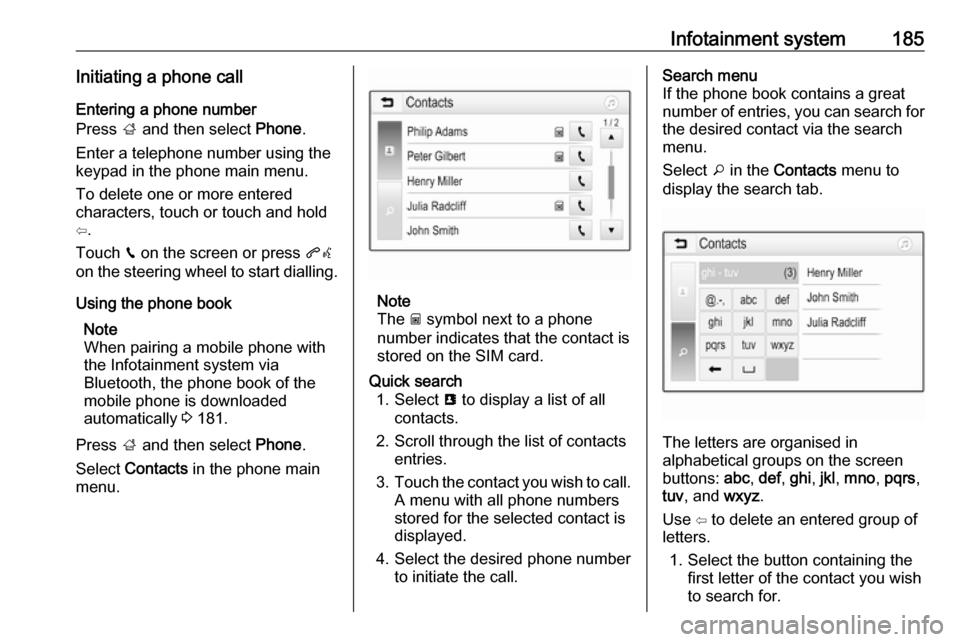
Press ; and then select Phone.
Select Contacts in the phone main
menu.
Note
The g symbol next to a phone
number indicates that the contact is
stored on the SIM card.
Quick search 1. Select u to display a list of all
contacts.
2. Scroll through the list of contacts entries.
3. Touch the contact you wish to call.
A menu with all phone numbers
stored for the selected contact is
displayed.
4. Select the desired phone number to initiate the call.Search menu
If the phone book contains a great
number of entries, you can search for
the desired contact via the search
menu.
Select o in the Contacts menu to
display the search tab.
The letters are organised in
alphabetical groups on the screen
buttons: abc, def , ghi , jkl , mno , pqrs ,
tuv , and wxyz.
Use ⇦ to delete an entered group of
letters.
1. Select the button containing the first letter of the contact you wish
to search for.
Page 188 of 341
186Infotainment systemFor example: If the contact you
wish to search for starts with 'g'
select the ghi screen button.
All contacts containing one of the
letters on this button, in the
example 'g', 'h', and 'i', are
displayed.
2. Select the button containing the second letter of the contact you
wish to search for.
3. Continue to enter more letters of the contact you wish to search foruntil the desired contact is
displayed.
4. Touch the contact you wish to call.
A menu with all phone numbers
stored for the selected contact is
displayed.
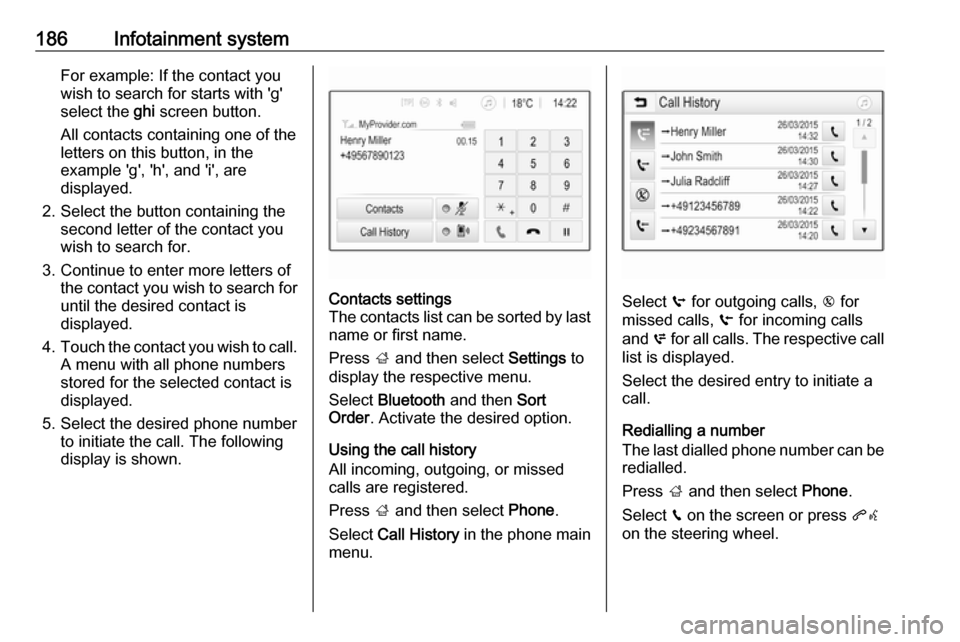
5. Select the desired phone number to initiate the call. The following
display is shown.Contacts settings
The contacts list can be sorted by last name or first name.
Press ; and then select Settings to
display the respective menu.
Select Bluetooth and then Sort
Order . Activate the desired option.
Using the call history
All incoming, outgoing, or missed
calls are registered.
Press ; and then select Phone.
Select Call History in the phone main
menu.
Select q for outgoing calls, r for
missed calls, s for incoming calls
and p for all calls. The respective call
list is displayed.
Select the desired entry to initiate a call.
Redialling a number
The last dialled phone number can be
redialled.
Press ; and then select Phone.
Select v on the screen or press qw
on the steering wheel.
Page 189 of 341
Infotainment system187Using speed dial numbers
Speed dial numbers that are stored
on the mobile phone can also be
dialled using the keypad of the phone
main menu.
Press ; and then select Phone.
Touch and hold the respective digit on the keypad to initiate the call.
Incoming phone call
Taking a call
If an audio mode, e.g. the radio or
USB mode, is active at the moment a call comes in, the audio source is
muted and stays muted until the call
ends.
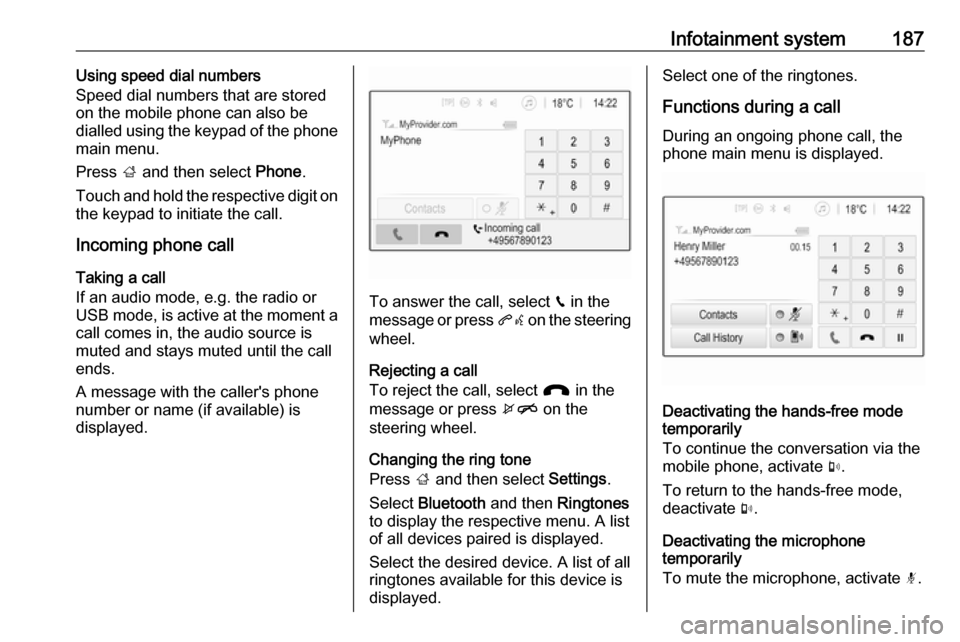
A message with the caller's phone
number or name (if available) is
displayed.
To answer the call, select v in the
message or press qw on the steering
wheel.
Rejecting a call
To reject the call, select J in the
message or press xn on the
steering wheel.
Changing the ring tone
Press ; and then select Settings.
Select Bluetooth and then Ringtones
to display the respective menu. A list
of all devices paired is displayed.
Select the desired device. A list of all
ringtones available for this device is
displayed.
Select one of the ringtones.
Functions during a call
During an ongoing phone call, the
phone main menu is displayed.
Deactivating the hands-free mode
temporarily
To continue the conversation via the mobile phone, activate m.
To return to the hands-free mode,
deactivate m.
Deactivating the microphone
temporarily
To mute the microphone, activate n.