radio OPEL ZAFIRA C 2018 Manual user
[x] Cancel search | Manufacturer: OPEL, Model Year: 2018, Model line: ZAFIRA C, Model: OPEL ZAFIRA C 2018Pages: 341, PDF Size: 9.99 MB
Page 159 of 341

Infotainment system157Radio data system (RDS)
RDS is a service of FM stations that considerably facilitates the finding of
the desired station and its fault-free
reception.
Advantages of RDS ● On the display, the programme name of the station appears
instead of its frequency.
● During a station search, the Infotainment system tunes in to
RDS stations only.
● The Infotainment system always tunes into the best receivable
broadcasting frequency of the set station by means of AF
(alternative frequency).
● Depending on the station that is received, the Infotainment
system displays radio text that
can contain e.g. information on
the current programme.RDS configuration
Touch Menu in the bottom line of the
FM radio main menu to open the corresponding waveband-specific
submenu.
Scroll to RDS.
Activate or deactivate RDS.
Traffic Programme Radio traffic service stations are RDS
stations that broadcast traffic news. If
the traffic service is switched on, the
currently playing audio source is
interrupted for the duration of the
traffic announcement.
Activating the traffic programme
function
Select Menu in the bottom line of the
FM radio main menu to open the corresponding waveband-specific
submenu.
Touch the screen button next to
Traffic Program to activate or
deactivate the function.Note
In the station list, TP is displayed
next to the stations providing a traffic
programme.
If the radio traffic service is activated, [TP] is shown in the top line of all main
menus. If the current station is not a
radio traffic service station, TP is
greyed-out and a search is started
automatically for the next radio traffic
service station. As soon as a radio
traffic service station is found, TP is
highlighted. If no radio traffic service
station is found, TP remains greyed-
out.
If a traffic announcement is
broadcasted on the respective
station, a message is displayed.
To interrupt the announcement and
return to the function previously
activated, touch the screen or press
m .
Regionalisation Sometimes RDS stations broadcast
regionally different programmes on
different frequencies.
Page 160 of 341

158Infotainment systemSelect Menu in the bottom line of the
FM radio main menu to open the
corresponding waveband-specific
submenu and scroll to Region
Activate or deactivate Region.
If regionalisation is activated,
alternative frequencies with the same
regional programmes are selected
where necessary. If regionalisation is
switched off, alternative frequencies
of the stations are selected without
regard to regional programmes.
Digital audio broadcasting
DAB broadcasts radio stations
digitally.
DAB stations are indicated by the
programme name instead of the
broadcasting frequency.
General information ● With DAB, several radio programmes (services) can be
broadcast on a single ensemble.
● Besides high-quality digital audio
services, DAB is also able to
transmit programme-associateddata and a multitude of other data services including travel andtraffic information.
● As long as a given DAB receiver can pick up the signal sent out bya broadcasting station (even if
the signal is very weak), sound
reproduction is ensured.
● In the event of poor reception, the
volume is reduced automatically
to avoid the output of
disagreeable noises.
If the DAB signal is too weak to
be picked up by the receiver,
reception is interrupted
completely. This incident can be
avoided by activating DAB-DAB
Linking and/or DAB-FM Linking
in the DAB menu (see below).
● Interference caused by stations that are on nearby frequencies (a
phenomenon that is typical of AM and FM reception) does not
occur with DAB.
● If the DAB signal is reflected by natural obstacles or buildings,
the reception quality of DAB isimproved, whereas AM or FM
reception is considerably
impaired in such cases.
● When DAB reception is enabled, the FM tuner of the Infotainmentsystem remains active in the
background and continually
searches for the best receivable FM stations. If TP 3 157 is
activated, traffic announcements
of the FM station with the best
reception are issued. Deactivate
TP if DAB reception should not
be interrupted by FM traffic
announcements.
DAB Announcements
Besides their music programmes, a
lot of DAB stations also broadcast
announcements of various
categories. If you activate some or all categories, the currently received
DAB service is interrupted when an
announcement of these categories is
made.
Select Menu in the bottom line of the
DAB radio main menu to open the
corresponding waveband-specific
submenu.
Page 161 of 341

Infotainment system159Scroll through the list and select DAB
Announcements to display a list of the
categories available.
Activate all or just the desired
announcement categories. Different
announcement categories can be
selected at the same time.
DAB-DAB Linking If this function is activated, the device
switches over to the same service
(programme) on another DAB
ensemble (if available) when the DAB
signal is too weak to be picked up bythe receiver.
Select Menu in the bottom line of the
DAB radio main menu to open the corresponding waveband-specific
submenu.
Scroll through the list and activate or
deactivate DAB-DAB Linking .
DAB-FM Linking If this function is activated, the device
switches over to a corresponding FM
station of the active DAB service (if
available) when the DAB signal is too
weak to be picked up by the receiver.Scroll through the list and activate or
deactivate DAB-FM Linking .
L Band With this function, you may define
which DAB wavebands are to be
received by the Infotainment system.
L Band (earth and satellite radio) is
another radio band that can be
received additionally.
Select Menu in the bottom line of the
DAB radio main menu to open the
corresponding waveband-specific
submenu.
Scroll through the list and activate or
deactivate L Band.
EPG The Electronic Programme Guideprovides information on the currentand upcoming programme of the
respective DAB station.
Select Menu in the bottom line of the
DAB radio main menu and then select Station List .
To display the programme of the
desired station, touch the icon next to
the station.External devices
General information
A USB port for the connection of
external devices is located in the
centre console.
Note
The USB port must always be kept
clean and dry.
USB port
An MP3 player, USB device, SD card(via USB connector/adapter) or
smartphone can be connected to the
USB port.
Up to two USB devices can be
connected to the Infotainment system
at a time.
Note
For the connection of two USB
devices, an external USB hub is required.
The Infotainment system can play audio files, show picture files or play
movie files contained in USB devices.
Page 162 of 341
160Infotainment systemWhen connected to the USB port,
various functions of the devices
mentioned above can be operated via
the controls and menus of the
Infotainment system.
Note
Not all auxiliary devices are
supported by the Infotainment
system. Check the compatibility list
on our website.
Connecting/disconnecting a device
Connect one of the devices
mentioned above to the USB port. If
required, use the appropriate
connection cable. The music function starts automatically.
Note
If a non-readable USB device is
connected, a corresponding error
message appears and the
Infotainment system automatically
switches to the previous function.
To disconnect the USB device, select
another function and then remove the
USB device.Caution
Avoid disconnecting the device
during playback. This may
damage the device or the
Infotainment system.
USB Auto Launch
By default, the USB audio menu is displayed automatically as soon as a
USB device is connected.
If desired, this function can be
deactivated.
Press ; and then select Settings to
open the settings menu.
Select Radio, scroll to USB Auto
Launch and touch the screen button
next to the function.
To reactivate the function, touch the
screen button again.
Bluetooth Devices which support the Bluetooth
music profiles A2DP and AVRCP can
be connected wirelessly to the
Infotainment system. The
Infotainment system can play music
files contained in these devices.
Connecting a device
For a detailed description on how to
establish a Bluetooth connection
3 181.
File formats and folders
The maximum capacity of a device
supported by the Infotainment system amounts to 2500 music files,
2500 picture files, 250 movie files,
2500 folders and 10 stages of folder
structure. Only devices formatted in
the FAT16/FAT32 file system are
supported.
If there are images included in the
audio metadata, these images are
displayed on the screen.
Note
Some files may not be played
properly. This may be due to a
different recording format or the
condition of the file.
Files from online shops to which
Digital Rights Management (DRM)
has been applied cannot be played.
The Infotainment system can play the
following audio, picture and movie
files stored on external devices.
Page 168 of 341

166Infotainment systemNavigationGeneral information
The navigation system will reliably
guide you to your destination.
The current traffic situation is taken
into account in the route calculation.
For this purpose, the Infotainment
system receives traffic
announcements in the current
reception area via RDS-TMC.
The navigation system cannot,
however, take into account traffic
incidents, traffic regulations changed
at short notice and hazards or
problems that arise suddenly (e.g.
road works).Caution
The usage of the navigation
system does not release the driver
from the responsibility for a
correct, vigilant attitude in road
traffic. The relevant traffic
regulations must always be
followed. If a navigation instruction contradicts traffic regulations, the
traffic regulations always apply.
Functioning of the navigation
system
The position and movement of the
vehicle are detected by the navigation
system using sensors. The travelled
distance is determined by the
vehicle’s speedometer signal, turning
movements on bends by a sensor.
The position is determined by the GPS (Global Positioning System)
satellites.
By comparing the sensor signals with the digital maps, it is possible to
determine the position with an
accuracy of approx. 10 metres.
The system will also work with poor
GPS reception. However, the
accuracy of the determination of the
position will be reduced.
After the entry of the destination
address or point of interest (nearest
petrol station, hotel, etc.), the route is calculated from the current location to
the destination selected.
Route guidance is provided by voice
output and an arrow, as well as with
the aid of a multi-colour map display.
Important information
TMC traffic information system and
dynamic route guidance
The TMC traffic information system
receives all current traffic information from TMC radio stations. This
information is included in the
calculation of the overall route. During
this process, the route is planned so
that traffic problems related to pre-
selected criteria are avoided.
If there is a traffic problem during
active route guidance, depending on
the pre-settings, a message appears
as to whether the route should be
changed.
TMC traffic information is displayed in
the map display as symbols or as
detailed text on the TMC messages
menu.
To be able to use TMC traffic
information, the system must receive
TMC stations in the relevant region.
Page 183 of 341
Infotainment system181Important information for
operation and traffic safety9 Warning
Mobile phones have effects on
your environment. For this reason safety regulations and directions
have been prepared. You should
be familiar with the related
directions before you use the
telephone function.
9 Warning
Use of the hands-free facility while
driving can be dangerous because
your concentration is reduced
when telephoning. Park your
vehicle before you use the hands- free facility. Follow the stipulations
of the country in which you find
yourself at present.
Do not forget to follow the special
regulations that apply in specific
areas and always switch off the
mobile phone if the use of mobile
phones is prohibited, if
interference is caused by the
mobile phone or if dangerous
situations can occur.
Bluetooth
The Phone portal is certified by the
Bluetooth Special Interest Group
(SIG).
You can find further information about the specification on the internet at
http://www.bluetooth.com.
Bluetooth connection
Bluetooth is a radio standard for the
wireless connection of e.g. mobile
phones, smartphones or other
devices.
Via the Bluetooth menu, pairing (PIN
code exchange between Bluetooth
device and Infotainment system) and
connecting of the Bluetooth devices
to the Infotainment system are carried out.
Bluetooth menu Press ; and then select Settings.
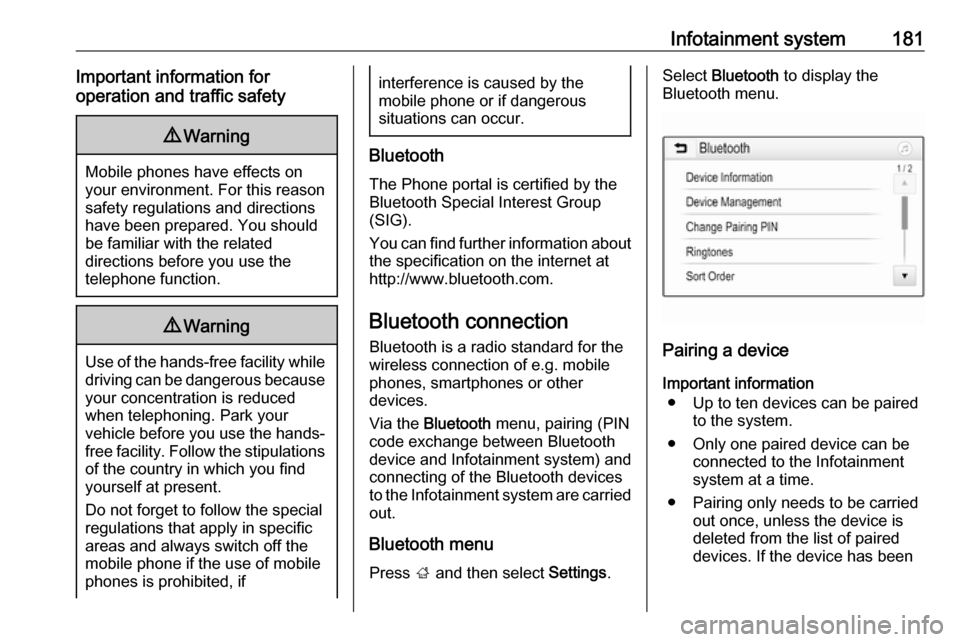
Select Bluetooth to display the
Bluetooth menu.
Pairing a device
Important information ● Up to ten devices can be paired to the system.
● Only one paired device can be connected to the Infotainment
system at a time.
● Pairing only needs to be carried out once, unless the device is
deleted from the list of paired
devices. If the device has been
Page 189 of 341
Infotainment system187Using speed dial numbers
Speed dial numbers that are stored
on the mobile phone can also be
dialled using the keypad of the phone
main menu.
Press ; and then select Phone.
Touch and hold the respective digit on the keypad to initiate the call.
Incoming phone call
Taking a call
If an audio mode, e.g. the radio or
USB mode, is active at the moment a call comes in, the audio source is
muted and stays muted until the call
ends.
A message with the caller's phone
number or name (if available) is
displayed.
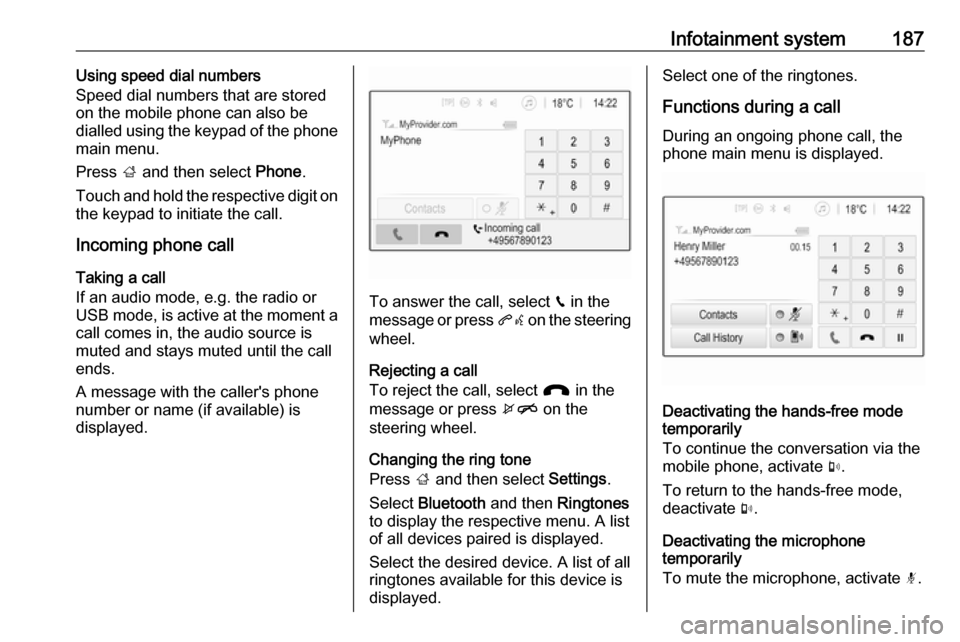
To answer the call, select v in the
message or press qw on the steering
wheel.
Rejecting a call
To reject the call, select J in the
message or press xn on the
steering wheel.
Changing the ring tone
Press ; and then select Settings.
Select Bluetooth and then Ringtones
to display the respective menu. A list
of all devices paired is displayed.
Select the desired device. A list of all
ringtones available for this device is
displayed.
Select one of the ringtones.
Functions during a call
During an ongoing phone call, the
phone main menu is displayed.
Deactivating the hands-free mode
temporarily
To continue the conversation via the mobile phone, activate m.
To return to the hands-free mode,
deactivate m.
Deactivating the microphone
temporarily
To mute the microphone, activate n.
Page 190 of 341

188Infotainment systemTo reactivate the microphone,
deactivate n.
Ending a phone call
Select J to end the call.
Voice mail box
You may operate your voice mail box via the Infotainment system.
Voice mail number
Press ; and then select Settings.
Select Bluetooth . Scroll through the
list and select Voice Mail Numbers .
A list of all devices paired is displayed.
Select the respective phone. A
keypad is displayed.
Enter the voice mail number for the
respective phone.
Calling the voice mail box
Press ; and then select Phone.
Select t on the screen. The mail
box is called.
Alternatively, enter the voice mail
number via the phone keypad.Mobile phones and CB radio
equipment
Installation instructions and
operating guidelines
The vehicle specific installation
instructions and the operating
guidelines of the mobile phone and
hands-free manufacturer must be
observed when installing and
operating a mobile telephone. Failure to do so could invalidate the vehicle
type approval (EU directive 95/54/
EC).
Recommendations for fault-free
operation:
● Professionally installed exterior antenna to obtain the maximum
range possible
● Maximum transmission power 10 watts
● Installation of the phone in a suitable spot, consider relevant
Note in the Owner's Manual,
section Airbag system .
Seek advice on predetermined
installation points for the external
antenna or equipment holder andways of using devices with a
transmission power exceeding
10 watts.
Use of a hands-free attachment without external antenna with mobile
telephone standards GSM
900/1800/1900 and UMTS is only
permitted if the maximum
transmission power of the mobile
telephone is 2 watts for GSM 900 or
1 watt for the other types.
For reasons of safety, do not use the
phone while driving. Even use of a hands-free set can be a distraction
while driving.9 Warning
Operation of radio equipment and
mobile telephones which fail to
meet above mentioned mobile
telephone standards is only
permitted using an antenna
located outside of the vehicle.
Page 191 of 341

Infotainment system189Caution
Mobile telephones and radio
equipment may lead to
malfunctions in the vehicle
electronics when operated inside
the vehicle with no exterior
antenna, unless the above
mentioned regulations are
observed.
Page 325 of 341

Customer information323Customer
informationCustomer information ................323
Declaration of conformity .........323
REACH .................................... 328
Collision damage repair ...........328
Software acknowledgement ....328
Registered trademarks ............330
Vehicle data recording and pri‐
vacy ........................................... 331
Event data recorders ...............331
Radio Frequency Identification (RFID) ..................................... 331Customer information
Declaration of conformity
Transmission systems
This vehicle has systems that
transmit and / or receive radio waves
subject to Directive 1999/5/EC or 2014/53/EU. The manufacturers ofthe systems listed below declare
conformity with Directive 1999/5/EC
or 2014/53/EU . The full text of the EU
declaration of conformity for each
system is available at the following
internet address: www.opel.com/
conformity
Importer is
Opel / Vauxhall, Bahnhofsplatz,
65423 Ruesselsheim am Main,
Germany.
Infotainment system R 4.0 / Navi 4.0
LGE
LG Electronics European Shared
Service Center B.V., Krijgsman 1,
1186 DM Amstelveen, The
NetherlandsOperation
frequency (MHz)Maximum output
(dBm)2402.0 - 2480.042400.0 - 2483.5135725.0 - 5850.0132400.0 - 2483.54
DAB+ Module
Panasonic Automotive & Industrial
Systems Europe GmbH, Robert- Bosch-Straße 27-29, 63225 Langen,
Germany
Operation frequency: N/A
Maximum output: N/A
Antenna Laird
Laird
8100 Industrial Park Drive, Grand
Blanc, MI, 48439 USA
Operation frequency: N/A
Maximum output: N/A
Antenna Kathrain
Kathrein Automotive GmbH