warning OPEL ZAFIRA C 2018 Manual user
[x] Cancel search | Manufacturer: OPEL, Model Year: 2018, Model line: ZAFIRA C, Model: OPEL ZAFIRA C 2018Pages: 341, PDF Size: 9.99 MB
Page 126 of 341
124Instruments and controlsVehicle personalisationThe vehicle's behaviour can be
personalised by changing the settings in the Info-Display.
Some of the personal settings for
different drivers can be memorised
individually for each vehicle key.
Memorised settings 3 22.
Depending on vehicle equipment and
country-specific regulations, some of
the functions described below may
not be available.
Some functions are only displayed or
active when the engine is running.
Personal settings 7" IntelliLink Display
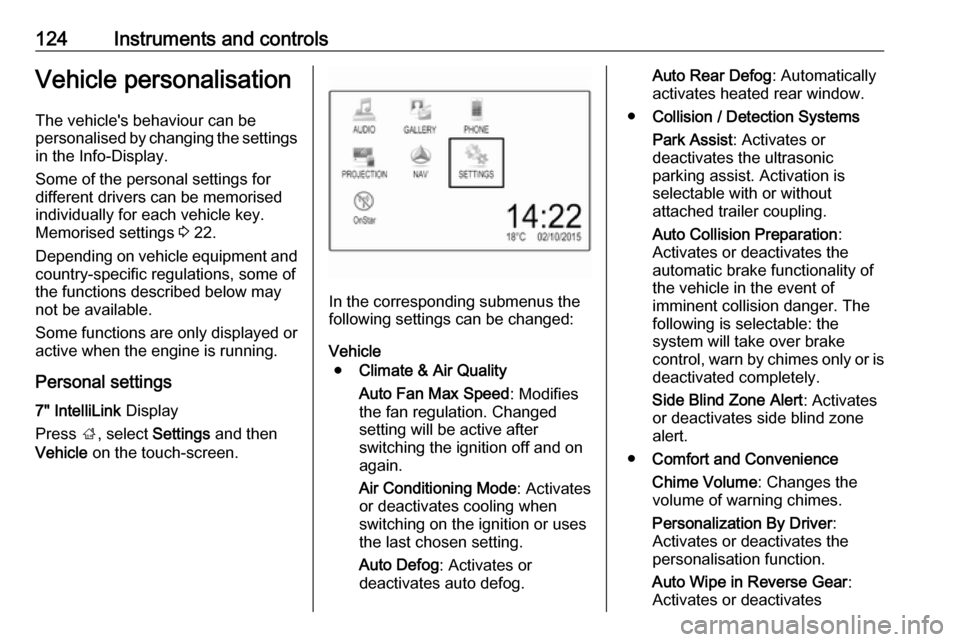
Press ;, select Settings and then
Vehicle on the touch-screen.
In the corresponding submenus the
following settings can be changed:
Vehicle ● Climate & Air Quality
Auto Fan Max Speed : Modifies
the fan regulation. Changed
setting will be active after
switching the ignition off and on
again.
Air Conditioning Mode : Activates
or deactivates cooling when
switching on the ignition or uses
the last chosen setting.
Auto Defog : Activates or
deactivates auto defog.
Auto Rear Defog : Automatically
activates heated rear window.
● Collision / Detection Systems
Park Assist : Activates or
deactivates the ultrasonic
parking assist. Activation is
selectable with or without
attached trailer coupling.
Auto Collision Preparation :
Activates or deactivates the
automatic brake functionality of
the vehicle in the event of
imminent collision danger. The
following is selectable: the
system will take over brake
control, warn by chimes only or is
deactivated completely.
Side Blind Zone Alert : Activates
or deactivates side blind zone alert.
● Comfort and Convenience
Chime Volume : Changes the
volume of warning chimes.
Personalization By Driver :
Activates or deactivates the
personalisation function.
Auto Wipe in Reverse Gear :
Activates or deactivates
Page 127 of 341

Instruments and controls125automatic switching on of the
rear window wiper when reverse
gear is engaged.
● Lighting
Vehicle Locator Lights : Activates
or deactivates the entry lighting.
Exit Lighting : Activates or
deactivates and changes the
duration of exit lighting.
● Power Door Locks
Unlocked Door Anti Lock Out :
Activates or deactivates the door locking function while a door isopen.
Auto Door Lock : Activates or
deactivates the automatic door
unlocking function after switching off ignition. Activates or
deactivates the automatic door
locking function after driving-off.
Delayed Door Lock : Activates or
deactivates the delayed door
locking function.
● Remote Lock, Unlock, Start
Remote Unlock Light Feedback :
Activates or deactivates thehazard warning flasher feedback
whilst unlocking.
Remote Lock Feedback :
Changes what kind of feedback
is given when locking the vehicle.
Remote Door Unlock : Changes
the configuration to unlock only
the driver's door or the whole
vehicle whilst unlocking.
Relock Remotely Unlocked
Doors : Activates or deactivates
the automatic relock function
after unlocking without opening
the vehicle.Telematics service
OnStar
OnStar is a personal connectivity and service assistant with integrated
Wi-Fi hotspot. The OnStar service is
available 24 hours a day, seven days
a week.
Note
OnStar is not available for all
markets. For further information,
contact your workshop.
Note
In order to be available and
operational, OnStar needs a valid
OnStar subscription, functioning
vehicle electrics, mobile service and
GPS satellite link.
To activate the OnStar services and
set up an account, press Z and speak
with an advisor.
Page 132 of 341
130LightingLightingExterior lighting.......................... 130
Light switch .............................. 130
Automatic light control .............131
High beam ............................... 131
High beam assist .....................131
Headlight flash ......................... 132
Headlight range adjustment ....132
Headlights when driving abroad .................................... 133
Daytime running lights .............133
LED headlights ........................ 134
Hazard warning flashers ..........135
Turn and lane-change signals . 135
Front fog lights ......................... 135
Rear fog light ........................... 136
Parking lights ........................... 136
Reversing lights .......................136
Misted light covers ...................136
Interior lighting ........................... 137
Instrument panel illumination control ..................................... 137
Interior lights ............................ 137
Reading lights .......................... 138
Sunvisor lights ......................... 138Lighting features ........................138
Centre console lighting ............138
Entry lighting ............................ 138
Exit lighting .............................. 138
Battery discharge protection ....139Exterior lighting
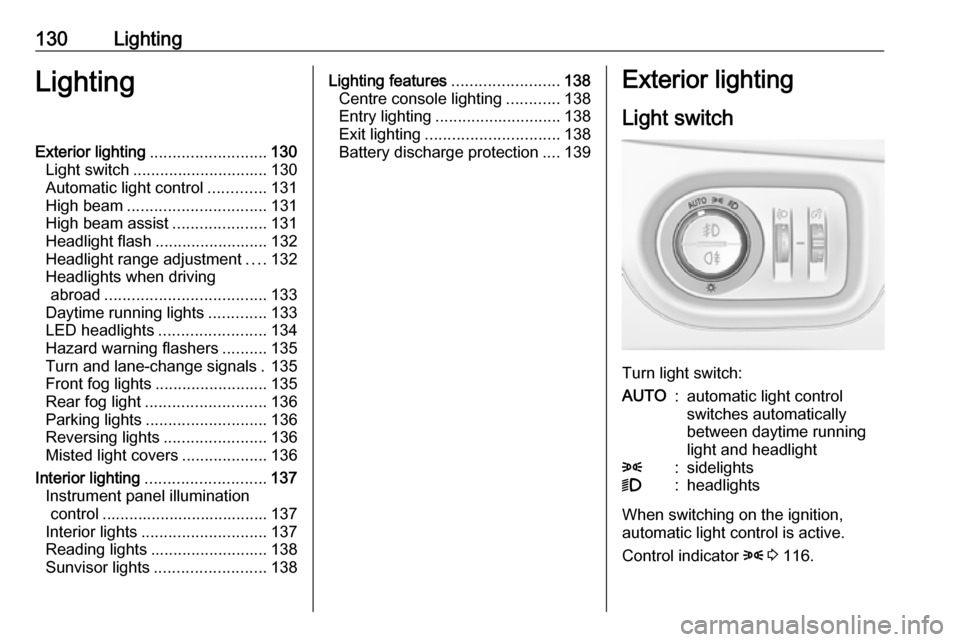
Light switch
Turn light switch:
AUTO:automatic light control
switches automatically
between daytime running
light and headlight8:sidelights9:headlights
When switching on the ignition,
automatic light control is active.
Control indicator 8 3 116.
Page 137 of 341
Lighting135Fault in LED headlight system
When the system detects a failure in
the LED headlight system, f
illuminates and a warning is displayed in the Driver Information Centre.
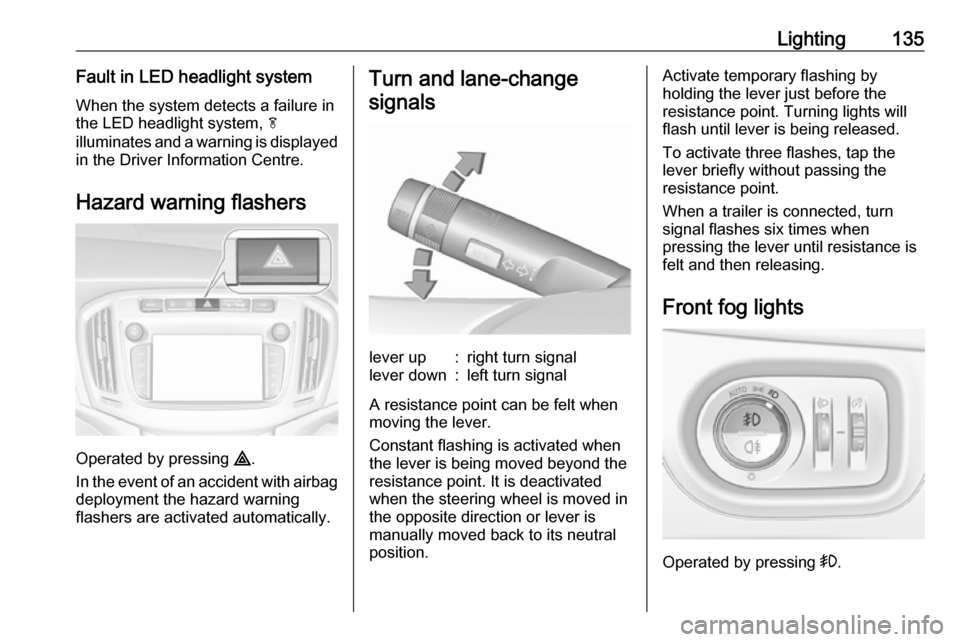
Hazard warning flashers
Operated by pressing ¨.
In the event of an accident with airbag
deployment the hazard warning
flashers are activated automatically.
Turn and lane-change
signalslever up:right turn signallever down:left turn signal
A resistance point can be felt when
moving the lever.
Constant flashing is activated when
the lever is being moved beyond the
resistance point. It is deactivated
when the steering wheel is moved in
the opposite direction or lever is
manually moved back to its neutral
position.
Activate temporary flashing by
holding the lever just before the
resistance point. Turning lights will
flash until lever is being released.
To activate three flashes, tap the
lever briefly without passing the
resistance point.
When a trailer is connected, turn
signal flashes six times when
pressing the lever until resistance is
felt and then releasing.
Front fog lights
Operated by pressing >.
Page 143 of 341
Infotainment system141Optionally, the Infotainment system
can be operated using the touch
screen and buttons on the control
panel, the controls on the steering wheel, or - if provided by your mobile
phone - via speech recognition.
The well-thought-out design of the
control elements, the touch screen
and the clear displays enable you to
control the system easily and
intuitively.
Note
This manual describes all options
and features available for the
various Infotainment systems.
Certain descriptions, including those
for display and menu functions, may
not apply to your vehicle due to
model variant, country
specifications, special equipment or
accessories.Important information on
operation and traffic safety9 Warning
The Infotainment system must be
used so that the vehicle can be
driven safely at all times. If in
doubt, stop the vehicle and
operate the Infotainment system
while the vehicle is stationary.
9 Warning
In some areas one-way streets
and other roads and entrances
(e.g. pedestrian zones) that you
are not allowed to turn into are not marked on the map. In such areas
the Infotainment system may
issue a warning that must be
accepted. Here you must pay
particular attention to one-way
streets, roads and entrances that
you are not allowed to drive into.
Radio reception
Radio reception may be disrupted by
static, noise, distortion or loss of
reception due to:
● changes in distance from the transmitter
● multipath reception due to reflection
● shadowing
Theft-deterrent feature
The Infotainment system is equipped
with an electronic security system for
the purpose of theft deterrence.
The Infotainment system therefore
functions only in your vehicle and is
worthless to a thief.
Page 155 of 341

Infotainment system153Black display functionIf you do not want to see the
illuminated display, e.g. during night
time, you can turn the display off.
Press ; and then select Settings.
Scroll through the list and select Turn
Display Off . The display is turned off;
the audio functions remain active.
To turn the display on again, touch the screen or press a button.
Factory defaults
(R 4.0 IntelliLink)
Press ; and then select Settings.
Scroll through the list and select
Return to Factory Settings .
To restore all vehicle personalisation
settings, select Restore Vehicle
Settings .
To delete the paired Bluetooth
devices, the contacts list and the
voice mail numbers stored, select Clear All Private Data .
To reset tone and volume settings,
delete all favourites, and erase the
ringtone selection, select Restore
Radio Settings .In each case, a warning message is
displayed. Select Continue to reset
the settings.
Factory defaults
(Navi 4.0 IntelliLink)
Press ; and then select Settings.
Scroll through the list and select Restore Factory Settings .
Vehicle settings
To restore all vehicle personalisation settings, select Reset Vehicle
Settings .
A pop-up is displayed. Confirm the
pop-up message.
Phone information
To delete the paired Bluetooth
devices, the contacts list and the
voice mail numbers stored, select Clear all phone information .
A pop-up is displayed. Confirm the
pop-up message.
Radio settings
To reset tone and volume settings
and delete all favourites, select
Restore Radio Settings .A pop-up is displayed. Confirm the
pop-up message.
Navigation settings
To reset all navigation parameters
and navigation system settings,
select Restore Navigation Settings . A
submenu is displayed.
Depending on which set of
parameters you want to reset, select
Clear navigation history (recent
destinations), Clear navigation
favourites (favourites) or Reset
navigation options and settings (e.g.
settings concerning map display,
voice output or route options).
A pop-up is displayed. Confirm the
pop-up message.
System versionPress ; and then select Settings.
Scroll through the list and select
Software Information .
If a USB device is connected, you
may save the vehicle information to
this USB device.
Select System Update and then Save
Vehicle Info to USB .
Page 183 of 341
Infotainment system181Important information for
operation and traffic safety9 Warning
Mobile phones have effects on
your environment. For this reason safety regulations and directions
have been prepared. You should
be familiar with the related
directions before you use the
telephone function.
9 Warning
Use of the hands-free facility while
driving can be dangerous because
your concentration is reduced
when telephoning. Park your
vehicle before you use the hands- free facility. Follow the stipulations
of the country in which you find
yourself at present.
Do not forget to follow the special
regulations that apply in specific
areas and always switch off the
mobile phone if the use of mobile
phones is prohibited, if
interference is caused by the
mobile phone or if dangerous
situations can occur.
Bluetooth
The Phone portal is certified by the
Bluetooth Special Interest Group
(SIG).
You can find further information about the specification on the internet at
http://www.bluetooth.com.
Bluetooth connection
Bluetooth is a radio standard for the
wireless connection of e.g. mobile
phones, smartphones or other
devices.
Via the Bluetooth menu, pairing (PIN
code exchange between Bluetooth
device and Infotainment system) and
connecting of the Bluetooth devices
to the Infotainment system are carried out.
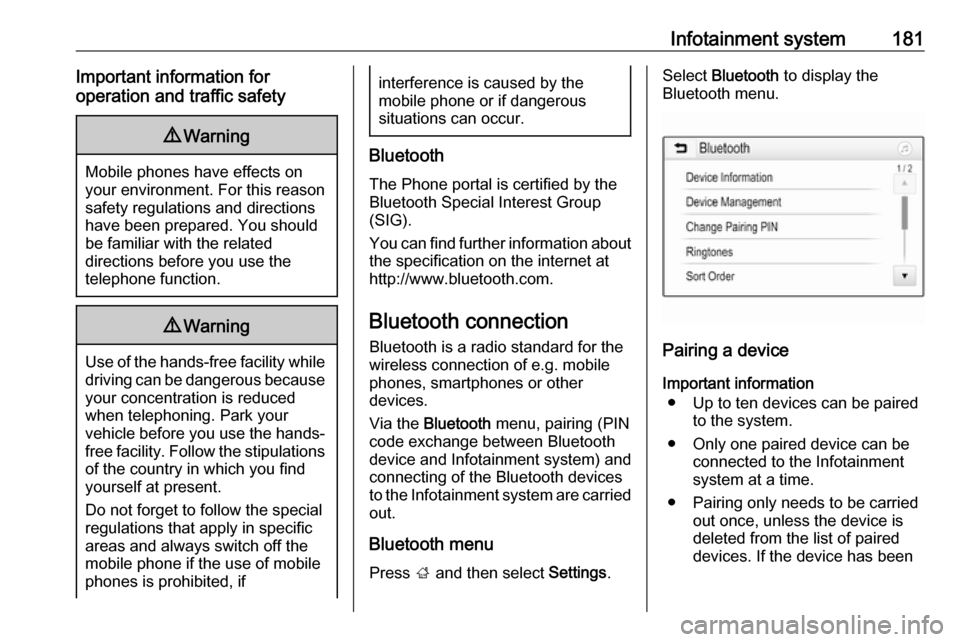
Bluetooth menu Press ; and then select Settings.
Select Bluetooth to display the
Bluetooth menu.
Pairing a device
Important information ● Up to ten devices can be paired to the system.
● Only one paired device can be connected to the Infotainment
system at a time.
● Pairing only needs to be carried out once, unless the device is
deleted from the list of paired
devices. If the device has been
Page 185 of 341

Infotainment system183messages displayed on the
Bluetooth device.
If this function is not supported by the Bluetooth device, a
corresponding message is
displayed.
Changing the Bluetooth PIN code
Press ; and then select Settings.
Select Bluetooth and then Change
Pairing PIN to display the respective
submenu. A keypad is displayed.
Enter the desired four-digit PIN code.
To delete an entered number, select
⇦.
Confirm your input by selecting Enter.
Connecting a paired device
Press ; and then select Settings.
Select Bluetooth and then Device
Management to display the
respective menu.
Select the Bluetooth device you wish
to connect. The device is connected.
Note
The connected device and the
available options are highlighted.Disconnecting a device
Press ; and then select Settings.
Select Bluetooth and then Device
Management to display the
respective menu.
Select the Bluetooth device currently connected. You are prompted with a
message.
Select Yes to disconnect the device.
Deleting a device Press ; and then select Settings.
Select Bluetooth and then Device
Management to display the
respective menu.
Select e next to the Bluetooth device.
You are prompted with a message.
Select Yes to delete the device.
Device info
Press ; and then select Settings.
Select Bluetooth and then Device
Information to display the respective
menu.The information displayed includes
Device Name , Address , and PIN
Code .
Emergency call9 Warning
Connection setup cannot be
guaranteed in all situations. For
this reason you should not rely
exclusively on a mobile phone
when a vitally important
communication (e.g. a medical
emergency) is concerned.
In some networks it may be
necessary for a valid SIM card to
be properly inserted in the mobile
phone.
9 Warning
Bear in mind that you can make
and receive calls with the mobile
phone if it is in a service area with
a sufficiently strong signal. Under
certain circumstances,
emergency calls cannot be made
Page 186 of 341
184Infotainment systemon all mobile phone networks; it ispossible that they cannot be made
when certain network services
and/or telephone functions are
active. You can enquire about this
with the local network operators.
The emergency call number can
differ depending on the region and country. Please enquire
beforehand about the correct
emergency call number for the
relevant region.
Making an emergency call
Dial the emergency call number (e.g.
112 ).
The telephone connection to the
emergency call centre is set up.
Answer when the service personnel
questions you about the emergency.
9 Warning
Do not end the call until you are
requested to do so by the
emergency call centre.
Operation
As soon as a connection via
Bluetooth has been set up between
your mobile phone and the
Infotainment system, you can operate many functions of your mobile phone
via the Infotainment system.
Note
In the hands-free mode, mobile
phone operation is still possible, e.g.
taking a call or adjusting the volume.
After setup of a connection between
the mobile phone and the
Infotainment system, mobile phone data is transmitted to the Infotainment
system. This can take some time
depending on the mobile phone and
the amount of data to be transferred.
During this period, operation of the
mobile phone via the Infotainment
system is possible only to a limited extent.
Note
Not every mobile phone supports all functions of the phone portal.
Therefore, deviations from the range
of functions described below are
possible.Phone main menu
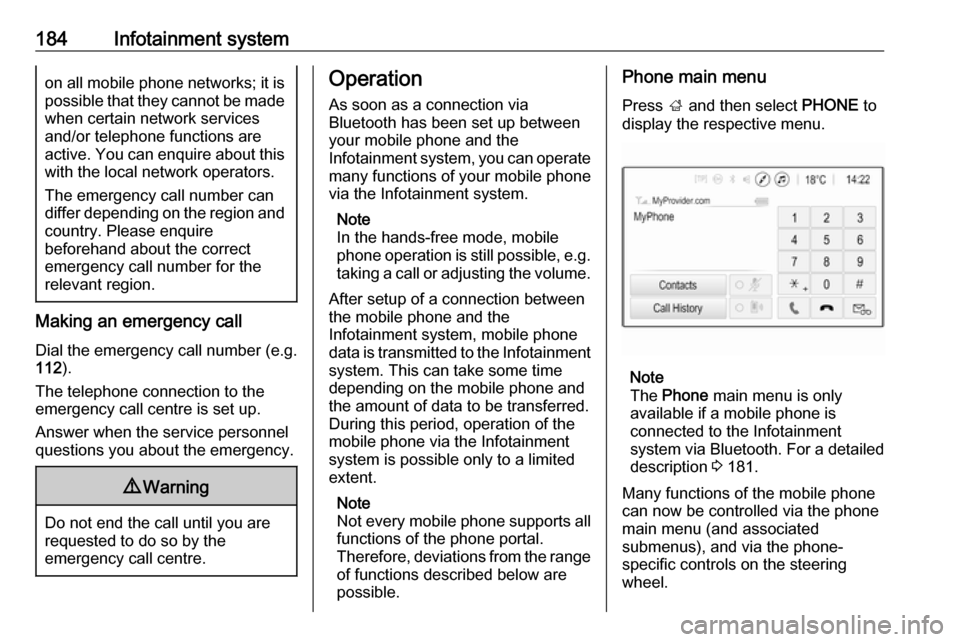
Press ; and then select PHONE to
display the respective menu.
Note
The Phone main menu is only
available if a mobile phone is connected to the Infotainment
system via Bluetooth. For a detailed
description 3 181.
Many functions of the mobile phone can now be controlled via the phone
main menu (and associated
submenus), and via the phone-
specific controls on the steering
wheel.
Page 190 of 341

188Infotainment systemTo reactivate the microphone,
deactivate n.
Ending a phone call
Select J to end the call.
Voice mail box
You may operate your voice mail box via the Infotainment system.
Voice mail number
Press ; and then select Settings.
Select Bluetooth . Scroll through the
list and select Voice Mail Numbers .
A list of all devices paired is displayed.
Select the respective phone. A
keypad is displayed.
Enter the voice mail number for the
respective phone.
Calling the voice mail box
Press ; and then select Phone.
Select t on the screen. The mail
box is called.
Alternatively, enter the voice mail
number via the phone keypad.Mobile phones and CB radio
equipment
Installation instructions and
operating guidelines
The vehicle specific installation
instructions and the operating
guidelines of the mobile phone and
hands-free manufacturer must be
observed when installing and
operating a mobile telephone. Failure to do so could invalidate the vehicle
type approval (EU directive 95/54/
EC).
Recommendations for fault-free
operation:
● Professionally installed exterior antenna to obtain the maximum
range possible
● Maximum transmission power 10 watts
● Installation of the phone in a suitable spot, consider relevant
Note in the Owner's Manual,
section Airbag system .
Seek advice on predetermined
installation points for the external
antenna or equipment holder andways of using devices with a
transmission power exceeding
10 watts.
Use of a hands-free attachment without external antenna with mobile
telephone standards GSM
900/1800/1900 and UMTS is only
permitted if the maximum
transmission power of the mobile
telephone is 2 watts for GSM 900 or
1 watt for the other types.
For reasons of safety, do not use the
phone while driving. Even use of a hands-free set can be a distraction
while driving.9 Warning
Operation of radio equipment and
mobile telephones which fail to
meet above mentioned mobile
telephone standards is only
permitted using an antenna
located outside of the vehicle.