AUX PEUGEOT 2008 2013 Owners Manual
[x] Cancel search | Manufacturer: PEUGEOT, Model Year: 2013, Model line: 2008, Model: PEUGEOT 2008 2013Pages: 324, PDF Size: 8.39 MB
Page 9 of 324
.
7
Familiarisation
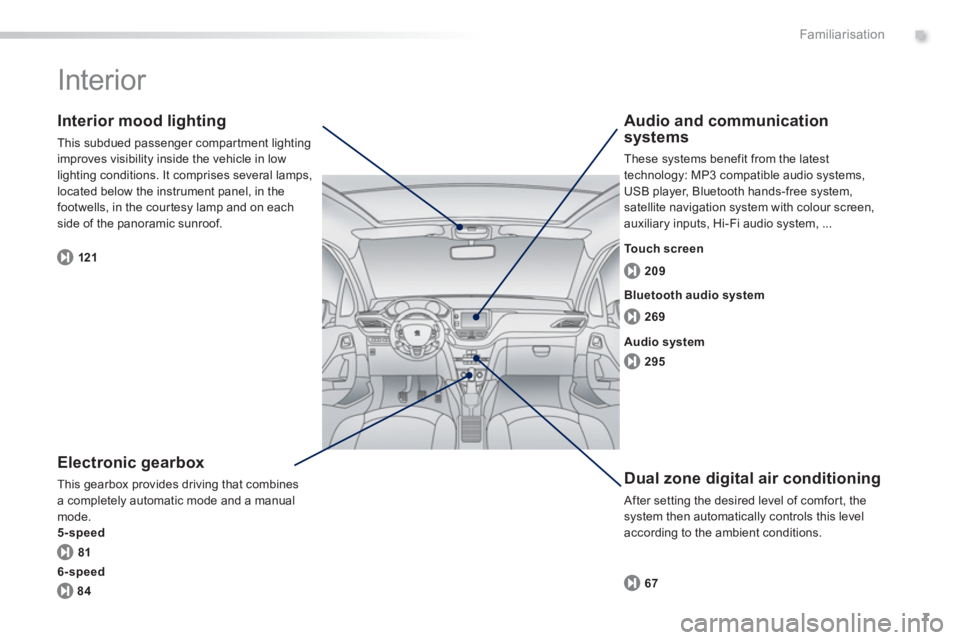
Interior
Electronic gearbox
This gearbox provides driving that combines
a completely automatic mode and a manualmode.
5-speed
Interior mood lighting
This subdued passenger compar tment lighting
improves visibility inside the vehicle in low lighting conditions. It comprises several lamps, located below the instrument panel, in the footwells, in the cour tesy lamp and on each
side of the panoramic sunroof.
Dual zone digital air conditioning
After setting the desired level of comfor t, the system then automatically controls this level
according to the ambient conditions.
Audio and communication
systems
These systems benefit from the latest
technology: MP3 compatible audio systems, USB player, Bluetooth hands-free system, satellite navigation system with colour screen,
auxiliary inputs, Hi-Fi audio system, ...
8
1
121
67 26
9
209
Bluetooth audio s
ystem
295 Audio s
ystem To u c h s c r e e n
6-speed
84
Page 10 of 324
8
Familiarisation
11.Front side window demisting/defrosting
vent.
12.Instrument panel.
13
. Windscreen demisting/defrosting vent. 14 .
Sunshine sensor.
15. Glove box / Passenger's airbagdeactivation.
16.Passenger's airbag.
17. Multifunction screen / Audio system.
18. Central adjustable air vents.
19.Central locking and hazard warningbuttons.
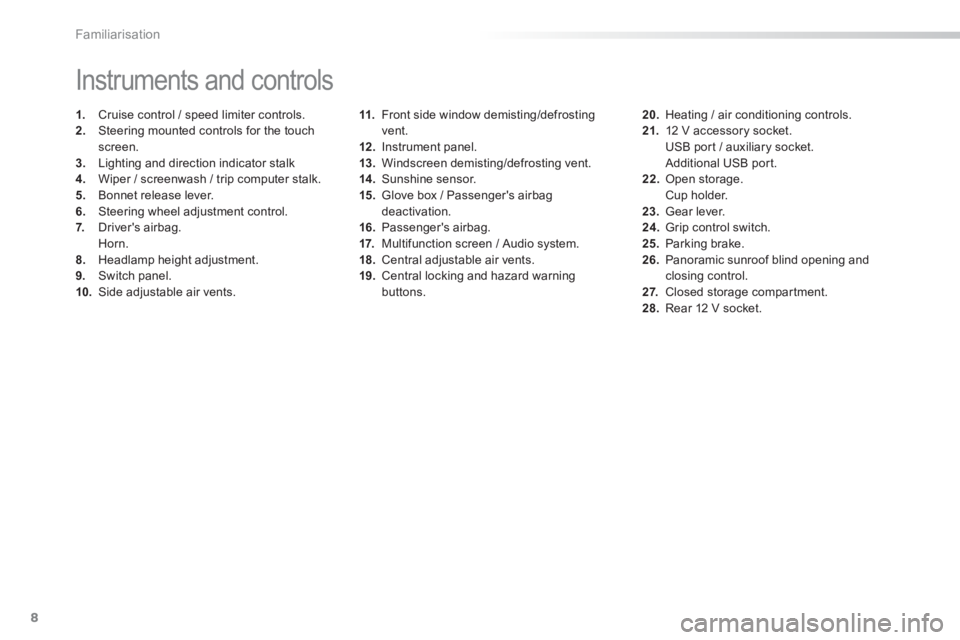
Instruments and controls
1. Cruise control / speed limiter controls. 2.
Steering mounted controls for the touch screen.
3.
Lighting and direction indicator stalk4.
Wiper / screenwash / trip computer stalk. 5.
Bonnet release lever.
6.Steering wheel adjustment control.
7. Driver's airbag.
Horn. 8.Headlamp height adjustment. 9. Switch panel. 10.Side adjustable air vents.
20.
Heating / air conditioning controls.21.12 V accessory socket.
USB por t / auxiliary socket.
Additional USB port.
22. Open storage.
Cup holder. 23. Gear lever. 24.
Grip control switch. 25.Parking brake.26.Panoramic sunroof blind opening andclosing control. 27.
Closed storage compar tment. 28.
Rear 12 V socket.
Page 73 of 324
71
3
Comfort
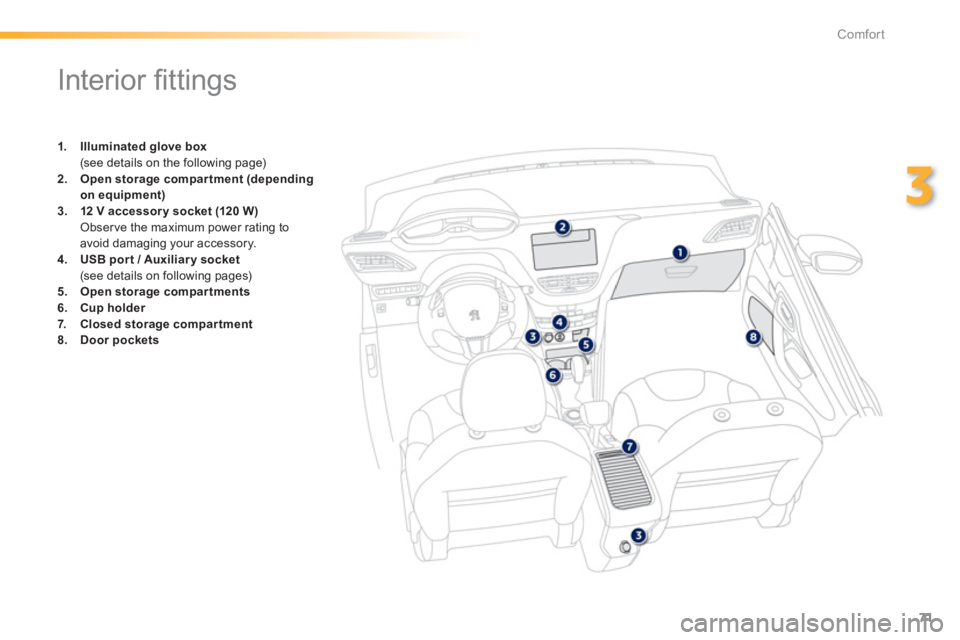
Interior fi ttings
1.Illuminated glove box (see details on the following page) 2.Open storage compar tment (depending
on equipment)3.12 V accessory socket(120 W)
Observe the maximum power rating toavoid damaging your accessory. 4.USB port/ Auxiliar y socket (see details on following pages)
5.Open storage compar tments
6.Cup holder
7.Closed storage compar tment8.Door pockets
Page 75 of 324
73
3
Comfort
Additional USB port
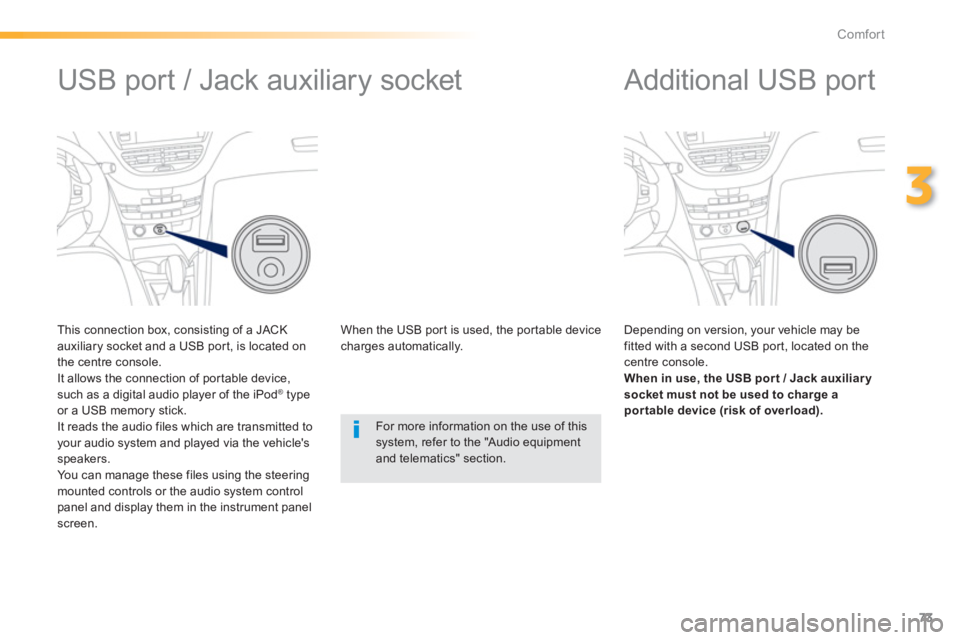
Depending on version, your vehicle may be fitted with a second USB por t, located on the centre console. When in use, the USB por t / Jack auxiliar y
socket must not be used to charge apor table device (risk of overload).
USB port / Jack auxiliary socket
This connection box, consisting of a JACK
auxiliary socket and a USB por t, is located on
the centre console.
It allows the connection of por table device,such as a digital audio player of the iPod ®type
or a USB memory stick.
It reads the audio files which are transmitted to your audio system and played via the vehicle's speakers.
You can manage these files using the steeringmounted controls or the audio system control panel and display them in the instrument panelscreen. When the U
SB por t is used, the por table devicecharges automatically.
For more information on the use of this system, refer to the "Audio equipmentand telematics" section.
Page 212 of 324
01
210
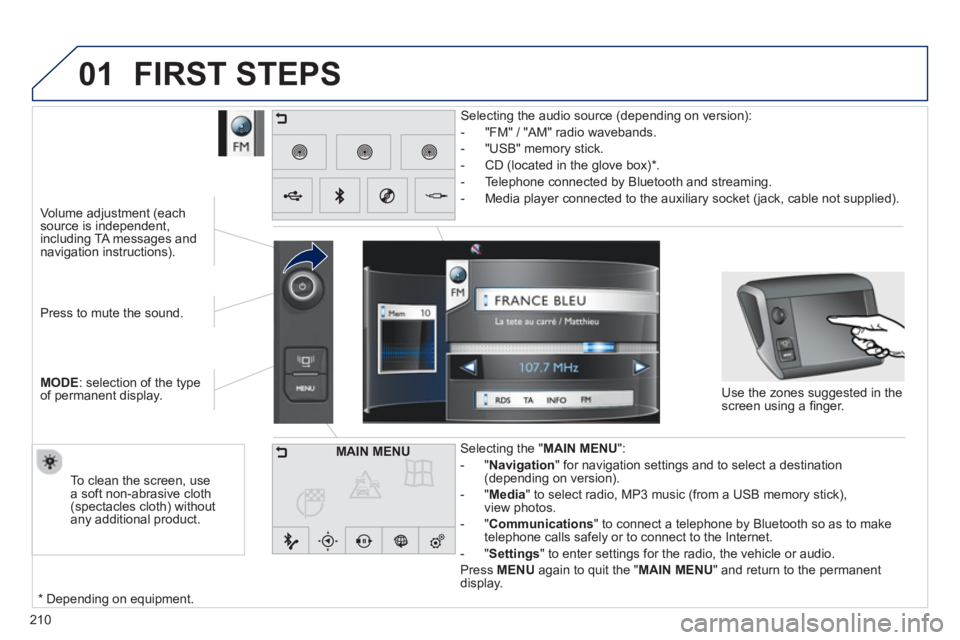
Press to mute the sound.
MOD
E: selection of the type
of permanent display.
Volume ad
justment (each source is independent, including TA messages and navigation instructions).
Selectin
g the " MAIN MENU":
-"Navigation
" for navigation settings and to select a destination (depending on version).
- "Medi
a
" to select radio, MP3 music (from a USB memory stick),
view photos.
- "Communications" to connect a telephone b
y Bluetooth so as to make
telephone calls safely or to connect to the Internet.
-"Settin
gs" to enter settings for the radio, the vehicle or audio.
Press MENU again to quit the " MAIN MENU " and return to the permanentdisplay.
Selectin
g the audio source (depending on version):
- "FM"
/ "AM" radio wavebands.
- "U
SB" memory stick.
-
CD (located in the glove box) *
.
- Telephone connected b
y Bluetooth and streaming.
- Media pla
yer connected to the auxiliary socket (jack, cable not supplied).
Use the zones su
ggested in the
screen using a fi nger.
To clean the screen, use
a soft non-abrasive cloth (spectacles cloth) without
any additional product.
FIRST STEPS
*
Depending on equipment.
MAIN MENU
Page 214 of 324
03
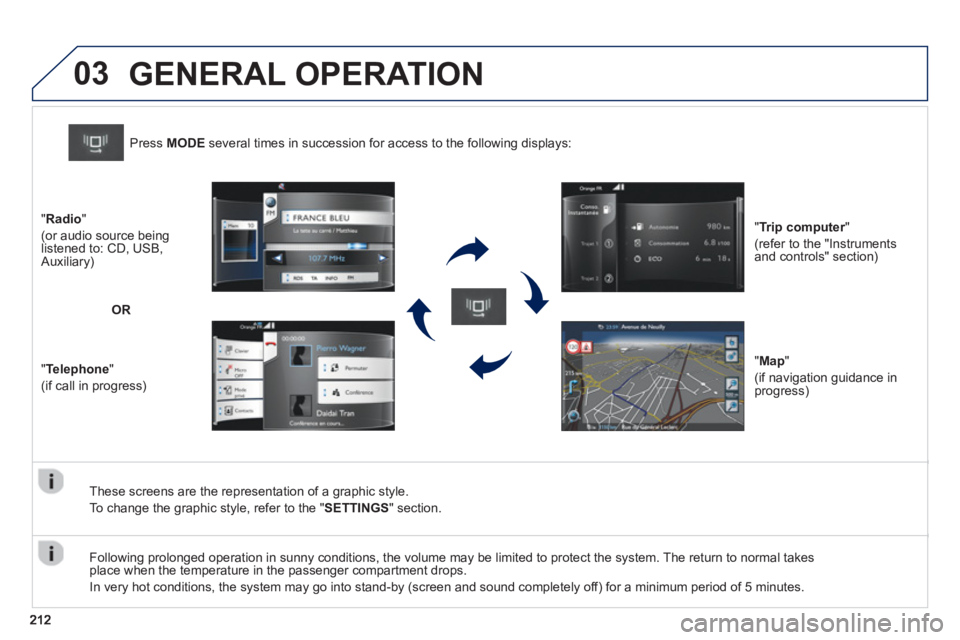
These screens are the representation of a graphic style.
To chan
ge the graphic style, refer to the " SETTINGS" section. Pr
ess MODEseveral times in succession for access to the following displays:
"
Trip computer"r
(refer to the "Instrumentsand controls" section)
"
Map"
(if navigation guidance in
progress) "Radio
"
(or audio source being listened to: CD, USB,
Auxiliary)
"
Telephone"
(if call in progress)
OR
GENERAL OPERATION
Following prolonged operation in sunny conditions, the volume may be limited to protect the system. The return to normal takesplace when the temperature in the passenger compartment drops.
In ver
y hot conditions, the system may go into stand-by (screen and sound completely off) for a minimum period of 5 minutes.
Page 235 of 324
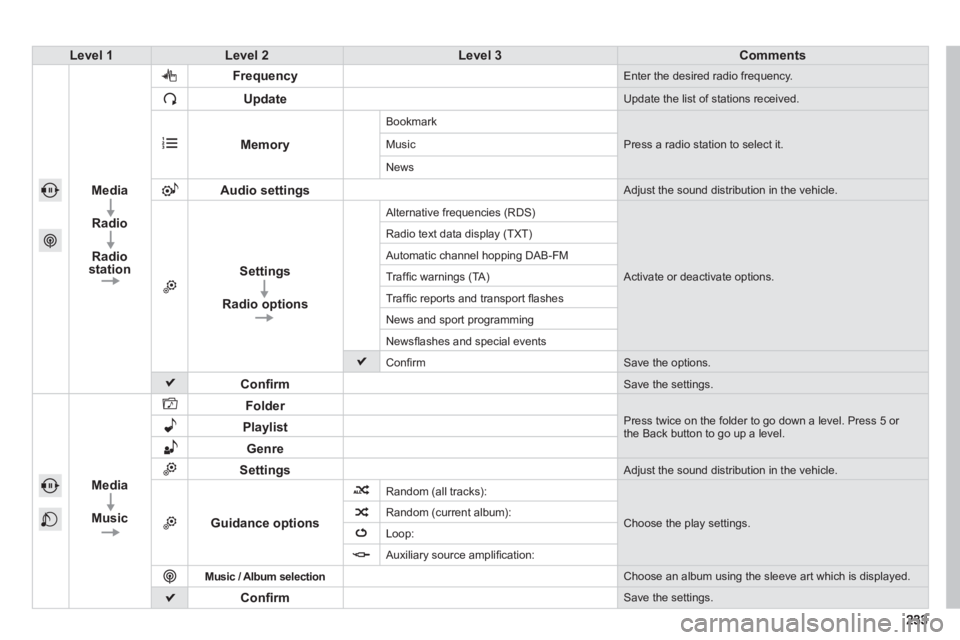
Level 1Level 2Level 3Comments
Media
Radio
Radio
stationFrequenc
y Enter the desired radio frequency.
Update
Update the list of stations received.
Memory
Bookmark
Press a radio station to select it. Music
News
Audio settings Adjust the sound distribution in the vehicle.
Settings
Radio options
Alternative frequencies (RDS)
Activate or deactivate options. Radio text data displa
y (TXT)
Automatic channel hopping DAB-FM
Traffi c warnin
gs (TA)
Tra
ffi c reports and transport fl ashes
News and sport pro
gramming
Newsfl ashes and special events
Confi rm Save the options.
Confi rm Save the settings.
Media
Music
Folder
Press twice on the folder to go down a level. Press 5 or the Back button to go up a level. Playlist
Genre
Settings Adjust the sound distribution in the vehicle.
Guidance options
Random (all tracks):
Choose the play settings. Random (current album):
Loop:
Auxiliar
y source amplifi cation:
Music
/ Album selection Choose an album using the sleeve art which is displayed.
Confi rm Save the settings.
Page 242 of 324
06
240
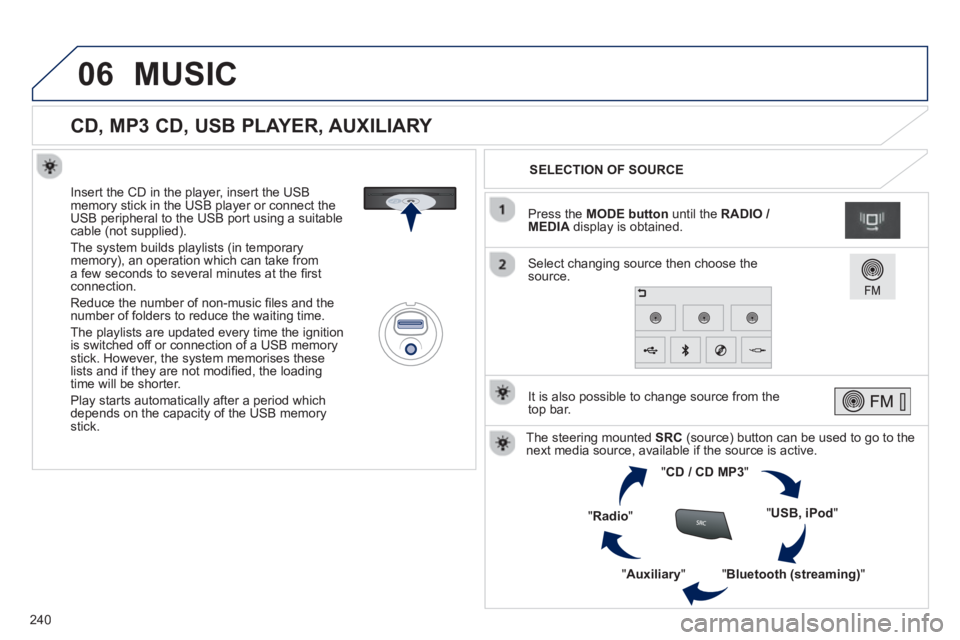
CD, MP3 CD, USB PLAYER, AUXILIARY
Insert the CD in the player, insert the USBmemory stick in the USB player or connect theUSB peripheral to the USB port using a suitablecable (not supplied).
The s
ystem builds playlists (in temporarymemory), an operation which can take froma few seconds to several minutes at the fi rstconnection.
R
educe the number of non-music fi les and the number of folders to reduce the waiting time.
The pla
ylists are updated every time the ignition
is switched off or connection of a USB memory stick. However, the system memorises these
lists and if they are not modifi ed, the loadingtime will be shorter.
Pla
y starts automatically after a period which
depends on the capacity of the USB memory stick.SELECTION OF SOURCE
The steering mounted SRC(source) button can be used to go to thenext media source, available if the source is active.
"CD / CD MP
3"
"
USB, iPod
"
"
Bluetooth (streaming)
"
"Auxiliary
"
"Radio"
Select changing source then choose thesource. Pr
ess the MODE button
until the RADIO / MEDIA
display is obtained.
It is also possible to chan
ge source from the
top bar.
MUSIC
Page 243 of 324
06
241
CD, MP3 CD / USB PLAYER
The audio equipment will only play audio fi les with ".wma, .aac, .fl ac, .ogg and .mp3" fi le extensions and with a bit rate of between32 Kbps and 320 Kbps.
It also supports VBR
(Variable Bit Rate) mode.
No other t
ype of fi le (.mp4, .m3u...) can be played.
WMA fi les must be of the standard wma 9 t
ype.
The samplin
g rates supported are 11, 22, 44 and 48 KHz.
It is advisable to restrict fi le names to 20 characters, without usin
g of special characters (e.g.: " " ? ; ù) to avoid any playing and displayingproblems.
In order to be able to play a recorded
CDR or CDRW, whenrecording it is preferable to select the ISO 9660 level 1, 2 or Jolietstandard.
If the disc is recorded in another format it ma
y not be playedcorrectly.
It is recommended that the same recordin
g standard is always used
for an individual disc, with as low a speed as possible (4x maximum)for optimum sound quality.
In the particular case o
f a multi-session CD, the Joliet standard isrecommended.
INFORMATION AND ADVICE
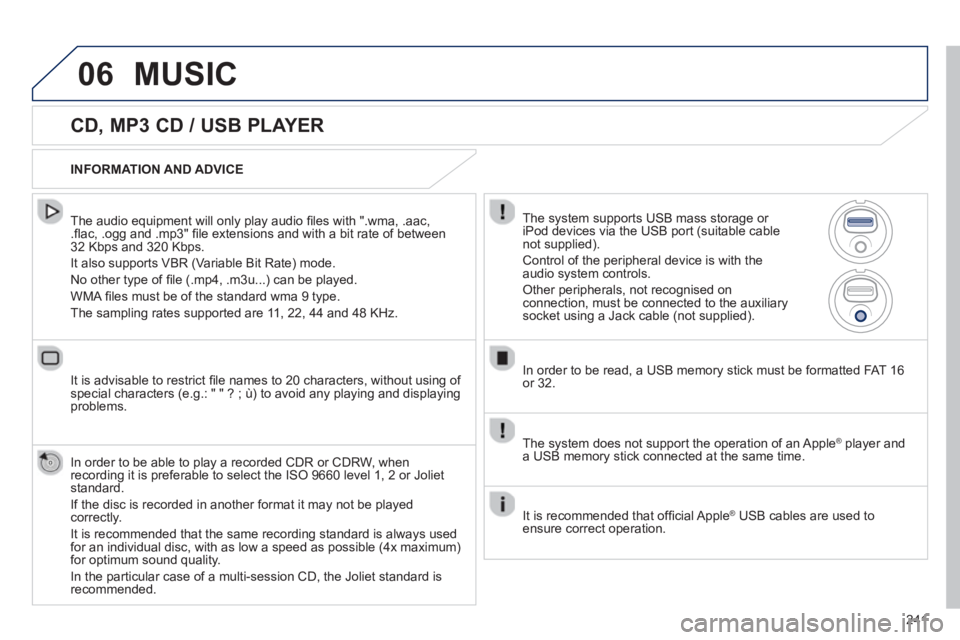
The s
ystem supports USB mass storage or
iPod devices via the USB port (suitable cable not supplied).
Control of the peripheral device is with the
audio system controls.
Other peripherals, not recognised onconnection, must be connected to the auxiliary socket using a Jack cable (not supplied).
In order to be read, a U
SB memory stick must be formatted FAT 16or 32.
MUSIC
The system does not support the operation of an Apple®
player and®
a USB memory stick connected at the same time.
It is recommended that o
ffi cial AppleÆ
USB cables are used toÆ
ensure correct operation.
Page 246 of 324
06
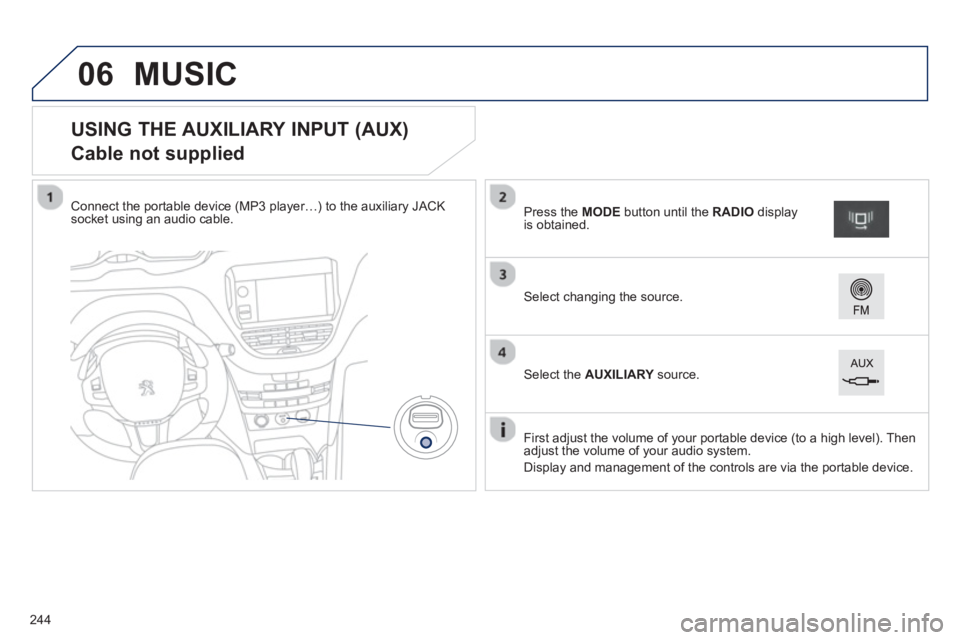
USING THE AUXILIARY INPUT (AUX)
Cable not supplied
Connect the portable device (MP3 player…) to the auxiliary JACK
socket using an audio cable.
First ad
just the volume of your portable device (to a high level). Then
adjust the volume of your audio system.
Displa
y and management of the controls are via the portable device.
Select changing the source.
Press the MODE button until the RADIO
display is obtained.
Select the AUXILIARYsource.Y
MUSIC
244