navigation PEUGEOT 2008 2016 Owner's Manual
[x] Cancel search | Manufacturer: PEUGEOT, Model Year: 2016, Model line: 2008, Model: PEUGEOT 2008 2016Pages: 450, PDF Size: 14.16 MB
Page 277 of 450
275
2008_en_Chap12b_SMEGplus_ed01-2016
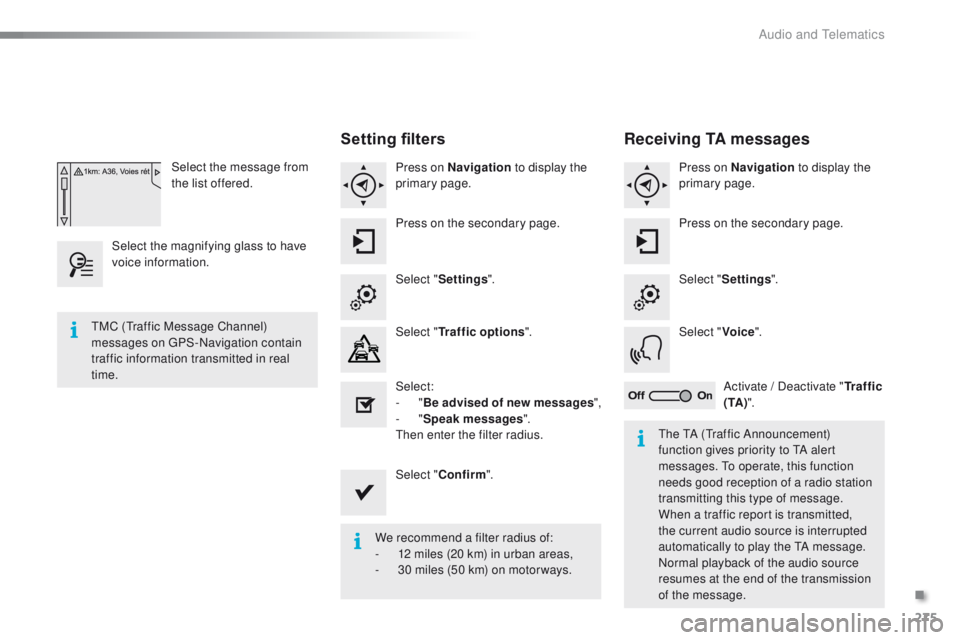
Select the message from
the list offered.
Select the magnifying glass to have
voice information.
Setting filters
Press on Navigation to display the
primary page.
Press on the secondary page.
Select " Settings ".
Select " Traffic options ".
Select:
-
"Be advised of new messages ",
-
"Speak messages ".
Then enter the filter radius.
Select " Confirm ".
We recommend a filter radius of:
-
1
2 miles (20 km) in urban areas,
-
3
0 miles (50 km) on motor ways.
TMC (Traffic Message Channel)
messages on GPS-Navigation contain
traffic information transmitted in real
time.
The TA (Traffic Announcement)
function gives priority to TA alert
messages. To operate, this function
needs good reception of a radio station
transmitting this type of message.
When a traffic report is transmitted,
the current audio source is interrupted
automatically to play the TA message.
Normal playback of the audio source
resumes at the end of the transmission
of the message.
Receiving TA messages
Press on Navigation to display the
primary page.
Press on the secondary page.
Select " Settings ".
Select " Voice".
Activate / Deactivate " Tr a f f i c
( TA ) ".
.
Audio and Telematics
Page 320 of 450
318
2008_en_Chap12b_SMEGplus_ed01-2016
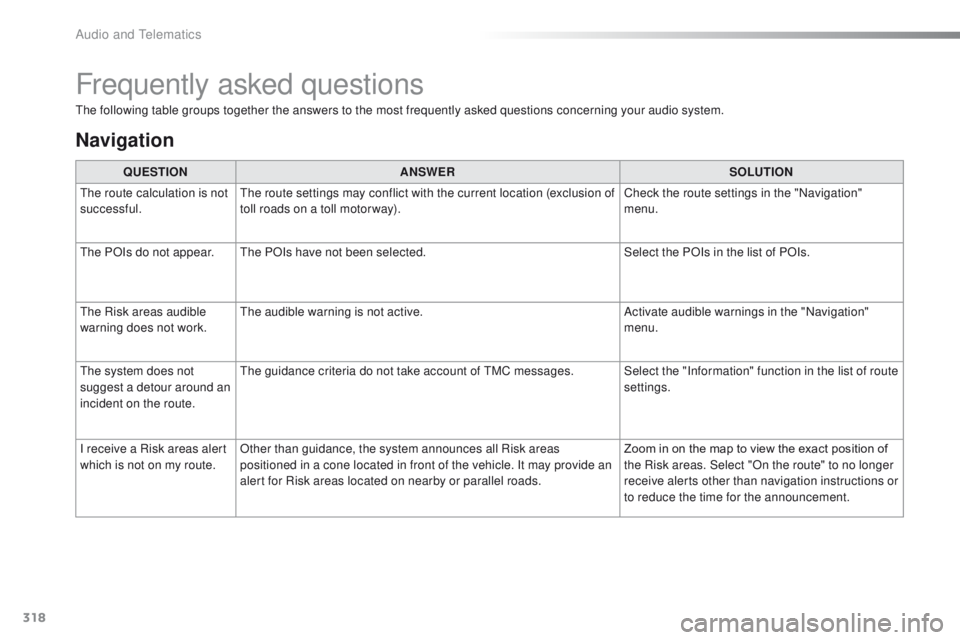
Frequently asked questions
The following table groups together the answers to the most frequently asked questions concerning your audio system.QUESTION ANSWER SOLUTION
The route calculation is not
successful. The route settings may conflict with the current location (exclusion of
toll roads on a toll motor way). Check the route settings in the "Navigation"
menu.
The POIs do not appear. The POIs have not been selected. Select the POIs in the list of POIs.
The Risk areas audible
warning does not work. The audible warning is not active.
Activate audible warnings in the "Navigation"
menu.
The system does not
suggest a detour around an
incident on the route. The guidance criteria do not take account of TMC messages. Select the "Information" function in the list of route
settings.
I receive a Risk areas alert
which is not on my route. Other than guidance, the system announces all Risk areas
positioned in a cone located in front of the vehicle. It may provide an
alert for Risk areas located on nearby or parallel roads. Zoom in on the map to view the exact position of
the Risk areas. Select "On the route" to no longer
receive alerts other than navigation instructions or
to reduce the time for the announcement.
Navigation
Audio and Telematics
Page 330 of 450
328
2008_en_Chap12c_RDE2_ed01-2016
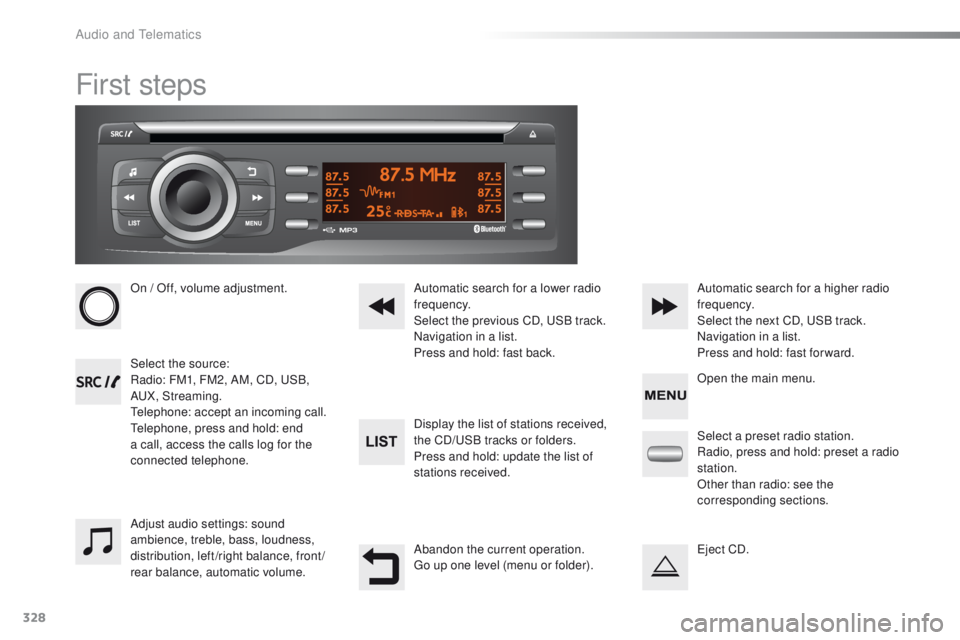
First steps
On / Off, volume adjustment.
Select the source:
Radio: FM1, FM2, AM, CD, USB,
AUX, Streaming.
Telephone: accept an incoming call.
Telephone, press and hold: end
a call, access the calls log for the
connected telephone.Display the list of stations received,
the CD/USB tracks or folders.
Press and hold: update the list of
stations received. Automatic search for a lower radio
frequency.
Select the previous CD, USB track.
Navigation in a list.
Press and hold: fast back.Automatic search for a higher radio
frequency.
Select the next CD, USB track.
Navigation in a list.
Press and hold: fast for ward.
Adjust audio settings: sound
ambience, treble, bass, loudness,
distribution, left/right balance, front/
rear balance, automatic volume. Abandon the current operation.
Go up one level (menu or folder).Select a preset radio station.
Radio, press and hold: preset a radio
station.
Other than radio: see the
corresponding sections.
Eject CD. Open the main menu.
Audio and Telematics
Page 350 of 450
348
2008_en_Chap12d_RDE1_ed01-2016
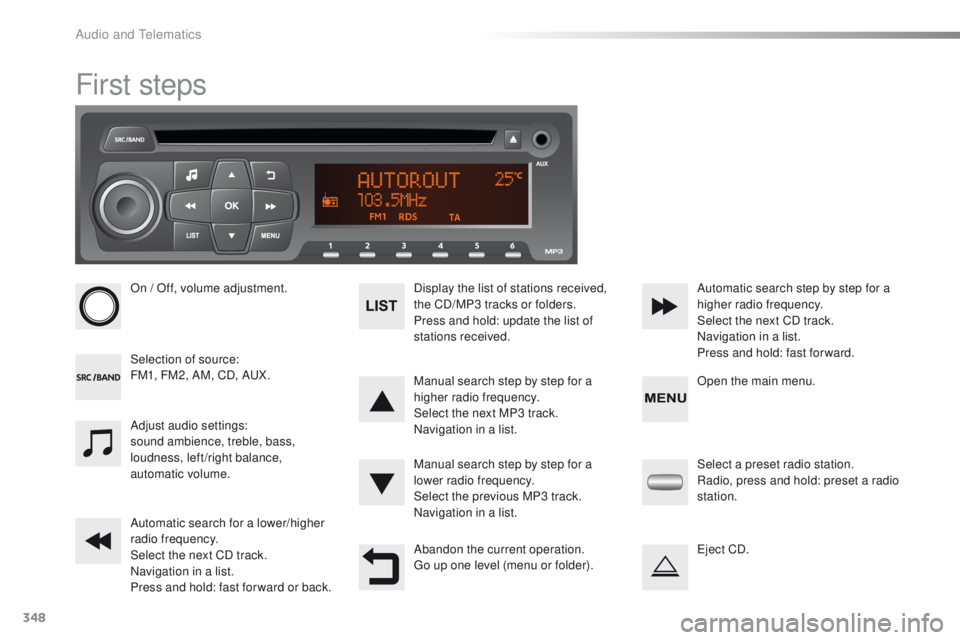
First steps
On / Off, volume adjustment.
Selection of source:
FM1, FM2, AM, CD, AUX.Display the list of stations received,
the CD/MP3 tracks or folders.
Press and hold: update the list of
stations received.
Manual search step by step for a
higher radio frequency.
Select the next MP3 track.
Navigation in a list.
Manual search step by step for a
lower radio frequency.
Select the previous MP3 track.
Navigation in a list.
Automatic search for a lower/higher
radio frequency.
Select the next CD track.
Navigation in a list.
Press and hold: fast for ward or back. Automatic search step by step for a
higher radio frequency.
Select the next CD track.
Navigation in a list.
Press and hold: fast for ward.
Adjust audio settings:
sound ambience, treble, bass,
loudness, left/right balance,
automatic volume.
Abandon the current operation.
Go up one level (menu or folder).Select a preset radio station.
Radio, press and hold: preset a radio
station.
Eject CD. Open the main menu.
Audio and Telematics
Page 363 of 450
361
2008_en_Chap13_index-alpha_ed01-2016
Labels, identification .....................................25 3
LED daytime running lamps .........................204Level, brake fluid
...........................................
2
37
Level, Diesel additive
....................................
239
Level, engine coolant
..............................
33, 238
Level, engine oil
...............................
.......
31, 237
Levels and checks ................................
235-239
Light-emitting diodes - LEDs
........................
206
Lighting control stalk
.....................................
12 2
Lighting dimmer
..............................
..............
13 0
Lighting, guide-me home
................
4 5, 12 2, 123
Lighting, interior
............................................
131
Lighting, mood
..............................................
132
Loading
...................................................
12, 23 0
Load reduction mode
....................................
219
Locating your vehicle
...................................... 45
Lo
cking
............................................................
43
Locking the boot.............................................. 50
Low fuel level ..........................................
26, 170
Luggage retaining strap
..................................
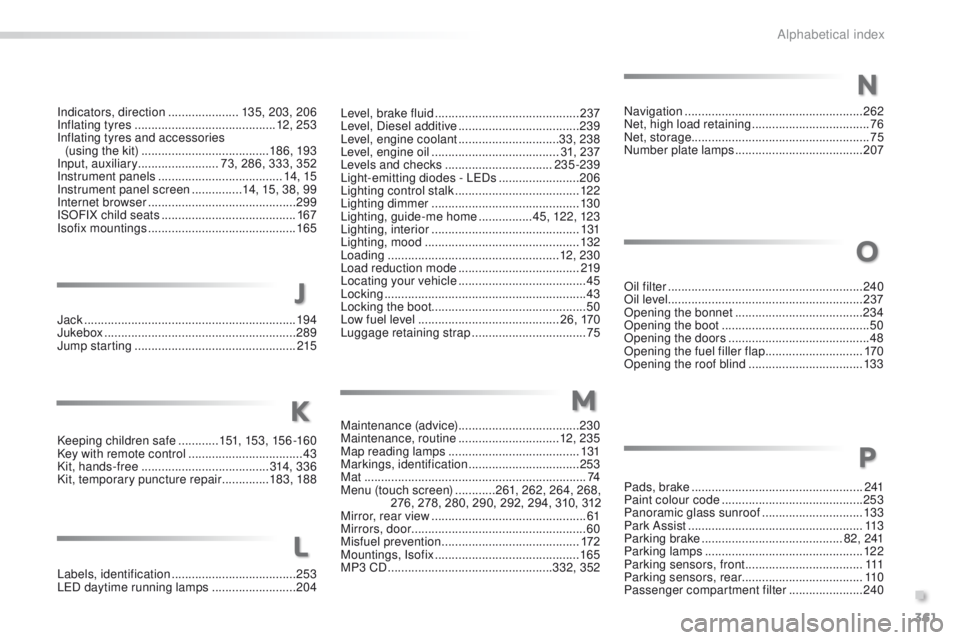
75Navigation
.....................................................
262
Net, high load retaining
...................................
76
Net, storage ..................................................... 75
Number plate lamps
...................................... 2
07
Oil filter
...............
...........................................
240
Oil level .......................................................... 237
Opening the bonnet
...................................... 23
4
Opening the boot
..............................
..............
50
Opening the doors
...............................
...........
48
Opening the fuel filler flap
.............................
17
0
Opening the roof blind
..................................
13 3
K
L
M
N
Keeping children safe ............15 1, 153, 15 6 -16 0
Key with remote control ..................................43
Kit, hands-free
...................................... 314, 3 3 6
Kit, temporary puncture repair
..............183, 188 Maintenance (advice)
....................................
230
Maintenance, routine ..............................
12, 23 5
Map reading lamps .......................................131
Markings, identification
.................................253
Mat
..................................................................74
Menu (touch screen)
............261, 262, 264, 268,
276, 278, 280, 290, 292, 294, 310, 312
Mirror, rear view
..............................................61
Mirrors, door .................................................... 60
Misfuel prevention
...............................
..........172
Mountings, Isofix
...........................................165
MP3 CD
.................................................332, 352
Indicators, direction
.....................
135, 203, 206
Inflating tyres
..........................................
12, 25 3
Inflating tyres and accessories (using the kit)
..............................
........
18 6, 193
Input, auxiliary
........................ 7
3, 286, 333, 352
Instrument panels
.....................................
14, 15
Instrument panel screen
............... 1
4, 15, 38, 99
Internet browser
............................................
299
ISOFIX child seats
...............................
.........
167
Isofix mountings
...............................
.............
165
Jack
........
.......................................................
19 4
Jukebox
.........................................................
289
Jump starting
..............................
..................
215
J
O
P
Pads, brake ................................................... 2 41
Paint colour code .......................................... 253
Panoramic glass sunroof
..............................13 3
Park Assist
.................................................... 113
Parking brake
.......................................... 8 2 , 2 41
Parking lamps
............................................... 12 2
Parking sensors, front
...................................111
Parking sensors, rear .................................... 11 0
Passenger compartment filter
......................240
.
Alphabetical index
Page 377 of 450
2
Monitoring
Touch screen
For For Forsafety reasons, the driver , the driver , the drivermustonly carry out operations that require close attention with the vehicle stationary. Some functions are not accessible when driving.
It gives access to: - menus for adjusting settings for vehicle functions and systems, - audio and display configuration menus, - audio system and telephone controls and the display of associated information.
And, depending on equipment, it allows: - the display of alert messages and the visual parking sensors information, - access to the controls for the navigation system and Internet services, and the display of associated information.
General operation
Recommendations
It is necessary to press firmly, particularly for "flick" gestures (scrolling through lists, moving the map, etc.). A light wipe is not enough. The screen does not recognise pressing with more than one finger. This technology allows use at all temperatures and when wearing gloves. Do not use pointed objects on the touch screen. Do not touch the touch screen with wet hands. Uses a soft clean cloth to clean the touch screen.
State of indicator lamps
Some buttons contain an indicator lamp that gives the state of the corresponding function. Green indicator: you have switched on the corresponding function. Orange indicator: you have switched off the corresponding function.
Principles
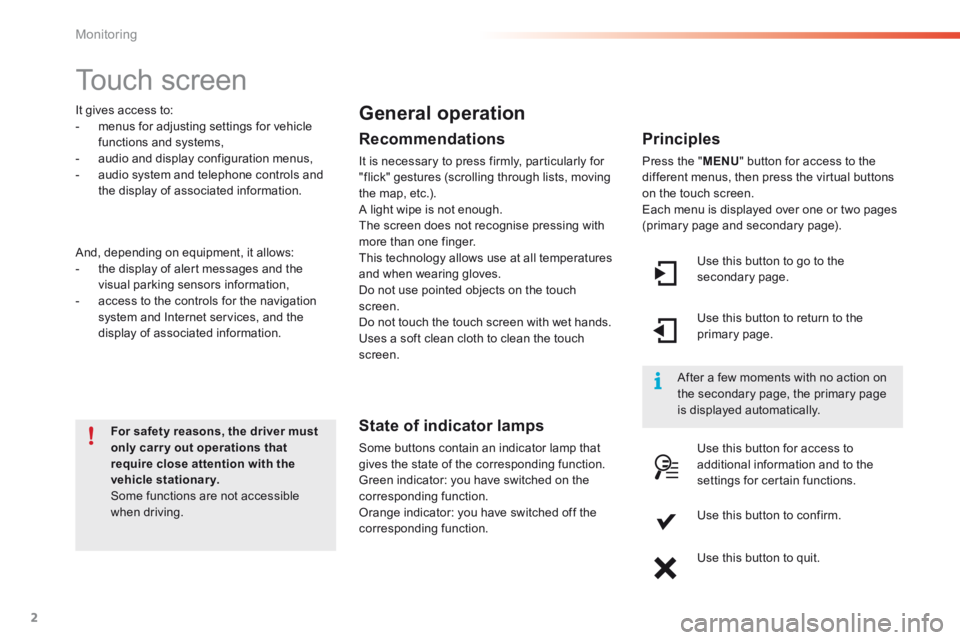
Press the " MENU " button for access to the different menus, then press the virtual buttons on the touch screen. Each menu is displayed over one or two pages (primary page and secondary page).
Use this button to go to the secondary page.
After a few moments with no action on the secondary page, the primary page is displayed automatically.
Use this button to return to the primary page.
Use this button for access to additional information and to the settings for certain functions.
Use this button to confirm.
Use this button to quit.
Page 378 of 450
1
3
Monitoring
2008-additif_en_Chap01_controle-de-marche_ed01-2016
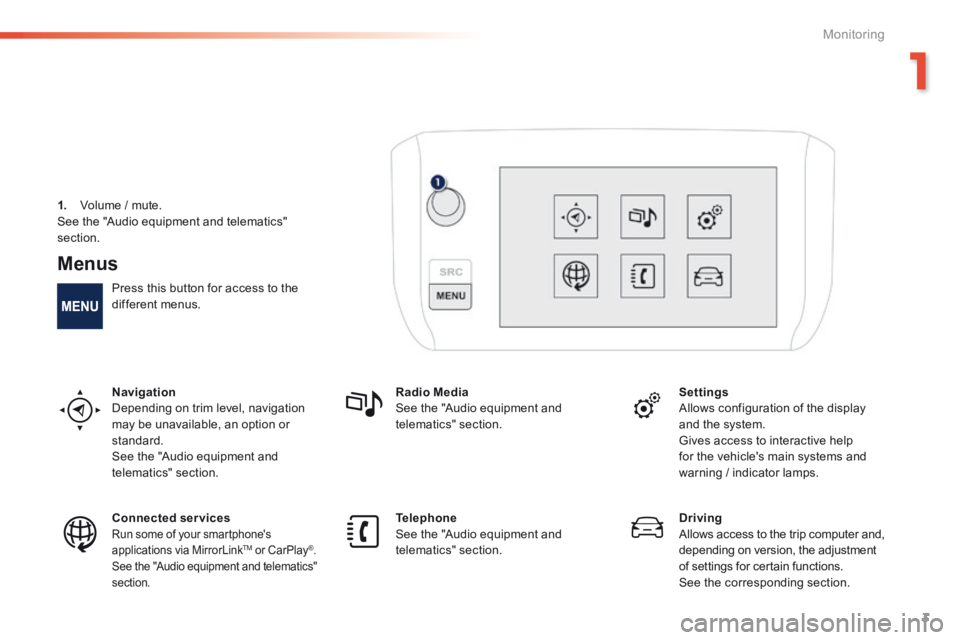
Menus
Press this button for access to the different menus.
Navigation Depending on trim level, navigation may be unavailable, an option or standard. See the "Audio equipment and telematics" section.
Radio Media See the "Audio equipment and telematics" section.
Settings Allows configuration of the display and the system.
Gives access to interactive help for the vehicle's main systems and warning / indicator lamps.
Connected services Run some of your smartphone's applications via MirrorLink TMapplications via MirrorLink TMapplications via MirrorLink or CarPlay®. See the "Audio equipment and telematics" section.
Telephone See the "Audio equipment and telematics" section.
Driving Allows access to the trip computer and, depending on version, the adjustment of settings for certain functions. See the corresponding section.
1. Volume / mute. See the "Audio equipment and telematics"
section.
Page 387 of 450
13
2008-additif_en_Chap12b_SMEGplus_ed01-2016
7-inch touch screen
GPS satellite navigation - Multimedia audio - Bluetooth® telephone
Contents
First steps 14
S
teering mounted controls
16
M
e n u s
17
Na
vigation
1
8
Navigation - Guidance
26
Tr
a f fi c
3 0
R
adio Media
32
Ra
dio
3
8
DAB (Digital Audio Broadcasting) radio
40
M
edia
42
S
ettings
4
6
Connected services
54
M
irrorLink
TM 54
Car
Play® 58
Te
lephone
6
0
Frequently asked questions
68
T
he system is protected in such a way that it will only operate in
your vehicle. As a safety measure, the driver should only carry out operations
which require prolonged attention while the vehicle is stationary.
The display of an energy economy mode message signals that
electrical systems operating are going into standby.
Refer to the energy economy mode section.
.
Audio and Telematics
Page 389 of 450
15
2008-additif_en_Chap12b_SMEGplus_ed01-2016
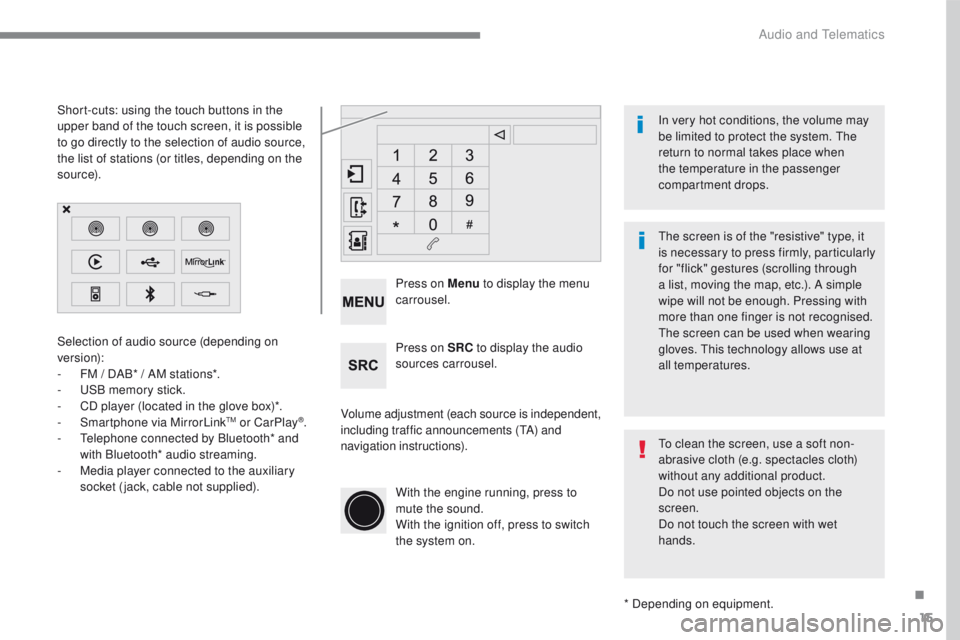
Selection of audio source (depending on
version):
-
FM / D
AB* / AM stations*.
-
US
B memory stick.
-
CD p
layer (located in the glove box)*.
-
Sm
artphone via MirrorLink
TM or CarPlay®.
- Te
lephone connected by Bluetooth* and
with Bluetooth* audio streaming.
-
Me
dia player connected to the auxiliary
socket (jack, cable not supplied).
* Depending on equipment.
Short-cuts: using the touch buttons in the
upper
b
and of the touch screen, it is possible
to go directly to the selection of audio source,
the list of stations (or titles, depending on the
s o u r c e).
The screen is of the "resistive" type, it
is necessary to press firmly, particularly
for "flick" gestures (scrolling through
a list, moving the map, etc.). A simple
wipe will not be enough. Pressing with
more than one finger is not recognised.
The screen can be used when wearing
gloves. This technology allows use at
all temperatures. In very hot conditions, the volume may
be limited to protect the system. The
return to normal takes place when
the temperature in the passenger
compartment drops.
To clean the screen, use a soft non-
abrasive cloth (e.g. spectacles cloth)
without any additional product.
Do not use pointed objects on the
screen.
Do not touch the screen with wet
hands.
Volume adjustment (each source is independent,
including traffic announcements (
TA) and
navigation instructions). Press on Menu
to display the menu
carrousel.
Press on SRC to display the audio
sources carrousel.
With the engine running, press to
mute the sound.
With the ignition off, press to switch
the system on.
.
Audio and Telematics
Page 391 of 450
17
2008-additif_en_Chap12b_SMEGplus_ed01-2016
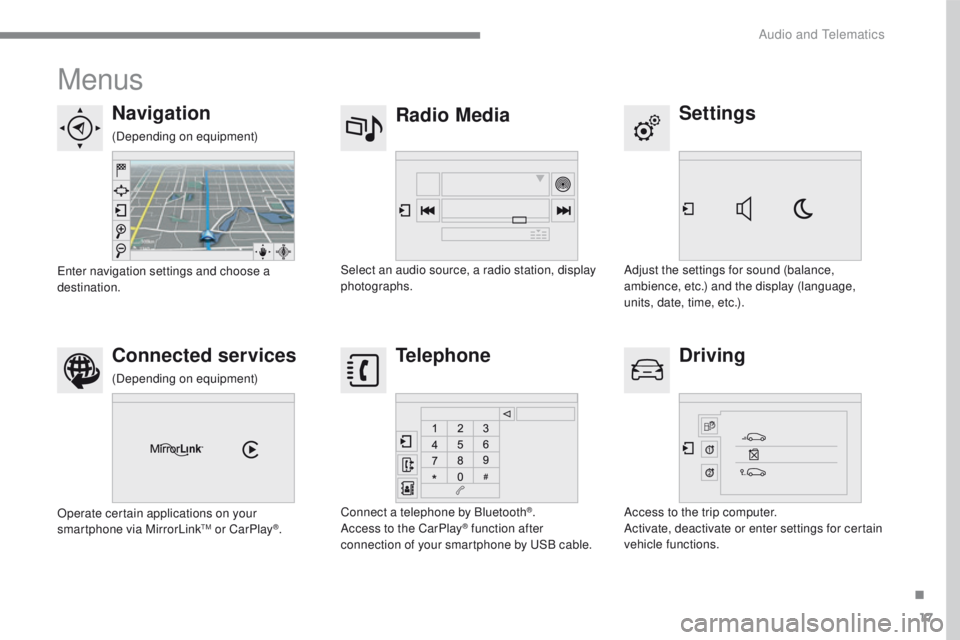
Menus
Settings
Radio Media
Navigation
Driving
Connected services Telephone
Adjust the settings for sound (balance,
ambience, etc.) and the display (language,
units, date, time, etc.).
Select an audio source, a radio station, display
photographs.
Enter navigation settings and choose a
destination.
Access to the trip computer.
Activate, deactivate or enter settings for certain
vehicle functions.
Operate certain applications on your
smartphone via MirrorLink
TM or CarPlay®.
Connect a telephone by Bluetooth
®.
Access to the CarPlay® function after
connection of your smartphone by USB cable.
(Depending on equipment)
(Depending on equipment)
.
Audio and Telematics