audio PEUGEOT 2008 2016 Manual Online
[x] Cancel search | Manufacturer: PEUGEOT, Model Year: 2016, Model line: 2008, Model: PEUGEOT 2008 2016Pages: 450, PDF Size: 14.16 MB
Page 325 of 450
323
2008_en_Chap12b_SMEGplus_ed01-2016
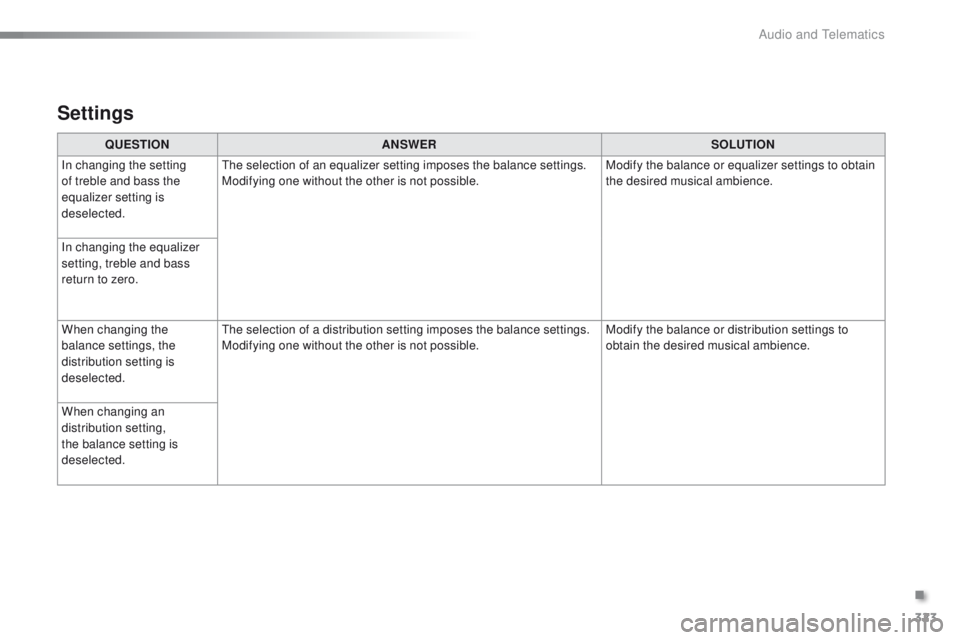
QUESTIONANSWER SOLUTION
In changing the setting
of treble and bass the
equalizer setting is
deselected. The selection of an equalizer setting imposes the balance settings.
Modifying one without the other is not possible.
Modify the balance or equalizer settings to obtain
the desired musical ambience.
In changing the equalizer
setting, treble and bass
return to zero.
When changing the
balance settings, the
distribution setting is
deselected. The selection of a distribution setting imposes the balance settings.
Modifying one without the other is not possible.
Modify the balance or distribution settings to
obtain the desired musical ambience.
When changing an
distribution setting,
the balance setting is
deselected.
Settings
.
Audio and Telematics
Page 326 of 450
324
2008_en_Chap12b_SMEGplus_ed01-2016
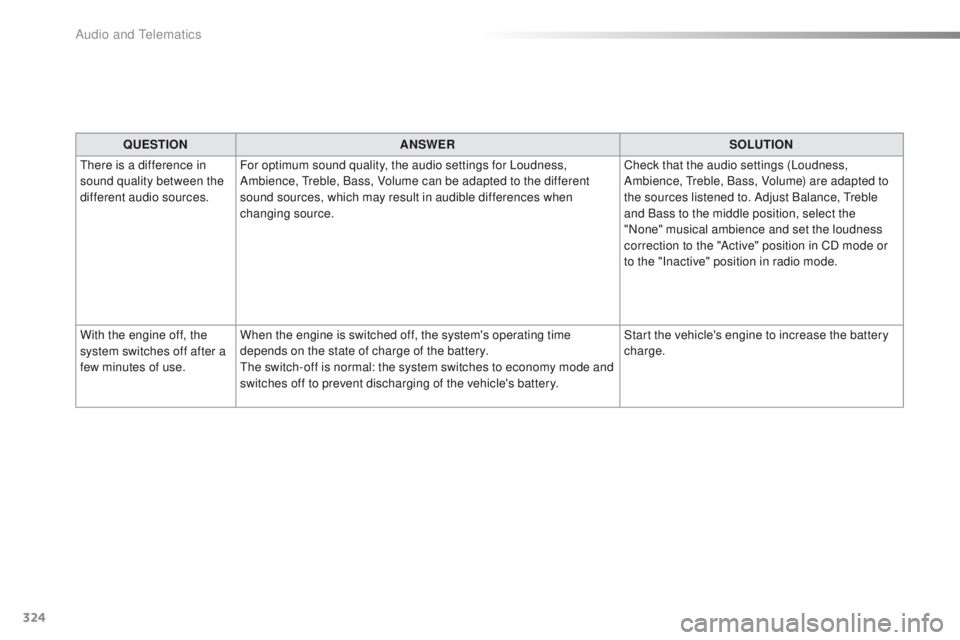
QUESTIONANSWER SOLUTION
There is a difference in
sound quality between the
different audio sources. For optimum sound quality, the audio settings for Loudness,
Ambience, Treble, Bass, Volume can be adapted to the different
sound sources, which may result in audible differences when
changing source. Check that the audio settings (Loudness,
Ambience, Treble, Bass, Volume) are adapted to
the sources listened to. Adjust Balance, Treble
and Bass to the middle position, select the
"None" musical ambience and set the loudness
correction to the "Active" position in CD mode or
to the "Inactive" position in radio mode.
With the engine off, the
system switches off after a
few minutes of use. When the engine is switched off, the system's operating time
depends on the state of charge of the battery.
The switch-off is normal: the system switches to economy mode and
switches off to prevent discharging of the vehicle's battery. Start the vehicle's engine to increase the battery
charge.
Audio and Telematics
Page 327 of 450
325
2008_en_Chap12b_SMEGplus_ed01-2016
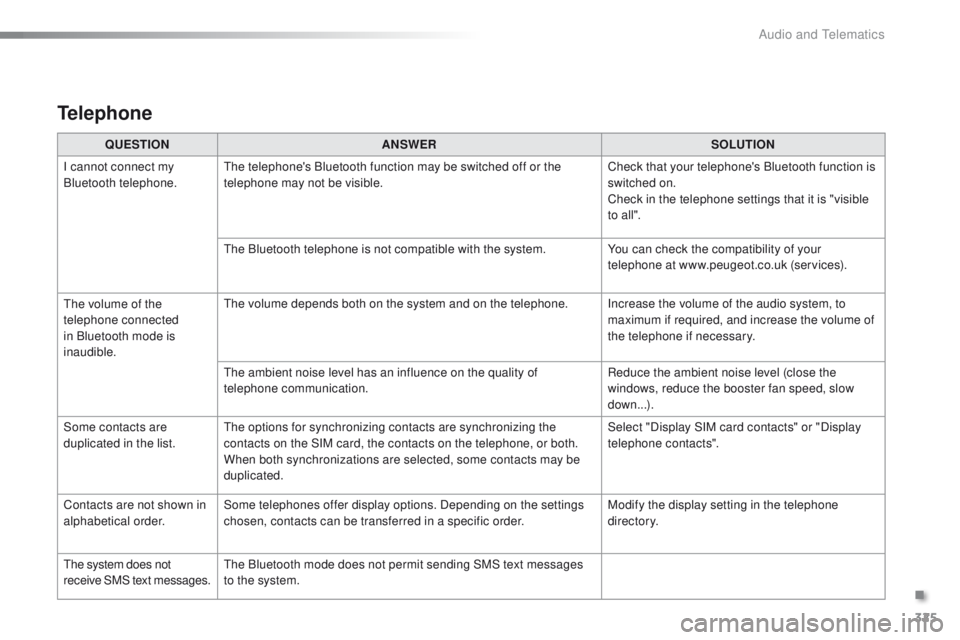
QUESTIONANSWER SOLUTION
I cannot connect my
Bluetooth telephone. The telephone's Bluetooth function may be switched off or the
telephone may not be visible. Check that your telephone's Bluetooth function is
switched on.
Check in the telephone settings that it is "visible
to all ".
The Bluetooth telephone is not compatible with the system. You can check the compatibility of your
telephone at www.peugeot.co.uk (services).
The volume of the
telephone connected
in Bluetooth mode is
inaudible. The volume depends both on the system and on the telephone. Increase the volume of the audio system, to
maximum if required, and increase the volume of
the telephone if necessary.
The ambient noise level has an influence on the quality of
telephone communication. Reduce the ambient noise level (close the
windows, reduce the booster fan speed, slow
down...).
Some contacts are
duplicated in the list. The options for synchronizing contacts are synchronizing the
contacts on the SIM card, the contacts on the telephone, or both.
When both synchronizations are selected, some contacts may be
duplicated. Select "Display SIM card contacts" or "Display
telephone contacts".
Contacts are not shown in
alphabetical order. Some telephones offer display options. Depending on the settings
chosen, contacts can be transferred in a specific order. Modify the display setting in the telephone
di r e c to r y.
The system does not
receive SMS text messages. The Bluetooth mode does not permit sending SMS text messages
to the system.
Telephone
.
Audio and Telematics
Page 329 of 450
327
2008_en_Chap12c_RDE2_ed01-2016
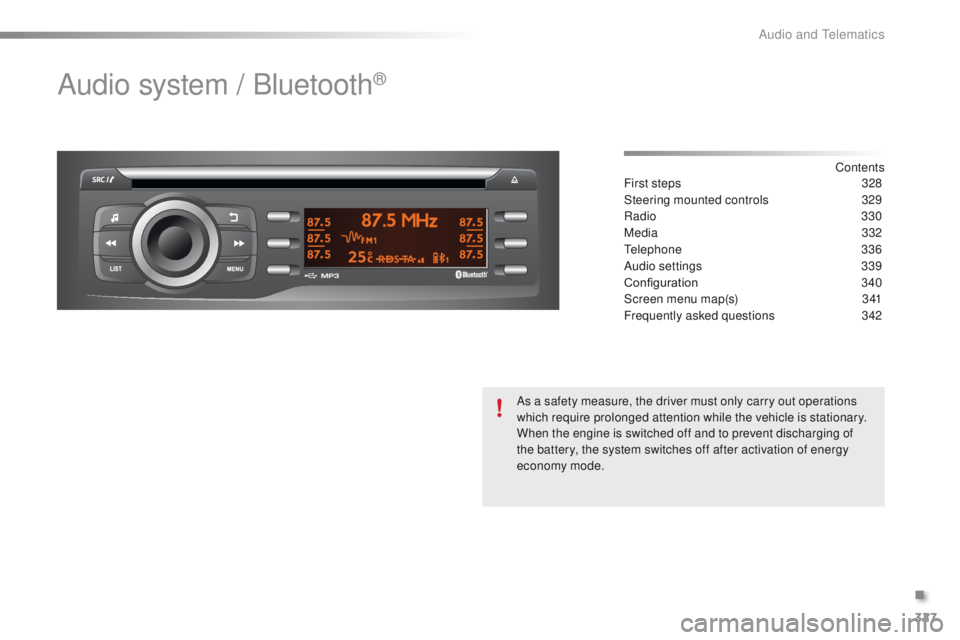
Audio system / Bluetooth®
Contents
First steps 32 8
Steering mounted controls
3
29
Radio
330
Media
3
32
Telephone
336
Audio settings
3
39
Configuration
3
40
Screen menu map(s)
3
41
Frequently asked questions
3
42
As a safety measure, the driver must only carry out operations
which require prolonged attention while the vehicle is stationary.
When the engine is switched off and to prevent discharging of
the battery, the system switches off after activation of energy
economy mode.
.
Audio and Telematics
Page 330 of 450
328
2008_en_Chap12c_RDE2_ed01-2016
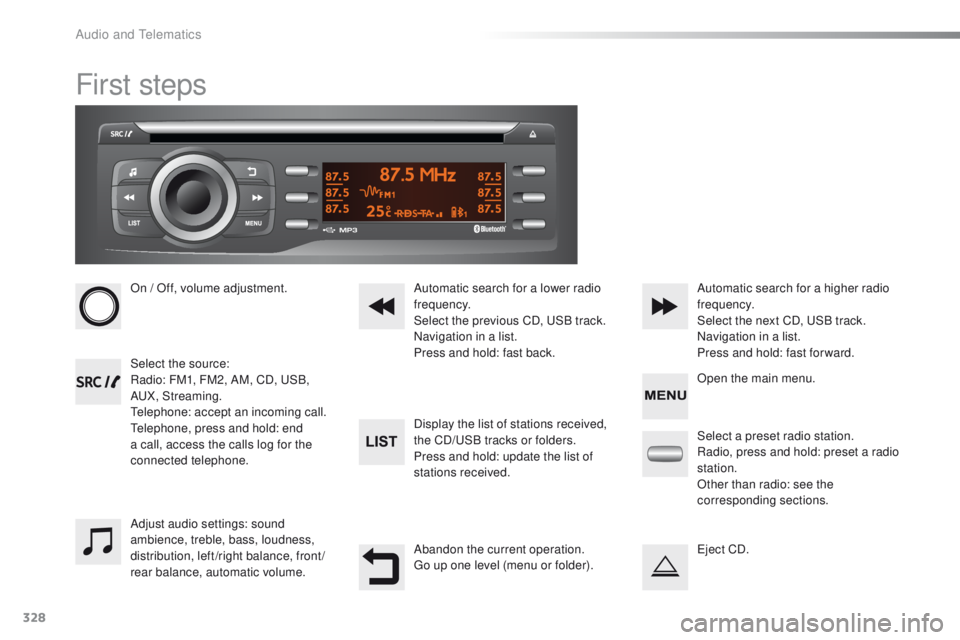
First steps
On / Off, volume adjustment.
Select the source:
Radio: FM1, FM2, AM, CD, USB,
AUX, Streaming.
Telephone: accept an incoming call.
Telephone, press and hold: end
a call, access the calls log for the
connected telephone.Display the list of stations received,
the CD/USB tracks or folders.
Press and hold: update the list of
stations received. Automatic search for a lower radio
frequency.
Select the previous CD, USB track.
Navigation in a list.
Press and hold: fast back.Automatic search for a higher radio
frequency.
Select the next CD, USB track.
Navigation in a list.
Press and hold: fast for ward.
Adjust audio settings: sound
ambience, treble, bass, loudness,
distribution, left/right balance, front/
rear balance, automatic volume. Abandon the current operation.
Go up one level (menu or folder).Select a preset radio station.
Radio, press and hold: preset a radio
station.
Other than radio: see the
corresponding sections.
Eject CD. Open the main menu.
Audio and Telematics
Page 331 of 450
329
2008_en_Chap12c_RDE2_ed01-2016
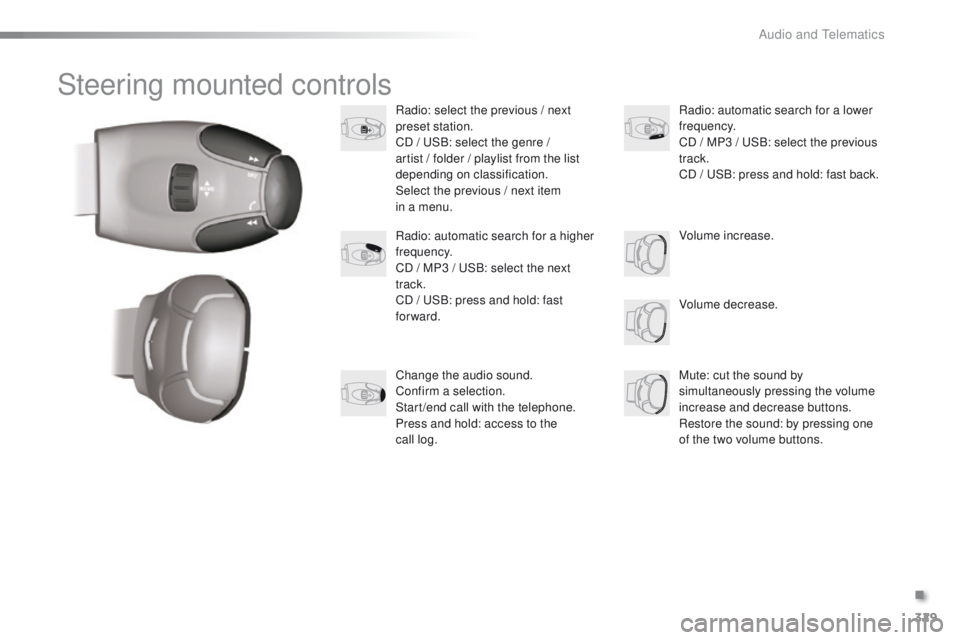
Steering mounted controls
Radio: select the previous / next
preset station.
CD / USB: select the genre /
artist / folder / playlist from the list
depending on classification.
Select the previous / next item
in a menu.Volume decrease.
Radio: automatic search for a higher
frequency.
CD / MP3 / USB: select the next
track.
CD / USB: press and hold: fast
forward.
Mute: cut the sound by
simultaneously pressing the volume
increase and decrease buttons.
Restore the sound: by pressing one
of the two volume buttons. Radio: automatic search for a lower
frequency.
CD / MP3 / USB: select the previous
track.
CD / USB: press and hold: fast back.
Change the audio sound.
Confirm a selection.
Start /end call with the telephone.
Press and hold: access to the
call
log. Volume increase.
.
Audio and Telematics
Page 332 of 450
330
2008_en_Chap12c_RDE2_ed01-2016
Radio
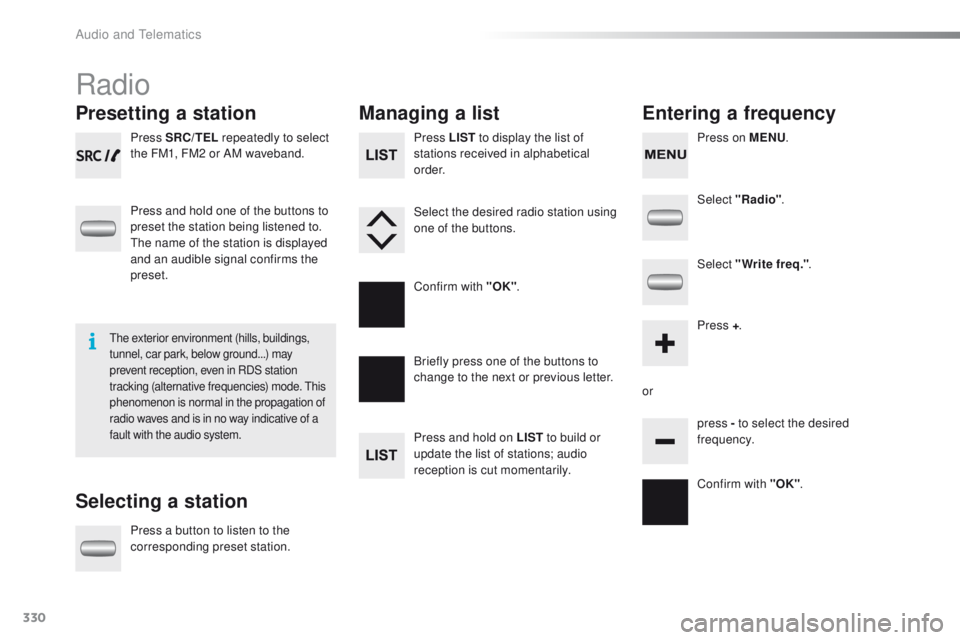
Presetting a station
Selecting a stationManaging a list
Entering a frequency
Press SRC/TEL repeatedly to select
the FM1, FM2 or AM waveband.
Press and hold one of the buttons to
preset the station being listened to.
The name of the station is displayed
and an audible signal confirms the
preset.
Press a button to listen to the
corresponding preset station. Select "Radio"
.
Select "Write freq." .
Press + .
or press - to select the desired
frequency.
Briefly press one of the buttons to
change to the next or previous letter.
Press and hold on LIST
to build or
update the list of stations; audio
reception is cut momentarily. Press LIST to display the list of
stations received in alphabetical
o r d e r.
Select the desired radio station using
one of the buttons.
Confirm with "OK" .
Confirm with "OK".
The exterior environment (hills, buildings,
tunnel, car park, below ground...) may
prevent reception, even in RDS station
tracking (alternative frequencies) mode. This
phenomenon is normal in the propagation of
radio waves and is in no way indicative of a
fault with the audio system.
Press on MENU.
Audio and Telematics
Page 333 of 450
331
2008_en_Chap12c_RDE2_ed01-2016
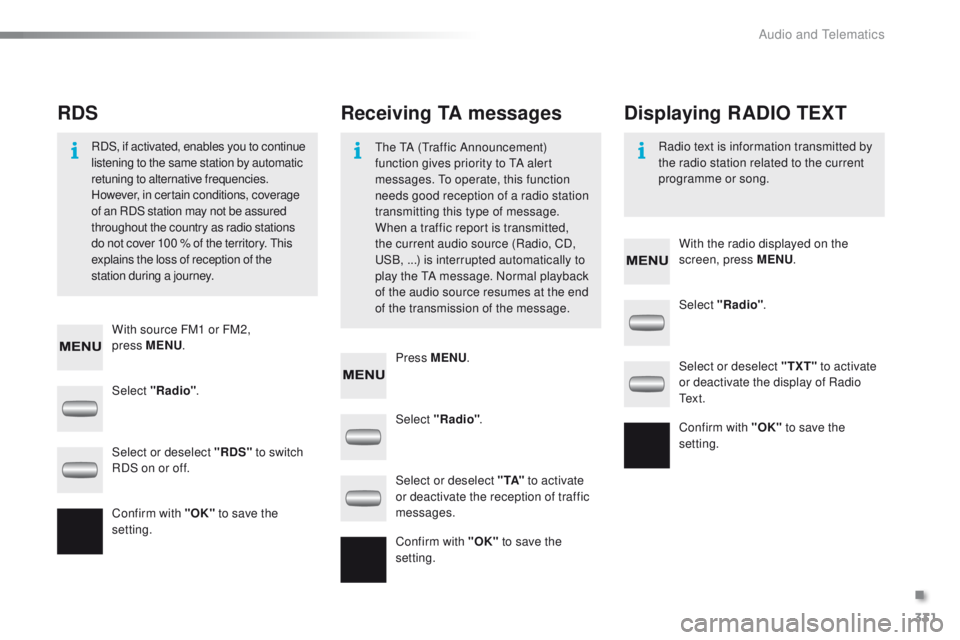
Select "Radio". Select "Radio"
.
Select "Radio" .
Select or deselect "RDS" to switch
RDS on or off. Select or deselect "
TXT" to activate
or deactivate the display of Radio
Te x t .
Select or deselect " TA" to activate
or deactivate the reception of traffic
messages.
Confirm with "OK" to save the
setting. Confirm with "OK"
to save the
setting.
Confirm with "OK" to save the
setting.
Receiving TA messages
RDS Displaying RADIO TEXT
The TA (Traffic Announcement)
function gives priority to TA alert
messages. To operate, this function
needs good reception of a radio station
transmitting this type of message.
When a traffic report is transmitted,
the current audio source (Radio, CD,
USB,
...) is interrupted automatically to
play the TA message. Normal playback
of the audio source resumes at the end
of the transmission of the message.
RDS, if activated, enables you to continue
listening to the same station by automatic
retuning to alternative frequencies.
However, in certain conditions, coverage
of an RDS station may not be assured
throughout the country as radio stations
do not cover 100
% of the territory. This
explains the loss of reception of the
station during a journey. Radio text is information transmitted by
the radio station related to the current
programme or song.
With source FM1 or FM2,
press
MENU . With the radio displayed on the
screen, press MENU
.
Press MENU .
.
Audio and Telematics
Page 334 of 450
332
2008_en_Chap12c_RDE2_ed01-2016
Media
USB player
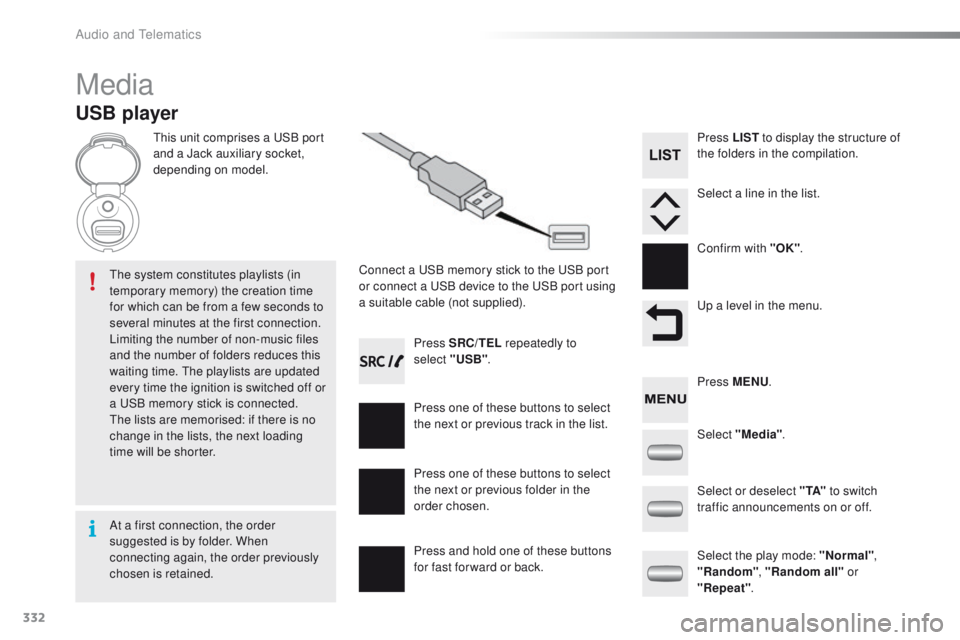
This unit comprises a USB port
and a Jack auxiliary socket,
depending on model.Connect a USB memory stick to the USB port
or connect a USB device to the USB port using
a suitable cable (not supplied).
The system constitutes playlists (in
temporary memory) the creation time
for which can be from a few seconds to
several minutes at the first connection.
Limiting the number of non-music files
and the number of folders reduces this
waiting time. The playlists are updated
every time the ignition is switched off or
a USB memory stick is connected.
The lists are memorised: if there is no
change in the lists, the next loading
time will be shorter. Press SRC/TEL
repeatedly to
select "USB" .
Press one of these buttons to select
the next or previous track in the list.
Press and hold one of these buttons
for fast for ward or back. Press one of these buttons to select
the next or previous folder in the
order chosen. Press LIST
to display the structure of
the folders in the compilation.
Select a line in the list.
Confirm with "OK" .
Up a level in the menu.
Select "Media" .
Select the play mode: "Normal" ,
"Random" , "Random all" or
"Repeat" .
Select or deselect " TA"
to switch
traffic announcements on or off. Press MENU .
At a first connection, the order
suggested is by folder. When
connecting again, the order previously
chosen is retained.
Audio and Telematics
Page 335 of 450
333
2008_en_Chap12c_RDE2_ed01-2016
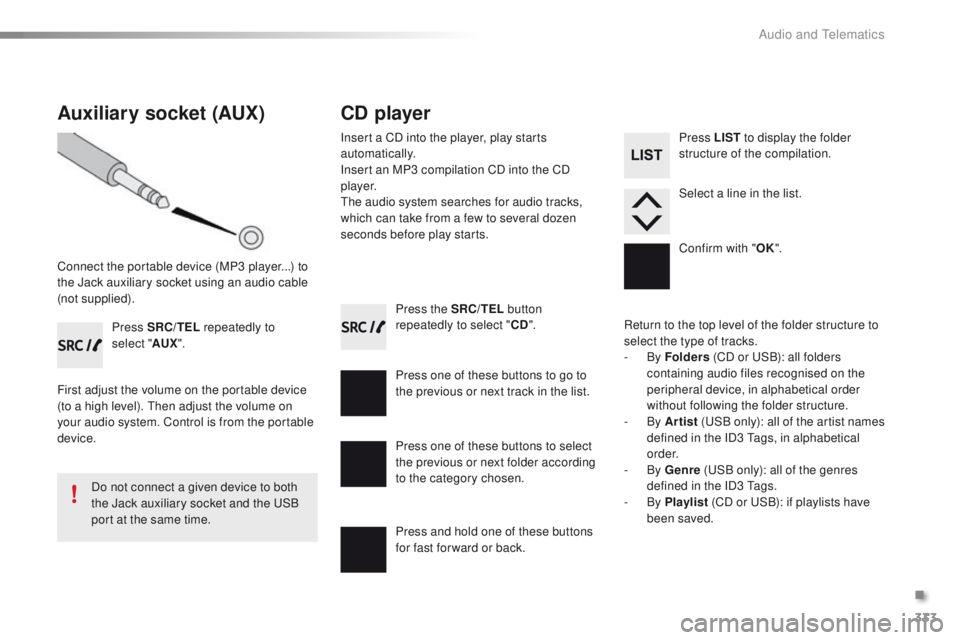
Press the SRC/TEL button
repeatedly to select " CD".
Press one of these buttons to go to
the previous or next track in the list.
Press and hold one of these buttons
for fast for ward or back.
Auxiliary socket (AUX)
Connect the portable device (MP3 player...) to
the Jack auxiliary socket using an audio cable
(not supplied). Press SRC/TEL repeatedly to
select " AUX".
First adjust the volume on the portable device
(to a high level). Then adjust the volume on
your audio system. Control is from the portable
device.
Do not connect a given device to both
the Jack auxiliary socket and the USB
port at the same time.
CD player
Insert a CD into the player, play starts
automatically.
Insert an MP3 compilation CD into the CD
p l aye r.
The audio system searches for audio tracks,
which can take from a few to several dozen
seconds before play starts.
Press one of these buttons to select
the previous or next folder according
to the category chosen. Press LIST
to display the folder
structure of the compilation.
Select a line in the list.
Confirm with " OK".
Return to the top level of the folder structure to
select the type of tracks.
-
By Folders (CD or USB): all folders
containing audio files recognised on the
peripheral device, in alphabetical order
without following the folder structure.
-
By Artist (USB only): all of the artist names
defined in the ID3 Tags, in alphabetical
o r d e r.
-
By Genre (USB only): all of the genres
defined in the ID3 Tags.
-
By Playlist (CD or USB): if playlists have
been saved.
.
Audio and Telematics