audio PEUGEOT 208 2021 User Guide
[x] Cancel search | Manufacturer: PEUGEOT, Model Year: 2021, Model line: 208, Model: PEUGEOT 208 2021Pages: 276, PDF Size: 8.02 MB
Page 154 of 276
152
Practical information
If a telephone call is in progress at the
time, it will be maintained for around 10
minutes via the audio system’s hands-free
system.
Exiting the mode
These functions are automatically reactivated the
next time the vehicle is used.
To restore the use of these functions
immediately, start the engine and let it run:
– For less than 10 minutes, to use the
equipment for approximately 5 minutes.
– For more than 10 minutes, to use the
equipment for approximately 30 minutes.
Let the engine run for the specified duration to
ensure that the battery charge is sufficient.
To recharge the battery, avoid repeatedly or
continuously restarting the engine.
A flat battery prevents the engine from starting.
For more information on the 12 V battery,
refer to the corresponding section.
Load reduction mode
This system manages the use of certain
functions according to the level of charge
remaining in the battery.
When the vehicle is being driven, the load
reduction function temporarily deactivates certain
► Use wire cutters, taking care not to cut the
tabs that are to be retained.
The cutting instructions are printed on
each inner face of the 2 upper very cold
climate screens.
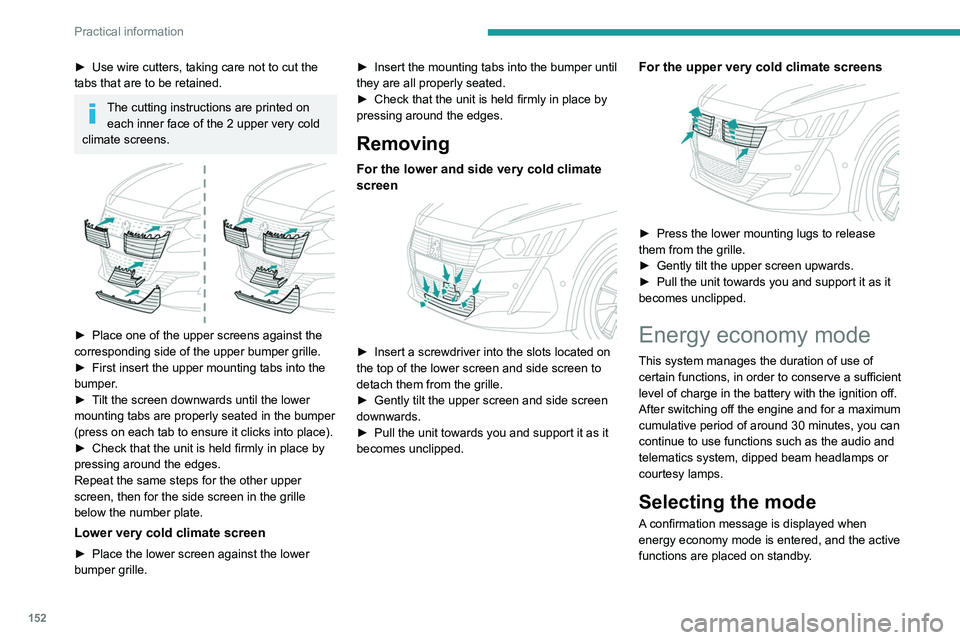
► Place one of the upper screens against the
corresponding side of the upper bumper grille.
►
First insert the upper mounting tabs into the
bumper
.
►
T
ilt the screen downwards until the lower
mounting tabs are properly seated in the bumper
(press on each tab to ensure it clicks into place).
►
Check that the unit is held firmly in place by
pressing around the edges.
Repeat the same steps for the other upper
screen, then for the side screen in the grille
below the number plate.
Lower very cold climate screen
► Place the lower screen against the lower
bumper grille. ►
Insert the mounting tabs into the bumper until
they are all properly seated.
►
Check that the unit is held firmly in place by
pressing around the edges.
Removing
For the lower and side very cold climate
screen
► Insert a screwdriver into the slots located on
the top of the lower screen and side screen to
detach them from the grille.
►
Gently tilt the upper screen and side screen
downwards.
►
Pull the unit towards you and support it as it
becomes unclipped.
For the upper very cold climate screens
► Press the lower mounting lugs to release
them from the grille.
►
Gently tilt the upper screen upwards.
►
Pull the unit towards you and support it as it
becomes unclipped.
Energy economy mode
This system manages the duration of use of
certain functions, in order to conserve a sufficient
level of charge in the battery with the ignition off.
After switching off the engine and for a maximum
cumulative period of around 30 minutes, you can
continue to use functions such as the audio and
telematics system, dipped beam headlamps or
courtesy lamps.
Selecting the mode
A confirmation message is displayed when
energy economy mode is entered, and the active
functions are placed on standby.
Page 155 of 276
153
Practical information
7If a telephone call is in progress at the
time, it will be maintained for around 10
minutes via the audio system’s hands-free
system.
Exiting the mode
These functions are automatically reactivated the
next time the vehicle is used.
To restore the use of these functions
immediately, start the engine and let it run:
–
For less than 10 minutes, to use the
equipment for approximately 5 minutes.
–
For more than 10 minutes, to use the
equipment for approximately 30 minutes.
Let the engine run for the specified duration to
ensure that the battery charge is sufficient.
T
o recharge the battery, avoid repeatedly or
continuously restarting the engine.
A flat battery prevents the engine from starting.
For more information on the 12
V battery,
refer to the corresponding section.
Load reduction mode
This system manages the use of certain
functions according to the level of charge
remaining in the battery.
When the vehicle is being driven, the load
reduction function temporarily deactivates certain
functions, such as the air conditioning and the
heated rear screen.
The deactivated functions are reactivated
automatically as soon as conditions permit.
Bonnet
Stop & Start
Before doing anything under the bonnet,
you must switch off the ignition to avoid any
risk of the engine restarting automatically.
Take care with objects or clothing that could
be caught in the blades of the cooling fan
or in certain moving components - risk of
strangulation and serious injury!
Electric motor
Take care with objects or clothing that
could be caught in the blades of the cooling
fan or in certain moving components - risk of
strangulation and serious injury!
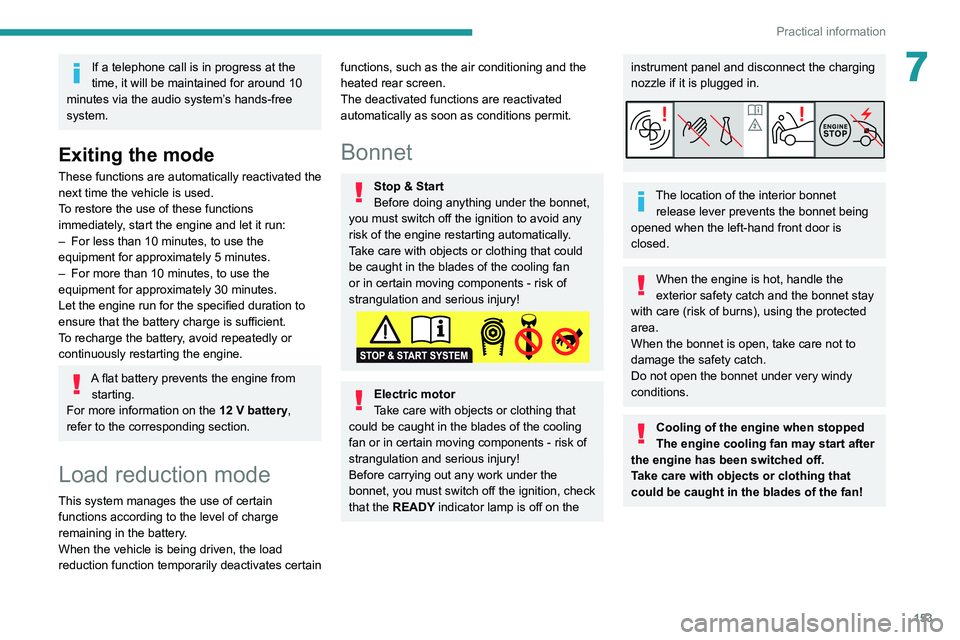
Before carrying out any work under the
bonnet, you must switch off the ignition, check
that the READY indicator lamp is off on the
instrument panel and disconnect the charging
nozzle if it is plugged in.
The location of the interior bonnet release lever prevents the bonnet being
opened when the left-hand front door is
closed.
When the engine is hot, handle the
exterior safety catch and the bonnet stay
with care (risk of burns), using the protected
area.
When the bonnet is open, take care not to
damage the safety catch.
Do not open the bonnet under very windy
conditions.
Cooling of the engine when stopped
The engine cooling fan may start after
the engine has been switched off.
Take care with objects or clothing that
could be caught in the blades of the fan!
Page 178 of 276
176
In the event of a breakdown
Starting using another
battery
If the vehicle's battery is flat, the engine can be
started using a backup battery (either external or
from another vehicle) and jump leads or using a
battery booster.
Never start the engine by connecting a
battery charger.
Never use a 24
V or higher battery booster.
Check beforehand that the backup battery
has a nominal voltage of 12
V and a capacity
at least equal to that of the discharged
battery.
The two vehicles must not be in contact with
each other.
Switch off all electricity-consuming equipment
on both vehicles (audio system, wipers,
lighting, etc.).
Make sure that the jump leads are well away
from the engine’s moving parts (fan, belt,
etc.).
Do not disconnect the (+) terminal while the
engine is running.
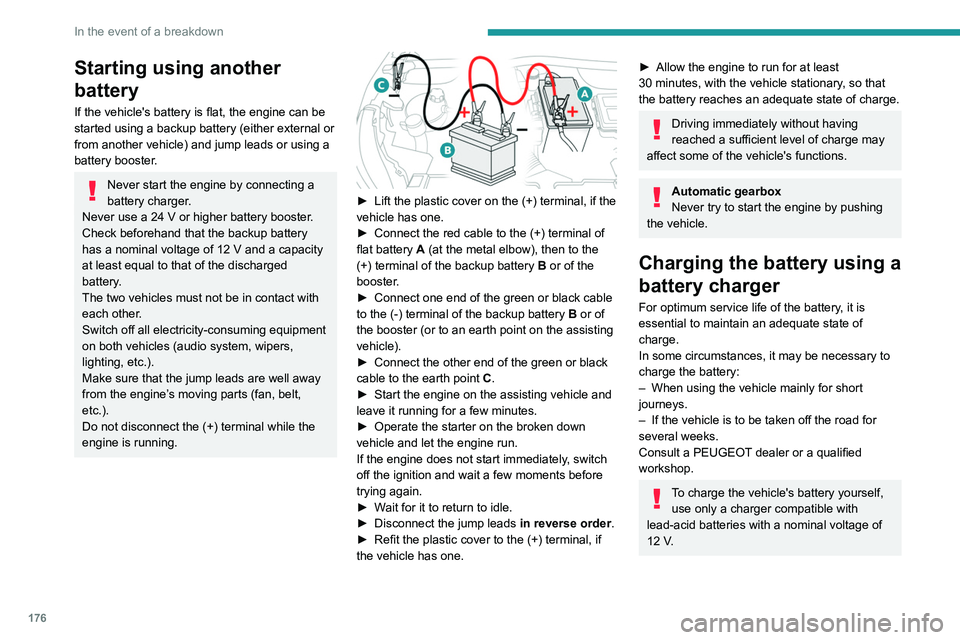
► Lift the plastic cover on the (+) terminal, if the
vehicle has one.
►
Connect the red cable to the (+) terminal of
flat battery
A (at the metal elbow), then to the
(+) terminal of the backup battery
B or of the
booster.
►
Connect one end of the green or black cable
to the (-) terminal of the backup battery
B or of
the booster (or to an earth point on the assisting
vehicle).
►
Connect the other end of the green or black
cable to the earth point
C
.
►
Start the engine on the assisting vehicle and
leave it running for a few minutes.
►
Operate the starter on the broken down
vehicle and let the engine run.
If the engine does not start immediately
, switch
off the ignition and wait a few moments before
trying again.
►
W
ait for it to return to idle.
►
Disconnect the jump leads in reverse order.
►
Refit the plastic cover to the (+) terminal, if
the vehicle has one.
► Allow the engine to run for at least
30 minutes, with the vehicle stationary, so that
the battery reaches an adequate state of charge.
Driving immediately without having
reached a sufficient level of charge may
affect some of the vehicle's functions.
Automatic gearbox
Never try to start the engine by pushing
the vehicle.
Charging the battery using a
battery charger
For optimum service life of the battery, it is
essential to maintain an adequate state of
charge.
In some circumstances, it may be necessary to
charge the battery:
–
When using the vehicle mainly for short
journeys.
–
If the vehicle is to be taken off the road for
several weeks.
Consult a PEUGEOT
dealer or a qualified
workshop.
To charge the vehicle's battery yourself, use only a charger compatible with
lead-acid batteries with a nominal voltage of
12
V.
Page 179 of 276
177
In the event of a breakdown
8Follow the instructions provided by the
manufacturer of the charger.
Never reverse polarities.
It is not necessary to disconnect the
battery.
►
Switch the ignition off.
►
Switch off all electrical consumers (audio
system, lighting, wipers, etc.).
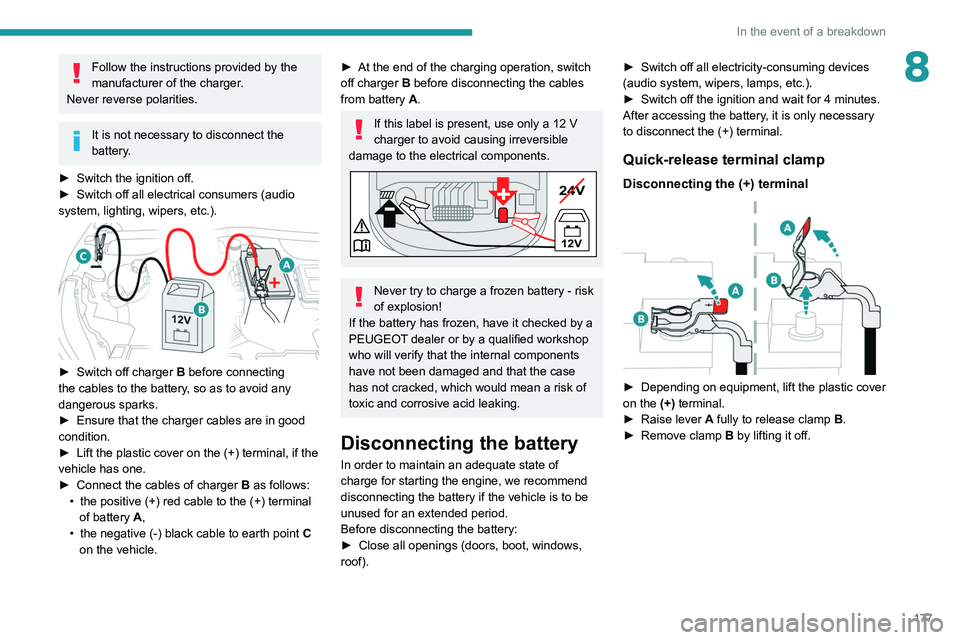
► Switch off charger B before connecting
the cables to the battery, so as to avoid any
dangerous sparks.
►
Ensure that the charger cables are in good
condition.
►
Lift the plastic cover on the (+) terminal, if the
vehicle has one.
►
Connect the cables of charger B
as follows:
•
the positive (+) red cable to the (+) terminal
of battery
A,
•
the negative (-) black cable to earth point C
on the vehicle.
► At the end of the charging operation, switch
off charger B
before disconnecting the cables
from battery A.
If this label is present, use only a 12 V
charger to avoid causing irreversible
damage to the electrical components.
24V
12V
-+
Never try to charge a frozen battery - risk
of explosion!
If the battery has frozen, have it checked by a
PEUGEOT dealer or by a qualified workshop
who will verify that the internal components
have not been damaged and that the case
has not cracked, which would mean a risk of
toxic and corrosive acid leaking.
Disconnecting the battery
In order to maintain an adequate state of
charge for starting the engine, we recommend
disconnecting the battery if the vehicle is to be
unused for an extended period.
Before disconnecting the battery:
►
Close all openings (doors, boot, windows,
roof). ►
Switch off all electricity-consuming devices
(audio system, wipers, lamps, etc.).
►
Switch off the ignition and wait for 4
minutes.
After accessing the battery, it is only necessary
to disconnect the (+) terminal.
Quick-release terminal clamp
Disconnecting the (+) terminal
► Depending on equipment, lift the plastic cover
on the (+) terminal.
►
Raise lever
A
fully to release clamp
B
.
►
Remove clamp
B
by lifting it off.
Page 189 of 276

187
Touch screen BLUETOOTH audio system
10Touch screen BLUETOOTH audio
system
Multimedia audio system -
Bluetooth
® telephone
The functions and settings described
vary according to the vehicle version and
configuration.
For safety reasons and because they
require sustained attention by the driver,
the following operations must be carried out
with the vehicle stationary and the ignition
on:
–
Pairing the smartphone with the system in
Bluetooth mode.
–
Using the smartphone.
– Changing the system settings and
configuration.
The system is protected in such a way that it will only operate in the vehicle.
The Energy Economy Mode message is
displayed when the system is about to enter
the corresponding mode.
First steps
With the engine running, a press mutes
the sound.
With the ignition off, a press turns the system on.
Increase or decrease the volume using
the thumbwheel on the left-hand side.
To access the menus, press this button on the touch screen.
Press the back arrow to go back a level.
To clean the screen, use a soft, non-abrasive cloth (e.g. spectacles cloth)
with no additional product.
Do not use sharp objects on the screen.
Do not touch the screen with wet hands.
Certain information is displayed permanently in
the upper bar of the touch screen:
–
Air conditioning information (depending on
version).
–
Bluetooth connection.
–
Indication of location data sharing.
Selection of the audio source:
– FM/AM/DAB radio stations (depending on
equipment).
–
T
elephone connected via Bluetooth and
Bluetooth multimedia broadcast (streaming).
–
USB memory stick.
–
Media player connected via the auxiliary
socket (depending on equipment).
In very hot conditions, the volume may
be limited to protect the system. It may
go into standby (screen and sound off) for at
least 5 minutes.
The return to normal takes place when the
temperature in the passenger compartment
has dropped.
Steering mounted controls
Steering mounted controls -
Type 1
Radio:
Select the previous/next preset radio
station.
Select the previous/next item in a menu or a list.
Media:
Select the previous/next track.
Select the previous/next item in a menu or a list.
Radio:
Page 190 of 276
188
Touch screen BLUETOOTH audio system
Telephone
Connect a mobile phone via Bluetooth®.
Driving
Activate, deactivate or configure certain vehicle functions (depending on
equipment/version).
Short press: display the list of radio stations.
Long press: update the list.
Media:
Short press: display the list of folders.
Long press: display the available sorting options.
Short press: change audio source (radio;
USB; AUX if equipment connected; CD;
streaming).
Long press: display the call log.
Short press during an incoming call: accept the
call.
Short press during a call in progress: end the
call.
Confirm a selection.
Increase volume.
Decrease volume.
Mute/restore sound by simultaneously
pressing the increase and decrease
volume buttons.
Steering mounted controls -
Type 2
Voice commands:
This control is located on the steering
wheel or at the end of the lighting control stalk
(depending on equipment). Short press, smartphone voice commands via
the system.
Increase volume.
Decrease volume.
Mute by pressing the volume increase
and decrease buttons simultaneously
(depending on equipment).
Restore the sound by pressing one of the two
volume buttons.
Change the multimedia source.
Short press: display the calls log.
Short press during an incoming call:
accept the call.
Long press during an incoming call: reject the
call.
Short press during a call in progress: end the
call.
Radio (rotate): previous/next preset
station.
Media (rotate): previous/next track, move in a
list.
Short press: confirm a selection; if nothing
selected, access to presets.
Radio: display the list of stations.
Media: display the list of tracks.
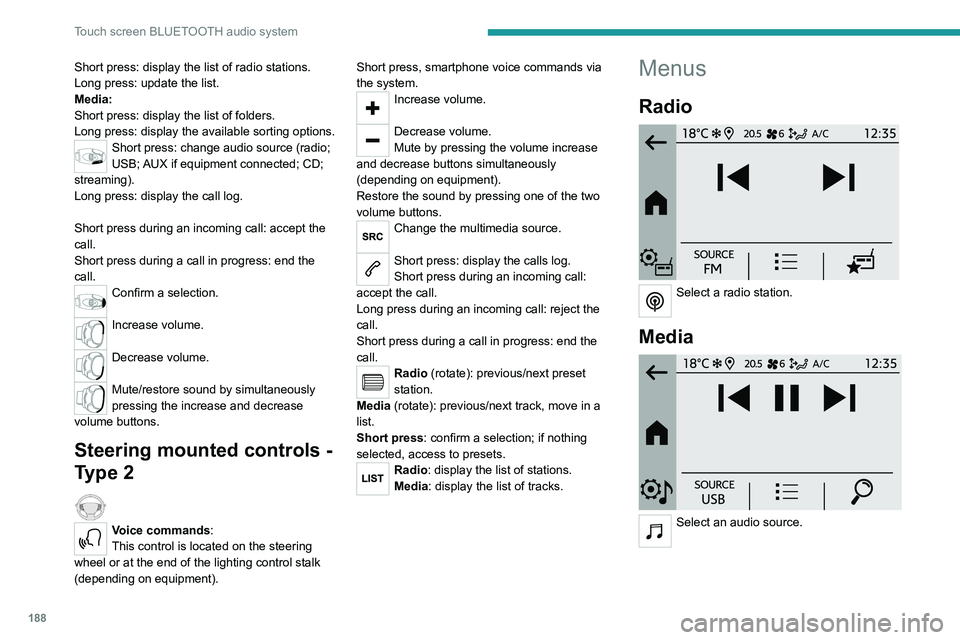
Menus
Radio
Select a radio station.
Media
Select an audio source.
Page 191 of 276
189
Touch screen BLUETOOTH audio system
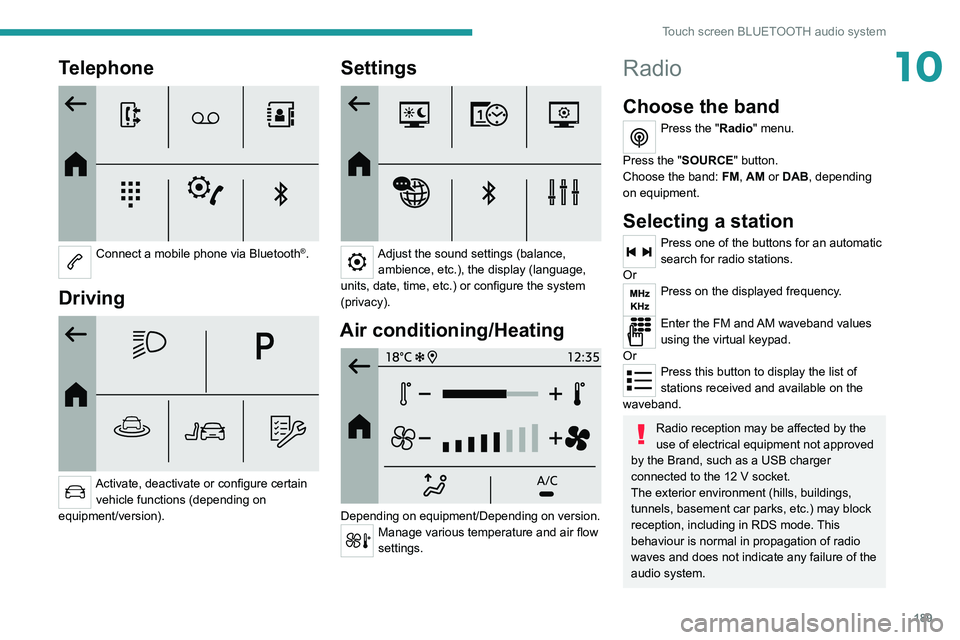
10Telephone
Connect a mobile phone via Bluetooth®.
Driving
Activate, deactivate or configure certain vehicle functions (depending on
equipment/version).
Settings
Adjust the sound settings (balance, ambience, etc.), the display (language,
units, date, time, etc.) or configure the system
(privacy).
Air conditioning/Heating
Depending on equipment/Depending on version.Manage various temperature and air flow
settings.
Radio
Choose the band
Press the "Radio" menu.
Press the "SOURCE" button.
Choose the band: FM, AM or DAB, depending
on equipment.
Selecting a station
Press one of the buttons for an automatic
search for radio stations.
Or
Press on the displayed frequency.
Enter the FM and AM waveband values
using the virtual keypad.
Or
Press this button to display the list of
stations received and available on the
waveband.
Radio reception may be affected by the
use of electrical equipment not approved
by the Brand, such as a USB charger
connected to the 12 V socket.
The exterior environment (hills, buildings,
tunnels, basement car parks, etc.) may block
reception, including in RDS mode. This
behaviour is normal in propagation of radio
waves and does not indicate any failure of the
audio system.
Page 192 of 276
190
Touch screen BLUETOOTH audio system
when the system switches to "FM" analogue
radio with sometimes a variation in volume.
Once the digital signal quality is restored, the
system automatically changes back to "DAB".
If the "DAB" station being listened to is
not available on "FM", or if the "FM-DAB
tracking" is not activated, the sound will cut
out while the digital signal is too weak.
Media
Selecting the source
Press the "Media" menu.
Press the "SOURCE" button.
Select the source (USB, Bluetooth or AUX,
depending on equipment).
USB port
Insert the USB memory stick into the USB
port or connect the USB device to the
USB port using a suitable cable (not supplied).
To protect the system, do not use a USB hub.
The system builds playlists (in temporary
memory); this operation can take from a
few seconds to several minutes at the first
connection.
Presetting a station
Select a radio station or frequency.Press the "Presets " button.
Make a long press on an empty line to preset the
station. An audible signal confirms the presetting
of the station.
It is possible to preset up to 16
stations.
To replace a preset station by the currently playing station, make a long
press on the preset station.
Activating/Deactivating RDS
RDS, if activated, allows you to continue
listening to the same station by automatically
retuning to alternative frequencies.
In certain conditions, tracking may not be
assured throughout the entire country as
radio stations do not cover 100% of the
territory. This explains the loss of reception of
the station during a journey.
Press the "Radio Settings " button.
Activate/Deactivate "RDS options".
Playing TA messages
The TA (Traffic Announcement) function gives
priority to TA alert messages.
To operate, this function needs good reception
of a radio station that transmits this type of
message. While traffic information is being
broadcast, the current media is automatically
interrupted so that the TA message can be
heard. Normal play of the media previously
playing is resumed at the end of the message.
Press the "Radio Settings" button.
Activate/Deactivate "Traffic
announcement (TA)".
Audio settings
Press the "Radio Settings " button.
In the list, select "Audio Settings ".
Activate/deactivate and configure the available
options (sound balance, ambiances, etc.).
The sound balance/distribution is audio processing that allows the quality of the
sound to be adapted according to where the
passengers are sitting in the vehicle.
DAB (Digital Audio
Broadcasting) radio
Terrestrial Digital Radio
Choosing the DAB radio
Terrestrial digital radio (DAB) provides higher
quality reception.
The different "multiplexes/ensembles" offer a
choice of radio stations arranged in alphabetical
order.
Press the "Radio" menu.
Press the "SOURCE" button.
In the list of available sources, choose " DAB
Radio".
Activating FM-DAB Tracking
"DAB" does not cover 100% of the territory.
When the digital radio signal is poor, the
"FM-DAB tracking" allows you to continue
listening to the same station, by automatically
switching to the corresponding "FM" analogue
station (if there is one).
Press the "Radio Settings " button.
Activate "DAB-FM".
If "FM-DAB tracking" is activated, there
may be a difference of a few seconds
Page 193 of 276
191
Touch screen BLUETOOTH audio system
10when the system switches to "FM" analogue
radio with sometimes a variation in volume.
Once the digital signal quality is restored, the
system automatically changes back to "DAB".
If the "DAB" station being listened to is
not available on "FM", or if the "FM-DAB
tracking" is not activated, the sound will cut
out while the digital signal is too weak.
Media
Selecting the source
Press the "Media" menu.
Press the "SOURCE" button.
Select the source (USB, Bluetooth or AUX,
depending on equipment).
USB port
Insert the USB memory stick into the USB
port or connect the USB device to the
USB port using a suitable cable (not supplied).
To protect the system, do not use a USB hub.
The system builds playlists (in temporary
memory); this operation can take from a
few seconds to several minutes at the first
connection. Playlists are updated whenever a USB memory
stick is connected or the contents of a particular
USB memory stick are changed. The lists
are memorised: if they are not modified, the
subsequent loading time will be shorter.
Auxiliary (AUX) jack socket
Depending on equipmentConnect a portable device (MP3 player,
etc.) to the auxiliary jack socket using an
audio cable (not supplied).
This source is only available if " Aux
Amplification " has been selected in the audio
settings.
First adjust the volume on the portable device
(to a high level). Then adjust the volume of the
audio system.
Controls are managed via the portable device.
Bluetooth Streaming®
Streaming allows you to listen to the audio feed
from your smartphone.
The Bluetooth profile must be activated.
First adjust the volume on the portable device
(to a high level). Then adjust the volume of the
system.
If play does not start automatically, it may be
necessary to start the audio playback from the
smartphone.
Control is from the portable device or by using
the system's touch buttons.
Once connected in Streaming mode, the
smartphone is considered to be a media
source.
Connecting Apple® players
Connect the Apple® player to the USB socket
using a suitable cable (not supplied).
Play starts automatically.
Control is via the audio system.
The classifications available are those of the portable device connected (artists/
albums/genres/playlists/audio books/
podcasts). It is also possible to use a
classification structured in the form of a
library.
The default classification used is by artist. To
modify the classification used, return to the
first level of the menu then select the desired
classification (playlists for example) and
confirm to go down through the menu to the
desired track.
The version of software in the audio system may
not be compatible with the generation of the
Apple
® player.
Media settings
Press the "Media Settings" button.
Activate/deactivate track playback options and
access the audio settings.
Page 194 of 276
192
Touch screen BLUETOOTH audio system
Depending on the type of telephone, the
option is given to accept or not accept
the transfer of contacts and the call log.
Automatic reconnection
On return to the vehicle, if the last telephone
connected is present again, it is automatically
recognised and within about 30 seconds
of switching on the ignition, the pairing is
established automatically (Bluetooth activated).
Managing paired telephones
To connect or disconnect a paired telephone:Select the "Telephone" menu.
Press "Bluetooth " to display the list of
paired devices.
Press on the name of the telephone chosen in
the list to disconnect it.
Press again to connect it.
Deleting a telephone
Press the "Bluetooth " button.
Press "Manage connections".
In the displayed window select " Delete".
The list of paired devices is displayed.
Press on the name of the telephone to delete.
Receiving a call
An incoming call is announced by a ring and a
superimposed display in the screen.
The audio settings are the same as the audio settings for the radio. For more
information on the " Audio settings", refer to
the corresponding section.
Information and advice
The system supports USB mass storage
devices, BlackBerry® devices or Apple® players
via the USB ports. The adapter cable is not
supplied.
Devices are managed using the audio system
controls.
Other devices, not recognised on connection,
must be connected to the auxiliary socket using
a jack cable (not supplied) or via Bluetooth
streaming, if compatible.
To protect the system, do not use a USB hub.
The audio system will only play audio files with
".wav", ".wma", ".aac", ".mp3", ".mp4", ".m4a",
".flac", ".ogg" file extensions and with a bit rate
of between 32 Kbps and 320 Kbps (300 Kbps
maximum for ".flac" files).
It also supports VBR (Variable Bit Rate) mode.
All ".wma" files must be standard WMA 9 files.
The supported sampling rates are 11, 22, 44 and
48 KHz.
To avoid reading and display problems, we
recommend choosing file names less than 20
characters long that do not contain any special
characters (e.g. “ ? .
; ù).
Use only USB memory sticks in FAT or FAT32
format (File Allocation Table).
We recommend using the original USB
cable for the portable device.
Telephone
Pairing a Bluetooth®
telephone
Up to 10 phones can be paired to the system.
Activate the Bluetooth function on the telephone
beforehand and ensure that it is "visible to all"
(telephone configuration).
To complete the pairing, whichever procedure is
used (from the telephone or from the system),
ensure that the code is the same in the system
and in the telephone.
The services available depend on the
network, the SIM card and the
compatibility of the Bluetooth devices used.
Check for services availability in the phone's
manual and with the operator.
The profiles compatible with the system are: HFP, OPP, PBAP, DID, A2DP,
AVRCP, SPP and PAN.
Go to the Brand's website for more information
(compatibility, additional help, etc.).
Procedure from the telephone
Select the name of the system in the list
of devices detected.
In the system, accept the connection request
from the telephone.
Procedure from the system
Press the Home button to access the
menus.
Select the "Telephone" menu.
Press "Manage connections".
The list of telephones detected is displayed.
Select the name of the telephone in the list.
The system offers to connect the telephone with
two profiles:
–
as "
Telephone": hands-free kit, telephone
only.
–
as "
Streaming": wireless playing of audio files
on the telephone.
The system cannot be connected to multiple telephones with the same profile.
No more than 2 phones can be connected
simultaneously ( 1 per profile).
The Bluetooth profiles chosen on the
phone have priority over the profiles
selected on the system.
If the pairing procedure fails, it is recommended
that you deactivate and then reactivate the
Bluetooth function on the telephone.