service PEUGEOT 208 2021 Service Manual
[x] Cancel search | Manufacturer: PEUGEOT, Model Year: 2021, Model line: 208, Model: PEUGEOT 208 2021Pages: 276, PDF Size: 8.02 MB
Page 223 of 276
221
PEUGEOT Connect Nav
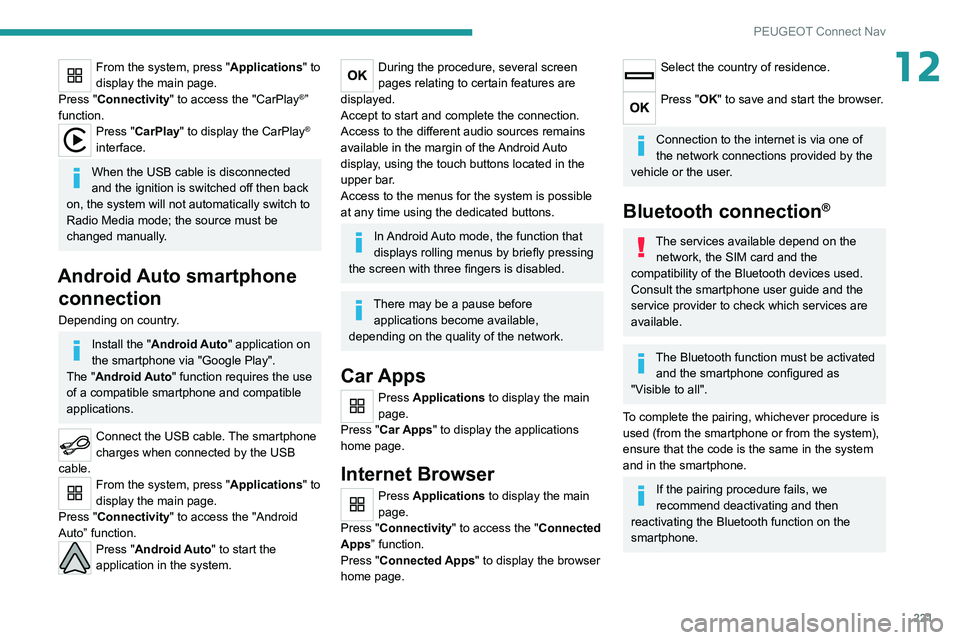
12From the system, press "Applications" to
display the main page.
Press "Connectivity" to access the "CarPlay
®”
function.
Press "CarPlay" to display the CarPlay®
interface.
When the USB cable is disconnected
and the ignition is switched off then back
on, the system will not automatically switch to
Radio Media mode; the source must be
changed manually.
Android Auto smartphone connection
Depending on country.
Install the "Android Auto" application on
the smartphone via "Google Play".
The "Android Auto" function requires the use
of a compatible smartphone and compatible
applications.
Connect the USB cable. The smartphone
charges when connected by the USB
cable.
From the system, press "Applications " to
display the main page.
Press "Connectivity" to access the "Android
Auto” function.
Press "Android Auto" to start the
application in the system.
During the procedure, several screen
pages relating to certain features are
displayed.
Accept to start and complete the connection.
Access to the different audio sources remains
available in the margin of the Android Auto
display, using the touch buttons located in the
upper bar.
Access to the menus for the system is possible
at any time using the dedicated buttons.
In Android Auto mode, the function that
displays rolling menus by briefly pressing
the screen with three fingers is disabled.
There may be a pause before applications become available,
depending on the quality of the network.
Car Apps
Press Applications to display the main
page.
Press "Car Apps" to display the applications
home page.
Internet Browser
Press Applications to display the main
page.
Press "Connectivity" to access the "Connected
Apps” function.
Press "Connected Apps" to display the browser
home page.
Select the country of residence.
Press "OK" to save and start the browser.
Connection to the internet is via one of
the network connections provided by the
vehicle or the user.
Bluetooth connection®
The services available depend on the network, the SIM card and the
compatibility of the Bluetooth devices used.
Consult the smartphone user guide and the
service provider to check which services are
available.
The Bluetooth function must be activated and the smartphone configured as
"Visible to all".
To complete the pairing, whichever procedure is
used (from the smartphone or from the system),
ensure that the code is the same in the system
and in the smartphone.
If the pairing procedure fails, we
recommend deactivating and then
reactivating the Bluetooth function on the
smartphone.
Page 224 of 276
222
PEUGEOT Connect Nav
Radio
Selecting a station
Press Radio Media to display the main
page.
Press "Frequency".
Press one of the buttons to perform an
automatic search for radio stations.
Or
Move the slider to manually search for
frequencies up or down.
Or
Press Radio Media to display the main
page.
Press the "OPTIONS " button to access the
secondary page.
Select "Radio stations" on the secondary
page.
Press "Frequency".
Enter the values using the virtual keypad.
First enter the units then click on the
decimals field to enter the figures after the
decimal point.
Press "OK" to confirm.
Radio reception may be affected by the
use of electrical equipment not approved
by the Brand, such as a USB charger
connected to the 12 V socket.
The exterior environment (hills, buildings,
tunnels, basement car parks, etc.) may
block reception, including in RDS mode.
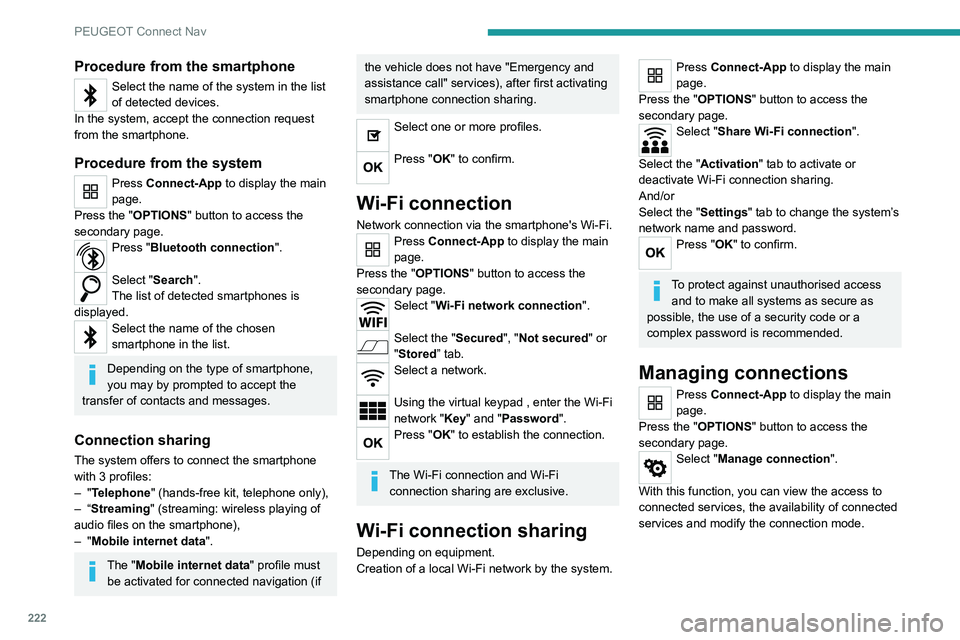
Procedure from the smartphone
Select the name of the system in the list
of detected devices.
In the system, accept the connection request
from the smartphone.
Procedure from the system
Press Connect-App to display the main
page.
Press the "OPTIONS " button to access the
secondary page.
Press "Bluetooth connection".
Select "Search".
The list of detected smartphones is
displayed.
Select the name of the chosen
smartphone in the list.
Depending on the type of smartphone,
you may by prompted to accept the
transfer of contacts and messages.
Connection sharing
The system offers to connect the smartphone
with 3 profiles:
–
"Telephone" (hands-free kit, telephone only),
–
“Streaming" (streaming: wireless playing of
audio files on the smartphone),
–
"Mobile internet data ".
The "Mobile internet data " profile must
be activated for connected navigation (if
the vehicle does not have "Emergency and
assistance call" services), after first activating
smartphone connection sharing.
Select one or more profiles.
Press "OK" to confirm.
Wi-Fi connection
Network connection via the smartphone's Wi-Fi.Press Connect-App to display the main
page.
Press the "OPTIONS " button to access the
secondary page.
Select "Wi-Fi network connection".
Select the "Secured", "Not secured" or
"Stored” tab.
Select a network.
Using the virtual keypad , enter the Wi-Fi
network "Key" and "Password".
Press "OK" to establish the connection.
The Wi-Fi connection and Wi-Fi connection sharing are exclusive.
Wi-Fi connection sharing
Depending on equipment.
Creation of a local Wi-Fi network by the system.
Press Connect-App to display the main
page.
Press the "OPTIONS " button to access the
secondary page.
Select "Share Wi-Fi connection".
Select the "Activation" tab to activate or
deactivate Wi-Fi connection sharing.
And/or
Select the "Settings" tab to change the system’s
network name and password.
Press "OK" to confirm.
To protect against unauthorised access and to make all systems as secure as
possible, the use of a security code or a
complex password is recommended.
Managing connections
Press Connect-App to display the main
page.
Press the "OPTIONS " button to access the
secondary page.
Select "Manage connection".
With this function, you can view the access to
connected services, the availability of connected
services and modify the connection mode.
Page 228 of 276
226
PEUGEOT Connect Nav
Managing paired telephones
This function lets you connect or disconnect a
device or delete a pairing.
Press Telephone to display the main
page.
Press the "OPTIONS " button to access the
secondary page.
Select "Bluetooth connection" to display
the list of paired devices.
Press on the name of the telephone
selected in the list to disconnect it.
Press again to connect it.
Deleting a telephone
Select the basket at top right of the
screen to display a basket alongside the
telephone chosen.
Press the basket alongside the telephone
chosen to delete it.
Receiving a call
An incoming call is announced by a ring and a
superimposed display in the screen.
Make a short press on the steering
mounted telephone button to accept an
incoming call.
And
Make a long press
on the steering mounted telephone button
to reject the call.
Or
Telephone
Pairing a Bluetooth®
telephone
The services available depend on the
network, the SIM card and the
compatibility of the Bluetooth devices used.
Consult the telephone user guide and the
service provider to check which services are
available.
The Bluetooth function must be activated and the telephone configured as "Visible
to all” (in the telphone settings).
To complete the pairing, whichever procedure is
used (from the telephone or from the system),
ensure that the code is the same in the system
and in the telephone.
If the pairing procedure fails, we
recommend deactivating and then
reactivating the Bluetooth function on the
telephone.
Procedure from the telephone
Select the system name in the list of
detected devices.
In the system, accept the connection request
from the telephone.
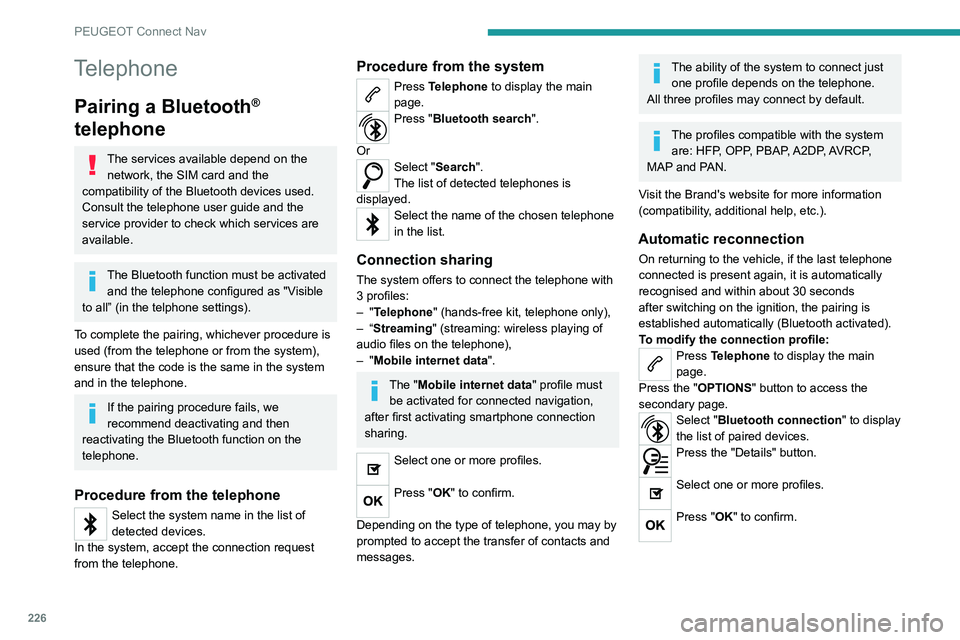
Procedure from the system
Press Telephone to display the main
page.
Press "Bluetooth search".
Or
Select "Search".
The list of detected telephones is
displayed.
Select the name of the chosen telephone
in the list.
Connection sharing
The system offers to connect the telephone with
3 profiles:
–
"Telephone" (hands-free kit, telephone only),
–
“Streaming" (streaming: wireless playing of
audio files on the telephone),
–
"Mobile internet data ".
The "Mobile internet data " profile must
be activated for connected navigation,
after first activating smartphone connection
sharing.
Select one or more profiles.
Press "OK" to confirm.
Depending on the type of telephone, you may by
prompted to accept the transfer of contacts and
messages.
The ability of the system to connect just one profile depends on the telephone.
All three profiles may connect by default.
The profiles compatible with the system are: HFP, OPP, PBAP, A2DP, AVRCP,
MAP and PAN.
Visit the Brand's website for more information
(compatibility, additional help, etc.).
Automatic reconnection
On returning to the vehicle, if the last telephone
connected is present again, it is automatically
recognised and within about 30 seconds
after switching on the ignition, the pairing is
established automatically (Bluetooth activated).
To modify the connection profile:
Press Telephone to display the main
page.
Press the "OPTIONS " button to access the
secondary page.
Select "Bluetooth connection" to display
the list of paired devices.
Press the "Details" button.
Select one or more profiles.
Press "OK" to confirm.
Page 232 of 276
230
PEUGEOT Connect Nav
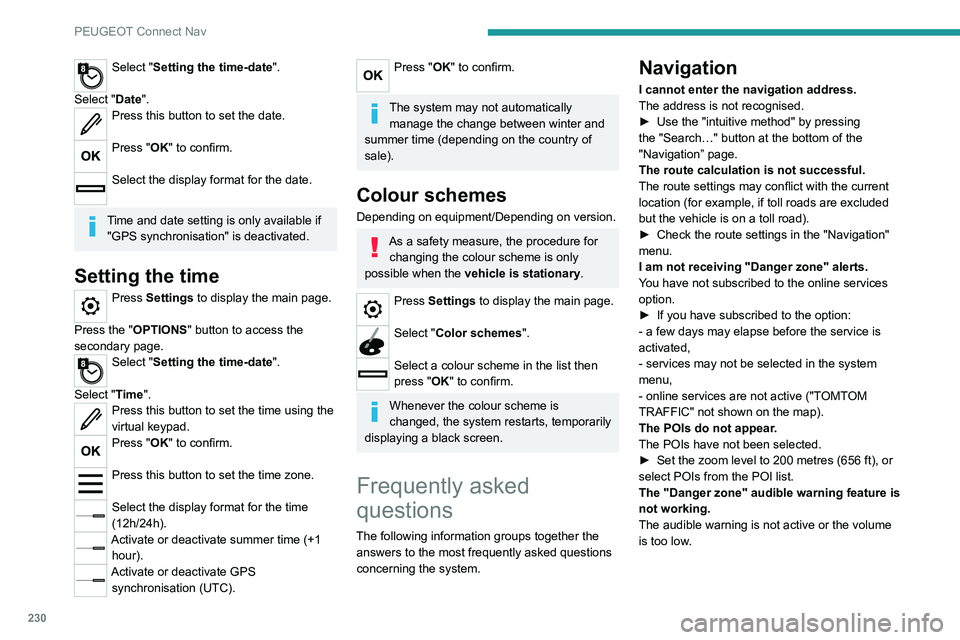
Select "Setting the time-date".
Select "Date".
Press this button to set the date.
Press "OK" to confirm.
Select the display format for the date.
Time and date setting is only available if "GPS synchronisation" is deactivated.
Setting the time
Press Settings to display the main page.
Press the "OPTIONS " button to access the
secondary page.
Select "Setting the time-date".
Select "Time".
Press this button to set the time using the
virtual keypad.
Press "OK" to confirm.
Press this button to set the time zone.
Select the display format for the time
(12h/24h).
Activate or deactivate summer time (+1 hour).
Activate or deactivate GPS synchronisation (UTC).
Press "OK" to confirm.
The system may not automatically manage the change between winter and
summer time (depending on the country of
sale).
Colour schemes
Depending on equipment/Depending on version.
As a safety measure, the procedure for changing the colour scheme is only
possible when the vehicle is stationary.
Press Settings to display the main page.
Select "Color schemes ".
Select a colour scheme in the list then
press "OK" to confirm.
Whenever the colour scheme is
changed, the system restarts, temporarily
displaying a black screen.
Frequently asked
questions
The following information groups together the answers to the most frequently asked questions
concerning the system.
Navigation
I cannot enter the navigation address.
The address is not recognised.
►
Use the "intuitive method" by pressing
the "Search…" button at the bottom of the
"Navigation” page.
The route calculation is not successful.
The route settings may conflict with the current
location (for example, if toll roads are excluded
but the vehicle is on a toll road).
►
Check the route settings in the "Navigation"
menu.
I am not receiving "Danger zone" alerts.
Y
ou have not subscribed to the online services
option.
►
If you have subscribed to the option:
- a few days may elapse before the service is
activated,
- services may not be selected in the system
menu,
- online services are not active ("T
OMTOM
TRAFFIC" not shown on the map).
The POIs do not appear.
The POIs have not been selected.
►
Set the zoom level to 200 metres (656 ft), or
select POIs from the POI list.
The "Danger zone" audible warning feature is
not working.
The audible warning is not active or the volume
is too low
.
Page 233 of 276
231
PEUGEOT Connect Nav
12► Activate the audible warning in the
"Navigation" menu and check the voice volume
in the sound settings.
The system does not suggest a detour
around an incident on the route.
The route settings do not take account of
TMC
messages.
►
Configure the "T
raffic info" function in the
route settings list (None, Manual or Automatic).
I am receiving a "Danger zone" alert which is
not on my route.
As well as providing guided navigation, the
system announces all "Danger areas" positioned
in a cone located in front of the vehicle. It may
provide an alert for "Danger areas" located on
nearby or parallel roads.
►
Zoom the map to show the exact location
of the "Danger area".
You can select "On the
route" to stop receiving warnings or decrease the
warning duration.
Certain traffic jams along the route are not
indicated in real time.
On starting, a few minutes may elapse before
the system begins to receive traffic information.
►
W
ait until traffic information is being received
correctly (traffic information icons shown on the
map).
In certain countries, only major routes
(motorways, etc.) are listed for the traffic
information.
This is perfectly normal. The system is
dependent on the traffic information available.
The altitude is not displayed. On starting, GPS initialisation may take up to
3 minutes to receive more than 4 satellites
correctly.
►
W
ait until the system has started up
completely so that there is GPS coverage by at
least 4
satellites.
Depending on the geographical environment
(tunnel, etc.) or the weather, the conditions of
reception of the GPS signal may vary.
This behaviour is normal. The system is
dependent on the GPS signal reception
conditions.
My navigation is no longer connected.
During start-up and in certain geographical
areas, the connection may be unavailable.
►
Check that the online services are activated
(settings, contract).
Radio
The reception quality of the radio station
being listened to gradually deteriorates or
the station presets are not working (e.g.
no
sound, "87.5" MHz is displayed).
The vehicle is too far from the selected station’s
transmitter, or no transmitter is present in the
geographical area.
►
Activate the "RDS" function by means of the
short-cut menu to enable the system to check
whether there is a more powerful transmitter in
the geographical area.
The aerial is missing or damaged (e.g.
when
going through a car wash or in an underground
car park). ►
Have the aerial checked by a dealer
.
The surrounding area (e.g. hill, building, tunnel,
underground car park, etc.) is blocking reception,
including in RDS tracking mode.
This is a perfectly normal phenomenon, and is
not indicative of an audio system malfunction.
I cannot find some radio stations in the list of
stations received.
The name of the radio station changes.
The station is no longer received or its name has
changed in the list.
Some radio stations send other information
in place of their name (the title of the song for
example).
The system interprets these details as the station
name.
►
Press "Update list" in the "Radio stations"
secondary menu.
Media
Playback of my USB memory stick starts only
after a very long wait (around 2 to 3 minutes).
Some files supplied with the memory stick may
greatly slow down access to reading the memory
stick (multiplication by 10 of the cataloguing
time).
►
Delete the files supplied with the memory
stick and limit the number of sub-folders in the
file structure on the memory stick.
There may be an extended pause after
inserting a USB stick.
Page 234 of 276
232
PEUGEOT Connect Nav
The system reads a variety of data (folder, title,
artist, etc.). This can take from a few seconds to
a few minutes.
This is perfectly normal.
Some characters in information about the
currently playing media may not be displayed
correctly.
The audio system is unable to process certain
types of character.
►
Use standard characters to name tracks and
folders.
Playback of streaming files does not start.
The connected device does not automatically
launch playback.
►
Start playback from the device.
T
rack names and playing times are not
displayed on the audio streaming screen.
The Bluetooth profile does not allow the transfer
of this information.
Telephone
I am unable to connect my Bluetooth
telephone.
The telephone's Bluetooth function may be
switched off or the device may not be visible.
►
Check that the telephone has Bluetooth
switched on.
►
Check in the telephone settings that it is
"visible to all".
►
Deactivate then reactivate the telephone’
s
Bluetooth function.
The Bluetooth telephone is not compatible with
the system. ►
Y
ou can check the compatibility of the
telephone on the Brand's website (services).
Android Auto and/or CarPlay do not work.
Android Auto and CarPlay may not activate if the
USB cables are of poor quality.
►
Use genuine USB cables to ensure
compatibility
.
Android Auto and/or CarPlay do not work.
Android Auto and CarPlay are not available in all
countries.
►
Check the list of supported countries via
these
websites: Google Android Auto or Apple.
The volume of the telephone connected via
Bluetooth is too low.
The volume depends on both the system and the
telephone.
►
Increase the volume of the audio system, to
maximum if required, and increase the volume of
the telephone if necessary
.
Ambient noise affects the quality of the
telephone call.
► Reduce ambient noise (e.g. close the
windows, reduce ventilation, slow down).
Some contacts are duplicated in the list.
The options for synchronising contacts are:
synchronise the contacts on the SIM card, the
contacts on the telephone, or both. When both
synchronisations are selected, some contacts
may be duplicated.
►
Select "Display SIM card contacts" or
"Display telephone contacts".
The contacts are not listed in alphabetical
order
.Some telephones offer display options.
Depending on the settings chosen, contacts can
be transferred in a specific order.
►
Modify the telephone directory display
settings.
The system is not receiving SMS text
messages.
Bluetooth mode does not allow SMS text
messages to be sent to the system.
Settings
When the treble and bass settings are
changed, the ambience is deselected.
When the ambience is changed, the treble
and bass settings are reset.
Selecting an ambience imposes the treble and
bass settings, and vice versa.
►
Modify the treble and bass or ambience
settings to obtain the desired musical ambience.
When the balance settings are changed, the
distribution is deselected.
When the distribution setting is changed, the
balance settings are deselected.
Selecting a distribution setting imposes the
balance settings, and vice versa.
►
Modify the balance setting or the distribution
setting to obtain the desired sound quality
.
There is a difference in sound quality
between audio sources.
To allow for optimal listening quality, the sound
settings can be tailored to different audio
sources, which can generate audible differences
when changing source.
Page 236 of 276
234
Event data recorders
Event data recorders
Electronic control units are installed in your
vehicle. Control units process data which is
received by vehicle sensors, for example, or
which they generate themselves or exchange
amongst themselves. Some control units are
necessary for the safe functioning of your
vehicle, others assist you while you drive (driver
assistance systems), while others provide
comfort or infotainment functions.
The following contains general information about
data processing in the vehicle. You will find
additional information as to which specific data is
uploaded, stored and passed on to third parties
and for what purpose in your vehicle under
the key word Data Protection closely linked
to the references for the affected functional
characteristics in the relevant owner's manual
or in the general terms of sale. These are also
available online.
Operating data in the
vehicle
Control units process data for operation of the
vehicle.
This data includes, for example:
–
vehicle status information (e.g. speed,
movement delay
, lateral acceleration, wheel
rotation rate, "seat belts fastened" display)
–
ambient conditions (e.g. temperature, rain
sensor
, distance sensor) As a rule such data is transient and is not stored
for longer than an operational cycle, and only
processed on board the vehicle itself. Often
control units include data storage (including the
vehicle key). This is used to allow information
to be documented temporarily or permanently
on vehicle condition, component stress,
maintenance requirements and technical events
and errors.
Depending on technical equipment levels, the
data stored is as follows:
–
system component operating states (e.g. fill
level, tyre pressure, battery status)
–
faults and defects in important system
components (e.g. lights, brakes)
–
system reactions in special driving situations
(e.g. triggering of an airbag, actuation of the
stability control systems)
–
information on events damaging the vehicle
–
for electric vehicles the amount of charge in
the high-voltage battery
, estimated range
In special cases (e.g. if the vehicle has detected
a malfunction), it may be necessary to save data
that would otherwise just be volatile.
When you use services (e.g. repairs,
maintenance), the operating data saved can
be read together with the vehicle identification
number and used where necessary. Staff
working for the service network (e.g. garages,
manufacturers) or third parties (e.g. breakdown
services) can read the data from the vehicle.
The same applies to warranty work and quality
assurance measures. Data is generally read via the OBD (On-Board
Diagnostics) port prescribed by law in the
vehicle. The operating data read documents the
technical condition of the vehicle or individual
components and assists with fault diagnosis,
compliance with warranty obligations and quality
improvement. This data, in particular information
on component stress, technical events, operator
errors and other faults, is transmitted to the
manufacturer where appropriate, together
with the vehicle identification number. The
manufacturer is also subject to product liability.
The manufacturer potentially also uses operating
data from vehicles for product recalls. This data
can also be used to check customer warranty
and guarantee claims.
Fault memories in the vehicle can be reset by a
service company when carrying out servicing or
repairs or at your request.
Comfort and infotainment
functions
Comfort settings and custom settings can be
stored in the vehicle and changed or reset at any
time.
Depending on the equipment level in question,
these include
–
seat and steering wheel position settings
–
chassis and air conditioning settings
–
custom settings such as interior lighting
You can input your own data in the infotainment
functions for your vehicle as part of the selected
features.
Depending on the equipment level in question,
these include
– multimedia data such as music, videos or
photos for playback in an integrated multimedia
system
– address book data for use with an integrated
hands-free system or an integrated navigation
system
– input destinations
– data on the use of online services
This data for comfort and infotainment functions
can be stored locally in the vehicle or be kept on
a device that you have connected to the vehicle
(e.g. a smartphone, USB stick or MP3 player).
Data that you have input yourself can be deleted
at any time.
This data can only be transmitted out of the
vehicle at your request, particularly when using
online services in accordance with the settings
selected by you.
Smartphone integration,
e.g. Android Auto or Apple
CarPlay
If your vehicle is equipped accordingly, you can
connect your smartphone or another mobile
device to the vehicle so that you can control it
via the controls integrated in the vehicle. The
smartphone image and sound can be output
Page 237 of 276
235
Event data recorders
13You can input your own data in the infotainment
functions for your vehicle as part of the selected
features.
Depending on the equipment level in question,
these include
–
multimedia data such as music, videos or
photos for playback in an integrated multimedia
system
–
address book data for use with an integrated
hands-free system or an integrated navigation
system
–
input destinations
–
data on the use of online services
This data for comfort and infotainment functions
can be stored locally in the vehicle or be kept on
a device that you have connected to the vehicle
(e.g. a smartphone, USB stick or MP3 player).
Data that you have input yourself can be deleted
at any time.
This data can only be transmitted out of the
vehicle at your request, particularly when using
online services in accordance with the settings
selected by you.
Smartphone integration,
e.g. Android Auto or Apple
CarPlay
If your vehicle is equipped accordingly, you can
connect your smartphone or another mobile
device to the vehicle so that you can control it
via the controls integrated in the vehicle. The
smartphone image and sound can be output via the multimedia system in this case. At the
same time, specific information is transmitted
to your smartphone. Depending on the type of
integration, this includes data such as position
data, day
/ night mode and other general vehicle
information. For more information, please
see the operating instructions for the vehicle /
infotainment system.
Integration allows selected smartphone apps to
be used, such as navigation or music playback.
No further integration is possible between
smartphone and vehicle, in particular active
access to vehicle data. The nature of further
data processing is determined by the provider of
the app used. Whether you can define settings,
and if so which ones, is dependent on the app
in question and your smartphone's operating
system.
Online services
If your vehicle has a radio network connection,
this allows data to be exchanged between your
vehicle and other systems. The radio network
connection is made possible by means of a
transmitter device in your vehicle or a mobile
device provided by you (e.g. a smartphone).
Online functions can be used via this radio
network connection. These include online
services and applications
/ apps provided to you
by the manufacturer or other providers.
Proprietary services
In the case of the manufacturer's online services,
the relevant functions are described by the
manufacturer in an appropriate location (e.g.
Owner's Manual, the manufacturer's website)
and the associated data protection information is
provided. Personal data may be used to provide
online services. Data exchange for this purpose
takes place via a protected connection, e.g.
using the manufacturer's IT systems provided
for the purpose. Collection, processing and use
of personal data for the purposes of preparation
of services take place solely on the basis of
legal permission, e.g. in the case of a legally
prescribed emergency communication system or
a contractual agreement, or by virtue of consent.
You can activate or deactivate the services and
functions (which are subject to charges to some
extent) and, in some cases, the vehicle's entire
radio network connection. This does not include
statutory functions and services such as an
emergency communication system.
Third party services
If you make use of online services from other
providers (third parties), these services are
subject to the liability and data protection and
usage conditions of the provider in question. The
manufacturer frequently has no influence over
the content exchanged in this regard.
Therefore, please note the nature, scope and
purpose of the collection and use of personal
Page 238 of 276
236
Event data recorders
data within the scope of third party services
provided by the service provider in question.
Page 243 of 276
241
Alphabetical index
Park Assist 131
Parking brake
89, 158
Parking brake, electric
89–91, 158
Parking sensors, audible and visual
127
Parking sensors, front
128
Parking sensors, rear
127
Passenger compartment temperature pre-
conditioning (Electric)
28, 51
Pedestrian horn (Electric)
66, 85
Personalisation
11
Plates, identification
186
Player, Apple®
191, 202, 225
Player, USB
191, 201, 224
Port, USB
52, 191, 201, 203, 220, 224
Power
22
Power indicator (Electric)
8, 22
Pressures, tyres
158, 166, 168, 186
Pre-tensioning seat belts
71
Priming pump
164
Priming the fuel system
164
Profiles
206, 229
Protecting children
72, 74–81
Proximity Keyless Entry & Start
32
Public fast charging station
139, 144
Puncture
166, 168
R
Radar (warnings) 103
Radio
189–191, 199–200, 223
Radio, digital (Digital Audio Broadcasting -
DAB)
190, 201, 224
Range, AdBlue® 20, 157
RDS
190, 200, 223
Reading lamps
53–54
Rear screen, demisting
50
Recharging the battery
176–177
Recharging the traction battery
(Electric)
137, 140, 143, 145–146
Recirculation, air
49
Recovery
178–180
Recovery of the vehicle
178–179
Reduction of electrical load
153
Regeneration of the particle filter
157
Regenerative braking (deceleration
by engine braking)
97–98
Reinitialisation of the under-inflation
detection system
103
Reinitialising the remote control
36
Reminder, key in ignition
87
Reminder, lighting on
57
Remote control
30–34
Remotely operable functions
(Electric)
28, 51, 145
Removing a wheel
169–170
Removing the mat
53
Replacing bulbs
171–173
Replacing fuses
175
Replacing the air filter
157
Replacing the oil filter
157
Replacing the passenger compartment
filter
157
Reservoir, screenwash
156
Reset trip
24
Rev counter
10Reversing camera 104, 129–130
Reversing lamps
174
Roof bars
150
Running out of fuel (Diesel)
164
S
Safety, children 72, 74–81
Saturation of the particle filter (Diesel)
157
Screen menu map
203
Screens, very cold conditions
151
Screenwash
62
Screenwash, front
62
Screenwash, rear
62
SCR (Selective Catalytic Reduction)
21, 159
Seat angle
42
Seat belts
70–71, 76
Seat belts, rear
70
Seat, rear bench
45
Seats, electric
42
Seats, front
41–42
Seats, heated
43
Seats, rear
45–46, 75
Selector, gear
94–97
Sensors (warnings)
104
Serial number, vehicle
186
Service indicator
19, 23
Servicing
19, 157–159
Settings, equipment
27
Settings, system
194, 206, 229
Shield, snow
151
Sidelamps
58, 172, 174