stop start PEUGEOT 208 2021 Workshop Manual
[x] Cancel search | Manufacturer: PEUGEOT, Model Year: 2021, Model line: 208, Model: PEUGEOT 208 2021Pages: 276, PDF Size: 8.02 MB
Page 227 of 276
225
PEUGEOT Connect Nav
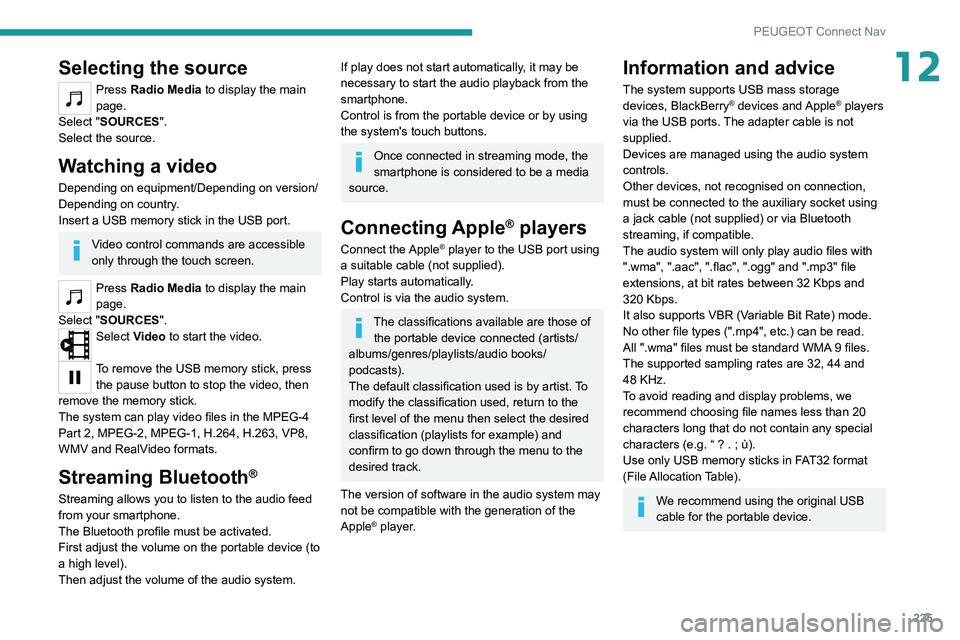
12Selecting the source
Press Radio Media to display the main
page.
Select "SOURCES".
Select the source.
Watching a video
Depending on equipment/Depending on version/
Depending on country.
Insert a USB memory stick in the USB port.
Video control commands are accessible
only through the touch screen.
Press Radio Media to display the main
page.
Select "SOURCES".
Select Video to start the video.
To remove the USB memory stick, press the pause button to stop the video, then
remove the memory stick.
The system can play video files in the MPEG-4
Part 2, MPEG-2, MPEG-1, H.264, H.263, VP8,
WMV and RealVideo formats.
Streaming Bluetooth®
Streaming allows you to listen to the audio feed
from your smartphone.
The Bluetooth profile must be activated.
First adjust the volume on the portable device (to
a high level).
Then adjust the volume of the audio system.
If play does not start automatically, it may be
necessary to start the audio playback from the
smartphone.
Control is from the portable device or by using
the system's touch buttons.
Once connected in streaming mode, the
smartphone is considered to be a media
source.
Connecting Apple® players
Connect the Apple® player to the USB port using
a suitable cable (not supplied).
Play starts automatically.
Control is via the audio system.
The classifications available are those of the portable device connected (artists/
albums/genres/playlists/audio books/
podcasts).
The default classification used is by artist. To
modify the classification used, return to the
first level of the menu then select the desired
classification (playlists for example) and
confirm to go down through the menu to the
desired track.
The version of software in the audio system may
not be compatible with the generation of the
Apple
® player.
Information and advice
The system supports USB mass storage
devices, BlackBerry® devices and Apple® players
via the USB ports. The adapter cable is not
supplied.
Devices are managed using the audio system
controls.
Other devices, not recognised on connection,
must be connected to the auxiliary socket using
a jack cable (not supplied) or via Bluetooth
streaming, if compatible.
The audio system will only play audio files with
".wma", ".aac", ".flac", ".ogg" and ".mp3" file
extensions, at bit rates between 32 Kbps and
320 Kbps.
It also supports VBR (Variable Bit Rate) mode.
No other file types (".mp4", etc.) can be read.
All ".wma" files must be standard WMA 9 files.
The supported sampling rates are 32, 44 and
48 KHz.
To avoid reading and display problems, we
recommend choosing file names less than 20
characters long that do not contain any special
characters (e.g. “ ? .
; ù).
Use only USB memory sticks in FAT32 format
(File Allocation Table).
We recommend using the original USB
cable for the portable device.
Page 233 of 276
231
PEUGEOT Connect Nav
12► Activate the audible warning in the
"Navigation" menu and check the voice volume
in the sound settings.
The system does not suggest a detour
around an incident on the route.
The route settings do not take account of
TMC
messages.
►
Configure the "T
raffic info" function in the
route settings list (None, Manual or Automatic).
I am receiving a "Danger zone" alert which is
not on my route.
As well as providing guided navigation, the
system announces all "Danger areas" positioned
in a cone located in front of the vehicle. It may
provide an alert for "Danger areas" located on
nearby or parallel roads.
►
Zoom the map to show the exact location
of the "Danger area".
You can select "On the
route" to stop receiving warnings or decrease the
warning duration.
Certain traffic jams along the route are not
indicated in real time.
On starting, a few minutes may elapse before
the system begins to receive traffic information.
►
W
ait until traffic information is being received
correctly (traffic information icons shown on the
map).
In certain countries, only major routes
(motorways, etc.) are listed for the traffic
information.
This is perfectly normal. The system is
dependent on the traffic information available.
The altitude is not displayed. On starting, GPS initialisation may take up to
3 minutes to receive more than 4 satellites
correctly.
►
W
ait until the system has started up
completely so that there is GPS coverage by at
least 4
satellites.
Depending on the geographical environment
(tunnel, etc.) or the weather, the conditions of
reception of the GPS signal may vary.
This behaviour is normal. The system is
dependent on the GPS signal reception
conditions.
My navigation is no longer connected.
During start-up and in certain geographical
areas, the connection may be unavailable.
►
Check that the online services are activated
(settings, contract).
Radio
The reception quality of the radio station
being listened to gradually deteriorates or
the station presets are not working (e.g.
no
sound, "87.5" MHz is displayed).
The vehicle is too far from the selected station’s
transmitter, or no transmitter is present in the
geographical area.
►
Activate the "RDS" function by means of the
short-cut menu to enable the system to check
whether there is a more powerful transmitter in
the geographical area.
The aerial is missing or damaged (e.g.
when
going through a car wash or in an underground
car park). ►
Have the aerial checked by a dealer
.
The surrounding area (e.g. hill, building, tunnel,
underground car park, etc.) is blocking reception,
including in RDS tracking mode.
This is a perfectly normal phenomenon, and is
not indicative of an audio system malfunction.
I cannot find some radio stations in the list of
stations received.
The name of the radio station changes.
The station is no longer received or its name has
changed in the list.
Some radio stations send other information
in place of their name (the title of the song for
example).
The system interprets these details as the station
name.
►
Press "Update list" in the "Radio stations"
secondary menu.
Media
Playback of my USB memory stick starts only
after a very long wait (around 2 to 3 minutes).
Some files supplied with the memory stick may
greatly slow down access to reading the memory
stick (multiplication by 10 of the cataloguing
time).
►
Delete the files supplied with the memory
stick and limit the number of sub-folders in the
file structure on the memory stick.
There may be an extended pause after
inserting a USB stick.
Page 244 of 276
242
Alphabetical index
Side parking sensors 128
Silent vehicle warning sound (Electric)
66, 85
Smartphone
29, 52
Snow chains
102, 150–151
Snow screen
151
Socket, 12 V accessory
52
Socket, auxiliary
191, 202, 224
Socket, Jack
224
Speed limiter
107–109
Speed limit recognition
104, 106
Speedometer
9–10, 104
Sport mode
99
Spotlamps, side
60
Stability control (ESC)
68–69
Starting a Diesel engine
136
Starting the engine
86, 88
Starting the vehicle
86–87, 94–96
Starting using another battery
88, 176
Station, radio
189–190, 199–200, 223
Stay, bonnet
154
Steering mounted controls,
audio
187–188, 197, 210
Steering wheel, adjustment
43
Stickers, customising ~ Stickers,
expressive
162
Stopping the vehicle
86–88, 94–97
Stop & Start
25, 47, 50, 100–101, 136, 153, 157, 178
Storage
52
Storage box
55
Storage wells
55
Sunshine sensor
46
Sun visor
52Super-fast charging (Electric) 144–146, 185
Suspension
158
Switching off the engine
86, 88
Synchronising the remote control
36
T
Tables of engines 185
Tank, fuel
136–137
Technical data
182, 184–185
Telephone
192–193, 204–205, 226–228
Temperature, coolant
20
Thermal comfort consumption indicator
(Electric)
22
Thermal comfort equipment
22
Time (setting)
194, 206, 230
TMC (Traffic info)
217
Tool box
55
Tools
164–166
Topping-up AdBlue®
160
Top Tether (fixing)
78
Total distance recorder
23
Touch screen
25–26, 28, 51
Touch-sensitive reading lamps
54
Towball, quickly detachable
147–149
Towbar
69, 146
Towbar with quickly detachable
towball
147–149
Towed loads
181–182, 184
Towing another vehicle
178, 180
Traction battery (Electric)
22, 28,
137–138, 185
Traction control (ASR) 68–69
Traffic information (TMC)
217
Trailer
69, 146
Trailer stability assist (TSA)
69
Trajectory control systems
68
Triangle, warning
164
Trip computer
24–25
Trip distance recorder
23
Tyres
158, 186
Tyre under-inflation detection
102, 166
U
Under-inflation (detection) 102
Unlocking
30, 32
Unlocking from the inside
34
Unlocking the boot
33
Unlocking the doors
34
Unlocking the tailgate
33
Updating the date
207, 229
Updating the time
194, 206, 230
USB
191, 201, 203, 220, 224
V
Vehicle data recording and privacy 234
Ventilation
46
Video
225
Visibility
50
Visiopark 1
129
Voice commands
212–215