ECO mode PEUGEOT 208 2021 Manual Online
[x] Cancel search | Manufacturer: PEUGEOT, Model Year: 2021, Model line: 208, Model: PEUGEOT 208 2021Pages: 276, PDF Size: 8.02 MB
Page 227 of 276
225
PEUGEOT Connect Nav
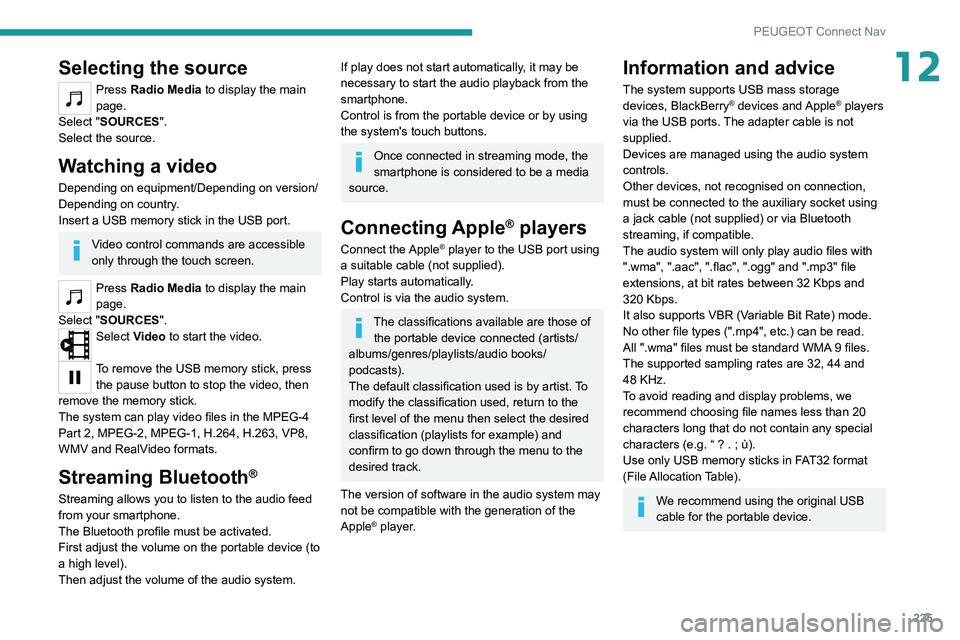
12Selecting the source
Press Radio Media to display the main
page.
Select "SOURCES".
Select the source.
Watching a video
Depending on equipment/Depending on version/
Depending on country.
Insert a USB memory stick in the USB port.
Video control commands are accessible
only through the touch screen.
Press Radio Media to display the main
page.
Select "SOURCES".
Select Video to start the video.
To remove the USB memory stick, press the pause button to stop the video, then
remove the memory stick.
The system can play video files in the MPEG-4
Part 2, MPEG-2, MPEG-1, H.264, H.263, VP8,
WMV and RealVideo formats.
Streaming Bluetooth®
Streaming allows you to listen to the audio feed
from your smartphone.
The Bluetooth profile must be activated.
First adjust the volume on the portable device (to
a high level).
Then adjust the volume of the audio system.
If play does not start automatically, it may be
necessary to start the audio playback from the
smartphone.
Control is from the portable device or by using
the system's touch buttons.
Once connected in streaming mode, the
smartphone is considered to be a media
source.
Connecting Apple® players
Connect the Apple® player to the USB port using
a suitable cable (not supplied).
Play starts automatically.
Control is via the audio system.
The classifications available are those of the portable device connected (artists/
albums/genres/playlists/audio books/
podcasts).
The default classification used is by artist. To
modify the classification used, return to the
first level of the menu then select the desired
classification (playlists for example) and
confirm to go down through the menu to the
desired track.
The version of software in the audio system may
not be compatible with the generation of the
Apple
® player.
Information and advice
The system supports USB mass storage
devices, BlackBerry® devices and Apple® players
via the USB ports. The adapter cable is not
supplied.
Devices are managed using the audio system
controls.
Other devices, not recognised on connection,
must be connected to the auxiliary socket using
a jack cable (not supplied) or via Bluetooth
streaming, if compatible.
The audio system will only play audio files with
".wma", ".aac", ".flac", ".ogg" and ".mp3" file
extensions, at bit rates between 32 Kbps and
320 Kbps.
It also supports VBR (Variable Bit Rate) mode.
No other file types (".mp4", etc.) can be read.
All ".wma" files must be standard WMA 9 files.
The supported sampling rates are 32, 44 and
48 KHz.
To avoid reading and display problems, we
recommend choosing file names less than 20
characters long that do not contain any special
characters (e.g. “ ? .
; ù).
Use only USB memory sticks in FAT32 format
(File Allocation Table).
We recommend using the original USB
cable for the portable device.
Page 233 of 276
231
PEUGEOT Connect Nav
12► Activate the audible warning in the
"Navigation" menu and check the voice volume
in the sound settings.
The system does not suggest a detour
around an incident on the route.
The route settings do not take account of
TMC
messages.
►
Configure the "T
raffic info" function in the
route settings list (None, Manual or Automatic).
I am receiving a "Danger zone" alert which is
not on my route.
As well as providing guided navigation, the
system announces all "Danger areas" positioned
in a cone located in front of the vehicle. It may
provide an alert for "Danger areas" located on
nearby or parallel roads.
►
Zoom the map to show the exact location
of the "Danger area".
You can select "On the
route" to stop receiving warnings or decrease the
warning duration.
Certain traffic jams along the route are not
indicated in real time.
On starting, a few minutes may elapse before
the system begins to receive traffic information.
►
W
ait until traffic information is being received
correctly (traffic information icons shown on the
map).
In certain countries, only major routes
(motorways, etc.) are listed for the traffic
information.
This is perfectly normal. The system is
dependent on the traffic information available.
The altitude is not displayed. On starting, GPS initialisation may take up to
3 minutes to receive more than 4 satellites
correctly.
►
W
ait until the system has started up
completely so that there is GPS coverage by at
least 4
satellites.
Depending on the geographical environment
(tunnel, etc.) or the weather, the conditions of
reception of the GPS signal may vary.
This behaviour is normal. The system is
dependent on the GPS signal reception
conditions.
My navigation is no longer connected.
During start-up and in certain geographical
areas, the connection may be unavailable.
►
Check that the online services are activated
(settings, contract).
Radio
The reception quality of the radio station
being listened to gradually deteriorates or
the station presets are not working (e.g.
no
sound, "87.5" MHz is displayed).
The vehicle is too far from the selected station’s
transmitter, or no transmitter is present in the
geographical area.
►
Activate the "RDS" function by means of the
short-cut menu to enable the system to check
whether there is a more powerful transmitter in
the geographical area.
The aerial is missing or damaged (e.g.
when
going through a car wash or in an underground
car park). ►
Have the aerial checked by a dealer
.
The surrounding area (e.g. hill, building, tunnel,
underground car park, etc.) is blocking reception,
including in RDS tracking mode.
This is a perfectly normal phenomenon, and is
not indicative of an audio system malfunction.
I cannot find some radio stations in the list of
stations received.
The name of the radio station changes.
The station is no longer received or its name has
changed in the list.
Some radio stations send other information
in place of their name (the title of the song for
example).
The system interprets these details as the station
name.
►
Press "Update list" in the "Radio stations"
secondary menu.
Media
Playback of my USB memory stick starts only
after a very long wait (around 2 to 3 minutes).
Some files supplied with the memory stick may
greatly slow down access to reading the memory
stick (multiplication by 10 of the cataloguing
time).
►
Delete the files supplied with the memory
stick and limit the number of sub-folders in the
file structure on the memory stick.
There may be an extended pause after
inserting a USB stick.
Page 234 of 276
232
PEUGEOT Connect Nav
The system reads a variety of data (folder, title,
artist, etc.). This can take from a few seconds to
a few minutes.
This is perfectly normal.
Some characters in information about the
currently playing media may not be displayed
correctly.
The audio system is unable to process certain
types of character.
►
Use standard characters to name tracks and
folders.
Playback of streaming files does not start.
The connected device does not automatically
launch playback.
►
Start playback from the device.
T
rack names and playing times are not
displayed on the audio streaming screen.
The Bluetooth profile does not allow the transfer
of this information.
Telephone
I am unable to connect my Bluetooth
telephone.
The telephone's Bluetooth function may be
switched off or the device may not be visible.
►
Check that the telephone has Bluetooth
switched on.
►
Check in the telephone settings that it is
"visible to all".
►
Deactivate then reactivate the telephone’
s
Bluetooth function.
The Bluetooth telephone is not compatible with
the system. ►
Y
ou can check the compatibility of the
telephone on the Brand's website (services).
Android Auto and/or CarPlay do not work.
Android Auto and CarPlay may not activate if the
USB cables are of poor quality.
►
Use genuine USB cables to ensure
compatibility
.
Android Auto and/or CarPlay do not work.
Android Auto and CarPlay are not available in all
countries.
►
Check the list of supported countries via
these
websites: Google Android Auto or Apple.
The volume of the telephone connected via
Bluetooth is too low.
The volume depends on both the system and the
telephone.
►
Increase the volume of the audio system, to
maximum if required, and increase the volume of
the telephone if necessary
.
Ambient noise affects the quality of the
telephone call.
► Reduce ambient noise (e.g. close the
windows, reduce ventilation, slow down).
Some contacts are duplicated in the list.
The options for synchronising contacts are:
synchronise the contacts on the SIM card, the
contacts on the telephone, or both. When both
synchronisations are selected, some contacts
may be duplicated.
►
Select "Display SIM card contacts" or
"Display telephone contacts".
The contacts are not listed in alphabetical
order
.Some telephones offer display options.
Depending on the settings chosen, contacts can
be transferred in a specific order.
►
Modify the telephone directory display
settings.
The system is not receiving SMS text
messages.
Bluetooth mode does not allow SMS text
messages to be sent to the system.
Settings
When the treble and bass settings are
changed, the ambience is deselected.
When the ambience is changed, the treble
and bass settings are reset.
Selecting an ambience imposes the treble and
bass settings, and vice versa.
►
Modify the treble and bass or ambience
settings to obtain the desired musical ambience.
When the balance settings are changed, the
distribution is deselected.
When the distribution setting is changed, the
balance settings are deselected.
Selecting a distribution setting imposes the
balance settings, and vice versa.
►
Modify the balance setting or the distribution
setting to obtain the desired sound quality
.
There is a difference in sound quality
between audio sources.
To allow for optimal listening quality, the sound
settings can be tailored to different audio
sources, which can generate audible differences
when changing source.
Page 235 of 276
233
PEUGEOT Connect Nav
12► Check that the sound settings are appropriate
to the sources listened to. W e recommend
setting the sound functions (Bass, Treble,
Balance) to the middle position, setting the
musical ambience to "None", setting loudness
correction to "Active" in USB mode and "Inactive"
in Radio mode.
►
In all cases, after applying sound settings,
adjust the volume level on the portable device (to
a high level) first.
Then adjust the volume level
on the audio system.
When the engine is off, the system switches
off after several minutes of use.
When the engine is switched off, the system's
operating time depends on the state of charge of
the battery.
The switch-off is normal: the system
automatically goes into energy economy mode
and switches off to maintain an adequate charge
in the battery.
►
Start the vehicle’
s engine to increase the
charge of the battery.
The date and time cannot be set.
Date and time settings are only available if
satellite synchronisation is deactivated.
►
Settings
menu/Options/Date-Time Setting.
Select the "Time" tab and deactivate "GPS
synchronisation" (UTC).
Page 237 of 276
235
Event data recorders
13You can input your own data in the infotainment
functions for your vehicle as part of the selected
features.
Depending on the equipment level in question,
these include
–
multimedia data such as music, videos or
photos for playback in an integrated multimedia
system
–
address book data for use with an integrated
hands-free system or an integrated navigation
system
–
input destinations
–
data on the use of online services
This data for comfort and infotainment functions
can be stored locally in the vehicle or be kept on
a device that you have connected to the vehicle
(e.g. a smartphone, USB stick or MP3 player).
Data that you have input yourself can be deleted
at any time.
This data can only be transmitted out of the
vehicle at your request, particularly when using
online services in accordance with the settings
selected by you.
Smartphone integration,
e.g. Android Auto or Apple
CarPlay
If your vehicle is equipped accordingly, you can
connect your smartphone or another mobile
device to the vehicle so that you can control it
via the controls integrated in the vehicle. The
smartphone image and sound can be output via the multimedia system in this case. At the
same time, specific information is transmitted
to your smartphone. Depending on the type of
integration, this includes data such as position
data, day
/ night mode and other general vehicle
information. For more information, please
see the operating instructions for the vehicle /
infotainment system.
Integration allows selected smartphone apps to
be used, such as navigation or music playback.
No further integration is possible between
smartphone and vehicle, in particular active
access to vehicle data. The nature of further
data processing is determined by the provider of
the app used. Whether you can define settings,
and if so which ones, is dependent on the app
in question and your smartphone's operating
system.
Online services
If your vehicle has a radio network connection,
this allows data to be exchanged between your
vehicle and other systems. The radio network
connection is made possible by means of a
transmitter device in your vehicle or a mobile
device provided by you (e.g. a smartphone).
Online functions can be used via this radio
network connection. These include online
services and applications
/ apps provided to you
by the manufacturer or other providers.
Proprietary services
In the case of the manufacturer's online services,
the relevant functions are described by the
manufacturer in an appropriate location (e.g.
Owner's Manual, the manufacturer's website)
and the associated data protection information is
provided. Personal data may be used to provide
online services. Data exchange for this purpose
takes place via a protected connection, e.g.
using the manufacturer's IT systems provided
for the purpose. Collection, processing and use
of personal data for the purposes of preparation
of services take place solely on the basis of
legal permission, e.g. in the case of a legally
prescribed emergency communication system or
a contractual agreement, or by virtue of consent.
You can activate or deactivate the services and
functions (which are subject to charges to some
extent) and, in some cases, the vehicle's entire
radio network connection. This does not include
statutory functions and services such as an
emergency communication system.
Third party services
If you make use of online services from other
providers (third parties), these services are
subject to the liability and data protection and
usage conditions of the provider in question. The
manufacturer frequently has no influence over
the content exchanged in this regard.
Therefore, please note the nature, scope and
purpose of the collection and use of personal
Page 240 of 276
238
Alphabetical index
Charging the traction battery
(Electric)
22, 137, 140, 143, 145–146
CHECK
23
Checking the engine oil level
19
Checking the levels
155–156
Checking tyre pressures
(using the kit)
166, 168
Checks
154, 157–159
Checks, routine
157–158
Child lock
82
Children
71, 77–81
Children (safety)
82
Child seats
71, 74–77
Child seats, conventional
76–77
Child seats, i-Size
81
Child seats, ISOFIX
78–80
Cleaning (advice)
138, 162
Closing the boot
33, 37
Closing the doors
33, 37
Collision Risk Alert
123–125
Configuration, vehicle
27
Connected applications
221
Connection, Bluetooth
192–193, 204–205, 221–222, 226–227
Connection, Wi-Fi network
222
Connectivity
220
Consumption figures
28
Container, AdBlue®
159–160
Control, emergency boot release
37
Control, emergency door
34–35
Control, heated seats
43
Controls, steering mounted
94–96
Control stalk, lighting
57–58Control stalk, wipers 61–62, 64
Control unit
139–140
Courtesy lamp, front
54
Courtesy lamps
53–54
Cover, load space
55
Cruise control
107, 109–111
Cruise control, adaptive
111
Cruise control by speed limit recognition
107
Cruise control, dynamic with
Stop function
107
D
DAB (Digital Audio Broadcasting) -
Digital radio
190, 201, 224
Date (setting)
207, 229
Daytime running lamps
58, 172
Deactivating the passenger airbag
72, 75–76
Deadlocking
31, 33
Deferred charging
28
Deferred charging (Electric)
28, 139, 143, 145
Defrosting
44, 50
Defrosting, front
50
Demisting
44, 50
Demisting, front
50
Demisting, rear
50
Demisting, rear screen
50
Dials and gauges
9–10
Digital instrument panel
10–11
Dimensions
186
Dipstick
19, 155
Direction indicators
58, 172–174
Display screen, instrument panel 9–10
Domestic charging
(Electric)
140, 144–146, 185
Doors
37
Drive Assist Plus
111
Driver’s attention warning
126–127
Drive selector (Electric)
97
Driving
84–85
Driving aids camera (warnings)
104
Driving aids (recommendations)
103
Driving economically
7
Driving modes
98–99
Dynamic stability control (DSC)
68–69
E
EBFD 68
Eco-driving (advice)
7
ECO mode
99
Economy mode
152
Electric motor
5, 8, 28, 137, 147,
155, 175, 178, 185
Electric windows
40
Electronic brake force distribution (EBFD)
68
Emergency braking assistance (EBA)
68
Emergency call
66–67
Emergency switching off
88–89
Emergency warning lamps
65, 164
Emissions control system, SCR
21, 159
Energy economy mode
152
Energy flows
28
Energy recovery
22, 98
Page 242 of 276
240
Alphabetical index
Key, electronic 32–33
Keyless Entry and Starting
32–33, 87–88
Key not recognised
88–89
Key with remote control
30, 85–86
Kit, hands-free
192–193, 204, 226
Kit, puncture repair
165
Kit, temporary puncture repair
164–166, 168
L
Labels 6
Labels, identification
186
Lamp, boot
55
Lamps, parking
58
Lamps, rear
173
Lams with Full LED technology
59
Lane assist
111, 115–117
Lane departure warning active
119
Leather (care)
162
LEDs - Light-emitting diodes
58, 172
Level, AdBlue®
157
Level, brake fluid
156
Level, Diesel additive
157
Level, engine coolant
20, 156
Level, engine oil
19, 155
Levels and checks
154–156
Level, screenwash fluid
62, 156
Light-emitting diodes - LEDs
58, 172
Lighting dimmer
23
Lighting, exterior
57, 60
Lighting, guide-me home
31, 60
Lighting, interior
53–54
Lighting, mood 54
Lighting, welcome
60
Loading
150
Load reduction mode
153
Locating your vehicle
31
Locking
31, 33
Locking from the inside
34
Locking the doors
34
Low fuel level
136
Lumbar
42
M
Mains socket (domestic network) 139
Maintenance (advice)
55, 138, 162
Maintenance, routine
104, 157–159
Manoeuvring aids (recommendations)
103
Map reading lamps
53
Markings, identification
186
Massage function
42
Mat
53, 104
Menu
203
Menu, main
27
Menus (audio)
188–189, 198–199, 210–211
Menu short cuts
27
Messages
228
Messages, quick
228
Minimum traction battery charge level
(Electric)
22
Mirror, rear view
44
Mirrors, door
43–44, 50, 122
Mirror, vanity
52
Misfuel prevention 137
Mobile application
28, 51, 145
Motor, electric
88, 155, 185
Mountings, ISOFIX
78
N
Navigation 215–217
Navigation, connected
218–220
O
Obstacle detection 127
Oil change
155
Oil consumption
155
OIl, engine
155
On-board tools
55, 164–166
Opening the bonnet
153–154
Opening the boot
32, 37
Opening the doors
32, 37
Opening the panoramic sunroof blind
54
Opening the windows
30
P
Pads, brake 158
Paint
162, 186
Paint colour code
186
Panoramic glass sunroof
54–55
Parcel shelf, rear
55
Page 244 of 276
242
Alphabetical index
Side parking sensors 128
Silent vehicle warning sound (Electric)
66, 85
Smartphone
29, 52
Snow chains
102, 150–151
Snow screen
151
Socket, 12 V accessory
52
Socket, auxiliary
191, 202, 224
Socket, Jack
224
Speed limiter
107–109
Speed limit recognition
104, 106
Speedometer
9–10, 104
Sport mode
99
Spotlamps, side
60
Stability control (ESC)
68–69
Starting a Diesel engine
136
Starting the engine
86, 88
Starting the vehicle
86–87, 94–96
Starting using another battery
88, 176
Station, radio
189–190, 199–200, 223
Stay, bonnet
154
Steering mounted controls,
audio
187–188, 197, 210
Steering wheel, adjustment
43
Stickers, customising ~ Stickers,
expressive
162
Stopping the vehicle
86–88, 94–97
Stop & Start
25, 47, 50, 100–101, 136, 153, 157, 178
Storage
52
Storage box
55
Storage wells
55
Sunshine sensor
46
Sun visor
52Super-fast charging (Electric) 144–146, 185
Suspension
158
Switching off the engine
86, 88
Synchronising the remote control
36
T
Tables of engines 185
Tank, fuel
136–137
Technical data
182, 184–185
Telephone
192–193, 204–205, 226–228
Temperature, coolant
20
Thermal comfort consumption indicator
(Electric)
22
Thermal comfort equipment
22
Time (setting)
194, 206, 230
TMC (Traffic info)
217
Tool box
55
Tools
164–166
Topping-up AdBlue®
160
Top Tether (fixing)
78
Total distance recorder
23
Touch screen
25–26, 28, 51
Touch-sensitive reading lamps
54
Towball, quickly detachable
147–149
Towbar
69, 146
Towbar with quickly detachable
towball
147–149
Towed loads
181–182, 184
Towing another vehicle
178, 180
Traction battery (Electric)
22, 28,
137–138, 185
Traction control (ASR) 68–69
Traffic information (TMC)
217
Trailer
69, 146
Trailer stability assist (TSA)
69
Trajectory control systems
68
Triangle, warning
164
Trip computer
24–25
Trip distance recorder
23
Tyres
158, 186
Tyre under-inflation detection
102, 166
U
Under-inflation (detection) 102
Unlocking
30, 32
Unlocking from the inside
34
Unlocking the boot
33
Unlocking the doors
34
Unlocking the tailgate
33
Updating the date
207, 229
Updating the time
194, 206, 230
USB
191, 201, 203, 220, 224
V
Vehicle data recording and privacy 234
Ventilation
46
Video
225
Visibility
50
Visiopark 1
129
Voice commands
212–215