steering PEUGEOT 3008 2020 Repair Manual
[x] Cancel search | Manufacturer: PEUGEOT, Model Year: 2020, Model line: 3008, Model: PEUGEOT 3008 2020Pages: 308, PDF Size: 10.1 MB
Page 239 of 308
237
Bluetooth® audio system
10Interactive voice response
From the contextual menu, select "DTMF
tones" and confirm to use the digital
keypad to navigate in the interactive voice
response menu.
Confirm with OK.
Consultation call
From the contextual menu, select
"Switch" and validate to return to a call
left on hold.
Confirm with OK.
Directory
To access the directory, press and hold SRC/TEL.
Select "Directory" to see the list of
contacts.
Confirm with OK.
To modify the contacts saved in the system, press MENU then select
"Telephone" and confirm.
Select "Directory management " and confirm.
You can:
–
"Consult an entry",
–
"Delete an entry",
–
"Delete all entries".
The system accesses the telephone's contacts directory, depending on its
compatibility, and while it is connected via
Bluetooth.
With certain telephones connected by
Bluetooth you can send a contact to the
directory of the audio system.
Contacts imported in this way are saved in a
permanent directory visible to all, whatever the
telephone connected.
The menu for the directory is not accessible if it
is empty.
Voice recognition
This function allows you to use your
smartphone's voice recognition via the system.
To start voice recognition, depending on the type
of steering mounted controls:
Make a long press on the end of the lighting
control stalk.
OR
Press this button.
Voice recognition requires the use of a
compatible smartphone first connected to
the vehicle by Bluetooth.
Frequently asked
questions
The following information groups together the answers to the most frequently asked questions
concerning your audio system. With the engine off, the audio system
switches off after a few minutes of use.
When the engine is switched off, the audio
system operating time depends on the state of
charge of the battery.
The switch-off is normal: the audio system
switches to economy mode and switches off to
avoid discharging the vehicle's battery.
►
Start the vehicle’
s engine to increase the
charge of the battery.
The message "the audio system is
overheated" is displayed onscreen.
To protect the installation if the ambient
temperature is too high, the audio system
switches to an automatic thermal protection
mode, in which the volume may be decreased or
the CD player stopped.
►
Switch the audio system off for a few minutes
to allow the system to cool.
Radio
There is a difference in sound quality
between the different audio sources (radio,
CD, etc.).
For optimal listening quality, the audio settings
(Volume, Bass, Treble, Ambience and Loudness)
can be adjusted to different audio sources,
resulting in audible differences when switching
between sources (radio, CD, etc.).
►
Check that the audio settings (V
olume, Bass,
Treble, Ambience and Loudness) are appropriate
to the sources being listened to. We recommend
setting the audio functions (Bass, Treble, Fr-Re
Page 243 of 308
241
PEUGEOT Connect Radio
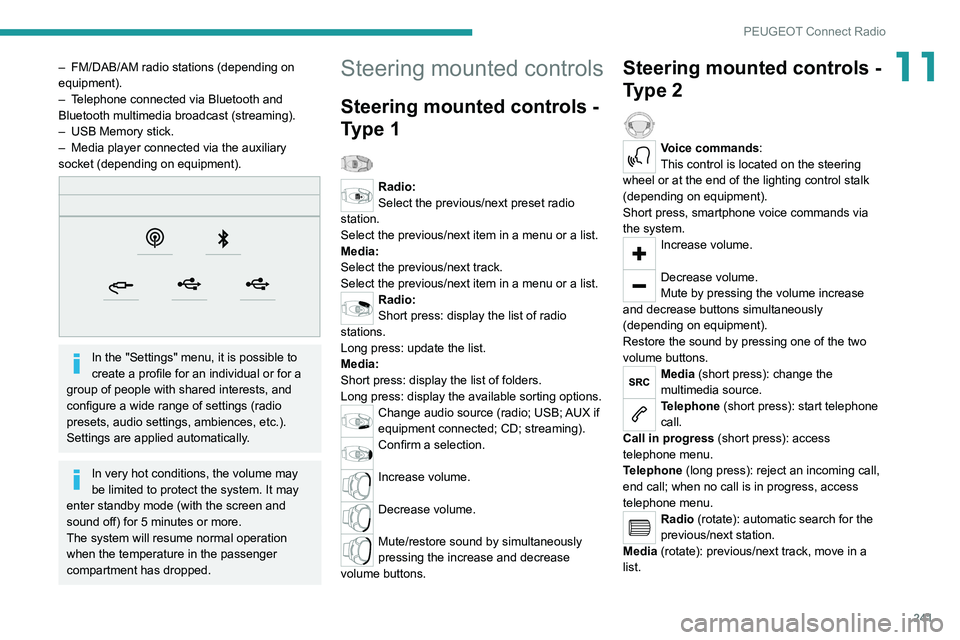
11– FM/DAB/AM radio stations (depending on
equipment).
–
T
elephone connected via Bluetooth and
Bluetooth multimedia broadcast (streaming).
–
USB Memory stick.
–
Media player connected via the auxiliary
socket (depending on equipment).
In the "Settings" menu, it is possible to
create a profile for an individual or for a
group of people with shared interests, and
configure a wide range of settings (radio
presets, audio settings, ambiences, etc.).
Settings are applied automatically.
In very hot conditions, the volume may
be limited to protect the system. It may
enter standby mode (with the screen and
sound off) for 5 minutes or more.
The system will resume normal operation
when the temperature in the passenger
compartment has dropped.
Steering mounted controls
Steering mounted controls -
Type 1
Radio:
Select the previous/next preset radio
station.
Select the previous/next item in a menu or a list.
Media:
Select the previous/next track.
Select the previous/next item in a menu or a list.
Radio:
Short press: display the list of radio
stations.
Long press: update the list.
Media:
Short press: display the list of folders.
Long press: display the available sorting options.
Change audio source (radio; USB; AUX if
equipment connected; CD; streaming).
Confirm a selection.
Increase volume.
Decrease volume.
Mute/restore sound by simultaneously
pressing the increase and decrease
volume buttons.
Steering mounted controls -
Type 2
Voice commands:
This control is located on the steering
wheel or at the end of the lighting control stalk
(depending on equipment).
Short press, smartphone voice commands via
the system.
Increase volume.
Decrease volume.
Mute by pressing the volume increase
and decrease buttons simultaneously
(depending on equipment).
Restore the sound by pressing one of the two
volume buttons.
Media (short press): change the
multimedia source.
Telephone (short press): start telephone
call.
Call in progress (short press): access
telephone menu.
Telephone (long press): reject an incoming call,
end call; when no call is in progress, access
telephone menu.
Radio (rotate): automatic search for the
previous/next station.
Media (rotate): previous/next track, move in a
list.
Page 251 of 308
249
PEUGEOT Connect Radio
11Procedure from the system
Press Telephone to display the main
page.
Press "Bluetooth search".
The list of detected telephones is
displayed.
Select the name of the chosen telephone
in the list.
Connection sharing
The system offers to connect the telephone with
3 profiles:
–
"Telephone" (hands-free kit, telephone only),
–
“Streaming" (streaming: wireless playing of
audio files on the telephone),
–
"Mobile internet data ".
Select one or more profiles.
Press "OK" to confirm.
Depending on the type of telephone, you may by
prompted to accept the transfer of contacts and
messages.
The ability of the system to connect just one profile depends on the telephone.
All three profiles may connect by default.
The profiles compatible with the system are: HFP, OPP, PBAP, A2DP, AVRCP,
MAP and PAN. Visit the Brand's website for more information
(compatibility, additional help, etc.).
Automatic reconnection
On returning to the vehicle, if the last telephone
connected is present again, it is automatically
recognised and within about 30 seconds
after switching on the ignition, the pairing is
established automatically (Bluetooth activated).
To modify the connection profile:
Press Telephone to display the main
page.
Press the "PHONE" button to access the
secondary page.
Press "Bluetooth connection" to
display the list of paired devices.
Press the "Details" button for a paired
device.
Select one or more profiles.
Press "OK" to confirm.
Managing paired telephones
This function lets you connect or disconnect a
device or delete a pairing.
Press Telephone to display the main
page.
Press the "PHONE" button to access the
secondary page.
Press "Bluetooth connection" to
display the list of paired devices.
Press on the name of the telephone
selected in the list to disconnect it.
Press again to connect it.
Deleting a telephone
Press the basket at the top right of the
screen to display a basket alongside the
telephone chosen.
Press the basket alongside the telephone
chosen to delete it.
Receiving a call
An incoming call is announced by a ring and a
superimposed display in the screen.
Make a short press on the steering
mounted PHONE button to accept an
incoming call.
And
Make a long press
on the steering mounted PHONE button
to reject the call.
Or
Press "End call".
Making a call
Using the telephone is not recommended
while driving.
Parking the vehicle.
Make the call using the steering mounted
controls.
Page 252 of 308
250
PEUGEOT Connect Radio
Calling a new number
Press Telephone to display the main
page.
Enter the phone number using the digital
keypad.
Press "Call" to start the call.
Calling a contact
Press Telephone to display the main
page.
Or press and hold
the steering mounted PHONE button.
Press "Contacts".
Select the desired contact from the displayed list.
Press "Call".
Calling a recently used
number
Press Telephone to display the main
page.
Or
Press and hold
the steering mounted button.
Press "Recent calls".
Select the desired contact from the displayed list.
It is always possible to make a call
directly from the telephone; as a safety
measure, first park the vehicle.
Setting the ringtone
Press Telephone to display the main
page.
Press the "OPTIONS " button to access the
secondary page.
Press "Ring volume" to display the
volume bar.
Press the arrows or move the slider to set
the ring volume.
Settings
Configuring profiles
Press Settings to display the main page.
Press "Profiles".
Select "Profile 1", "Profile 2", "Profile 3” or
"Common profile ".
Press this button to enter a name for the
profile using the virtual keypad.
Press "OK" to save.
Press the back arrow to confirm.
Press this button to activate the profile.
Press the back arrow again to confirm.
Press this button to reset the selected
profile.
Adjusting the brightness
Press Settings to display the main page.
Press Brightness.
Move the slider to adjust the brightness of
the screen and/or the instrument panel
(depending on version).
Press in the shaded area to confirm.
Modifying system settings
Press Settings to display the main page.
Press "Configuration" to access the
secondary page.
Press "System configuration".
Press the "Units" tab to change the units of
distance, fuel consumption and temperature.
Press the "Factory settings" tab to restore the
initial settings.
Returning the system to factory settings
activates the English language by default
(depending on version).
Page 257 of 308
255
PEUGEOT Connect Nav
12Audio source selection (depending on
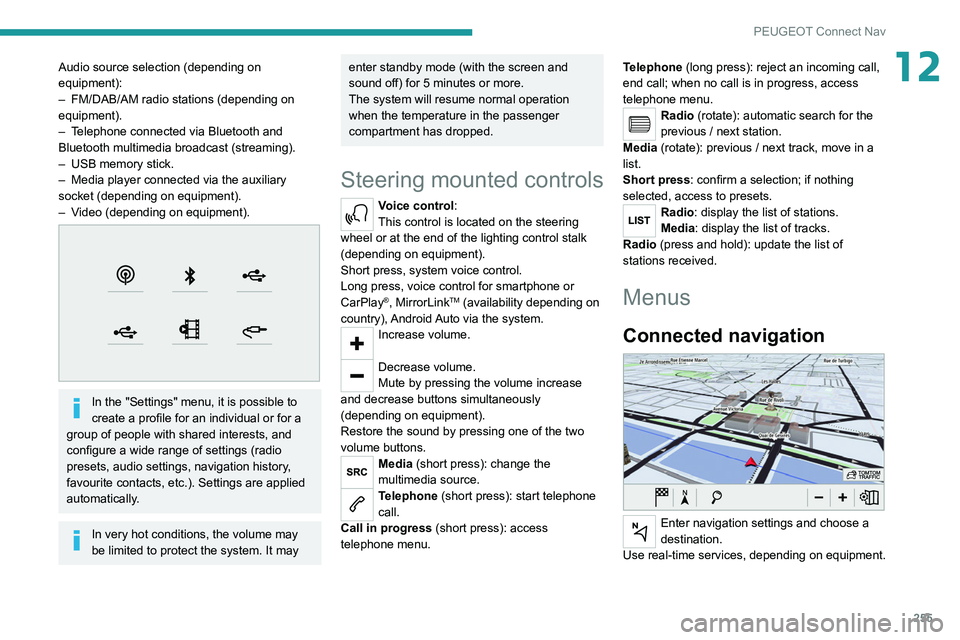
equipment):
–
FM/DAB/AM radio stations (depending on
equipment).
–
T
elephone connected via Bluetooth and
Bluetooth multimedia broadcast (streaming).
–
USB memory stick.
–
Media player connected via the auxiliary
socket (depending on equipment).
–
V
ideo (depending on equipment).
In the "Settings" menu, it is possible to
create a profile for an individual or for a
group of people with shared interests, and
configure a wide range of settings (radio
presets, audio settings, navigation history,
favourite contacts, etc.). Settings are applied
automatically.
In very hot conditions, the volume may
be limited to protect the system. It may
enter standby mode (with the screen and
sound off) for 5 minutes or more.
The system will resume normal operation
when the temperature in the passenger
compartment has dropped.
Steering mounted controls
Voice control:
This control is located on the steering
wheel or at the end of the lighting control stalk
(depending on equipment).
Short press, system voice control.
Long press, voice control for smartphone or
CarPlay
®, MirrorLinkTM (availability depending on
country), Android Auto via the system.
Increase volume.
Decrease volume.
Mute by pressing the volume increase
and decrease buttons simultaneously
(depending on equipment).
Restore the sound by pressing one of the two
volume buttons.
Media (short press): change the
multimedia source.
Telephone (short press): start telephone
call.
Call in progress (short press): access
telephone menu. Telephone (long press): reject an incoming call,
end call; when no call is in progress, access
telephone menu.
Radio (rotate): automatic search for the
previous / next station.
Media (rotate): previous / next track, move in a
list.
Short press: confirm a selection; if nothing
selected, access to presets.
Radio: display the list of stations.
Media: display the list of tracks.
Radio (press and hold): update the list of
stations received.
Menus
Connected navigation
Enter navigation settings and choose a
destination.
Use real-time services, depending on equipment.
Page 258 of 308
256
PEUGEOT Connect Nav
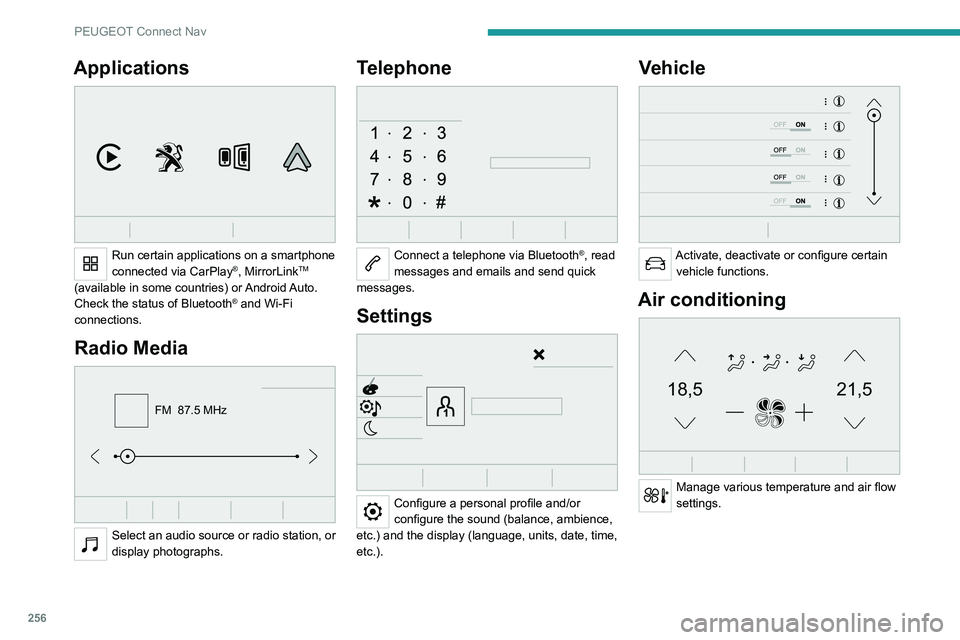
Applications
Run certain applications on a smartphone
connected via CarPlay®, MirrorLinkTM
(available in some countries) or Android Auto.
Check the status of Bluetooth
® and Wi-Fi
connections.
Radio Media
FM 87.5 MHz
Select an audio source or radio station, or
display photographs.
Telephone
Connect a telephone via Bluetooth®, read
messages and emails and send quick
messages.
Settings
Configure a personal profile and/or
configure the sound (balance, ambience,
etc.) and the display (language, units, date, time,
etc.).
Vehicle
Activate, deactivate or configure certain vehicle functions.
Air conditioning
21,518,5
Manage various temperature and air flow
settings.
Voice commands
Steering wheel-mounted
controls
Voice commands:
Voice commands can be issued from any
screen page after a short press on the "Voice
commands" button located on the steering
wheel or at the end of the lighting control stalk
(depending on equipment), as long as there is no
telephone call in progress.
To ensure that voice commands are always recognised by the system, please
follow these recommendations:
– use natural language in a normal tone
without breaking up words or raising your
voice.
– always wait for the "beep" (audible signal)
before speaking.
– for best results, closing the windows and
sunroof is recommended, to avoid extraneous
interference (depending on version).
– before issuing a voice command, ask any
other passengers to refrain from speaking.
First steps
Example of a "voice command" for
navigation:
"Navigate to address 11 regent street,
London"
Page 259 of 308
257
PEUGEOT Connect Nav
12Voice commands
Steering wheel-mounted
controls
Voice commands:
Voice commands can be issued from any
screen page after a short press on the "Voice
commands" button located on the steering
wheel or at the end of the lighting control stalk
(depending on equipment), as long as there is no
telephone call in progress.
To ensure that voice commands are always recognised by the system, please
follow these recommendations:
–
use natural language in a normal tone
without breaking up words or raising your
voice.
–
always wait for the "beep" (audible signal)
before speaking.
–
for best results, closing the windows and
sunroof is recommended, to avoid extraneous
interference (depending on version).
–
before issuing a voice command, ask any
other passengers to refrain from speaking.
First steps
Example of a "voice command" for
navigation:
"Navigate to address 11 regent street,
London"
Example of a "voice command" for the radio and
media:
"Play artist Madonna"
Example of a "voice command" for the
telephone:
"Call David Miller"
The voice commands, with a choice of 17 languages (Arabic, Brazilian, Czech,
Danish, Dutch, English, Farsi, French,
German, Italian, Norwegian, Polish,
Portuguese, Russian, Spanish, Swedish,
Turkish), are made using the language
previously chosen and set in the system.
For some voice commands, there are
alternative synonyms.
Example: Guide to / Navigate to / Go to / ...
The voice commands in Arabic for: "Navigate
to address" and "Display POI in the city", are
not available.
Information - Using the
system
When voice commands are activated, by
briefly pressing the button, help is
displayed on the touch screen, offering various
menus and enabling voice-based interaction with
the system.
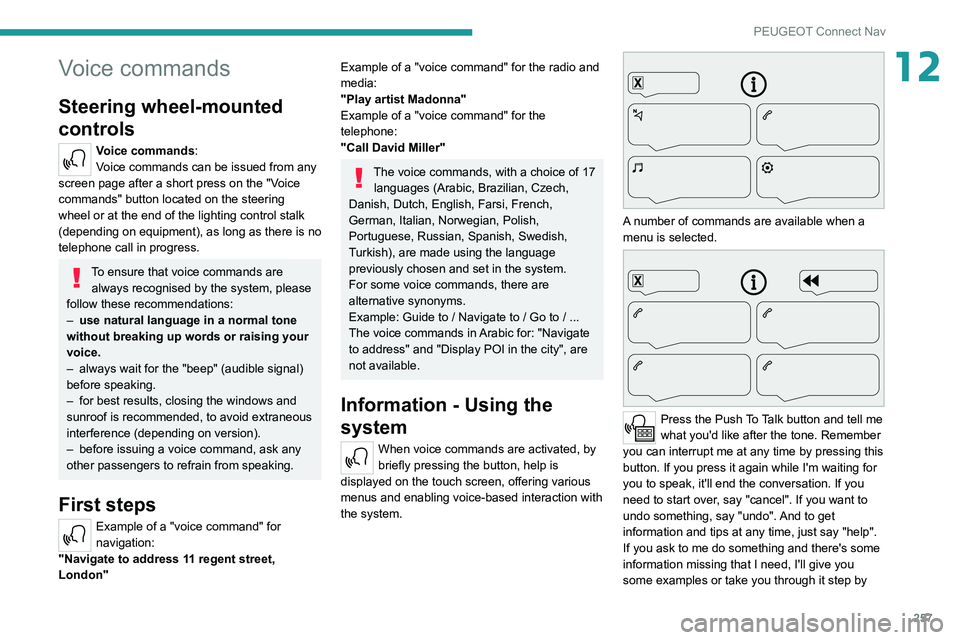
A number of commands are available when a
menu is selected.
Press the Push To Talk button and tell me
what you'd like after the tone. Remember
you can interrupt me at any time by pressing this
button. If you press it again while I'm waiting for
you to speak, it'll end the conversation. If you
need to start over, say "cancel". If you want to
undo something, say "undo". And to get
information and tips at any time, just say "help".
If you ask to me do something and there's some
information missing that I need, I'll give you
some examples or take you through it step by
Page 274 of 308
272
PEUGEOT Connect Nav
The ability of the system to connect just one profile depends on the telephone.
All three profiles may connect by default.
The profiles compatible with the system are: HFP, OPP, PBAP, A2DP, AVRCP,
MAP and PAN.
Visit the Brand's website for more information
(compatibility, additional help, etc.).
Automatic reconnection
On returning to the vehicle, if the last telephone
connected is present again, it is automatically
recognised and within about 30 seconds
after switching on the ignition, the pairing is
established automatically (Bluetooth activated).
To modify the connection profile:
Press Telephone to display the main
page.
Press the "OPTIONS " button to access the
secondary page.
Select "Bluetooth connection" to display
the list of paired devices.
Press the "Details" button.
Select one or more profiles.
Press "OK" to confirm.
Managing paired telephones
This function lets you connect or disconnect a
device or delete a pairing.
Press Telephone to display the main
page.
Press the "OPTIONS " button to access the
secondary page.
Select "Bluetooth connection" to display
the list of paired devices.
Press on the name of the telephone
selected in the list to disconnect it.
Press again to connect it.
Deleting a telephone
Select the basket at top right of the
screen to display a basket alongside the
telephone chosen.
Press the basket alongside the telephone
chosen to delete it.
Receiving a call
An incoming call is announced by a ring and a
superimposed display in the screen.
Make a short press on the steering
mounted telephone button to accept an
incoming call.
And
Make a long press
on the steering mounted telephone button
to reject the call.
Or
Select "End call" on the touch screen.
Making a call
Using the telephone is not recommended
while driving.
Park the vehicle.
Make the call using the steering mounted
controls.
Calling a new number
Press Telephone to display the main
page.
Enter the phone number using the digital
keypad.
Press "Call" to start the call.
Calling a contact
Press Telephone to display the main
page.
Or press and hold
the steering mounted telephone button.
Select "Contact".
Select the desired contact from the displayed list.
Select "Call".
Calling a recently used
number
Press Telephone to display the main
page.
Or
Press and hold
the steering mounted telephone button.
Select "Calls".
Select the desired contact from the displayed list.
It is always possible to make a call
directly from the telephone; as a safety
measure, first park the vehicle.
Managing contacts/entries
Press Telephone to display the main
page.
Select "Contact".
Select "Create" to add a new contact.
Press the "Telephone " tab to enter the
contact’s telephone number(s).
Press the "Address" tab to enter the
contact’s address(es).
Press the "Email" tab to enter the
contact’s email address(es).
Press "OK" to save.
Page 275 of 308
273
PEUGEOT Connect Nav
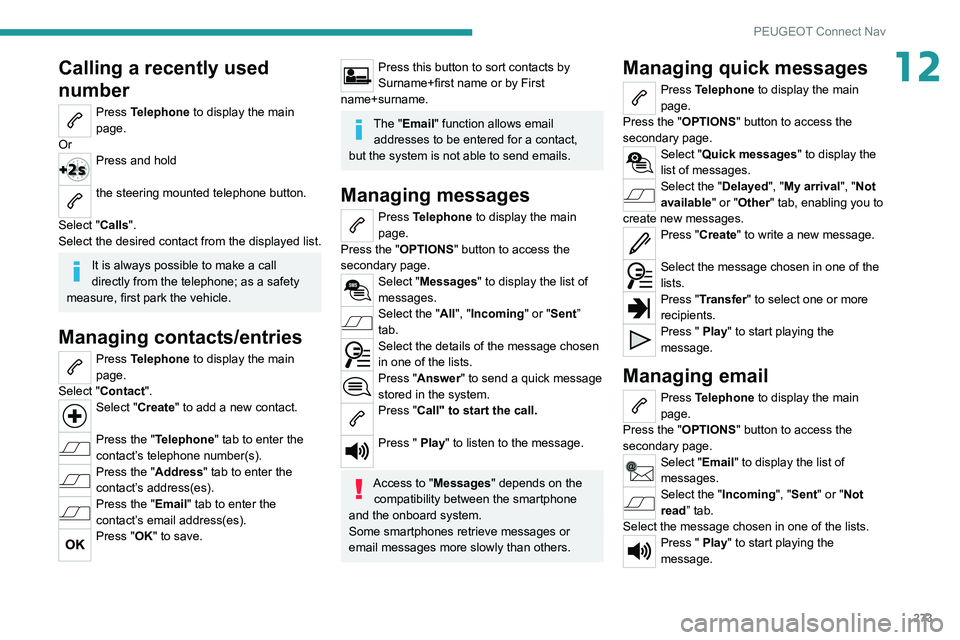
12Calling a recently used
number
Press Telephone to display the main
page.
Or
Press and hold
the steering mounted telephone button.
Select "Calls".
Select the desired contact from the displayed list.
It is always possible to make a call
directly from the telephone; as a safety
measure, first park the vehicle.
Managing contacts/entries
Press Telephone to display the main
page.
Select "Contact".
Select "Create" to add a new contact.
Press the "Telephone " tab to enter the
contact’s telephone number(s).
Press the "Address" tab to enter the
contact’s address(es).
Press the "Email" tab to enter the
contact’s email address(es).
Press "OK" to save.
Press this button to sort contacts by
Surname+first name or by First
name+surname.
The "Email" function allows email addresses to be entered for a contact,
but the system is not able to send emails.
Managing messages
Press Telephone to display the main
page.
Press the "OPTIONS " button to access the
secondary page.
Select "Messages" to display the list of
messages.
Select the "All", "Incoming " or "Sent”
tab.
Select the details of the message chosen
in one of the lists.
Press "Answer" to send a quick message
stored in the system.
Press "Call" to start the call.
Press " Play" to listen to the message.
Access to "Messages " depends on the
compatibility between the smartphone
and the onboard system.
Some smartphones retrieve messages or
email messages more slowly than others.
Managing quick messages
Press Telephone to display the main
page.
Press the "OPTIONS " button to access the
secondary page.
Select "Quick messages " to display the
list of messages.
Select the "Delayed", "My arrival", "Not
available" or "Other" tab, enabling you to
create new messages.
Press "Create" to write a new message.
Select the message chosen in one of the
lists.
Press "Transfer" to select one or more
recipients.
Press " Play" to start playing the
message.
Managing email
Press Telephone to display the main
page.
Press the "OPTIONS " button to access the
secondary page.
Select "Email" to display the list of
messages.
Select the "Incoming", "Sent" or "Not
read” tab.
Select the message chosen in one of the lists.
Press " Play" to start playing the
message.
Page 281 of 308
279
Alphabetical index
180° rear vision 159
A
ABS 90
Accelerated charging unit (Wallbox)
169
Accessories
87
Active Safety Brake
146–148
AdBlue®
18, 185
AdBlue® tank
186
Additive, Diesel
182–183
Adjusting headlamps
80
Adjusting head restraints
46
Adjusting seat
45, 47, 52–54
Adjusting the air distribution
60, 62–63
Adjusting the air flow
62–63
Adjusting the date
23–24, 251, 275
Adjusting the height and reach of
the steering wheel
49
Adjusting the lumbar support
45, 47
Adjusting the seat belt height
95
Adjusting the temperature
60–61
Adjusting the time
23–24, 251, 275
Advanced Grip Control
92
Advice on care and maintenance
168, 187
Advice on driving
7, 113
Airbags
97–101
Airbags, curtain
99–100
Airbags, front
98–99, 102
Airbags, lateral
98–99
Air conditioning
58–60, 63
Air conditioning, automatic 64
Air conditioning, digital
61, 64
Air conditioning, dual-zone automatic
61, 64
Air conditioning, manual
59, 64
Air conditioning, mono-zone
59, 64
Air intake
62, 64
Air vents
58
Alarm
34–35
Amplifier, audio
67
Android Auto connection
266
Anti-lock braking system (ABS)
90
Antitheft / Immobiliser
29
Apple CarPlay connection
247, 265
Applications
266
Armrest, front
68
Armrest, rear
71
Assistance call
88
Assistance, emergency braking
90, 148
Audible warning
88
Audio streaming (Bluetooth)
234, 246, 270
B
Backrest, folding 46
Battery
179
Battery, 12 V
183, 210–214
Battery, ancillaries
213
Battery, charging
167, 171, 211, 214
Battery (Hybrid)
168, 171
Battery, remote control
33–34
Blanking screen (snow shield)
178
Blind 42–43
Blind spot monitoring system, active
155
Blind spot sensors
154–155
Blinds, side
72
BlueHDi
18, 20, 182, 190
Bluetooth (hands-free)
234–235,
248–249, 271–272
Bluetooth (telephone)
248–249, 271–272
Bodywork
188
Bonnet
179–180
Boot
36–37, 40, 77
Boot (fittings)
73
Brake discs
184
Brake lamps
204
Brakes
184
Braking
125
Braking assistance system
90
Braking, automatic emergency
146–148
Braking, dynamic emergency
119–120
Brightness
250
Bulbs
203
Bulbs (changing)
201–202, 204–205
C
Cable, audio 270
Cable, Jack
270
Capacity, fuel tank
166
Cap, fuel filler
166
Care of the bodywork
188
CD
233, 246