navigation PEUGEOT 308 2011 Owner's Guide
[x] Cancel search | Manufacturer: PEUGEOT, Model Year: 2011, Model line: 308, Model: PEUGEOT 308 2011Pages: 328, PDF Size: 62.67 MB
Page 258 of 328
256
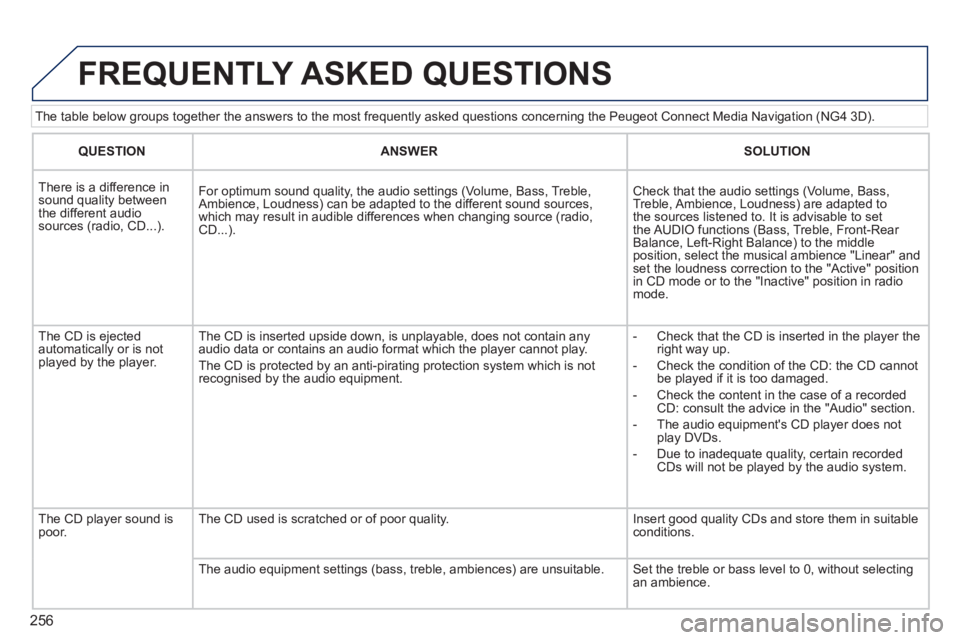
The table below groups together the answers to the most frequently asked questions concerning the Peugeot Connect Media Navigation (NG4 3D).
FREQUENTLY ASKED QUESTIONS
QUESTION
ANSWER
SOLUTION
There is a difference in
sound quality between
the different audio
sources (radio, CD...).
For optimum sound quality, the audio settings (Volume, Bass, Treble,
Ambience, Loudness) can be adapted to the different sound sources,
which may result in audible differences when changing source (radio,
CD...).
Check that the audio settings (Volume, Bass,
Treble, Ambience, Loudness) are adapted to
the sources listened to. It is advisable to set
the AUDIO functions (Bass, Treble, Front-Rear
Balance, Left-Right Balance) to the middle
position, select the musical ambience "Linear" and
set the loudness correction to the "Active" position
in CD mode or to the "Inactive" position in radio
mode.
The CD is ejected
automatically or is not
played by the player. The CD is inserted upside down, is unplayable, does not contain any
audio data or contains an audio format which the player cannot play.
The CD is protected by an anti-pirating protection system which is not
recognised by the audio equipment.
- Check that the CD is inserted in the player the
right way up.
- Check the condition of the CD: the CD cannot
be played if it is too damaged.
- Check the content in the case of a recorded
CD: consult the advice in the "Audio" section.
- The audio equipment's CD player does not
play DVDs.
- Due to inadequate quality, certain recorded
CDs will not be played by the audio system.
The CD player sound is
poor. The CD used is scratched or of poor quality. Insert good quality CDs and store them in suitable
conditions.
The audio equipment settings (bass, treble, ambiences) are unsuitable. Set the treble or bass level to 0, without selecting
an ambience.
Page 260 of 328
258
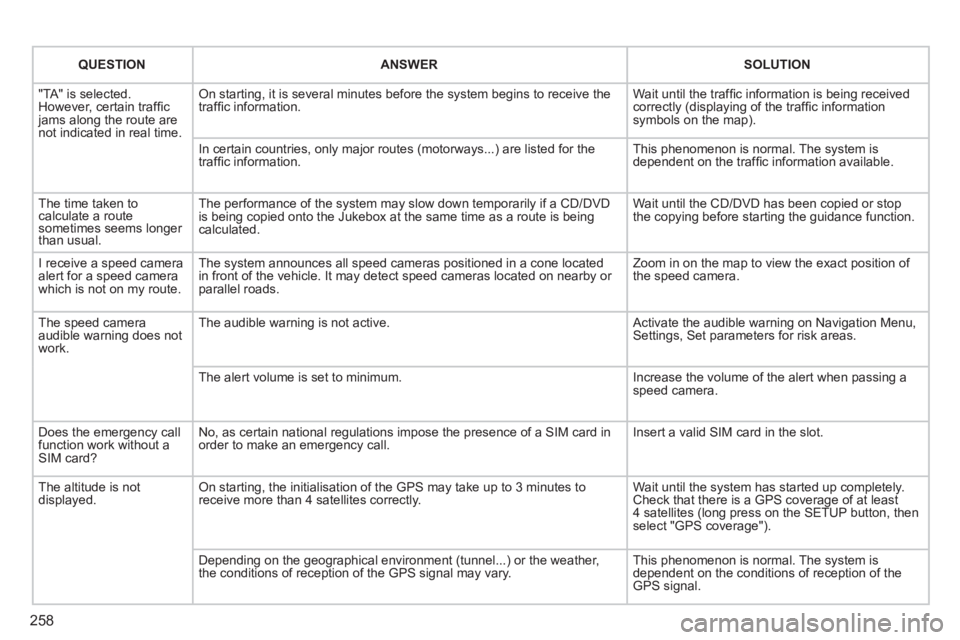
QUESTION
ANSWER
SOLUTION
"TA" is selected.
However, certain traffi c
jams along the route are
not indicated in real time. On starting, it is several minutes before the system begins to receive the
traffi c information. Wait until the traffi c information is being received
correctly (displaying of the traffi c information
symbols on the map).
In certain countries, only major routes (motorways...) are listed for the
traffi c information. This phenomenon is normal. The system is
dependent on the traffi c information available.
The time taken to
calculate a route
sometimes seems longer
than usual. The performance of the system may slow down temporarily if a CD/DVD
is being copied onto the Jukebox at the same time as a route is being
calculated. Wait until the CD/DVD has been copied or stop
the copying before starting the guidance function.
I receive a speed camera
alert for a speed camera
which is not on my route. The system announces all speed cameras positioned in a cone located
in front of the vehicle. It may detect speed cameras located on nearby or
parallel roads. Zoom in on the map to view the exact position of
the speed camera.
The speed camera
audible warning does not
work. The audible warning is not active. Activate the audible warning on Navigation Menu,
Settings, Set parameters for risk areas.
The alert volume is set to minimum. Increase the volume of the alert when passing a
speed camera.
Does the emergency call
function work without a
SIM card? No, as certain national regulations impose the presence of a SIM card in
order to make an emergency call. Insert a valid SIM card in the slot.
The altitude is not
displayed. On starting, the initialisation of the GPS may take up to 3 minutes to
receive more than 4 satellites correctly. Wait until the system has started up completely.
Check that there is a GPS coverage of at least
4 satellites (long press on the SETUP button, then
select "GPS coverage").
Depending on the geographical environment (tunnel...) or the weather,
the conditions of reception of the GPS signal may vary. This phenomenon is normal. The system is
dependent on the conditions of reception of the
GPS signal.
Page 261 of 328
259
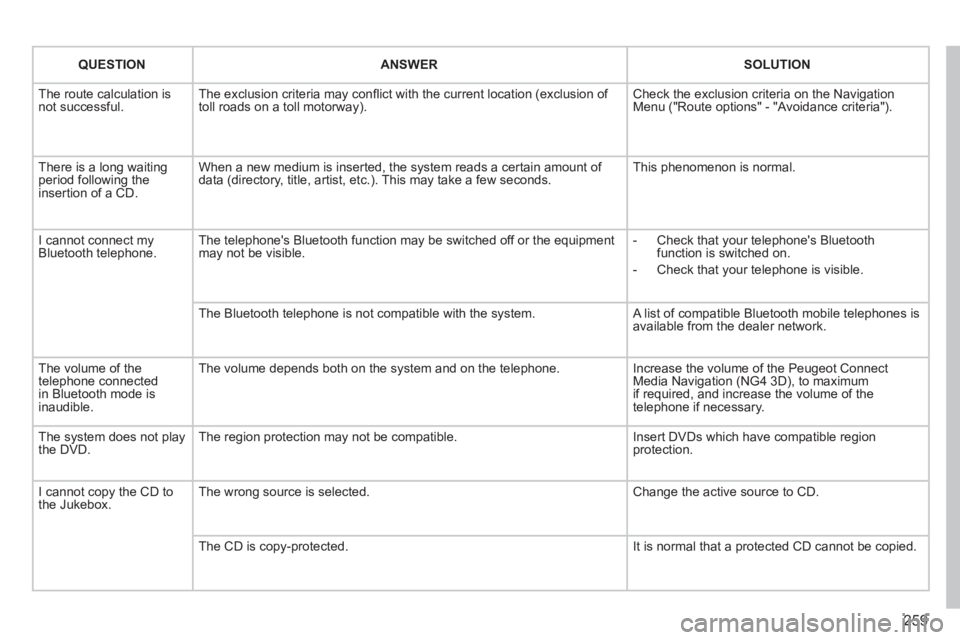
QUESTION
ANSWER
SOLUTION
The route calculation is
not successful. The exclusion criteria may confl ict with the current location (exclusion of
toll roads on a toll motorway). Check the exclusion criteria on the Navigation
Menu ("Route options" - "Avoidance criteria").
There is a long waiting
period following the
insertion of a CD. When a new medium is inserted, the system reads a certain amount of
data (directory, title, artist, etc.). This may take a few seconds. This phenomenon is normal.
I cannot connect my
Bluetooth telephone. The telephone's Bluetooth function may be switched off or the equipment
may not be visible.
- Check that your telephone's Bluetooth
function is switched on.
- Check that your telephone is visible.
The Bluetooth telephone is not compatible with the system. A list of compatible Bluetooth mobile telephones is
available from the dealer network.
The volume of the
telephone connected
in Bluetooth mode is
inaudible. The volume depends both on the system and on the telephone. Increase the volume of the Peugeot Connect
Media Navigation (NG4 3D), to maximum
if required, and increase the volume of the
telephone if necessary.
The system does not play
the DVD. The region protection may not be compatible. Insert DVDs which have compatible region
protection.
I cannot copy the CD to
the Jukebox. The wrong source is selected. Change the active source to CD.
The CD is copy-protected. It is normal that a protected CD cannot be copied.
Page 262 of 328
260
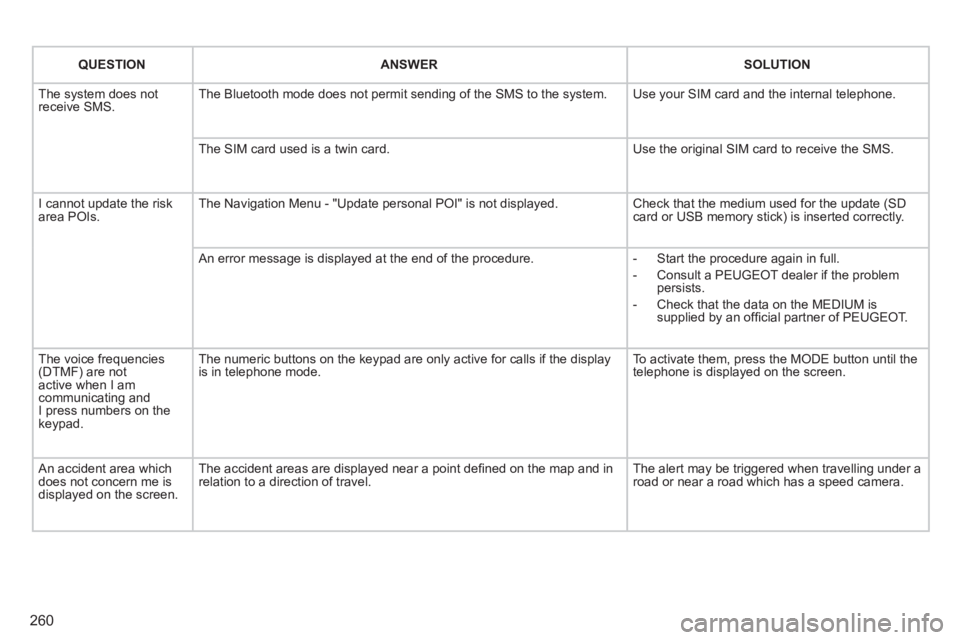
QUESTION
ANSWER
SOLUTION
The system does not
receive SMS. The Bluetooth mode does not permit sending of the SMS to the system. Use your SIM card and the internal telephone.
The SIM card used is a twin card. Use the original SIM card to receive the SMS.
I cannot update the risk
area POIs. The Navigation Menu - "Update personal POI" is not displayed. Check that the medium used for the update (SD
card or USB memory stick) is inserted correctly.
An error message is displayed at the end of the procedure.
- Start the procedure again in full.
- Consult a PEUGEOT dealer if the problem
persists.
- Check that the data on the MEDIUM is
supplied by an offi cial partner of PEUGEOT.
The voice frequencies
(DTMF) are not
active when I am
communicating and
I press numbers on the
keypad. The numeric buttons on the keypad are only active for calls if the display
is in telephone mode. To activate them, press the MODE button until the
telephone is displayed on the screen.
An accident area which
does not concern me is
displayed on the screen. The accident areas are displayed near a point defi ned on the map and in
relation to a direction of travel. The alert may be triggered when travelling under a
road or near a road which has a speed camera.
Page 263 of 328
261
The Peugeot Connect Navigation (RNEG) is protected
in such a way that it will only operate in your vehicle.
If it is to be installed in another vehicle, contact a
PEUGEOT dealer for confi guration of the system.
Certain functions described in this handbook will
become available during the year.
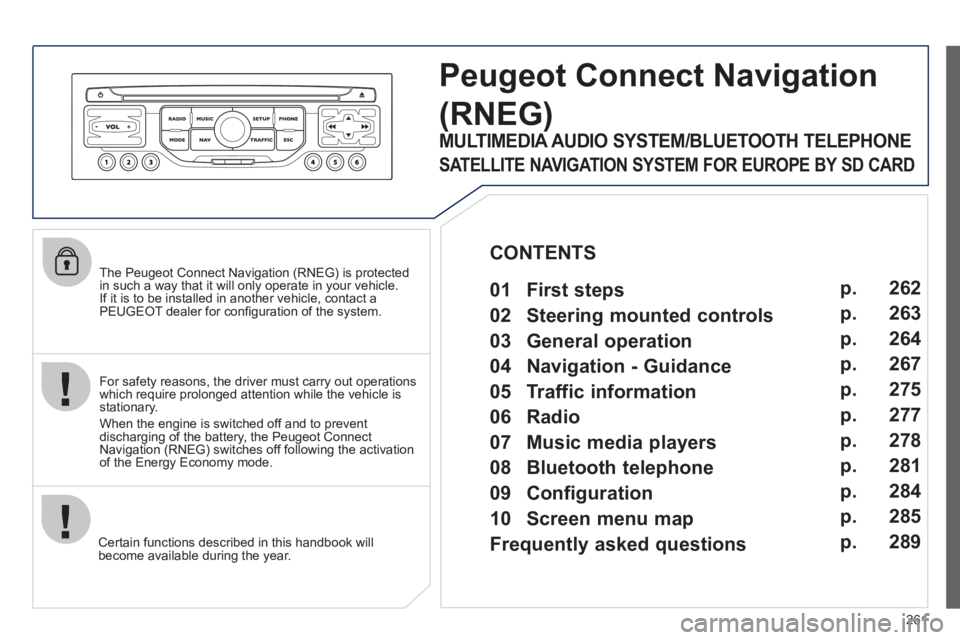
Peugeot Connect Navigation
(RNEG)
For safety reasons, the driver must carry out operations
which require prolonged attention while the vehicle is
stationary.
When the engine is switched off and to prevent
discharging of the battery, the Peugeot Connect
Navigation (RNEG) switches off following the activation
of the Energy Economy mode.
MULTIMEDIA AUDIO SYSTEM/BLUETOOTH TELEPHONE
SATELLITE NAVIGATION SYSTEM FOR EUROPE BY SD CARD
01 First steps
CONTENTS
02 Steering mounted controls
03 General operation
04 Navigation - Guidance
05 Traffic information
06 Radio
07 Music media players
08 Bluetooth telephone
09 Configuration
10 Screen menu map p.
p.
p.
p.
p.
p.
p.
p.
p.
p.
Frequently asked questions p. 262
263
264
267
275
277
278
281
284
285
289
Page 264 of 328
262
01 FIRST STEPS
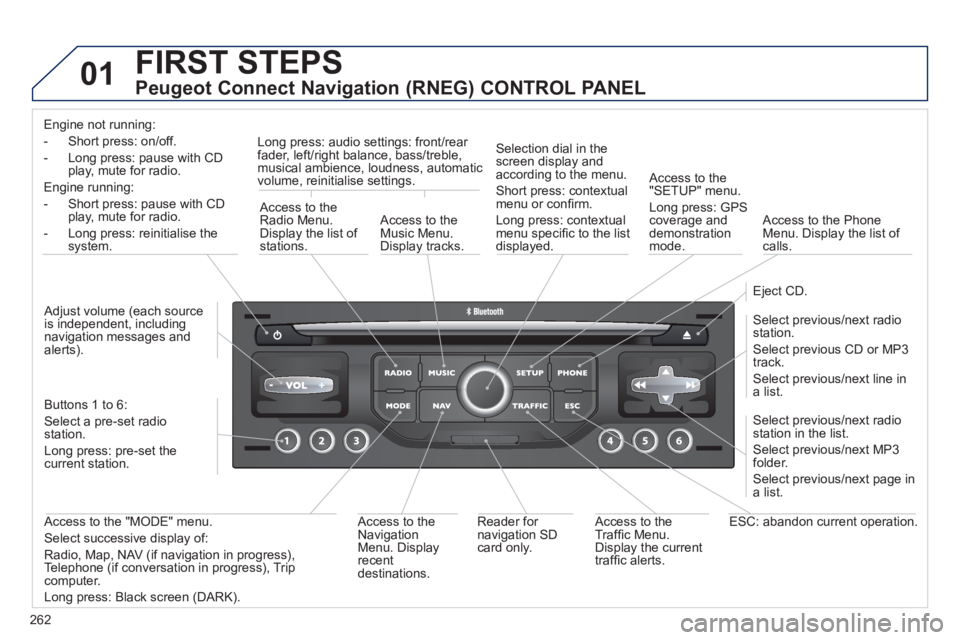
Peugeot Connect Navigation (RNEG) CONTROL PANEL
Engine not running:
- Short press: on/off.
- Long press: pause with CD
play, mute for radio.
Engine running:
- Short press: pause with CD
play, mute for radio.
- Long press: reinitialise the
system.
Access to the
Radio Menu.
Display the list of
stations.
Access to the
Music Menu.
Display tracks.
Long press: audio settings: front/rear
fader, left/right balance, bass/treble,
musical ambience, loudness, automatic
volume, reinitialise settings.
Selection dial in the
screen display and
according to the menu.
Short press: contextual
menu or confi rm.
Long press: contextual
menu specifi c to the list
displayed.
Access to the
"SETUP" menu.
Long press: GPS
coverage and
demonstration
mode.
Access to the Phone
Menu. Display the list of
calls.
Eject CD.
Select previous/next radio
station.
Select previous CD or MP3
track.
Select previous/next line in
a list.
Select previous/next radio
station in the list.
Select previous/next MP3
folder.
Select previous/next page in
a list.
ESC: abandon current operation.
Access to the
Traffi c Menu.
Display the current
traffi c alerts.
Reader for
navigation SD
card only.
Access to the
Navigation
Menu. Display
recent
destinations.
Access to the "MODE" menu.
Select successive display of:
Radio, Map, NAV (if navigation in progress),
Telephone (if conversation in progress), Trip
computer.
Long press: Black screen (DARK).
Buttons 1 to 6:
Select a pre-set radio
station.
Long press: pre-set the
current station.
Adjust volume (each source
is independent, including
navigation messages and
alerts).
Page 266 of 328
264
03 GENERAL OPERATION
For a detailed global view of the menus available, refer to the
"Screen menu map" section.
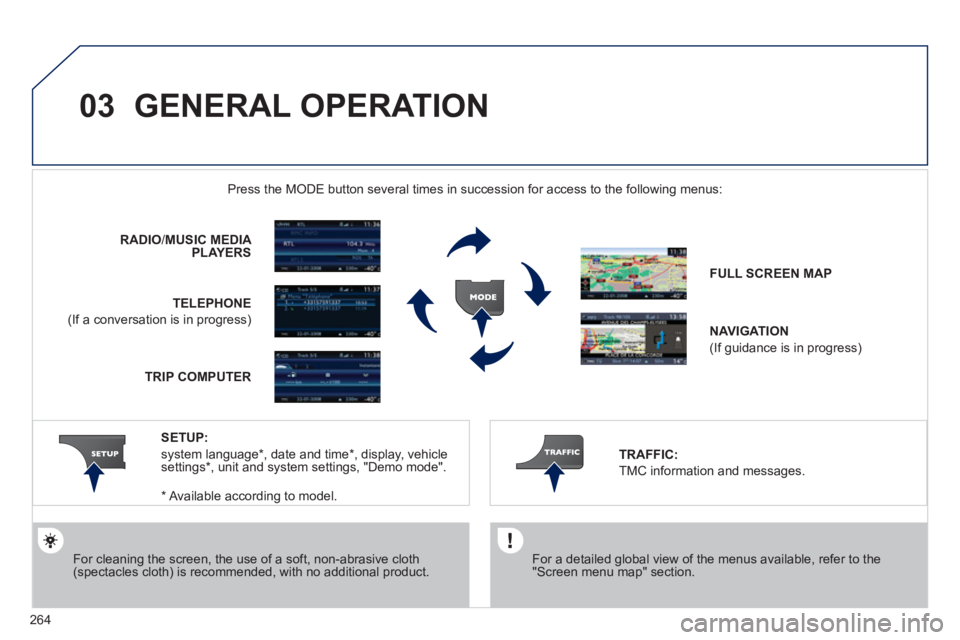
Press the MODE button several times in succession for access to the following menus:
For cleaning the screen, the use of a soft, non-abrasive cloth
(spectacles cloth) is recommended, with no additional product.
RADIO
/ MUSIC MEDIA
PLAYERS
TELEPHONE
(If a conversation is in progress)
FULL SCREEN MAP
NAVIGATION
(If guidance is in progress)
SETUP:
system language * , date and time * , display, vehicle
settings * , unit and system settings, "Demo mode".
TRAFFIC:
TMC information and messages.
*
Available according to model.
TRIP COMPUTER
Page 267 of 328
265
03 GENERAL OPERATION
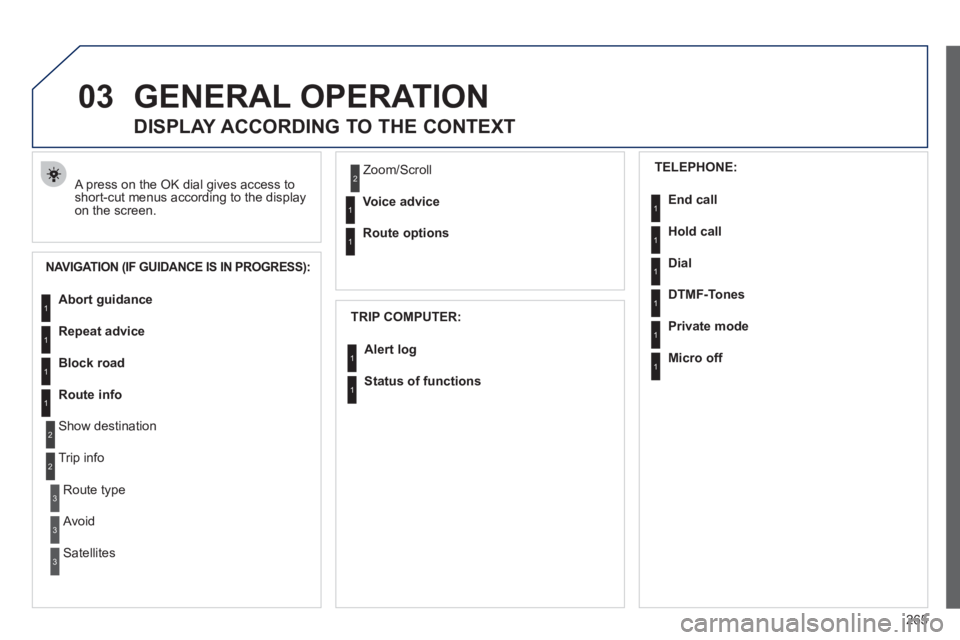
A press on the OK dial gives access to
short-cut menus according to the display
on the screen.
DISPLAY ACCORDING TO THE CONTEXT
NAVIGATION (IF GUIDANCE IS IN PROGRESS):
TRIP COMPUTER:
Abort guidance
Repeat advice
Block road
Route info
Show destination
Trip info
Route type
Avoid
Satellites Zoom/Scroll
Voice advice
Route options
Alert log
Status of functions
1
2
3
3
2
1
1
1
3
1
1
1
1
2
TELEPHONE:
End call
Hold call
Dial
DTMF-Tones
Private mode
Micro off
1
1
1
1
1
1
Page 269 of 328
267
04
1
2
3
5
6
4
NAVIGATION - GUIDANCE
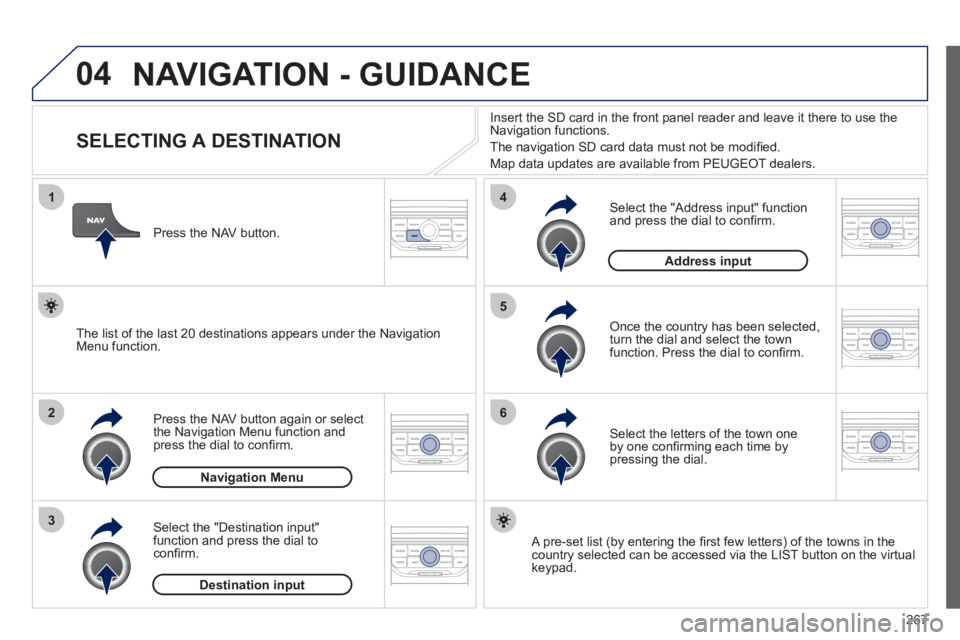
SELECTING A DESTINATION
Press the NAV button again or select
the Navigation Menu function and
press the dial to confi rm.
Select the "Destination input"
function and press the dial to
confi rm.
Press the NAV button.
Select the letters of the town one
by one confi rming each time by
pressing the dial.
Once the country has been selected,
turn the dial and select the town
function. Press the dial to confi rm.
Insert the SD card in the front panel reader and leave it there to use the
Navigation functions.
The navigation SD card data must not be modifi ed.
Map data updates are available from PEUGEOT dealers.
A pre-set list (by entering the fi rst few letters) of the towns in the
country selected can be accessed via the LIST button on the virtual
keypad.
Select the "Address input" function
and press the dial to confi rm.
The list of the last 20 destinations appears under the Navigation
Menu function.
Navigation Menu
Destination input
Address input
Page 270 of 328
268
04
7
8
9
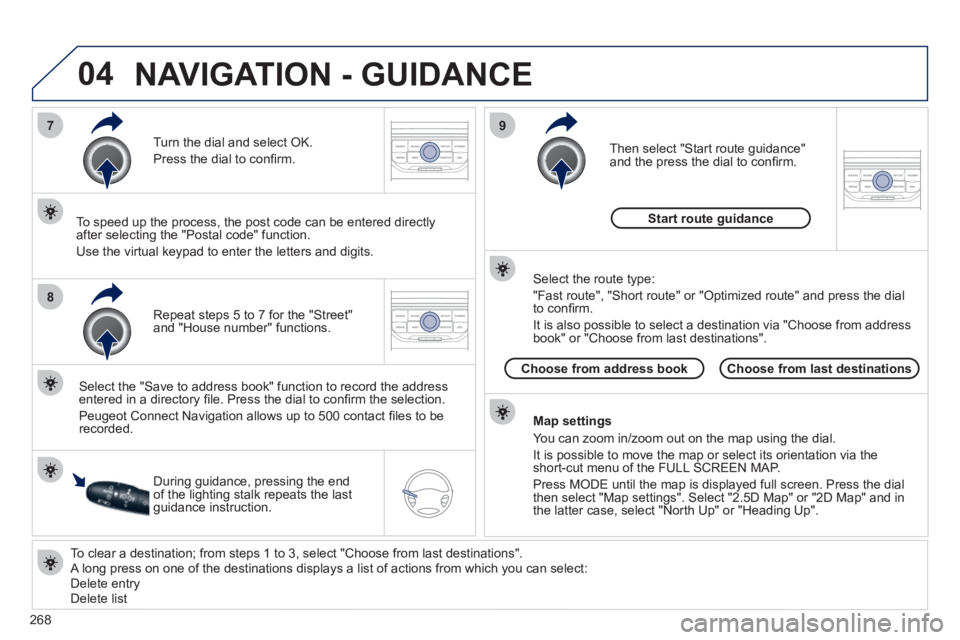
To clear a destination; from steps 1 to 3, select "Choose from last destinations".
A long press on one of the destinations displays a list of actions from which you can select:
Delete entry
Delete list
Repeat steps 5 to 7 for the "Street"
and "House number" functions.
Turn the dial and select OK.
Press the dial to confi rm.
Select the "Save to address book" function to record the address
entered in a directory fi le. Press the dial to confi rm the selection.
Peugeot Connect Navigation allows up to 500 contact fi les to be
recorded.
To speed up the process, the post code can be entered directly
after selecting the "Postal code" function.
Use the virtual keypad to enter the letters and digits.
Then select "Start route guidance"
and the press the dial to confi rm.
During guidance, pressing the end
of the lighting stalk repeats the last
guidance instruction.
Map settings
You can zoom in/zoom out on the map using the dial.
It is possible to move the map or select its orientation via the
short-cut menu of the FULL SCREEN MAP.
Press MODE until the map is displayed full screen. Press the dial
then select "Map settings". Select "2.5D Map" or "2D Map" and in
the latter case, select "North Up" or "Heading Up".
Select the route type:
"Fast route", "Short route" or "Optimized route" and press the dial
to confi rm.
It is also possible to select a destination via "Choose from address
book" or "Choose from last destinations".
Choose from last destinations
Choose from address book
Start route guidance
NAVIGATION - GUIDANCE