display Peugeot 308 2014 Owner's Manual
[x] Cancel search | Manufacturer: PEUGEOT, Model Year: 2014, Model line: 308, Model: Peugeot 308 2014Pages: 400, PDF Size: 10.05 MB
Page 334 of 400
05
308_EN_CHAP10C_SMEGPLUS_ED02-2013
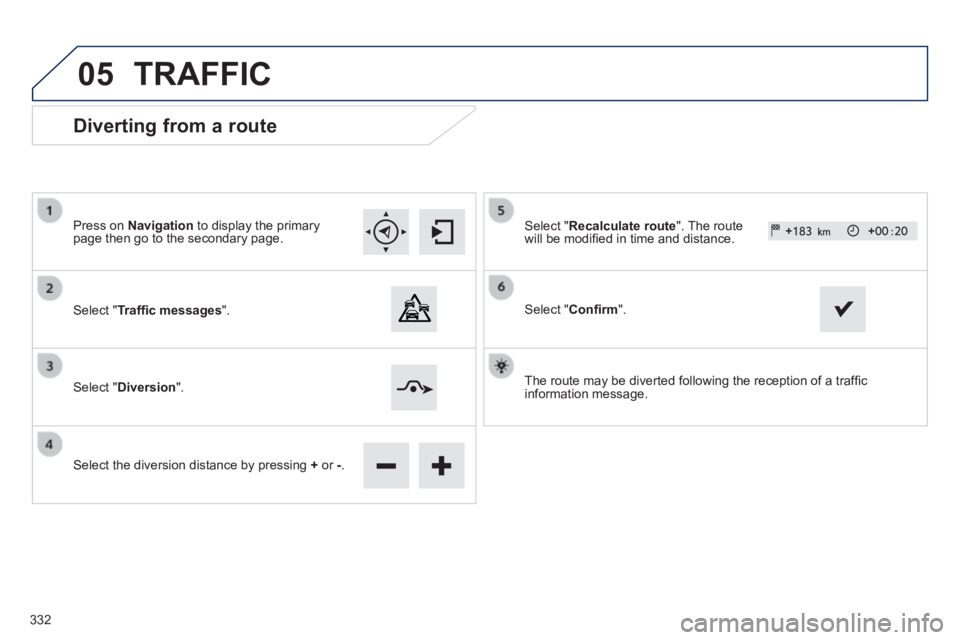
Diverting from a route
Press on Navigation to display the primary page then go to the secondary page.
Select " Traffi c messages ".
Select " Diversion ".
Select the diversion distance by pressing + or -.
Select " Recalculate route ". The route will be modifi ed in time and distance.
Select " Confi rm ".
The route may be diverted following the reception of a traffi c information message.
TRAFFIC
332
Page 335 of 400
05
333
308_EN_CHAP10C_SMEGPLUS_ED02-2013
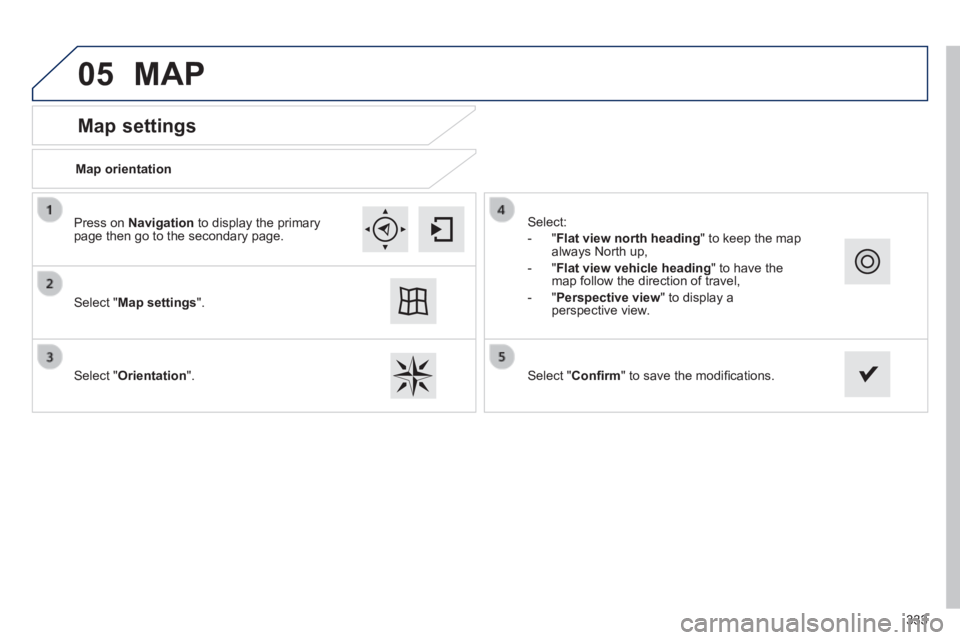
Map settings
MAP
Map orientation
Select " Map settings ".
Select " Orientation ".
Select:
- " Flat view north heading " to keep the map always North up,
- " Flat view vehicle heading " to have the map follow the direction of travel,
- " Perspective view " to display a perspective view.
Press on Navigation to display the primary page then go to the secondary page.
Select " Confi rm " to save the modifi cations.
Page 336 of 400
05
308_EN_CHAP10C_SMEGPLUS_ED02-2013
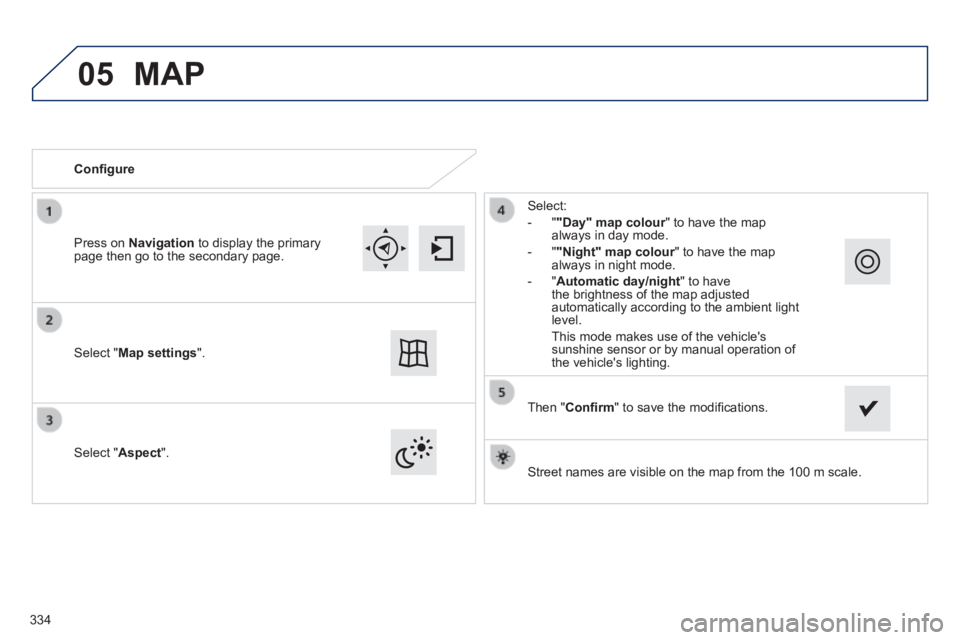
Street names are visible on the map from the 100 m scale.
Confi gure
Select " Aspect ".
Select:
- " "Day" map colour " to have the map always in day mode.
- " "Night" map colour " to have the map "Night" map colour " to have the map "Night" map colouralways in night mode.
- " Automatic day/night " to have the brightness of the map adjusted automatically according to the ambient light level.
This mode makes use of the vehicle's sunshine sensor or by manual operation of the vehicle's lighting. Select " Map settings ".
Press on Navigation to display the primary page then go to the secondary page.
MAP
Then " Confi rm " to save the modifi cations.
334
Page 337 of 400
05
335
308_EN_CHAP10C_SMEGPLUS_ED02-2013
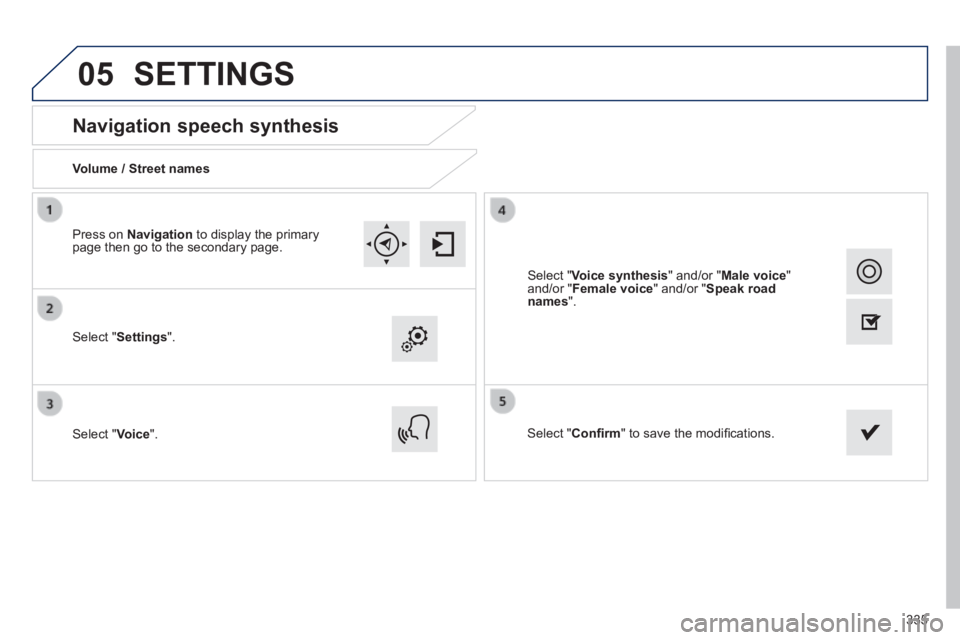
Navigation speech synthesis
Volume / Street names
Select " Settings ".
Select " Voice ". Select " Confi rm " to save the modifi cations.
Press on Navigation to display the primary page then go to the secondary page.
SETTINGS
Select " Voice synthesis " and/or " Male voice " and/or " Female voice " and/or " Speak road names ".
Page 340 of 400
06
338
308_EN_CHAP10C_SMEGPLUS_ED02-2013
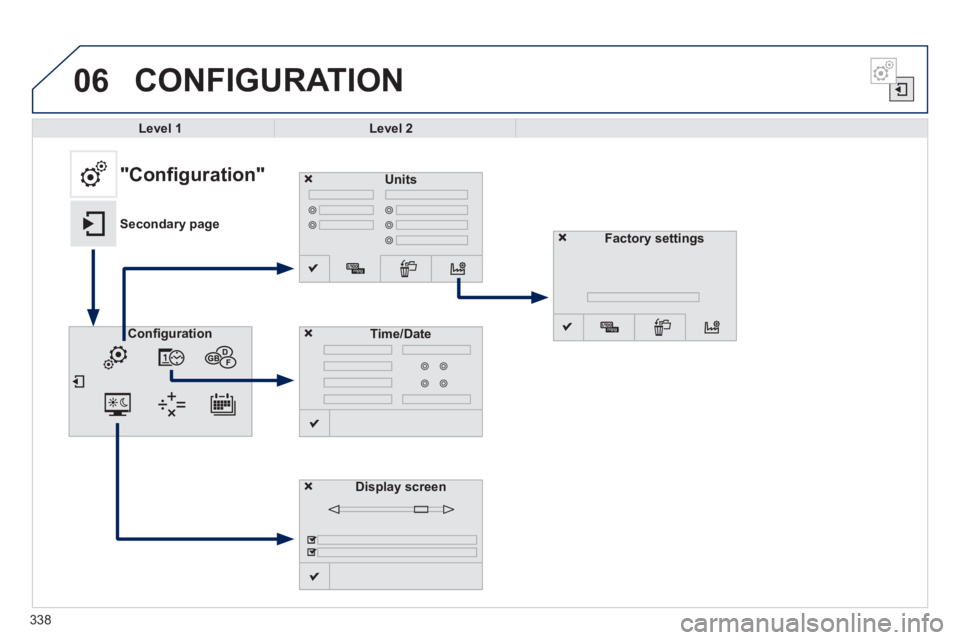
CONFIGURATION
Level 1Level 2
Units
Display screen
Confi gurationTime/Date
"Configuration"
Secondary pageFactory settings
Page 341 of 400
339
308_EN_CHAP10C_SMEGPLUS_ED02-2013
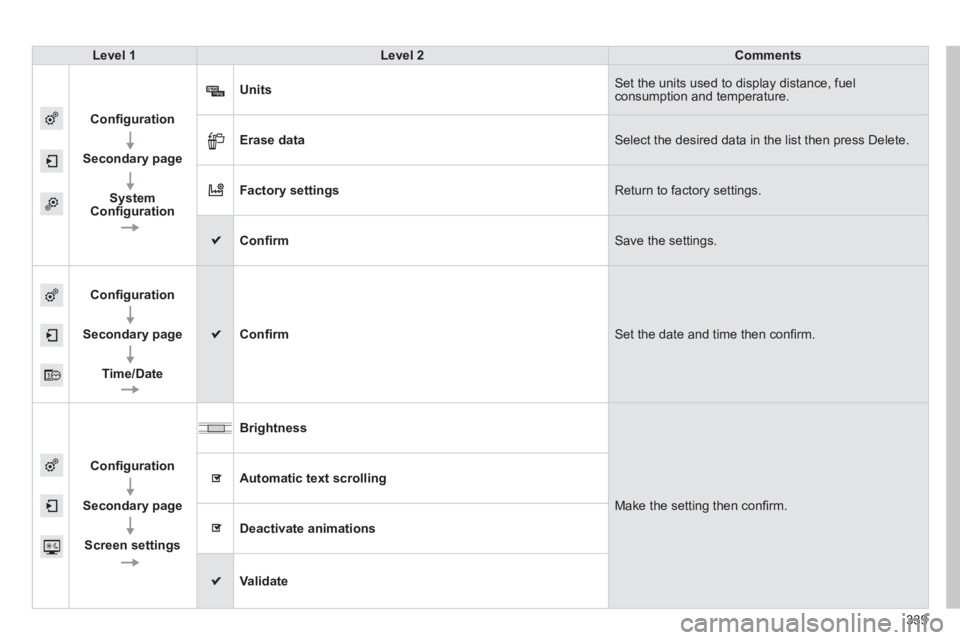
Level 1Level 2Comments
Confi guration
Secondary page
SystemConfi guration
Units Set the units used to display distance, fuel consumption and temperature.
Erase data Select the desired data in the list then press Delete.
Factory settings Return to factory settings.
Confi rm Save the settings.
Confi guration
Secondary page
Time/Date
Confi rm Set the date and time then confi rm.
Confi guration
Secondary page
Screen settings
Brightness
Make the setting then confi rm.
Automatic text scrolling
Deactivate animations
Validate
Page 344 of 400
06
308_EN_CHAP10C_SMEGPLUS_ED02-2013
342
CONFIGURATION
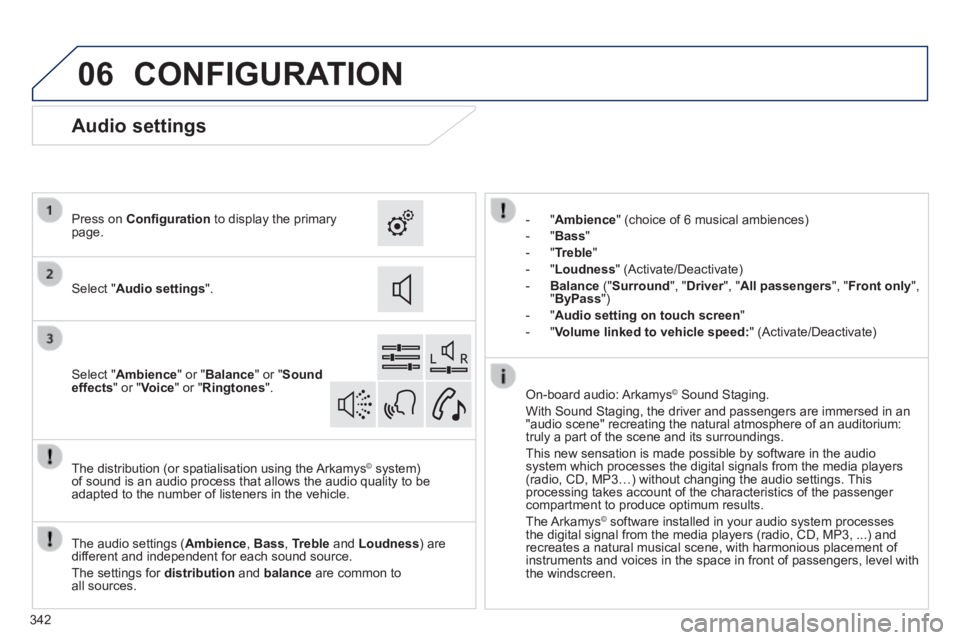
- " Ambience " (choice of 6 musical ambiences)
- " Bass "
- " Treble "
- " Loudness " (Activate/Deactivate)
- Balance (" Surround ", " Driver ", " Driver ", " DriverAll passengers ", " Front only ", " ByPass ")
- " Audio setting on touch screen "
- " Volume linked to vehicle speed: " (Activate/Deactivate)
The audio settings ( Ambience , Bass , Treble and Loudness ) are different and independent for each sound source.
The settings for distribution and balance are common to all sources.
The distribution (or spatialisation using the Arkamys© system) © system) ©
of sound is an audio process that allows the audio quality to be adapted to the number of listeners in the vehicle.
On-board audio: Arkamys © Sound Staging. © Sound Staging. ©
With Sound Staging, the driver and passengers are immersed in an "audio scene" recreating the natural atmosphere of an auditorium: truly a part of the scene and its surroundings.
This new sensation is made possible by software in the audio system which processes the digital signals from the media players (radio, CD, MP3…) without changing the audio settings. This processing takes account of the characteristics of the passenger compartment to produce optimum results.
The Arkamys© software installed in your audio system processes © software installed in your audio system processes ©
the digital signal from the media players (radio, CD, MP3, ...) and recreates a natural musical scene, with harmonious placement of instruments and voices in the space in front of passengers, level with the windscreen.
Audio settings
Select " Audio settings ".
Press on Confi guration to display the primary page.
Select " Ambience " or " Balance " or " Sound effects " or " Voice " or " Ringtones ".
Page 345 of 400
06
308_EN_CHAP10C_SMEGPLUS_ED02-2013
343
CONFIGURATION
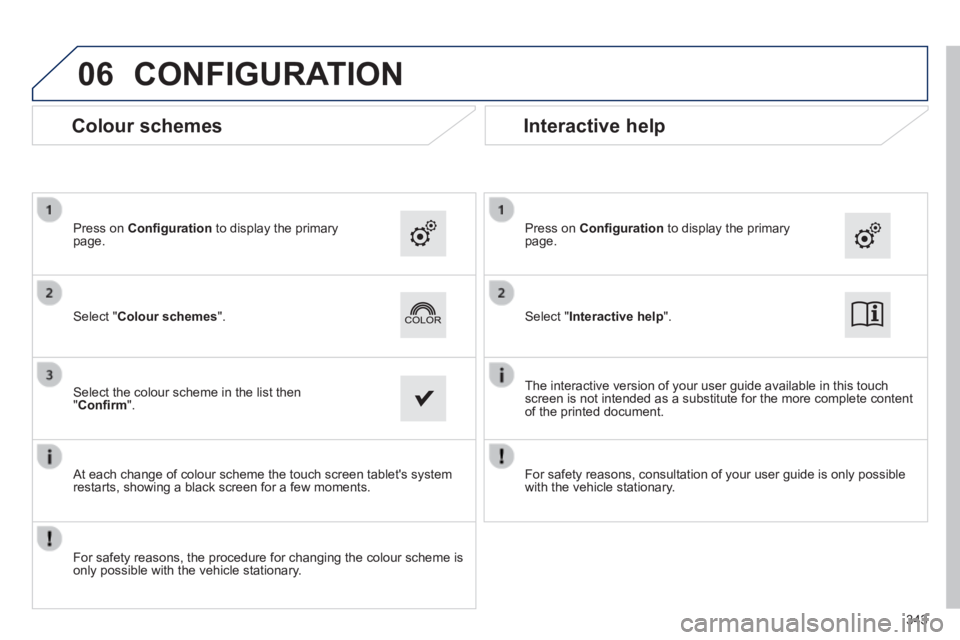
Select " Interactive help ". Select " Colour schemes ".
Press on Confi guration to display the primary page. Press on Confi guration to display the primary page.
The interactive version of your user guide available in this touch screen is not intended as a substitute for the more complete content of the printed document.
Select the colour scheme in the list then " Confi rm ".
Interactive help
Colour schemes
For safety reasons, consultation of your user guide is only possible with the vehicle stationary. At each change of colour scheme the touch screen tablet's system restarts, showing a black screen for a few moments.
For safety reasons, the procedure for changing the colour scheme is only possible with the vehicle stationary.
Page 346 of 400
06
308_EN_CHAP10C_SMEGPLUS_ED02-2013
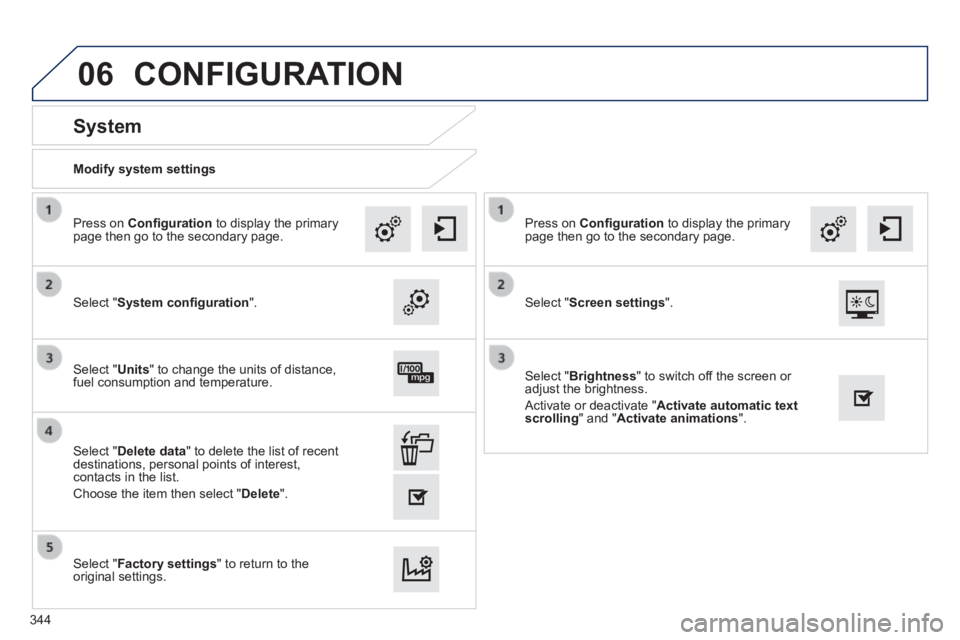
Modify system settings
System
Select " System confi guration ".
Press on Confi guration to display the primary page then go to the secondary page.
Select " Units " to change the units of distance, fuel consumption and temperature.
Select " Factory settings " to return to the original settings.
Select " Delete data " to delete the list of recent destinations, personal points of interest, contacts in the list.
Choose the item then select " Delete ".
CONFIGURATION
Select " Screen settings ".
Press on Confi guration to display the primary page then go to the secondary page.
Select " Brightness " to switch off the screen or adjust the brightness.
Activate or deactivate " Activate automatic text scrolling " and " Activate animations ".
344
Page 347 of 400
06
345
308_EN_CHAP10C_SMEGPLUS_ED02-2013
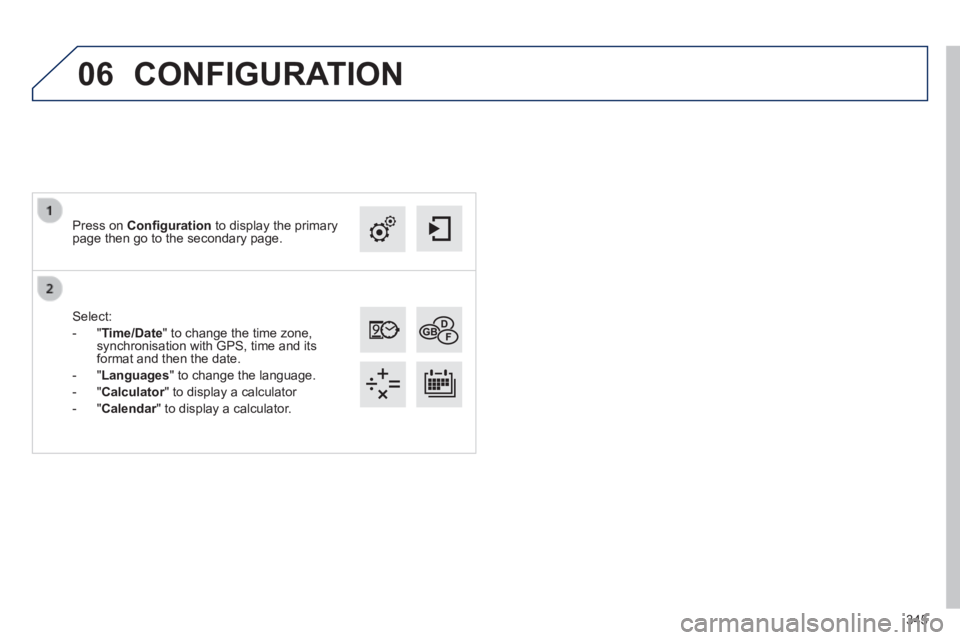
Select:
- " Time/Date " to change the time zone, synchronisation with GPS, time and its format and then the date.
- " Languages " to change the language.
- " Calculator " to display a calculator Calculator " to display a calculator Calculator
- " Calendar " to display a calculator. Calendar " to display a calculator. Calendar
Press on Confi guration to display the primary page then go to the secondary page.
CONFIGURATION