phone Peugeot 308 2016 User Guide
[x] Cancel search | Manufacturer: PEUGEOT, Model Year: 2016, Model line: 308, Model: Peugeot 308 2016Pages: 398, PDF Size: 9.38 MB
Page 320 of 398
318
308_en_Chap10c_SMegplus_ed02-2015
Bluetooth® audio streaming
Streaming allows audio files on your telephone
to be played through the vehicle's speakers.
Connect the telephone: see the "Telephone"
section, then " Bluetooth".
Choose the " Audio" or "All" profile.
If play does not start automatically, it may be
necessary to start the audio playback from the
telephone.
Control is from the peripheral device or by
using the audio system buttons.
Once connected in streaming mode,
the telephone is considered to be a
media source.
It is recommended that you activate
"Repeat " on the Bluetooth peripheral.
Connecting Apple® players
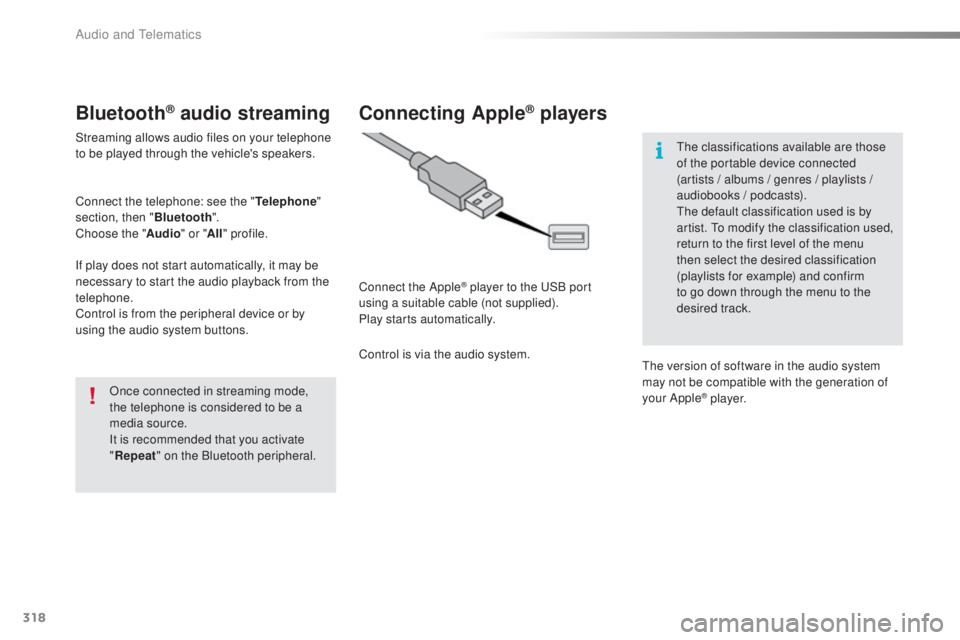
Connect the Apple® player to the uSB p ort
using a suitable cable (not supplied).
Play starts automatically.
Control is via the audio system.
the c
lassifications available are those
of the portable device connected
(artists / albums / genres / playlists /
audiobooks / podcasts).
the d
efault classification used is by
artist.
to mo
dify the classification used,
return to the first level of the menu
then select the desired classification
(playlists for example) and confirm
to go down through the menu to the
desired track.
the v
ersion of software in the audio system
may not be compatible with the generation of
your Apple
® p l aye r.
Audio and telematics
Page 324 of 398
322
308_en_Chap10c_SMegplus_ed02-2015
Level 1Level 2Level 3
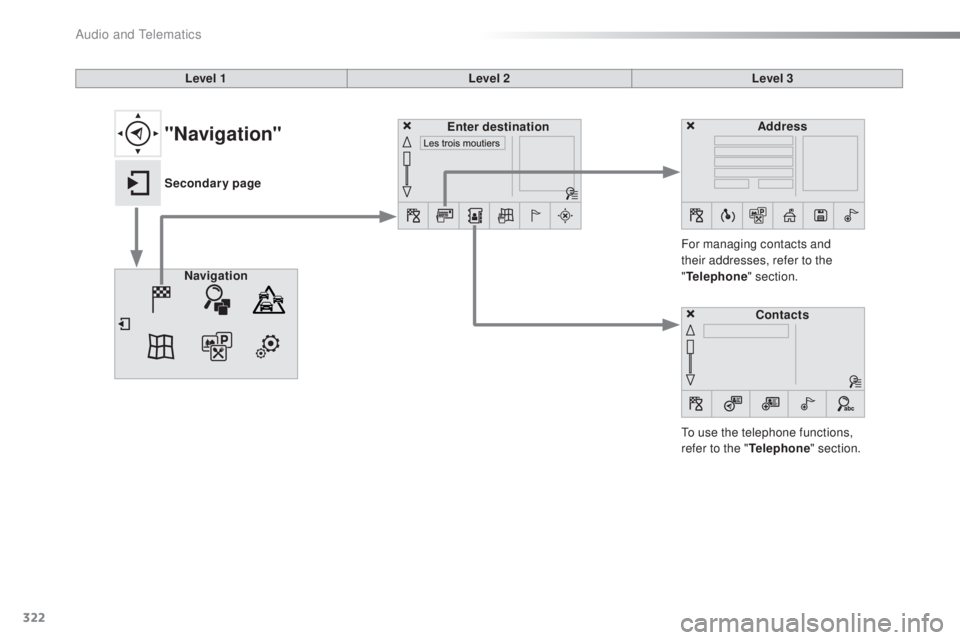
to us
e the telephone functions,
refer to the " Telephone" section.
For managing contacts and
their addresses, refer to the
"
Telephone " section.
Navigation Address
Enter destination
Contacts
"Navigation"
Secondary page
Audio and telematics
Page 337 of 398
335
308_en_Chap10c_SMegplus_ed02-2015
Level 1Level 2 Level 3 Comments
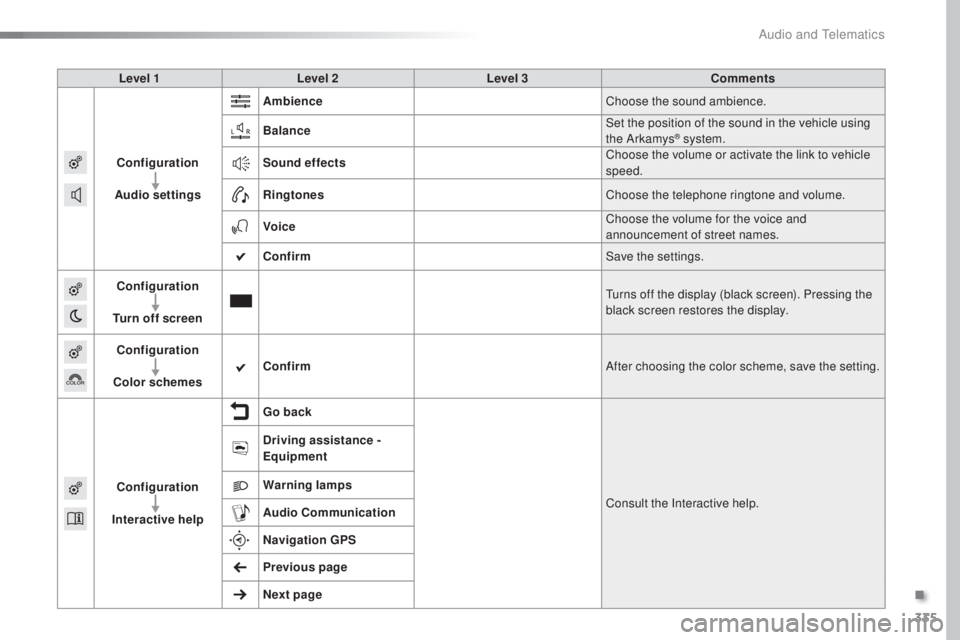
Configuration
Audio settings Ambience
Choose the sound ambience.
Balance Set the position of the sound in the vehicle using
the Arkamys
® system.
Sound effects Choose the volume or activate the link to vehicle
speed.
Ringtones Choose the telephone ringtone and volume.
Voice Choose the volume for the voice and
announcement of street names.
Confirm Save the settings.
Configuration
Turn off screen
tur
ns off the display (black screen). Pressing the
black screen restores the display.
Configuration
Color schemes Confirm
After choosing the color scheme, save the setting.
Configuration
Interactive help Go back
Consult the Interactive help.
Driving assistance -
Equipment
Warning lamps
Audio
Communication
Navigation GPS
Previous page
Next page
.
Audio and telematics
Page 346 of 398
344
308_en_Chap10c_SMegplus_ed02-2015
Connected services
Level 1Level 2
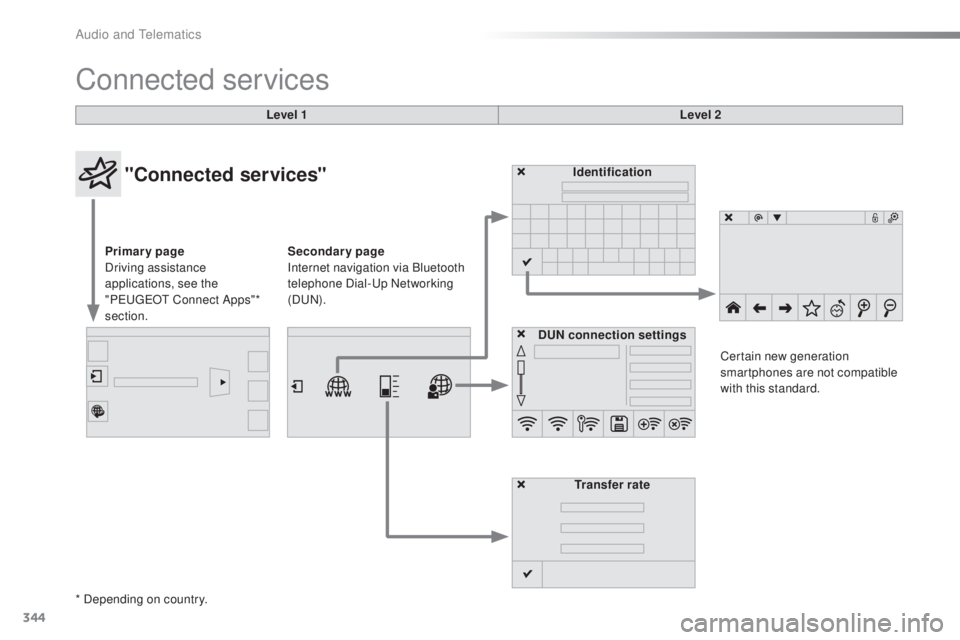
"Connected services"
Primary page
Driving assistance
applications, see the
"P
eu
ge
Ot C
onnect Apps"*
section. Identification
DUN connection settings Transfer rate Certain new generation
smartphones are not compatible
with this standard.
Secondary page
Internet navigation via Bluetooth
telephone Dial-
up
Networking
(D
uN).
*
Depending on country.
Audio and telematics
Page 348 of 398
346
308_en_Chap10c_SMegplus_ed02-2015
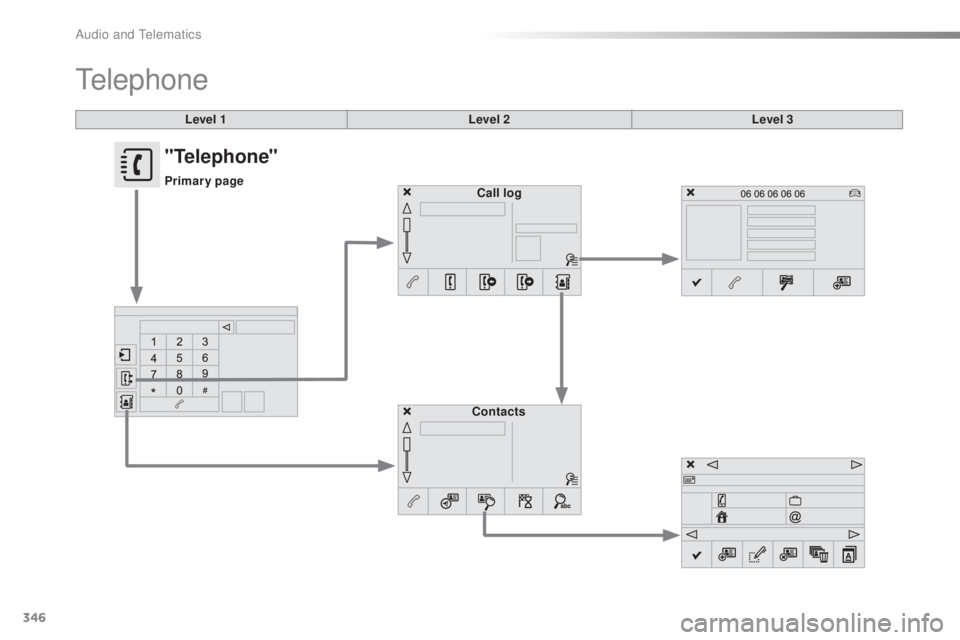
Level 1
telephone
Level 2Level 3
Contacts Call log
"Telephone"
Primary page
Audio and telematics
Page 349 of 398
347
308_en_Chap10c_SMegplus_ed02-2015
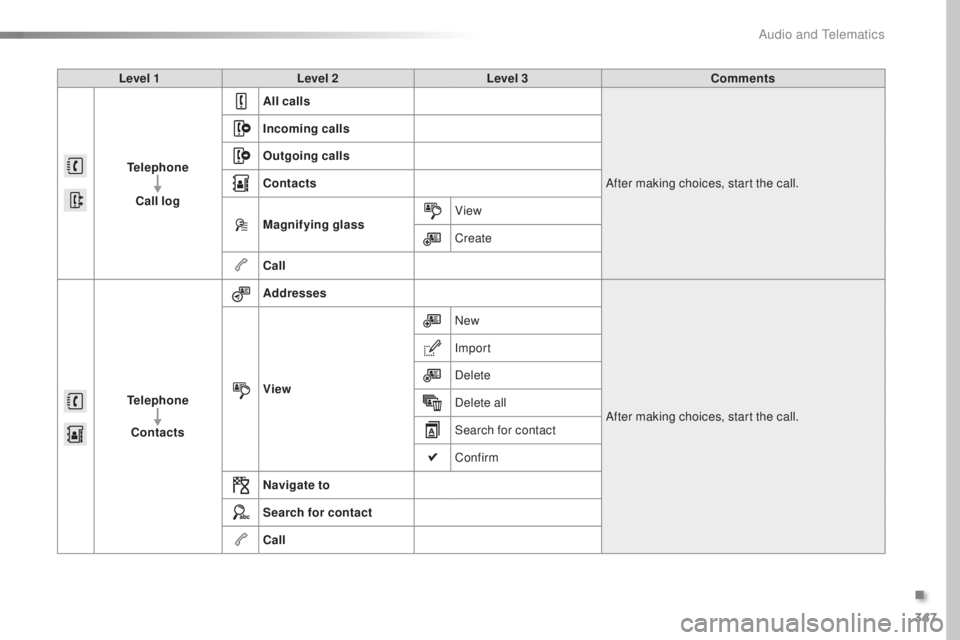
Level 1Level 2 Level 3 Comments
Telephone Call log All calls
After making choices, start the call.
Incoming calls
Outgoing calls
Contacts
Magnifying glass
View
Create
Call
Telephone Contacts Addresses
After making choices, start the call.
View New
Import
Delete
Delete all
Search for contact
Confirm
Navigate to
Search for contact
Call
.
Audio and telematics
Page 350 of 398
348
308_en_Chap10c_SMegplus_ed02-2015
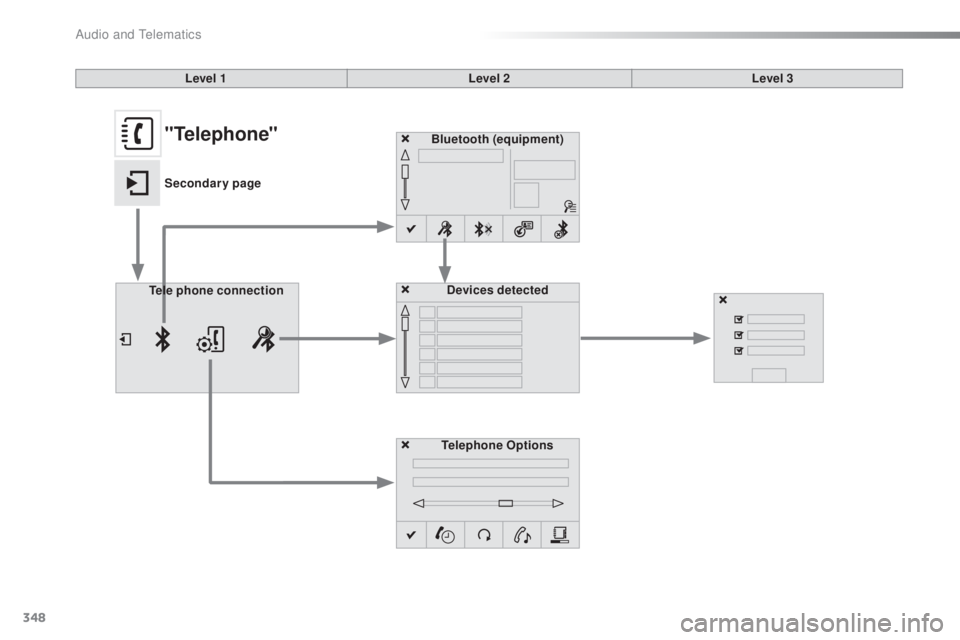
Bluetooth (equipment)Telephone OptionsDevices detected
Tele phone connection
Level 1
Level 2Level 3"Telephone"
Secondary page
Audio and telematics
Page 351 of 398
349
308_en_Chap10c_SMegplus_ed02-2015
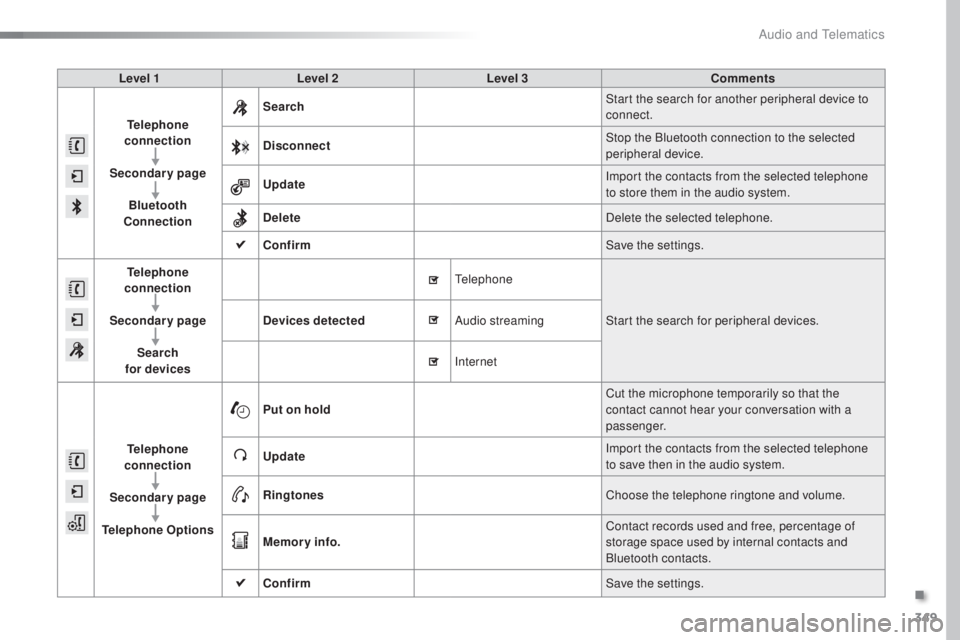
Level 1Level 2 Level 3 Comments
Telephone
connection
Secondary page Bluetooth
Connection Search
Start the search for another peripheral device to
connect.
Disconnect Stop the Bluetooth connection to the selected
peripheral device.
Update Import the contacts from the selected telephone
to store them in the audio system.
Delete Delete the selected telephone.
Confirm Save the settings.
Telephone
conn ection
Secondary page Search
for devices Devices detected
tele
phoneStart the search for peripheral devices.
Audio streaming
Internet
Telephone
connection
Secondary page
Telephone Options Put on hold
Cut the microphone temporarily so that the
contact cannot hear your conversation with a
passenger.
Update Import the contacts from the selected telephone
to save then in the audio system.
Ringtones Choose the telephone ringtone and volume.
Memory info. Contact records used and free, percentage of
storage space used by internal contacts and
Bluetooth contacts.
Confirm Save the settings.
.
Audio and telematics
Page 352 of 398
350
308_en_Chap10c_SMegplus_ed02-2015
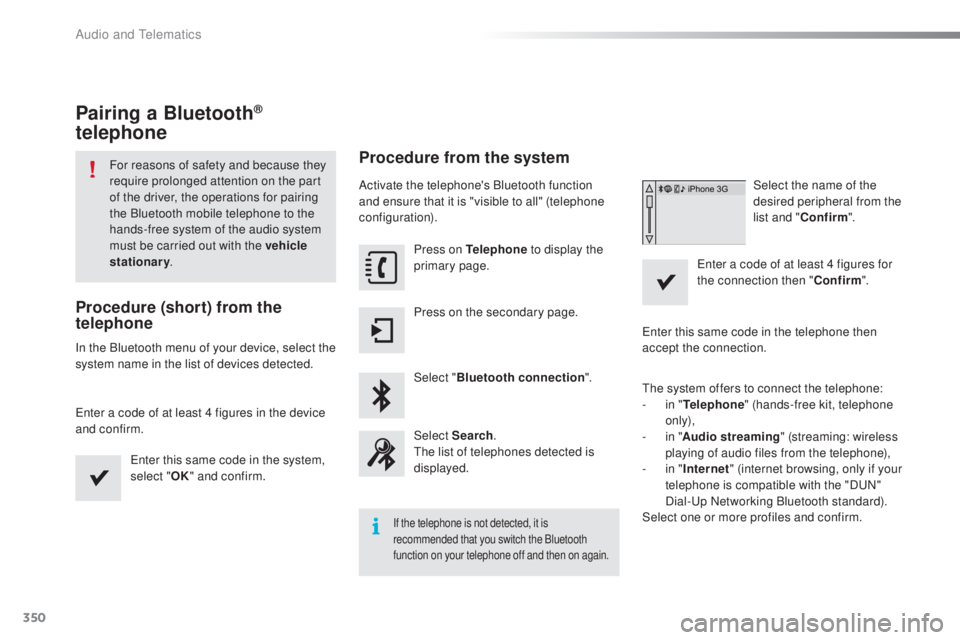
Pairing a Bluetooth®
telephone
For reasons of safety and because they
require prolonged attention on the part
of the driver, the operations for pairing
the Bluetooth mobile telephone to the
hands-free system of the audio system
must be carried out with the vehicle
stationary .
Procedure (short) from the
telephone
In the Bluetooth menu of your device, select the
system name in the list of devices detected.
ent
er a code of at least 4 figures in the device
and confirm.
ent
er this same code in the system,
select " OK" and confirm.
Procedure from the system
Activate the telephone's Bluetooth function
and ensure that it is "visible to all" (telephone
configuration).
Press on Telephone to display the
primary page.
Press on the secondary page.
Select " Bluetooth connection ".
Select Search .
the l
ist of telephones detected is
displayed.
If the telephone is not detected, it is
recommended that you switch the Bluetooth
function on your telephone off and then on again.
Select the name of the
desired peripheral from the
list and " Confirm ".
ent
er a code of at least 4 figures for
the connection then " Confirm".
ent
er this same code in the telephone then
accept the connection.
the s
ystem offers to connect the telephone:
-
in " T
elephone " (hands-free kit, telephone
only),
-
in " A
udio streaming " (streaming: wireless
playing of audio files from the telephone),
-
in " In
ternet " (internet browsing, only if your
telephone is compatible with the "D
uN"
D
ial-
up N
etworking Bluetooth standard).
Select one or more profiles and confirm.
Audio and telematics
Page 353 of 398
351
308_en_Chap10c_SMegplus_ed02-2015
the services available depend on
t he network, the SIM card and the
compatibility of the Bluetooth telephone
used. Check the telephone manual and
with your network provider for details of
the services available to you.
the a
bility of the system to connect
with only one profile depends on the
telephone.
the
three profiles may all
connect by default.
Visit www.peugeot.co.uk for more information
(compatibility, additional help, ...).
the r
ecognised telephone
appears in the list.
Depending on your telephone, you may be
asked to accept automatic connection every
time the ignition is switched on. On return to the vehicle, if the last telephone
connected is present again, it is reconnected
automatically and within around 30 seconds
after switching on the ignition the pairing is
done without any action on your part, with
(Bluetooth activated).
to mo
dify the automatic connection mode,
select the telephone in the list then select the
desired profile. Depending on the type of telephone,
the system will ask you to accept or not
the transfer of your contacts.
If not, select " Update".
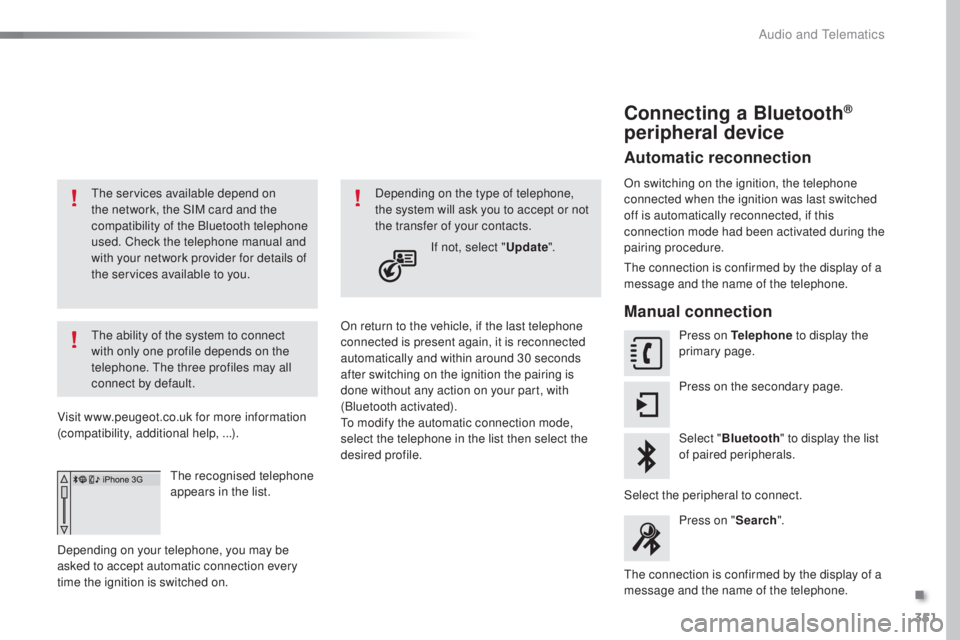
Connecting a Bluetooth®
peripheral device
Automatic reconnection
On switching on the ignition, the telephone
connected when the ignition was last switched
off is automatically reconnected, if this
connection mode had been activated during the
pairing procedure.
the c
onnection is confirmed by the display of a
message and the name of the telephone.
Manual connection
Press on Telephone to display the
primary page.
Press on the secondary page.
Select " Bluetooth " to display the list
of paired peripherals.
Select the peripheral to connect. Press on " Search".
the c
onnection is confirmed by the display of a
message and the name of the telephone.
.
Audio and telematics