phone Peugeot 308 2017 Owner's Guide
[x] Cancel search | Manufacturer: PEUGEOT, Model Year: 2017, Model line: 308, Model: Peugeot 308 2017Pages: 392, PDF Size: 10.16 MB
Page 350 of 392
348
308_en_Chap10b_SMegplus_ed01-2016
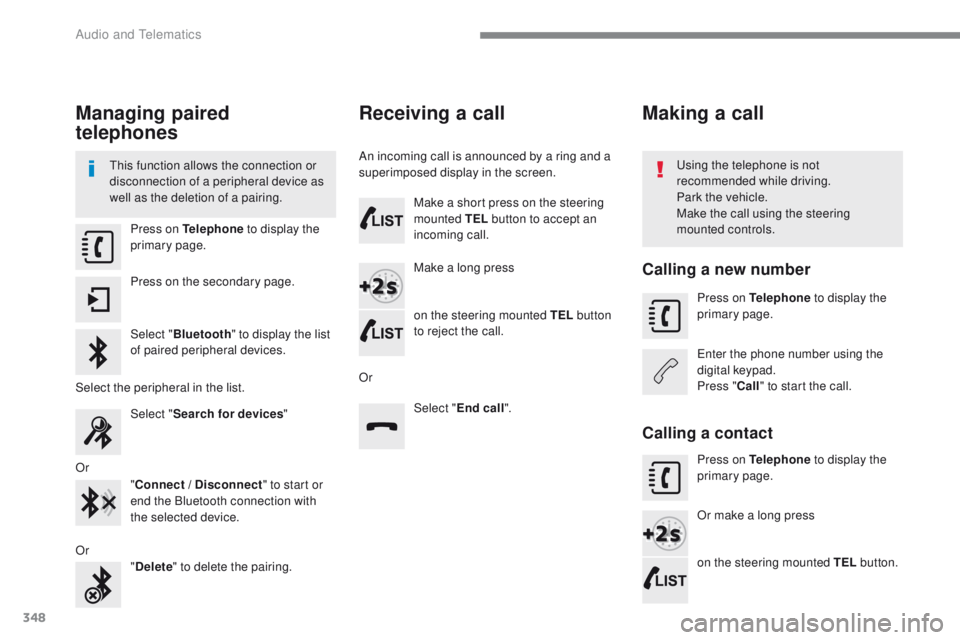
Managing paired
telephones
this function allows the connection or
disconnection of a peripheral device as
well as the deletion of a pairing.using the telephone is not
recommended while driving.
Park the vehicle.
Make the call using the steering
mounted controls.
Press on Telephone
to display the
primary page.
Press on the secondary page.
Select " Bluetooth " to display the list
of paired peripheral devices.
Select the peripheral in the list. Select "Search for devices "
Or "Connect / Disconnect " to start or
end the Bluetooth connection with
the selected device.
Or "Delete " to delete the pairing.
Receiving a call
An incoming call is announced by a ring and a
superimposed display in the screen.
Make a short press on the steering
mounted TEL button to accept an
incoming call.
Make a long press
on the steering mounted TEL button
to reject the call.
Or Select "End call".
Making a call
Calling a new number
Press on Telephone to display the
primary page.
en
ter the phone number using the
digital keypad.
Press " Call" to start the call.
Calling a contact
Press on Telephone to display the
primary page.
Or make a long press
on the steering mounted TEL button.
Audio and telematics
Page 351 of 392
349
308_en_Chap10b_SMegplus_ed01-2016
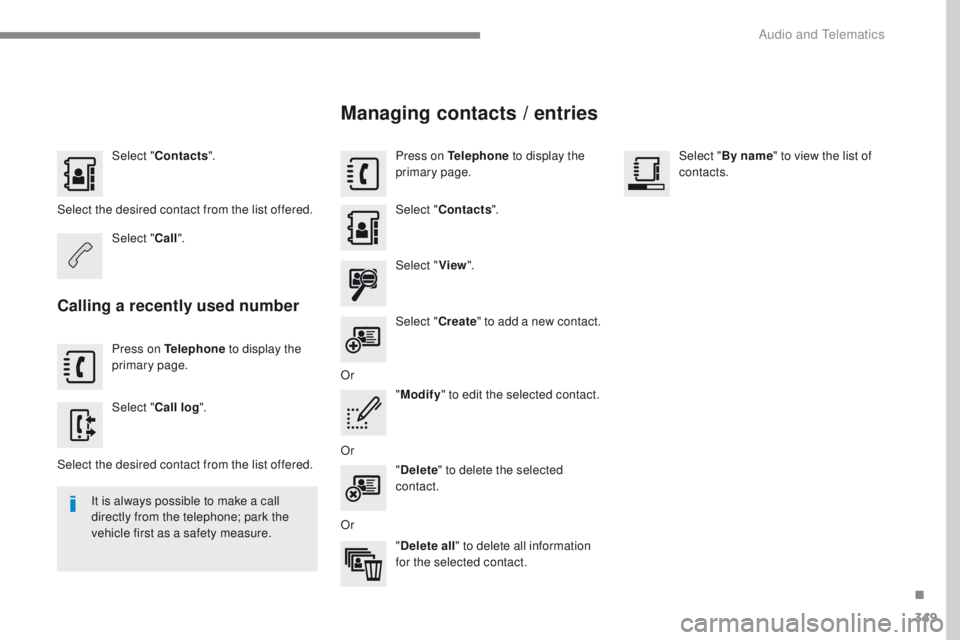
Select "Contacts ".
Select the desired contact from the list offered. Select "Call".
Calling a recently used number
Press on Telephone to display the
primary page.
Select " Call log ".
Select the desired contact from the list offered. It is always possible to make a call
directly from the telephone; park the
vehicle first as a safety measure.
Managing contacts / entries
Press on Telephone to display the
primary page.
Select " Contacts ".
Select " View".
Select " Create" to add a new contact.
Or "Modify " to edit the selected contact.
Or "Delete " to delete the selected
contact.
Or "Delete all " to delete all information
for the selected contact. Select "
By name" to view the list of
contacts.
.
Audio and telematics
Page 355 of 392
353
308_en_Chap10b_SMegplus_ed01-2016
Media
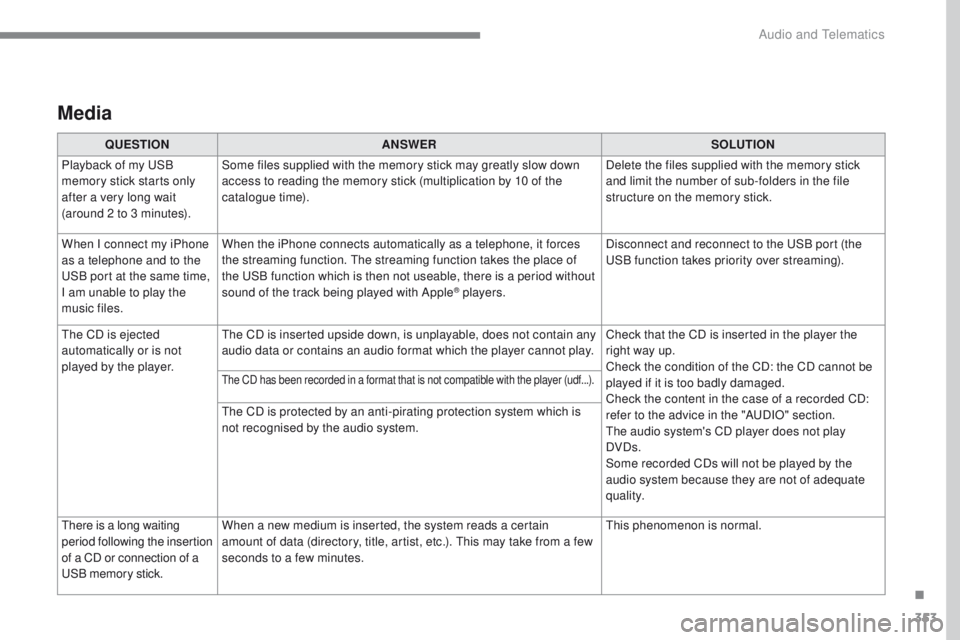
QUESTIONANSWER SOLUTION
Playback of my u
S
B
memory stick starts only
after a very long wait
(around 2 to 3 minutes). Some files supplied with the memory stick may greatly slow down
access to reading the memory stick (multiplication by 10 of the
catalogue time).
Delete the files supplied with the memory stick
and limit the number of sub-folders in the file
structure on the memory stick.
When I connect my iPhone
as a telephone and to the
uS
B port at the same time,
I am unable to play the
music files. When the iPhone connects automatically as a telephone, it forces
the streaming function.
t
h
e streaming function takes the place of
the
u
S
B function which is then not useable, there is a period without
sound of the track being played with Apple
® players. Disconnect and reconnect to the u
S
B port (the
uS
B function takes priority over streaming).
th
e CD is ejected
automatically or is not
played by the player.
th
e CD is inserted upside down, is unplayable, does not contain any
audio data or contains an audio format which the player cannot play. Check that the CD is inserted in the player the
right way up.
Check the condition of the CD: the CD cannot be
played if it is too badly damaged.
Check the content in the case of a recorded CD:
refer to the advice in the "A
uD
IO" section.
th
e audio system's CD player does not play
DVDs.
Some recorded CDs will not be played by the
audio system because they are not of adequate
quality.
the CD has been recorded in a format that is not compatible with the player (udf...).
the CD is protected by an anti-pirating protection system which is
not recognised by the audio system.
ther
e is a long waiting
period following the insertion
of a CD or connection of a
uS
B memory stick. When a new medium is inserted, the system reads a certain
amount of data (directory, title, artist, etc.).
t
h
is may take from a few
seconds to a few minutes.
th
is phenomenon is normal.
.
Audio and telematics
Page 359 of 392
357
308_en_Chap10b_SMegplus_ed01-2016
Telephone
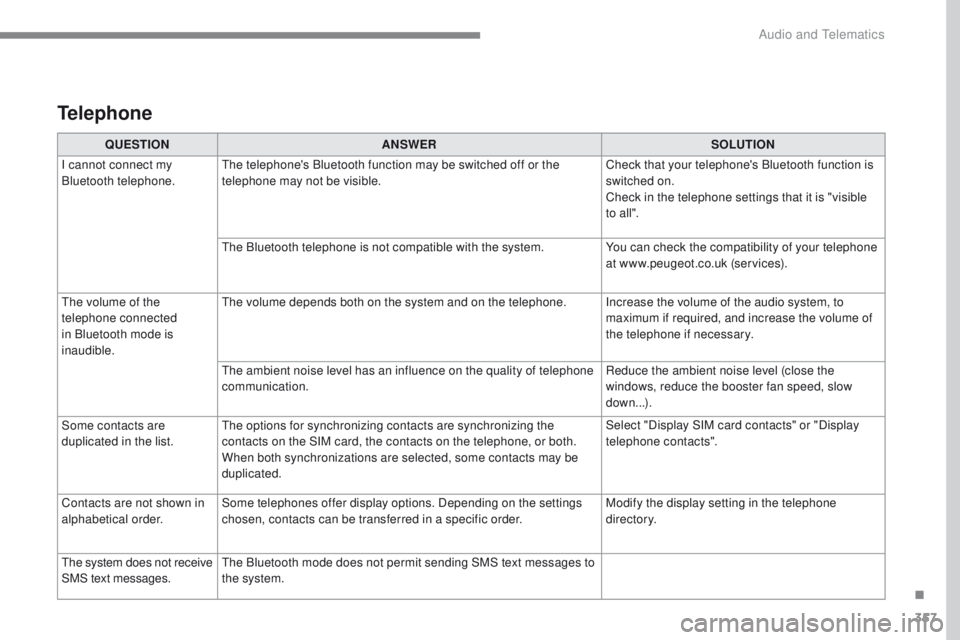
QUESTIONANSWER SOLUTION
I cannot connect my
Bluetooth telephone.
th
e telephone's Bluetooth function may be switched off or the
telephone may not be visible. Check that your telephone's Bluetooth function is
switched on.
Check in the telephone settings that it is "visible
to all ".
th
e Bluetooth telephone is not compatible with the system. You can check the compatibility of your telephone
at www.peugeot.co.uk (services).
th
e volume of the
telephone connected
in Bluetooth mode is
inaudible.
th
e volume depends both on the system and on the telephone. Increase the volume of the audio system, to maximum if required, and increase the volume of
the telephone if necessary.
th
e ambient noise level has an influence on the quality of telephone
communication. Reduce the ambient noise level (close the
windows, reduce the booster fan speed, slow
down...).
Some contacts are
duplicated in the list.
th
e options for synchronizing contacts are synchronizing the
contacts on the SIM card, the contacts on the telephone, or both.
When both synchronizations are selected, some contacts may be
duplicated. Select "Display SIM card contacts" or "Display
telephone contacts".
Contacts are not shown in
alphabetical order. Some telephones offer display options. Depending on the settings
chosen, contacts can be transferred in a specific order. Modify the display setting in the telephone
di r e c to r y.
th
e system does not receive
SMS text messages.
th
e Bluetooth mode does not permit sending SMS text messages to
the system.
.
Audio and telematics
Page 361 of 392
359
308_en_Chap10c_RD45_ed01-2016
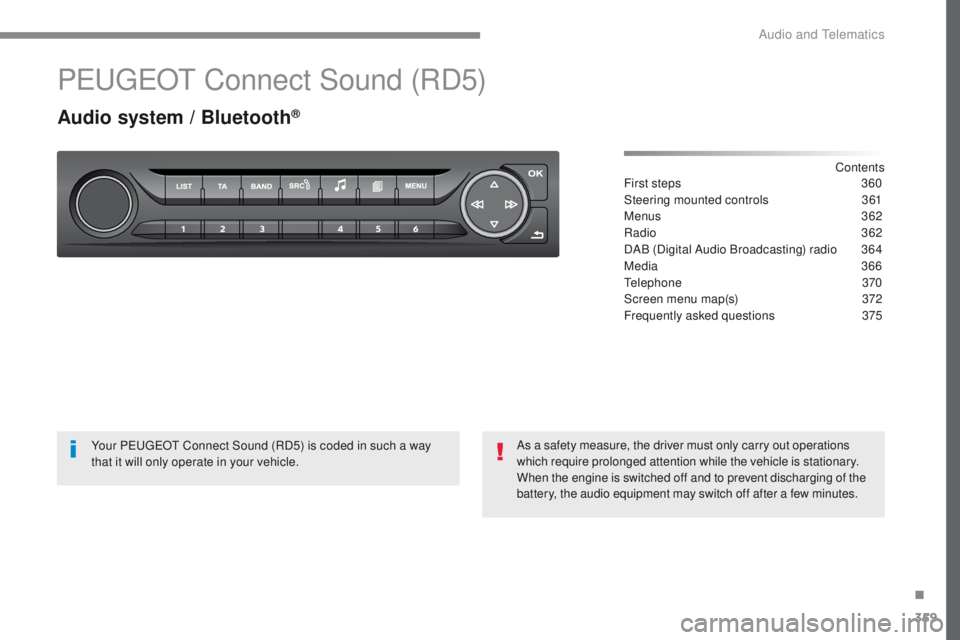
PeugeOt Connect Sound (RD5)
Audio system / Bluetooth®
Contents
First steps
3 60
Steering mounted controls
3
61
Menus
3
62
Radio
362
DAB (Digital Audio Broadcasting) radio
3
64
Media
366
te
lephone
370
Screen menu map(s)
3
72
Frequently asked questions
3
75
Your P
e
uge
Ot
Connect Sound (RD5) is coded in such a way
that it will only operate in your vehicle. As a safety measure, the driver must only carry out operations
which require prolonged attention while the vehicle is stationary.
When the engine is switched off and to prevent discharging of the
battery, the audio equipment may switch off after a few minutes.
.
Audio and telematics
Page 362 of 392
360
308_en_Chap10c_RD45_ed01-2016
First steps
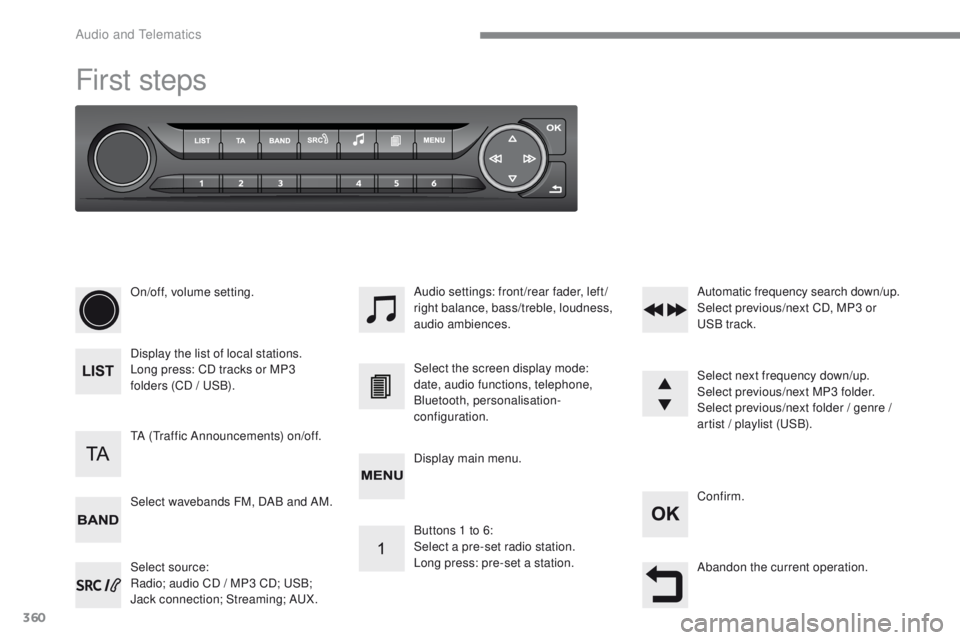
On/off, volume setting.
Display the list of local stations.
Long press: CD tracks or MP3
folders (CD / u
S
B).
Select source:
Radio; audio CD / MP3 CD;
u
S
B;
Jack connection; Streaming; A
uX
.
Select wavebands FM, DAB and AM. Audio settings: front/rear fader, left/
right balance, bass/treble, loudness,
audio ambiences.
tA (tr
affic Announcements) on/off. Select the screen display mode:
date, audio functions, telephone,
Bluetooth, personalisation-
configuration.
Select next frequency down/up.
Select previous/next MP3 folder.
Select previous/next folder / genre /
artist / playlist (
uS
B).
Abandon the current operation. Confirm.
Buttons 1 to 6:
Select a pre-set radio station.
Long press: pre-set a station. Automatic frequency search down/up.
Select previous/next CD, MP3 or
uS
B track.
Display main menu.
Audio and telematics
Page 363 of 392
361
308_en_Chap10c_RD45_ed01-2016
Steering mounted controls
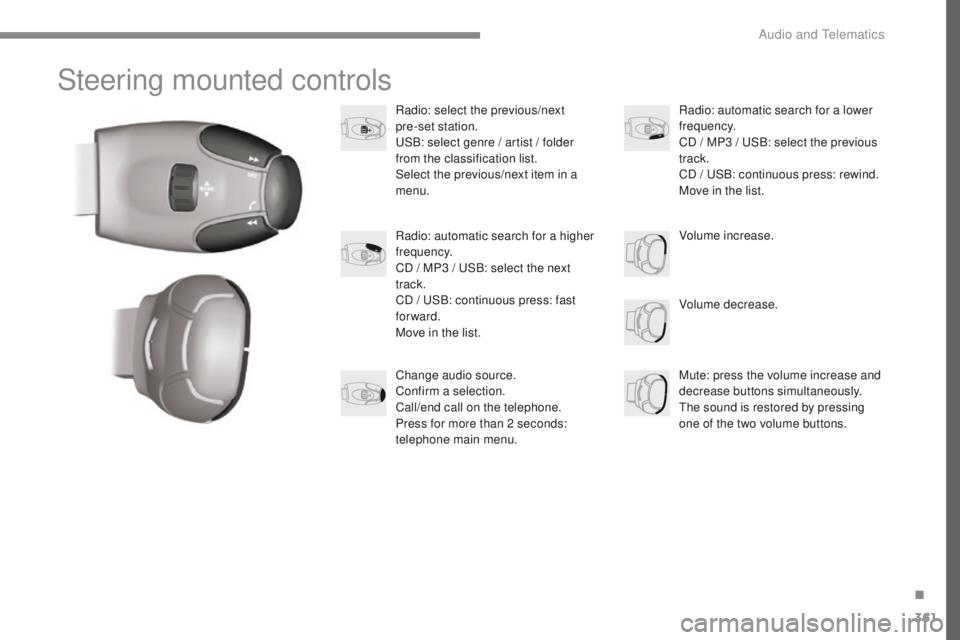
Radio: select the previous/next
pre-set station.
uS
B: select genre / artist / folder
from the classification list.
Select the previous/next item in a
menu.
Volume decrease.
Radio: automatic search for a higher
frequency.
CD / MP3 /
u
S
B: select the next
track.
CD /
u
S
B: continuous press: fast
forward.
Move in the list.
Mute: press the volume increase and
decrease buttons simultaneously.
th
e sound is restored by pressing
one of the two volume buttons. Radio: automatic search for a lower
frequency.
CD / MP3 /
u
S
B: select the previous
track.
CD /
u
S
B: continuous press: rewind.
Move in the list.
Change audio source.
Confirm a selection.
Call/end call on the telephone.
Press for more than 2 seconds:
telephone main menu. Volume increase.
.
Audio and telematics
Page 364 of 392
362
308_en_Chap10c_RD45_ed01-2016
Menus
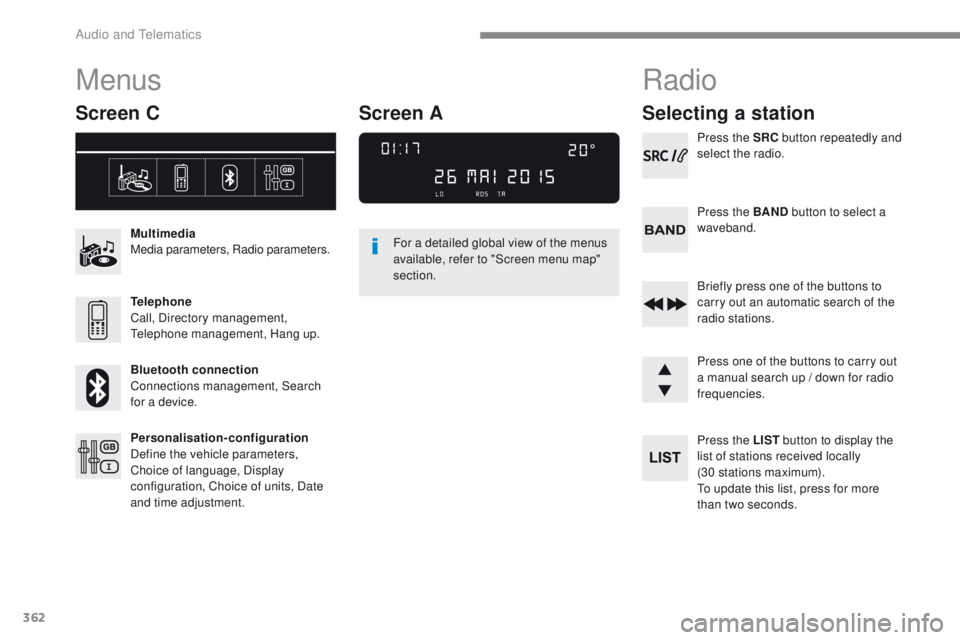
Screen C
Multimedia
Media parameters, Radio parameters.
Telephone
Call, Directory management,
te
lephone management, Hang up.
Bluetooth connection
Connections management, Search
for a device.
Personalisation-configuration
Define the vehicle parameters,
Choice of language, Display
configuration, Choice of units, Date
and time adjustment. For a detailed global view of the menus
available, refer to "Screen menu map"
section.
Radio
Selecting a station
Press the SRC
button repeatedly and
select the radio.
Press the BAND button to select a
waveband.
Briefly press one of the buttons to
carry out an automatic search of the
radio stations.
Press one of the buttons to carry out
a manual search up / down for radio
frequencies.
Press the LIST button to display the
list of stations received locally
(30 stations maximum).
to u
pdate this list, press for more
than two seconds.
Screen A
Audio and telematics
Page 371 of 392
369
308_en_Chap10c_RD45_ed01-2016
use only uS B memory sticks formatted FAt3 2
(File Allocation ta ble).
It is recommended that you use
genuine Apple
® uSB cables for correct
operation.
to p
rotect the system, do not use a
uS
B hub.
*
I
n certain cases, play of the audio files must
be initiated from the keypad.
** If the telephone supports the function.
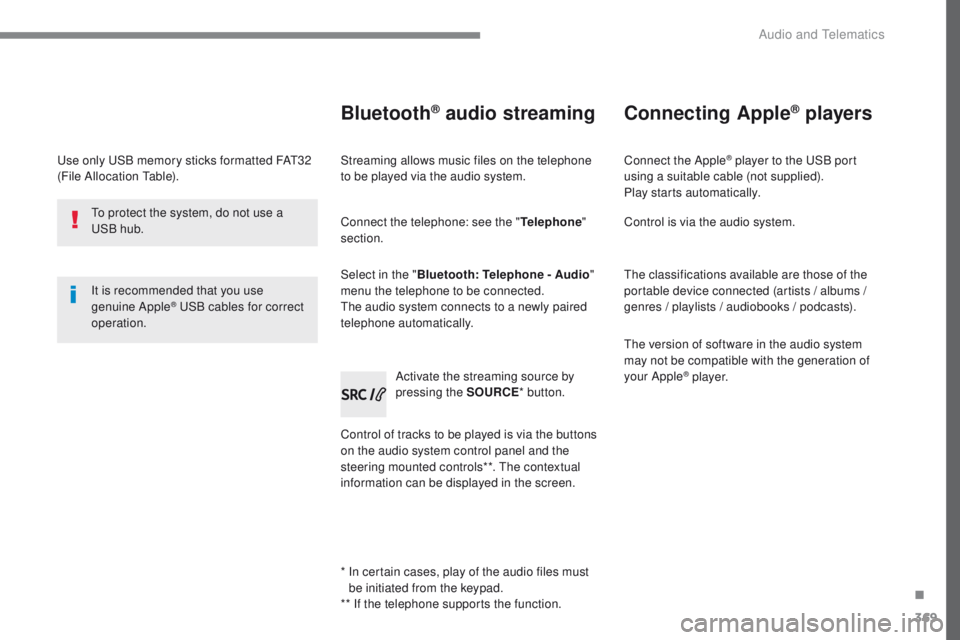
Bluetooth® audio streaming
Streaming allows music files on the telephone
to be played via the audio system.
Connect the telephone: see the " Telephone"
section.
Select in the " Bluetooth: Telephone - Audio "
menu the telephone to be connected.
th
e audio system connects to a newly paired
telephone automatically.
Control of tracks to be played is via the buttons
on the audio system control panel and the
steering mounted controls**.
t
h
e contextual
information can be displayed in the screen. Activate the streaming source by
pressing the SOURCE
* button.
Connecting Apple® players
Connect the Apple® player to the uSB port
using a suitable cable (not supplied).
Play starts automatically.
Control is via the audio system.
th
e classifications available are those of the
portable device connected (artists / albums /
genres / playlists / audiobooks / podcasts).
th
e version of software in the audio system
may not be compatible with the generation of
your Apple
® p l aye r.
.
Audio and telematics
Page 372 of 392
370
308_en_Chap10c_RD45_ed01-2016
telephone
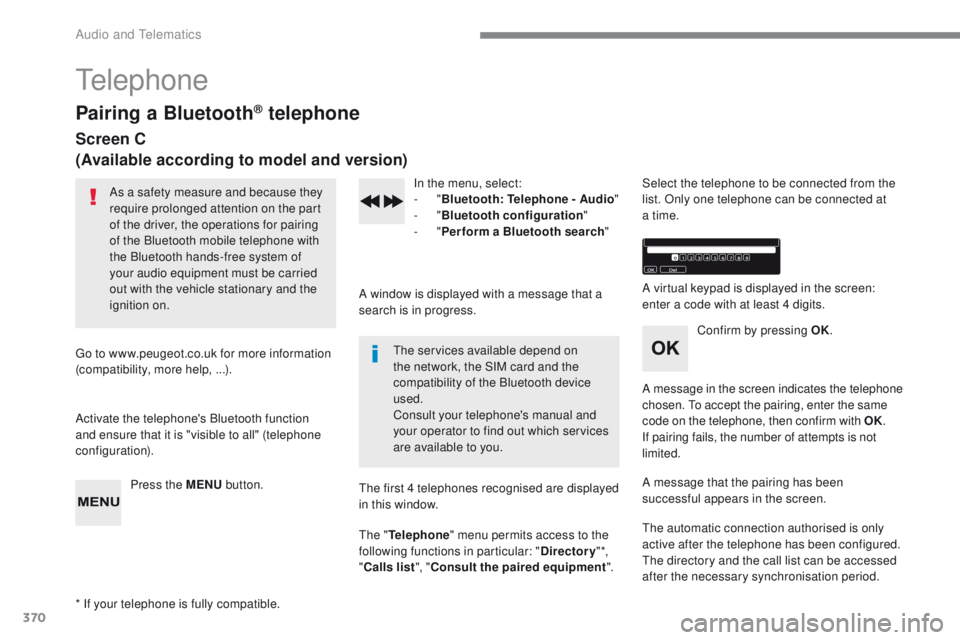
Pairing a Bluetooth® telephone
Screen C
(Available according to model and version)
As a safety measure and because they
require prolonged attention on the part
of the driver, the operations for pairing
of the Bluetooth mobile telephone with
the Bluetooth hands-free system of
your audio equipment must be carried
out with the vehicle stationary and the
ignition on.
go
to www.peugeot.co.uk for more information
(compatibility, more help, ...).
Activate the telephone's Bluetooth function
and ensure that it is "visible to all" (telephone
configuration).
Press the MENU button. In the menu, select:
-
"Bluetooth : Telephone - Audio "
-
"Bluetooth configuration "
-
"Perform a Bluetooth search "
A window is displayed with a message that a
search is in progress.
the
services available depend on
the network, the SIM card and the
compatibility of the Bluetooth device
used.
Consult your telephone's manual and
your operator to find out which services
are available to you.
* If your telephone is fully compatible.
th
e first 4 telephones recognised are displayed
in this window.
th
e "Telephone " menu permits access to the
following functions in particular: " Directory" *,
" Calls list ", "Consult the paired equipment ".Select the telephone to be connected from the
list. Only one telephone can be connected at
a time.
A virtual keypad is displayed in the screen:
enter a code with at least 4 digits.
Confirm by pressing OK.
A message in the screen indicates the telephone
chosen.
t
o
accept the pairing, enter the same
code on the telephone, then confirm with OK.
If pairing fails, the number of attempts is not
limited.
A message that the pairing has been
successful appears in the screen.
th
e automatic connection authorised is only
active after the telephone has been configured.
th
e directory and the call list can be accessed
after the necessary synchronisation period.
Audio and telematics