language PEUGEOT 308 2017 User Guide
[x] Cancel search | Manufacturer: PEUGEOT, Model Year: 2017, Model line: 308, Model: Peugeot 308 2017Pages: 566, PDF Size: 16.05 MB
Page 370 of 566
10
Audio and Telematics
Transversal-Peugeot_en_Chap01_NAC-2-2-0_ed01-2016
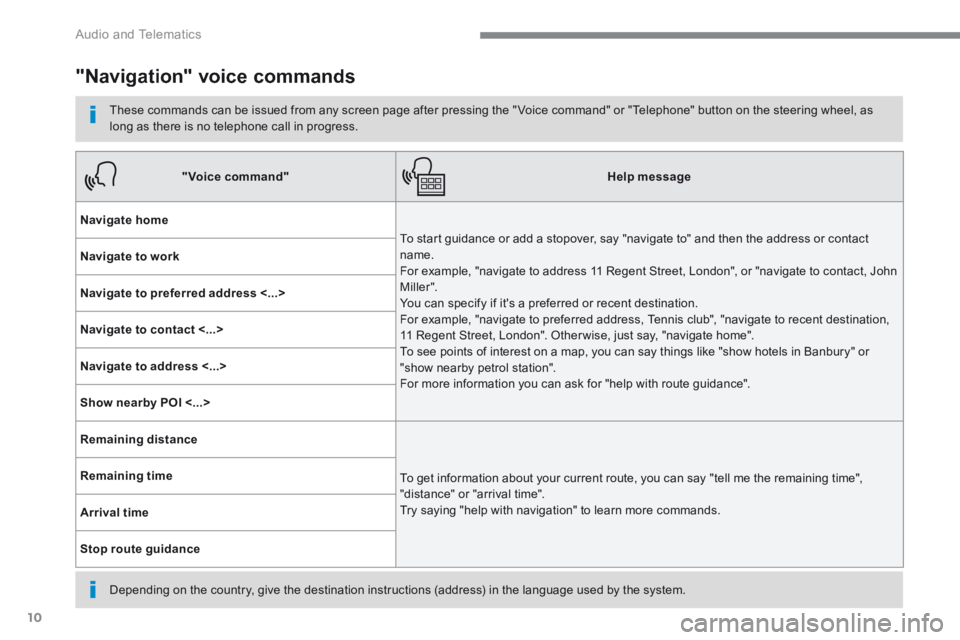
"Navigation" voice commands
These commands can be issued from any screen page after pressing the " Voice command" or "Telephone" button on the steering wheel, as long as there is no telephone call in progress.
Depending on the country, give the destination instructions (address) in the language used by the system.
"Voice command"Help message
Navigate home
To start guidance or add a stopover, say "navigate to" and then the address or contact name. For example, "navigate to address 11 Regent Street, London", or "navigate to contact, John M iller ". You can specify if it's a preferred or recent destination. For example, "navigate to preferred address, Tennis club", "navigate to recent destination, 11 Regent Street, London". Other wise, just say, "navigate home". To see points of interest on a map, you can say things like "show hotels in Banbury" or "show nearby petrol station". For more information you can ask for "help with route guidance".
Navigate to work
Navigate to preferred address <...>
Navigate to contact <...>
Navigate to address <...>
Show nearby POI <...>
Remaining distance
To get information about your current route, you can say "tell me the remaining time", "distance" or "arrival time". Try saying "help with navigation" to learn more commands.
Remaining time
Arrival time
Stop route guidance
Page 443 of 566
83
.
1
15
16
1
1
11
12
13
14
9
8
10
Audio and Telematics
Transversal-Peugeot_en_Chap01_NAC-2-2-0_ed01-2016
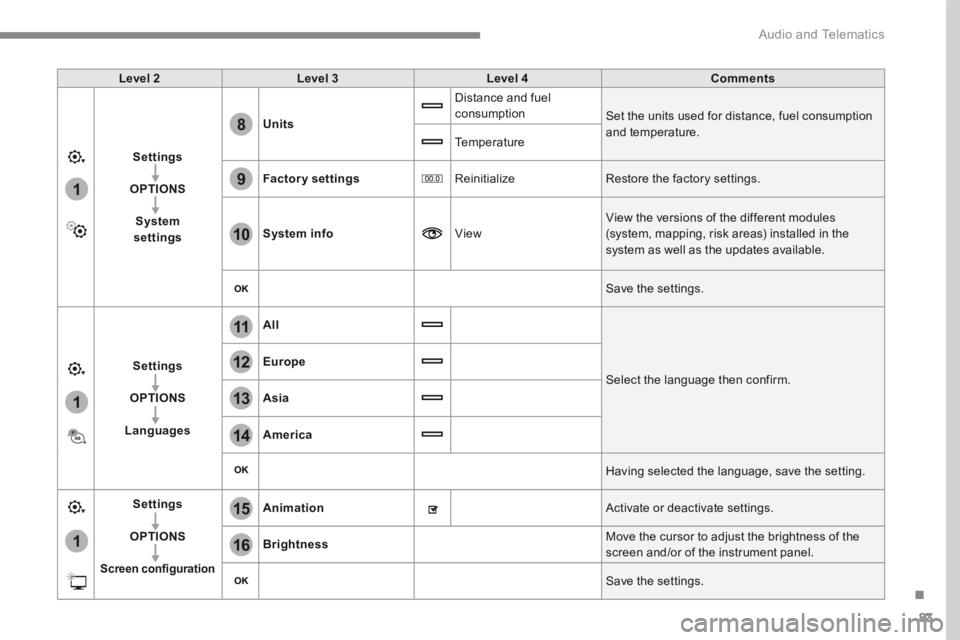
Level 2Level 3Level 4Comments
Settings
OPTIONS
System settings
Units
Distance and fuel consumption Set the units used for distance, fuel consumption and temperature. Temperature
Factory settings Reinitialize Restore the factory settings.
System info View
View the versions of the different modules
(system, mapping, risk areas) installed in the system as well as the updates available.
Save the settings.
Settings
OPTIONS
Languages
All
Select the language then confirm.
Europe
Asia
America
Having selected the language, save the setting.
Settings
OPTIONS
Screen configuration
Animation Activate or deactivate settings.
Brightness Move the cursor to adjust the brightness of the screen and/or of the instrument panel.
Save the settings.
Page 447 of 566
87
.
3
2
4
5
6
7
Audio and Telematics
Transversal-Peugeot_en_Chap01_NAC-2-2-0_ed01-2016
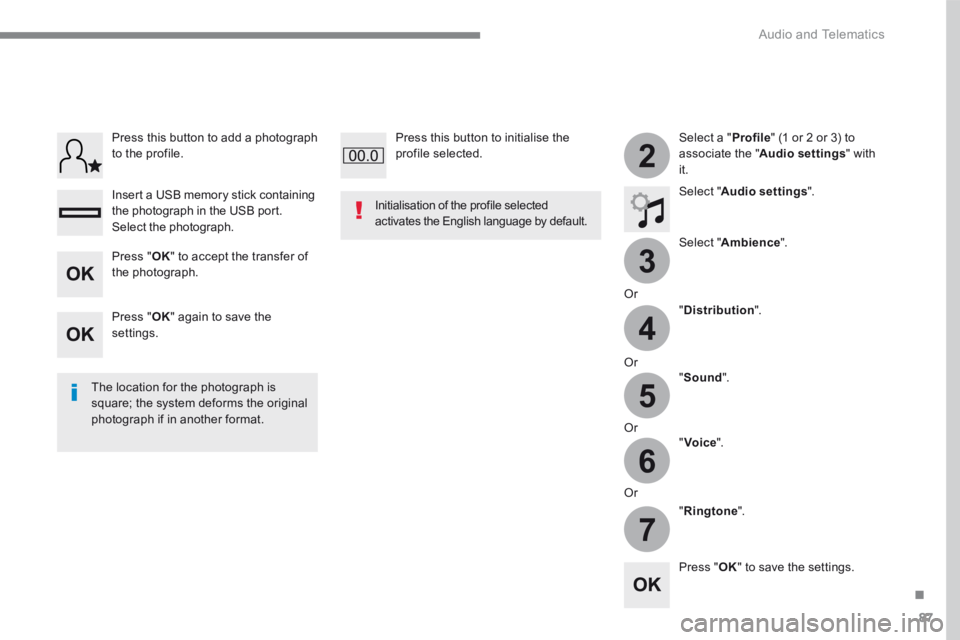
Select a " Profile " (1 or 2 or 3) to associate the " Audio settings " with it.
Select " Audio settings ".
Select " Ambience ".
Or
" Distribution ".
Or " Sound ".
Or " Voice ".
Or
" Ringtone ".
The location for the photograph is square; the system deforms the original photograph if in another format.
Initialisation of the profile selected activates the English language by default.
Press " OK " to save the settings.
Press " OK " to accept the transfer of the photograph.
Press " OK " again to save the settings.
Press this button to add a photograph to the profile.
Insert a USB memory stick containing the photograph in the USB port.
Select the photograph.
Press this button to initialise the profile selected.
Page 448 of 566
88
111
8
9
10
15
161
Audio and Telematics
Transversal-Peugeot_en_Chap01_NAC-2-2-0_ed01-2016
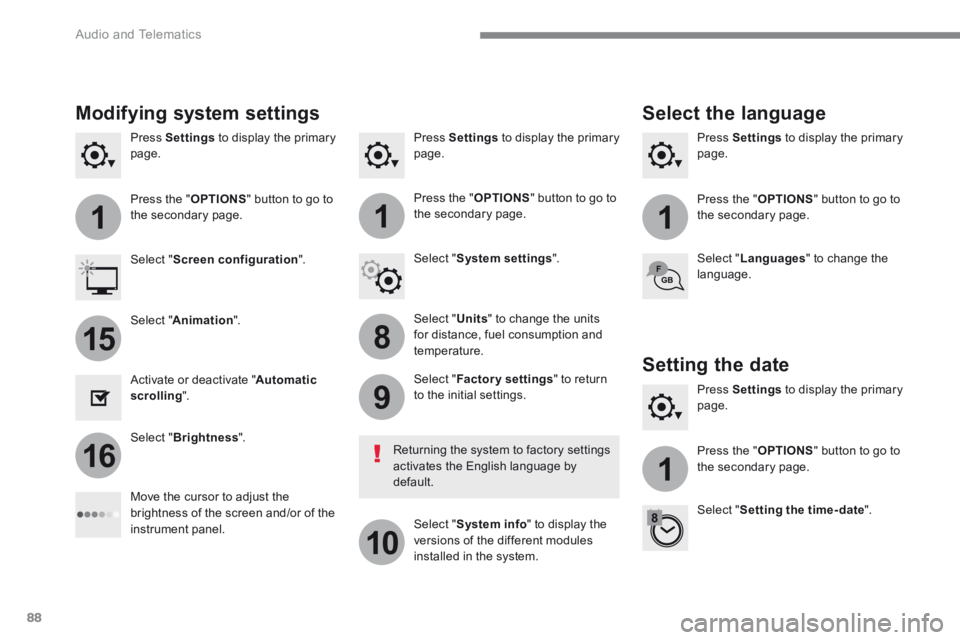
Press Settings to display the primary page. Press Settings to display the primary page. Press Settings to display the primary page.
Press the " OPTIONS " button to go to the secondary page. Press the " OPTIONS " button to go to the secondary page. Press the " OPTIONS " button to go to the secondary page.
Select " System settings ". Select " Screen configuration ".
Select " Units " to change the units for distance, fuel consumption and temperature.
Select " Languages " to change the language.
Activate or deactivate " Automatic scrolling ".
Move the cursor to adjust the brightness of the screen and/or of the instrument panel.
Select " Factory settings " to return to the initial settings.
Select " System info " to display the versions of the different modules installed in the system.
Modifying system settings
Returning the system to factory settings activates the English language by default.
Select " Animation ".
Select " Brightness ".
Select the language
Press Settings to display the primary page.
Press the " OPTIONS " button to go to the secondary page.
Select " Setting the time- date ".
Setting the date
Page 463 of 566
103
.
Audio and Telematics
Transversal-Peugeot_en_Chap02_RCC-2-2-0_ed01-2016
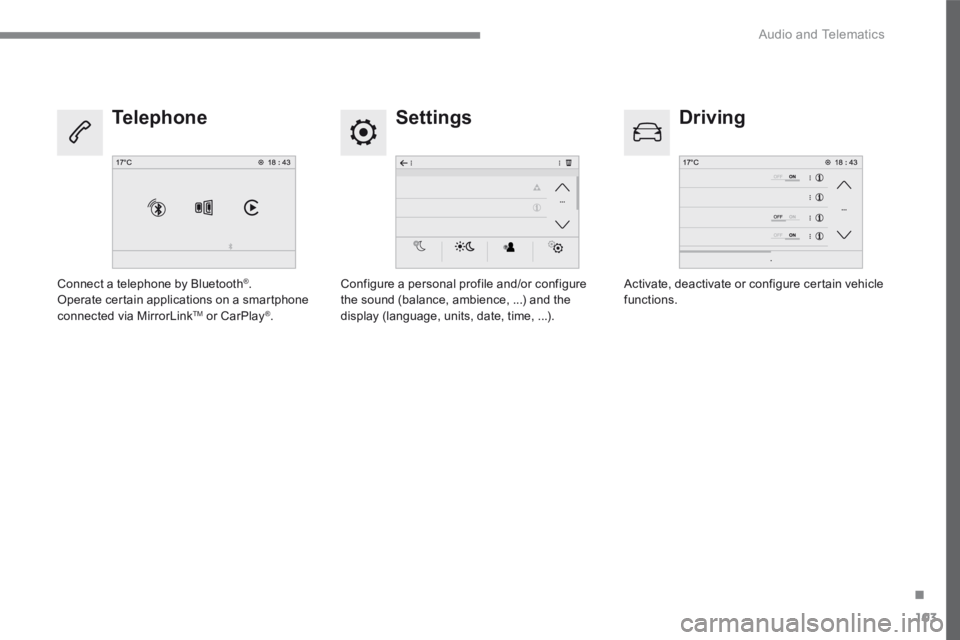
Settings Driving Telephone
Configure a personal profile and/or configure the sound (balance, ambience, ...) and the display (language, units, date, time, ...).
Activate, deactivate or configure certain vehicle functions. Connect a telephone by Bluetooth ® . Operate certain applications on a smartphone connected via MirrorLink TM or CarPlay ® .
Page 501 of 566
141
.
Audio and Telematics
Transversal-Peugeot_en_Chap02_RCC-2-2-0_ed01-2016
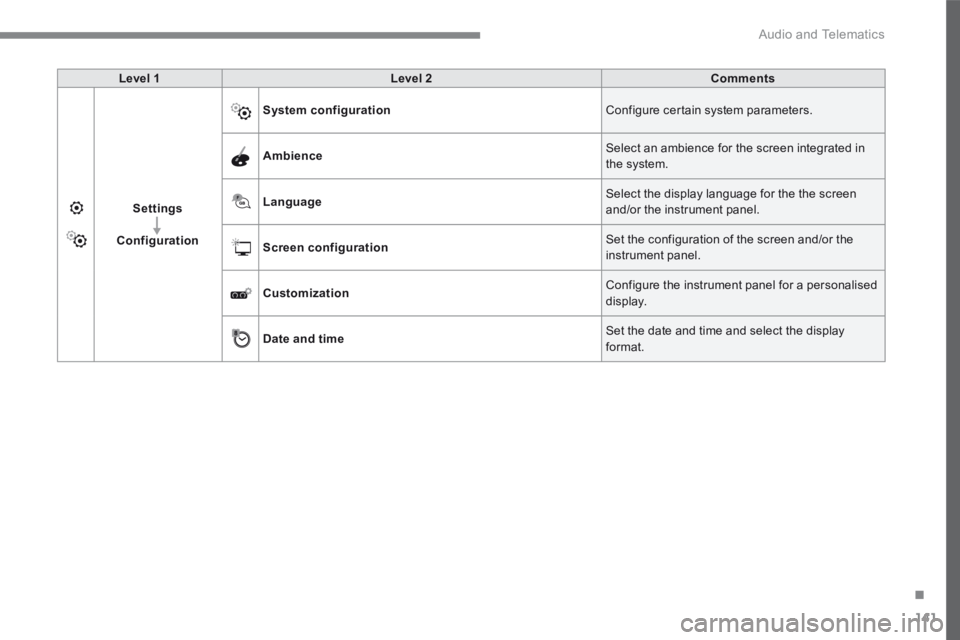
Level 1Level 2Comments
Settings
Configuration
System configuration Configure certain system parameters.
Ambience Select an ambience for the screen integrated in the system.
Language Select the display language for the the screen and/or the instrument panel.
Screen configuration Set the configuration of the screen and/or the instrument panel.
Customization Configure the instrument panel for a personalised display.
Date and time Set the date and time and select the display format.
Page 503 of 566
143
.
6
5
7
8
9
10
11
Audio and Telematics
Transversal-Peugeot_en_Chap02_RCC-2-2-0_ed01-2016
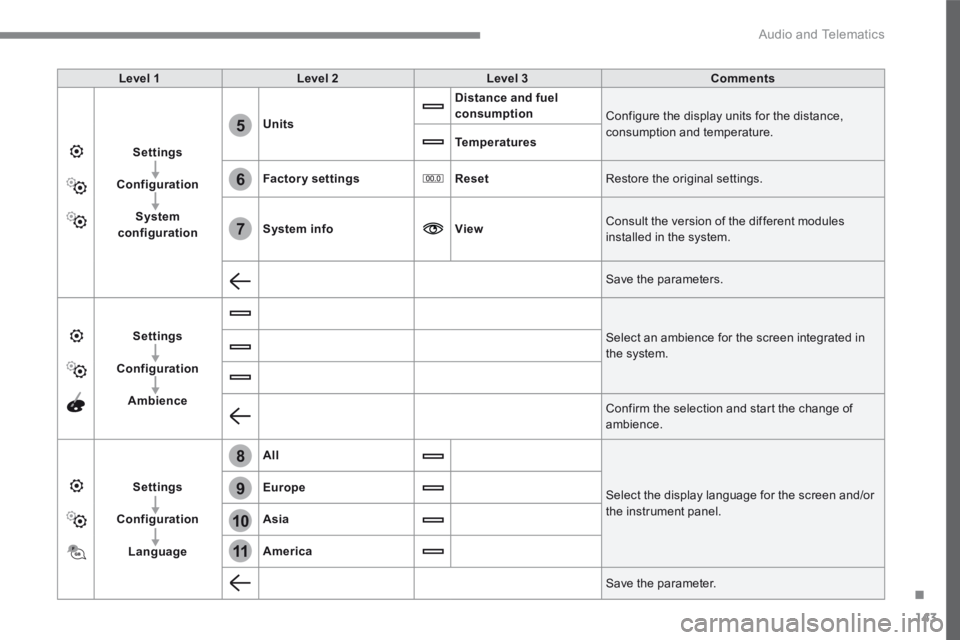
Level 1Level 2Level 3Comments
Settings
Configuration
System configuration
Units
Distance and fuel consumption Configure the display units for the distance, consumption and temperature. Temperatures
Factory settingsReset Restore the original settings.
System infoView Consult the version of the different modules installed in the system.
Save the parameters.
Settings
Configuration
Ambience
Select an ambience for the screen integrated in the system.
Confirm the selection and start the change of ambience.
Settings
Configuration
Language
All
Select the display language for the screen and/or the instrument panel.
Europe
Asia
America
Save the parameter.
Page 507 of 566
147
.
5
6
7
12
13
Audio and Telematics
Transversal-Peugeot_en_Chap02_RCC-2-2-0_ed01-2016
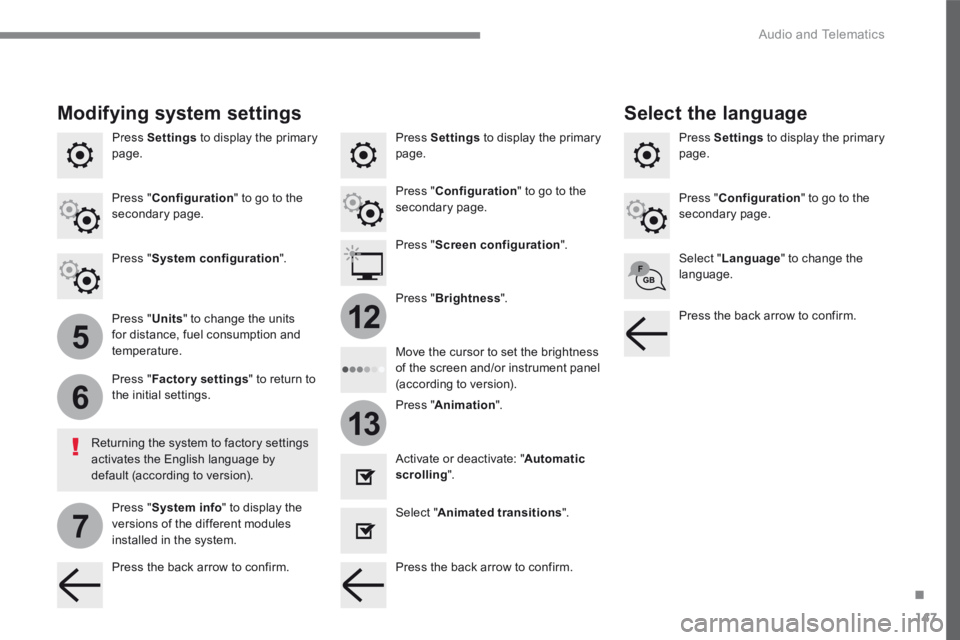
Press Settings to display the primary page. Press Settings to display the primary page. Press Settings to display the primary page.
Press " Configuration " to go to the secondary page. Press " Configuration " to go to the secondary page.
Press " Configuration " to go to the secondary page.
Press " System configuration ". Press " Screen configuration ".
Press " Units " to change the units for distance, fuel consumption and temperature.
Select " Language " to change the language.
Activate or deactivate: " Automatic scrolling ".
Select " Animated transitions ".
Move the cursor to set the brightness of the screen and/or instrument panel (according to version). Press " Factory settings " to return to the initial settings.
Press " System info " to display the versions of the different modules installed in the system.
Modifying system settings
Returning the system to factory settings activates the English language by default (according to version).
Pres s " Animation ".
Press " Brightness ".
Select the language
Press the back arrow to confirm. Press the back arrow to confirm.
Press the back arrow to confirm.
Page 519 of 566
157
.
Audio and Telematics
Transversal-Peugeot_en_Chap03_RD6_ed01-2016
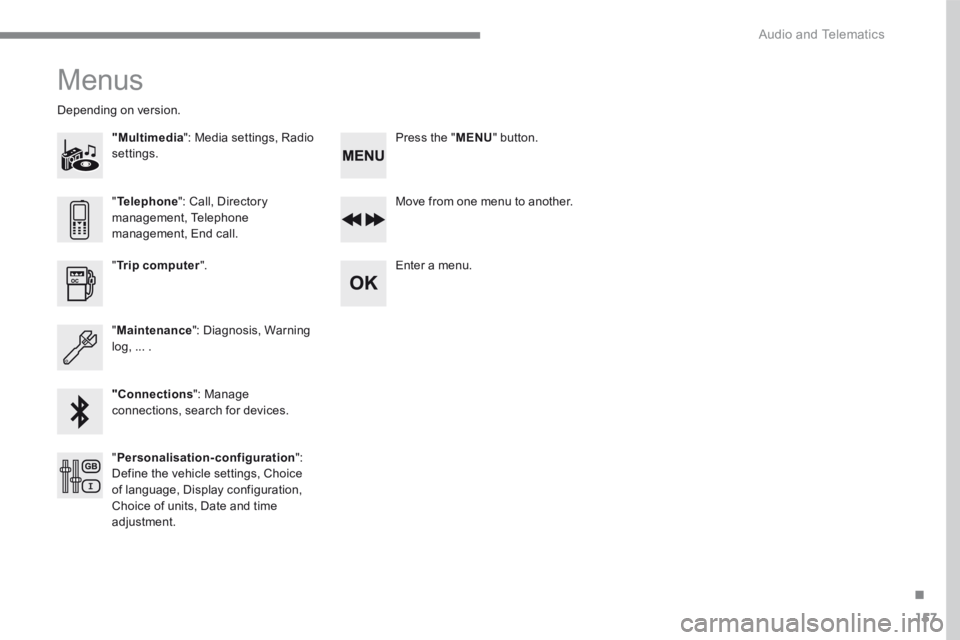
Menus
"Multimedia ": Media settings, Radio settings.
Depending on version.
Move from one menu to another.
Enter a menu. " Trip computer ".
" Maintenance ": Diagnosis, Warning log, ... .
"Connections ": Manage connections, search for devices.
" Telephone ": Call, Directory management, Telephone management, End call.
" Personalisation-configuration ": Define the vehicle settings, Choice of language, Display configuration, Choice of units, Date and time adjustment.
Press the " MENU " button.
Page 540 of 566
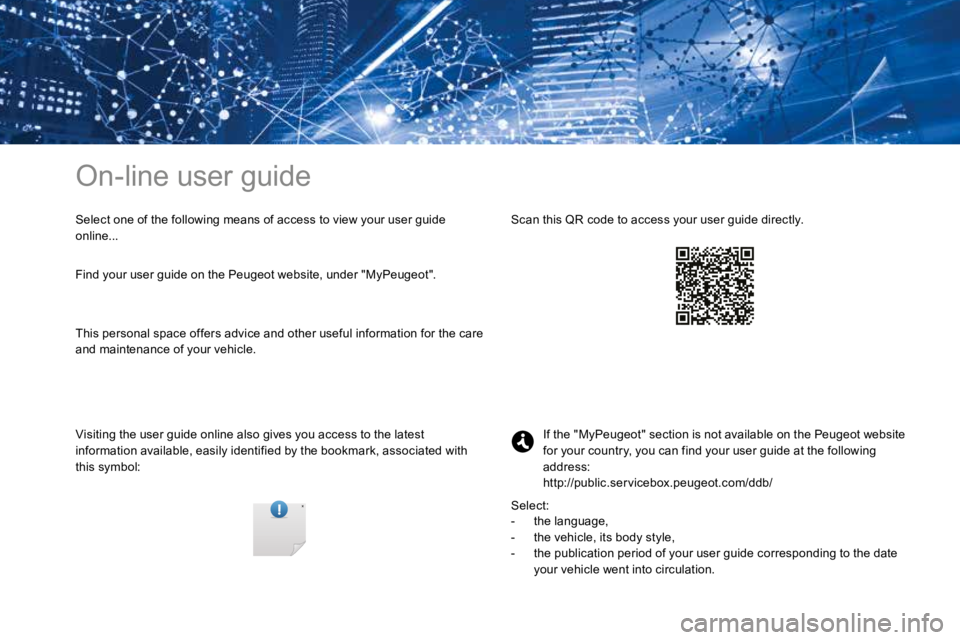
On-line user guide
Select one of the following means of access to view your user guide
online...
Visiting the user guide online also gives you access to the latest
information available, easily identified by the bookmark, associated with
this symbol:If the "MyPeugeot" section is not available on the Peugeot website
for your country, you can find your user guide at the following
address:
http://public.servicebox.peugeot.com/ddb/
- the language,
- the vehicle, its body style,
- the publication period of your user guide corresponding to the date
your vehicle went into circulation.
Select:
Find your user guide on the Peugeot website, under "MyPeugeot".
Scan this QR code to access your user guide directly.
This personal space offers advice and other useful information for the care
and maintenance of your vehicle.