start Peugeot 308 2018 Owners Manual
[x] Cancel search | Manufacturer: PEUGEOT, Model Year: 2018, Model line: 308, Model: Peugeot 308 2018Pages: 324, PDF Size: 10.72 MB
Page 265 of 324
13
As a safety measure, applications can
only be viewed with the vehicle stationary;
display is interrupted once the vehicle is
moving.
The "Android Auto" function requires the
use of a compatible smartphone and
applications.
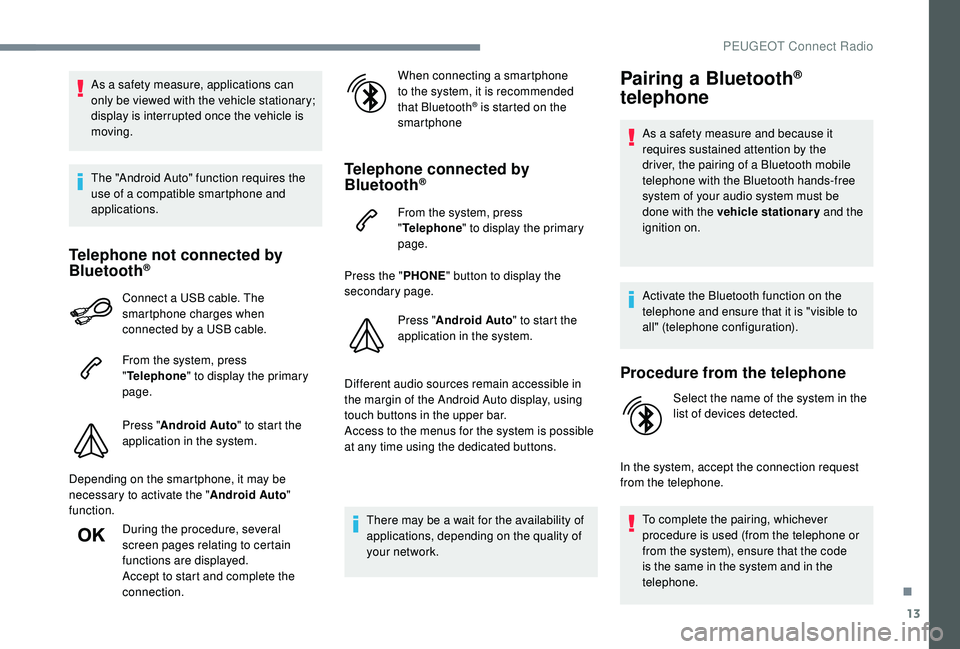
Telephone not connected by
Bluetooth®
Connect a USB cable. The
smartphone charges when
connected by a USB cable.
From the system, press
"Telephone " to display the primary
page.
Press " Android Auto " to start the
application in the system.
Depending on the smartphone, it may be
necessary to activate the " Android Auto"
function.
During the procedure, several
screen pages relating to certain
functions are displayed.
Accept to start and complete the
connection. When connecting a smartphone
to the system, it is recommended
that Bluetooth
® is started on the
smartphone
Telephone connected by
Bluetooth®
From the system, press
" Telephone " to display the primary
page.
Press the " PHONE" button to display the
secondary page.
Press "Android Auto " to start the
application in the system.
Different audio sources remain accessible in
the margin of the Android Auto display, using
touch buttons in the upper bar.
Access to the menus for the system is possible
at any time using the dedicated buttons.
There may be a wait for the availability of
applications, depending on the quality of
your network.
Pairing a Bluetooth®
telephone
As a safety measure and because it
requires sustained attention by the
driver, the pairing of a Bluetooth mobile
telephone with the Bluetooth hands-free
system of your audio system must be
done with the vehicle stationary and the
ignition on.
Activate the Bluetooth function on the
telephone and ensure that it is "visible to
all" (telephone configuration).
Procedure from the telephone
Select the name of the system in the
list of devices detected.
In the system, accept the connection request
from the telephone. To complete the pairing, whichever
procedure is used (from the telephone or
from the system), ensure that the code
is the same in the system and in the
telephone.
.
PEUGEOT Connect Radio
Page 267 of 324
15
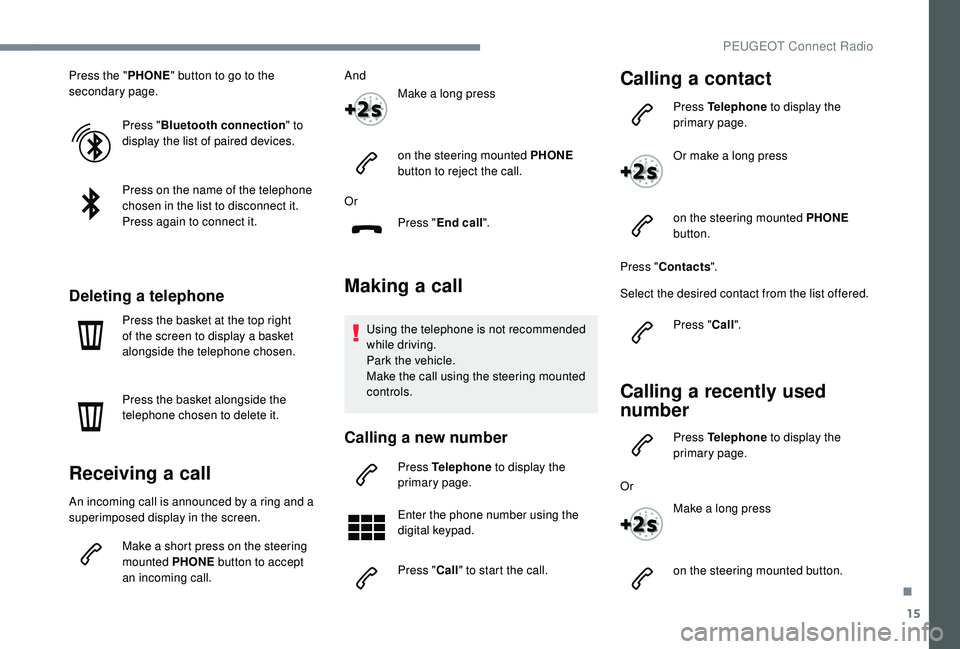
Press the "PHONE" button to go to the
secondary page.
Press "Bluetooth connection " to
display the list of paired devices.
Press on the name of the telephone
chosen in the list to disconnect it.
Press again to connect it.
Deleting a telephone
Press the basket at the top right
of the screen to display a basket
alongside the telephone chosen.
Press the basket alongside the
telephone chosen to delete it.
Receiving a call
An incoming call is announced by a ring and a
superimposed display in the screen.
Make a short press on the steering
mounted PHONE button to accept
an incoming call. And
Make a long press
on the steering mounted PHONE
button to reject the call.
Or Press "End call".
Making a call
Using the telephone is not recommended
while driving.
Park the vehicle.
Make the call using the steering mounted
controls.
Calling a new number
Press Telephone to display the
primary page.
Enter the phone number using the
digital keypad.
Press " Call" to start the call.
Calling a contact
Press Telephone to display the
primary page.
Or make a long press
on the steering mounted PHONE
button.
Press " Contacts ".
Select the desired contact from the list offered.
Press "Call".
Calling a recently used
number
Press Telephone to display the
primary page.
Or Make a long press
on the steering mounted button.
.
PEUGEOT Connect Radio
Page 272 of 324
20
Media
QUESTIONRESPONSESOLUTION
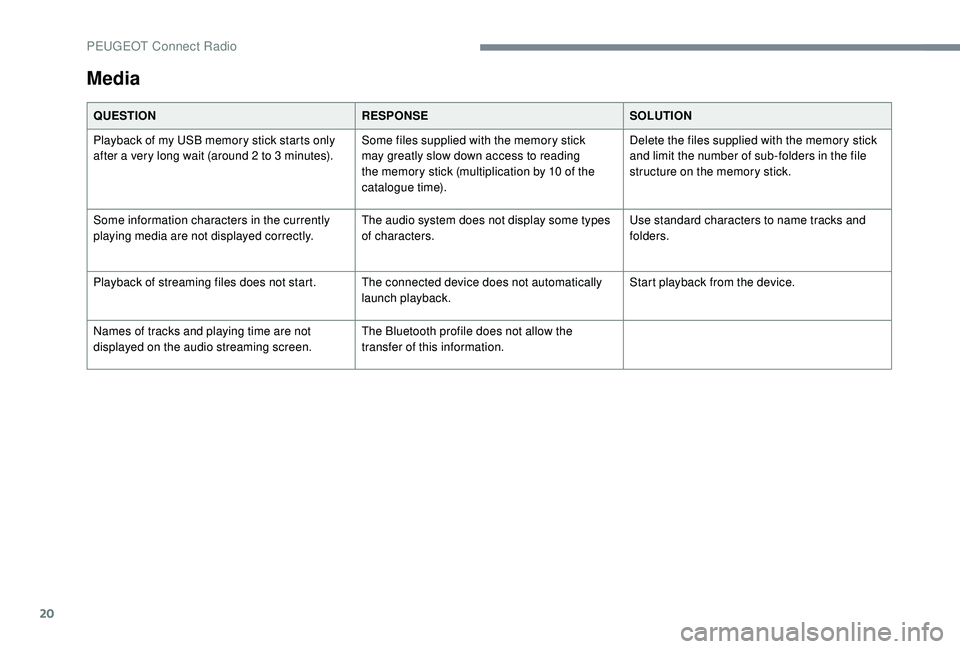
Playback of my USB memory stick starts only
after a very long wait (around 2 to 3
minutes).Some files supplied with the memory stick
may greatly slow down access to reading
the memory stick (multiplication by 10 of the
catalogue time). Delete the files supplied with the memory stick
and limit the number of sub-folders in the file
structure on the memory stick.
Some information characters in the currently
playing media are not displayed correctly. The audio system does not display some types
of characters.Use standard characters to name tracks and
folders.
Playback of streaming files does not start. The connected device does not automatically launch playback.Start playback from the device.
Names of tracks and playing time are not
displayed on the audio streaming screen. The Bluetooth profile does not allow the
transfer of this information.
PEUGEOT Connect Radio
Page 274 of 324
22
Settings
QUESTIONRESPONSESOLUTION
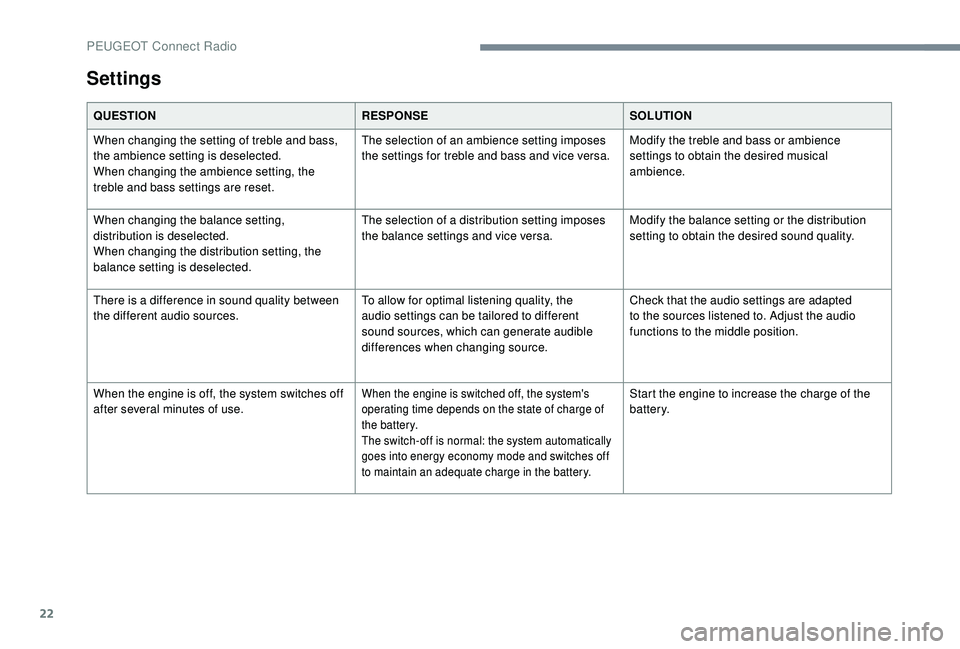
When changing the setting of treble and bass,
the ambience setting is deselected.
When changing the ambience setting, the
treble and bass settings are reset. The selection of an ambience setting imposes
the settings for treble and bass and vice versa.
Modify the treble and bass or ambience
settings to obtain the desired musical
ambience.
When changing the balance setting,
distribution is deselected.
When changing the distribution setting, the
balance setting is deselected. The selection of a distribution setting imposes
the balance settings and vice versa.
Modify the balance setting or the distribution
setting to obtain the desired sound quality.
There is a difference in sound quality between
the different audio sources. To allow for optimal listening quality, the
audio settings can be tailored to different
sound sources, which can generate audible
differences when changing source.Check that the audio settings are adapted
to the sources listened to. Adjust the audio
functions to the middle position.
When the engine is off, the system switches off
after several minutes of use.
When the engine is switched off, the system's
operating time depends on the state of charge of
the battery.
The switch-off is normal: the system automatically
goes into energy economy mode and switches off
to maintain an adequate charge in the battery.Start the engine to increase the charge of the
battery.
PEUGEOT Connect Radio
Page 277 of 324
3
21,518,5
12:1323 °C
In the "Settings" menu you can create
a profile for just one person or a group
of people with common points, with the
possibility of entering a multitude of
settings (radio presets, audio settings,
navigation history, contact favourites,
etc.); these settings are taken into account
automatically.
In very hot conditions, the volume may
be limited to protect the system. It may go
into standby (screen and sound off) for at
least 5 minutes
The return to normal takes place when
the temperature in the passenger
compartment has dropped.
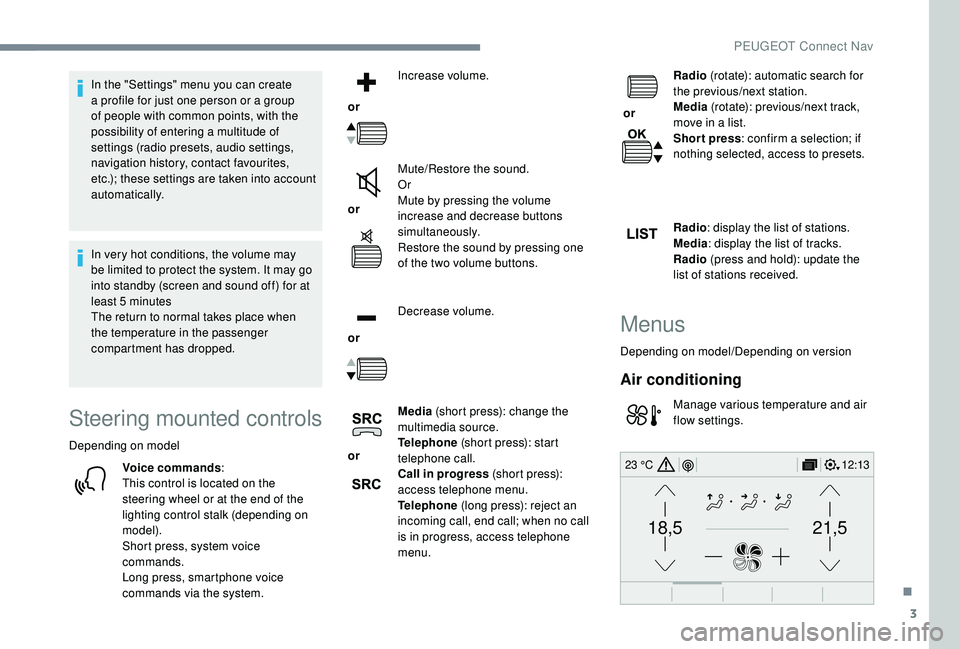
Steering mounted controls
Depending on model
Voice commands :
This control is located on the
steering wheel or at the end of the
lighting control stalk (depending on
model).
Short press, system voice
commands.
Long press, smartphone voice
commands via the system. or
Increase volume.
or Mute/Restore the sound.
Or
Mute by pressing the volume
increase and decrease buttons
simultaneously.
Restore the sound by pressing one
of the two volume buttons.
or Decrease volume.
or Media
(short press): change the
multimedia source.
Telephone (short press): start
telephone call.
Call in progress (short press):
access telephone menu.
Telephone (long press): reject an
incoming call, end call; when no call
is in progress, access telephone
menu. or
Radio
(rotate): automatic search for
the previous/next station.
Media (rotate): previous/next track,
move in a list.
Short press : confirm a selection; if
nothing selected, access to presets.
Radio : display the list of stations.
Media : display the list of tracks.
Radio (press and hold): update the
list of stations received.
Menus
Depending on model/Depending on version
Air conditioning
Manage various temperature and air
flow settings.
.
PEUGEOT Connect Nav
Page 280 of 324
6
Information – Using the system
Press the Push To Talk voice
command button and tell me
what you'd like after the tone.
Remember you can interrupt
me at any time by pressing
this button. If you press it
again while I'm waiting for
you to speak, it'll end the
conversation. If you need to
start over, say "cancel". If you
want to undo something, say
"undo". And to get information
and tips at any time, just say
"help". If you ask me to do
something and there's some
information missing that I need,
I'll give you some examples
or take you through it step by
step. There's more information
available in "beginner" mode.
You can set the dialogue mode
to "expert" when you feel
comfortable.
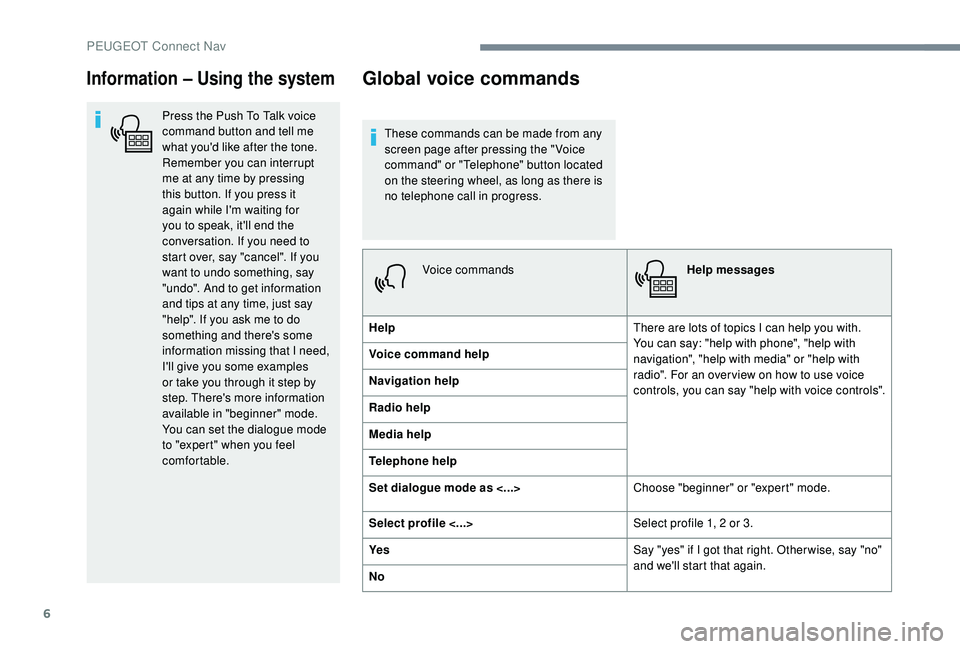
Global voice commands
These commands can be made from any
screen page after pressing the " Voice
command" or "Telephone" button located
on the steering wheel, as long as there is
no telephone call in progress.Voice commands Help messages
Help There are lots of topics I can help you with.
You can say: "help with phone", "help with
navigation", "help with media" or "help with
radio". For an over view on how to use voice
controls, you can say "help with voice controls".
Voice command help
Navigation help
Radio help
Media help
Telephone help
Set dialogue mode as <...>
Choose "beginner" or "expert" mode.
Select profile <...> Select profile 1, 2 or 3.
Ye s Say "yes" if I got that right. Other wise, say "no"
and we'll start that again.
No
PEUGEOT Connect Nav
Page 281 of 324
7
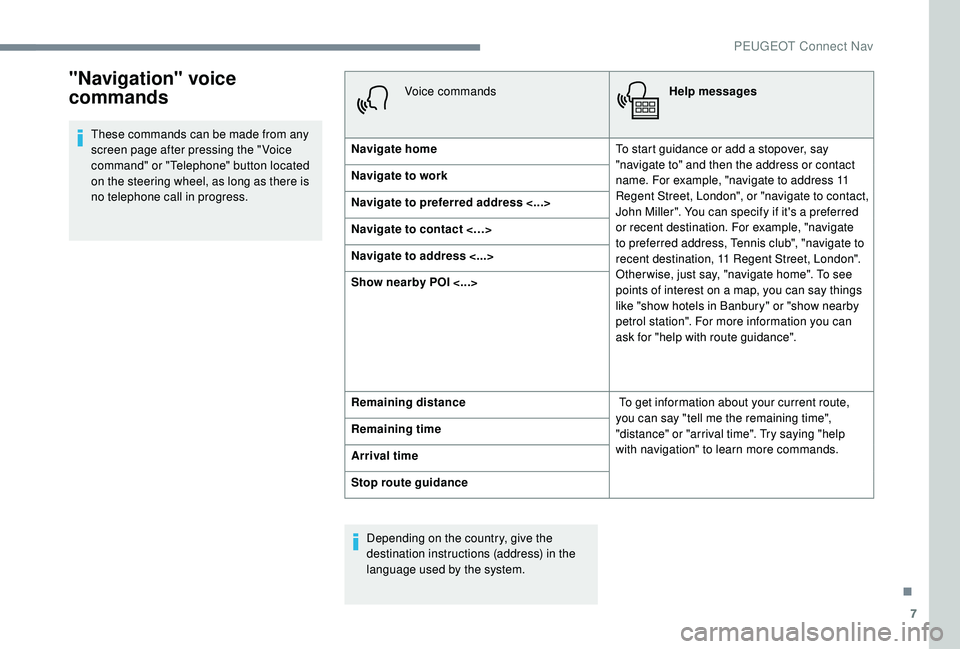
"Navigation" voice
commands
These commands can be made from any
screen page after pressing the " Voice
command" or "Telephone" button located
on the steering wheel, as long as there is
no telephone call in progress.Voice commands
Help messages
Navigate home To start guidance or add a stopover, say
"navigate to" and then the address or contact
name. For example, "navigate to address 11
Regent Street, London", or "navigate to contact,
John Miller". You can specify if it's a preferred
or recent destination. For example, "navigate
to preferred address, Tennis club", "navigate to
recent destination, 11 Regent Street, London".
Other wise, just say, "navigate home". To see
points of interest on a map, you can say things
like "show hotels in Banbury" or "show nearby
petrol station". For more information you can
ask for "help with route guidance".
Navigate to work
Navigate to preferred address <...>
Navigate to contact <…>
Navigate to address <...>
Show nearby POI <...>
Remaining distance
To get information about your current route,
you can say "tell me the remaining time",
"distance" or "arrival time". Try saying "help
with navigation" to learn more commands.
Remaining time
Arrival time
Stop route guidance
Depending on the country, give the
destination instructions (address) in the
language used by the system.
.
PEUGEOT Connect Nav
Page 284 of 324
10
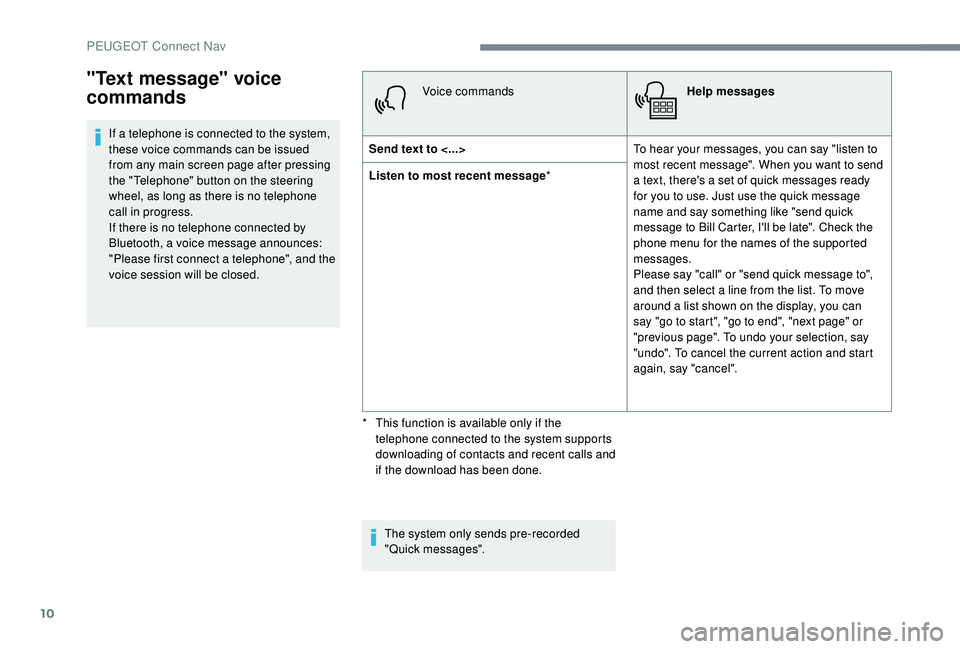
If a telephone is connected to the system,
these voice commands can be issued
from any main screen page after pressing
the "Telephone" button on the steering
wheel, as long as there is no telephone
call in progress.
If there is no telephone connected by
Bluetooth, a voice message announces:
"Please first connect a telephone", and the
voice session will be closed.Voice commands
Help messages
Send text to <...> To hear your messages, you can say "listen to
most recent message". When you want to send
a text, there's a set of quick messages ready
for you to use. Just use the quick message
name and say something like "send quick
message to Bill Carter, I'll be late". Check the
phone menu for the names of the supported
messages.
Please say "call" or "send quick message to",
and then select a line from the list. To move
around a list shown on the display, you can
say "go to start", "go to end", "next page" or
"previous page". To undo your selection, say
"undo". To cancel the current action and start
again, say "cancel".
Listen to most recent message
*
The system only sends pre-recorded
"Quick messages".
"Text message" voice
commands
* This function is available only if the telephone connected to the system supports
downloading of contacts and recent calls and
if the download has been done.
PEUGEOT Connect Nav
Page 285 of 324
11
Navigation
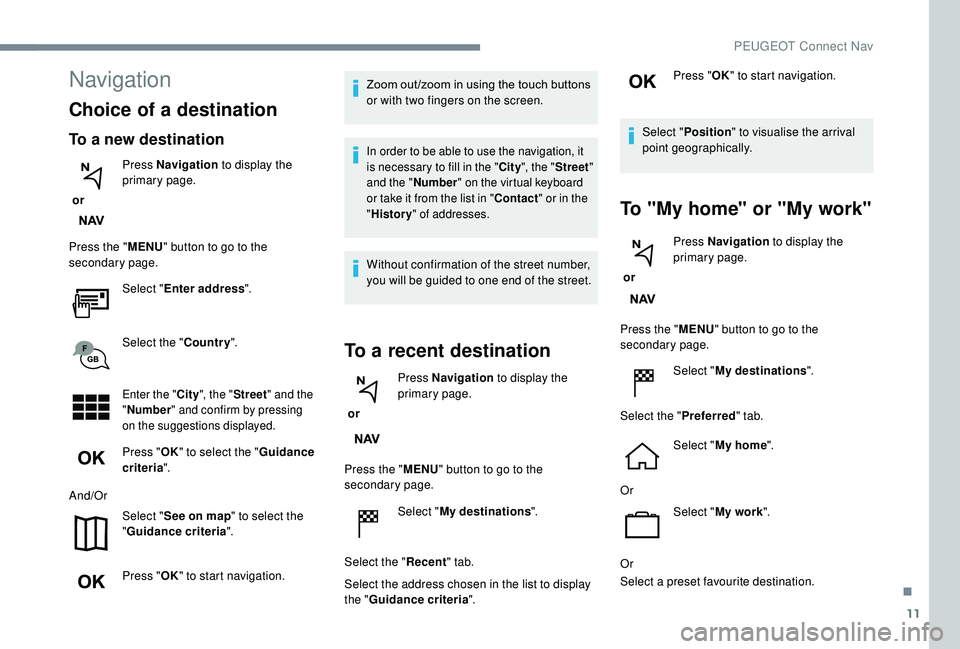
Choice of a destination
To a new destination
or Press Navigation
to display the
primary page.
Press the " MENU" button to go to the
secondary page.
Select "Enter address ".
Select the " Country".
Enter the " City", the " Street " and the
" Number " and confirm by pressing
on the suggestions displayed.
Press " OK" to select the " Guidance
criteria ".
And/Or Select "See on map " to select the
" Guidance criteria ".
Press " OK" to start navigation. Zoom out /zoom in using the touch buttons
or with two fingers on the screen.
In order to be able to use the navigation, it
is necessary to fill in the "
City", the " Street "
and the " Number" on the virtual keyboard
or take it from the list in " Contact" or in the
" History " of addresses.
Without confirmation of the street number,
you will be guided to one end of the street.
To a recent destination
or Press Navigation
to display the
primary page.
Press the " MENU" button to go to the
secondary page.
Select "My destinations ".
Select the " Recent" tab.
Select the address chosen in the list to display
the " Guidance criteria ". Press "
OK" to start navigation.
Select " Position " to visualise the arrival
point geographically.
To "My home" or "My work"
or Press Navigation
to display the
primary page.
Press the " MENU" button to go to the
secondary page.
Select "My destinations ".
Select the " Preferred" tab.
Select " My home ".
Or Select "My work ".
Or
Select a preset favourite destination.
.
PEUGEOT Connect Nav
Page 286 of 324

12
Press the "MENU" button to go to the
secondary page.
Select "My destinations ".
Select the " Contact" tab.
Select a contact in the list to start navigation.
Towards points of interest
(POI)
Points of Interest (POI) are listed in different
categories.
or Press Navigation
to display the
primary page.
Press the " MENU" button to go to the
secondary page. Select "
Points of interest ".
Select the " Tr a v e l", or "Leisure "
or " Commercial" or " Public" or
" Geographic " tab.
Or Select "Search" to enter the name
and address of a POI.
Press " OK" to start calculation of
the route.
To a point on the map
or Press Navigation
to display the
primary page.
Explore the map by sliding a finger on the
screen.
Select the destination by pressing on the map. Tap the screen to place a marker
and display the sub-menu.
Towards a contact
or Press Navigation
to display the
primary page. Press this button to start navigation.
Or Press this button to save the
address displayed.
A long press on an item opens a list of
POIs nearby.
Towards GPS coordinates
or Press Navigation
to display the
primary page.
Explore the map by sliding a finger on the
screen. Press this button to display the world
map.
Using the grid, select by zoom the
desired country or region.
Press this button to enter the GPS
coordinates.
PEUGEOT Connect Nav