mirror Peugeot 308 2018 Owner's Guide
[x] Cancel search | Manufacturer: PEUGEOT, Model Year: 2018, Model line: 308, Model: Peugeot 308 2018Pages: 324, PDF Size: 10.72 MB
Page 163 of 324
161
Obstacles may appear further away than
they actually are in reality.
It is important to check the sides of the
vehicle during the manoeuvre, using the
mirrors.
The rear parking sensors also provide
information on the vehicle's surroundings.
180° viewRecommendations on care
In bad or wintry weather, ensure that the
sensors and camera are not covered with mud,
ice or snow.
Check the cleanliness of the camera lens
regularly.
If necessary, clean the camera with a soft, dry
cloth.
When washing your vehicle at high pressure,
direct the lance at least 30
cm away from the
camera and parking sensors.
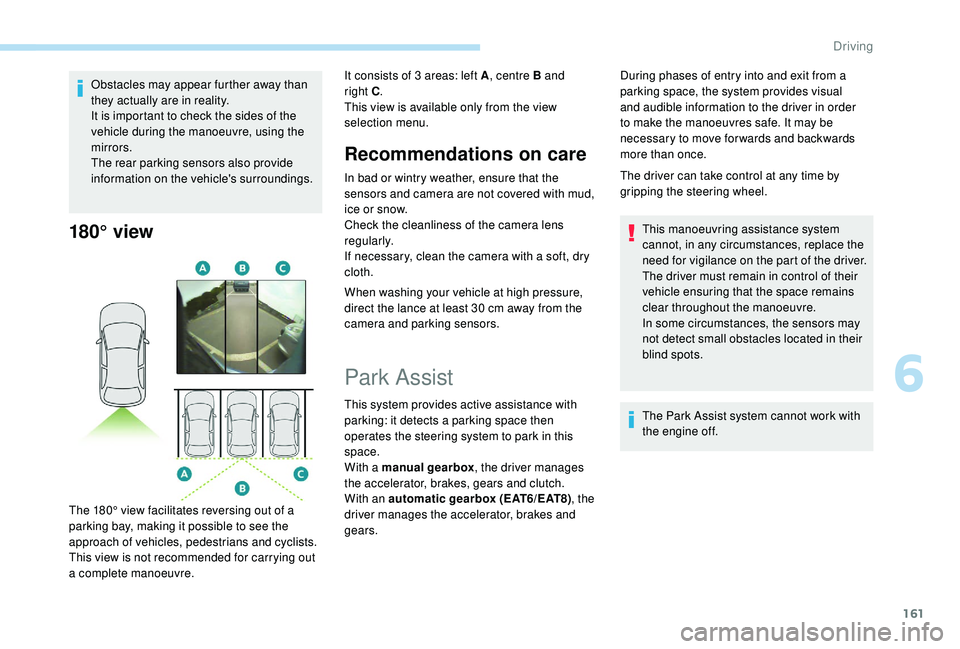
The 180° view facilitates reversing out of a
parking bay, making it possible to see the
approach of vehicles, pedestrians and cyclists.
This view is not recommended for carrying out
a complete manoeuvre. It consists of 3 areas: left A
, centre B and
right C .
This view is available only from the view
selection menu.
Park Assist
This system provides active assistance with
parking: it detects a parking space then
operates the steering system to park in this
space.
With a manual gearbox , the driver manages
the accelerator, brakes, gears and clutch.
With an automatic gearbox (EAT6/EAT8) , the
driver manages the accelerator, brakes and
gears. During phases of entry into and exit from a
parking space, the system provides visual
and audible information to the driver in order
to make the manoeuvres safe. It may be
necessary to move for wards and backwards
more than once.
The driver can take control at any time by
gripping the steering wheel.
This manoeuvring assistance system
cannot, in any circumstances, replace the
need for vigilance on the part of the driver.
The driver must remain in control of their
vehicle ensuring that the space remains
clear throughout the manoeuvre.
In some circumstances, the sensors may
not detect small obstacles located in their
blind spots.
The Park Assist system cannot work with
the engine off.
6
Driving
Page 210 of 324
208
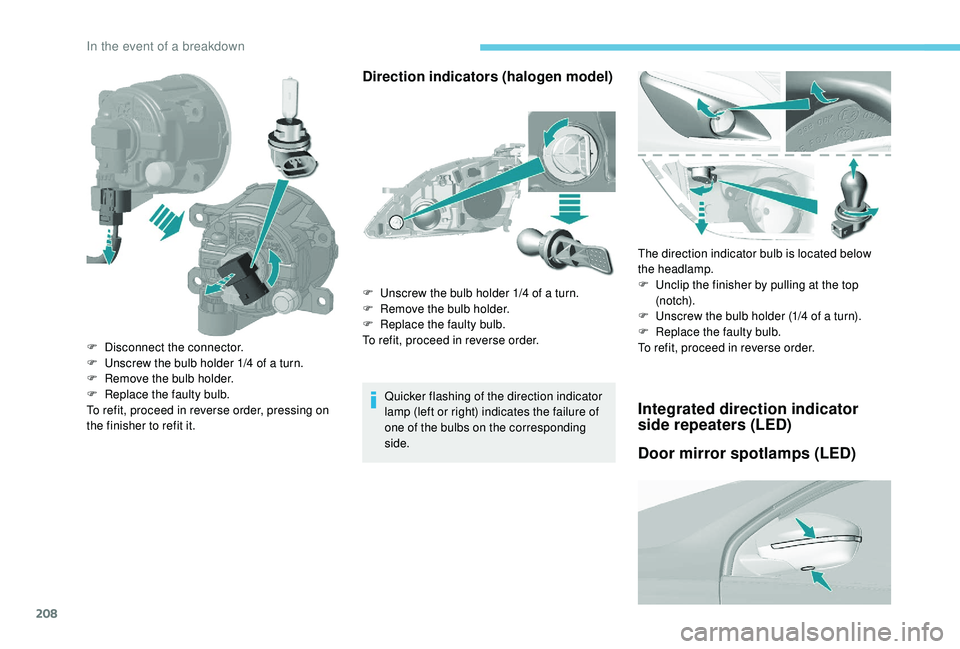
Direction indicators (halogen model)
Quicker flashing of the direction indicator
lamp (left or right) indicates the failure of
one of the bulbs on the corresponding
side.The direction indicator bulb is located below
the headlamp.
F
U
nclip the finisher by pulling at the top
(n otc h).
F
U
nscrew the bulb holder (1/4 of a turn).
F
R
eplace the faulty bulb.
To refit, proceed in reverse order.Integrated direction indicator
side repeaters (LED)
Door mirror spotlamps (LED)
F Disconnect the connector.
F U nscrew the bulb holder 1/4 of a turn.
F
R
emove the bulb holder.
F
R
eplace the faulty bulb.
To refit, proceed in reverse order, pressing on
the finisher to refit it. F
U
nscrew the bulb holder 1/4 of a turn.
F
R
emove the bulb holder.
F
R
eplace the faulty bulb.
To refit, proceed in reverse order.
In the event of a breakdown
Page 215 of 324
213
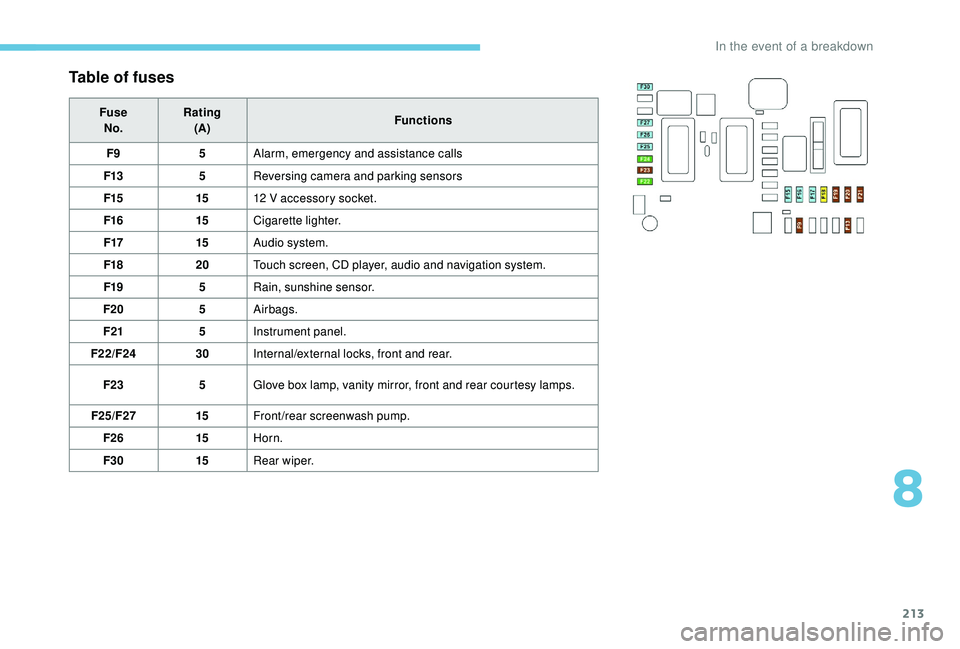
Table of fuses
FuseNo. Rating
(A) Functions
F9 5Alarm, emergency and assistance calls
F13 5Reversing camera and parking sensors
F15 1512
V accessory socket.
F16 15Cigarette lighter.
F17 15Audio system.
F18 20Touch screen, CD player, audio and navigation system.
F19 5Rain, sunshine sensor.
F20 5Airbags.
F21 5Instrument panel.
F22/F24 30Internal/external locks, front and rear.
F23 5Glove box lamp, vanity mirror, front and rear courtesy lamps.
F25/F27 15Front/rear screenwash pump.
F26 15Horn.
F30 15Rear wiper.
8
In the event of a breakdown
Page 256 of 324
4
21,518,5
or Decrease volume.
or Media
(short press): change the
multimedia source.
Telephone (short press): start
telephone call.
Call in progress (short press):
access telephone menu.
Telephone (long press): reject an
incoming call, end call; when no call
is in progress, access telephone
menu.
or Radio
(rotate): previous/next preset.
Media (rotate): previous/next track,
move in a list.
Short press : confirm a selection; if
nothing selected, access to presets.
Radio : display the list of stations.
Media : display the list of tracks.
Radio (press and hold): update the
list of stations received.
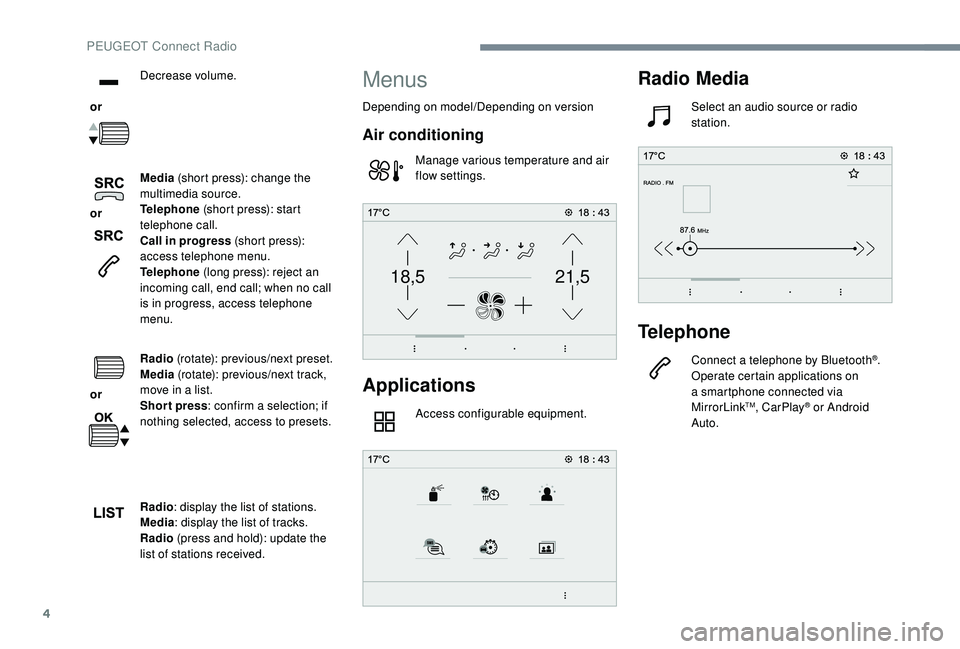
Menus
Depending on model/Depending on version
Air conditioning
Manage various temperature and air
flow settings.
Applications
Access configurable equipment.
Radio Media
Select an audio source or radio
station.
Telephone
Connect a telephone by Bluetooth®.
Operate certain applications on
a smartphone connected via
MirrorLink
TM, CarPlay® or Android
Auto.
PEUGEOT Connect Radio
Page 257 of 324
5
Settings
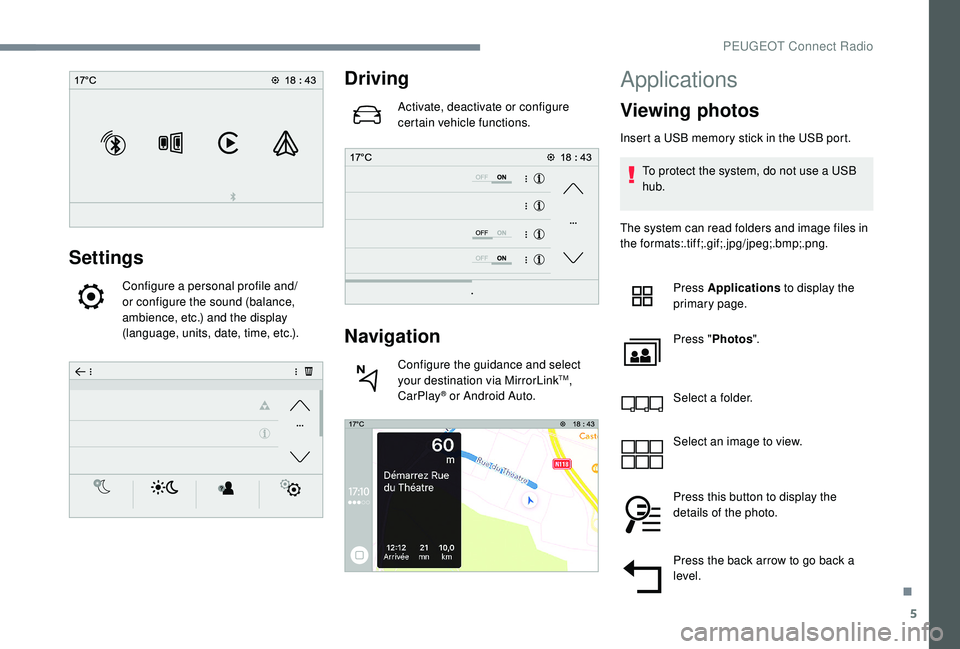
Configure a personal profile and/
or configure the sound (balance,
ambience, etc.) and the display
(language, units, date, time, etc.).
Driving
Activate, deactivate or configure
certain vehicle functions.
Navigation
Configure the guidance and select
your destination via MirrorLinkTM,
CarPlay® or Android Auto.
Applications
Viewing photos
Insert a USB memory stick in the USB port.
To protect the system, do not use a USB
hub.
The system can read folders and image files in
the formats:.tif f;.gif;.jpg/jpeg;.bmp;.png.
Press Applications to display the
primary page.
Press " Photos ".
Select a folder.
Select an image to view.
Press this button to display the
details of the photo.
Press the back arrow to go back a
level.
.
PEUGEOT Connect Radio
Page 263 of 324
11
Telephone
MirrorLinkTM smartphone
connection
As a safety measure and because it
requires sustained attention by the driver,
using a smartphone when driving is
prohibited.
All operations must be done with the
vehicle stationary .
The synchronisation of a personal
smartphone allows users to display
applications adapted for the smartphone's
MirrorLink
TM technology on the vehicle
sc
reen.
The processes and standards
are constantly changing. For the
communication process between the
smartphone and the system to operate,
it is essential that the smartphone be
unlocked; update the operating system
of the smar tphone as well as the date
and time of the smar tphone and the
system .
For the list of eligible smartphones, go
to the Brand's internet website in your
c o u nt r y. As a safety measure, applications can
only be viewed with the vehicle stationary;
display is interrupted once the vehicle is
moving.
The "MirrorLink
TM" function requires a
compatible smartphone and applications.
Telephone not connected by
Bluetooth®
Connect a USB cable. The
smartphone charges when
connected by a USB cable.
From the system, press
" Telephone " to display the primary
page.
Press " MirrorLink
TM" to start the
application in the system.
Depending on the smartphone, it may be necessary
to activate the " MirrorLink" TM function.
During the procedure, several
screen pages relating to certain
functions are displayed.
Accept to start and complete the
connection. When connecting a smartphone
to the system, it is recommended
that Bluetooth
® be started on the
smartphone.
Telephone connected by
Bluetooth®
From the system, press
" Telephone " to display the primary
page.
Press the " PHONE" button to display the
secondary page.
Press "MirrorLink
TM" to start the
application in the system.
Once the connection is established, a page
is displayed with the applications already
downloaded to your smartphone and adapted
to MirrorLink
TM technology.
Access to the different audio sources remains
accessible in the margin of the MirrorLink
TM
display, using touch buttons in the upper bar.
Access to the menus for the system is possible
at any time using the dedicated buttons.
There may be a wait for the availability of
applications, depending on the quality of
your network.
.
PEUGEOT Connect Radio
Page 278 of 324
4
12:13
18,5 21,5
23 °C
FM/87.5 MHz
87.5MHz
12:13
18,5 21,5
23 °C
12:13
18,5 21,5
23 °C
12:13
18,5 21,5
23 °C
Connected navigation
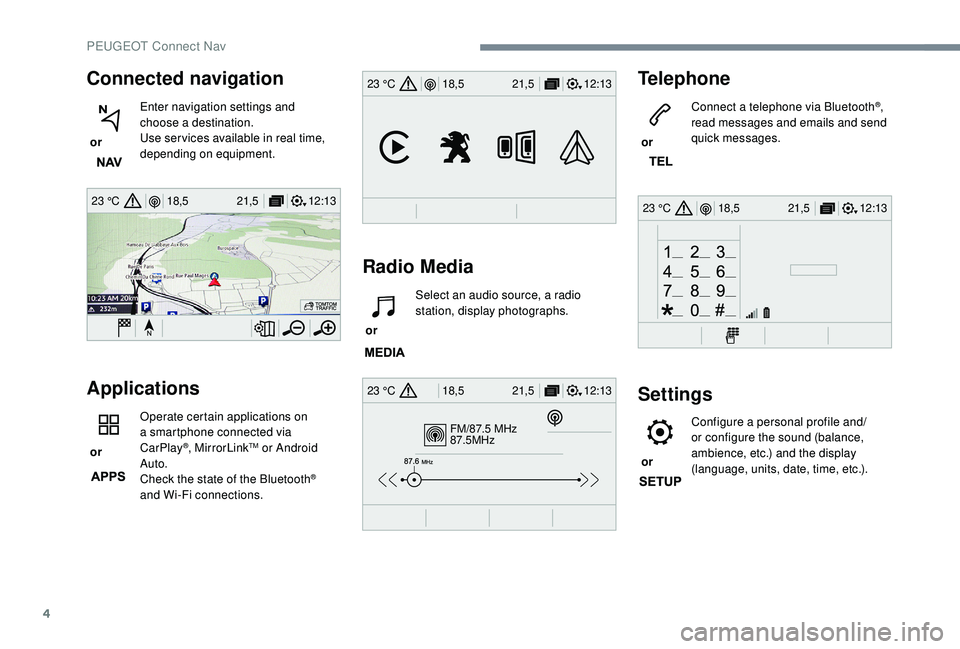
or Enter navigation settings and
choose a destination.
Use ser vices available in real time,
depending on equipment.
Applications
or Operate certain applications on
a smartphone connected via
CarPlay®, MirrorLinkTM or Android
Auto.
Check the state of the Bluetooth
®
and Wi-Fi connections.
Radio Media Telephone
or
Connect a telephone via Bluetooth
®,
read messages and emails and send
quick messages.
Settings
or Configure a personal profile and/
or configure the sound (balance,
ambience, etc.) and the display
(language, units, date, time, etc.).
or
Select an audio source, a radio
station, display photographs.
PEUGEOT Connect Nav
Page 288 of 324
14
Network connection provided by
the user
Connect a USB cable.
The smartphone charges when
connected by a USB cable.
Bluetooth connection
Wi-Fi connection Restrictions of use:
-
W
ith CarPlay
®, connection sharing is
only with a Wi-Fi connection.
-
W
ith MirrorLink
TM, connection sharing
is only with a USB connection.
The quality of ser vices depends on the
quality of the network connection.
Network connection provided by
the vehicle
The system is automatically
connected to the modem included
for the "Emergency or assistance
calls" ser vices and does not require
a connection provided by the user
via their smartphone.
With the arrival of "TOMTOM
TR AFFIC", the ser vices are
available.
The ser vices offered with connected
navigation are as follows.
A Connected Services pack:
-
Weather,
-
F
illing stations,
-
C
ar park,
-
Tr a f f i c ,
-
P
OI local search.
A Danger zone pack (option). The processes and standards
are constantly changing; for the
communication process between the
smartphone and the system to work
correctly, we recommend that you
update the operating system of the
smar tphone as well as the date and
time of the smar tphone and the
system.
Settings specific to
connected navigation
In the "Settings" menu you can create
a profile for just one person or a group
of people with common points, with the
possibility of entering a multitude of
settings (radio presets, audio settings,
navigation history, contact favourites,
etc.); these settings are taken into account
automatically.
or Press Navigation
to display the
primary page.
Press the " MENU" button to go to the
secondary page.
USB connection
Activate the Bluetooth function on
the telephone and ensure that it is
visible to all (see the "Applications"
section).
Select a Wi-Fi network found by the
system and connect to it (see the
"Applications" section).
PEUGEOT Connect Nav
Page 290 of 324
16
Displaying the weather
or Press Navigation
to display the
primary page.
Press this button to display the list of
services.
Select " View map ".
Select " Weather ".
Press this button to display primary
information.
Press this button to display the
detailed weather information.
The temperature displayed at 6 a.m. will
be the maximum temperature for the day.
The temperature displayed at 6 p.m. will
be the minimum temperature for the night.
Applications
Internet Browser
or Press Applications
to display the
primary page.
Press " Connectivity " to go to the " Internet
Browser " function.
Press " Internet Browser " to display the
browser home page.
Select your country of residence.
Press "OK" to save and start the
browser.
Connection to the internet is via one of
the network connections provided by the
vehicle or the user.
Connectivity
or Press Applications
to display the
primary page. Press "
Connectivity " to go to the CarPlay
®,
MirrorLinkTM or Android Auto functions.
Applications
or Press Applications
to display the
primary page.
Press " Applications " to display the
applications home page.
CarPlay® smartphone
connection
As a safety measure and because it
requires sustained attention by the driver,
using a smartphone when driving is
prohibited.
All operations must be done with the
vehicle stationary .
PEUGEOT Connect Nav
Page 291 of 324
17
The synchronisation of a personal
smartphone allows users to display
applications compatible with the
smartphone's CarPlay
® technology on the
v
ehicle screen when the smartphone's
CarPlay
® function has been previously
activated.
As the processes and standards are
constantly changing, it is recommended
that you keep your smar tphone's
operating system updated .
For the list of eligible smartphones, go
to the Brand's internet website in your
c o u nt r y.
Connect a USB cable. The
smartphone charges when
connected by a USB cable.
or Press on "
Telephone " to display the
CarPlay
® inter face.
Or Connect a USB cable. The
smartphone charges when
connected by a USB cable. or
From the system, press
"
Applications " to display the
primary page.
Press " Connectivity " to go to the CarPlay
®
function.
Press "CarPlay " to display the
CarPlay
® inter face.
On connecting the USB cable, the
CarPlay
® function deactivates the
system's Bluetooth® mode.
MirrorLinkTM smartphone
connection
As a safety measure and because it
requires sustained attention by the driver,
using a smartphone when driving is
prohibited.
All operations must be done with the
vehicle stationary . The synchronisation of a personal
smartphone allows users to display
applications adapted for the smartphone's
MirrorLink
TM technology on the vehicle
sc
reen.
The processes and standards
are constantly changing. For the
communication process between the
smartphone and the system to operate,
it is essential that the smartphone be
unlocked; update the operating system
of the smar tphone as well as the date
and time of the smar tphone and the
system .
For the list of eligible smartphones, go
to the Brand's internet website in your
c o u nt r y.
As a safety measure, applications can
only be viewed with the vehicle stationary;
display is interrupted once the vehicle is
moving.
The MirrorLink
TM function requires the
use of a compatible smartphone and
applications.
When connecting a smartphone
to the system, it is recommended
that Bluetooth
® be started on the
smartphone.
.
PEUGEOT Connect Nav