ignition Peugeot 308 2021 Owners Manual
[x] Cancel search | Manufacturer: PEUGEOT, Model Year: 2021, Model line: 308, Model: Peugeot 308 2021Pages: 244, PDF Size: 8.21 MB
Page 195 of 244
193
PEUGEOT Connect Radio
10Procedure from the system
Press Telephone to display the main
page.
Press "Bluetooth search".
The list of detected telephones is
displayed.
Select the name of the chosen telephone
in the list.
Connection sharing
The system offers to connect the telephone with
3 profiles:
–
"Telephone" (hands-free kit, telephone only),
–
“Streaming" (streaming: wireless playing of
audio files on the telephone),
–
"Mobile internet data ".
Select one or more profiles.
Press "OK" to confirm.
Depending on the type of telephone, you may by
prompted to accept the transfer of contacts and
messages.
The ability of the system to connect just one profile depends on the telephone.
All three profiles may connect by default.
The profiles compatible with the system are: HFP, OPP, PBAP, A2DP, AVRCP,
MAP and PAN. Visit the Brand's website for more information
(compatibility, additional help, etc.).
Automatic reconnection
On returning to the vehicle, if the last telephone
connected is present again, it is automatically
recognised and within about 30 seconds
after switching on the ignition, the pairing is
established automatically (Bluetooth activated).
To modify the connection profile:
Press Telephone to display the main
page.
Press the "PHONE" button to access the
secondary page.
Press "Bluetooth connection" to
display the list of paired devices.
Press the "Details" button for a paired
device.
Select one or more profiles.
Press "OK" to confirm.
Managing paired telephones
This function lets you connect or disconnect a
device or delete a pairing.
Press Telephone to display the main
page.
Press the "PHONE" button to access the
secondary page.
Press "Bluetooth connection" to
display the list of paired devices.
Press on the name of the telephone
selected in the list to disconnect it.
Press again to connect it.
Deleting a telephone
Press the basket at the top right of the
screen to display a basket alongside the
telephone chosen.
Press the basket alongside the telephone
chosen to delete it.
Receiving a call
An incoming call is announced by a ring and a
superimposed display in the screen.
Make a short press on the steering
mounted PHONE button to accept an
incoming call.
And
Make a long press
on the steering mounted PHONE button
to reject the call.
Or
Press "End call".
Making a call
Using the telephone is not recommended
while driving.
Parking the vehicle.
Make the call using the steering mounted
controls.
Page 200 of 244
198
PEUGEOT Connect Nav
PEUGEOT Connect Nav
GPS navigation -
Applications - Multimedia
audio system - Bluetooth
®
telephone
The functions and settings described
vary according to the vehicle version and
configuration.
For safety reasons and because they
require sustained attention by the driver,
the following operations must be carried out
with the vehicle stationary and the ignition
on:
–
Pairing the smartphone with the system in
Bluetooth mode.
–
Using the smartphone.
–
Connection to the CarPlay®, MirrorLinkTM
or Android Auto applications (certain
applications interrupt their display while the
vehicle is moving).
–
W
atching a video (the video stops when the
vehicle starts to move again).
–
Changing the system settings and
configuration.
The system is protected in such a way that it will only operate in the vehicle.
The Energy Economy Mode message is
displayed when the system is about to enter
the corresponding mode.
System and map updates can be
downloaded from the Brand’s website.
The update procedure is also available on the
website.
The system’s Open Source Software (OSS) source codes are available at the
following addresses:
https://www.groupe-psa.com/fr/oss/
https://www.groupe-psa.com/en/oss/
First steps
With the engine running, a press mutes
the sound.
With the ignition off, a press turns the system on.
Increase or decrease the volume using
the wheel or the "plus" or "minus" buttons
(depending on the equipment).
Use the menu buttons on either side of or below
the touch screen for access to the menus, then
press the virtual buttons in the touch screen.
Depending on the model, use the "Source" or
"Menu" buttons to access the rolling menus, then
press the virtual buttons in the touch screen.
Display the rolling menus at any time by pressing
the screen briefly with three fingers.
All of the touch areas of the screen are white.
Press the back arrow to go back a level.
Press "OK" to confirm.
The touch screen is of the "capacitive" type.
To clean the screen, use a soft, non-abrasive
cloth (e.g. spectacles cloth) with no additional
product.
Do not use sharp objects on the screen.
Do not touch the screen with wet hands.
Certain information is displayed permanently
in the side bars or in the upper bar of the touch
screen (depending on equipment):
–
Air conditioning status information (depending
on version), and direct access to the
corresponding menu.
–
Go directly to the audio source selection
option, to view the list of radio stations (or list of
titles depending on the source).
–
Go to the "Notifications" of messages, emails,
map updates and, depending on the services,
the navigation notifications.
–
Go to the settings for the touch screen and the
digital instrument panel.
Page 212 of 244
210
PEUGEOT Connect Nav
Press "CarPlay" to display the CarPlay®
interface.
On connecting the USB cable, the
CarPlay® function deactivates the
system's Bluetooth® mode.
When the USB cable is disconnected
and the ignition is switched off then back
on, the system will not automatically switch to
Radio Media mode; the source must be
changed manually.
Android Auto smartphone connection
Install the "Android Auto" application on
the smartphone via "Google Play".
The "Android Auto" function requires the use
of a compatible smartphone and applications.
Connect a USB cable. The smartphone
charges when connected by a USB cable.
From the system, press "Applications " to
display the main page.
Press "Connectivity" to access the "Android
Auto” function.
Press "Android Auto" to start the
application in the system.
During the procedure, several screen
pages relating to certain features are
displayed.
Accept to start and complete the connection.
Access to the different audio sources remains
available in the margin of the Android Auto
display, using the touch buttons located in the
upper bar.
Access to the menus for the system is possible
at any time using the dedicated buttons.
In Android Auto mode, the function that
displays rolling menus by briefly pressing
the screen with three fingers is disabled.
There may be a pause before applications become available,
depending on the quality of the network.
Car Apps
Press Applications to display the main
page.
Press "Car Apps" to display the applications
home page.
Internet Browser
Press Applications to display the main
page.
Press "Connectivity" to access the "Connected
Apps” function.
Press "Connected Apps" to display the browser
home page.
Select the country of residence.
Press "OK" to save and start the browser.
Connection to the internet is via one of
the network connections provided by the
vehicle or the user.
Bluetooth connection®
The services available depend on the network, the SIM card and the
compatibility of the Bluetooth devices used.
Consult the smartphone user guide and the
service provider to check which services are
available.
The Bluetooth function must be activated and the smartphone configured as
"Visible to all".
To complete the pairing, whichever procedure is
used (from the smartphone or from the system),
ensure that the code is the same in the system
and in the smartphone.
If the pairing procedure fails, we
recommend deactivating and then
reactivating the Bluetooth function on the
smartphone.
Procedure from the smartphone
Select the name of the system in the list
of detected devices.
In the system, accept the connection request
from the smartphone.
Page 215 of 244
213
PEUGEOT Connect Nav
11DAB (Digital Audio
Broadcasting) radio
Terrestrial Digital Radio
Digital radio provides higher quality sound.
The various "multiplexes/ensembles" offer a
choice of radio stations organised in alphabetical
order.
Press Radio Media to display the main
page.
Press “Band …" at the top right of the screen to
display the " DAB" waveband.
FM-DAB tracking
“DAB" does not cover 100 % of the territory.
When the digital radio signal is poor , “FM-DAB
auto follow-up" enables you to continue listening
to the same station by automatically switching to
the corresponding FM analogue station (if there
is one).
Press Radio Media to display the main
page.
Press the "OPTIONS " button to access the
secondary page.
Select "Radio settings".
Select "General".
Activate/deactivate "FM-DAB Follow-up ".
Activate/deactivate "Station follow".
Press "OK".
If “FM-DAB auto tracking" is activated,
there may be a time offset of a few
seconds when the system switches to "FM"
analogue radio, and in some cases a change
in volume.
When the digital signal quality is restored, the
system automatically changes back to "DAB".
If the "DAB" station being listened to is
not available on “FM” (“ FM-DAB" option
shaded), or "FM-DAB auto tracking" is not
activated, the sound will cut out while the
digital signal is too weak.
Media
USB port
Insert the USB memory stick into the USB
port or connect the USB device to the
USB port using a suitable cable (not supplied).
To protect the system, do not use a USB hub.
The system builds playlists (in temporary
memory); this operation can take from a
few seconds to several minutes at the first
connection.
Reduce the number of non-music files and the
number of folders to reduce the waiting time.
Playlists are updated whenever the ignition
is switched off or a USB memory stick is
connected. The audio system memorises these
lists, which will subsequently load faster if they
have not been changed.
Auxiliary socket (AUX)
Depending on equipmentConnect a portable device (MP3 player,
etc.) to the auxiliary jack socket using an
audio cable (not supplied).
This source is only available if "Auxiliary input"
has been selected in the audio settings.
First adjust the volume on the portable device
(to a high level). Then adjust the volume of the
audio system.
Controls are managed via the portable device.
Selecting the source
Press Radio Media to display the main
page.
Select "SOURCES".
Select the source.
Watching a video
Depending on equipment/Depending on version/
Depending on country.
Insert a USB memory stick in the USB port.
Video control commands are accessible
only through the touch screen.
Page 217 of 244
215
PEUGEOT Connect Nav
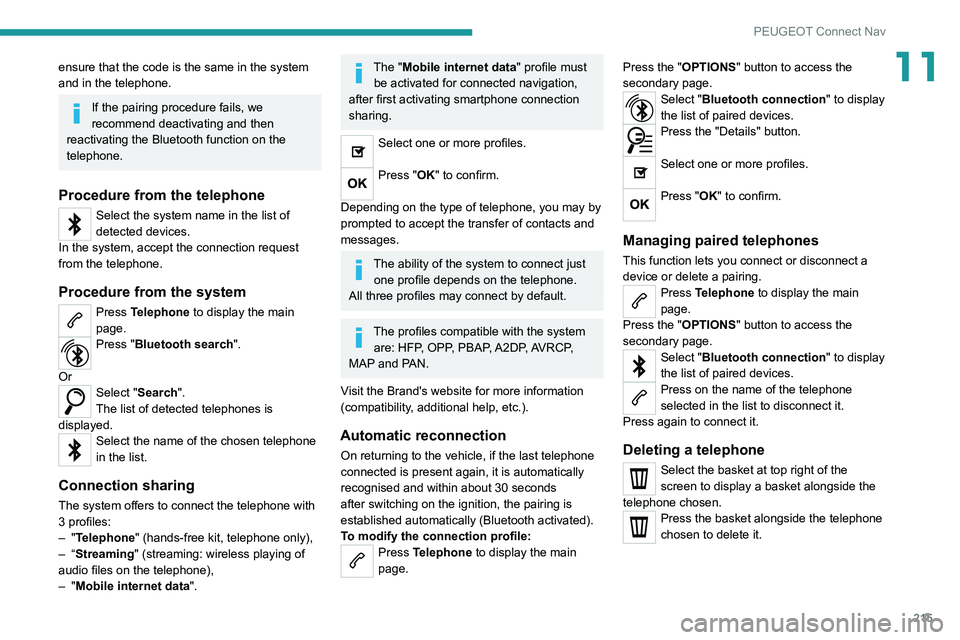
11ensure that the code is the same in the system
and in the telephone.
If the pairing procedure fails, we
recommend deactivating and then
reactivating the Bluetooth function on the
telephone.
Procedure from the telephone
Select the system name in the list of
detected devices.
In the system, accept the connection request
from the telephone.
Procedure from the system
Press Telephone to display the main
page.
Press "Bluetooth search".
Or
Select "Search".
The list of detected telephones is
displayed.
Select the name of the chosen telephone
in the list.
Connection sharing
The system offers to connect the telephone with
3 profiles:
–
"Telephone" (hands-free kit, telephone only),
–
“Streaming" (streaming: wireless playing of
audio files on the telephone),
–
"Mobile internet data ".
The "Mobile internet data " profile must
be activated for connected navigation,
after first activating smartphone connection
sharing.
Select one or more profiles.
Press "OK" to confirm.
Depending on the type of telephone, you may by
prompted to accept the transfer of contacts and
messages.
The ability of the system to connect just one profile depends on the telephone.
All three profiles may connect by default.
The profiles compatible with the system are: HFP, OPP, PBAP, A2DP, AVRCP,
MAP and PAN.
Visit the Brand's website for more information
(compatibility, additional help, etc.).
Automatic reconnection
On returning to the vehicle, if the last telephone
connected is present again, it is automatically
recognised and within about 30 seconds
after switching on the ignition, the pairing is
established automatically (Bluetooth activated).
To modify the connection profile:
Press Telephone to display the main
page. Press the "OPTIONS
" button to access the
secondary page.
Select "Bluetooth connection" to display
the list of paired devices.
Press the "Details" button.
Select one or more profiles.
Press "OK" to confirm.
Managing paired telephones
This function lets you connect or disconnect a
device or delete a pairing.
Press Telephone to display the main
page.
Press the "OPTIONS " button to access the
secondary page.
Select "Bluetooth connection" to display
the list of paired devices.
Press on the name of the telephone
selected in the list to disconnect it.
Press again to connect it.
Deleting a telephone
Select the basket at top right of the
screen to display a basket alongside the
telephone chosen.
Press the basket alongside the telephone
chosen to delete it.
Page 226 of 244
224
Alphabetical index
F
Fatigue detection 114–115
Filling the AdBlue® tank
147
Filling the fuel tank
131–132
Filter, air
144
Filter, oil
144
Filter, particle
144
Filter, passenger compartment
43, 144
Fitting a wheel
158–160
Fitting roof bars
140
Fittings, boot
40
Fittings, interior
37
Flap, fuel filler
131–132
Flashing indicators
53
Fluid, brake
143
Fluid, engine coolant
143
Foglamp, rear
50, 164–166
Foglamps, front
50, 163
Foglamps, rear
50
Folding the rear seats
35–36
Frequency (radio)
212
Fuel
6, 131
Fuel consumption
6
Fuel tank
131
Fusebox, dashboard
166
Fusebox, engine compartment
166, 168
Fuses
166–168
G
Gauge, fuel 131–132
Gearbox, automatic
89–91, 93–99, 145, 170
Gearbox, manual
89–90, 98–99, 145
Gear lever, automatic gearbox
91, 95
Gear lever, manual gearbox
89–90
Gear shift indicator ~ Gear efficiency
indicator
97
Glove box, refrigerated
37
G.P.S.
206
H
Hazard warning lamps 41, 58
headlamp adjustment
54
Headlamp adjustment
54
Headlamps, automatic dipping
52–53
Headlamps, automatic illumination
51
Headlamps, dipped beam
161–162
Headlamps, halogen
54, 161
Headlamps, main beam
161–162
Headlamp wash
55
Head restraints, front
30
Head restraints, rear
35–37
Heating
42–44
Hill start assist
89
Horn
61
I
Ignition 46, 84, 216
Ignition on
84
Immobiliser, electronic
23, 82
Indicator, AdBlue® range
15
Indicator, coolant temperature
15
Indicator, engine oil level
14
Indicators, direction
53
Inflating tyres
145, 183
Inflating tyres and accessories
(using the kit)
151, 153–156
Infrared camera
101
Instrument panel
7, 17–18, 102
Instrument panels
7
Internet browser
207, 210
ISOFIX
76
ISOFIX mountings
74–75
J
Jack 150–151, 157, 213
Jump starting
170
K
Key 19–21, 23, 25
Key, electronic
21–22
Keyless Entry and Starting
21–23, 84–85
Key not recognised
85
Page 228 of 244
226
Alphabetical index
Priming pump 174
Priming the fuel system
174
Profiles
194, 217
Protecting children
67–70, 72, 74–76, 79
Puncture
151, 153–157
R
Radar (warnings) 101
Radio
187–188, 190, 211–212
Radio, digital (Digital Audio
Broadcasting - DAB)
189, 213
Range, AdBlue®
15
RDS
188, 212
Rear screen, demisting
47
Recharging the battery
170–171
Recirculation, air
44–46
Recovery
173–174
Reduction of electrical load
140
Regeneration of the particle filter
144
Reinitialisation of the under-inflation
detection system
100
Reinitialising the remote control
24–25
Reminder, key in ignition
84
Remote control
19–23
Removing a wheel
158–160
Removing the mat
38
Replacing bulbs
160–161, 164–166
Replacing fuses
166–168
Replacing the air filter
144
Replacing the oil filter
144
Replacing the passenger compartment
filter
144
Reservoir, screenwash
143
Reset trip
18
Rev counter
7
Reversing camera
101, 122–123
Reversing lamp
164–166
Roof bars
140
Running out of fuel (Diesel)
174
S
Safety, children 67–70, 72, 74–76, 79
Saturation of the particle filter (Diesel)
144
Screen, cold climate
133
Screen menu map
191
Screenwash
55
Screenwash, rear
55
SCR (Selective Catalytic Reduction)
16, 146
Seat belts
64–65, 71
Seat belts, rear
65
Seat, rear bench
35–36
Seats, electric
31
Seats, front
30–32
Seats, heated
32
Seats, rear
35–36, 69
Selector, gear
93–96
Sensors (warnings)
101
Serial number, vehicle
183
Service indicator
14, 17
Servicing
14, 144, 145
Settings, system 194, 218
Sidelamps
51, 161–162, 164–166
Ski flap
39
Snow chains
100, 133
Socket, 12 V accessory
37, 39–40
Socket, 230 V
37
Socket, auxiliary
190, 213
Socket, Jack
37, 213
Sockets, audio
39
Speed limiter
103–105
Speed limit recognition
102
Speedometer
7, 102
Spotlamps, side
53
Stability control (ESC)
62–63
Starting a Diesel engine
131
Starting the engine
82–83
Starting the vehicle
84–85, 91, 93–96
Starting using another battery
85, 170
Station, radio
187–188, 211–212
Stay, bonnet
141
Steering mounted controls, audio
185, 199
Steering wheel, adjustment
33
Stickers, customising ~ Stickers,
expressive
149
Stopping the vehicle
84–85, 91, 93–96
Stop & Start
18, 43, 47, 97–99,
131, 141, 144, 169, 172
Storage
37–40
Storage wells
40
Storing driving positions
32
Stowing rings
40
Sunshine sensor
43