android auto Peugeot 308 2021 User Guide
[x] Cancel search | Manufacturer: PEUGEOT, Model Year: 2021, Model line: 308, Model: Peugeot 308 2021Pages: 244, PDF Size: 8.21 MB
Page 202 of 244
200
PEUGEOT Connect Nav
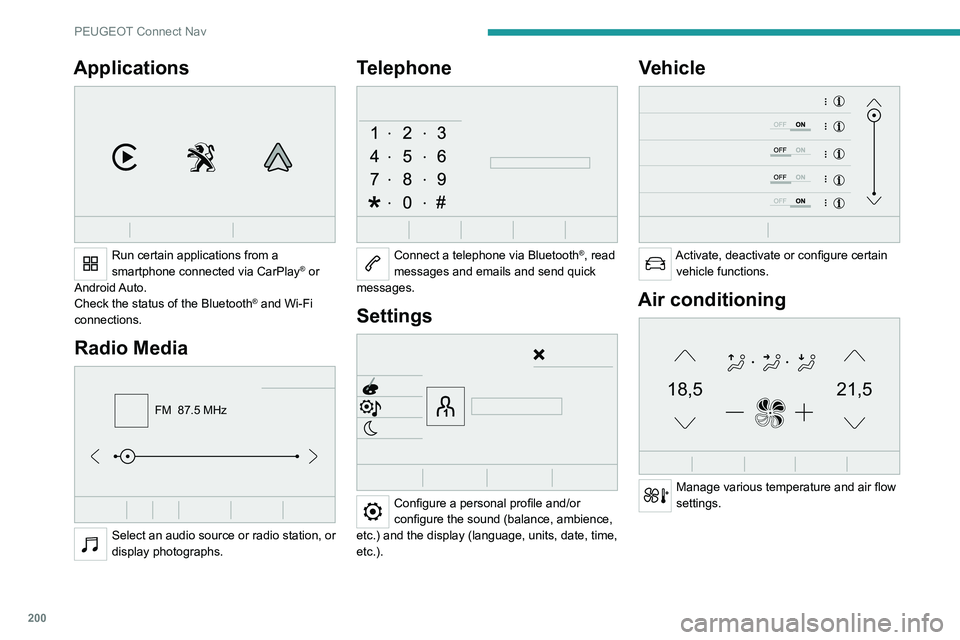
Applications
Run certain applications from a
smartphone connected via CarPlay® or
Android Auto.
Check the status of the
Bluetooth
® and Wi-Fi
connections.
Radio Media
FM 87.5 MHz
Select an audio source or radio station, or
display photographs.
Telephone
Connect a telephone via Bluetooth®, read
messages and emails and send quick
messages.
Settings
Configure a personal profile and/or
configure the sound (balance, ambience,
etc.) and the display (language, units, date, time,
etc.).
Vehicle
Activate, deactivate or configure certain vehicle functions.
Air conditioning
21,518,5
Manage various temperature and air flow
settings.
Page 211 of 244
209
PEUGEOT Connect Nav
11Select the "Settings” tab.
Select the desired fuel.
Press "OK" to save.
Displaying charging station
details
Press Navigation to display the main
page.
Press this button to display the list of
services.
Press "POI on map" to display the list
of points of interest.
Press one of the buttons to search for
"Stations".
Activate/deactivate "Stations".
Press this button to display a secondary
page.
Select the "Settings” tab.
Select the desired connector type.
Press "OK" to save.
Displaying weather
information
Press Navigation to display the main
page.
Press this button to display the list of
services.
Select "View map".
Select "Weather".
Press this button to display basic
information.
Press this button to display detailed
weather information.
The temperature displayed at 6 a.m. will be the maximum temperature for the day.
The temperature displayed at 6 p.m. will be
the minimum temperature for the night.
Applications
USB ports
Depending on equipment, for more information
on the USB ports compatible with CarPlay®,
MirrorLinkTM or Android Auto applications, refer
to the "Ease of use and comfort" section.
For the list of suitable smartphones, visit
the Brand's national website.
Synchronising a smartphone enables
users to display applications that support
the smartphone’s MirrorLinkCarPlay
®, TM or
Android Auto
technology on the vehicle’s
screen. For CarPlay
® technology, the
CarPlay® function must first be activated on
the smartphone.
In all cases, the smartphone must be
unlocked, to enable the communication
process between the smartphone and the
system to function.
As principles and standards are constantly
changing, we recommend keeping the
smartphone's operating system up-to-
date, together with the date and time on
the smartphone and the system.
Connectivity
Press Applications to display the main
page.
Press "Connectivity" to access the CarPlay
®,
MirrorLinkTM or Android Auto functions.
CarPlay® smartphone
connection
Connect a USB cable. The smartphone
charges when connected by a USB cable.
Press "Telephone" to display the
CarPlay® interface.
Or
Connect a USB cable. The smartphone
charges when connected by a USB cable.
From the system, press "Applications " to
display the main page.
Press "Connectivity" to access the "CarPlay
®”
function.
Page 212 of 244
210
PEUGEOT Connect Nav
Press "CarPlay" to display the CarPlay®
interface.
On connecting the USB cable, the
CarPlay® function deactivates the
system's Bluetooth® mode.
When the USB cable is disconnected
and the ignition is switched off then back
on, the system will not automatically switch to
Radio Media mode; the source must be
changed manually.
Android Auto smartphone connection
Install the "Android Auto" application on
the smartphone via "Google Play".
The "Android Auto" function requires the use
of a compatible smartphone and applications.
Connect a USB cable. The smartphone
charges when connected by a USB cable.
From the system, press "Applications " to
display the main page.
Press "Connectivity" to access the "Android
Auto” function.
Press "Android Auto" to start the
application in the system.
During the procedure, several screen
pages relating to certain features are
displayed.
Accept to start and complete the connection.
Access to the different audio sources remains
available in the margin of the Android Auto
display, using the touch buttons located in the
upper bar.
Access to the menus for the system is possible
at any time using the dedicated buttons.
In Android Auto mode, the function that
displays rolling menus by briefly pressing
the screen with three fingers is disabled.
There may be a pause before applications become available,
depending on the quality of the network.
Car Apps
Press Applications to display the main
page.
Press "Car Apps" to display the applications
home page.
Internet Browser
Press Applications to display the main
page.
Press "Connectivity" to access the "Connected
Apps” function.
Press "Connected Apps" to display the browser
home page.
Select the country of residence.
Press "OK" to save and start the browser.
Connection to the internet is via one of
the network connections provided by the
vehicle or the user.
Bluetooth connection®
The services available depend on the network, the SIM card and the
compatibility of the Bluetooth devices used.
Consult the smartphone user guide and the
service provider to check which services are
available.
The Bluetooth function must be activated and the smartphone configured as
"Visible to all".
To complete the pairing, whichever procedure is
used (from the smartphone or from the system),
ensure that the code is the same in the system
and in the smartphone.
If the pairing procedure fails, we
recommend deactivating and then
reactivating the Bluetooth function on the
smartphone.
Procedure from the smartphone
Select the name of the system in the list
of detected devices.
In the system, accept the connection request
from the smartphone.
Page 224 of 244
222
Alphabetical index
3D digital instrument panel 7
A
ABS 62
Accessories
26, 58, 84
Active Safety Brake
112–114
AdBlue®
15, 146
AdBlue® tank
147
Additive, Diesel
144
Adjusting headlamps
54
Adjusting head restraints
30
Adjusting seat
30–31
Adjusting the air distribution
44–46
Adjusting the air flow
44–46
Adjusting the date
195, 218
Adjusting the height and reach of
the steering wheel
33
Adjusting the lumbar support
31
Adjusting the seat angle
31
Adjusting the temperature
44–46
Adjusting the time
195, 218
Advice on care and maintenance
148
Advice on driving
6, 81
Affaire version
182
Airbags
66, 68, 70
Airbags, curtain
67–68
Airbags, front
67–68, 70
Airbags, lateral
67–68
Air conditioning
43, 43–44
Air conditioning, automatic
44–46
Air conditioning, digital 47
Air conditioning, manual
43–44
Air intake
46
Air vents
42
Alarm
26–28
Android Auto connection
210
Anti-lock braking system (ABS)
62
Anti-pinch
28–29, 47–48
Antitheft / Immobiliser
23
Apple CarPlay connection
191, 209
Applications
210
Armrest
37
Armrest, front
38–39
Armrest, rear
39
Assistance call
59–60
Assistance, emergency braking
62, 113
Audible warning
61
Audio streaming (Bluetooth)
190, 214
B
Battery 139, 169
Battery, 12 V
144, 169–172
Battery, charging
170–171
Battery, remote control
23–25
Bicycle carrier
26
Blanking screen (snow shield)
133, 135
Blind, panoramic roof
47–48
Blind spot monitoring system, active
120
Blind spot sensors
119–120
BlueHDi
15, 174
Bluetooth (hands-free) 192–193, 214–215
Bluetooth (telephone)
192–193, 214–215
Bodywork
149
Bonnet
141
Boot
20, 25
Boot light
40
Brake discs
145–146
Brake lamps
164–166
Brakes
145–146
Braking assistance system
62
Braking, automatic emergency
112–114
Braking, dynamic emergency
86–88
Brightness
194
Bulbs (changing)
160–161, 164–166
C
Cable, audio 213
Cable, Jack
213
Capacity, fuel tank
131–132
Cap, fuel filler
131–132
Care of the bodywork
149
CD
190
CD, MP3
190
Central locking
20–22
Changing a bulb
160–161, 164–166
Changing a fuse
166–168
Changing a wheel
150, 157–158
Changing a wiper blade
55–56
Changing the remote control battery
24–25
CHECK
17