ECO mode Peugeot 308 2021 Workshop Manual
[x] Cancel search | Manufacturer: PEUGEOT, Model Year: 2021, Model line: 308, Model: Peugeot 308 2021Pages: 244, PDF Size: 8.21 MB
Page 210 of 244
208
PEUGEOT Connect Nav
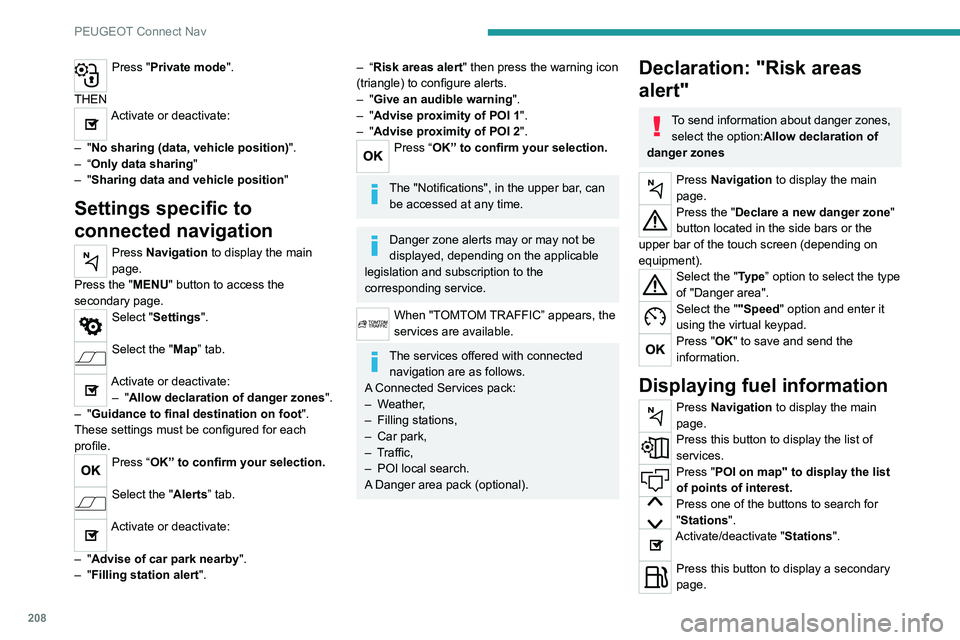
Press "Private mode".
THEN
Activate or deactivate:
–
"No sharing (data, vehicle position) ".
–
“Only data sharing "
–
"Sharing data and vehicle position "
Settings specific to
connected navigation
Press Navigation to display the main
page.
Press the "MENU" button to access the
secondary page.
Select "Settings".
Select the "Map” tab.
Activate or deactivate: – "Allow declaration of danger zones ".
–
"Guidance to final destination on foot ".
These settings must be configured for each
profile.
Press “OK” to confirm your selection.
Select the "Alerts” tab.
Activate or deactivate:
–
"Advise of car park nearby ".
–
"Filling station alert ".
– “Risk areas alert" then press the warning icon
(triangle) to configure alerts.
–
"Give an audible warning ".
–
"Advise proximity of POI 1 ".
–
"Advise proximity of POI 2 ".
Press “OK” to confirm your selection.
The "Notifications", in the upper bar, can
be accessed at any time.
Danger zone alerts may or may not be
displayed, depending on the applicable
legislation and subscription to the
corresponding service.
When "TOMTOM TRAFFIC” appears, the
services are available.
The services offered with connected navigation are as follows.
A Connected Services pack:
–
Weather,
–
Filling stations,
–
Car park,
–
T
raffic,
–
POI local search.
A
Danger area pack (optional).
Declaration: "Risk areas
alert"
To send information about danger zones, select the option:Allow declaration of
danger zones
Press Navigation to display the main
page.
Press the "Declare a new danger zone"
button located in the side bars or the
upper bar of the touch screen (depending on
equipment).
Select the "Type” option to select the type
of "Danger area".
Select the ""Speed" option and enter it
using the virtual keypad.
Press "OK" to save and send the
information.
Displaying fuel information
Press Navigation to display the main
page.
Press this button to display the list of
services.
Press "POI on map" to display the list
of points of interest.
Press one of the buttons to search for
"Stations".
Activate/deactivate "Stations".
Press this button to display a secondary
page.
Page 212 of 244
210
PEUGEOT Connect Nav
Press "CarPlay" to display the CarPlay®
interface.
On connecting the USB cable, the
CarPlay® function deactivates the
system's Bluetooth® mode.
When the USB cable is disconnected
and the ignition is switched off then back
on, the system will not automatically switch to
Radio Media mode; the source must be
changed manually.
Android Auto smartphone connection
Install the "Android Auto" application on
the smartphone via "Google Play".
The "Android Auto" function requires the use
of a compatible smartphone and applications.
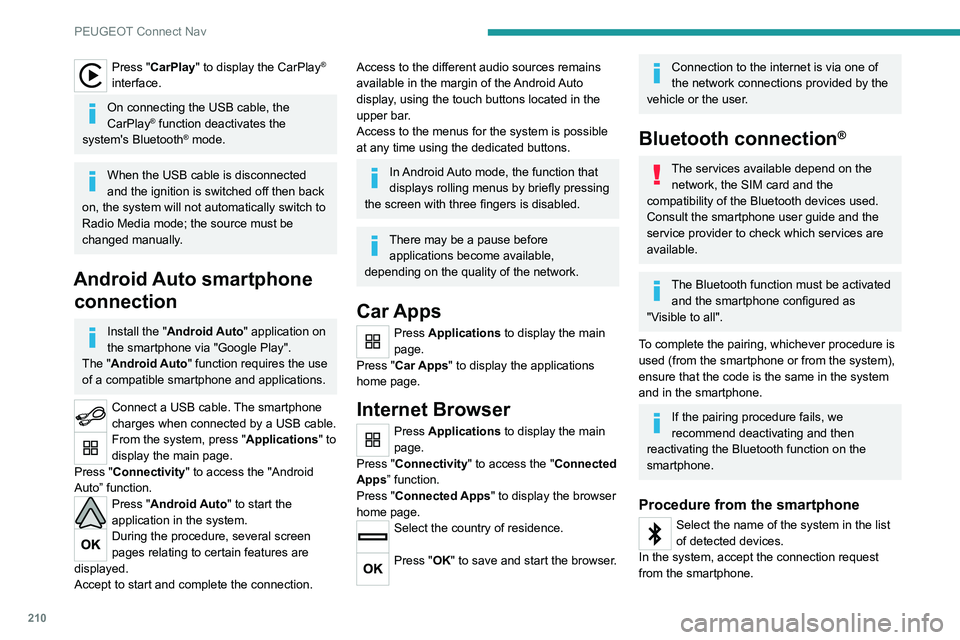
Connect a USB cable. The smartphone
charges when connected by a USB cable.
From the system, press "Applications " to
display the main page.
Press "Connectivity" to access the "Android
Auto” function.
Press "Android Auto" to start the
application in the system.
During the procedure, several screen
pages relating to certain features are
displayed.
Accept to start and complete the connection.
Access to the different audio sources remains
available in the margin of the Android Auto
display, using the touch buttons located in the
upper bar.
Access to the menus for the system is possible
at any time using the dedicated buttons.
In Android Auto mode, the function that
displays rolling menus by briefly pressing
the screen with three fingers is disabled.
There may be a pause before applications become available,
depending on the quality of the network.
Car Apps
Press Applications to display the main
page.
Press "Car Apps" to display the applications
home page.
Internet Browser
Press Applications to display the main
page.
Press "Connectivity" to access the "Connected
Apps” function.
Press "Connected Apps" to display the browser
home page.
Select the country of residence.
Press "OK" to save and start the browser.
Connection to the internet is via one of
the network connections provided by the
vehicle or the user.
Bluetooth connection®
The services available depend on the network, the SIM card and the
compatibility of the Bluetooth devices used.
Consult the smartphone user guide and the
service provider to check which services are
available.
The Bluetooth function must be activated and the smartphone configured as
"Visible to all".
To complete the pairing, whichever procedure is
used (from the smartphone or from the system),
ensure that the code is the same in the system
and in the smartphone.
If the pairing procedure fails, we
recommend deactivating and then
reactivating the Bluetooth function on the
smartphone.
Procedure from the smartphone
Select the name of the system in the list
of detected devices.
In the system, accept the connection request
from the smartphone.
Page 213 of 244
2 11
PEUGEOT Connect Nav
11Procedure from the system
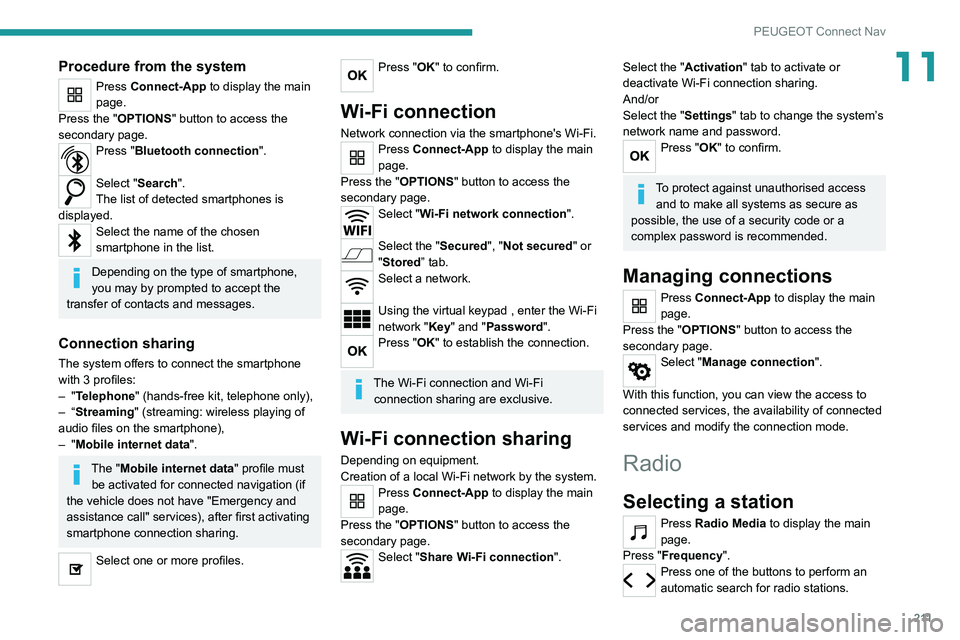
Press Connect-App to display the main
page.
Press the "OPTIONS " button to access the
secondary page.
Press "Bluetooth connection".
Select "Search".
The list of detected smartphones is
displayed.
Select the name of the chosen
smartphone in the list.
Depending on the type of smartphone,
you may by prompted to accept the
transfer of contacts and messages.
Connection sharing
The system offers to connect the smartphone
with 3 profiles:
–
"Telephone" (hands-free kit, telephone only),
–
“Streaming" (streaming: wireless playing of
audio files on the smartphone),
–
"Mobile internet data ".
The "Mobile internet data " profile must
be activated for connected navigation (if
the vehicle does not have "Emergency and
assistance call" services), after first activating
smartphone connection sharing.
Select one or more profiles.
Press "OK" to confirm.
Wi-Fi connection
Network connection via the smartphone's Wi-Fi.Press Connect-App to display the main
page.
Press the "OPTIONS " button to access the
secondary page.
Select "Wi-Fi network connection".
Select the "Secured", "Not secured" or
"Stored” tab.
Select a network.
Using the virtual keypad , enter the Wi-Fi
network "Key" and "Password".
Press "OK" to establish the connection.
The Wi-Fi connection and Wi-Fi connection sharing are exclusive.
Wi-Fi connection sharing
Depending on equipment.
Creation of a local Wi-Fi network by the system.
Press Connect-App to display the main
page.
Press the "OPTIONS " button to access the
secondary page.
Select "Share Wi-Fi connection".
Select the "Activation" tab to activate or
deactivate Wi-Fi connection sharing.
And/or
Select the "Settings" tab to change the system’s
network name and password.
Press "OK" to confirm.
To protect against unauthorised access and to make all systems as secure as
possible, the use of a security code or a
complex password is recommended.
Managing connections
Press Connect-App to display the main
page.
Press the "OPTIONS " button to access the
secondary page.
Select "Manage connection".
With this function, you can view the access to
connected services, the availability of connected
services and modify the connection mode.
Radio
Selecting a station
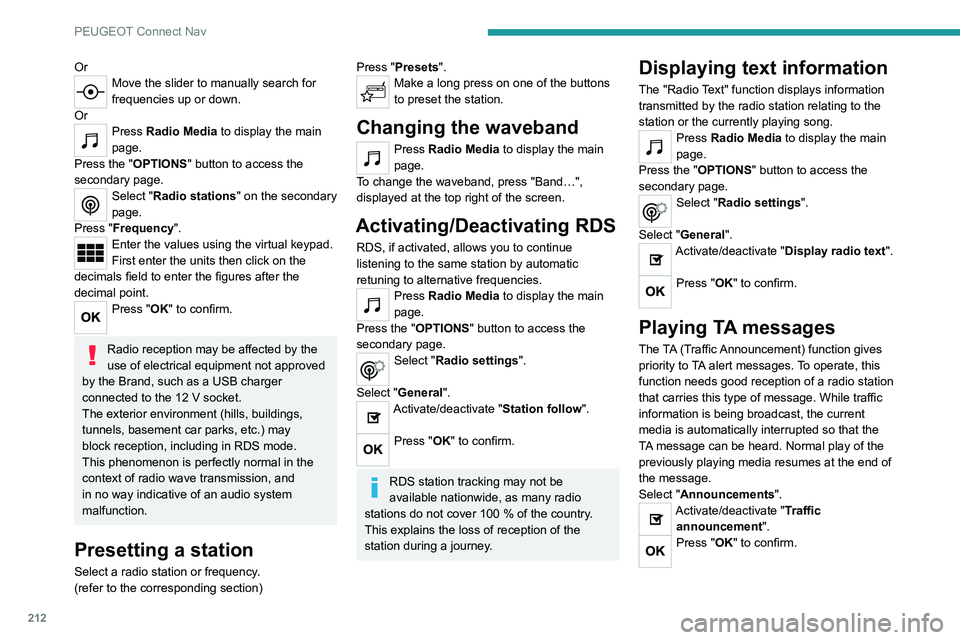
Press Radio Media to display the main
page.
Press "Frequency".
Press one of the buttons to perform an
automatic search for radio stations.
Page 214 of 244
212
PEUGEOT Connect Nav
OrMove the slider to manually search for
frequencies up or down.
Or
Press Radio Media to display the main
page.
Press the "OPTIONS " button to access the
secondary page.
Select "Radio stations" on the secondary
page.
Press "Frequency".
Enter the values using the virtual keypad.
First enter the units then click on the
decimals field to enter the figures after the
decimal point.
Press "OK" to confirm.
Radio reception may be affected by the
use of electrical equipment not approved
by the Brand, such as a USB charger
connected to the 12 V socket.
The exterior environment (hills, buildings,
tunnels, basement car parks, etc.) may
block reception, including in RDS mode.
This phenomenon is perfectly normal in the
context of radio wave transmission, and
in no way indicative of an audio system
malfunction.
Presetting a station
Select a radio station or frequency.
(refer to the corresponding section)
Press "Presets ".Make a long press on one of the buttons
to preset the station.
Changing the waveband
Press Radio Media to display the main
page.
To change the waveband, press "Band…",
displayed at the top right of the screen.
Activating/Deactivating RDS
RDS, if activated, allows you to continue
listening to the same station by automatic
retuning to alternative frequencies.
Press Radio Media to display the main
page.
Press the "OPTIONS " button to access the
secondary page.
Select "Radio settings".
Select "General".
Activate/deactivate "Station follow ".
Press "OK" to confirm.
RDS station tracking may not be
available nationwide, as many radio
stations do not cover 100
% of the country.
This explains the loss of reception of the
station during a journey.
Displaying text information
The "Radio Text" function displays information
transmitted by the radio station relating to the
station or the currently playing song.
Press Radio Media to display the main
page.
Press the "OPTIONS " button to access the
secondary page.
Select "Radio settings".
Select "General".
Activate/deactivate "Display radio text".
Press "OK" to confirm.
Playing TA messages
The TA (Traffic Announcement) function gives
priority to TA alert messages. To operate, this
function needs good reception of a radio station
that carries this type of message. While traffic
information is being broadcast, the current
media is automatically interrupted so that the
TA message can be heard. Normal play of the
previously playing media resumes at the end of
the message.
Select "Announcements".
Activate/deactivate "Traffic announcement".
Press "OK" to confirm.
Page 216 of 244
214
PEUGEOT Connect Nav
Press Radio Media to display the main
page.
Select "SOURCES".
Select Video to start the video.
To remove the USB memory stick, press the pause button to stop the video, then
remove the memory stick.
The system can play video files in the MPEG-4
Part 2, MPEG-2, MPEG-1, H.264, H.263, VP8,
WMV and RealVideo formats.
Streaming Bluetooth®
Streaming allows you to listen to the audio feed
from your smartphone.
The Bluetooth profile must be activated.
First adjust the volume on the portable device (to
a high level).
Then adjust the volume of the audio system.
If play does not start automatically, it may be
necessary to start the audio playback from the
smartphone.
Control is from the portable device or by using
the system's touch buttons.
Once connected in streaming mode, the
smartphone is considered to be a media
source.
Connecting Apple® players
Connect the Apple® player to the USB port using
a suitable cable (not supplied).
Play starts automatically.
Control is via the audio system.
The classifications available are those of the portable device connected (artists/
albums/genres/playlists/audio books/
podcasts).
The default classification used is by artist. To
modify the classification used, return to the
first level of the menu then select the desired
classification (playlists for example) and
confirm to go down through the menu to the
desired track.
The version of software in the audio system may
not be compatible with the generation of the
Apple
® player.
Information and advice
The system supports USB mass storage
devices, BlackBerry® devices and Apple® players
via the USB ports. The adapter cable is not
supplied.
Devices are managed using the audio system
controls.
Other devices, not recognised on connection,
must be connected to the auxiliary socket using
a jack cable (not supplied) or via Bluetooth
streaming, if compatible.
The audio system will only play audio files with
".wma", ".aac", ".flac", ".ogg" and ".mp3" file
extensions, at bit rates between 32 Kbps and
320 Kbps.
It also supports VBR (Variable Bit Rate) mode.
No other file types (".mp4", etc.) can be read.
All ".wma" files must be standard WMA 9 files.
The supported sampling rates are 32, 44 and
48 KHz.
To avoid reading and display problems, we
recommend choosing file names less than 20
characters long that do not contain any special
characters (e.g. “ ? .
; ù).
Use only USB memory sticks in FAT32 format
(File Allocation Table).
We recommend using the original USB
cable for the portable device.
Telephone
Pairing a Bluetooth®
telephone
The services available depend on the
network, the SIM card and the
compatibility of the Bluetooth devices used.
Consult the telephone user guide and the
service provider to check which services are
available.
The Bluetooth function must be activated and the telephone configured as "Visible
to all” (in the telphone settings).
To complete the pairing, whichever procedure is
used (from the telephone or from the system),
Page 222 of 244
220
PEUGEOT Connect Nav
On starting, a few minutes may elapse before
the system begins to receive traffic information.
►
W
ait until traffic information is being received
correctly (traffic information icons shown on the
map).
In certain countries, only major routes
(motorways, etc.) are listed for the traffic
information.
This is perfectly normal. The system is
dependent on the traffic information available.
The altitude is not displayed.
On starting, GPS initialisation may take up to
3 minutes to receive more than 4 satellites
correctly.
►
W
ait until the system has started up
completely so that there is GPS coverage by at
least 4
satellites.
Depending on the geographical environment
(tunnel, etc.) or the weather, the conditions of
reception of the GPS signal may vary.
This behaviour is normal. The system is
dependent on the GPS signal reception
conditions.
My navigation is no longer connected.
During start-up and in certain geographical
areas, the connection may be unavailable.
►
Check that the online services are activated
(settings, contract).
Radio
The reception quality of the tuned radio
station gradually deteriorates or the station presets are not working (no sound, 87.5 MHz
is displayed, etc.).
The vehicle is too far from the selected station’s
transmitter, or no transmitter is present in the
geographical area.
►
Activate the "RDS" function by means of the
short-cut menu to enable the system to check
whether there is a more powerful transmitter in
the geographical area.
The aerial is missing or has been damaged
(for example while entering a car wash or
underground car park).
►
Have the aerial checked by a dealer
.
The environment (hills, buildings, tunnels,
basement car parks, etc.) is blocking reception,
including in RDS mode.
This is a perfectly normal phenomenon, and is
not indicative of an audio system malfunction.
I cannot find some radio stations in the list of
stations received.
The name of the radio station changes.
The station is no longer received or its name has
changed in the list.
Some radio stations send other information
in place of their name (the title of the song for
example).
The system interprets these details as the station
name.
►
Press the "Update list" button in the "Radio
stations” secondary menu.
Media
Playback of my USB memory stick starts only
after a very long wait (around 2 to 3 minutes).
Some files supplied with the memory stick may
greatly slow down access to reading the memory
stick (multiplication by 10 of the cataloguing
time).
►
Delete the files supplied with the memory
stick and limit the number of sub-folders in the
file structure on the memory stick.
There may be an extended pause after
inserting a USB stick.
The system reads a variety of data (folder
, title,
artist, etc.). This can take from a few seconds to
a few minutes.
This is perfectly normal.
Some characters in information about the
currently playing media may not be displayed
correctly.
The audio system is unable to process certain
types of character.
►
Use standard characters to name tracks and
folders.
Playback of streaming files does not start.
The connected device does not automatically
launch playback.
►
Start playback from the device.
T
rack names and playing times are not
displayed on the audio streaming screen.
The Bluetooth profile does not allow the transfer
of this information.
Page 223 of 244
221
PEUGEOT Connect Nav
11Telephone
I cannot connect my Bluetooth telephone.
The telephone's Bluetooth function may be
switched off or the telephone may not be visible.
►
Check that the telephone has Bluetooth
switched on.
►
Check in the telephone settings that it is
"visible to all".
►
Deactivate then reactivate the telphone’
s
Bluetooth function.
The Bluetooth telephone is not compatible with
the system.
►
Y
ou can check that your telephone is
compatible on the Brand's website (services).
The volume of the telephone connected in
Bluetooth mode is inaudible.
The volume depends on both the system and the
telephone.
►
Increase the volume of the audio system, to
maximum if required, and increase the volume of
the telephone if necessary
.
Ambient noise affects the quality of the
telephone call.
►
Reduce the ambient noise level (close
windows, reduce ventilation, slow down, etc.).
Some contacts are duplicated in the list.
The options for synchronising contacts are:
synchronise the contacts on the SIM card, the
contacts on the telephone, or both. When both
synchronisations are selected, some contacts
may be duplicated. ►
Select "Display SIM card contacts" or
"Display telephone contacts".
The contacts are not listed in alphabetical
order
.
Some telephones offer display options.
Depending on the settings chosen, contacts can
be transferred in a specific order.
►
Modify the telephone directory display
settings.
The system does not receive SMS.
SMS text messages cannot be sent to the
system in Bluetooth mode.
Settings
When the treble and bass settings are
changed, the ambience is deselected.
When the ambience is changed, the treble
and bass settings are reset.
Selecting an ambience imposes the treble and
bass settings, and vice versa.
►
Modify the treble and bass or ambience
settings to obtain the desired musical ambience.
When the balance settings are changed, the
distribution is deselected.
When the distribution setting is changed, the
balance settings are deselected.
Selecting a distribution setting imposes the
balance settings, and vice versa.
►
Modify the balance setting or the distribution
setting to obtain the desired sound quality
.
There is a difference in sound quality
between audio sources. To allow for optimal listening quality, the sound
settings can be tailored to different audio
sources, which can generate audible differences
when changing source.
►
Check that the sound settings are appropriate
to the sources listened to. W
e recommend
setting the sound functions (Bass:, Treble:,
Balance) to the middle position, setting the
musical ambience to "None", setting loudness
correction to "Active" in USB mode and "Inactive"
in Radio mode.
►
In all cases, after applying sound settings,
adjust the volume level on the portable device (to
a high level) first.
Then adjust the volume level
on the audio system.
When the engine is off, the system switches
off after several minutes of use.
When the engine is switched off, the system's
operating time depends on the state of charge of
the battery.
The switch-off is normal: the system
automatically goes into energy economy mode
and switches off to maintain an adequate charge
in the battery.
►
Start the vehicle’
s engine to increase the
charge of the battery.
The date and time cannot be set.
Setting of the date and time is only available
if the synchronisation with the satellites is
deactivated.
►
Settings menu / Options /
Time-Date setting.
Select the "Time" tab and deactivate the "GPS
synchronisation" (UTC).
Page 225 of 244
223
Alphabetical index
Checking the engine oil level 14
Checking the levels
142–143
Checking tyre pressures
(using the kit)
151, 153–156
Checks
141–142, 144–146
Checks, routine
144–146
Child lock
79
Children
65, 74–76
Children (safety)
79
Child seats
65, 68–72, 79
Child seats, conventional
71
Child seats, ISOFIX
74–76
Cleaning (advice)
148–149
Closing the boot
20, 25
Closing the doors
20–22, 25
Collision Risk Alert
112–113
Commercial
182
Connected applications
210
Connection, Bluetooth
192–193,
210–211, 214–215
Connection, MirrorLink
191–192
Connection, Wi-Fi network
2 11
Connectivity
209
Container, AdBlue®
147
Control, electric windows
28–29
Control, emergency boot release
26
Control, emergency door
23
Control, heated seats
32
Controls, steering mounted
93–96
Control stalk, lighting
50
Control stalk, wipers
54–57
Courtesy lamps
48–49Cover, load space 40–42
Cruise control
103, 105–110, 112
Cruise control, adaptive
107–108
Cruise control by speed limit recognition
103
Cruise control, dynamic with
Stop function
103, 108–110
Cup holder
37
D
DAB (Digital Audio Broadcasting) -
Digital radio
189, 213
Date (setting)
195, 218
Daytime running lamps
51, 161–162
Deactivating the passenger airbag
67, 70
Deactivation of DSC (ESC)
62
Deadlocking
20, 22
Defrosting
47
Demisting
47
Demisting, rear
33–34
Demisting, rear screen
33–34
Denon (audio system)
41–42
Dials and gauges
7
Digital instrument panel
7
Dimensions
181–182
Dipstick
14, 142
Direction indicators
53, 161–166
Display screen, instrument panel
97
Doors
25
Driver’s attention warning
11 5
Driver Sport Pack
96–97
Driving 81
Driving abroad
51
Driving aids camera (warnings)
101
Driving aids (recommendations)
100
Driving economically
6
Driving positions (storing)
32
Dynamic pack
96–97
Dynamic (sport)
96–97
Dynamic stability control (DSC)
62
E
EBFD 62
Eco-driving (advice)
6
Economy mode
139
Electric windows
28
Electronic brake force distribution (EBFD)
62
Emergency braking assistance (EBA)
62
Emergency call
59–60
Emergency switching off
85
Emergency warning lamps
41, 58
Emissions control system, SCR
16, 146
Energy economy mode
139
Engine compartment
141–142
Engine, Diesel
131, 142, 174, 179
Engine, petrol
141, 177, 179
Engines
176–177, 179
Environment
6, 24
ESC (electronic stability control)
62
Page 227 of 244
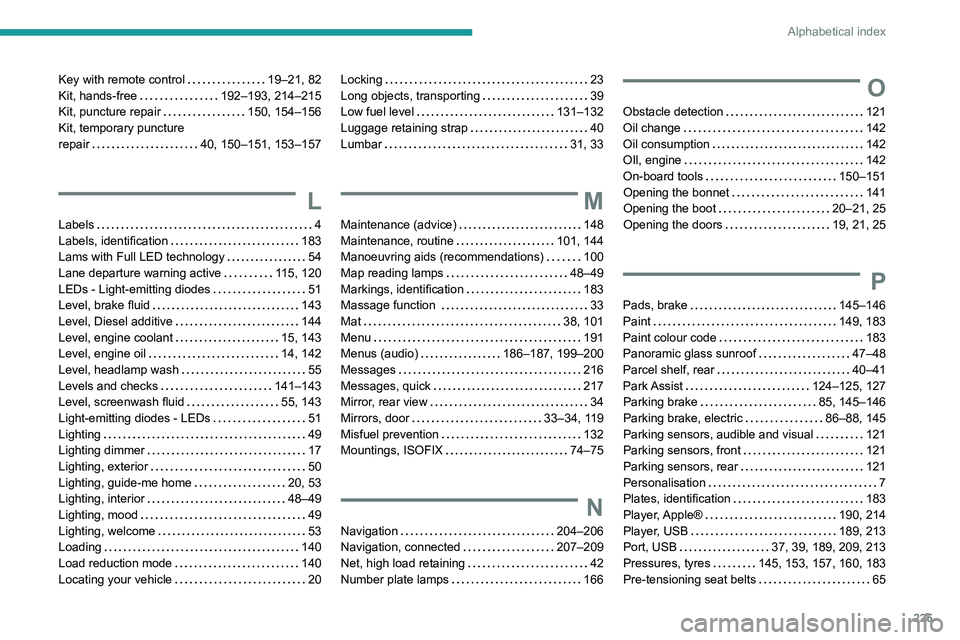
225
Alphabetical index
Key with remote control 19–21, 82
Kit, hands-free
192–193, 214–215
Kit, puncture repair
150, 154–156
Kit, temporary puncture
repair
40, 150–151, 153–157
L
Labels 4
Labels, identification
183
Lams with Full LED technology
54
Lane departure warning active
115, 120
LEDs - Light-emitting diodes
51
Level, brake fluid
143
Level, Diesel additive
144
Level, engine coolant
15, 143
Level, engine oil
14, 142
Level, headlamp wash
55
Levels and checks
141–143
Level, screenwash fluid
55, 143
Light-emitting diodes - LEDs
51
Lighting
49
Lighting dimmer
17
Lighting, exterior
50
Lighting, guide-me home
20, 53
Lighting, interior
48–49
Lighting, mood
49
Lighting, welcome
53
Loading
140
Load reduction mode
140
Locating your vehicle
20
Locking 23
Long objects, transporting
39
Low fuel level
131–132
Luggage retaining strap
40
Lumbar
31, 33
M
Maintenance (advice) 148
Maintenance, routine
101, 144
Manoeuvring aids (recommendations)
100
Map reading lamps
48–49
Markings, identification
183
Massage function
33
Mat
38, 101
Menu
191
Menus (audio)
186–187, 199–200
Messages
216
Messages, quick
217
Mirror, rear view
34
Mirrors, door
33–34, 119
Misfuel prevention
132
Mountings, ISOFIX
74–75
N
Navigation 204–206
Navigation, connected
207–209
Net, high load retaining
42
Number plate lamps
166
O
Obstacle detection 121
Oil change
142
Oil consumption
142
OIl, engine
142
On-board tools
150–151
Opening the bonnet
141
Opening the boot
20–21, 25
Opening the doors
19, 21, 25
P
Pads, brake 145–146
Paint
149, 183
Paint colour code
183
Panoramic glass sunroof
47–48
Parcel shelf, rear
40–41
Park Assist
124–125, 127
Parking brake
85, 145–146
Parking brake, electric
86–88, 145
Parking sensors, audible and visual
121
Parking sensors, front
121
Parking sensors, rear
121
Personalisation
7
Plates, identification
183
Player, Apple®
190, 214
Player, USB
189, 213
Port, USB
37, 39, 189, 209, 213
Pressures, tyres
145, 153, 157, 160, 183
Pre-tensioning seat belts
65