display PEUGEOT 308 2022 Owners Manual
[x] Cancel search | Manufacturer: PEUGEOT, Model Year: 2022, Model line: 308, Model: PEUGEOT 308 2022Pages: 260, PDF Size: 7.92 MB
Page 178 of 260
176
Practical information
With EAT8 automatic
gearbox and electric parking
brake
/
Release procedure
► With the vehicle stationary and the engine
running, depress the brake pedal and select
mode
N.
Within 5
seconds:
►
Depress and hold the brake pedal, then
observe this order: switch off the ignition and
move the push selector forwards or backwards.
►
Release the brake pedal, then switch on the
ignition again.
►
Place your foot on the brake and press the
electric parking brake control to release it.
►
Release the brake pedal, then switch off the
ignition.
A message is displayed on the instrument panel to confirm the unlocking
of the wheels for 15 minutes.
In Wash mode, a message may appear on
the instrument panel to indicate that the audio
system cannot be updated.
Reverting to normal operation
► While depressing the brake pedal, restart the
engine.
Keyless Entry and Start
You must not depress the brake pedal
while switching the ignition on again, then
switching it off. If you do, the engine will start,
requiring you to restart the procedure.
Advice on care and maintenance
General recommendations
Observe the following recommendations to avoid
damaging the vehicle.
Exterior
Never use a high-pressure jet wash in
the engine compartment - risk of
damaging the electrical components!
Do not wash the vehicle in bright sunshine or
extremely cold conditions.
When washing the vehicle in an
automatic roller-brush car wash, be sure
to lock the doors and, depending on version,
move the electronic key away and deactivate
the "hands-free" function (Hands-Free
Tailgate Access).
When using a pressure washer, keep the jet
nozzle at a minimum distance of 30 cm from
the vehicle (particularly when cleaning areas
containing chipped paint, sensors or seals).
Promptly clean up any stains containing
chemicals liable to damage the vehicle's
paintwork (including tree resin, bird
droppings, insect secretions, pollen and tar).
Depending on the environment, clean the
vehicle frequently to remove salty deposits
(in coastal areas), soot (in industrial areas)
and mud/salts (in wet or cold areas). These
substances can be highly corrosive.
Contact a PEUGEOT dealer or a qualified
workshop for advice on removing stubborn
stains requiring special products (such as tar
or insect removers).
Preferably, have paint touch-ups performed
by a PEUGEOT dealer or a qualified
workshop.
Interior
When washing the vehicle, never use a
water hose or high-pressure jet to clean
the interior.
Liquids carried in cups or other open
containers can spill, presenting a risk of
damage to the instruments and controls and
the controls located on the centre console. Be
vigilant!
To clean instrument panels, touch screens
or other displays, wipe gently with a soft,
dry cloth. Do not use products (e.g. alcohol,
disinfectant) or soapy water directly on these
surfaces - risk of damage!
Page 196 of 260
194
In the event of a breakdown
accessory batteries - risk of irreversible
damage!
Disconnection
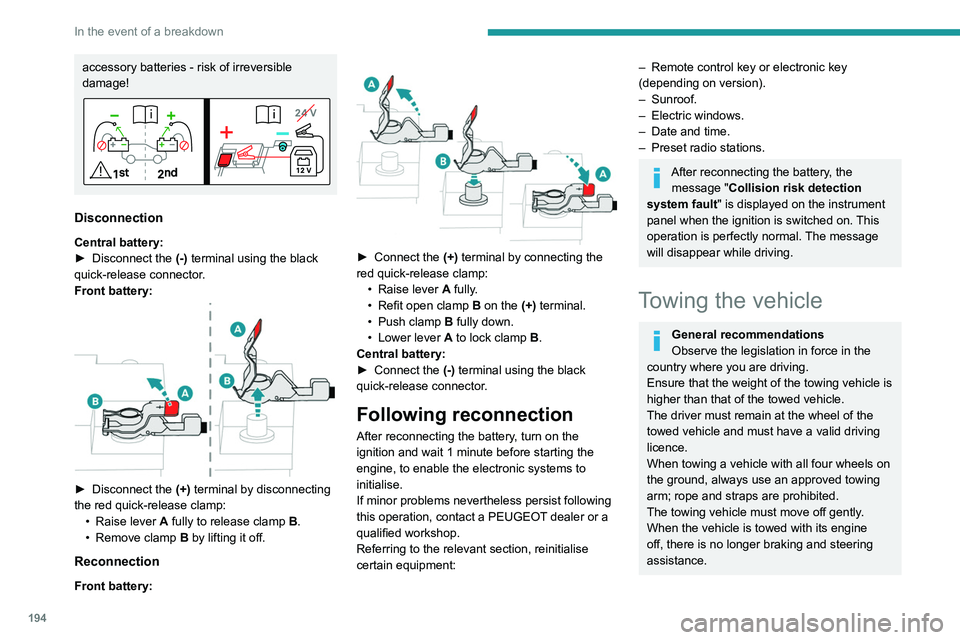
Central battery:
► Disconnect the (-)
terminal using the black
quick-release connector.
Front battery:
► Disconnect the (+) terminal by disconnecting
the red quick-release clamp: •
Raise lever
A
fully to release clamp
B
.
•
Remove clamp
B
by lifting it off.
Reconnection
Front battery:
► Connect the (+) terminal by connecting the
red quick-release clamp: •
Raise lever
A
fully.
•
Refit open clamp
B
on the (+) terminal.
•
Push clamp
B fully down.
•
Lower lever
A
to lock clamp B.
Central battery:
►
Connect the
(-) terminal using the black
quick-release connector.
Following reconnection
After reconnecting the battery, turn on the
ignition and wait 1 minute before starting the
engine, to enable the electronic systems to
initialise.
If minor problems nevertheless persist following
this operation, contact a PEUGEOT dealer or a
qualified workshop.
Referring to the relevant section, reinitialise
certain equipment:
– Remote control key or electronic key
(depending on version).
–
Sunroof.
–
Electric windows.
–
Date and time.
–
Preset radio stations.
After reconnecting the battery, the message "Collision risk detection
system fault" is displayed on the instrument
panel when the ignition is switched on. This
operation is perfectly normal. The message
will disappear while driving.
Towing the vehicle
General recommendations
Observe the legislation in force in the
country where you are driving.
Ensure that the weight of the towing vehicle is
higher than that of the towed vehicle.
The driver must remain at the wheel of the
towed vehicle and must have a valid driving
licence.
When towing a vehicle with all four wheels on
the ground, always use an approved towing
arm; rope and straps are prohibited.
The towing vehicle must move off gently.
When the vehicle is towed with its engine
off, there is no longer braking and steering
assistance.
Page 206 of 260
204
PEUGEOT i-Connect Advanced - PEUGEOT i-Connect
PEUGEOT i-Connect
Advanced - PEUGEOT
i-Connect
GPS navigation -
Applications - Multimedia
audio system - Bluetooth
®
telephone
The functions and settings described
vary according to the version and
configuration of the vehicle, and according to
the country of sale.
For safety reasons and because they
require continued attention on the part of
the driver, the following operations must be
carried out with the vehicle stationary and
the ignition on:
–
Pairing the smartphone with the system via
Bluetooth®.
–
Using the smartphone.
–
Connecting to Mirror Screen
(Apple®CarPlay® or Android Auto).
–
Changing the system settings and
configuration.
The message Energy economy mode is displayed when the system is about to go
into standby.
For more information on Energy economy
mode, refer to the "Practical information"
section.
Warning
Navigation is a driving aid. It cannot
replace the driver. All guidance instructions
should be carefully checked by the user.
By using the navigation, you accept the
following terms and conditions:
https://www.tomtom.com/en_gb/legal/
eula-automotive/?388448
First steps
The system starts when the ignition is switched on.
Short press, ignition off: system on/off.
Short press, ignition on: mute/restore sound.
Long press, ignition on: start standby mode
(mute sound, screens and clock display off).
Rotation: volume adjustment.
Information
This system gives access to the following
elements:
–
Audio equipment and telephone controls with
display of associated information. –
Connected services and display of associated
information.
–
Navigation system controls and display
of associated information (depending on
equipment).
–
V
oice recognition (depending on equipment).
–
T
ime and outside temperature.
–
Heating/air conditioning system controls and
reminders of settings.
–
Settings for driving aid functions, comfort
and safety functions, extended head-up display
(depending on equipment and version), audio
equipment and digital instrument panel.
–
Settings for functions specific to rechargeable
hybrid vehicles.
–
Display of visual manoeuvring aid functions.
–
Interactive handbook.
–
V
ideo tutorials (e.g. screen management,
driving aids, voice recognition).
Upper banner
Certain information is displayed permanently in
the upper banner of the touch screen:
–
Outside temperature from the vehicle's
sensors (associated with a blue symbol if there is
a risk of ice).
–
T
emperature setting reminder for the air
conditioning on the driver's and passenger sides.
–
Navigation information reminder (depending
on equipment).
–
Charge level of the connected smartphone.
–
System connection status (Bluetooth®, Wi-Fi,
mobile telephone network).
Page 207 of 260
205
PEUGEOT i-Connect Advanced - PEUGEOT i-Connect
10– Time.
– Quick access to the Mirror Screen® functions
(associated with a connected smartphone).
Swipe down from the upper edge of the touch
screen to access the notifications centre and
display a list of quick settings :Guest, Privacy
Settings, Brightness, My Devices, night mode,
etc.
Principles
► Use this button (HOME) to display the
most recent home page used; a second
press displays the first home page, then press
the virtual buttons displayed
on the touch screen.
Scroll through the home pages by sliding
your finger along the screen to the right or
to the left.
Principle of movement in the system
Depending on the pages displayed on the
screen, scroll through the text or the menu (on
the left side of the screen) by sliding your finger,
as with a smartphone.
Touch buttons
Display/hide the context menu.
Return to the previous page.
►
T
o change the status of a function, press the
description for the corresponding line (change
confirmed by the slider moving to the right/left:
function activated/deactivated).
Access to additional information about the function.
Access to a function’s settings.
Add/delete shortcuts.
Configuring profiles
Press the "Settings" application.
In the list, select the "Profile" tab.
The screen displays a "Guest" profile built
into the system and allows you to create and
personalise several new profiles with or without
an associated mobile device.
The "Guest" profile has a default display with the possibility of adding to it and/or
returning it to its initial configuration. This profile
is built into the system and cannot be deleted.
Each profile created can be associated
with a mobile device of your choice
connected via
Bluetooth
®; the Bluetooth® function
of the mobile device must first be activated. This
association allows the system to detect your
presence in the vehicle when it starts and to
propose the activation of your personalised
profile.
The connected mobile device serves as an
access key to the profile and restores the last
value of the associated Private Mode.
If a profile is not connected to the mobile device,
the last profile used will be highlighted.
Select "Create Profile", then follow the
procedure.
Creating a new profile allows you to personalise:
–
Language, units, Privacy Settings.
–
Screen configuration,
appearance,
i-Toggles (depending on
equipment).
–
Audio settings, favourite radio stations.
–
Lighting, interior ambience (refer to the "Ease
of use and comfort" section).
–
Navigation history
, favourite points of interest
(POIs), navigation
settings.
–
Some driving aids and the list of favourites.
To delete a profile, select it from the list of profiles then press the bin.
Privacy Settings
"Privacy Settings" management is associated
with each profile. This function is used with:
a "Guest" profile configured by default in "Private
Mode",
or
a profile to be created in the system, with or
without connection to a mobile device.
If there is no connection to a mobile device, the
mode value will be set to "Private Mode".
The connected mobile device serves as an
access key to personal information. First activate
the Bluetooth
® function on the mobile device.
The last saved mode value will be restored.
"Share Data and Location"
Page 208 of 260
206
PEUGEOT i-Connect Advanced - PEUGEOT i-Connect
This mode allows the vehicle to externally
transmit all the personal data needed for each
valid available connected service.
The personal data required to use the connected services is sent to the
providers of these services.
"Share Data "
This mode allows the vehicle to externally
transmit all the data needed for each valid
available connected service, with the exception
of vehicle location data (e.g. GPS coordinates).
Some connected services may not
function without the vehicle location data.
"Private Mode"
This mode does not allow the vehicle to
transmit personal data outside the vehicle.
Connected services will only perform
local processing inside the vehicle with
limited functions.
This mode will not be applied to the managed functions (emergency or
assistance call) or to specific services to
which the user has consented under the
terms of commercial contracts (Connected
alarm).
If the vehicle is used for professional
purposes or under the terms of specific
contracts (corporate fleet, government
assignment, etc.), some privacy modes will
not be available for the user on the screen,
depending on the data sharing needs of the
services.
To change mode, swipe down from the upper
edge of the touch screen to display all of the
quick settings.
Press this button and select the chosen
mode. The mode is highlighted.
OR
Press the "Settings" application.
In the list, select the "Connectivity".
Select "Privacy Settings".
Choose the mode.
Internet portal
During the first use, upon acquisition of the
vehicle, the user is invited to select the country
of residence for the use of the Internet portal.
If the country is not selected, the notification is
stored in the notification centre and disappears
once the country is selected. Slide a finger on
the touch screen from top to bottom to display all
the notifications.
The selection of a country is necessary to use
the available internet applications.
Press the "Settings" application.
In the list, select the "Connected Services".
Choose the country.
The first time you use it, via a connected mobile device, the system links to your
profile. The connected mobile device serves as
an access key to saved personal information.
First activate the mobile device’s Bluetooth
®
function.
Select the desired application, authentication will
be requested if necessary. This authentication
will be saved for future uses via the mobile
device connected to the current profile.
An authentication will be requested at each use if
the mobile device is not connected to the current
profile or if the Guest profile is used.
With the use of the “Guest” profile, an
identification will be requested for each
use.
Updating the system
Managing devices remotely and
remote updating of software and
firmware.
Being an integral part of the
service used to
provide connected services contract(s), the
required management of devices as well as
the required updating of the software and
firmware associated with the aforementioned
connected service will be carried out remotely,
in particular using "Over the Air" technology.
To do this, a secure connection via radio
network is established between the vehicle
Page 209 of 260
207
PEUGEOT i-Connect Advanced - PEUGEOT i-Connect
10and the Manufacturer's device management
server each time the ignition is switched on,
when a mobile telephone network is available.
Depending on the vehicle's equipment,
the connection configuration must be set
to "Connected vehicle" to enable to the
connection to the radio network.
Irrespective of a valid subscription to a
connected service, the remote management
of devices relating to or connected with
the security of devices, and the updating
of software and firmware, will be carried
out when necessary in order to comply
with a legal requirement applicable to the
Manufacturer (e.g. the applicable law in terms
of product liability, the regulations governing
e-call) or when necessary to protect the
respective vital interests of the vehicle's users
and passengers.
The establishment of a secure connection via
radio network and the corresponding remote
updates are not affected by the privacy
settings and are intended to be carried out
after being initialised by the user in response
to a related notification.
The system can notify the receipt of an update
when it is connected to an exterior Wi-Fi network
or a mobile telephone network.
Large updates are downloaded only via the Wi-Fi
network.
The availability of an update is notified on the
screen at the end of the journey with an option of immediate installation or postponement of
installation.
The installation time is variable and can take
several minutes with a maximum of about 30
minutes. A notification will give an estimate of the
duration and a description of the update.
Update information is available through the
"Settings" application.
Press the "Settings" application.
In the list, select the "Updates" tab.
This button allows you to change the authorisation for automatic downloading
of updates via an exterior Wi-Fi network.
For safety reasons and because it
requires sustained attention on the part
of the driver, the installation must be carried
out with the ignition on but without starting the
engine.
The installation cannot be carried out in the
following cases:
–
engine running.
–
emergency call in progress.
–
insufficient battery level.
–
when charging for electric vehicles.
If an update has failed or has expired, contact a
dealer or a qualified workshop.
The Manufacturer does not charge for the use of this service.
However, the use of Wi-Fi and/or mobile
telephone networks by your smartphone may
incur extra charges if you exceed the data
allowance included in your contract.
Any associated costs will be billed to you by
your mobile telephone operator.
Personalisation
Press and hold the screen from one of the
system's home pages.
Or
Press the "Settings" application.
In the list, select the "Customisation" tab.
Press the "Displays" field.
A page divided into 2 parts is displayed.
Press the HOME button at any time to leave this
page.
Personalising the screen
Press the pencil in the "Customise
Touchscreen" part.
A representation of the organisation of the
different home page ( HOME) Widgets
is
displayed.
A Widget is a reduced window of an application or service.
Adding a Widget
To add a Widget, press "Widget" on the left of the screen.
Or
Page 210 of 260
208
PEUGEOT i-Connect Advanced - PEUGEOT i-Connect
Press one of these buttons on the screen.
Select the desired Widget.
Press the back arrow to return to the
previous page.
Organising the Widgets on a home
page (HOME)
To move a Widget, press and hold it, then drag it
to the desired location.
Adding a page
To add a page, press "Page" on the left of the screen.
Press the back arrow to return to the
previous page.
Deleting a Widget
To move a Widget to the bin, press and hold it, then drag it to the bin.
Personalising the
instrument panel
Press the pencil in the "Customise
Driver Information" part.
The modification of the organisation of the
different Widget is displayed on the instrument
panel in real time.
A Widget is a reduced window of an application or service.
Adding a Widget
To add a Widget, press "Widget" on the left of the screen.
Or
Press one of these buttons on the screen.
Select the desired Widget.
Press the back arrow to return to the
previous page.
Deleting a Widget
To move a Widget to the bin, press and hold it, then drag it to the bin.
Personalising i-Toggles
(depending on equipment)
In the central screen, display the page containing
the button that you want to include.
The shortcuts are used to access an application (air conditioning page, radio
page, etc.) or to perform an action (set the
temperature to 21°, call a selected directory
contact, etc.).
Press and hold the shortcut you want to
replace.
A panel is displayed on the central screen with
all of the eligible shortcuts in boxes.
A notification also informs you of the next step to
perform.
Select the new shortcut required. It will be
duplicated in i-Toggles and will replace the one originally selected. A notification also informs you
of this.
To exit this function at any time, press this
button or press the main "Home" button.
Steering-mounted
controls
Voice control:
Short press, system voice commands
(depending on equipment).
Long press, voice commands of
the
smartphone connected using Bluetooth
® or
Mirror Screen® (Apple®CarPlay®/Android Auto)
via the system.
Increase volume.
Decrease volume.
Mute the sound: long press on the
decrease volume button.
Restore the sound by pressing one of the two
volume buttons.
Incoming call (short press): accept the
call.
Call in progress (short press): hang up.
Incoming call (long press): refuse the incoming
call.
Out of call (short press): access the call log of
the telephone connected via
Bluetooth
®.
Mirror Screen® connected (short press): access
the projected view of the telephone application of
your Mirror Screen
® equipment.
Page 211 of 260
209
PEUGEOT i-Connect Advanced - PEUGEOT i-Connect
10Radio: automatic search for the
previous/next station (in the list of
radio stations sorted by name or by frequencies).
Media: previous/next track, movement in the
lists.
Phone: browse the telephone's call log.
Short press: validate a selection. Out of
selection, display the lists.
Applications
From the home page, press this button to
access the applications wall.
From any page, press the touch screen
with three or more fingers to display the
applications wall.
Help
Access the handbook and watch tutorials.
Media
Select an audio source or radio station.
Mirror Screen®
Smartphone connected with Mirror
Screen®: access to the projected view of
Apple®CarPlay® or Android Auto.
Smartphone not connected: access the menu
allowing you to connect a smartphone.
Navigation
(depending on equipment)
Enter navigation settings and choose a
destination.
Use services available in real time, depending on
equipment.
Voice commands
(depending on equipment)
Use the system or smartphone voice recognition
via the system.
Phone
Telephone not connected: access the
menu allowing you to connect a telephone.
Telephone connected: access the call log,
contacts and telephone settings.
Two connected telephones: access the contents
of the priority telephone with the possibility of
changing the priority of the telephone.
Settings
Main settings for the audio system, touch
screen and digital instrument panel.
Voice commands
First steps
(depending on equipment)
The voice recognition service offers a choice
of 17 languages minimum (French, German,
English (UK), English (US),
Arabic, Brazilian,
Chinese, Spanish, Hebrew, Italian, Japanese,
Dutch, Polish, Portuguese, Russian, Swedish,
Turkish) available with the cellular network and
in line with the language chosen and previously
configured in the system.
The system supports two languages
for cases
where the area in which the vehicle is travelling
is not covered by the cellular network. These languages, referred to as on-board
languages,
are downloaded into the system.
If the chosen language has not been
downloaded, a message on the screen appears
as soon as the cellular network is not connected
for the first time and offers to download it.
T
o use this new language in all areas, download
it beforehand (ignition on without starting the
engine) via the Wi-Fi network.
Apply the download procedure displayed on the
screen.
Downloading this new language removes the
least used on-board language.
Information - Using the
system
When voice commands are activated, say
your command after the audible signal.
For
commands in several stages, interaction
takes place with the system to complete the
initial request.
Some commands self-validate after 7 seconds.
If the system has not taken your command into
account, it will indicate this by a voice message
and an on-screen display.
Opening voice recognition
Voice commands can be used on any
screen page, provided there are no other
sources which take priority in use (reverse,
emergency or assistance call, telephone call,
Page 212 of 260
210
PEUGEOT i-Connect Advanced - PEUGEOT i-Connect
other smartphone voice recognition already
launched).
Choice of opening voice recognition:
►
Say
"OK Peugeot".
or
►
Press the button located on the steering
wheel.
or
►
Press the touch screen button.
To ensure that voice commands are always recognised by the system, please
follow these recommendations:
–
Use natural language in a normal tone
without breaking up words or raising your
voice.
–
After opening voice recognition with the
steering wheel-mounted button or the button
on the touch screen, always wait for the
"beep” (audible signal) before talking. No
"beep" sounds when voice recognition is
opened using "OK Peugeot".
–
For optimal operation, it is recommended
that you close the windows and the sunroof
(depending on equipment) to avoid any
external interference, and switch the
ventilation off.
–
Before speaking the voice commands, ask
the other passengers not to speak.
Voice command example for air
conditioning:
"raise the fan speed"
"Turn on air conditioning"
"i'm too hot"Voice command example for radio and
media:
"I want to listen to michael jackson"
"switch to radio"
"tune to 88.5"
Media voice commands are only
available with a USB connection.
Voice command example for navigation:
"navigate home"
"Navigate me to gabrielle's house"
"search for public parking nearby"
Depending on the country, give
destination (address) instructions in the
language configured for the system.
Voice command example for telephone:
"Call Matthew's mobile"
"call 0113 345 9869"
"Call jonathan"
If there is no telephone connected by
Bluetooth®, a voice message announces:
"Connect a telephone by Bluetooth®", and the
voice session will be closed.
Voice command example for the weather:
"do i need a raincoat"
"how is the weather tonight"
"what is today's humidity level"
Navigation
Navigation home screen
(depending on equipment)
Access to additional videos
https://www.tomtom.com/
PSAGroup-Connected-Nav
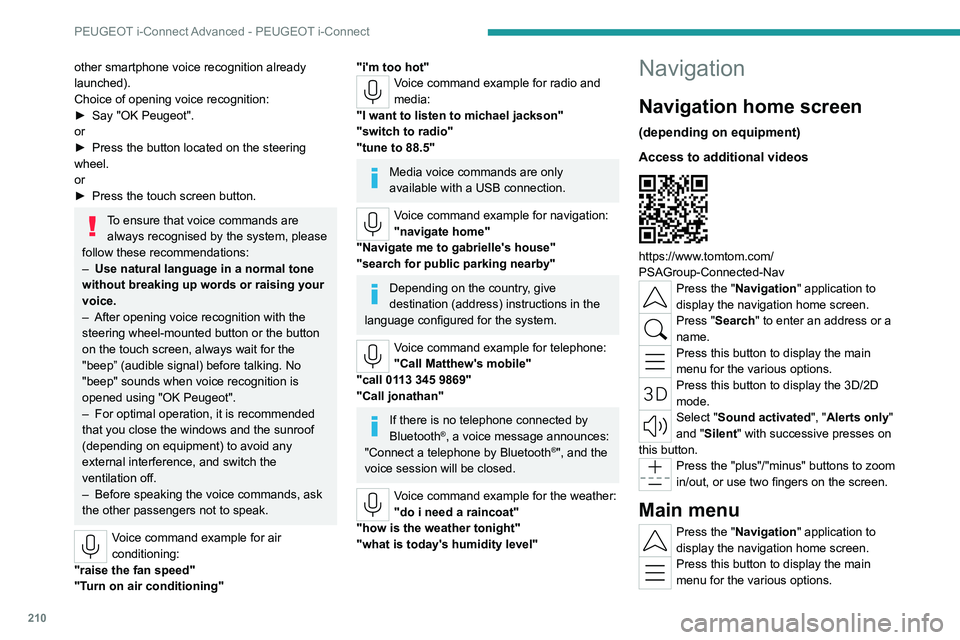
Press the "Navigation" application to
display the navigation home screen.
Press "Search" to enter an address or a
name.
Press this button to display the main
menu for the various options.
Press this button to display the 3D/2D
mode.
Select "Sound activated", "Alerts only"
and "Silent" with successive presses on
this button.
Press the "plus"/"minus" buttons to zoom
in/out, or use two fingers on the screen.
Main menu
Press the "Navigation" application to
display the navigation home screen.
Press this button to display the main
menu for the various options.
Page 213 of 260
2 11
PEUGEOT i-Connect Advanced - PEUGEOT i-Connect
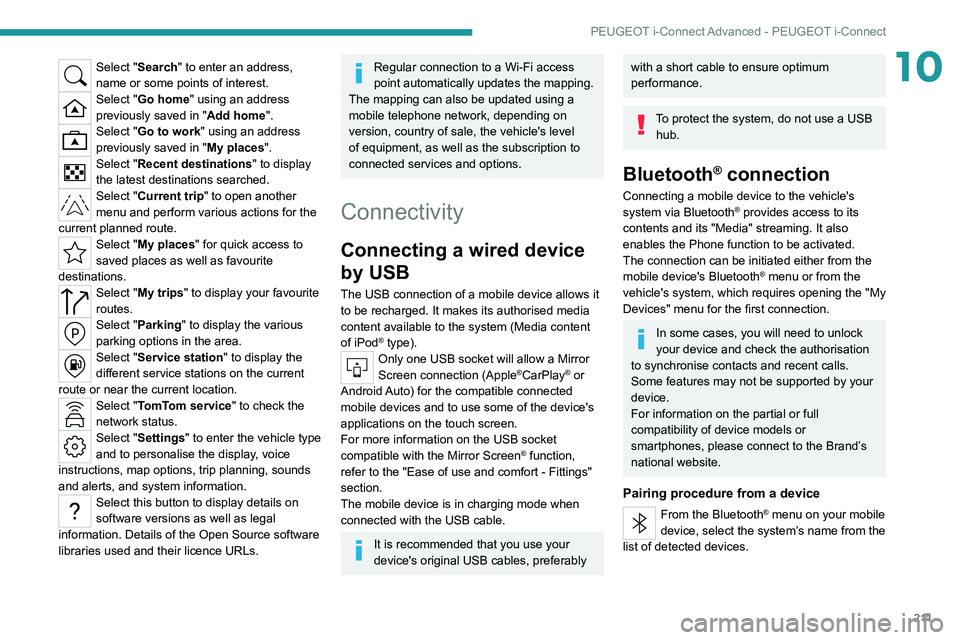
10Select "Search" to enter an address,
name or some points of interest.
Select "Go home" using an address
previously saved in "Add home".
Select "Go to work" using an address
previously saved in "My places".
Select "Recent destinations" to display
the latest destinations searched.
Select "Current trip" to open another
menu and perform various actions for the
current planned route.
Select "My places" for quick access to
saved places as well as favourite
destinations.
Select "My trips" to display your favourite
routes.
Select "Parking" to display the various
parking options in the area.
Select "Service station" to display the
different service stations on the current
route or near the current location.
Select "TomTom service" to check the
network status.
Select "Settings" to enter the vehicle type
and to personalise the display, voice
instructions, map options, trip planning, sounds
and alerts, and system information.
Select this button to display details on
software versions as well as legal
information. Details of the Open Source software
libraries used and their licence URLs.
Regular connection to a Wi-Fi access
point automatically updates the mapping.
The mapping can also be updated using a
mobile telephone network, depending on
version, country of sale, the vehicle's level
of equipment, as well as the subscription to
connected services and options.
Connectivity
Connecting a wired device
by USB
The USB connection of a mobile device allows it
to be recharged. It makes its authorised media
content available to the system (Media content
of iPod
® type).Only one USB socket will allow a Mirror
Screen connection (Apple®CarPlay® or
Android Auto) for the compatible connected
mobile devices and to use some of the device's
applications on the touch screen.
For more information on the USB socket
compatible with the Mirror Screen
® function,
refer to the "Ease of use and comfort - Fittings"
section.
The mobile device is in charging mode when
connected with the USB cable.
It is recommended that you use your
device's original USB cables, preferably
with a short cable to ensure optimum
performance.
To protect the system, do not use a USB hub.
Bluetooth® connection
Connecting a mobile device to the vehicle's
system via Bluetooth® provides access to its
contents and its "Media" streaming. It also
enables the Phone function to be activated.
The connection can be initiated either from the
mobile device's Bluetooth
® menu or from the
vehicle's system, which requires opening the "My
Devices" menu for the first connection.
In some cases, you will need to unlock
your device and check the authorisation
to synchronise contacts and recent calls.
Some features may not be supported by your
device.
For information on the partial or full
compatibility of device models or
smartphones, please connect to the Brand’s
national website.
Pairing procedure from a device
From the Bluetooth® menu on your mobile
device, select the system’s name from the
list of detected devices.