mirror controls PEUGEOT 308 2022 User Guide
[x] Cancel search | Manufacturer: PEUGEOT, Model Year: 2022, Model line: 308, Model: PEUGEOT 308 2022Pages: 260, PDF Size: 7.92 MB
Page 217 of 260
215
PEUGEOT i-Connect Advanced - PEUGEOT i-Connect
10Radio reception may be affected by the
use of electrical equipment not approved
by the Brand, such as a charger with USB
socket connected to the 12
V socket.
The exterior environment (hills, buildings,
tunnels, basement car parks, etc.) may block
reception, including in RDS mode. This
phenomenon is normal in the propagation
of radio waves and does not indicate any
malfunction of the system.
Storing a radio station
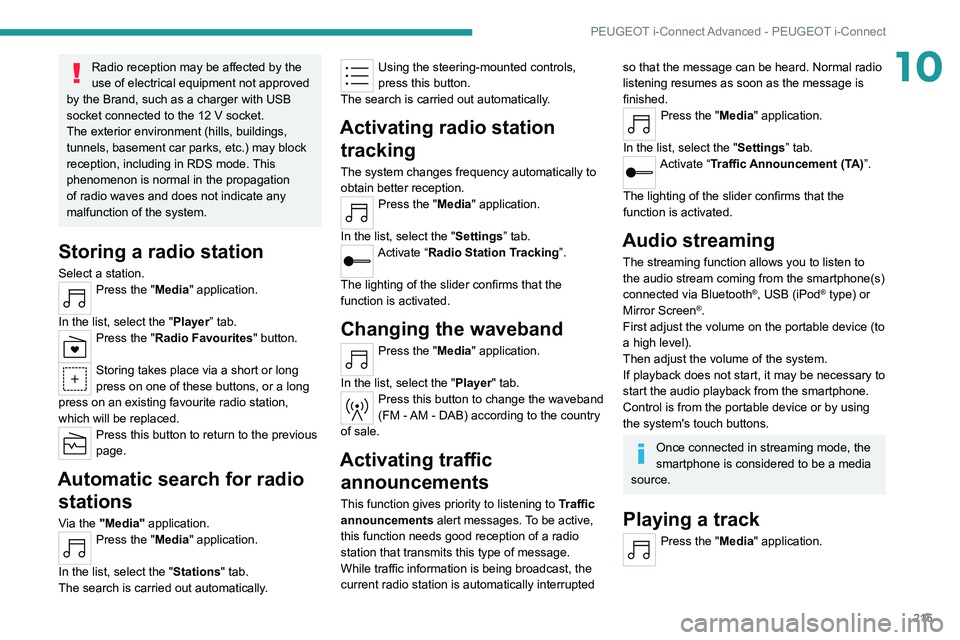
Select a station.Press the "Media" application.
In the list, select the "Player” tab.
Press the "Radio Favourites" button.
Storing takes place via a short or long
press on one of these buttons, or a long
press on an existing favourite radio station,
which will be replaced.
Press this button to return to the previous
page.
Automatic search for radio stations
Via the "Media" application.Press the "Media" application.
In the list, select the "Stations" tab.
The search is carried out automatically.
Using the steering-mounted controls,
press this button.
The search is carried out automatically.
Activating radio station tracking
The system changes frequency automatically to
obtain better reception.
Press the "Media" application.
In the list, select the "Settings” tab.
Activate “Radio Station Tracking”.
The lighting of the slider confirms that the
function is activated.
Changing the waveband
Press the "Media" application.
In the list, select the "Player" tab.
Press this button to change the waveband
(FM - AM - DAB) according to the country
of sale.
Activating traffic announcements
This function gives priority to listening to Traffic
announcements alert messages. To be active,
this function needs good reception of a radio
station that transmits this type of message.
While traffic information is being broadcast, the
current radio station is automatically interrupted
so that the message can be heard. Normal radio
listening resumes as soon as the message is
finished.
Press the "Media" application.
In the list, select the "Settings” tab.
Activate “Traffic Announcement (TA)”.
The lighting of the slider confirms that the
function is activated.
Audio streaming
The streaming function allows you to listen to
the audio stream coming from the smartphone(s)
connected via Bluetooth
®, USB (iPod® type) or
Mirror Screen®.
First adjust the volume on the portable device (to
a high level).
Then adjust the volume of the system.
If playback does not start, it may be necessary to
start the audio playback from the smartphone.
Control is from the portable device or by using
the system's touch buttons.
Once connected in streaming mode, the
smartphone is considered to be a media
source.
Playing a track
Press the "Media" application.
Page 219 of 260
217
PEUGEOT i-Connect Advanced - PEUGEOT i-Connect
10Making a call using the list of recent
calls
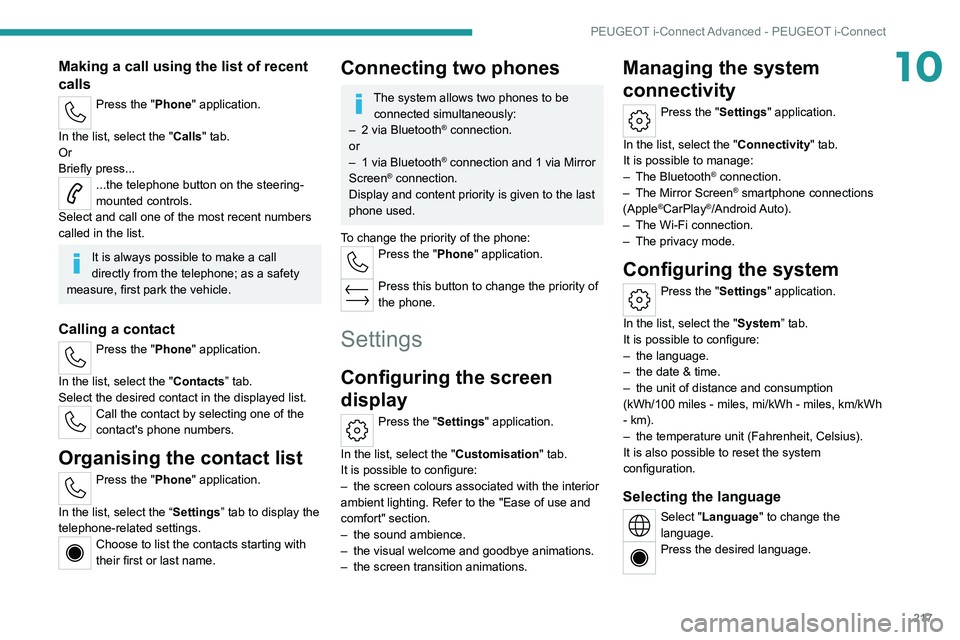
Press the "Phone" application.
In the list, select the "Calls" tab.
Or
Briefly press...
...the telephone button on the steering-
mounted controls.
Select and call one of the most recent numbers
called in the list.
It is always possible to make a call
directly from the telephone; as a safety
measure, first park the vehicle.
Calling a contact
Press the "Phone" application.
In the list, select the "Contacts” tab.
Select the desired contact in the displayed list.
Call the contact by selecting one of the
contact's phone numbers.
Organising the contact list
Press the "Phone" application.
In the list, select the “Settings” tab to display the
telephone-related settings.
Choose to list the contacts starting with
their first or last name.
Connecting two phones
The system allows two phones to be connected simultaneously:
–
2 via
Bluetooth
® connection.
or
–
1 via
Bluetooth
® connection and 1 via Mirror
Screen® connection.
Display and content priority is given to the last
phone used.
To change the priority of the phone:
Press the "Phone" application.
Press this button to change the priority of
the phone.
Settings
Configuring the screen
display
Press the "Settings" application.
In the list, select the "Customisation" tab.
It is possible to configure:
–
the screen colours associated with the interior
ambient lighting. Refer to the "Ease of use and
comfort" section.
–
the sound ambience.
–
the visual welcome and goodbye animations.
–
the screen transition animations.
Managing the system
connectivity
Press the "Settings" application.
In the list, select the "Connectivity" tab.
It is possible to manage:
–
The Bluetooth® connection.
–
The Mirror Screen® smartphone connections
(Apple®CarPlay®/Android Auto).
–
The Wi-Fi connection.
–
The privacy mode.
Configuring the system
Press the "Settings" application.
In the list, select the "System” tab.
It is possible to configure:
–
the language.
–
the date & time.
–
the unit of distance and consumption
(kWh/100 miles - miles, mi/kWh - miles, km/kWh
- km).
–
the temperature unit (Fahrenheit, Celsius).
It is also possible to reset the system
configuration.
Selecting the language
Select "Language" to change the
language.
Press the desired language.