navigation PEUGEOT 308 CC 2013 Owner's Manual
[x] Cancel search | Manufacturer: PEUGEOT, Model Year: 2013, Model line: 308 CC, Model: PEUGEOT 308 CC 2013Pages: 268, PDF Size: 15.28 MB
Page 193 of 268
04
191
NAVIGATION - GUIDANCE
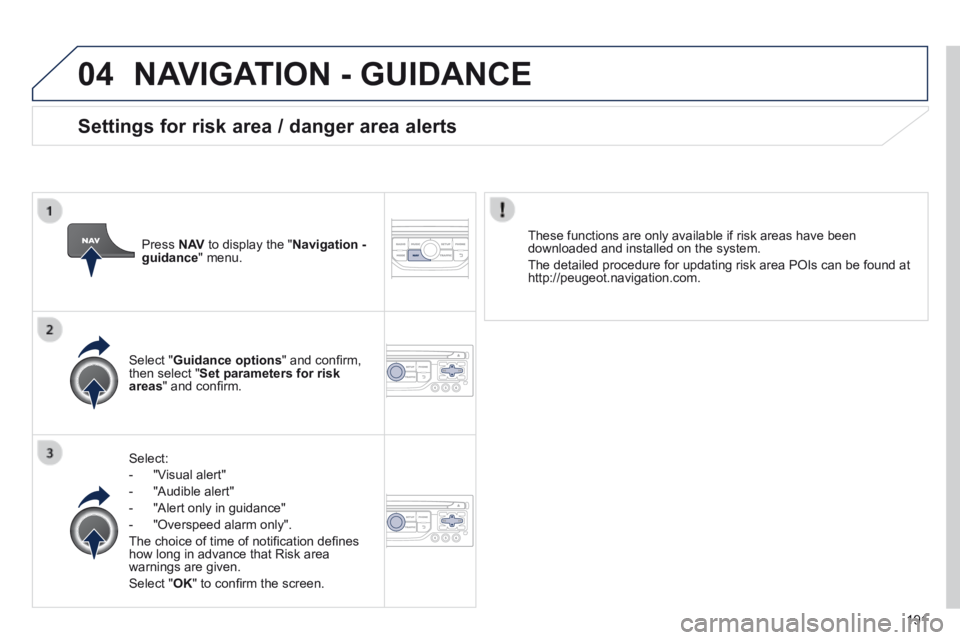
Select:
- "Visual alert"
- "Audible alert"
- "Alert only in guidance"
- "Overspeed alarm only".
The choice of time of notifi cation defi nes how long in advance that Risk area warnings are given.
Select " OK " to confi rm the screen.
Select " Guidance options " and confi rm, then select " Set parameters for risk areas " and confi rm.
These functions are only available if risk areas have been downloaded and installed on the system.
The detailed procedure for updating risk area POIs can be found at http://peugeot.navigation.com.
Press N AV to display the " Navigation - guidance " menu.
Settings for risk area / danger area alerts
Page 194 of 268
04
192
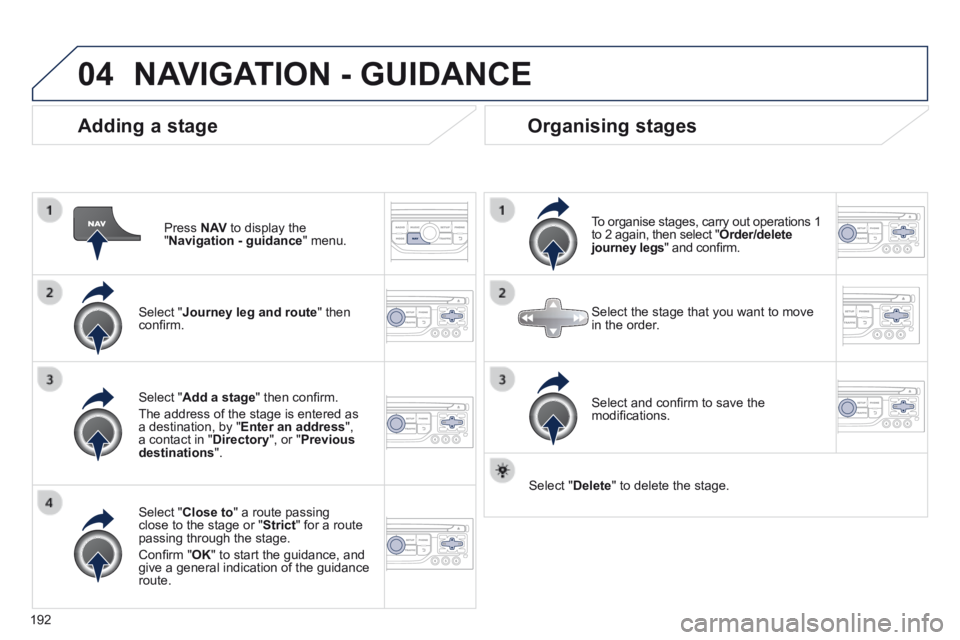
Adding a stage
Press N AV to display the " Navigation - guidance " menu.
Select " Journey leg and route " then confi rm.
Select " Close to " a route passing close to the stage or " Strict " for a route passing through the stage.
Confi rm " OK " to start the guidance, and give a general indication of the guidance route.
Select " Add a stage " then confi rm .
The address of the stage is entered as a destination, by " Enter an address ", a contact in " Directory ", or " Previous destinations ".
Organising stages
To organise stages, carry out operations 1 to 2 again, then select " Order/delete journey legs " and confi rm.
Select and confi rm to save the modifi cations.
Select the stage that you want to move in the order.
Select " Delete " to delete the stage.
NAVIGATION - GUIDANCE
Page 195 of 268
04
193
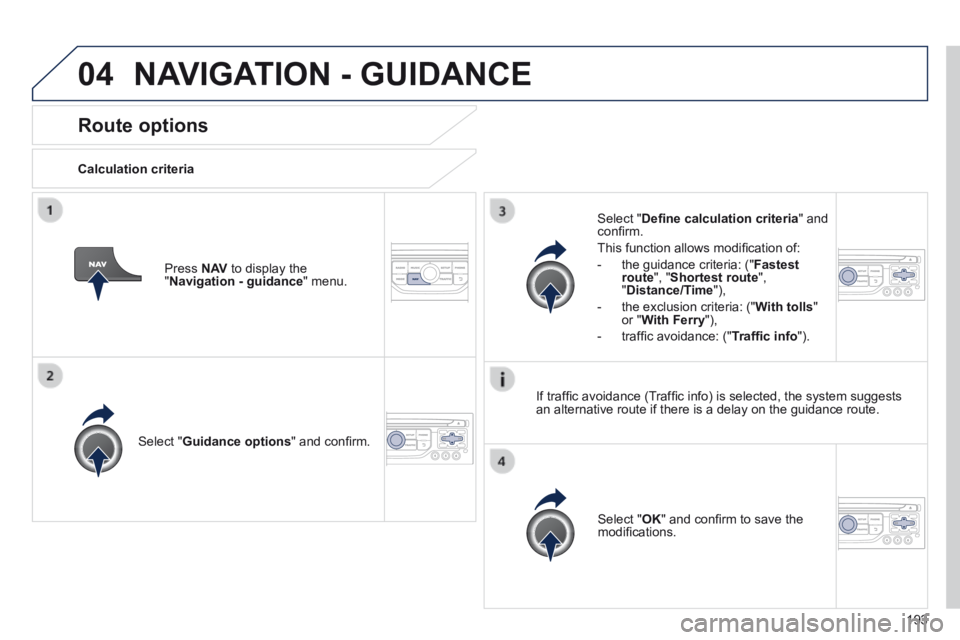
Route options
Calculation criteria
Select " Guidance options " and confi rm.
Select " OK " and confi rm to save the modifi cations.
Select " Defi ne calculation criteria " and confi rm.
This function allows modifi cation of:
- the guidance criteria: (" Fastest route ", " Shortest route ", " Distance/Time "),
- the exclusion criteria: (" With tolls " or " With Ferry "),
- traffi c avoidance: (" Traffi c info ").
Press N AV to display the " Navigation - guidance " menu.
If traffi c avoidance (Traffi c info) is selected, the system suggests an alternative route if there is a delay on the guidance route.
NAVIGATION - GUIDANCE
Page 196 of 268
04
194
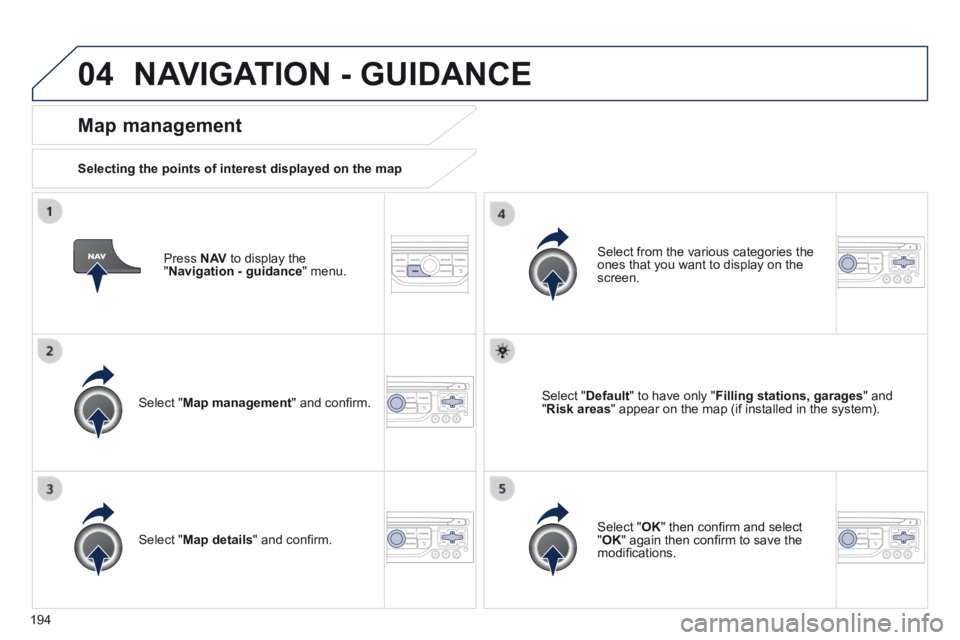
Press N AV to display the " Navigation - guidance " menu.
Map management
Selecting the points of interest displayed on the map
Select " Map management " and confi rm.
Select from the various categories the ones that you want to display on the screen.
Select " Map details " and confi rm.
Select " Default " to have only " Filling stations, garages " and " Risk areas " appear on the map (if installed in the system).
Select " OK " then confi rm and select " OK " again then confi rm to save the modifi cations.
NAVIGATION - GUIDANCE
Page 197 of 268
04
195
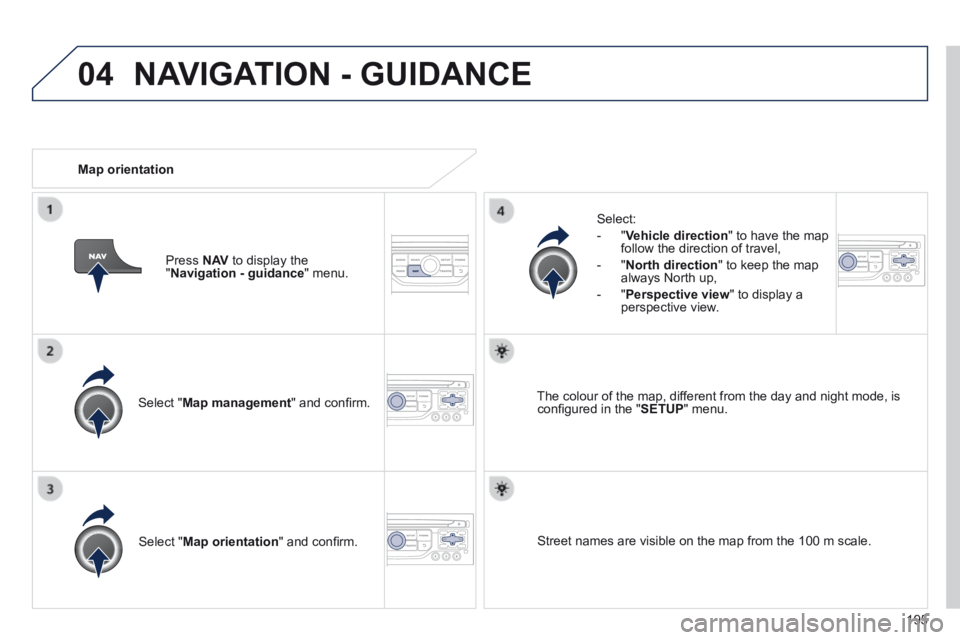
Select " Map management " and confi rm.
Select:
- " Vehicle direction " to have the map follow the direction of travel,
- " North direction " to keep the map always North up,
- " Perspective view " to display a perspective view.
Select " Map orientation " and confi rm.
The colour of the map, different from the day and night mode, is confi gured in the " SETUP " menu.
Map orientation
Press N AV to display the " Navigation - guidance " menu.
Street names are visible on the map from the 100 m scale.
NAVIGATION - GUIDANCE
Page 198 of 268
04
196
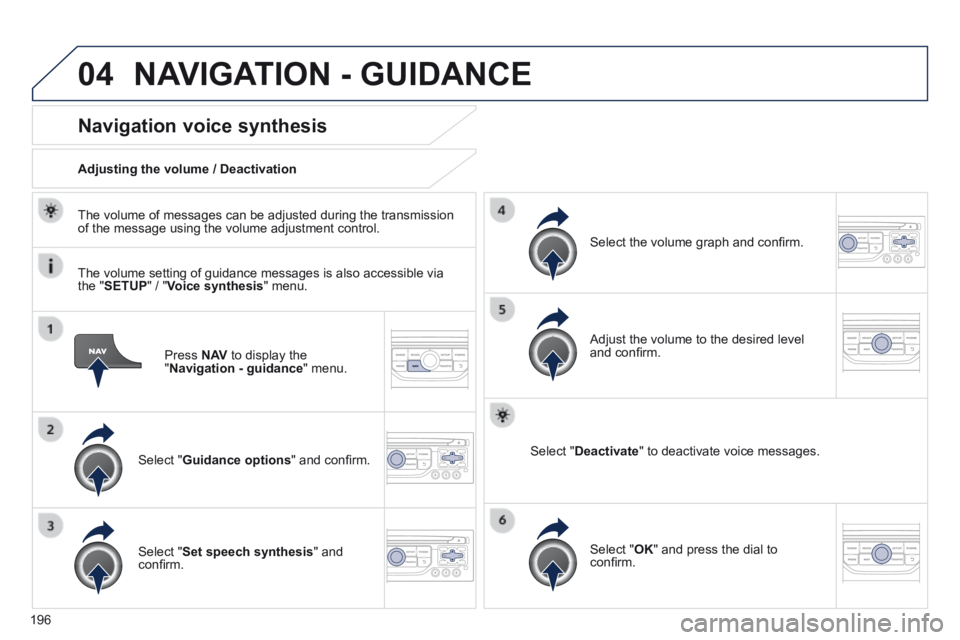
Press N AV to display the " Navigation - guidance " menu.
Navigation voice synthesis
Select " Guidance options " and confi rm.
Adjusting the volume / Deactivation
Select " Set speech synthesis " and confi rm.
Select the volume graph and confi rm.
Select " Deactivate " to deactivate voice messages.
Select " OK " and press the dial to confi rm.
Adjust the volume to the desired level and confi rm.
The volume of messages can be adjusted during the transmission of the message using the volume adjustment control.
The volume setting of guidance messages is also accessible via the " SETUP " / " Voice synthesis " menu.
NAVIGATION - GUIDANCE
Page 199 of 268
04
197
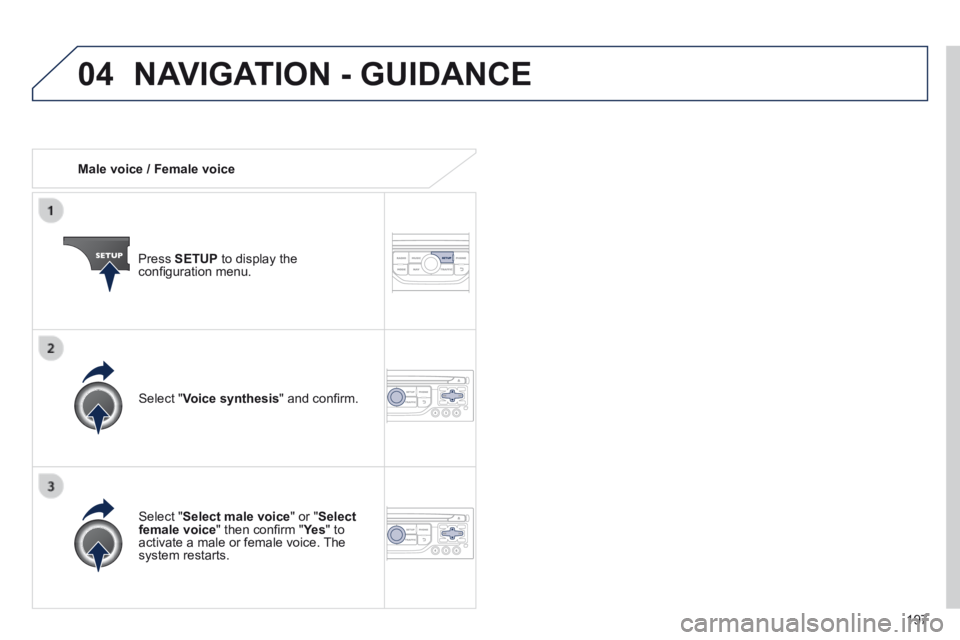
Male voice / Female voice
Press SETUP to display the confi guration menu.
Select " Select male voice " or " Select female voice " then confi rm " Ye s " then confi rm " Ye s " then confi rm " " to activate a male or female voice. The system restarts.
Select " Voice synthesis " and confi rm.
NAVIGATION - GUIDANCE
Page 201 of 268
05
199
Configure the filtering and display of TMC messages
TMC (Traffi c Message Channel) messages contain information on traffi c and weather conditions, received in real time and transmitted to the driver in the form of audible announcements and symbols on the navigatio\
n map.
The navigation system can then suggest an alternative route to avoid a traffi c problem.
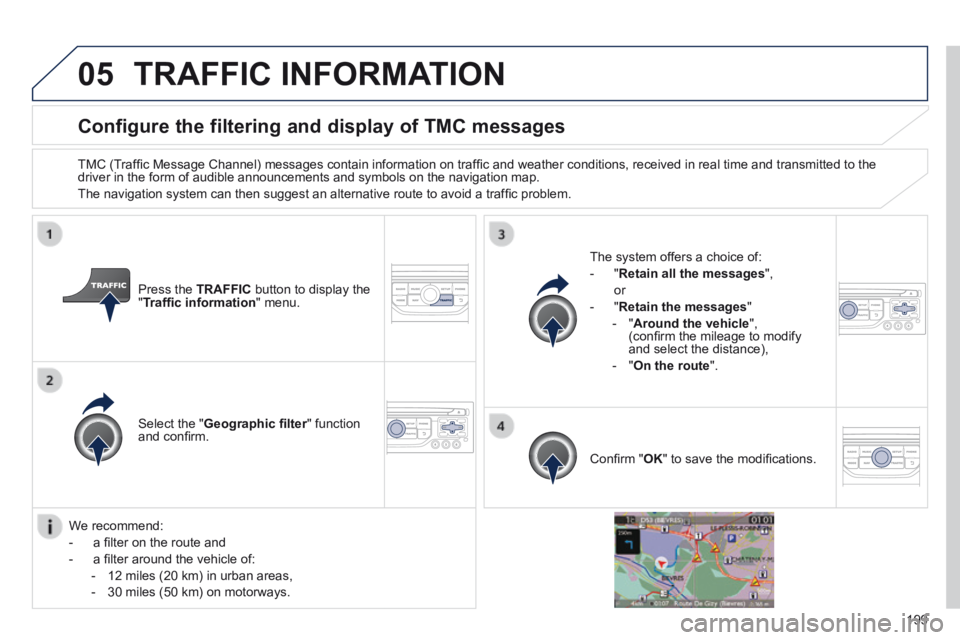
Press the TRAFFIC button to display the " Traffi c information " menu.
Select the " Geographic fi lter " function Geographic fi lter " function Geographic fi lterand confi rm.
The system offers a choice of:
- " Retain all the messages ",
or
- " Retain the messages "
- " Around the vehicle ", (confi rm the mileage to modify and select the distance),
- " On the route ".
Confi rm " OK " to save the modifi cations.
We recommend:
- a fi lter on the route and
- a fi lter around the vehicle of:
- 12 miles (20 km) in urban areas,
- 30 miles (50 km) on motorways.
TRAFFIC INFORMATION
Page 224 of 268
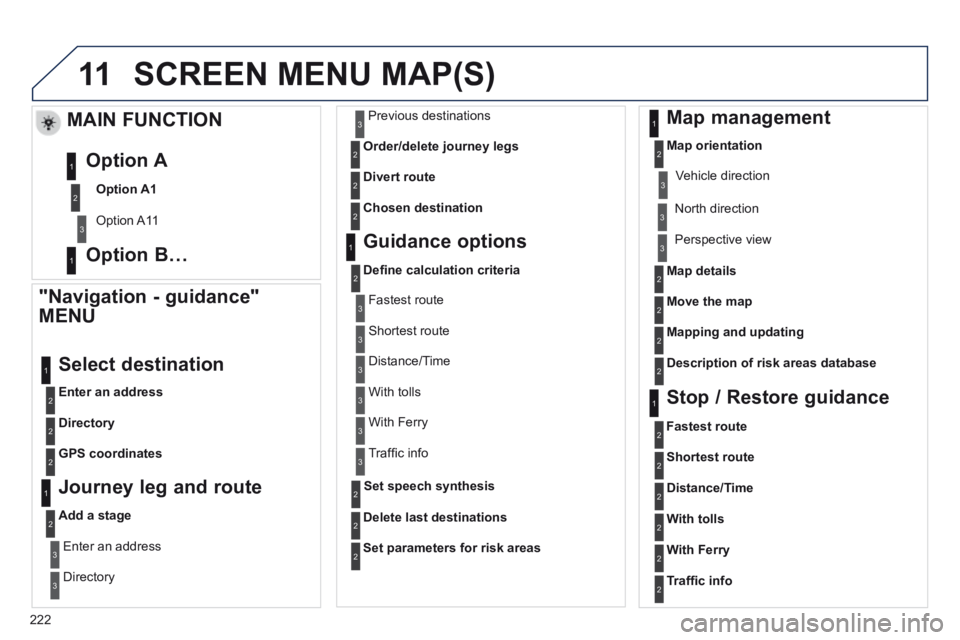
11
222
SCREEN MENU MAP(S)
"Navigation - guidance"
MENU
Enter an address
Select destination
Directory
GPS coordinates
Journey leg and route
Add a stage
Enter an address
Directory
Previous destinations
Order/delete journey legs
Divert route
Chosen destination
Guidance options
Defi ne calculation criteria
Delete last destinations
Map management
Map orientation
MAIN FUNCTION
Option A1
Option A11
Option A
Option B… Map details
Move the map
Mapping and updating
Description of risk areas database
Stop / Restore guidance
1
2
3
1
3
3
2
2
2
2
1
3
1
1
2
2
2
2
2
2
2
2
2
2
1
1
Set parameters for risk areas2
Fastest route2
Shortest route
Distance/Time
With tolls
2
2
2
With Ferry2
Traffi c info2
Set speech synthesis
Fastest route
Shortest route
3
3
2
Distance/Time
With tolls
3
3
With Ferry
Traffi c info
3
3
3
3
3
North direction
Vehicle direction
Perspective view
Page 228 of 268

226
The following table groups together the answers to the most frequently a\
sked questions concerning your audio system.
FREQUENTLY ASKED QUESTIONS
QUESTION ANSWER SOLUTION
The route calculation is not successful. The guidance criteria may confl ict with the current location (exclusion of toll roads on a toll motorway). Check the guidance criteria on the Navigation Menu, "Guidance options"\ "Defi ne calculation criteria".
I am unable to enter my post code. The system only accepts post codes of up to 5 characters.
The POIs do not appear. The POIs have not been selected. Select the POIs in the list of POIs.
The risk areas audible warning does not work. The audible warning is not active. Activate audible warnings in the Guidance options menu, "Navigation - guidance", "Set parameters for risk areas".
The system does not suggest a detour around an incident on the route.
The guidance criteria do not take account of TMC messages. Select the "Traffi c info" function in the list of guidance criteria.
I receive a Risk area alert which is not on my route. Other than guidance, the system announces all Risk areas positioned in a\
cone located in front of the vehicle. It may provide an alert for a Risk\
area located on nearby or parallel roads.
Zoom in on the map to view the exact position of the Risk area. Select "On the route" to no longer receive alerts other than guidance or to reduce the time for the announcement.