navigation system PEUGEOT 308 SW BL 2012 User Guide
[x] Cancel search | Manufacturer: PEUGEOT, Model Year: 2012, Model line: 308 SW BL, Model: PEUGEOT 308 SW BL 2012Pages: 382, PDF Size: 17.71 MB
Page 255 of 382
253
03
SETUP
TRAFFIC
MEDIA
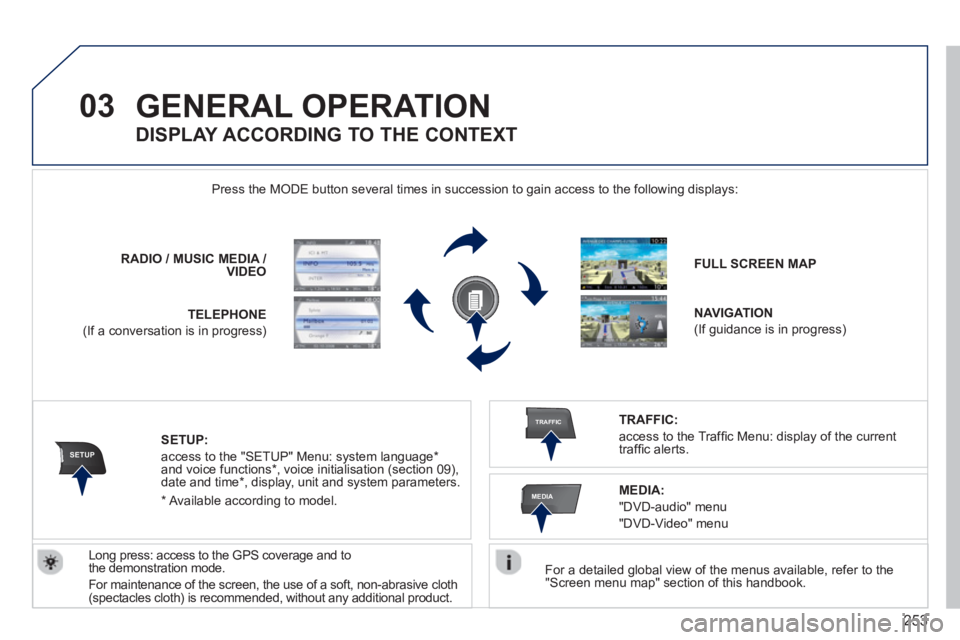
GENERAL OPERATION
For a detailed global view of the menus available, refer to the "Screen menu map" section of this handbook.
Press the M
ODE button several times in succession to gain access to the following displays:
Lon
g press: access to the GPS coverage and to
the demonstration mode.
For maintenance o
f the screen, the use of a soft, non-abrasive cloth (spectacles cloth) is recommended, without any additional product. RADIO
/MUSICMEDIA / VIDEO
TELEPHONE
(If a conversation is in progress)
FULL SCREEN MAP
NAVIGATION
(If guidance is in progress)
SETUP:
access to the "SETUP" Menu: system language *
and voice functions * , voice initialisation (section 09),
date and time * , display, unit and system parameters.
TRAFFIC:
access to the Traffi c Menu: display of the current
traffi c alerts.
DISPLAY ACCORDING TO THE CONTEXT
MEDIA:
"DVD-audio" menu
"DVD-Video" menu
*
Available accordin
g to model.
Page 267 of 382
265
04
NAV2ABC3DEF5JKL4GHI6MNO8TUV7PQRS9WXYZ0*#
1RADIO MEDIANAV ESC TRAFFIC
SETUPADDR
BOOK
2ABC3DEF5JKL4GHI6MNO8TUV7PQRS9WXYZ0*#
1RADIO MEDIANAV ESC TRAFFIC
SETUPADDR
BOOK
NAVIGATION - GUIDANCE
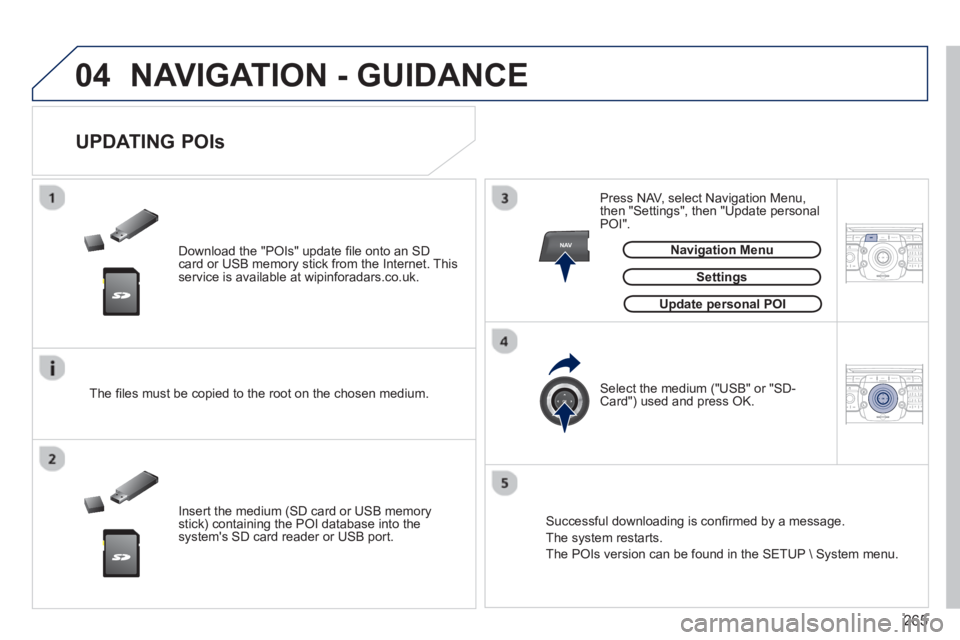
Download the "POIs" update fi le onto an SDcard or USB memory stick from the Internet. Thisservice is available at wipinforadars.co.uk.
UPDATING POIs
Settings
The fi les must be copied to the root on the chosen medium.
Insert the medium
(SD card or USB memory stick) containing the POI database into the system's SD card reader or USB port. Select the medium
("USB" or "SD-Card") used and press OK. Press NAV, select Navi
gation Menu,
then "Settings", then "Update personal
POI".
Successful downloadin
g is confi rmed by a message.
The system restarts.
The P
OIs version can be found in the SETUP \ System menu.
Update personal POIpp
Navigation Menug
Page 269 of 382
267
05
TRAFFIC
2ABC3DEF5JKL4GHI6MNO8TUV7PQRS9WXYZ0*#
1RADIO MEDIANAV ESC TRAFFIC
SETUPADDR
BOOK
2ABC3DEF5JKL4GHI6MNO8TUV7PQRS9WXYZ0*#
1RADIO MEDIANAV ESC TRAFFIC
SETUPADDR
BOOK
2ABC3DEF5JKL4GHI6MNO8TUV7PQRS9WXYZ0*#
1RADIO MEDIANAV ESC TRAFFIC
SETUPADDR
BOOK
2ABC3DEF5JKL4GHI6MNO8TUV7PQRS9WXYZ0*#
1RADIO MEDIANAV ESC TRAFFIC
SETUPADDR
BOOK
2ABC3DEF5JKL4GHI6MNO8TUV7PQRS9WXYZ0*#
1RADIO MEDIANAV ESC TRAFFIC
SETUPADDR
BOOK
TRAFFIC INFORMATION
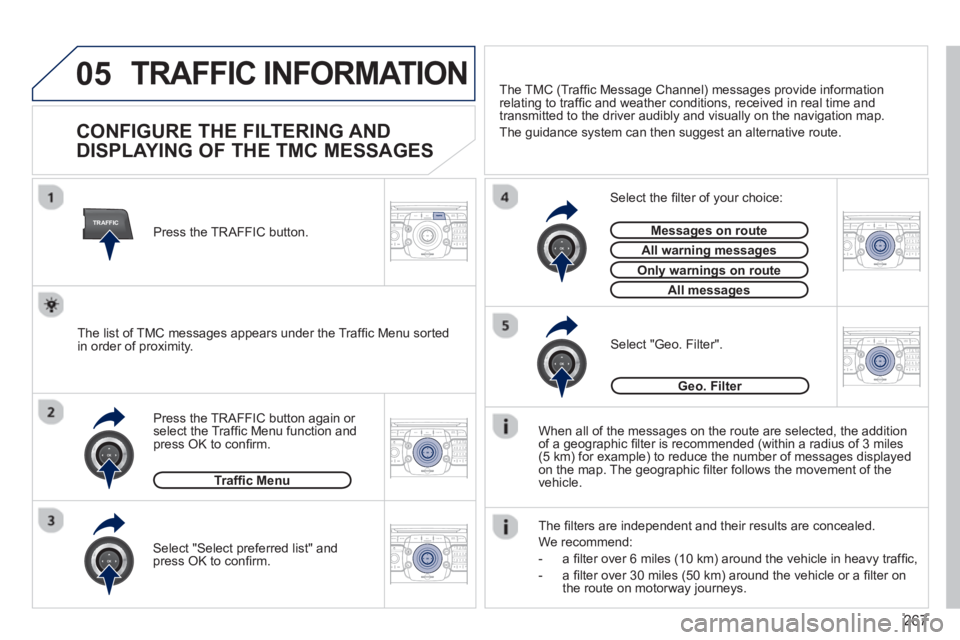
CONFIGURE THE FILTERING AND
DISPLAYING OF THE TMC MESSAGES
When all of the messages on the route are selected, the addition
of a geographic fi lter is recommended (within a radius of 3 miles(5 km) for example) to reduce the number of messages displayed
on the map. The geographic fi lter follows the movement of the
vehicle.
The
fi lters are independent and their results are concealed.
W
e recommend:
- a
fi lter over 6 miles (10 km) around the vehicle in heavy traffi c,
- a
fi lter over 30 miles (50 km) around the vehicle or a fi lter on
the route on motorway journeys. Press the TRAFFI
C button again or select the Traffi c Menu function andpress OK to confi rm.
Select "Geo. Filter".
The list of TMC messages appears under the Traffi c Menu sorted
in order of proximity.
Select the fi lter of your choice:
Messages on routeg
All warning messagesgg
Only warnings on routeyg
All messagesg
Traffi c Menu
Select "Select preferred list" andpress OK to confi rm.
The TM
C (Traffi c Message Channel) messages provide information
relating to traffi c and weather conditions, received in real time and
transmitted to the driver audibly and visually on the navigation map.
The
guidance system can then suggest an alternative route.
Pr
ess the TRAFFIC button.
Geo. Filter
Page 289 of 382
287
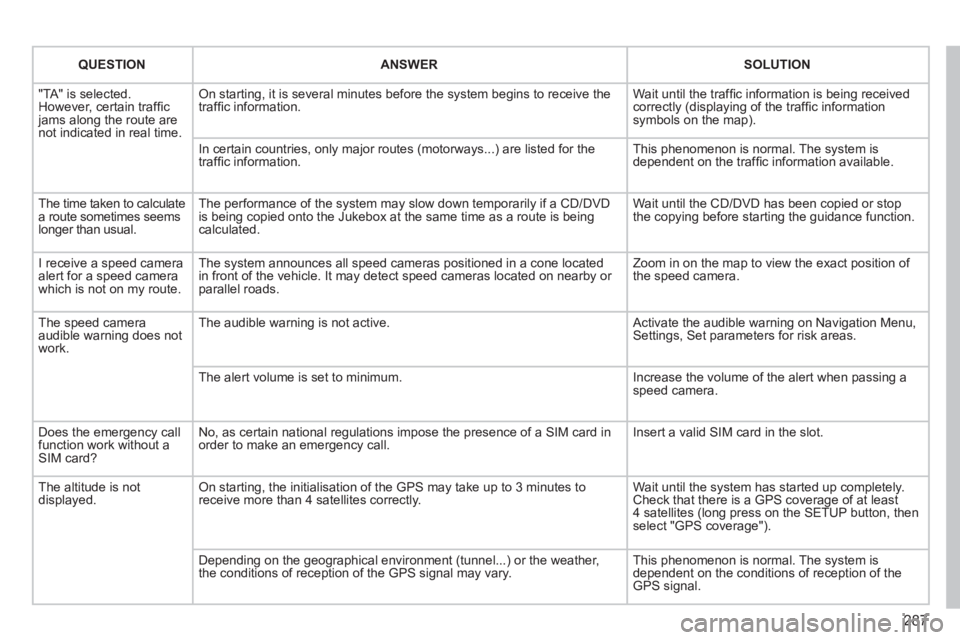
QUESTIONANSWERSOLUTION
"TA" is selected. However, certain traffi c jams along the route arenot indicated in real time.
On starting, it is several minutes before the system begins to receive thetraffi c information.
Wait until the traffi c information is being received correctly (displaying of the traffi c information symbols on the map).
In certain countries, only major routes (motorways...) are listed for thetraffi c information.
This phenomenon is normal. The system isdependent on the traffi c information available.
The time taken to calculate a route sometimes seems longer than usual.
The performance of the system may slow down temporarily if a CD/DVDis being copied onto the Jukebox at the same time as a route is being calculated.
Wait until the CD/DVD has been copied or stop the copying before starting the guidance function.
I receive a speed camera alert for a speed camera which is not on my route.
The system announces all speed cameras positioned in a cone located in front of the vehicle. It may detect speed cameras located on nearby or parallel roads.
Zoom in on the map to view the exact position of the speed camera.
The speed camera audible warning does not work.
The audible warning is not active. Activate the audible warning on Navigation Menu,Settings, Set parameters for risk areas.
The alert volume is set to minimum.
Increase the volume of the alert when passing aspeed camera.
Does the emergency call function work without a SIM card?
No, as certain national regulations impose the presence of a SIM card inorder to make an emergency call.
Insert a valid SIM card in the slot.
The altitude is not displayed. On starting, the initialisation of the GPS may take up to 3 minutes toreceive more than 4 satellites correctly.
Wait until the system has started up completely. Check that there is a GPS coverage of at least4 satellites (long press on the SETUP button, then select "GPS coverage").
Depending on the geographical environment (tunnel...) or the weather, the conditions of reception of the GPS signal may vary.
This phenomenon is normal. The system isdependent on the conditions of reception of the GPS signal.
Page 290 of 382
288
QUESTIONANSWERSOLUTION
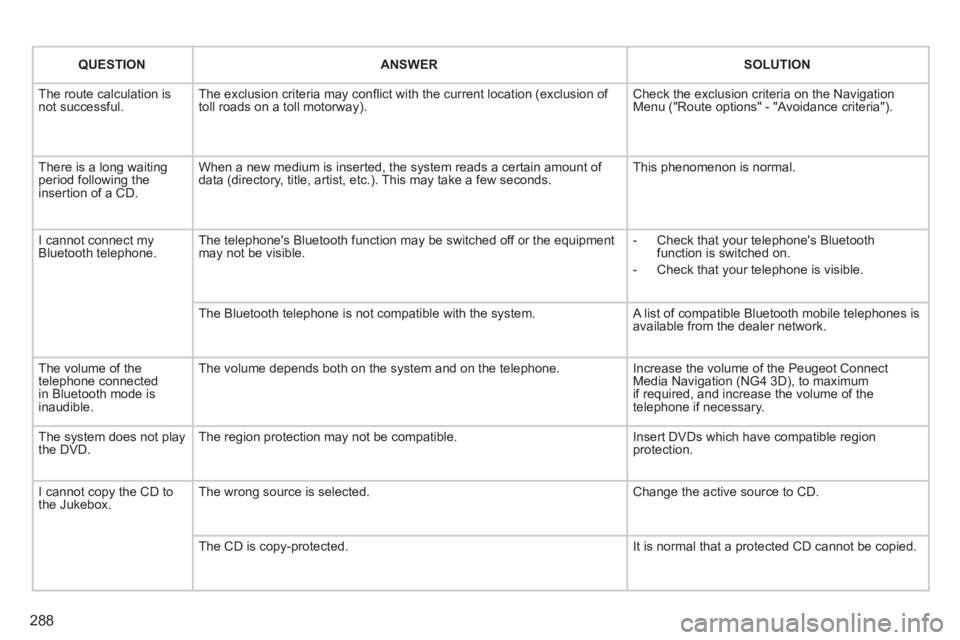
The route calculation is not successful. The exclusion criteria may confl ict with the current location (exclusion of toll roads on a toll motorway). Check the exclusion criteria on the NavigationMenu ("Route options" - "Avoidance criteria").
There is a long waiting period following theinsertion of a CD.
When a new medium is inserted, the system reads a certain amount of data (directory, title, artist, etc.). This may take a few seconds. This phenomenon is normal.
I cannot connect myBluetooth telephone.The telephone's Bluetooth function may be switched off or the equipmentmay not be visible.
- Check that your telephone's Bluetoothfunction is switched on.
- Check that your telephone is visible.
The Bluetooth telephone is not compatible with the system. A list of compatible Bluetooth mobile telephones is available from the dealer network.
The volume of thetelephone connectedin Bluetooth mode isinaudible.
The volume depends both on the system and on the telephone.
Increase the volume of the Peugeot Connect Media Navigation (NG4 3D), to maximumif required, and increase the volume of thetelephone if necessary.
The system does not play the DVD. The region protection may not be compatible. Insert DVDs which have compatible region protection.
I cannot copy the CD tothe Jukebox. The wrong source is selected.
Change the active source to CD.
The CD is copy-protected.
It is normal that a protected CD cannot be copied.
Page 291 of 382
289
QUESTIONANSWERSOLUTION
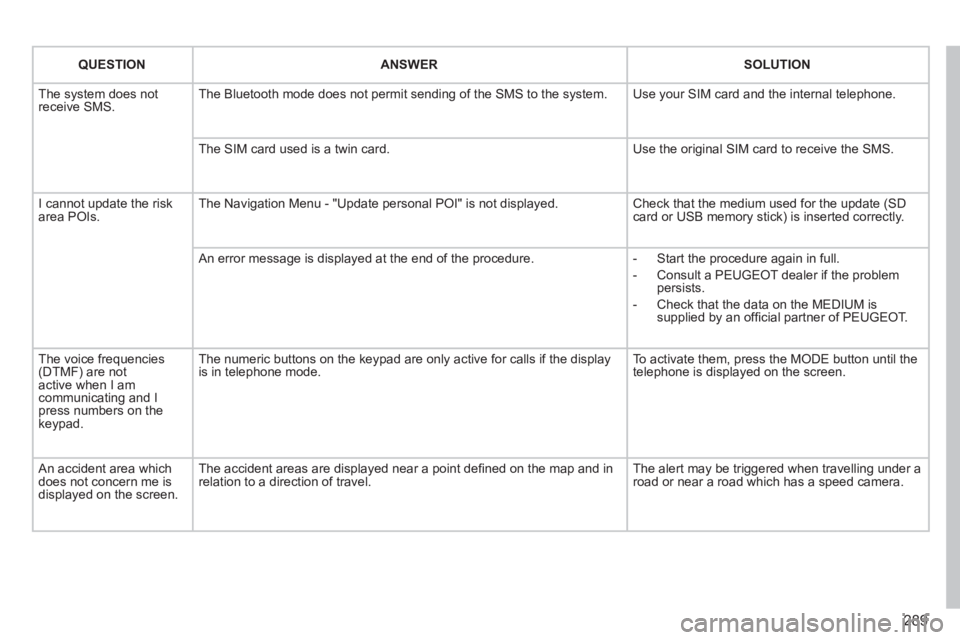
The system does notreceive SMS. The Bluetooth mode does not permit sending of the SMS to the system.
Use your SIM card and the internal telephone.
The SIM card used is a twin card.
Use the original SIM card to receive the SMS.
I cannot update the risk area POIs. The Navigation Menu - "Update personal POI" is not displayed. Check that the medium used for the update (SDcard or USB memory stick) is inserted correctly.
An error message is displayed at the end of the procedure.
- Start the procedure again in full.
- Consult a PEUGEOT dealer if the problempersists.
- Check that the data on the MEDIUM issupplied by an offi cial partner of PEUGEOT.
The voice frequencies(DTMF) are not active when I am communicating and I press numbers on thekeypad.
The numeric buttons on the keypad are only active for calls if the display is in telephone mode.
To activate them, press the MODE button until the telephone is displayed on the screen.
An accident area which does not concern me isdisplayed on the screen.
The accident areas are displayed near a point defi ned on the map and inrelation to a direction of travel.
The alert may be triggered when travelling under a road or near a road which has a speed camera.
Page 293 of 382
291
The system is protected in such a way that it will onlyoperate in your vehicle.
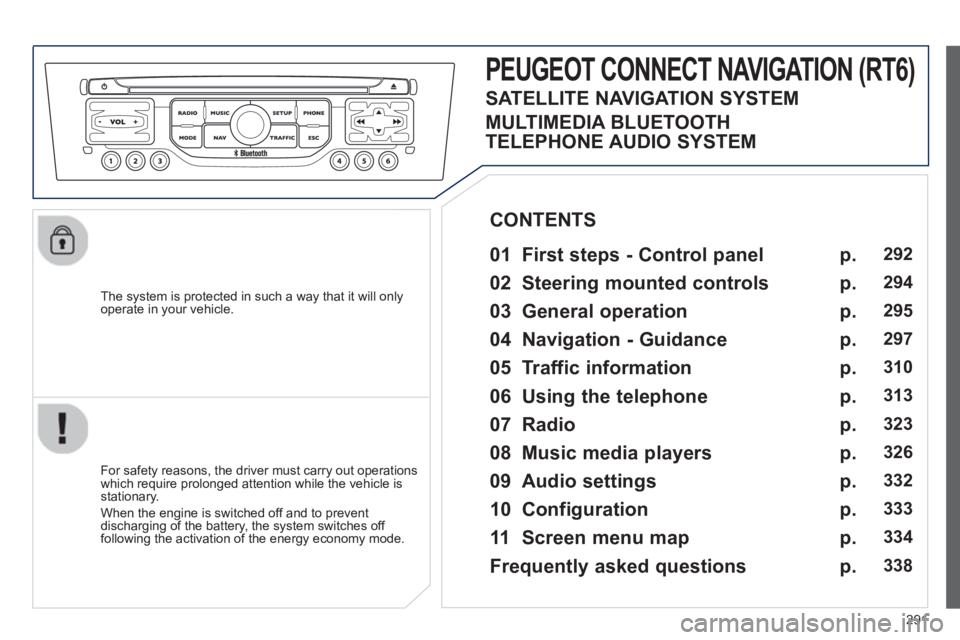
PEUGEOT CONNECT NAVIGATION (RT6)
01 First steps - Control panel
For safety reasons, the driver must carry out operations
which require prolonged attention while the vehicle is stationary.
When the en
gine is switched off and to prevent
discharging of the battery, the system switches off following the activation of the energy economy mode.
CONTENTS
02 Steerin
g mounted controls
03 General o
peration
04 Navi
gation - Guidance
05 Traffic information
06 Usin
g the telephone
07 Radio
08 Music media pla
yers
09 Audio settin
gs
10 Confi
guration
11 Screen menu ma
p
Frequentl
y asked questions
p.
p.
p.
p.
p.
p.
p.
p.
p.
p.
p.
p.
292
294
295
297
3
10
3
13
323
326
332
333
334
338
SATELLITE NAVIGATION SYSTEM
MULTIMEDIA BLUETOOTH
TELEPHONE AUDIO SYSTEM
Page 295 of 382
293
01
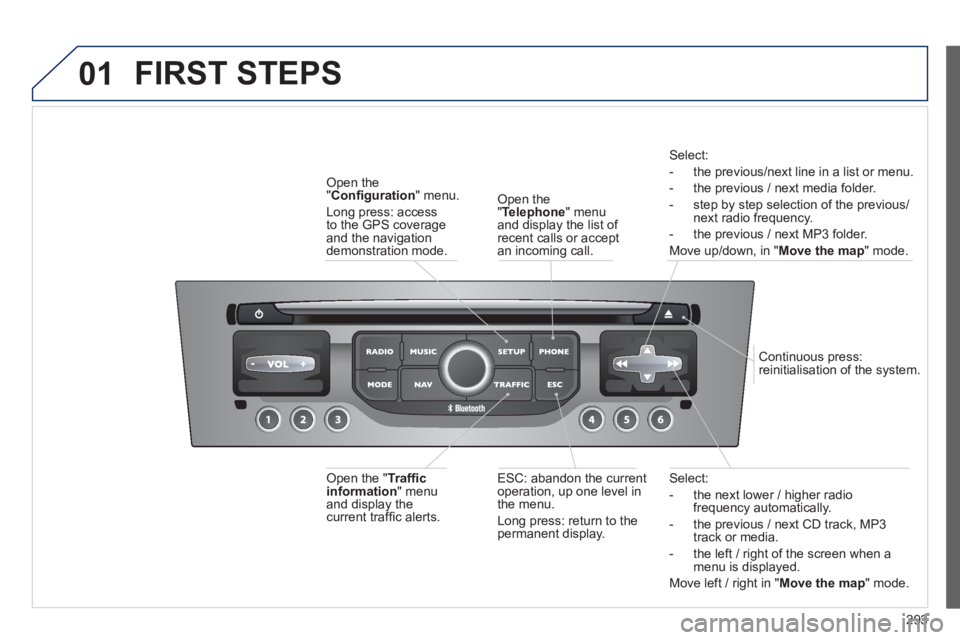
Select:
- the next lower / hi
gher radiofrequency automatically.
- the previous
/ next CD track, MP3
track or media.
- the le
ft / right of the screen when a menu is displayed.
Move left / ri
ght in "Move the map
" mode.
E
SC: abandon the current
operation, up one level in
t
he menu.
Long press: return to the permanent display.
Continuous
press:
reinitialisation of the system.
Open the" Telephone" menu
and display the list of recent calls or accept
an incoming call.
Open the
"Confi guration
" menu.
Lon
g press: access
to the GPS coverageand the navigation demonstration mode.
Open the "Traffi c information " menuand display thecurrent traffi c alerts.
Select:
- the previous
/next line in a list or menu.
- the previous
/ next media folder.
- step b
y step selection of the previous/next radio frequency.
- the previous / next MP3 folder.
Move up/down, in "
Move the map " mode.
FIRST STEPS
Page 301 of 382
299
04
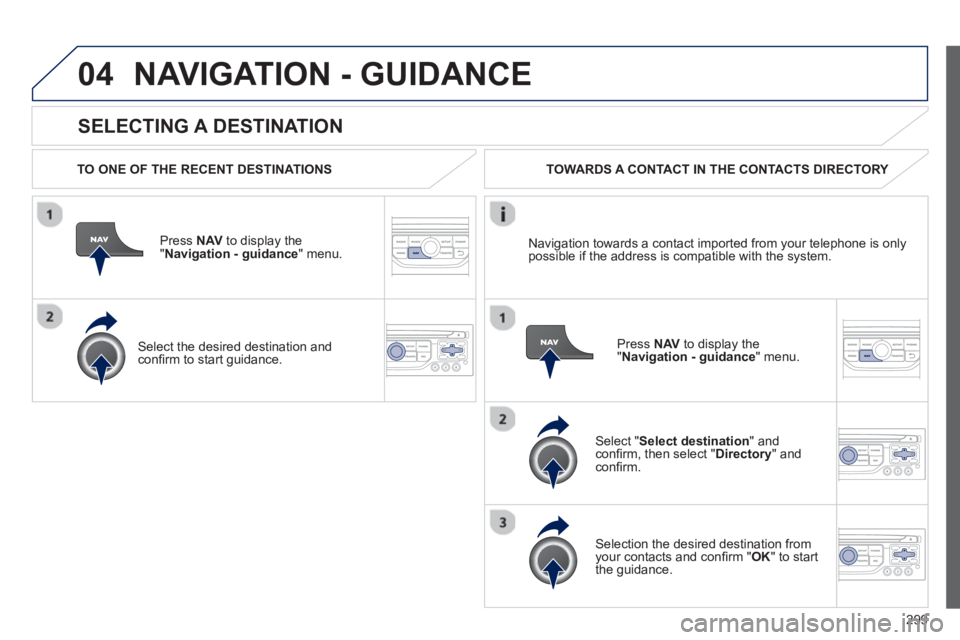
SELECTING A DESTINATION
NAVIGATION - GUIDANCE
TO ONE OF THE RECENT DESTINATIONS
Press NAV
to display the"Navigation - guidance" menu.
Select the desired destination and confi rm to start guidance. TOWARDS A CONTACT IN THE CONTACTS DIRECTORY
Select " Select destination" andconfi rm, then select " Directory " and confi rm.
Selection the desired destination from your contacts and confi rm "OK
" to start
the guidance.
Pr
ess NAVto display the"Navigation - guidance
" menu. Navi
gation towards a contact imported from your telephone is only
possible if the address is compatible with the system.
Page 305 of 382
303
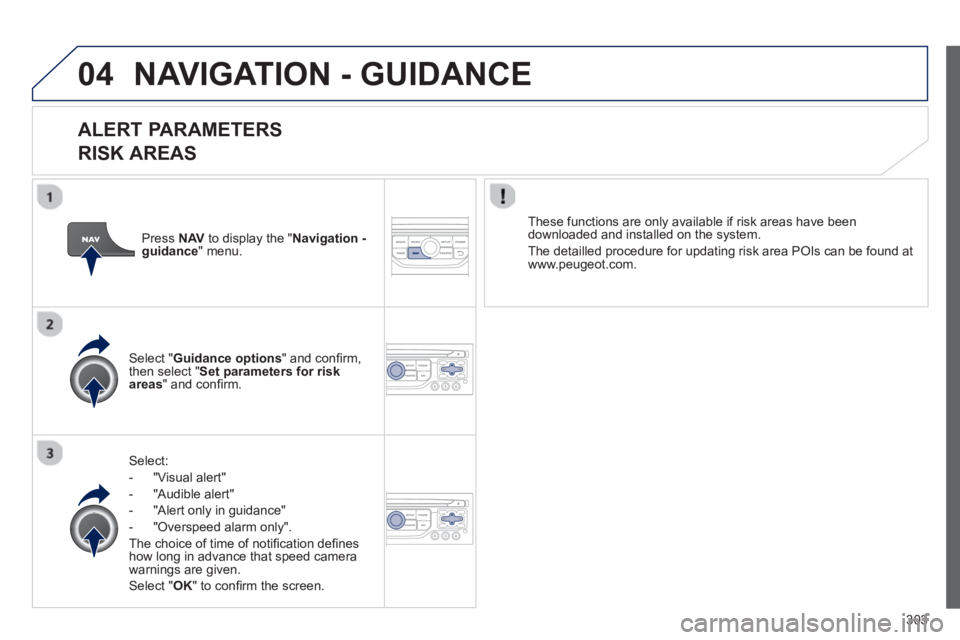
04NAVIGATION - GUIDANCE
ALERT PARAMETERS
RISK AREAS
Select:
- "Vi
sual alert"
- "A
udible alert"
-
"Alert only in guidance"
- "
Overspeed alarm only".
Th
e choice of time of notifi cation defi nes how long in advance that speed camera
warnings are given.
Select " OK
" to confi rm the screen.
Select " Guidance options
" and confi rm,
then select "Set parameters for riskareas
" and confi rm.
These
functions are only available if risk areas have been
downloaded and installed on the system.
The detailled procedure for updatin
g risk area POIs can be found at
www.peugeot.com.
Press NAVto display the " Navigation - guidance" menu.