language PEUGEOT 4007 2007 User Guide
[x] Cancel search | Manufacturer: PEUGEOT, Model Year: 2007, Model line: 4007, Model: PEUGEOT 4007 2007Pages: 221, PDF Size: 13.99 MB
Page 170 of 221
11
i
i
i
AUDIO EQUIPMENT and TELEMATICS
CD PLAYER CD PLAYER
Selecting CD mode If the player already con-
tains a disc, press the "CD"
button.
"CD", the track number and
the playing time appear on the display.
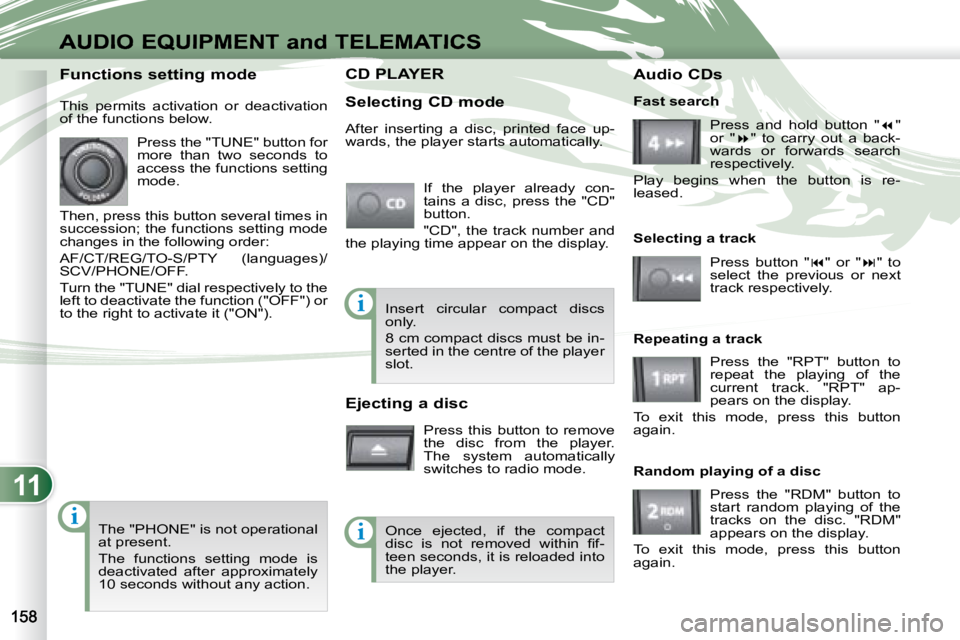
Functions setting mode
This permits activation or deactivation
of the functions below.
Press the "TUNE" button for
more than two seconds to
access the functions setting
mode.
Then, press this button several times in
succession; the functions setting mode
changes in the following order:
AF/CT/REG/TO-S/PTY (languages)/
SCV/PHONE/OFF.
Turn the "TUNE" dial respectively to the
left to deactivate the function ("OFF") or
to the right to activate it ("ON").
The "PHONE" is not operational
at present.
The functions setting mode is
deactivated after approximately
10 seconds without any action. After inserting a disc, printed face up-
wards, the player starts automatically.
Ejecting a disc
Press this button to remove
the disc from the player.
The system automatically
switches to radio mode. Fast search
Press and hold button " "
or " " to carry out a back-
wards or forwards search
respectively.
Play begins when the button is re-
leased.
Selecting a track
Press button " " or " " to
select the previous or next
track respectively.
Repeating a track Press the "RPT" button to
repeat the playing of the
current track. "RPT" ap-
pears on the display.
To exit this mode, press this button
again.
Random playing of a disc
Press the "RDM" button to
start random playing of the
tracks on the disc. "RDM"
appears on the display.
To exit this mode, press this button
again.
Insert circular compact discs
only.
8 cm compact discs must be in-
serted in the centre of the player
slot.
Once ejected, if the compact
disc is not removed within fi f-
teen seconds, it is reloaded into
the player. Audio CDs
Page 179 of 221
11
EQUIPMENT and TELEMA
DESCRIPTION OF THE CONTROLS - MENUS DESCRIPTION OF THE CONTROLS - MENUS
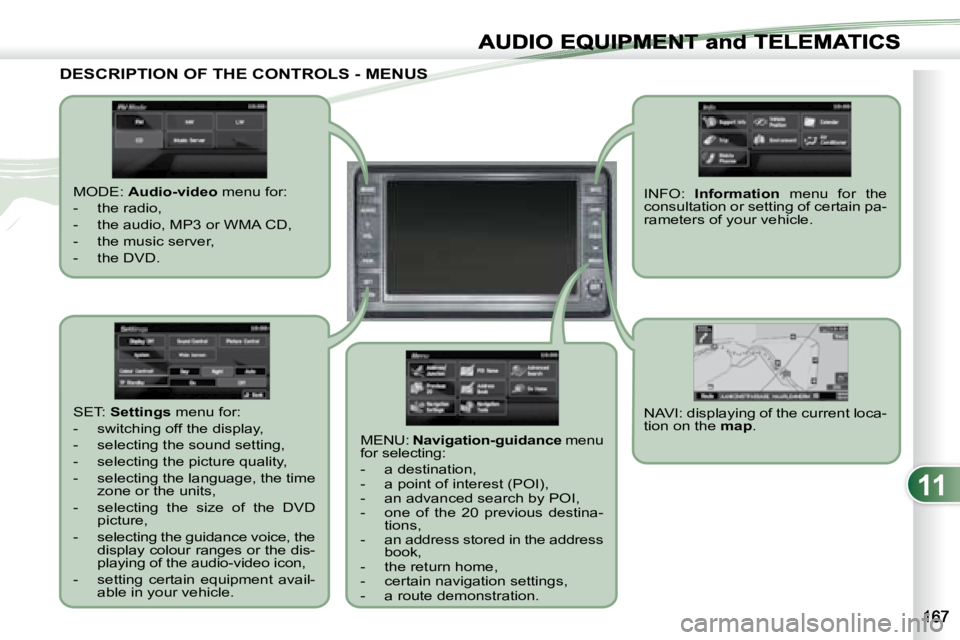
MODE: Audio-video menu for:
- the radio,
- the audio, MP3 or WMA CD,
- the music server,
- the DVD.
MENU: Navigation-guidance menu
for selecting:
- a destination,
- a point of interest (POI),
- an advanced search by POI,
- one of the 20 previous destina- tions,
- an address stored in the address book,
- the return home,
- certain navigation settings,
- a route demonstration. NAVI: displaying of the current loca-
tion on the
map .
SET:
Settings menu for:
- switching off the display,
- selecting the sound setting,
- selecting the picture quality,
- selecting the language, the time zone or the units,
- selecting the size of the DVD picture,
- selecting the guidance voice, the display colour ranges or the dis-
playing of the audio-video icon,
- setting certain equipment avail- able in your vehicle. INFO:
Information menu for the
consultation or setting of certain pa-
rameters of your vehicle.
Page 206 of 221
11
ABCDE
FGHIJ
KLM
RQPON
AUDIO EQUIPMENT and TELEMATICS
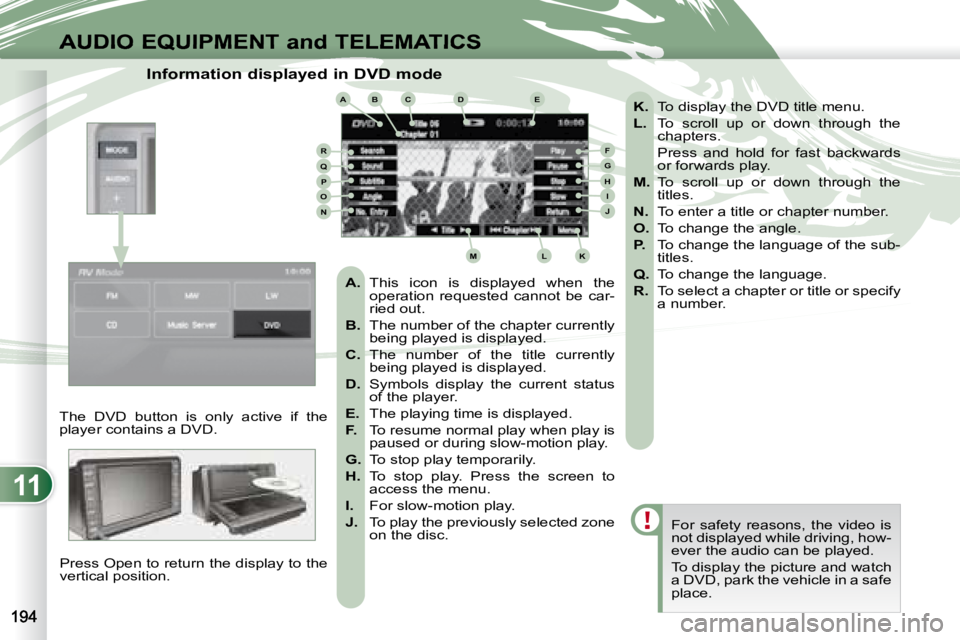
Information displayed in DVD mode
The DVD button is only active if the
player contains a DVD. Press Open to return the display to the
vertical position. For safety reasons, the video is
not displayed while driving, how-
ever the audio can be played.
To display the picture and watch
a DVD, park the vehicle in a safe
place.
K. To display the DVD title menu.
L. To scroll up or down through the
chapters.
Press and hold for fast backwards or forwards play.
M. To scroll up or down through the
titles.
N. To enter a title or chapter number.
O. To change the angle.
P. To change the language of the sub-
titles.
Q. To change the language.
R. To select a chapter or title or specify
a number.
A. This icon is displayed when the
operation requested cannot be car-
ried out.
B. The number of the chapter currently
being played is displayed.
C. The number of the title currently
being played is displayed.
D. Symbols display the current status
of the player.
E. The playing time is displayed.
F. To resume normal play when play is
paused or during slow-motion play.
G. To stop play temporarily.
H. To stop play. Press the screen to
access the menu.
I. For slow-motion play.
J. To play the previously selected zone
on the disc.
Page 209 of 221

11
DE
E1E2E3E4
D1D2
D3D4
AUDIO EQUIPMENT and TELEMATICSEQUIPMENT and TELEMA
Time and date, language, unit,
picture size E -
Choose the size of the DVD picture for:
E1 - normal 4/3, E2 - extends the picture evenly to the right
and to the left in wide screen mode,
E3 - extends the right and left parts only leaving
the centre as it stands in wide screen mode,
E4 - enlarges the picture in 4/3 format. The top
and the bottom are outside the frame.
D - Choose the base settings of the sys- tem for:
D1 - setting of the time by the RDS signal, time zone, summer time,
D2 - the language (English, Français, Deutsch, Nederlands, Portuguese,
Español, Svenska, Italiano, Dansk),
D3 - the units for calculation of the dis- tances (km or miles and °C or °F),
D4 - other settings such as:
- the voice guidance volume,
- the type of voice guidance voice (female or male),
- the volume of the operation bleeps (1 to 3 and 0=no bleep),
- the type of inputting keypad (alpha- bet or PC),
- the range of menu colours (red or blue),
- the displaying or not of the audio playing icons on the map screen,
- the reinitialisation of the vehicle sensor,
- the interruption or not of the display when the air conditioning is used.
Page 214 of 221
11
AUDIO EQUIPMENT and TELEMATICS
HANDS-FREE TELEPHONE HANDS-FREE TELEPHONE
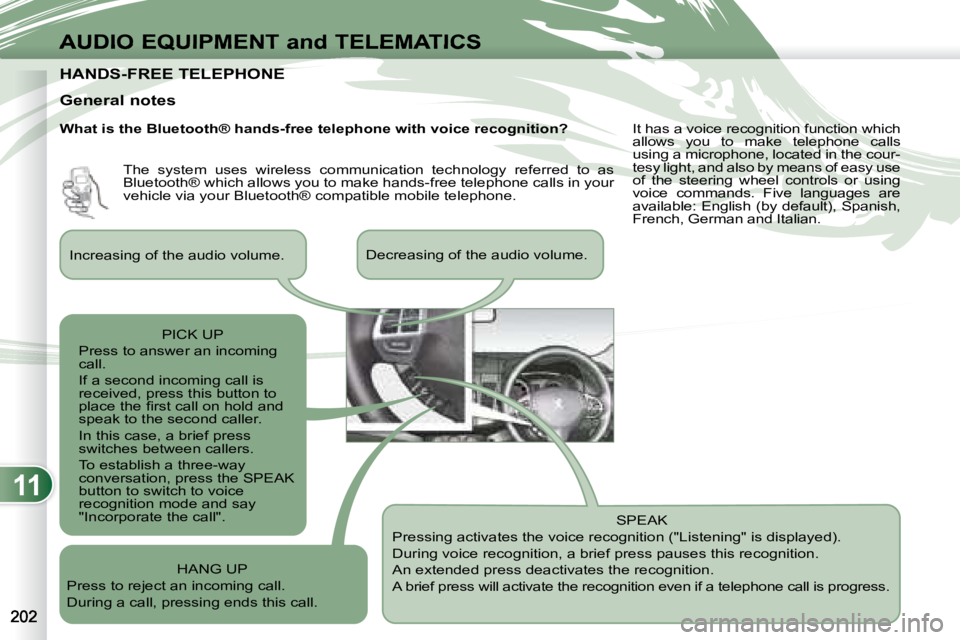
General notes SPEAK
Pressing activates the voice recognition ("Listening" is displayed).
During voice recognition, a brief press pauses this recognition.
An extended press deactivates the recognition.
A brief press will activate the recognition even i f a telephone call is progress.
Increasing of the audio volume.
Decreasing of the audio volume.
PICK UP
Press to answer an incoming
call.
If a second incoming call is
received, press this button to
place the fi rst call on hold and
speak to the second caller.
In this case, a brief press
switches between callers.
To establish a three-way
conversation, press the SPEAK
button to switch to voice
recognition mode and say
"Incorporate the call".
HANG UP
Press to reject an incoming call.
During a call, pressing ends this call. The system uses wireless communication technology referred to as
Bluetooth® which allows you to make hands-free telephone call
s in your
vehicle via your Bluetooth® compatible mobile telephone. It has a voice recognition function which
allows you to make telephone calls
using a microphone, located in the cour-
tesy light, and also by means of easy use
of the steering wheel controls or using
voice commands. Five languages are
available: English (by default), Spanish,
French, German and Italian.
What is the Bluetooth® hands-free telephone with voice re
cognition?
Page 215 of 221
11
i
AUDIO EQUIPMENT and TELEMATICSEQUIPMENT and TELEMA
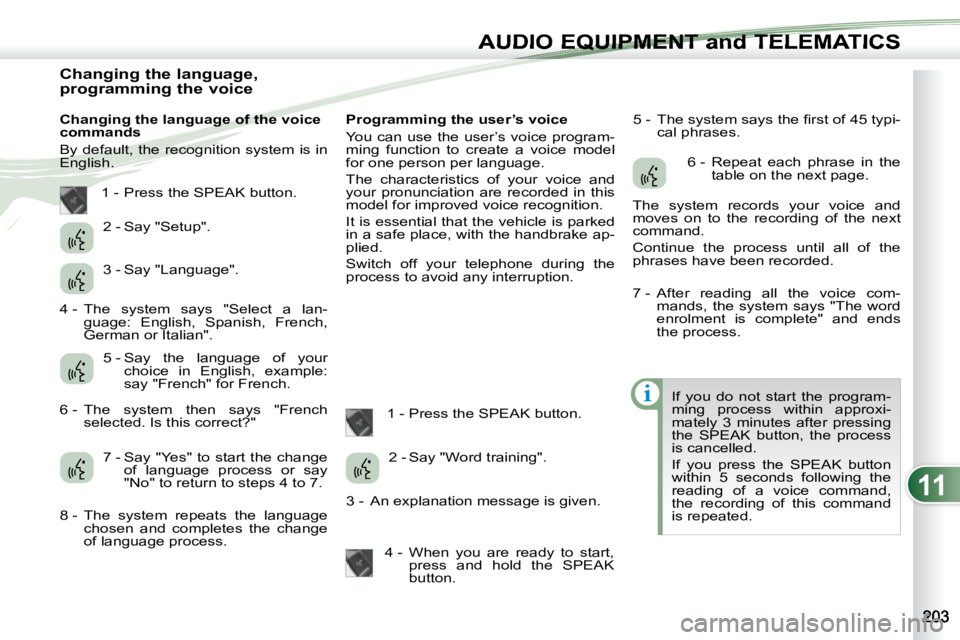
Changing the language,
programming the voice
Changing the language of the voice
commands
By default, the recognition system is in
English. Programming the user’s voice
You can use the user’s voice program-
ming function to create a voice model
for one person per language.
The characteristics of your voice and
your pronunciation are recorded in this
model for improved voice recognition.
It is essential that the vehicle is parked
in a safe place, with the handbrake ap-
plied.
Switch off your telephone during the
process to avoid any interruption.
1 - Press the SPEAK button. 5 - The system says the fi rst of 45 typi-
cal phrases.
If you do not start the program-
ming process within approxi-
mately 3 minutes after pressing
the SPEAK button, the process
is cancelled.
If you press the SPEAK button
within 5 seconds following the
reading of a voice command,
the recording of this command
is repeated.
1 - Press the SPEAK button.
2 - Say "Setup".
3 - Say "Language".
4 - The system says "Select a lan- guage: English, Spanish, French,
German or Italian".
5 - Say the language of your choice in English, example:
say "French" for French.
6 - The system then says "French selected. Is this correct?"
7 - Say "Yes" to start the change of language process or say
"No" to return to steps 4 to 7.
8 - The system repeats the language chosen and completes the change
of language process. 2 - Say "Word training".
3 - An explanation message is given.
4 - When you are ready to start, press and hold the SPEAK
button. 6 - Repeat each phrase in the
table on the next page.
The system records your voice and
moves on to the recording of the next
command.
Continue the process until all of the
phrases have been recorded.
7 - After reading all the voice com- mands, the system says "The word
enrolment is complete" and ends
the process.
Page 218 of 221
11
i
AUDIO EQUIPMENT and TELEMATICS
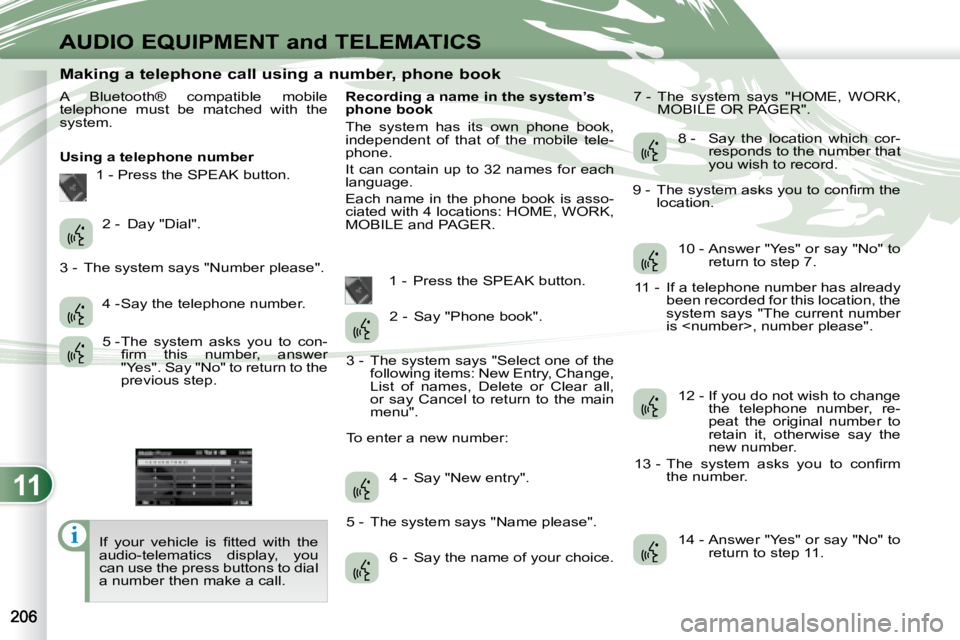
Making a telephone call using a number, phone book
A Bluetooth® compatible mobile
telephone must be matched with the
system.
Using a telephone number 1 - Press the SPEAK button.
If your vehicle is fi tted with the
audio-telematics display, you
can use the press buttons to dial
a number then make a call. Recording a name in the system’s
phone book
The system has its own phone book,
independent of that of the mobile tele-
phone.
It can contain up to 32 names for each
language.
Each name in the phone book is asso-
ciated with 4 locations: HOME, WORK,
MOBILE and PAGER.
1 - Press the SPEAK button. 7 - The system says "HOME, WORK,
MOBILE OR PAGER".
2 - Day "Dial".
3 - The system says "Number please". 4 - Say the telephone number.
5 - The system asks you to con-fi rm this number, answer
"Yes". Say "No" to return to the
previous step. 2 - Say "Phone book".
3 - The system says "Select one of the following items: New Entry, Change,
List of names, Delete or Clear all,
or say Cancel to return to the main
menu".
To enter a new number:
4 - Say "New entry".
5 - The system says "Name please". 6 - Say the name of your choice. 8 - Say the location which cor-
responds to the number that
you wish to record.
9 - The system asks you to confi rm the location.
10 - Answer "Yes" or say "No" to return to step 7.
11 - If a telephone number has already been recorded for this location, the
system says "The current number
is
12 - If you do not wish to change the telephone number, re-
peat the original number to
retain it, otherwise say the
new number.
13 - The system asks you to confi rm the number.
14 - Answer "Yes" or say "No" to return to step 11.
Page 220 of 221
11
i
AUDIO EQUIPMENT and TELEMATICS
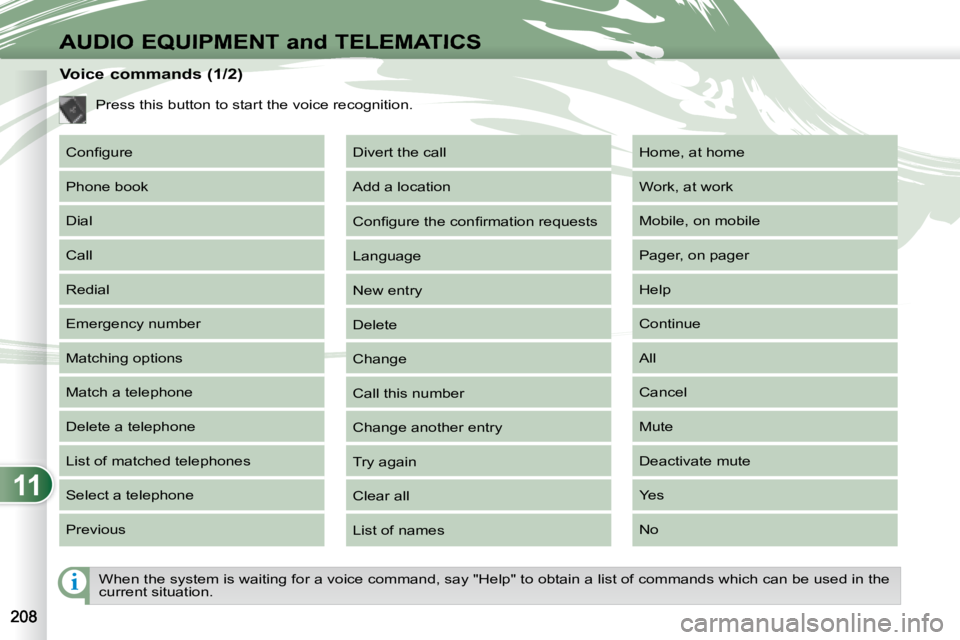
When the system is waiting for a voice command, say "Help" to obtain a list of commands which can be used in the
current situation.
Voice commands (1/2)
Press this button to start the voice recognition.
Confi gure
Phone book
Dial
Call
Redial
Emergency number
Matching options
Match a telephone
Delete a telephone
List of matched telephones
Select a telephone
Previous Divert the call
Add a location
Confi gure the confi rmation requests
Language
New entry
Delete
Change
Call this number
Change another entry
Try again
Clear all
List of names Home, at home
Work, at work
Mobile, on mobile
Pager, on pager
Help
Continue
All
Cancel
Mute
Deactivate mute
Yes
No