navigation PEUGEOT 4007 2008 User Guide
[x] Cancel search | Manufacturer: PEUGEOT, Model Year: 2008, Model line: 4007, Model: PEUGEOT 4007 2008Pages: 226, PDF Size: 13.63 MB
Page 186 of 226
11
K1K2K3
K4K5
K
H
E
F
BCA
D
G
I
J
AUDIO EQUIPMENT and TELEMATICS
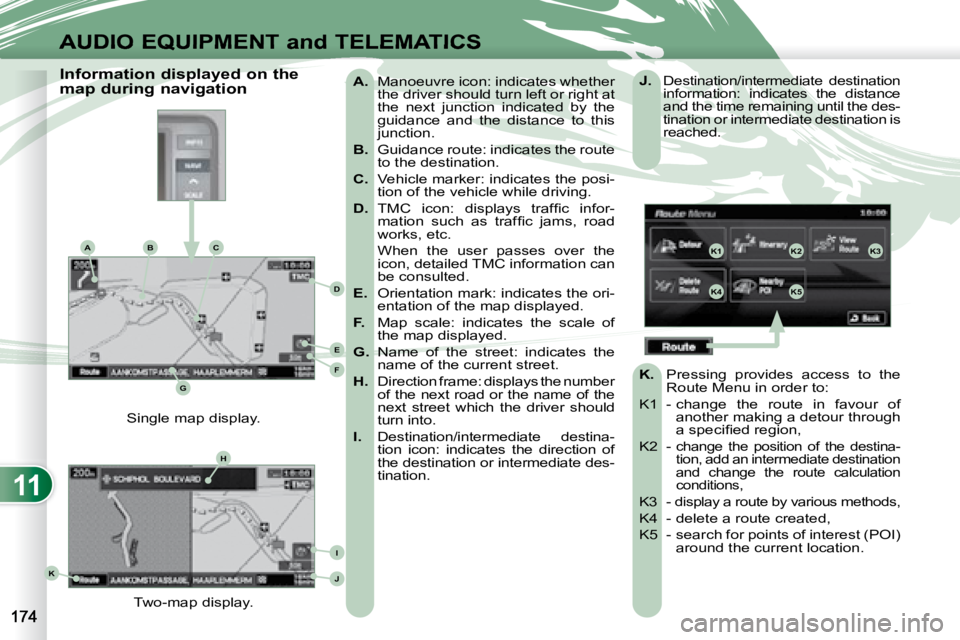
A. Manoeuvre icon: indicates whether
the driver should turn left or right at
the next junction indicated by the
guidance and the distance to this
junction.
B. Guidance route: indicates the route
to the destination.
C. Vehicle marker: indicates the posi-
tion of the vehicle while driving.
D. TMC icon: displays traffi c infor-
mation such as traffi c jams, road
works, etc.
When the user passes over the icon, detailed TMC information can
be consulted.
E. Orientation mark: indicates the ori-
entation of the map displayed.
F. Map scale: indicates the scale of
the map displayed.
G. Name of the street: indicates the
name of the current street.
H. Direction frame: displays the number
of the next road or the name of the
next street which the driver should
turn into.
I. Destination/intermediate destina-
tion icon: indicates the direction of
the destination or intermediate des-
tination.
Two-map display.
Single map display.
Information displayed on the
map during navigation
J. Destination/intermediate destination
information: indicates the distance
and the time remaining until the des-
tination or intermediate destination is
reached.
K. Pressing provides access to the
Route Menu in order to:
K1 - change the route in favour of another making a detour through
a specifi ed region,
K2 -
change the position of the destina-
tion, add an intermediate destination
and change the route calculation
conditions,
K3 - display a route by various methods,
K4 - delete a route created,
K5 - search for points of interest (POI) around the current location.
Page 189 of 226
11
GH
G1G2G3
G4G5
H1H2
H3H4
AUDIO EQUIPMENT and TELEMATICS
Navigation settings and
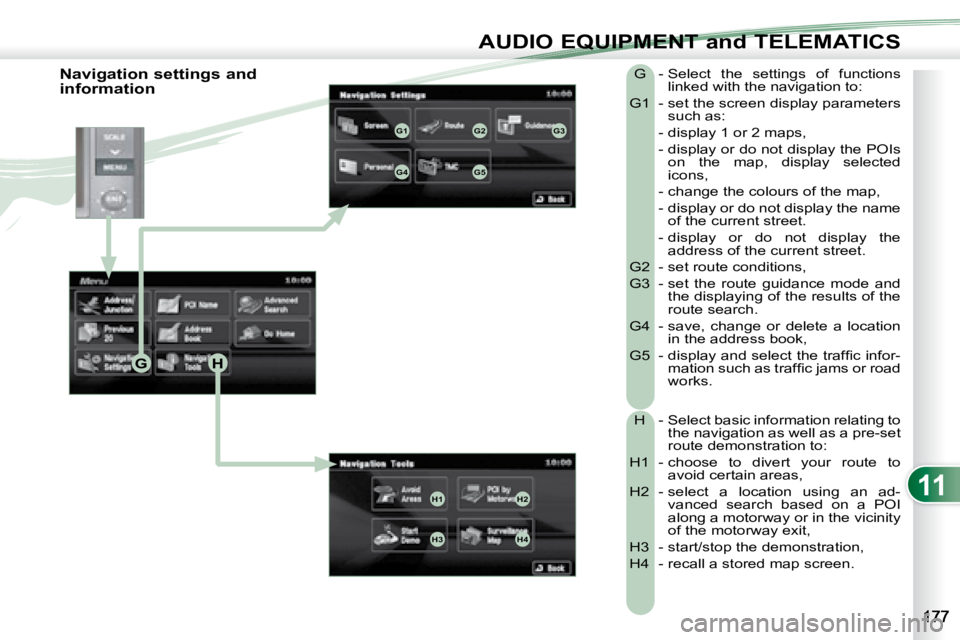
information G - Select the settings of functions
linked with the navigation to:
G1 - set the screen display parameters such as:
- display 1 or 2 maps,
- display or do not display the POIs on the map, display selected
icons,
- change the colours of the map,
- display or do not display the name of the current street.
- display or do not display the address of the current street.
G2 - set route conditions,
G3 - set the route guidance mode and the displaying of the results of the
route search.
G4 - save, change or delete a location in the address book,
G5 - display and select the traffi c infor- mation such as traffi c jams or road
works.
H - Select basic information relating to the navigation as well as a pre-set
route demonstration to:
H1 - choose to divert your route to avoid certain areas,
H2 - select a location using an ad- vanced search based on a POI
along a motorway or in the vicinity
of the motorway exit,
H3 - start/stop the demonstration,
H4 - recall a stored map screen.
Page 190 of 226
11
AUDIO EQUIPMENT and TELEMATICS
Selecting points of interest
(POI) icons displayed on the
map
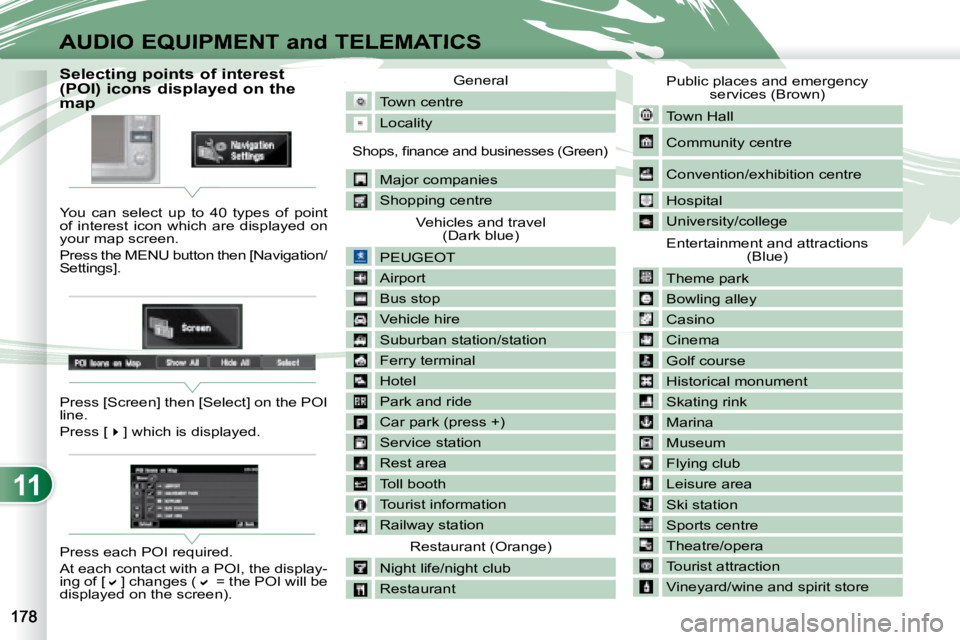
You can select up to 40 types of point
of interest icon which are displayed on
your map screen.
Press the MENU button then [Navigation/
Settings].
Press [Screen] then [Select] on the POI
line.
Press [] which is displayed.
Press each POI required.
At each contact with a POI, the display-
ing of [ ] changes ( = the POI will be
displayed on the screen). General
Town centre
Locality
Shops, fi nance and businesses (Green)
Major companies
Shopping centre Vehicles and travel (Dark blue)
PEUGEOT
Airport
Bus stop
Vehicle hire
Suburban station/station
Ferry terminal
Hotel
Park and ride
Car park (press +)
Service station
Rest area
Toll booth
Tourist information
Railway station Restaurant (Orange)
Night life/night club
Restaurant Public places and emergency
services (Brown)
Town Hall
Community centre
Convention/exhibition centre
Hospital
University/college
Entertainment and attractions (Blue)
Theme park
Bowling alley
Casino
Cinema
Golf course
Historical monument
Skating rink
Marina
Museum
Flying club
Leisure area
Ski station
Sports centre
Theatre/opera
Tourist attraction
Vineyard/wine and spirit store
Page 192 of 226
![PEUGEOT 4007 2008 User Guide 11
/
AUDIO EQUIPMENT and TELEMATICS
Entering an address and activating guidance (2/2) Press Explanations Result
Press [Street] and enter the name of a street using the touch keypad.
When a](/img/29/58328/w960_58328-191.png "PEUGEOT 4007 2008 User Guide 11
/
AUDIO EQUIPMENT and TELEMATICS
Entering an address and activating guidance (2/2) Press Explanations Result
Press [Street] and enter the name of a street using the touch keypad.
When a")
11
/
AUDIO EQUIPMENT and TELEMATICS
Entering an address and activating guidance (2/2) Press Explanations Result
Press [Street] and enter the name of a street using the touch keypad.
When a character of the name of the street is entered, if 5 streets or fewer
are recognised, you can select a street from a list which is displa yed or
press [List].
Press [House #] and enter the number of the house using the touch keypad.
You can enter the name of a junction instead of the numb er
of the street. Press [Junction] and select the name from a
list which is displayed.
This is what you obtain once all of the information has b een entered:
If you agree with the information press [Set], otherwise press one of the
buttons to correct.
Press [Start] to start the navigation.
Page 197 of 226
11
AUDIO EQUIPMENT and TELEMATICS
General notes on CDs
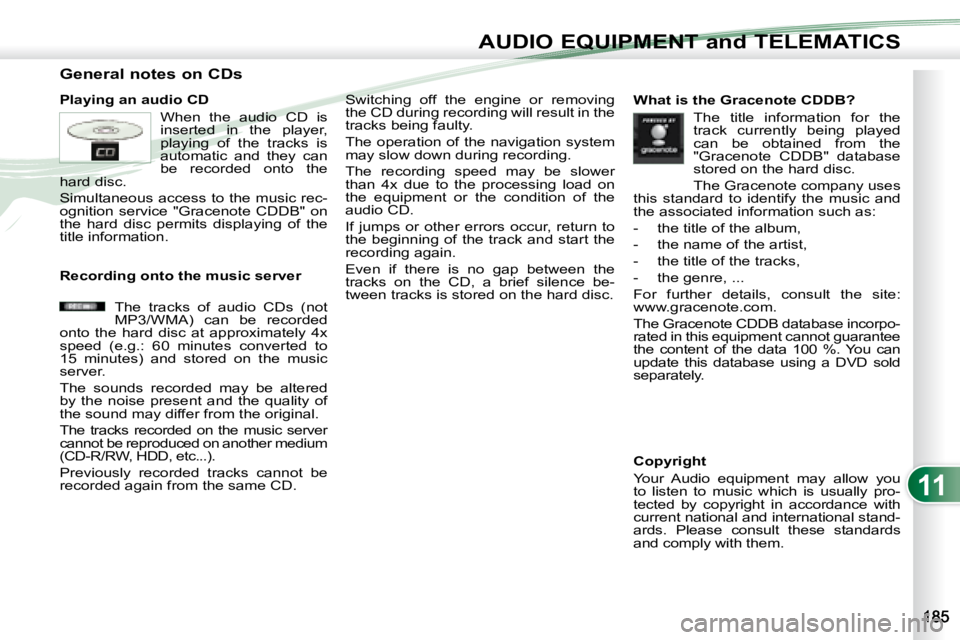
Playing an audio CD When the audio CD is
inserted in the player,
playing of the tracks is
automatic and they can
be recorded onto the
hard disc.
Simultaneous access to the music rec-
ognition service "Gracenote CDDB" on
the hard disc permits displaying of the
title information. Switching off the engine or removing
the CD during recording will result in the
tracks being faulty.
The operation of the navigation system
may slow down during recording.
The recording speed may be slower
than 4x due to the processing load on
the equipment or the condition of the
audio CD.
If jumps or other errors occur, return to
the beginning of the track and start the
recording again.
Even if there is no gap between the
tracks on the CD, a brief silence be-
tween tracks is stored on the hard disc. What is the Gracenote CDDB?
The title information for the
track currently being played
can be obtained from the
"Gracenote CDDB" database
stored on the hard disc.
The Gracenote company uses
this standard to identify the music and
the associated information such as:
- the title of the album,
- the name of the artist,
- the title of the tracks,
- the genre, ...
For further details, consult the site:
www.gracenote.com.
The Gracenote CDDB database incorpo-
rated in this equipment cannot guarantee
the content of the data 100 %. You can
update this database using a DVD sold
separately.
Copyright
Your Audio equipment may allow you
to listen to music which is usually pro-
tected by copyright in accordance with
current national and international stand-
ards. Please consult these standards
and comply with them.
Recording onto the music server
The tracks of audio CDs (not
MP3/WMA) can be recorded
onto the hard disc at approximately 4x
speed (e.g.: 60 minutes converted to
15 minutes) and stored on the music
server.
The sounds recorded may be altered
by the noise present and the quality of
the sound may differ from the original.
The tracks recorded on the music server
cannot be reproduced on another medium
(CD-R/RW, HDD, etc...).
Previously recorded tracks cannot be
recorded again from the same CD.